Generate concert ticket PDFs with QR codes using PDF Generator API

Workflow preview

Workflow preview
100%
Generate concert ticket PDFs with QR codes using PDF Generator API preview
Open on n8n.io

1. Workflow Overview

Generate personalized concert ticket PDFs with QR codes using PDF Generator API, then email them to attendees, log sales to Google Sheets, and notify organizers via Slack — all triggered from a sim...

Best for

  • Document Extraction automation workflows
  • intermediate n8n builders looking for reusable templates

Tools used

n8n-nodes-base.stickynote, n8n-nodes-base.formtrigger, n8n-nodes-base.code, @pdfgeneratorapi/n8n-nodes-pdf-generator-api.pdfgeneratorapi, n8n-nodes-base.gmail, n8n-nodes-base.googlesheets, n8n-nodes-base.slack

Source and attribution

This workflow is cataloged by N8N Workflows and links back to its original n8n.io source page by Marián Današ.

Original n8n.io source

1.1 Workflow description

Title
Generate concert ticket PDFs with QR codes using PDF Generator API
Workflow name
Generate concert ticket PDFs with QR codes using PDF Generator API

Generate personalized concert ticket PDFs with QR codes using PDF Generator API, then email them to attendees, log sales to Google Sheets, and notify organizers via Slack — all triggered from a simple web form.

Who is this for

Event organizers, ticketing teams, and developers who need an automated pipeline to issue branded PDF concert tickets with unique QR codes for venue entry — without building a custom backend.

How it works

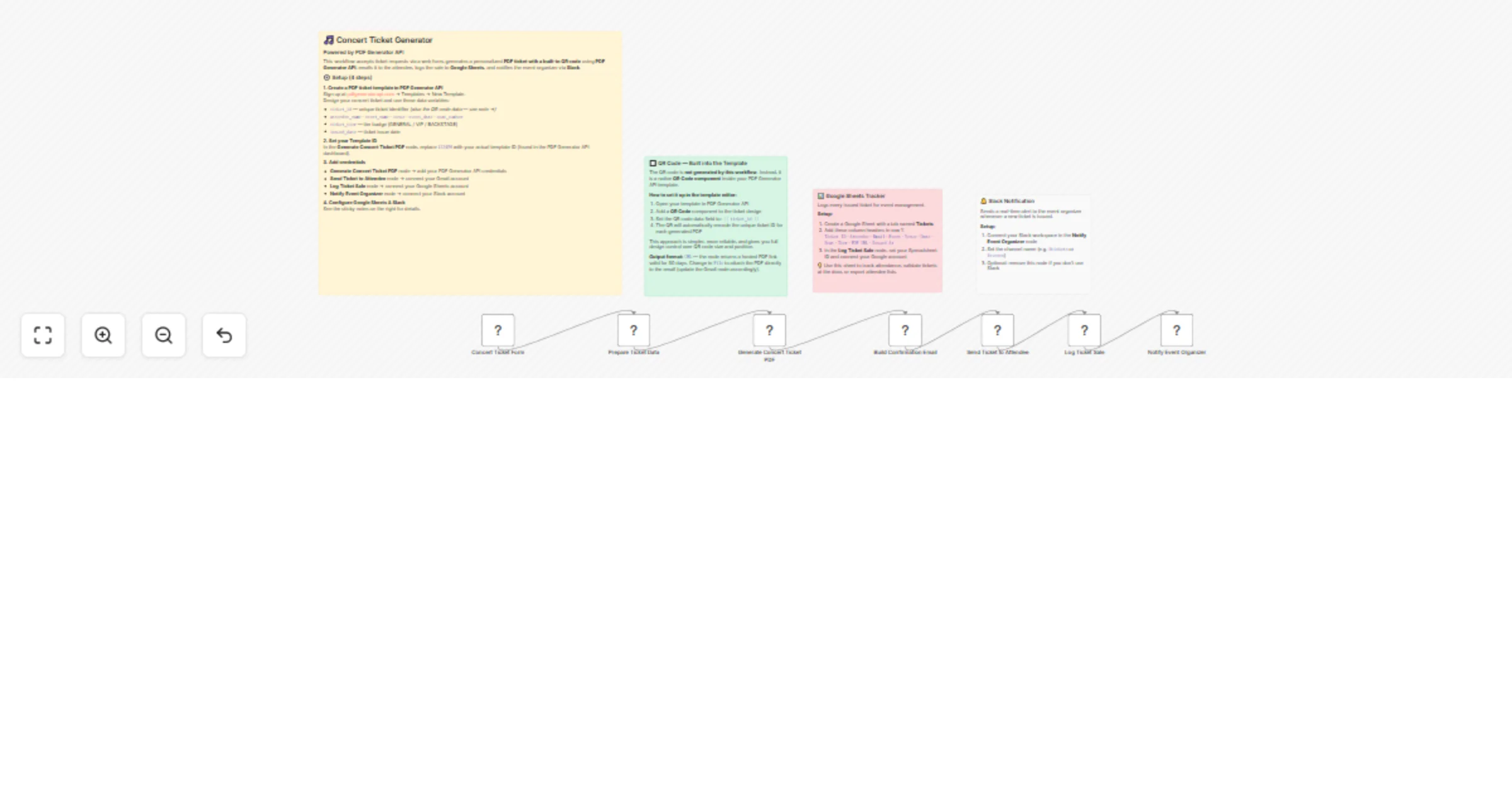
  1. An attendee fills out a web form with their name, email, event details, seat number, and ticket tier (General / VIP / Backstage).
  2. The workflow generates a unique ticket ID and prepares all data for the PDF template.
  3. PDF Generator API renders a personalized PDF ticket. The QR code is a native template component that encodes the ticket ID automatically.
  4. A styled HTML confirmation email with a download link is sent to the attendee via Gmail.
  5. The ticket details are logged to a Google Sheets spreadsheet for tracking and attendance management.
  6. A Slack notification alerts the event organizer with a summary of the newly issued ticket.

Set up

  1. PDF Generator API — Sign up at pdfgeneratorapi.com, create a ticket template with a QR Code component bound to {{ ticket_id }}, and note your template ID.
  2. Template ID — Open the "Prepare Ticket Data" Code node and replace the TEMPLATE_ID value with your own.
  3. Credentials — Connect your accounts in each node: PDF Generator API, Gmail, Google Sheets, and Slack.
  4. Google Sheets — Create a spreadsheet with columns: Ticket ID, Attendee, Email, Event, Venue, Date, Seat, Tier, PDF URL, Issued At. Set the spreadsheet ID in the "Log Ticket Sale" node.
  5. Slack — Choose a channel (e.g. #tickets) in the "Notify Event Organizer" node.

Requirements

  • PDF Generator API account (free trial available)
  • Gmail account (OAuth)
  • Google Sheets account (OAuth)
  • Slack workspace (optional — remove the last node if not needed)

How to customize

  • Output format — The PDF node returns a hosted URL by default (valid 30 days). Switch to File output to attach the PDF directly to the email instead.
  • Ticket tiers — Add or rename tiers in the form node and update the tier mapping logic in the "Prepare Ticket Data" Code node.
  • Email design — Edit the "Build Confirmation Email" Code node to match your brand colors and layout.
  • Remove Slack — Simply delete the "Notify Event Organizer" node if you don't need organizer alerts.
  • Add payment — Insert a Stripe or payment node before the form confirmation to handle paid tickets.

1.2 Logical Blocks

This catalog entry is organized from the workflow JSON. The node-level section below shows the executable blocks available for review before importing the template.

2. Block-by-Block Analysis

Block 1 - 📋 Setup Instructions

Type / Role
n8n-nodes-base.stickyNote - stickyNote
Config choices
Version 1

Block 2 - 🔲 QR Code & PDF Output

Type / Role
n8n-nodes-base.stickyNote - stickyNote
Config choices
Version 1

Block 3 - 📊 Google Sheets Setup

Type / Role
n8n-nodes-base.stickyNote - stickyNote
Config choices
Version 1

Block 4 - 🔔 Slack Setup

Type / Role
n8n-nodes-base.stickyNote - stickyNote
Config choices
Version 1

Block 5 - Concert Ticket Form

Type / Role
n8n-nodes-base.formTrigger - formTrigger
Config choices
Version 2.1

Block 6 - Prepare Ticket Data

Type / Role
n8n-nodes-base.code - code
Config choices
Version 2

Block 7 - Generate Concert Ticket PDF

Type / Role
@pdfgeneratorapi/n8n-nodes-pdf-generator-api.pdfGeneratorApi - pdfGeneratorApi
Config choices
Version 1

Block 8 - Build Confirmation Email

Type / Role
n8n-nodes-base.code - code
Config choices
Version 2

Block 9 - Send Ticket to Attendee

Type / Role
n8n-nodes-base.gmail - gmail
Config choices
Version 2.1

Block 10 - Log Ticket Sale

Type / Role
n8n-nodes-base.googleSheets - googleSheets
Config choices
Version 4.5

Block 11 - Notify Event Organizer

Type / Role
n8n-nodes-base.slack - slack
Config choices
Version 2.3

3. Summary Table

Workflow Generate concert ticket PDFs with QR codes using PDF Generator API
Complexity intermediate
Nodes 11
Categories Document Extraction
Author Marián Današ
Published 21 Mar 2026

4. Reproducing the Workflow from Scratch

  1. 1. Download the workflow JSON

    Use the JSON export at /data/workflows/14216/14216.json as the source template for this automation.

  2. 2. Import the template into n8n

    Open n8n, import the downloaded JSON, and review each node before activating the workflow.

  3. 3. Configure credentials and variables

    Replace placeholder credentials, API keys, webhook URLs, account IDs, and environment-specific values with your own settings.

  4. 4. Test with sample data

    Run the workflow manually or in a staging workspace, inspect node output, and confirm downstream systems receive the expected data.

  5. 5. Activate and monitor

    Enable the workflow only after testing, then monitor executions, errors, and rate limits during the first production runs.

5. General Notes & Resources

Review imported nodes carefully before activation. This catalog entry is intended to help you inspect the workflow structure, understand required services, and find related templates faster.

Node names, credentials, schedules, webhook paths, and external service limits may need adjustment for your workspace.

Frequently asked questions

What does Generate concert ticket PDFs with QR codes using PDF Generator API do?

Generate personalized concert ticket PDFs with QR codes using PDF Generator API, then email them to attendees, log sales to Google Sheets, and notify organizers via Slack — all triggered from a sim...

What do I need before importing this workflow?

Review the workflow JSON, configure any required credentials in n8n, and test the automation in a safe workspace before using it in production.

Can I customize this workflow?

Yes. Use the block-by-block analysis and the downloadable JSON to inspect each node, then adjust credentials, prompts, schedules, filters, or destinations for your Document Extraction use case.