Block 1 - Render Video
- Type / Role
- n8n-nodes-base.httpRequest - httpRequest
- Config choices
- Version 4.2


 Early Deal
This workflow is provided as-is. Please review and test before using in production.
Author: Jadai Kongolo Overview This comprehensive n8n workflow automates the entire production pipeline for creating viral "versus" style battle vi...
n8n-nodes-base.httprequest, n8n-nodes-base.googlesheets, @n8n/n8n-nodes-langchain.agent, @n8n/n8n-nodes-langchain.lmchatopenrouter, n8n-nodes-base.splitout, n8n-nodes-base.set, n8n-nodes-base.merge, @n8n/n8n-nodes-langchain.outputparserstructured
This workflow is cataloged by N8N Workflows and links back to its original n8n.io source page by Jadai kongolo.
Original n8n.io sourceAuthor: Jadai Kongolo
This comprehensive n8n workflow automates the entire production pipeline for creating viral "versus" style battle videos. The system generates dramatic AI-powered fight scenes between animals (or any characters you choose), complete with photorealistic imagery, cinematic effects, and automatic multi-platform publishing. Perfect for content creators looking to generate engaging short-form content at scale without manual editing or design work.
Viral Social Media Content: Automatically produce trending "X vs Y" battle videos that perform exceptionally well on TikTok, Instagram Reels, and YouTube Shorts. These comparison-style videos consistently generate high engagement and shares.
Educational Entertainment: Create visually stunning educational content comparing animals, historical figures, sports teams, or any competitive matchups while maintaining viewer interest through dramatic AI-generated imagery.
Automated Content Pipeline: Build a hands-free content factory that can produce multiple videos per day on schedule, complete with automatic posting to all major social platforms through integrated social media management tools.
👉 check out the UGC version of this here
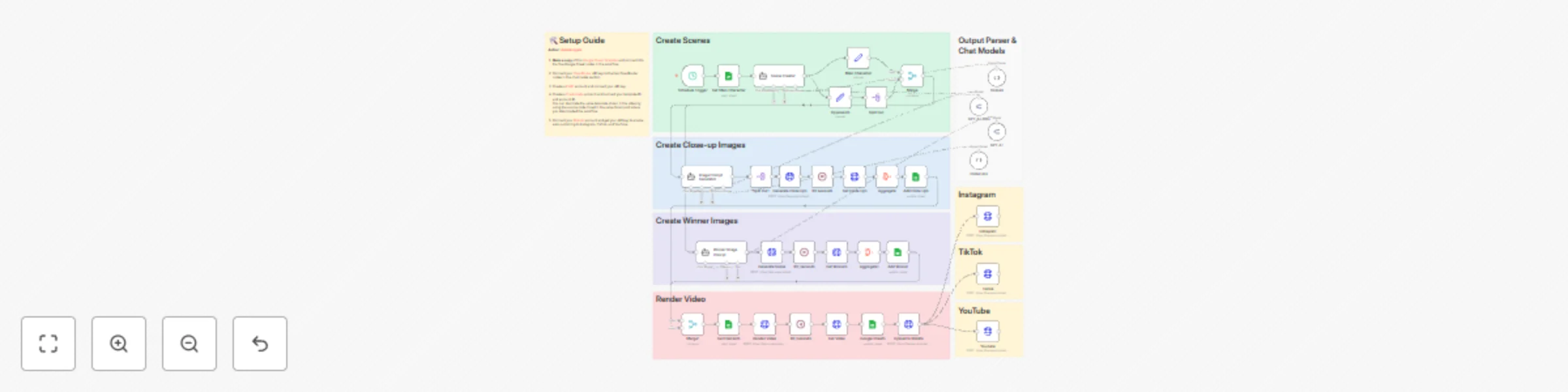
The workflow begins by fetching a main character from your Google Sheets database (filtered by "To Do" status). An AI agent powered by GPT-4.1-mini then generates eight unique opponents from your specified category, ensuring each comes from a different environment or background for maximum variety and interest.
The system creates three distinct types of images for each matchup:
Close-Up Portraits: Generates fierce, intimidating close-up shots of both the main character and each opponent using Flux image generation through PiAPI. The AI creates hyper-realistic, photorealistic images showing each character roaring with detailed textures, dramatic lighting, and threatening expressions.
Battle Aftermath Scenes: A separate AI agent determines the realistic winner based on each character's strengths, then generates a dramatic full-body scene showing the victor standing dominantly over the defeated opponent. These images include visible battle scars, wounds, and cinematic composition that makes the outcome unmistakably clear.
The workflow includes intelligent polling mechanisms (90-second waits) to ensure all images are fully generated before proceeding, then aggregates and stores all image URLs in your Google Sheet for reference.
Using Creatomate's video rendering API, the workflow combines all generated images with background music and animated transitions into a polished final video. The template creates a fast-paced montage showing all eight battles with "VS" graphics and dynamic cuts timed to music beats.
Once rendered, the video is automatically uploaded to Blotato's social media management platform and simultaneously published to:
The workflow updates your Google Sheet with "Created" status and final video URL for tracking and analytics.
Make a copy of this Google Sheet Template and connect it to the five Google Sheet nodes in the workflow:
Get Main CharacterAdd Close UpsAdd WinnerGet ElementsUpdate Video StatusConnect your OpenRouter API key to the two OpenRouter nodes in the "Output Parser & Chat Models" section:
GPT 4.1-miniGPT 4.1Create a PiAPI account and connect your API key to:
Generate Close UpsGenerate SceneGet Close UpsGet WinnersCreate a Creatomate account and connect your template ID and API key to the Render Video node.
You can duplicate the same template shown in the video by using the source code linked in the same Skool post where you downloaded the workflow.
Connect your Blotato account and get your API key to enable auto-publishing:
Upload to Blotato nodeInstagram, TikTok, and YouTube nodesCustomize the Schedule Trigger node to set your desired posting frequency (daily, weekly, etc.)
The Generate authentic, influencer-style UGC videos on autopilot version of this AI video generator can be found here.
This catalog entry is organized from the workflow JSON. The node-level section below shows the executable blocks available for review before importing the template.
Showing the first 24 of 43 workflow blocks. Download the JSON for the full node graph.
| Workflow | Generate animal battle videos with Flux AI, Creatomate & multi-platform publishing |
|---|---|
| Complexity | advanced |
| Nodes | 43 |
| Categories | Content Creation, Multimodal AI |
| Author | Jadai kongolo |
| Published | 11 Nov 2025 |
Use the JSON export at /data/workflows/10735/10735.json as the source template for this automation.
Open n8n, import the downloaded JSON, and review each node before activating the workflow.
Replace placeholder credentials, API keys, webhook URLs, account IDs, and environment-specific values with your own settings.
Run the workflow manually or in a staging workspace, inspect node output, and confirm downstream systems receive the expected data.
Enable the workflow only after testing, then monitor executions, errors, and rate limits during the first production runs.
Review imported nodes carefully before activation. This catalog entry is intended to help you inspect the workflow structure, understand required services, and find related templates faster.
Node names, credentials, schedules, webhook paths, and external service limits may need adjustment for your workspace.
Author: Jadai Kongolo Overview This comprehensive n8n workflow automates the entire production pipeline for creating viral "versus" style battle vi...
Review the workflow JSON, configure any required credentials in n8n, and test the automation in a safe workspace before using it in production.
Yes. Use the block-by-block analysis and the downloadable JSON to inspect each node, then adjust credentials, prompts, schedules, filters, or destinations for your Content Creation, Multimodal AI use case.