Block 1 - Sticky Note
- Type / Role
- n8n-nodes-base.stickyNote - stickyNote
- Config choices
- Version 1


 Early Deal
Most service businesses and freelancers track their quotes in Airtable (or something similar), but when it comes to actually sending the quote, they're still manually copying data into a document, ...
n8n-nodes-base.stickynote, n8n-nodes-base.webhook, n8n-nodes-base.set, n8n-nodes-base.airtable, n8n-nodes-base.code, n8n-nodes-base.httprequest, n8n-nodes-base.googledrive, n8n-nodes-base.gmail
This workflow is cataloged by N8N Workflows and links back to its original n8n.io source page by Anwar Bouilouta.
Original n8n.io sourceMost service businesses and freelancers track their quotes in Airtable (or something similar), but when it comes to actually sending the quote, they're still manually copying data into a document, exporting a PDF, attaching it to an email, and then going back to update the record. This workflow cuts all of that out.
Freelancers, agencies, and small service businesses who already use Airtable to track client work and want to stop manually creating quote documents. If you've ever caught yourself copying the same line items into a Google Doc for the third time in a week, this is for you.
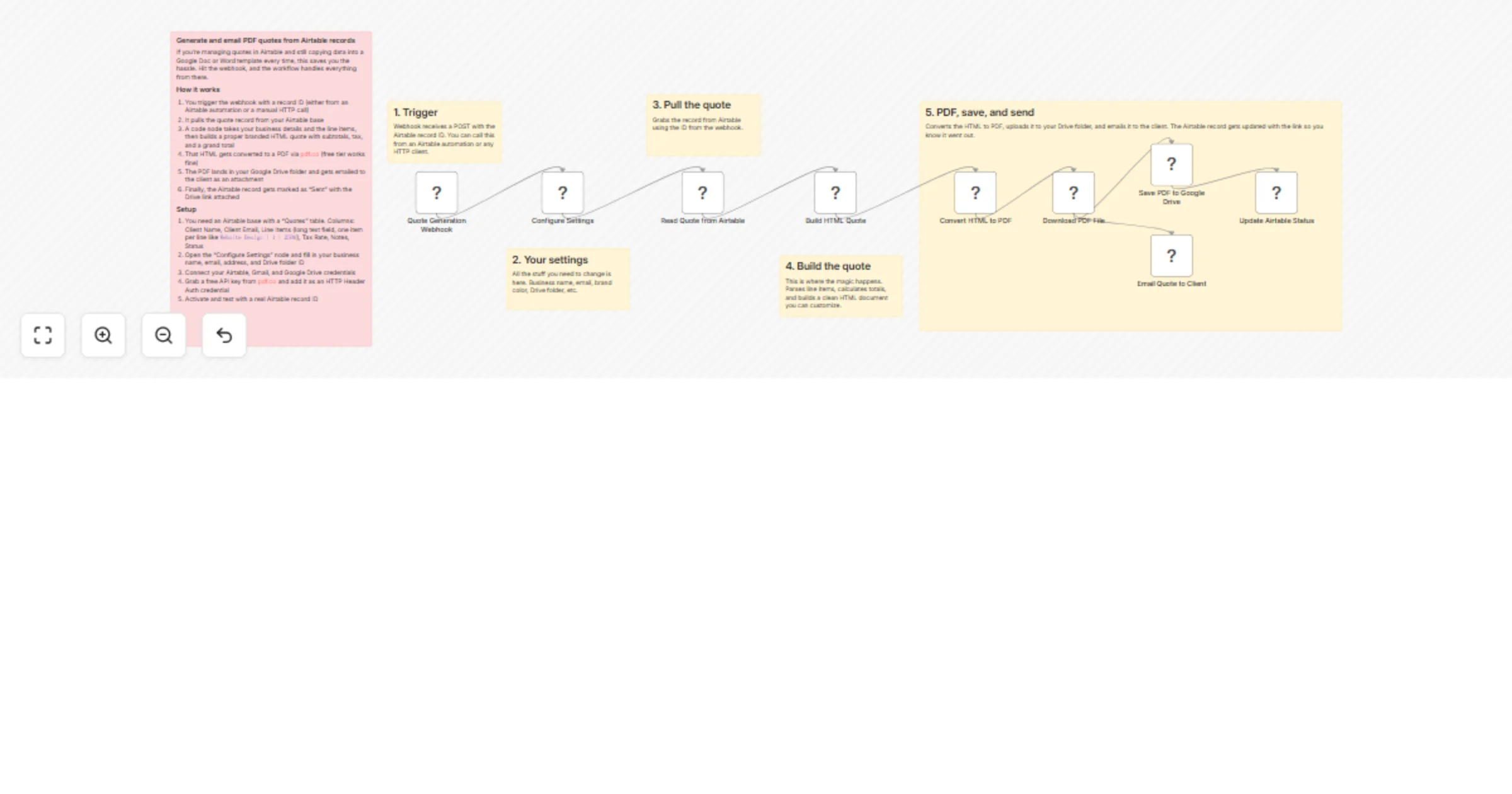
The workflow starts with a webhook. You can call it from an Airtable automation (when a record hits "Ready to Send", for example) or trigger it manually from Postman or any HTTP client.
Once triggered, it pulls the quote record from Airtable, grabs the client details and line items, and builds a branded HTML document with proper formatting, subtotals, tax calculation, and a grand total. That HTML then gets converted to a PDF through pdf.co's free API.
From there, the PDF gets uploaded to a Google Drive folder and emailed to the client as an attachment via Gmail. The Airtable record is updated with the Drive link and marked as "Sent" so you have a clear audit trail.
Description | Qty | Price), Tax Rate, Notes, and Status{"recordId": "rec..."} to the webhook URLThe HTML template lives inside the "Build HTML Quote" code node. You can change the layout, fonts, colors, and add your logo by editing the HTML string directly. The brand color is pulled from the Configure Settings node, so changing it there updates the whole document.
You can also adjust the quote validity period (default is 30 days) or change the reference number format in the same code node. If you want to swap pdf.co for another HTML-to-PDF service, just update the HTTP Request node URL and payload format.
This catalog entry is organized from the workflow JSON. The node-level section below shows the executable blocks available for review before importing the template.
| Workflow | Generate and email PDF quotes from Airtable via Gmail and Google Drive |
|---|---|
| Complexity | advanced |
| Nodes | 15 |
| Categories | Document Extraction |
| Author | Anwar Bouilouta |
| Published | 19 Mar 2026 |
Use the JSON export at /data/workflows/14174/14174.json as the source template for this automation.
Open n8n, import the downloaded JSON, and review each node before activating the workflow.
Replace placeholder credentials, API keys, webhook URLs, account IDs, and environment-specific values with your own settings.
Run the workflow manually or in a staging workspace, inspect node output, and confirm downstream systems receive the expected data.
Enable the workflow only after testing, then monitor executions, errors, and rate limits during the first production runs.
Review imported nodes carefully before activation. This catalog entry is intended to help you inspect the workflow structure, understand required services, and find related templates faster.
Node names, credentials, schedules, webhook paths, and external service limits may need adjustment for your workspace.
Most service businesses and freelancers track their quotes in Airtable (or something similar), but when it comes to actually sending the quote, they're still manually copying data into a document, ...
Review the workflow JSON, configure any required credentials in n8n, and test the automation in a safe workspace before using it in production.
Yes. Use the block-by-block analysis and the downloadable JSON to inspect each node, then adjust credentials, prompts, schedules, filters, or destinations for your Document Extraction use case.