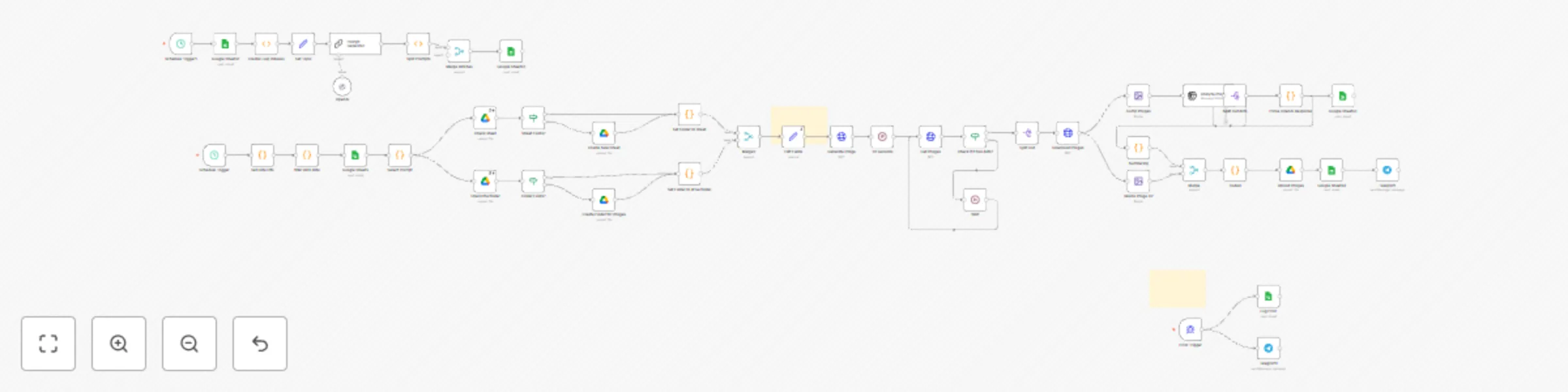
Generate AI stock images with Flux1-schnell, metadata tagging & Google integration

Workflow preview

Workflow preview
100%
Generate AI stock images with Flux1-schnell, metadata tagging & Google integration preview
Open on n8n.io

Important notice

This workflow is provided as-is. Please review and test before using in production.

1. Workflow Overview

This template generates up to 2,000 AI based stock images per day for under $3 . It includes prompt generation , image creation , metadata enrichment , upload to Google Drive , and error logging...

Best for

  • Content Creation automation workflows
  • Multimodal AI automation workflows
  • advanced n8n builders looking for reusable templates

Tools used

n8n-nodes-base.scheduletrigger, n8n-nodes-base.code, n8n-nodes-base.googlesheets, n8n-nodes-base.stickynote, n8n-nodes-base.set, n8n-nodes-base.httprequest, n8n-nodes-base.googledrive, n8n-nodes-base.if

Source and attribution

This workflow is cataloged by N8N Workflows and links back to its original n8n.io source page by victor Adriano.

Original n8n.io source

1.1 Workflow description

Title
Generate AI stock images with Flux1-schnell, metadata tagging & Google integration
Workflow name
Generate AI stock images with Flux1-schnell, metadata tagging & Google integration

πŸ“£ This template generates up to 2,000 AI-based stock images per day for under $3. It includes prompt generation, image creation, metadata enrichment, upload to Google Drive, and error logging β€” fully automated with minimal setup.


πŸ“Œ Who is this for?

This workflow is designed for:

  • Stock image creators and contributors
  • Agencies managing visual content at scale
  • Solo creators or marketers automating asset production
  • Anyone aiming to populate image libraries (e.g., Adobe Stock, Shutterstock)

❓ What problem is this workflow solving?

Manually generating, naming, tagging, and uploading thousands of stock images is time-consuming and expensive. This automation solves that by:

  • Generating photorealistic images via AI
  • Auto-tagging with rich metadata
  • Uploading them to structured Google Drive folders
  • Logging progress and capturing errors automatically

βš™οΈ What this workflow does

  • βœ… Generates text prompts from idea topics using GPT
  • 🎨 Converts prompts into 4 images each via the Flux Schnell model
  • πŸ“ Resizes and compresses images for preview and final use
  • 🧠 Uses GPT-4o-mini to generate metadata: filename, title, category, and 25 keywords
  • ☁️ Uploads to Google Drive, logs metadata to Google Sheets
  • 🟒 Marks each prompt as completed
  • πŸ“² Sends Telegram alerts for success and errors

πŸ›  Setup

  1. Google Sheets

    • Sheet 1: Ideas β€” New prompt topics
    • Sheet 2: Generated Pmts β€” Tracks generated prompts and status
    • Sheet 3: Error Logs β€” Execution error records
  2. Google Drive

    • A folder for image uploads
    • A folder for copied daily spreadsheets
  3. API Access

    • OpenAI GPT (gpt-4o-mini)
    • PIAPI (Flux Schnell image model)
  4. Telegram Bot (optional but recommended)

    • Real-time status notifications

🧩 How to customize this workflow to your needs

  • πŸ” Change frequency of generation via trigger settings
  • 🧠 Swap models if using a different image API
  • 🧾 Adjust metadata fields or format rules
  • πŸ“€ Redirect outputs to Airtable, Notion, Dropbox, etc.

🧠 Node Naming & Notes

  • βœ… All nodes are clearly renamed to reflect their purpose (e.g., Generate Image, Upload to Drive)
  • πŸ—’οΈ Sticky notes are used to document setup and logic
  • πŸ”— External links to Notion setup docs or Loom videos are recommended

πŸ—‚οΈ Categories

  • AI
  • Marketing
  • Product
  • Building Blocks

🎁 Bonus Feature

This template includes a bonus stock image renamer workflow β€” ideal for renaming:

  • πŸ“Έ Taken photos
  • πŸ—ƒοΈ Existing stock libraries
  • πŸ–ΌοΈ Downloaded image batches

It applies SEO-friendly, consistent naming compatible with major platforms like Adobe Stock and Shutterstock.

1.2 Logical Blocks

This catalog entry is organized from the workflow JSON. The node-level section below shows the executable blocks available for review before importing the template.

2. Block-by-Block Analysis

Block 1 - Schedule Trigger

Type / Role
n8n-nodes-base.scheduleTrigger - scheduleTrigger
Config choices
Version 1

Block 2 - Set Date Info

Type / Role
n8n-nodes-base.code - code
Config choices
Version 1

Block 3 - Google Sheets

Type / Role
n8n-nodes-base.googleSheets - googleSheets
Config choices
Version 4.5

Block 4 - Sticky Note

Type / Role
n8n-nodes-base.stickyNote - stickyNote
Config choices
Version 1

Block 5 - Edit Fields

Type / Role
n8n-nodes-base.set - set
Config choices
Version 3.4

Block 6 - Generate Image

Type / Role
n8n-nodes-base.httpRequest - httpRequest
Config choices
Version 4.2

Block 7 - Create Folder for images

Type / Role
n8n-nodes-base.googleDrive - googleDrive
Config choices
Version 3

Block 8 - Create New Sheet

Type / Role
n8n-nodes-base.googleDrive - googleDrive
Config choices
Version 3

Block 9 - Set Folder ID sheet

Type / Role
n8n-nodes-base.code - code
Config choices
Version 1

Block 10 - Set Folder ID drive folder

Type / Role
n8n-nodes-base.code - code
Config choices
Version 1

Block 11 - Sheet Exists?

Type / Role
n8n-nodes-base.if - if
Config choices
Version 1

Block 12 - Folder Exists?

Type / Role
n8n-nodes-base.if - if
Config choices
Version 1

Block 13 - Check the folder

Type / Role
n8n-nodes-base.googleDrive - googleDrive
Config choices
Version 3

Block 14 - Check sheet

Type / Role
n8n-nodes-base.googleDrive - googleDrive
Config choices
Version 3

Block 15 - Comp Images

Type / Role
n8n-nodes-base.editImage - editImage
Config choices
Version 1

Block 16 - Analyze images

Type / Role
@n8n/n8n-nodes-langchain.openAi - openAi
Config choices
Version 1.8

Block 17 - Split Out data

Type / Role
n8n-nodes-base.splitOut - splitOut
Config choices
Version 1

Block 18 - Resize Image X2

Type / Role
n8n-nodes-base.editImage - editImage
Config choices
Version 1

Block 19 - Numbering

Type / Role
n8n-nodes-base.code - code
Config choices
Version 2

Block 20 - Parse OpenAI Response

Type / Role
n8n-nodes-base.code - code
Config choices
Version 1

Block 21 - Telegram

Type / Role
n8n-nodes-base.telegram - telegram
Config choices
Version 1.2

Block 22 - Google Sheets3

Type / Role
n8n-nodes-base.googleSheets - googleSheets
Config choices
Version 4.5

Block 23 - Code4

Type / Role
n8n-nodes-base.code - code
Config choices
Version 2

Block 24 - Google Sheets4

Type / Role
n8n-nodes-base.googleSheets - googleSheets
Config choices
Version 4.5

Showing the first 24 of 48 workflow blocks. Download the JSON for the full node graph.

3. Summary Table

Workflow Generate AI stock images with Flux1-schnell, metadata tagging & Google integration
Complexity advanced
Nodes 48
Categories Content Creation, Multimodal AI
Author victor Adriano
Published 28 May 2025

4. Reproducing the Workflow from Scratch

  1. 1. Download the workflow JSON

    Use the JSON export at /data/workflows/4445/4445.json as the source template for this automation.

  2. 2. Import the template into n8n

    Open n8n, import the downloaded JSON, and review each node before activating the workflow.

  3. 3. Configure credentials and variables

    Replace placeholder credentials, API keys, webhook URLs, account IDs, and environment-specific values with your own settings.

  4. 4. Test with sample data

    Run the workflow manually or in a staging workspace, inspect node output, and confirm downstream systems receive the expected data.

  5. 5. Activate and monitor

    Enable the workflow only after testing, then monitor executions, errors, and rate limits during the first production runs.

5. General Notes & Resources

Review imported nodes carefully before activation. This catalog entry is intended to help you inspect the workflow structure, understand required services, and find related templates faster.

Node names, credentials, schedules, webhook paths, and external service limits may need adjustment for your workspace.

Frequently asked questions

What does Generate AI stock images with Flux1-schnell, metadata tagging & Google integration do?

This template generates up to 2,000 AI based stock images per day for under $3 . It includes prompt generation , image creation , metadata enrichment , upload to Google Drive , and error logging...

What do I need before importing this workflow?

Review the workflow JSON, configure any required credentials in n8n, and test the automation in a safe workspace before using it in production.

Can I customize this workflow?

Yes. Use the block-by-block analysis and the downloadable JSON to inspect each node, then adjust credentials, prompts, schedules, filters, or destinations for your Content Creation, Multimodal AI use case.