Block 1 - Weekly Monday 9AM
- Type / Role
- n8n-nodes-base.scheduleTrigger - scheduleTrigger
- Config choices
- Version 1.2


 Early Deal
Generate Weekly Content Calendar with AI from RSS Feeds Categories: AI, Content Creation, Marketing Automation, Productivity Never run out of content ideas again. This workflow transforms trending ...
n8n-nodes-base.scheduletrigger, n8n-nodes-base.rssfeedread, n8n-nodes-base.merge, n8n-nodes-base.code, n8n-nodes-base.if, @n8n/n8n-nodes-langchain.openai, n8n-nodes-base.splitout, n8n-nodes-base.stickynote
This workflow is cataloged by N8N Workflows and links back to its original n8n.io source page by Diego Alejandro Parrás.
Original n8n.io sourceCategories: AI, Content Creation, Marketing Automation, Productivity
Never run out of content ideas again. This workflow transforms trending industry news into a week's worth of structured content ideas, automatically organized in your Notion workspace—all while you sleep.
Save 3+ hours weekly on content ideation and planning
Stay relevant by automatically tracking trending topics in your industry
Consistent publishing schedule with 7 ready-to-execute content ideas every Monday
Structured output with title, format, target audience, and key points for each idea
Flexible customization to match your content style and publishing cadence
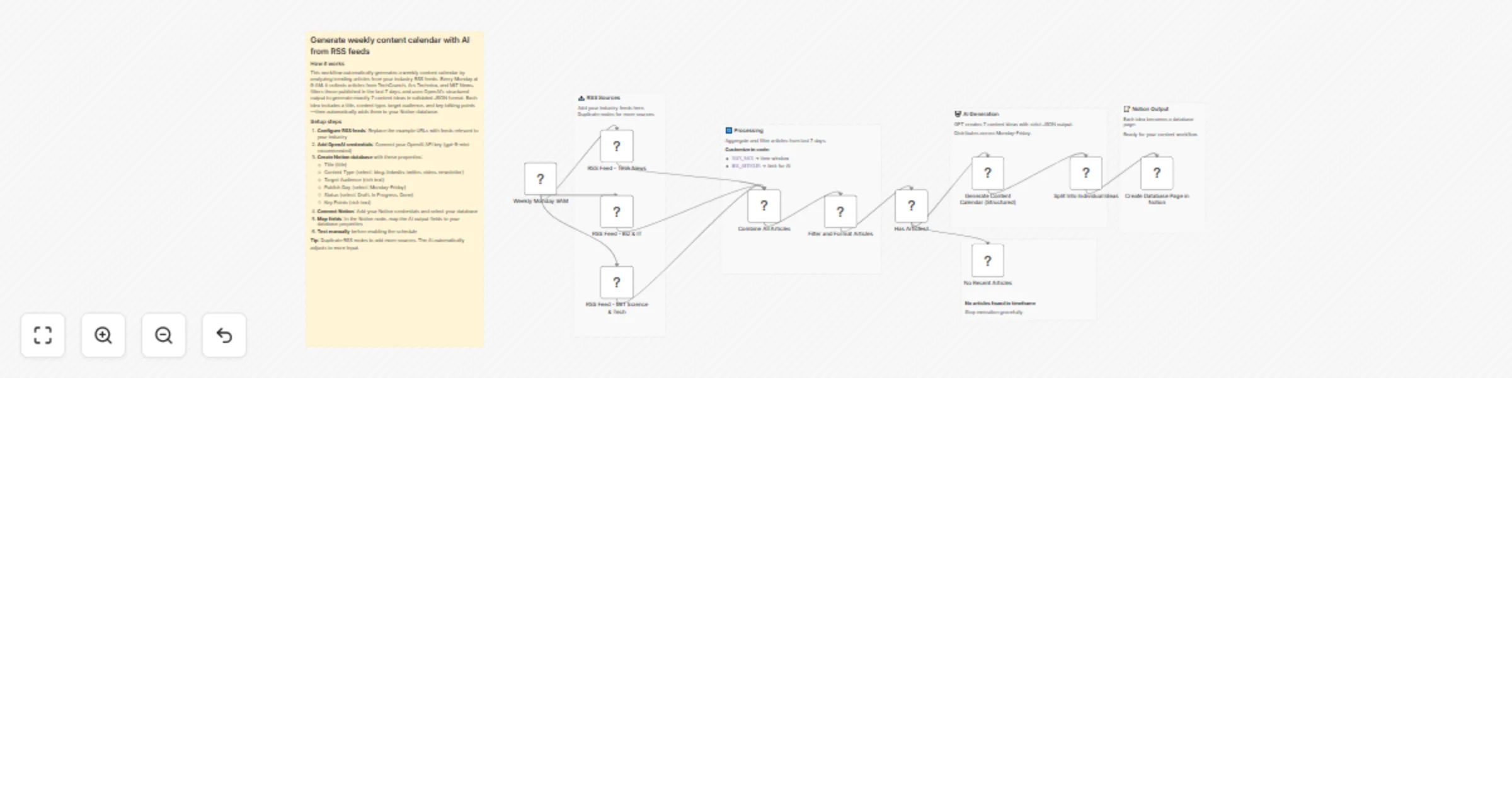
Every Monday at 9 AM, the workflow springs into action:
Gathers fresh content from multiple RSS feeds (TechCrunch, Ars Technica, MIT News by default)
Filters recent articles published in the last 7 days to ensure relevance
Analyzes trends by sending the top 20 articles to OpenAI
Generates 7 content ideas using structured output with strict JSON formatting
Distributes across the week from Monday to Friday with varied content types
Creates Notion pages automatically with all metadata ready for your workflow
Each generated idea includes:
Clear, actionable title (max 80 characters)
Content type (LinkedIn post, carousel, thread, video, etc.)
Target audience segment
Recommended publish day
Key talking point to develop
The AI prompt is carefully engineered to produce practical, professional content ideas that balance trending topics with original angles—avoiding generic summaries.
RSS Feeds:
Default feeds included: TechCrunch, Ars Technica, MIT Science & Tech
Easily swap with your industry's top sources
Duplicate nodes to add more feeds (no limit)
OpenAI API:
Model: GPT-5-mini (latest generation, fast and cost-effective)
Average cost: ~$0.01 per weekly execution
Alternative: Use GPT-5 for even more creative ideas
Notion Database:
Create a database with these exact property names:
Title (title type)
Content Type (select or rich text)
Target Audience (rich text)
Publish Day (select: Monday, Tuesday, Wednesday, Thursday, Friday)
Status (select: Draft, In Progress, Done)
Key Points (rich text)
Configuration in Code Node:
Customize the filtering behavior by editing constants at the top:
DAYS_BACK: How many days to look back (default: 7)
MAX_ARTICLES: Maximum articles to send to AI (default: 20)
SNIPPET_LENGTH: Preview length for descriptions (default: 150 chars)
Content Creators & Marketers:
Generate LinkedIn content calendar based on industry trends
Transform news into educational threads for Twitter/X
Plan newsletter topics with current relevance
Agencies:
Scale content planning across multiple client industries
Maintain consistent posting schedules without manual research
Demonstrate ROI by tracking trending topic engagement
Solo Founders & Thought Leaders:
Stay top-of-mind by consistently sharing timely insights
Reduce decision fatigue with pre-structured ideas
Focus on execution instead of ideation
Content Teams:
Coordinate multi-format campaigns (posts, videos, carousels)
Distribute workload with clear assignments by day
Track status from Draft → Done in one view
Import the workflow into your n8n instance
Configure RSS feeds:
Click each RSS node
Replace URLs with your industry's top sources
Duplicate nodes for additional feeds (right-click → Duplicate)
Click "Generate Content Calendar (Structured)" node
Add your OpenAI API key
Confirm model is set to gpt-5-mini
Open Notion and create a new database
Add the 6 required properties (see Required Setup above)
Configure select options for Content Type and Status
Click "Create Database Page in Notion" node
Add your Notion credentials
Select your content calendar database
Verify field mappings match your property names
Open "Filter and Format Articles" code node
Edit DAYS_BACK, MAX_ARTICLES, SNIPPET_LENGTH at the top
Click "Execute Workflow" to run manually
Verify 7 pages are created in Notion
Check that fields are populated correctly
Toggle "Active" to enable weekly execution
Confirm trigger is set to Mondays at 9 AM
Troubleshooting Tips:
If no articles appear, check that RSS feeds are accessible
If AI returns errors, verify your OpenAI API key has credits
If Notion fails, ensure property names match exactly (case-sensitive)
For field mapping issues, use "Add Field" in the Notion node
Difficulty Level: Intermediate
Estimated Setup Time: 20-30 minutes
Monthly Operating Cost: ~$0.10-$0.30 (OpenAI API at 4 runs/month)
Unlike basic RSS-to-Notion workflows that just dump articles, this template:
Analyzes and synthesizes trends into original content angles
Structures output with strict validation for reliable automation
Distributes strategically across the workweek
Mixes content formats to maintain audience engagement
Includes fallback handling if no recent articles are found
The code node is heavily documented with configuration constants, making it accessible even for non-developers to customize behavior without touching complex logic.
This catalog entry is organized from the workflow JSON. The node-level section below shows the executable blocks available for review before importing the template.
| Workflow | Generate a weekly content calendar with OpenAI GPT-5-mini, RSS feeds, and Notion |
|---|---|
| Complexity | advanced |
| Nodes | 17 |
| Categories | Content Creation, Multimodal AI |
| Author | Diego Alejandro Parrás |
| Published | 29 Jan 2026 |
Use the JSON export at /data/workflows/13103/13103.json as the source template for this automation.
Open n8n, import the downloaded JSON, and review each node before activating the workflow.
Replace placeholder credentials, API keys, webhook URLs, account IDs, and environment-specific values with your own settings.
Run the workflow manually or in a staging workspace, inspect node output, and confirm downstream systems receive the expected data.
Enable the workflow only after testing, then monitor executions, errors, and rate limits during the first production runs.
Review imported nodes carefully before activation. This catalog entry is intended to help you inspect the workflow structure, understand required services, and find related templates faster.
Node names, credentials, schedules, webhook paths, and external service limits may need adjustment for your workspace.
Generate Weekly Content Calendar with AI from RSS Feeds Categories: AI, Content Creation, Marketing Automation, Productivity Never run out of content ideas again. This workflow transforms trending ...
Review the workflow JSON, configure any required credentials in n8n, and test the automation in a safe workspace before using it in production.
Yes. Use the block-by-block analysis and the downloadable JSON to inspect each node, then adjust credentials, prompts, schedules, filters, or destinations for your Content Creation, Multimodal AI use case.