Block 1 - Fal Flux
- Type / Role
- n8n-nodes-base.httpRequest - httpRequest
- Config choices
- Version 4.2


 Early Deal
This workflow is provided as-is. Please review and test before using in production.
This workflow automates AI based image generation using the Fal.ai Flux API. Define custom prompts, image parameters, and effortlessly generate, monitor, and save the output directly to Google Driv...
n8n-nodes-base.httprequest, n8n-nodes-base.googledrive, n8n-nodes-base.manualtrigger, n8n-nodes-base.stickynote, n8n-nodes-base.wait, n8n-nodes-base.if, n8n-nodes-base.set
This workflow is cataloged by N8N Workflows and links back to its original n8n.io source page by Sira Ekabut.
Original n8n.io sourceThis workflow automates AI-based image generation using the Fal.ai Flux API. Define custom prompts, image parameters, and effortlessly generate, monitor, and save the output directly to Google Drive. Streamline your creative automation with ease and precision.
Who is this for?
This template is for content creators, developers, automation experts, and creative professionals looking to integrate AI-based image generation into their workflows. It’s ideal for generating custom visuals with the Fal.ai Flux API and automating storage in Google Drive.
What problem is this workflow solving?
Manually generating AI-based images, checking their status, and saving results can be tedious. This workflow automates the entire process — from requesting image generation, monitoring its progress, downloading the result, and saving it directly to a Google Drive folder.
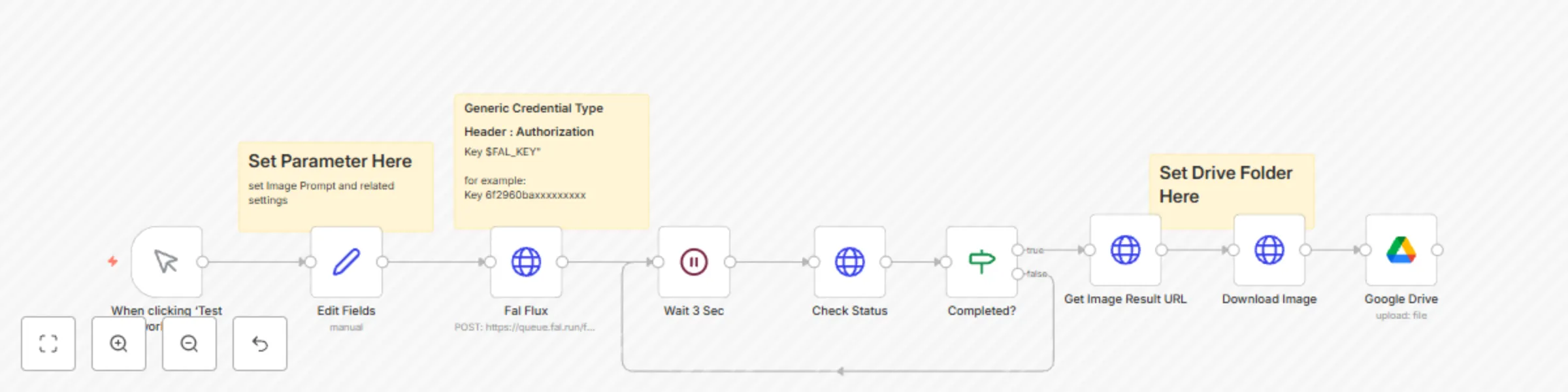
What this workflow does 1. Sets Custom Image Parameters: Allows you to define the prompt, resolution, guidance scale, and steps for AI image generation. 2. Sends a Request to Fal.ai: Initiates the image generation process using the Fal.ai Flux API. 3. Monitors Image Status: Checks for completion and waits if needed. 4. Downloads the Generated Image: Fetches the completed image once ready. 5. Saves to Google Drive: Automatically uploads the generated image to a specified Google Drive folder.
Setup 1. Prerequisites: • Fal.ai API Key: Obtain it from the Fal.ai platform and set it as the Authorization header in HTTP Header Auth credentials. • Google Drive OAuth Credentials: Connect your Google Drive account in n8n. 2. Configuration: • Update the “Edit Fields” node with your desired image parameters: • Prompt: Describe the image (e.g., “Thai young woman net idol 25 yrs old, walking on the street”). • Width/Height: Define image resolution (default: 1024x768). • Steps: Number of inference steps (e.g., 30). • Guidance Scale: Controls image adherence to the prompt (e.g., 3.5). • Set your Google Drive folder ID in the “Google Drive” node to save the image. 3. Run the Workflow: • Trigger the workflow manually to generate the image. • The workflow waits, checks status, and saves the final output seamlessly.
Customization • Modify Image Parameters: Adjust the prompt, resolution, steps, and guidance scale in the “Edit Fields” node. • Change Storage Location: Update the Google Drive node with a different folder ID. • Add Notifications: Integrate an email or messaging node to alert you when the image is ready. • Additional Outputs: Expand the workflow to send the generated image to Slack, Dropbox, or other platforms.
This workflow streamlines AI-based image generation and storage, offering flexibility and customization for creative automation.
This catalog entry is organized from the workflow JSON. The node-level section below shows the executable blocks available for review before importing the template.
| Workflow | Flux dev image generation (Fal.ai) to Google Drive |
|---|---|
| Complexity | intermediate |
| Nodes | 12 |
| Categories | Content Creation, Multimodal AI |
| Author | Sira Ekabut |
| Published | 16 Dec 2024 |
Use the JSON export at /data/workflows/2644/2644.json as the source template for this automation.
Open n8n, import the downloaded JSON, and review each node before activating the workflow.
Replace placeholder credentials, API keys, webhook URLs, account IDs, and environment-specific values with your own settings.
Run the workflow manually or in a staging workspace, inspect node output, and confirm downstream systems receive the expected data.
Enable the workflow only after testing, then monitor executions, errors, and rate limits during the first production runs.
Review imported nodes carefully before activation. This catalog entry is intended to help you inspect the workflow structure, understand required services, and find related templates faster.
Node names, credentials, schedules, webhook paths, and external service limits may need adjustment for your workspace.
This workflow automates AI based image generation using the Fal.ai Flux API. Define custom prompts, image parameters, and effortlessly generate, monitor, and save the output directly to Google Driv...
Review the workflow JSON, configure any required credentials in n8n, and test the automation in a safe workspace before using it in production.
Yes. Use the block-by-block analysis and the downloadable JSON to inspect each node, then adjust credentials, prompts, schedules, filters, or destinations for your Content Creation, Multimodal AI use case.