Block 1 - When clicking ‘Execute workflow’
- Type / Role
- n8n-nodes-base.manualTrigger - manualTrigger
- Config choices
- Version 1


 Early Deal
This workflow is provided as-is. Please review and test before using in production.
Who's it for This workflow transforms hours of manual video editing into an automated AI powered p...
n8n-nodes-base.manualtrigger, n8n-nodes-base.extractfromfile, n8n-nodes-base.splitinbatches, n8n-nodes-base.formtrigger, n8n-nodes-base.code, n8n-nodes-base.aggregate, n8n-nodes-base.executeworkflowtrigger, n8n-nodes-base.splitout
This workflow is cataloged by N8N Workflows and links back to its original n8n.io source page by Habeeb Mohammed.
Original n8n.io sourceThis workflow transforms hours of manual video editing into an automated AI-powered pipeline. Perfect for anyone looking to repurpose long-form content into viral short-form clips.
Ideal users include:
Whether you're a solo creator or managing content at scale, this workflow saves 5-10 hours per video while maintaining professional quality output.
This workflow combines AI analysis with professional video editing tools to automatically identify and produce viral-ready clips from any YouTube video.
The process flows through three main stages:
Stage 1: Download and Analysis
Stage 2: Clip Selection and Extraction
Stage 3: Professional Editing Pipeline
Final Delivery:
The workflow processes clips with configurable wait times to match your system's capabilities. When all clips complete processing, you receive an email notification and find your social-ready clips in the /data/clips/ directory, ready for upload to any platform.
⚠️ Self-hosted n8n only - This workflow requires command-line access and cannot run on n8n Cloud due to its dependency on system-level tools.
System dependencies you must install:
apt-get install ffmpeg or yum install ffmpeg.pip install yt-dlp or direct binary download.Credentials needed:
Storage requirements:
/data/clips/ directory exists with write permissionsStep 1: Install system dependencies
SSH into your n8n host and install required tools. For Ubuntu/Debian systems, run:
apt-get update
apt-get install ffmpeg
pip install yt-dlp
Verify installations by running ffmpeg -version and yt-dlp --version.
Step 2: Configure directory structure
Create the clips output directory with proper permissions:
mkdir -p /data/clips
chmod 755 /data/clips
Step 3: Import the workflow
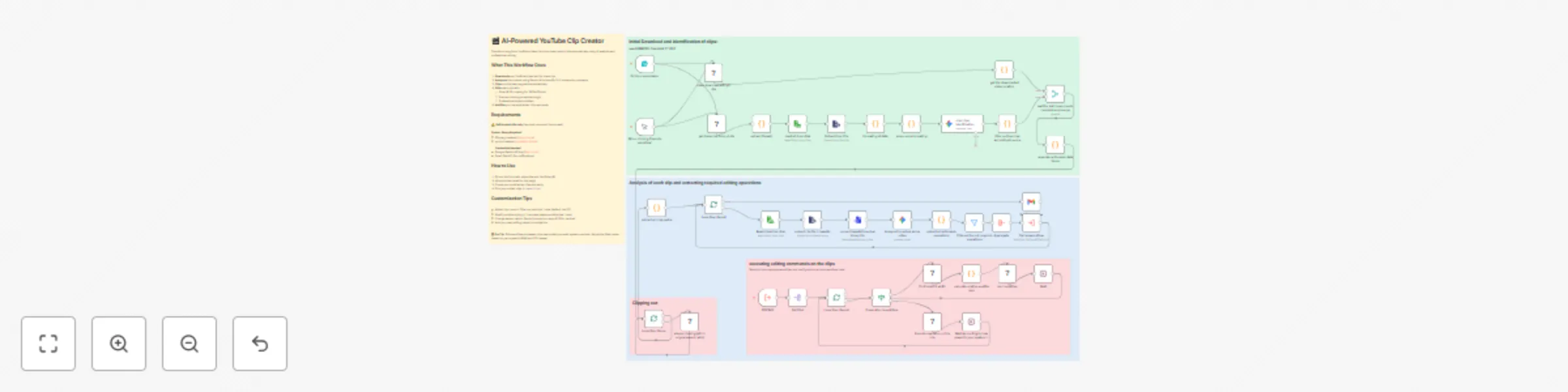
Download the workflow JSON and import it into your n8n instance. You'll see several sticky notes color-coded by stage: yellow for description, blue for download/analysis, pink for editing operations, and green for clipping.
Step 4: Set up credentials
Navigate to the "viral clips identification" node and add your Google Gemini API credentials. The workflow uses the gemini-2.5-flash model for optimal speed and quality balance. Then configure Gmail OAuth2 in the "Send a message" node following n8n's authentication wizard.
Step 5: Update email notification
Open the "Send a message" node and replace [email protected] with your email address.
Step 6: Create the editing subworkflow
The workflow references a separate subworkflow for the editing pipeline. Create a new workflow in n8n, copy all nodes from the "EDITING" section (between the Execute Workflow Trigger and the final output), and save it. Note the workflow ID from the URL.
Step 7: Link the subworkflow
In the main workflow, open the "Call subworkflow" node and update the workflow ID to match your newly created editing workflow.
Step 8: Test with a short video
Start with a 5-10 minute YouTube video for your first test. Use the manual trigger or form submission. Monitor the execution to ensure all nodes complete successfully and clips appear in /data/clips/.
Step 9: Adjust performance settings
Based on your system's performance during the test, modify the Wait node durations. Systems with 8GB+ RAM and modern CPUs can reduce wait times to 30 seconds. Limited systems should keep 60-second waits or increase them.
Adjust clip quantity and quality thresholds
Open the "filter out top clips according to score" node. The code currently uses .slice(0, 10) to select the top 10 clips. Change this number based on your needs: use .slice(0, 5) for only the best clips, or .slice(0, 20) for more options. You can also add score filtering by adding results.filter(c => c.score > 0.7) before the slice operation to only include clips with virality scores above 70%.
Customize subtitle appearance
Navigate to the "calculate relative subtitle size" node. The JavaScript code defines several styling variables you can modify:
fontSize - Currently calculated dynamically, but you can hardcode it: const fontSize = 48;fontName - Change from Arial to any system font: const fontName = 'Impact';primaryColor - Modify text color using BGR hex format: '&H00FF00&' for green, '&HFF0000&' for redborderColor - Adjust outline color for better contrastoutlineWidth - Increase from 1 to 2 or 3 for thicker bordersmarginV - Control vertical position (higher values move text up from bottom)Modify AI analysis prompts
In the "viral clips identification" node, edit the Gemini prompt to target specific content types. For educational content, add "Focus on key teaching moments and actionable tips." For entertainment, emphasize "Identify funny moments, reactions, and unexpected events." For podcast clips, specify "Extract controversial opinions, storytelling segments, and quotable statements."
Change aspect ratios
The workflow defaults to 9:16 for vertical video. To create horizontal clips for YouTube or other platforms, open the "Analyze the actual whole video" node and change the aspect ratio in the JSON schema from "aspect_ratio": "9:16" to "aspect_ratio": "16:9". The AI will automatically adjust cropping coordinates accordingly.
Enable audio normalization
By default, audio normalization is disabled for faster processing. To enable it, open the "extract all actionable operations" node, find the audio_normalize task object, and change enabled: false to enabled: true. This ensures consistent volume levels across all clips but adds processing time.
Add custom editing operations
The editing pipeline is modular. You can add new operations like:
Add these as new task objects in the "extract all actionable operations" node following the existing pattern.
Customize notification content
Open the "Send a message" node to modify the email subject, body text, or add clip details. You can include clip metadata like timestamps, scores, and descriptions using expressions like {{ $json.hook }} or {{ $json.score }}.
Integrate with cloud storage
Add nodes after clip generation to automatically upload finished clips to Google Drive, Dropbox, AWS S3, or any n8n-supported storage service. Use the Loop Over Items1 output to access completed clip file paths.
Schedule automated processing
Replace the Form Trigger with a Schedule Trigger to automatically process videos from a spreadsheet or RSS feed. Combine with Google Sheets integration to maintain a queue of videos to process overnight.
This catalog entry is organized from the workflow JSON. The node-level section below shows the executable blocks available for review before importing the template.
Showing the first 24 of 42 workflow blocks. Download the JSON for the full node graph.
| Workflow | Extract viral-worthy clips from YouTube videos with Gemini AI & FFmpeg editing |
|---|---|
| Complexity | advanced |
| Nodes | 42 |
| Categories | Content Creation, Multimodal AI |
| Author | Habeeb Mohammed |
| Published | 07 Dec 2025 |
Use the JSON export at /data/workflows/11584/11584.json as the source template for this automation.
Open n8n, import the downloaded JSON, and review each node before activating the workflow.
Replace placeholder credentials, API keys, webhook URLs, account IDs, and environment-specific values with your own settings.
Run the workflow manually or in a staging workspace, inspect node output, and confirm downstream systems receive the expected data.
Enable the workflow only after testing, then monitor executions, errors, and rate limits during the first production runs.
Review imported nodes carefully before activation. This catalog entry is intended to help you inspect the workflow structure, understand required services, and find related templates faster.
Node names, credentials, schedules, webhook paths, and external service limits may need adjustment for your workspace.
Who's it for This workflow transforms hours of manual video editing into an automated AI powered p...
Review the workflow JSON, configure any required credentials in n8n, and test the automation in a safe workspace before using it in production.
Yes. Use the block-by-block analysis and the downloadable JSON to inspect each node, then adjust credentials, prompts, schedules, filters, or destinations for your Content Creation, Multimodal AI use case.