Block 1 - Add to Google Sheet
- Type / Role
- n8n-nodes-base.googleSheets - googleSheets
- Config choices
- Version 4.5


 Early Deal
This workflow is provided as-is. Please review and test before using in production.
Title (suggested): Extract business card data from Telegram to Google Sheets Who’s it for Teams that receive business cards digitally (sales, marketing, back office) and want a plug and play way to...
n8n-nodes-base.googlesheets, n8n-nodes-base.if, @n8n/n8n-nodes-langchain.agent, @n8n/n8n-nodes-langchain.lmchatopenrouter, @n8n/n8n-nodes-langchain.outputparserstructured, n8n-nodes-base.telegramtrigger, n8n-nodes-base.stickynote
This workflow is cataloged by N8N Workflows and links back to its original n8n.io source page by Haruki Kuwai.
Original n8n.io sourceExtract business card data from Telegram to Google Sheets
Teams that receive business cards digitally (sales, marketing, back-office) and want a plug-and-play way to capture contacts into a sheet without manual typing.
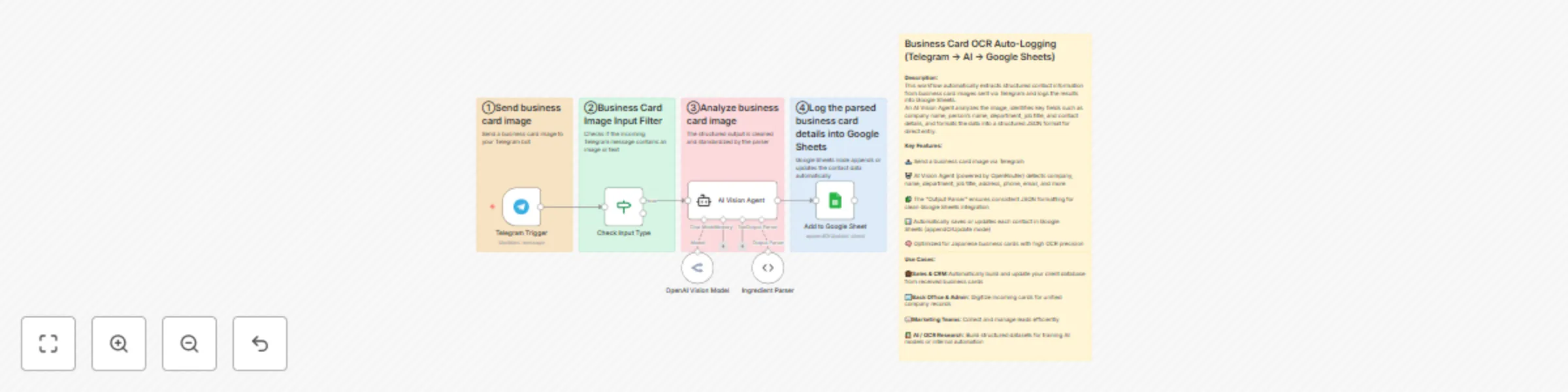
This workflow ingests a business card sent to your Telegram bot, detects whether the message contains an image or text, extracts key fields with an AI Vision Agent (company, full name, department, job title, postal code, address, phone, mobile, fax, email, website), and appends or updates a contact row in Google Sheets automatically.
Connect Telegram (bot token) and enable file download.
Connect your AI provider (OpenRouter or equivalent) used by the AI Vision Agent.
Connect Google Sheets and select your spreadsheet + sheet tab.
Rename nodes clearly and keep sticky notes: one overview note (this description) + step notes.
Test by sending a sample card image to your bot and verify the row is appended/updated.
Requirements
Telegram Bot API credential
AI chat/vision credential
Google Sheets OAuth credential and an accessible spreadsheet
How to customize the workflow
Map fields to your sheet headers (add/remove columns as needed).
Adjust the system prompt to prefer your locale or specific field formats.
Change the matching key for update logic (e.g., company name or email).
Add downstream steps (CRM push, dedupe rules, notifications).
Security note: Do not hardcode API keys or include real IDs/emails. Use credentials and environment configs only.
[ { "company_name": "Example Company Ltd.", "department": "Sales", "job_title": "Sales Manager", "full_name": "Taro Yamada", "postal_code": "100-0001", "address": "1-1-1 Marunouchi, Chiyoda-ku, Tokyo", "phone_number": "+81-3-0000-0000", "mobile_phone_number": "+81-90-0000-0000", "fax_number": "+81-3-1111-1111", "email": "[email protected]", "website_url": "https://example.com" } ]
Nothing appears in Google Sheets
Solution: Verify that your Google Sheets credentials are correctly authorized.
Confirm the Spreadsheet ID and Sheet Name in the node match your target file.
Make sure the Google Sheets node is connected downstream of the AI Vision Agent.
If the workflow runs successfully but nothing is added, check whether the matching column (company_name) already exists — in appendOrUpdate mode it will only update that row.
AI returns incomplete or invalid data
Solution: Review the system prompt in the AI Vision Agent to ensure it instructs the model to return a structured JSON object with all required fields (company name, full name, department, job title, address, etc.).
If the result is partial, verify the image quality of the uploaded business card — low contrast or skewed images can reduce OCR accuracy.
You can reduce temperature in the AI node to make output more deterministic.
Workflow doesn’t start automatically
Solution: Check that the workflow is activated (toggle is ON in the top right of n8n).
Verify the Webhook URL is correctly registered in Telegram’s bot settings.
Run manually once to ensure all credentials and nodes are configured correctly.
This catalog entry is organized from the workflow JSON. The node-level section below shows the executable blocks available for review before importing the template.
| Workflow | Extract business card data from Telegram to Google Sheets with OpenRouter AI Vision |
|---|---|
| Complexity | intermediate |
| Nodes | 12 |
| Categories | Document Extraction, AI Summarization |
| Author | Haruki Kuwai |
| Published | 16 Oct 2025 |
Use the JSON export at /data/workflows/9754/9754.json as the source template for this automation.
Open n8n, import the downloaded JSON, and review each node before activating the workflow.
Replace placeholder credentials, API keys, webhook URLs, account IDs, and environment-specific values with your own settings.
Run the workflow manually or in a staging workspace, inspect node output, and confirm downstream systems receive the expected data.
Enable the workflow only after testing, then monitor executions, errors, and rate limits during the first production runs.
Review imported nodes carefully before activation. This catalog entry is intended to help you inspect the workflow structure, understand required services, and find related templates faster.
Node names, credentials, schedules, webhook paths, and external service limits may need adjustment for your workspace.
Title (suggested): Extract business card data from Telegram to Google Sheets Who’s it for Teams that receive business cards digitally (sales, marketing, back office) and want a plug and play way to...
Review the workflow JSON, configure any required credentials in n8n, and test the automation in a safe workspace before using it in production.
Yes. Use the block-by-block analysis and the downloadable JSON to inspect each node, then adjust credentials, prompts, schedules, filters, or destinations for your Document Extraction, AI Summarization use case.