Block 1 - AI Agent
- Type / Role
- @n8n/n8n-nodes-langchain.agent - agent
- Config choices
- Version 1.7


 Early Deal
This workflow is provided as-is. Please review and test before using in production.
Who is this workflow template for? This workflow template is perfect for freelancers, small business owners, accounting teams, or anyone responsible for managing and recording invoices regularly. I...
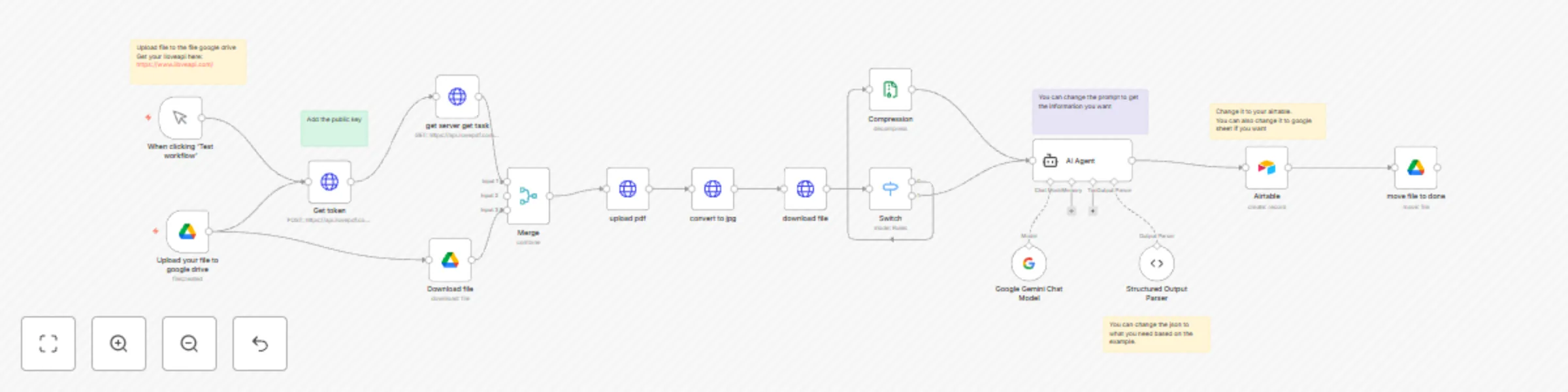
@n8n/n8n-nodes-langchain.agent, @n8n/n8n-nodes-langchain.lmchatgooglegemini, n8n-nodes-base.merge, n8n-nodes-base.compression, n8n-nodes-base.switch, n8n-nodes-base.httprequest, @n8n/n8n-nodes-langchain.outputparserstructured, n8n-nodes-base.airtable
This workflow is cataloged by N8N Workflows and links back to its original n8n.io source page by AlexAy.
Original n8n.io sourceThis workflow template is perfect for freelancers, small business owners, accounting teams, or anyone responsible for managing and recording invoices regularly. If you deal with multiple invoices and spend considerable time manually entering invoice data into a database, this automation will significantly simplify your daily operations and reduce potential errors.
The workflow automates the entire invoice logging process. It continuously monitors a designated Google Drive folder every minute for new PDF invoice uploads. Once a new invoice is detected, it is automatically converted from PDF to an image format using the ILovePDF API. After conversion, Google's Gemini AI analyzes the image, intelligently extracting essential details such as vendor name, item description, invoice amount, invoice date, payment date, and bank reference numbers. Finally, this structured data is automatically recorded in an Airtable database (or optionally in a Google Sheet), ensuring organized, accessible records.
Step 1: Invoice Detection
Step 2: PDF to Image Conversion
Step 3: Data Extraction via Gemini AI
Uses Gemini AI to analyze the invoice image.
Extracts data such as Vendor, Description, Amount, Invoice Date, Paid Date, and Bank Reference.
Provides clear descriptions even when original invoice descriptions are vague or missing by analyzing vendor context.
Step 4: Structured Data Storage
Step 5: File Management
Set Up Google Drive:
Log in to Google Drive and create two folders:
One named Invoices (for incoming PDF files)
One named Processed (for processed files)
Obtain API Credentials:
ILovePDF API:
Sign up at ILovePDF Developers.
Retrieve your API key from your account dashboard.
Google Gemini AI API:
Airtable Database Preparation:
Create an Airtable base with the following columns:
Vendor (Text)
Description (Text)
Amount (Number or Text)
Invoice Date (Date)
Paid Date (Date)
Bank Reference (Text)
Import and Configure Workflow in n8n:
Import the provided workflow JSON file into your n8n instance.
Connect your Google Drive, ILovePDF, Google Gemini AI, and Airtable accounts by entering your credentials in their respective nodes.
Adjust Workflow Settings:
In the Google Drive nodes, ensure your newly created Invoices and Processed folders are correctly selected.
Update the ILovePDF public key in the appropriate HTTP Request node.
Customize the Gemini AI prompt to refine or expand data extraction according to your specific needs.
Testing Your Setup:
Upload a sample PDF invoice into the Invoices folder.
Execute the workflow by clicking Test Workflow in n8n and verify if data extraction and Airtable logging operate correctly.
Ensure your Airtable includes the following structure:
Vendor: Single Line Text
Description: Single Line Text
Amount: Currency or Single Line Text
Invoice Date: Date (formatted as YYYY-MM-DD)
Paid Date: Date (formatted as YYYY-MM-DD)
Bank Reference: Single Line Text
System Prompt: Adjust the AI instructions by modifying the prompt text to focus on additional or fewer invoice details.
Structured Output Parser: Modify the JSON schema in the parser node to match the structure and data points your project specifically requires:
By following these instructions, you’ll have a fully automated, reliable system for handling and logging invoice data, significantly enhancing your productivity.
This catalog entry is organized from the workflow JSON. The node-level section below shows the executable blocks available for review before importing the template.
| Workflow | Extract and log data to Airtable with Google Gemini, ILovePDF, and Google Drive |
|---|---|
| Complexity | advanced |
| Nodes | 21 |
| Categories | Personal Productivity |
| Author | AlexAy |
| Published | 17 Mar 2025 |
Use the JSON export at /data/workflows/3193/3193.json as the source template for this automation.
Open n8n, import the downloaded JSON, and review each node before activating the workflow.
Replace placeholder credentials, API keys, webhook URLs, account IDs, and environment-specific values with your own settings.
Run the workflow manually or in a staging workspace, inspect node output, and confirm downstream systems receive the expected data.
Enable the workflow only after testing, then monitor executions, errors, and rate limits during the first production runs.
Review imported nodes carefully before activation. This catalog entry is intended to help you inspect the workflow structure, understand required services, and find related templates faster.
Node names, credentials, schedules, webhook paths, and external service limits may need adjustment for your workspace.
Who is this workflow template for? This workflow template is perfect for freelancers, small business owners, accounting teams, or anyone responsible for managing and recording invoices regularly. I...
Review the workflow JSON, configure any required credentials in n8n, and test the automation in a safe workspace before using it in production.
Yes. Use the block-by-block analysis and the downloadable JSON to inspect each node, then adjust credentials, prompts, schedules, filters, or destinations for your Personal Productivity use case.