Easy image captioning with Gemini 1.5 Pro

Workflow preview

Workflow preview
100%
Easy image captioning with Gemini 1.5 Pro preview
Open on n8n.io

Important notice

This workflow is provided as-is. Please review and test before using in production.

1. Workflow Overview

This n8n workflow demonstrates how to automate image captioning tasks using Gemini 1.5 Pro a multimodal LLM which can accept and analyse images. This is a really simple example of how easy it is to...

Best for

  • Content Creation automation workflows
  • Multimodal AI automation workflows
  • advanced n8n builders looking for reusable templates

Tools used

n8n-nodes-base.manualtrigger, @n8n/n8n-nodes-langchain.lmchatgooglegemini, @n8n/n8n-nodes-langchain.outputparserstructured, n8n-nodes-base.editimage, n8n-nodes-base.code, n8n-nodes-base.stickynote, n8n-nodes-base.merge, n8n-nodes-base.httprequest

Source and attribution

This workflow is cataloged by N8N Workflows and links back to its original n8n.io source page by Jimleuk.

Original n8n.io source

1.1 Workflow description

Title
Easy image captioning with Gemini 1.5 Pro
Workflow name
Easy image captioning with Gemini 1.5 Pro

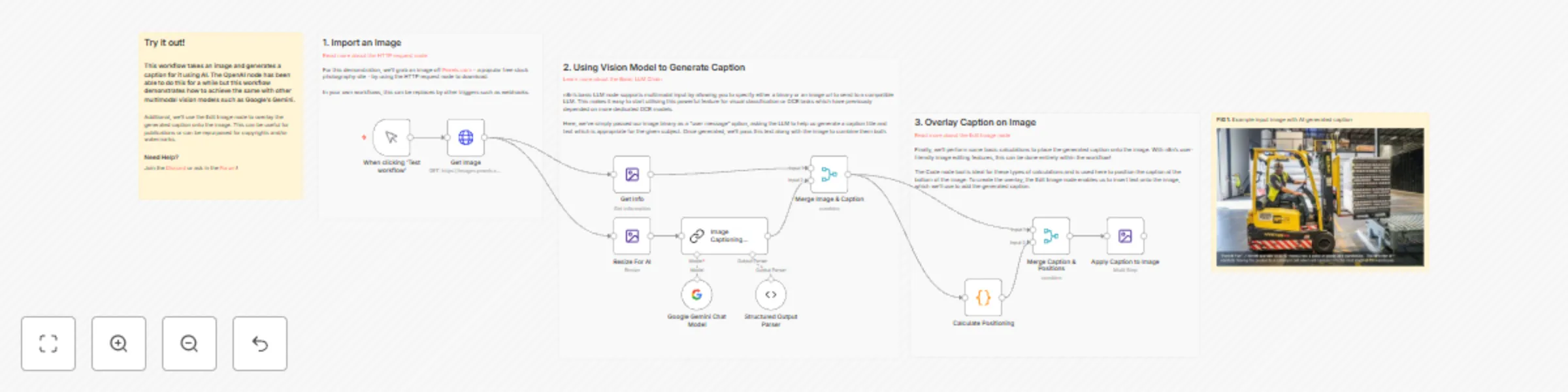
This n8n workflow demonstrates how to automate image captioning tasks using Gemini 1.5 Pro - a multimodal LLM which can accept and analyse images. This is a really simple example of how easy it is to build and leverage powerful AI models in your repetitive tasks.

How it works

  • For this demo, we'll import a public image from a popular stock photography website, Pexel.com, into our workflow using the HTTP request node.
  • With multimodal LLMs, there is little do preprocess other than ensuring the image dimensions fit within the LLMs accepted limits. Though not essential, we'll resize the image using the Edit image node to achieve fast processing.
  • The image is used as an input to the basic LLM node by defining a "user message" entry with the binary (data) type.
  • The LLM node has the Gemini 1.5 Pro language model attached and we'll prompt it to generate a caption title and text appropriate for the image it sees.
  • Once generated, the generated caption text is positioning over the original image to complete the task. We can calculate the positioning relative to the amount of characters produced using the code node.

An example of the combined image and caption can be found here: https://res.cloudinary.com/daglih2g8/image/upload/f_auto,q_auto/v1/n8n-workflows/l5xbb4ze4wyxwwefqmnc

Requirements

  • Google Gemini API Key.
  • Access to Google Drive.

Customising the workflow

  • Not using Google Gemini? n8n's basic LLM node supports the standard syntax for image content for models that support it - try using GPT4o, Claude or LLava (via Ollama).

  • Google Drive is only used for demonstration purposes. Feel free to swap this out for other triggers such as webhooks to fit your use case.

1.2 Logical Blocks

This catalog entry is organized from the workflow JSON. The node-level section below shows the executable blocks available for review before importing the template.

2. Block-by-Block Analysis

Block 1 - When clicking ‘Test workflow’

Type / Role
n8n-nodes-base.manualTrigger - manualTrigger
Config choices
Version 1

Block 2 - Google Gemini Chat Model

Type / Role
@n8n/n8n-nodes-langchain.lmChatGoogleGemini - lmChatGoogleGemini
Config choices
Version 1

Block 3 - Structured Output Parser

Type / Role
@n8n/n8n-nodes-langchain.outputParserStructured - outputParserStructured
Config choices
Version 1.2

Block 4 - Get Info

Type / Role
n8n-nodes-base.editImage - editImage
Config choices
Version 1

Block 5 - Resize For AI

Type / Role
n8n-nodes-base.editImage - editImage
Config choices
Version 1

Block 6 - Calculate Positioning

Type / Role
n8n-nodes-base.code - code
Config choices
Version 2

Block 7 - Apply Caption to Image

Type / Role
n8n-nodes-base.editImage - editImage
Config choices
Version 1

Block 8 - Sticky Note

Type / Role
n8n-nodes-base.stickyNote - stickyNote
Config choices
Version 1

Block 9 - Merge Image & Caption

Type / Role
n8n-nodes-base.merge - merge
Config choices
Version 3

Block 10 - Merge Caption & Positions

Type / Role
n8n-nodes-base.merge - merge
Config choices
Version 3

Block 11 - Get Image

Type / Role
n8n-nodes-base.httpRequest - httpRequest
Config choices
Version 4.2

Block 12 - Sticky Note1

Type / Role
n8n-nodes-base.stickyNote - stickyNote
Config choices
Version 1

Block 13 - Sticky Note2

Type / Role
n8n-nodes-base.stickyNote - stickyNote
Config choices
Version 1

Block 14 - Sticky Note3

Type / Role
n8n-nodes-base.stickyNote - stickyNote
Config choices
Version 1

Block 15 - Sticky Note4

Type / Role
n8n-nodes-base.stickyNote - stickyNote
Config choices
Version 1

Block 16 - Image Captioning Agent

Type / Role
@n8n/n8n-nodes-langchain.chainLlm - chainLlm
Config choices
Version 1.4

3. Summary Table

Workflow Easy image captioning with Gemini 1.5 Pro
Complexity advanced
Nodes 16
Categories Content Creation, Multimodal AI
Author Jimleuk
Published 18 Sept 2024

4. Reproducing the Workflow from Scratch

  1. 1. Download the workflow JSON

    Use the JSON export at /data/workflows/2418/2418.json as the source template for this automation.

  2. 2. Import the template into n8n

    Open n8n, import the downloaded JSON, and review each node before activating the workflow.

  3. 3. Configure credentials and variables

    Replace placeholder credentials, API keys, webhook URLs, account IDs, and environment-specific values with your own settings.

  4. 4. Test with sample data

    Run the workflow manually or in a staging workspace, inspect node output, and confirm downstream systems receive the expected data.

  5. 5. Activate and monitor

    Enable the workflow only after testing, then monitor executions, errors, and rate limits during the first production runs.

5. General Notes & Resources

Review imported nodes carefully before activation. This catalog entry is intended to help you inspect the workflow structure, understand required services, and find related templates faster.

Node names, credentials, schedules, webhook paths, and external service limits may need adjustment for your workspace.

Frequently asked questions

What does Easy image captioning with Gemini 1.5 Pro do?

This n8n workflow demonstrates how to automate image captioning tasks using Gemini 1.5 Pro a multimodal LLM which can accept and analyse images. This is a really simple example of how easy it is to...

What do I need before importing this workflow?

Review the workflow JSON, configure any required credentials in n8n, and test the automation in a safe workspace before using it in production.

Can I customize this workflow?

Yes. Use the block-by-block analysis and the downloadable JSON to inspect each node, then adjust credentials, prompts, schedules, filters, or destinations for your Content Creation, Multimodal AI use case.