Block 1 - Sticky Note
- Type / Role
- n8n-nodes-base.stickyNote - stickyNote
- Config choices
- Version 1


 Early Deal
This workflow is provided as-is. Please review and test before using in production.
This n8n template demonstrates how to use Typhoon OCR + LLM to digitize business cards, enrich the extracted details, and save them directly into Google Sheets or any CRM. It works with both Thai a...
n8n-nodes-base.stickynote, @n8n/n8n-nodes-langchain.lmchatopenai, @n8n/n8n-nodes-langchain.agent, @n8n/n8n-nodes-langchain.chainllm, n8n-nodes-base.googlesheets, n8n-nodes-base.gmail, n8n-nodes-base.editimage, n8n-nodes-base.set
This workflow is cataloged by N8N Workflows and links back to its original n8n.io source page by Typhoon Team.
Original n8n.io sourceIt works with both Thai and English business cards and even includes an optional step to draft greeting emails automatically.
Use cases: Automatically capture leads at events, enrich contact details before saving them into your CRM, or simply keep a structured database of your professional network.
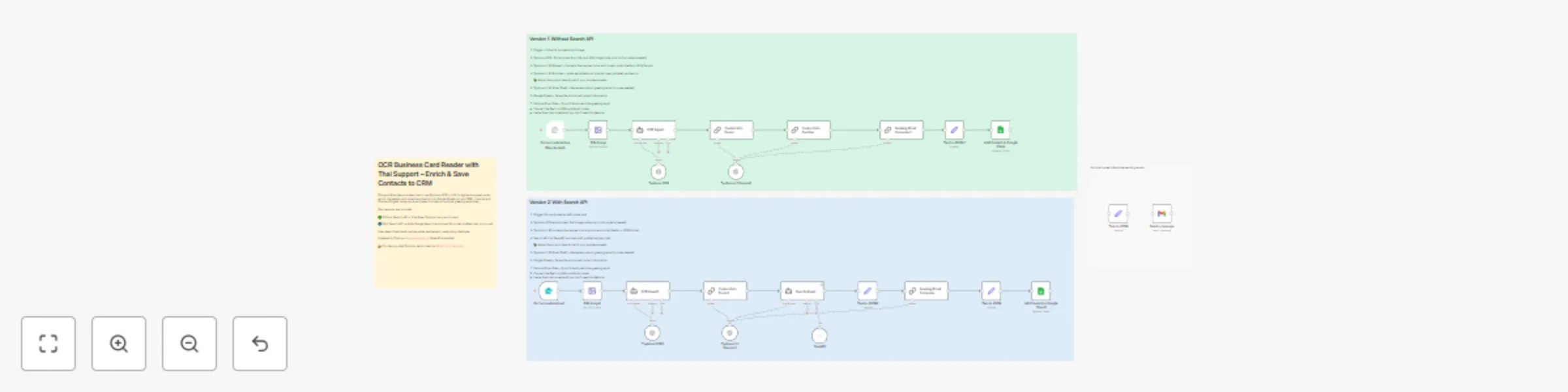
Two versions of the workflow are provided:
🟢 Without Search API → cost-free option using only Typhoon OCR + LLM
🔵 With Search API → adds Google Search enrichment for richer profiles (may incur API costs via SerpAPI)
The Send Email step is optional — include it if you want to follow up instantly, or disable it if not needed.
Typhoon provides a free API for anyone to sign up and use → opentyphoon.ai
A form submission triggers the workflow with a business card image (JPG/PNG).
Typhoon OCR extracts text from the card (supports Thai & English).
Typhoon LLM parses the extracted text into structured JSON fields (e.g., name, job title, organization, email).
Depending on your chosen path:
Version 1: Typhoon LLM enriches the record with job type, level, and sector.
Version 2: The workflow calls the Search API (via SerpAPI) to add a profile/company summary.
The cleaned and enriched contact is saved to Google Sheets (can be swapped with your preferred CRM or database).
(Optional) Typhoon LLM drafts a short, friendly greeting email, which can be sent automatically via Gmail.
The included form trigger is just one example. You can replace it with:
You can easily change the destination from Google Sheets to HubSpot, Notion, Airtable, or Salesforce.
The enrichment prompt is customizable — adjust it to classify contacts based on your organization’s needs.
This AI-powered business card reader can be adapted to many scenarios:
Event lead capture: Collect cards at conferences and sync them to your CRM automatically.
Sales enablement: Draft instant greeting emails for new contacts.
Networking: Keep a clean and enriched database of your professional connections.
This catalog entry is organized from the workflow JSON. The node-level section below shows the executable blocks available for review before importing the template.
Showing the first 24 of 28 workflow blocks. Download the JSON for the full node graph.
| Workflow | Digitize business cards with Thai OCR & save to Google Sheets or CRM |
|---|---|
| Complexity | advanced |
| Nodes | 28 |
| Categories | AI Summarization, Multimodal AI |
| Author | Typhoon Team |
| Published | 28 Aug 2025 |
Use the JSON export at /data/workflows/7978/7978.json as the source template for this automation.
Open n8n, import the downloaded JSON, and review each node before activating the workflow.
Replace placeholder credentials, API keys, webhook URLs, account IDs, and environment-specific values with your own settings.
Run the workflow manually or in a staging workspace, inspect node output, and confirm downstream systems receive the expected data.
Enable the workflow only after testing, then monitor executions, errors, and rate limits during the first production runs.
Review imported nodes carefully before activation. This catalog entry is intended to help you inspect the workflow structure, understand required services, and find related templates faster.
Node names, credentials, schedules, webhook paths, and external service limits may need adjustment for your workspace.
This n8n template demonstrates how to use Typhoon OCR + LLM to digitize business cards, enrich the extracted details, and save them directly into Google Sheets or any CRM. It works with both Thai a...
Review the workflow JSON, configure any required credentials in n8n, and test the automation in a safe workspace before using it in production.
Yes. Use the block-by-block analysis and the downloadable JSON to inspect each node, then adjust credentials, prompts, schedules, filters, or destinations for your AI Summarization, Multimodal AI use case.