Digest and analyse YouTube videos with Apify and Gemini Pro

Workflow preview

Workflow preview
100%
Digest and analyse YouTube videos with Apify and Gemini Pro preview
Open on n8n.io

1. Workflow Overview

Video Digestion Workflow — n8n Template Description How it works This workflow takes any YouTube video URL and automatically extracts a rich, structured analysis — including transcript, key visual ...

Best for

  • Content Creation automation workflows
  • Multimodal AI automation workflows
  • intermediate n8n builders looking for reusable templates

Tools used

n8n-nodes-base.stickynote, n8n-nodes-base.formtrigger, @apify/n8n-nodes-apify.apify, n8n-nodes-base.code, @n8n/n8n-nodes-langchain.openai, n8n-nodes-base.executeworkflow, @n8n/n8n-nodes-langchain.googlegemini, n8n-nodes-base.set

Source and attribution

This workflow is cataloged by N8N Workflows and links back to its original n8n.io source page by Adam Goodyer.

Original n8n.io source

1.1 Workflow description

Title
Digest and analyse YouTube videos with Apify and Gemini Pro
Workflow name
Digest and analyse YouTube videos with Apify and Gemini Pro

Video Digestion Workflow — n8n Template Description


How it works

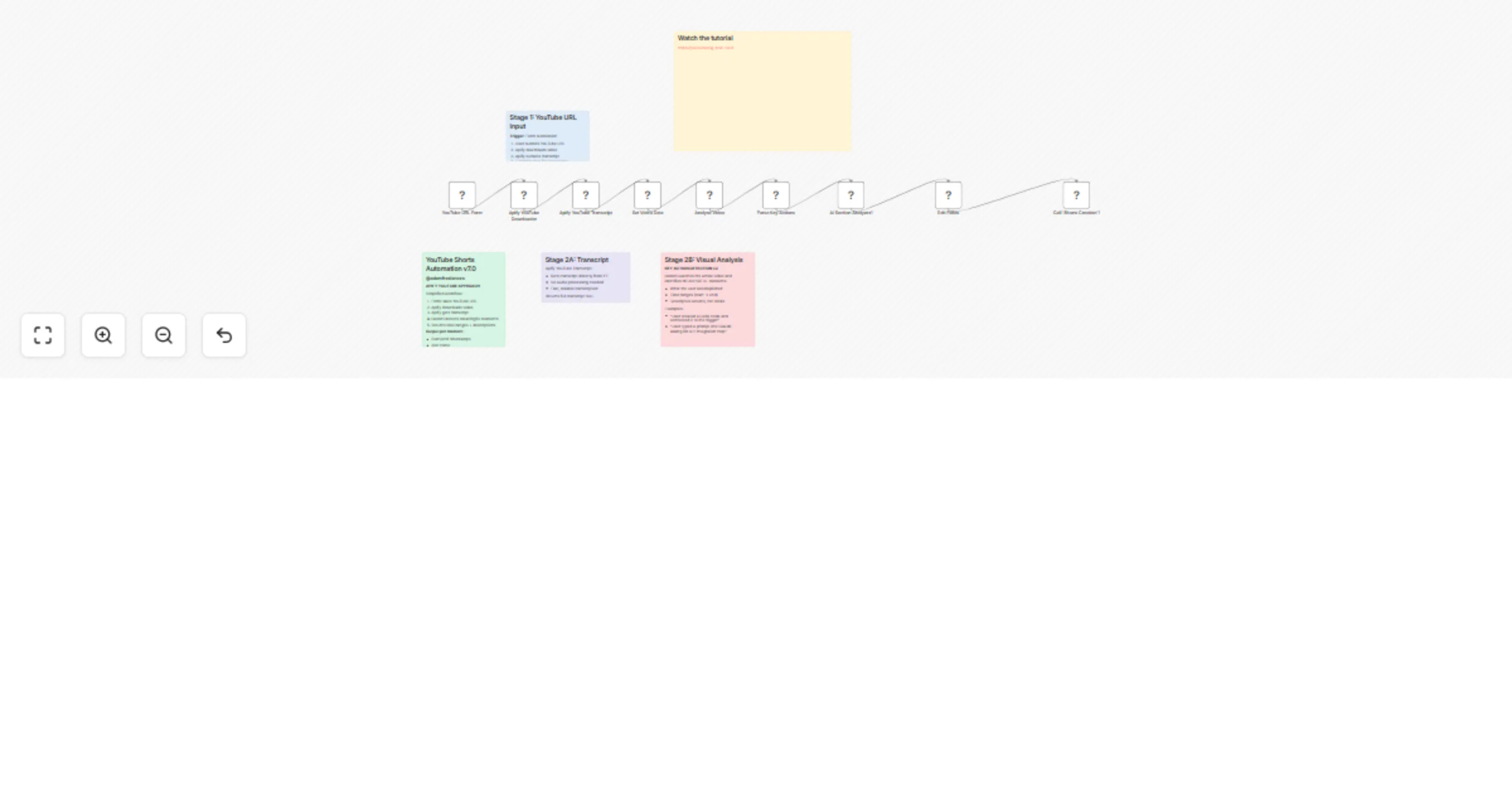
This workflow takes any YouTube video URL and automatically extracts a rich, structured analysis — including transcript, key visual moments, video metadata, SEO keywords, and content section breakdowns. It's designed as the foundation layer for content repurposing, feeding its output into downstream workflows for creating Shorts, LinkedIn posts, Twitter threads, blog articles, email newsletters, and more.

The pipeline:

  1. YouTube URL Input — A simple form trigger accepts any YouTube video URL.
  2. Video Download (Apify) — Downloads the video file at 720p via the Apify YouTube Video Downloader actor.
  3. Transcript Extraction (Apify) — Pulls the full transcript with timestamps from YouTube using the Apify YouTube Video Transcript actor. No audio processing needed — fast and reliable.
  4. Data Consolidation — A Code node merges both Apify outputs into a single structured object containing: video URL, transcript text, timestamped segments, video metadata (title, description, duration, channel info, like/comment counts, thumbnail, publish date).
  5. Visual Analysis (Google Gemini Pro) — Sends the actual video to Gemini's video analysis endpoint, which watches the entire video and identifies key B-roll moments with precise timestamps, app detection, and webcam overlay awareness. It categorises clips as clean screen recordings vs. webcam overlays vs. talking head segments.
  6. Key Action Parsing — Filters and categorises the Gemini output into usable clips, removing talking-head-only segments and incomplete data. Outputs chronologically sorted clips with cropping metadata for downstream video editing.
  7. AI Section Analysis (OpenAI) — Sends the transcript + key moments to OpenAI with structured output (JSON schema) to generate: video summary, one-liner, main argument, target audience, content style, tone, key takeaways, problems addressed, tools mentioned, frameworks explained, suggested titles, and SEO keywords.
  8. Output — The final structured payload is ready to pass to any downstream workflow (e.g., Shorts creation, social media posting, blog generation).

Setup guide

Required accounts & API keys

You'll need API credentials for the following services:

Service What it does Sign up
Apify YouTube video downloading + transcript extraction https://apify.com
Google AI Studio (Gemini) Video analysis — watches the video and detects key visual moments https://aistudio.google.com
OpenAI Structured content analysis with JSON schema output https://platform.openai.com

Required Apify actors

You need to add these two Apify actors to your account:

  1. YouTube Video Downloader by epctex — https://apify.com/epctex/youtube-video-downloader
  2. YouTube Video Transcript by starvibe — https://apify.com/starvibe/youtube-video-transcript

n8n credentials to configure

  • Apify API — Add your Apify API token in n8n credentials
  • Google Gemini — Add your Google AI Studio API key in n8n credentials
  • OpenAI — Add your OpenAI API key in n8n credentials

Steps

  1. Import the workflow into n8n
  2. Configure all three credential sets (Apify, Gemini, OpenAI)
  3. Ensure both Apify actors are added to your Apify account
  4. Activate the workflow
  5. Open the form trigger URL and paste any YouTube video URL
  6. The workflow outputs a comprehensive JSON payload ready for downstream workflows

What you can build with the output

The structured output from this workflow is designed to be piped into other workflows. Some ideas:

  • YouTube Shorts creation — Use the key moments + timestamps to auto-clip and render short-form content
  • LinkedIn carousel posts — Pull key takeaways and section summaries
  • Twitter/X threads — Convert section breakdowns into threaded posts
  • Blog articles — Use the full transcript + structure as a draft foundation
  • Email newsletters — Summarise the video for your subscriber list
  • SEO-optimised descriptions — Auto-generate YouTube descriptions with keywords

Nodes used

  • Form Trigger (n8n built-in)
  • Apify (x2 — video download + transcript)
  • Code (x2 — data consolidation + key action parsing)
  • Google Gemini (video analysis)
  • OpenAI (structured content analysis with JSON schema)
  • Edit Fields (data mapping)
  • Execute Workflow (optional — calls downstream Shorts creation workflow)

Built by @adamfreelances — The Anti-Guru Technical Educator. Real workflows, real implementation, no fluff.

1.2 Logical Blocks

This catalog entry is organized from the workflow JSON. The node-level section below shows the executable blocks available for review before importing the template.

2. Block-by-Block Analysis

Block 1 - Setup Instructions

Type / Role
n8n-nodes-base.stickyNote - stickyNote
Config choices
Version 1

Block 2 - Stage 1

Type / Role
n8n-nodes-base.stickyNote - stickyNote
Config choices
Version 1

Block 3 - Stage 2A - Transcript

Type / Role
n8n-nodes-base.stickyNote - stickyNote
Config choices
Version 1

Block 4 - YouTube URL Form

Type / Role
n8n-nodes-base.formTrigger - formTrigger
Config choices
Version 2.1

Block 5 - Apify YouTube Downloader

Type / Role
@apify/n8n-nodes-apify.apify - apify
Config choices
Version 1

Block 6 - Apify YouTube Transcript

Type / Role
@apify/n8n-nodes-apify.apify - apify
Config choices
Version 1

Block 7 - Set Video Data

Type / Role
n8n-nodes-base.code - code
Config choices
Version 2

Block 8 - Parse Key Actions

Type / Role
n8n-nodes-base.code - code
Config choices
Version 2

Block 9 - Stage 2B - Visual1

Type / Role
n8n-nodes-base.stickyNote - stickyNote
Config choices
Version 1

Block 10 - AI Section Analyzer1

Type / Role
@n8n/n8n-nodes-langchain.openAi - openAi
Config choices
Version 2.1

Block 11 - Call 'Shorts Creation'1

Type / Role
n8n-nodes-base.executeWorkflow - executeWorkflow
Config choices
Version 1.3

Block 12 - Analyse Video

Type / Role
@n8n/n8n-nodes-langchain.googleGemini - googleGemini
Config choices
Version 1.1

Block 13 - Edit Fields

Type / Role
n8n-nodes-base.set - set
Config choices
Version 3.4

Block 14 - Sticky Note

Type / Role
n8n-nodes-base.stickyNote - stickyNote
Config choices
Version 1

3. Summary Table

Workflow Digest and analyse YouTube videos with Apify and Gemini Pro
Complexity intermediate
Nodes 14
Categories Content Creation, Multimodal AI
Author Adam Goodyer
Published 24 Feb 2026

4. Reproducing the Workflow from Scratch

  1. 1. Download the workflow JSON

    Use the JSON export at /data/workflows/13675/13675.json as the source template for this automation.

  2. 2. Import the template into n8n

    Open n8n, import the downloaded JSON, and review each node before activating the workflow.

  3. 3. Configure credentials and variables

    Replace placeholder credentials, API keys, webhook URLs, account IDs, and environment-specific values with your own settings.

  4. 4. Test with sample data

    Run the workflow manually or in a staging workspace, inspect node output, and confirm downstream systems receive the expected data.

  5. 5. Activate and monitor

    Enable the workflow only after testing, then monitor executions, errors, and rate limits during the first production runs.

5. General Notes & Resources

Review imported nodes carefully before activation. This catalog entry is intended to help you inspect the workflow structure, understand required services, and find related templates faster.

Node names, credentials, schedules, webhook paths, and external service limits may need adjustment for your workspace.

Frequently asked questions

What does Digest and analyse YouTube videos with Apify and Gemini Pro do?

Video Digestion Workflow — n8n Template Description How it works This workflow takes any YouTube video URL and automatically extracts a rich, structured analysis — including transcript, key visual ...

What do I need before importing this workflow?

Review the workflow JSON, configure any required credentials in n8n, and test the automation in a safe workspace before using it in production.

Can I customize this workflow?

Yes. Use the block-by-block analysis and the downloadable JSON to inspect each node, then adjust credentials, prompts, schedules, filters, or destinations for your Content Creation, Multimodal AI use case.