Daily ad spend monitoring with Google Sheets and Slack threshold alerts

Workflow preview

Workflow preview
100%
Daily ad spend monitoring with Google Sheets and Slack threshold alerts preview
Open on n8n.io

Important notice

This workflow is provided as-is. Please review and test before using in production.

1. Workflow Overview

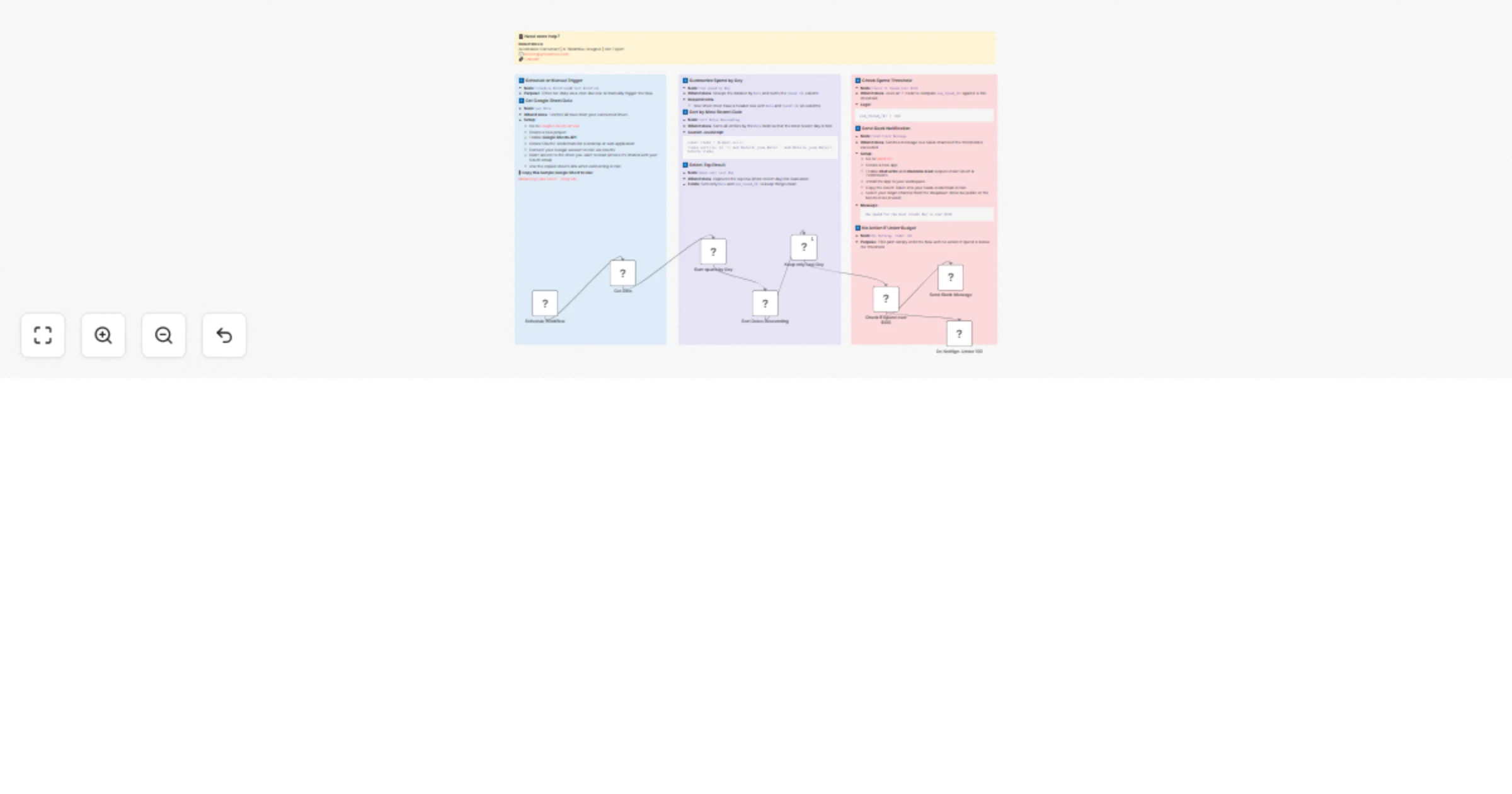
This n8n workflow checks daily ad spend totals from a Google Sheet and sends a Slack alert if spend exceeds $100. It can be scheduled to run automatically or manually triggered for testing. This is...

Best for

  • Content Creation automation workflows
  • Multimodal AI automation workflows
  • intermediate n8n builders looking for reusable templates

Tools used

n8n-nodes-base.scheduletrigger, n8n-nodes-base.googlesheets, n8n-nodes-base.summarize, n8n-nodes-base.code, n8n-nodes-base.set, n8n-nodes-base.if, n8n-nodes-base.slack, n8n-nodes-base.noop

Source and attribution

This workflow is cataloged by N8N Workflows and links back to its original n8n.io source page by Robert Breen.

Original n8n.io source

1.1 Workflow description

Title
Daily ad spend monitoring with Google Sheets and Slack threshold alerts
Workflow name
Daily ad spend monitoring with Google Sheets and Slack threshold alerts

This n8n workflow checks daily ad spend totals from a Google Sheet and sends a Slack alert if spend exceeds $100. It can be scheduled to run automatically or manually triggered for testing. This is perfect for marketing teams who want to monitor budget spikes in near real-time.


✅ Key Features

  • 📥 Google Sheets Integration: Pulls raw spend data from a shared spreadsheet.
  • 📆 Scheduled or Manual Execution: Can run daily on a schedule or manually for testing.
  • 📈 Aggregates Spend: Summarizes daily totals from raw data.
  • 🧠 Logic Check: Alerts only when spend exceeds a certain threshold.
  • 🔔 Slack Alerts: Sends instant notification to a specified channel.

🧰 What You'll Need

  • Google Cloud Project with Sheets API enabled
  • OAuth2 Credential for Google Sheets
  • Slack Bot Token with permission to post to your workspace
  • Your Google Sheet link and tab name

📎 Copy this Sample Google Sheet to Use:
Marketing Data Sheet - Copy Me


🔧 Step-by-Step Setup

1️⃣ Schedule or Manual Trigger
  • Node: Schedule Workflow or Test Workflow
  • Purpose: Either run daily via a cron-like rule or manually trigger the flow.
2️⃣ Get Google Sheet Data
  • Node: Get Data
  • What it does: Fetches all rows from your connected sheet.
  • Setup:
    • Go to Google Cloud Console
    • Create a new project
    • Enable Google Sheets API
    • Create OAuth2 credentials for a desktop or web application
    • Connect your Google account in n8n via OAuth2
    • Grant access to the sheet you want to read (ensure it's shared with your OAuth email)
    • Use the copied sheet's link when connecting in n8n
3️⃣ Summarize Spend by Day
  • Node: Sum spend by Day
  • What it does: Groups the dataset by Date and sums the Spend ($) column
  • Requirements:
    • Your sheet must have a header row with Date and Spend ($) as columns
4️⃣ Sort by Most Recent Date
  • Node: Sort Dates Descending
  • What it does: Sorts all entries by the Date field so that the most recent day is first
  • Custom JavaScript:
const items = $input.all();
items.sort((a, b) => new Date(b.json.Date) - new Date(a.json.Date));
return items;
5️⃣ Select Top Result
  • Node: Keep only Last Day
  • What it does: Captures the top row (most recent day) for evaluation
  • Fields: Sets only Date and sum_Spend_($) to keep things clean
6️⃣ Check Spend Threshold
  • Node: Check if Spend over $100
  • What it does: Uses an IF node to compare sum_Spend_($) against a 100 threshold
  • Logic:
sum_Spend_($) > 100
7️⃣ Send Slack Notification
  • Node: Send Slack Message
  • What it does: Sends a message to a Slack channel if the threshold is exceeded
  • Setup:
    • Go to Slack API
    • Create a new app
    • Enable chat:write and channels:read scopes under OAuth & Permissions
    • Install the app to your workspace
    • Copy the OAuth Token into your Slack credentials in n8n
    • Select your target channel from the dropdown (must be public or the bot must be invited)
  • Message:
    The spend for the most recent day is over $100
    
8️⃣ No Action if Under Budget
  • Node: Do Nothing. Under 100
  • Purpose: This path simply ends the flow with no action if spend is below the threshold

👤 Created By

Robert Breen
Automation Consultant | AI Workflow Designer | n8n Expert
📧 [email protected]
🌐 ynteractive.com
🔗 LinkedIn


🏷️ Tags

slack marketing automation budget alert daily schedule google sheets threshold logic n8n spend tracking data summarization

1.2 Logical Blocks

This catalog entry is organized from the workflow JSON. The node-level section below shows the executable blocks available for review before importing the template.

2. Block-by-Block Analysis

Block 1 - Schedule Workflow

Type / Role
n8n-nodes-base.scheduleTrigger - scheduleTrigger
Config choices
Version 1.2

Block 2 - Get Data

Type / Role
n8n-nodes-base.googleSheets - googleSheets
Config choices
Version 4.6

Block 3 - Sum spend by Day

Type / Role
n8n-nodes-base.summarize - summarize
Config choices
Version 1.1

Block 4 - Sort Dates Descending

Type / Role
n8n-nodes-base.code - code
Config choices
Version 2

Block 5 - Keep only Last Day

Type / Role
n8n-nodes-base.set - set
Config choices
Version 3.4

Block 6 - Check if Spend over $100

Type / Role
n8n-nodes-base.if - if
Config choices
Version 2.2

Block 7 - Send Slack Message

Type / Role
n8n-nodes-base.slack - slack
Config choices
Version 2.3

Block 8 - Do Nothign. Under 100

Type / Role
n8n-nodes-base.noOp - noOp
Config choices
Version 1

Block 9 - Sticky Note

Type / Role
n8n-nodes-base.stickyNote - stickyNote
Config choices
Version 1

Block 10 - Sticky Note1

Type / Role
n8n-nodes-base.stickyNote - stickyNote
Config choices
Version 1

Block 11 - Sticky Note2

Type / Role
n8n-nodes-base.stickyNote - stickyNote
Config choices
Version 1

Block 12 - Sticky Note3

Type / Role
n8n-nodes-base.stickyNote - stickyNote
Config choices
Version 1

3. Summary Table

Workflow Daily ad spend monitoring with Google Sheets and Slack threshold alerts
Complexity intermediate
Nodes 12
Categories Content Creation, Multimodal AI
Author Robert Breen
Published 05 Aug 2025

4. Reproducing the Workflow from Scratch

  1. 1. Download the workflow JSON

    Use the JSON export at /data/workflows/6990/6990.json as the source template for this automation.

  2. 2. Import the template into n8n

    Open n8n, import the downloaded JSON, and review each node before activating the workflow.

  3. 3. Configure credentials and variables

    Replace placeholder credentials, API keys, webhook URLs, account IDs, and environment-specific values with your own settings.

  4. 4. Test with sample data

    Run the workflow manually or in a staging workspace, inspect node output, and confirm downstream systems receive the expected data.

  5. 5. Activate and monitor

    Enable the workflow only after testing, then monitor executions, errors, and rate limits during the first production runs.

5. General Notes & Resources

Review imported nodes carefully before activation. This catalog entry is intended to help you inspect the workflow structure, understand required services, and find related templates faster.

Node names, credentials, schedules, webhook paths, and external service limits may need adjustment for your workspace.

Frequently asked questions

What does Daily ad spend monitoring with Google Sheets and Slack threshold alerts do?

This n8n workflow checks daily ad spend totals from a Google Sheet and sends a Slack alert if spend exceeds $100. It can be scheduled to run automatically or manually triggered for testing. This is...

What do I need before importing this workflow?

Review the workflow JSON, configure any required credentials in n8n, and test the automation in a safe workspace before using it in production.

Can I customize this workflow?

Yes. Use the block-by-block analysis and the downloadable JSON to inspect each node, then adjust credentials, prompts, schedules, filters, or destinations for your Content Creation, Multimodal AI use case.