Block 1 - 📋 Overview
- Type / Role
- n8n-nodes-base.stickyNote - stickyNote
- Config choices
- Version 1


 Early Deal
This workflow is provided as-is. Please review and test before using in production.
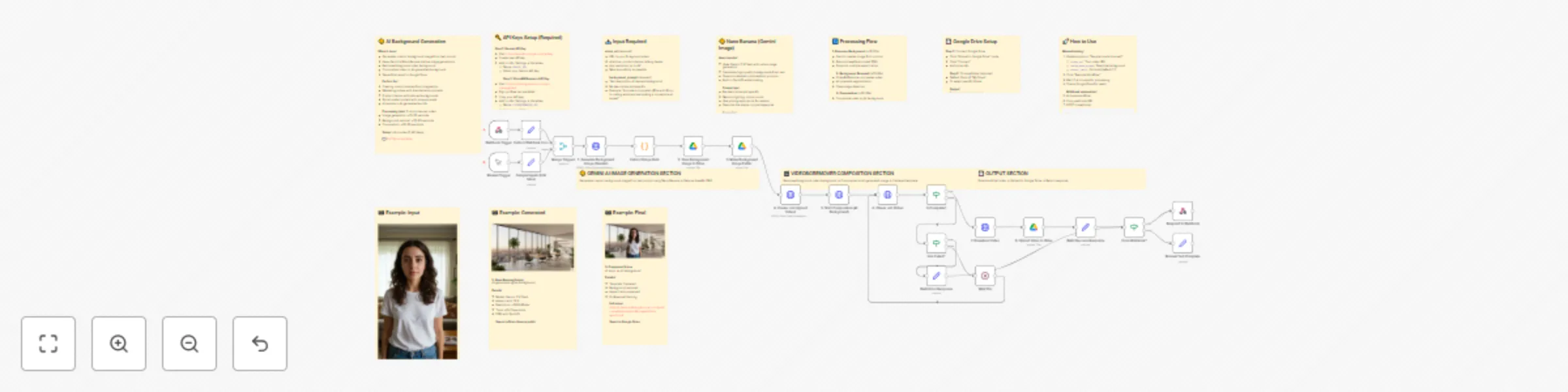
Automated workflow that generates custom AI image backgrounds from text prompts using Gemini's Nano Banana (native image generation), removes video backgrounds, and composites videos on AI generate...
n8n-nodes-base.stickynote, n8n-nodes-base.webhook, n8n-nodes-base.manualtrigger, n8n-nodes-base.set, n8n-nodes-base.merge, n8n-nodes-base.httprequest, n8n-nodes-base.code, n8n-nodes-base.googledrive
This workflow is cataloged by N8N Workflows and links back to its original n8n.io source page by Paul Roussel.
Original n8n.io sourceAutomated workflow that generates custom AI image backgrounds from text prompts using Gemini's Nano Banana (native image generation), removes video backgrounds, and composites videos on AI-generated scenes. Create any background you can imagine without needing stock images.
• Describe background: Provide video URL and text prompt describing desired background scene (e.g., "modern office with city skyline at golden hour") • AI generates image: Gemini creates a background image from your prompt in ~10-20 seconds • Upload to Drive: Generated background is saved to Google Drive and made publicly accessible • Remove & composite: Video background is removed and composited on AI-generated scene with centered template • Save final video: Completed video is uploaded to Google Drive with shareable link
⏱️ Total setup time: ~5 minutes
• Get Gemini API Key (1 min): Visit https://aistudio.google.com/apikey, create new API key, add to n8n Settings → Variables as GEMINI_KEY
• Get VideoBGRemover API Key (2 min): Visit https://videobgremover.com/n8n, sign up, add to n8n as VIDEOBGREMOVER_KEY
• Connect Google Drive (~2 min): Click "Save Background Image to Drive" node, click "Connect", authorize n8n
Use cases:
Pricing:
Triggers: Webhook (for automation) or Manual (for testing)
Processing time: Typically 5-7 minutes total
Prompt tips: Be descriptive and specific. Instead of "office," try: "A modern minimalist office with floor-to-ceiling windows overlooking a city skyline at golden hour. Warm sunlight, polished concrete floors, sleek wooden desks, green plants."
This catalog entry is organized from the workflow JSON. The node-level section below shows the executable blocks available for review before importing the template.
Showing the first 24 of 35 workflow blocks. Download the JSON for the full node graph.
| Workflow | Create videos with AI-generated backgrounds using Gemini and VideoBGRemover |
|---|---|
| Complexity | advanced |
| Nodes | 35 |
| Categories | Content Creation, Multimodal AI |
| Author | Paul Roussel |
| Published | 17 Oct 2025 |
Use the JSON export at /data/workflows/9821/9821.json as the source template for this automation.
Open n8n, import the downloaded JSON, and review each node before activating the workflow.
Replace placeholder credentials, API keys, webhook URLs, account IDs, and environment-specific values with your own settings.
Run the workflow manually or in a staging workspace, inspect node output, and confirm downstream systems receive the expected data.
Enable the workflow only after testing, then monitor executions, errors, and rate limits during the first production runs.
Review imported nodes carefully before activation. This catalog entry is intended to help you inspect the workflow structure, understand required services, and find related templates faster.
Node names, credentials, schedules, webhook paths, and external service limits may need adjustment for your workspace.
Automated workflow that generates custom AI image backgrounds from text prompts using Gemini's Nano Banana (native image generation), removes video backgrounds, and composites videos on AI generate...
Review the workflow JSON, configure any required credentials in n8n, and test the automation in a safe workspace before using it in production.
Yes. Use the block-by-block analysis and the downloadable JSON to inspect each node, then adjust credentials, prompts, schedules, filters, or destinations for your Content Creation, Multimodal AI use case.