Block 1 - Webhook Trigger
- Type / Role
- n8n-nodes-base.webhook - webhook
- Config choices
- Version 1.1


 Early Deal
This automated n8n workflow converts any technical documentation or blog post URL into a professional, step by step developer tutorial video complete with AI generated narration, code syntax highli...
n8n-nodes-base.webhook, n8n-nodes-base.httprequest, n8n-nodes-base.code, n8n-nodes-base.if, n8n-nodes-base.googledrive, n8n-nodes-base.respondtowebhook, n8n-nodes-base.stickynote, @n8n/n8n-nodes-langchain.lmchatmistralcloud
This workflow is cataloged by N8N Workflows and links back to its original n8n.io source page by Oneclick AI Squad.
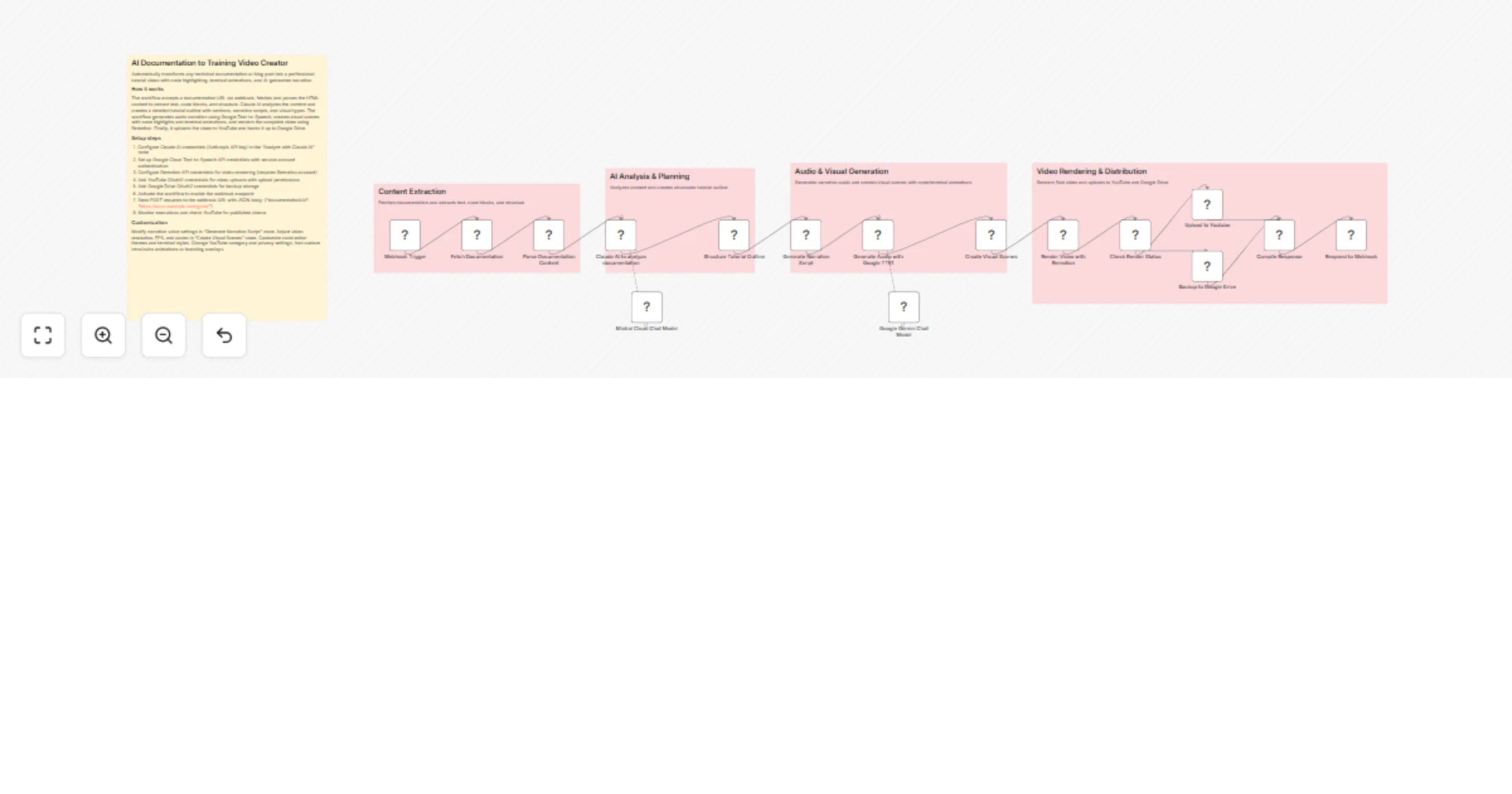
Original n8n.io sourceThis automated n8n workflow converts any technical documentation or blog post URL into a professional, step-by-step developer tutorial video complete with AI-generated narration, code syntax highlighting, terminal command animations, and visual diagrams. The system intelligently analyzes documentation structure, extracts code examples, generates natural voiceover narration, creates synchronized visual scenes, and automatically publishes the finished video to YouTube with SEO-optimized descriptions.
Import the Workflow into n8n: Download the workflow JSON file and import via n8n interface under "Workflows" → "Import from File" option.
Configure Claude AI (Anthropic) Credentials:
Navigate to the "Analyze with Claude AI" node and click the credentials dropdown.
Create new Anthropic credentials using your API key from console.anthropic.com.
Ensure you have access to Claude Sonnet 4 model (claude-sonnet-4-20250514).
Save and test the connection to verify API access.
Set Up Google Cloud Text-to-Speech:
Go to Google Cloud Console and enable the Text-to-Speech API.
Create a service account with "Cloud Text-to-Speech User" role.
Generate and download a JSON key file for the service account.
In n8n, navigate to "Generate Audio with Google TTS" node and add service account credentials.
Upload the JSON key file when prompted.
Configure Remotion API for Video Rendering:
Sign up for a Remotion account at remotion.dev and obtain API credentials.
In the "Render Video with Remotion" node, add HTTP Header Auth credentials.
Set authorization header with your Remotion API key.
Ensure you have a Remotion composition named "TutorialVideo" deployed.
Note: You may need to create a custom Remotion project for code highlighting and terminal animations.
Add YouTube OAuth2 Credentials:
Navigate to "Upload to YouTube" node and create YouTube OAuth2 credentials.
Follow Google's OAuth flow to authorize n8n to upload videos on your behalf.
Ensure your YouTube account has upload permissions and is verified for videos longer than 15 minutes.
Configure default privacy settings (public, unlisted, or private) in node parameters.
Configure Google Drive Backup:
Go to "Backup to Google Drive" node and add Google Drive OAuth2 credentials.
Authorize n8n to access your Google Drive.
Optionally specify a folder ID in node options to organize video backups.
Activate Webhook Endpoint:
Activate the workflow using the toggle switch in the top-right corner.
Copy the webhook URL from the "Webhook Trigger" node (appears after activation).
The URL will be in format: https://your-n8n-instance.com/webhook/create-video.
Test the Workflow:
Send a test POST request to the webhook URL using curl, Postman, or HTTPie:
curl -X POST https://your-n8n-instance.com/webhook/create-video \
-H "Content-Type: application/json" \
-d '{"documentationUrl": "https://docs.example.com/getting-started"}'
Monitor the execution in n8n's "Executions" tab to track progress through each node.
Check YouTube and Google Drive for the generated video (processing may take 5-15 minutes depending on content length).
Verify Output Quality:
Review the generated video for audio quality, code highlighting accuracy, and pacing.
Check YouTube description for proper formatting of prerequisites and learning outcomes.
Ensure code snippets are readable and terminal animations are properly synchronized.
Voice Customization: Change narrator voice in "Generate Narration Script" node by modifying the voice parameter. Google TTS offers multiple voices (male, female, different accents). Adjust speed (0.25-4.0) and pitch (-20 to +20) for different pacing styles. Use different voices for intro/outro vs main content.
Video Branding: Add custom intro/outro animations by modifying Remotion composition. Include your logo, channel name, and subscribe animations. Customize color schemes in code editor themes (Dracula, Monokai, Solarized, One Dark). Add watermarks or corner branding throughout video.
Code Editor Themes: Change syntax highlighting themes in "Create Visual Scenes" node. Popular options include Dracula (default), VS Code Dark+, GitHub Light, Monokai Pro, Nord. Adjust font sizes, line spacing, and highlighting animation speeds for readability.
Content Filtering: Add pre-processing logic to filter specific documentation sections. Skip changelog entries, API reference tables, or installation instructions if not needed. Focus on tutorial-style content only. Add minimum/maximum content length thresholds.
Multi-Language Support: Extend the workflow to detect documentation language and use appropriate TTS voices. Support Spanish (es-ES), French (fr-FR), German (de-DE), Japanese (ja-JP), and other languages. Generate localized titles and descriptions.
Advanced Visual Types: Add screen recording capabilities for live demonstrations. Include animated flowcharts using Mermaid or D3.js. Generate architecture diagrams from code structure. Add picture-in-picture video of an instructor or animated avatar.
Tutorial Complexity Detection: Use Claude AI to assess documentation difficulty level and adjust pacing accordingly. Beginner content gets slower narration and more detailed explanations. Advanced content can move faster with less repetition.
Interactive Elements: Generate timestamp chapters for YouTube with clickable sections. Create accompanying blog post or GitHub repository with code examples. Generate quiz questions based on content for learning validation.
Quality Assurance: Add validation nodes to check video quality before upload. Verify audio levels are balanced, code is readable at 1080p, and total duration matches expectations. Implement retry logic for failed renders.
Batch Processing: Extend webhook to accept multiple URLs for bulk video generation. Create playlists automatically for related documentation pages. Schedule sequential uploads to avoid flooding your channel.
Analytics Integration: Track video performance by connecting to YouTube Analytics API. Monitor view counts, engagement rates, and audience retention. Use insights to improve future video generation parameters.
Cost Optimization: Implement caching for previously processed documentation URLs to avoid redundant API calls. Use cheaper TTS voices for internal testing. Compress videos before upload while maintaining quality. Set API rate limits to control costs.
Custom Remotion Components: Build specialized React components for your tech stack (e.g., database schema visualizers, API request/response animations, deployment pipeline diagrams). Create reusable templates for common tutorial patterns.
Notification System: Add email or Slack notifications when videos complete processing. Include video URLs, processing time, and any errors encountered. Send daily summaries of generated videos.
SEO Enhancement: Use Claude AI to generate SEO-optimized titles, descriptions, and tags. Research trending keywords in your niche. Auto-generate closed captions and subtitles for accessibility and searchability.
Explore More AI Video Automation: Contact us to design custom video automation workflows for product demos, educational content, marketing videos, or AI-powered content creation pipelines tailored to your business needs.
This catalog entry is organized from the workflow JSON. The node-level section below shows the executable blocks available for review before importing the template.
| Workflow | Create tutorial videos from documentation URLs with Claude, Google TTS, Remotion and YouTube |
|---|---|
| Complexity | advanced |
| Nodes | 21 |
| Categories | Content Creation, Multimodal AI |
| Author | Oneclick AI Squad |
| Published | 06 Jan 2026 |
Use the JSON export at /data/workflows/12515/12515.json as the source template for this automation.
Open n8n, import the downloaded JSON, and review each node before activating the workflow.
Replace placeholder credentials, API keys, webhook URLs, account IDs, and environment-specific values with your own settings.
Run the workflow manually or in a staging workspace, inspect node output, and confirm downstream systems receive the expected data.
Enable the workflow only after testing, then monitor executions, errors, and rate limits during the first production runs.
Review imported nodes carefully before activation. This catalog entry is intended to help you inspect the workflow structure, understand required services, and find related templates faster.
Node names, credentials, schedules, webhook paths, and external service limits may need adjustment for your workspace.
This automated n8n workflow converts any technical documentation or blog post URL into a professional, step by step developer tutorial video complete with AI generated narration, code syntax highli...
Review the workflow JSON, configure any required credentials in n8n, and test the automation in a safe workspace before using it in production.
Yes. Use the block-by-block analysis and the downloadable JSON to inspect each node, then adjust credentials, prompts, schedules, filters, or destinations for your Content Creation, Multimodal AI use case.