Create stunning AI images directly from WhatsApp with Gemini

Workflow preview

Workflow preview
100%
Create stunning AI images directly from WhatsApp with Gemini preview
Open on n8n.io

Important notice

This workflow is provided as-is. Please review and test before using in production.

1. Workflow Overview

Create Stunning AI Images Directly from WhatsApp with Gemini This workflow transforms your WhatsApp into a personal AI image generation studio. Simply send a text message with your idea, and t...

Best for

  • Automation automation workflows
  • intermediate n8n builders looking for reusable templates

Tools used

n8n-nodes-base.httprequest, @n8n/n8n-nodes-langchain.chainllm, @n8n/n8n-nodes-langchain.outputparserstructured, n8n-nodes-base.converttofile, n8n-nodes-base.stickynote, @n8n/n8n-nodes-langchain.lmchatgooglegemini, n8n-nodes-base.whatsapptrigger, n8n-nodes-base.whatsapp

Source and attribution

This workflow is cataloged by N8N Workflows and links back to its original n8n.io source page by Harsh Maniya.

Original n8n.io source

1.1 Workflow description

Title
Create stunning AI images directly from WhatsApp with Gemini
Workflow name
Create stunning AI images directly from WhatsApp with Gemini

📱🤖 Create Stunning AI Images Directly from WhatsApp with Gemini

This workflow transforms your WhatsApp into a personal AI image generation studio. Simply send a text message with your idea, and this bot will use the advanced prompt engineering capabilities of Gemini 2.5 Pro to craft a detailed, artistic prompt. It then uses Gemini 2.0 Flash to generate a high-quality image from that prompt and sends it right back to your chat.

It's a powerful yet simple way to bring your creative ideas to life, all from the convenience of your favorite messaging app!

What this workflow does

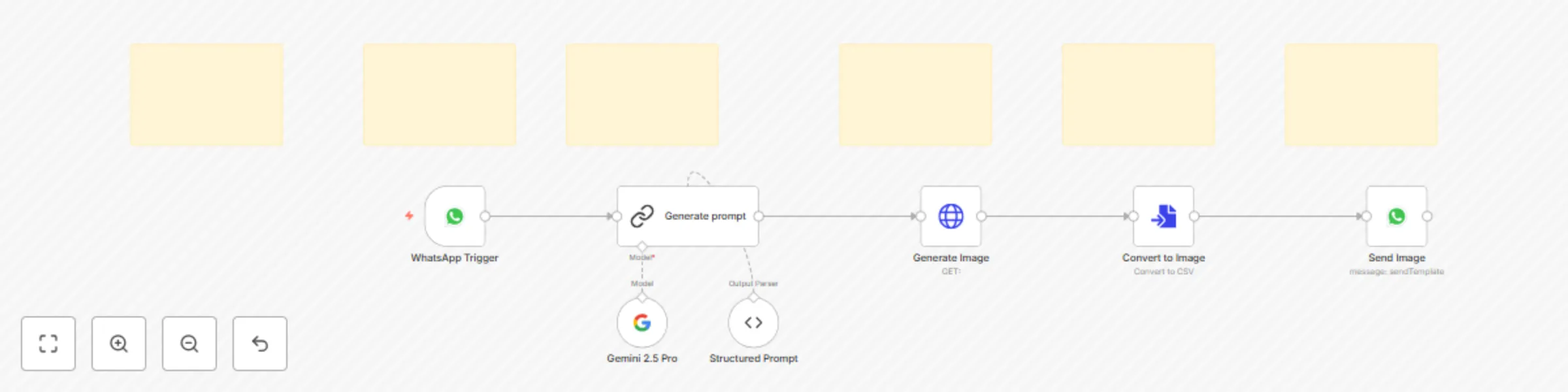
  • Listens for WhatsApp Messages: The workflow starts automatically when you send a message to your connected WhatsApp number.
  • Enhances Your Idea with AI: It takes your basic text (e.g., "a knight on a horse") and uses Gemini 2.5 Pro to expand it into a rich, detailed prompt perfect for image generation (e.g., "A cinematic, full-body shot of a stoic knight in gleaming, ornate silver armor, riding a powerful black warhorse through a misty, ancient forest. The scene is lit by ethereal morning sunbeams piercing the canopy, creating dramatic volumetric lighting and long shadows. Photorealistic, 8K, ultra-detailed, award-winning fantasy concept art.").
  • Generates a Unique Image: It sends this enhanced prompt to the Google Gemini 2.0 Flash image generation API.
  • Prepares the Image: The API returns the image in Base64 format, and the workflow instantly converts it into a binary file.
  • Sends it Back to You: The final, high-quality image is sent directly back to you in the same WhatsApp chat.

Nodes Used

  • 🟢 WhatsApp Trigger: The entry point that listens for incoming messages.
  • 🧠 LangChain Chain (LLM): Uses Gemini 2.5 Pro for advanced prompt engineering.
  • ➡️ HTTP Request: Calls the Google Gemini 2.0 Flash API to generate the image.
  • 🔄 Convert to File: Converts the Base64 image data into a sendable file format.
  • 💬 WhatsApp: Sends the final image back to the user.

Prerequisites

To use this workflow, you will need:

  • An n8n instance.
  • A WhatsApp Business Account connected to n8n. You can find instructions on how to set this up in the n8n docs.
  • A Google Gemini API Key. You can get one for free from Google AI Studio.

How to use this workflow

  1. Get your Google Gemini API Key: Visit the Google AI Studio and create a new API key.
  2. Configure the Gemini 2.5 Pro Node:
  • In the n8n workflow, select the Gemini 2.5 Pro node.
  • Under 'Connect your account', click 'Create New' to add a new credential.
  • Paste your Gemini API key from the previous step and save.
  1. Configure the Generate Image (HTTP Request) Node:
  • Select the Generate Image node.
  • In the properties panel on the right, find the Query Parameters section.
  • In the 'Value' field for the key parameter, replace "Your API Key" with your actual Google Gemini API Key.
  1. Connect WhatsApp:
  • Select the WhatsApp Trigger node.
  • Follow the instructions to connect your WhatsApp Business Account credential. If you haven't created one, the node will guide you through the process.
  1. Activate and Test:
  • Save the workflow using the button at the top right.
  • Activate the workflow using the toggle switch.
  • Send a message to your connected WhatsApp number (e.g., "A futuristic city in the style of Van Gogh"). The bot will process your request and send a stunning AI-generated image right back to you!

1.2 Logical Blocks

This catalog entry is organized from the workflow JSON. The node-level section below shows the executable blocks available for review before importing the template.

2. Block-by-Block Analysis

Block 1 - Generate Image

Type / Role
n8n-nodes-base.httpRequest - httpRequest
Config choices
Version 4.2

Block 2 - Generate prompt

Type / Role
@n8n/n8n-nodes-langchain.chainLlm - chainLlm
Config choices
Version 1.7

Block 3 - Structured Prompt

Type / Role
@n8n/n8n-nodes-langchain.outputParserStructured - outputParserStructured
Config choices
Version 1.3

Block 4 - Convert to Image

Type / Role
n8n-nodes-base.convertToFile - convertToFile
Config choices
Version 1.1

Block 5 - Sticky Note

Type / Role
n8n-nodes-base.stickyNote - stickyNote
Config choices
Version 1

Block 6 - Sticky Note1

Type / Role
n8n-nodes-base.stickyNote - stickyNote
Config choices
Version 1

Block 7 - Sticky Note2

Type / Role
n8n-nodes-base.stickyNote - stickyNote
Config choices
Version 1

Block 8 - Sticky Note3

Type / Role
n8n-nodes-base.stickyNote - stickyNote
Config choices
Version 1

Block 9 - Sticky Note4

Type / Role
n8n-nodes-base.stickyNote - stickyNote
Config choices
Version 1

Block 10 - Sticky Note5

Type / Role
n8n-nodes-base.stickyNote - stickyNote
Config choices
Version 1

Block 11 - Gemini 2.5 Pro

Type / Role
@n8n/n8n-nodes-langchain.lmChatGoogleGemini - lmChatGoogleGemini
Config choices
Version 1

Block 12 - WhatsApp Trigger

Type / Role
n8n-nodes-base.whatsAppTrigger - whatsAppTrigger
Config choices
Version 1

Block 13 - Send Image

Type / Role
n8n-nodes-base.whatsApp - whatsApp
Config choices
Version 1

3. Summary Table

Workflow Create stunning AI images directly from WhatsApp with Gemini
Complexity intermediate
Nodes 13
Categories Automation
Author Harsh Maniya
Published 21 Jul 2025

4. Reproducing the Workflow from Scratch

  1. 1. Download the workflow JSON

    Use the JSON export at /data/workflows/6242/6242.json as the source template for this automation.

  2. 2. Import the template into n8n

    Open n8n, import the downloaded JSON, and review each node before activating the workflow.

  3. 3. Configure credentials and variables

    Replace placeholder credentials, API keys, webhook URLs, account IDs, and environment-specific values with your own settings.

  4. 4. Test with sample data

    Run the workflow manually or in a staging workspace, inspect node output, and confirm downstream systems receive the expected data.

  5. 5. Activate and monitor

    Enable the workflow only after testing, then monitor executions, errors, and rate limits during the first production runs.

5. General Notes & Resources

Review imported nodes carefully before activation. This catalog entry is intended to help you inspect the workflow structure, understand required services, and find related templates faster.

Node names, credentials, schedules, webhook paths, and external service limits may need adjustment for your workspace.

Frequently asked questions

What does Create stunning AI images directly from WhatsApp with Gemini do?

Create Stunning AI Images Directly from WhatsApp with Gemini This workflow transforms your WhatsApp into a personal AI image generation studio. Simply send a text message with your idea, and t...

What do I need before importing this workflow?

Review the workflow JSON, configure any required credentials in n8n, and test the automation in a safe workspace before using it in production.

Can I customize this workflow?

Yes. Use the block-by-block analysis and the downloadable JSON to inspect each node, then adjust credentials, prompts, schedules, filters, or destinations for your Automation use case.