Block 1 - Embeddings Google Gemini4
- Type / Role
- @n8n/n8n-nodes-langchain.embeddingsGoogleGemini - embeddingsGoogleGemini
- Config choices
- Version 1


 Early Deal
This workflow is provided as-is. Please review and test before using in production.
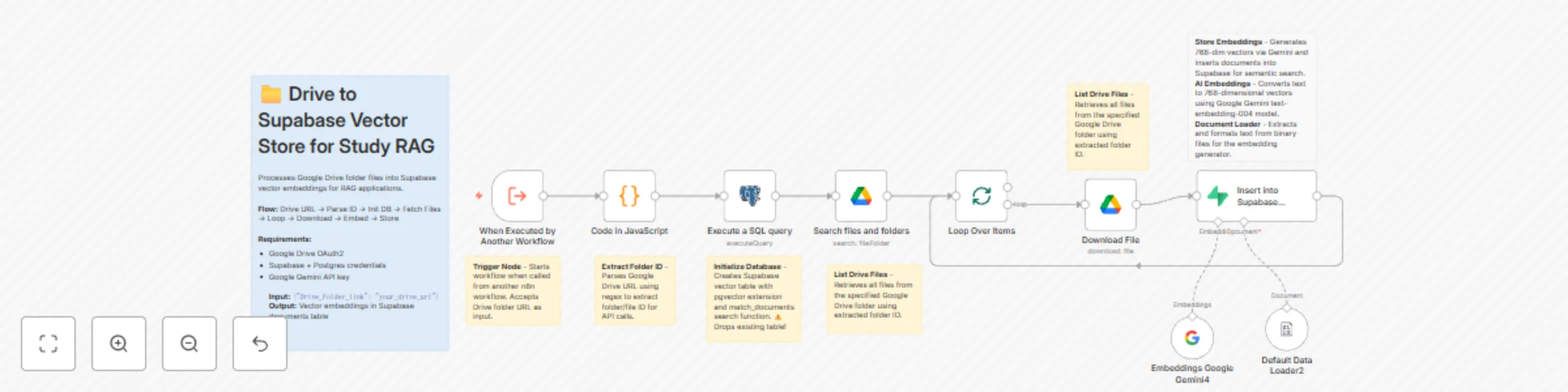
How it works This workflow automates the process of converting Google Drive documents into searchable vector embeddings for AI powered applications: • Takes a Google Drive folder URL as input • Ini...
@n8n/n8n-nodes-langchain.embeddingsgooglegemini, @n8n/n8n-nodes-langchain.documentdefaultdataloader, n8n-nodes-base.postgres, n8n-nodes-base.code, n8n-nodes-base.executeworkflowtrigger, n8n-nodes-base.stickynote, n8n-nodes-base.splitinbatches, n8n-nodes-base.googledrive
This workflow is cataloged by N8N Workflows and links back to its original n8n.io source page by Mantaka Mahir.
Original n8n.io sourceThis workflow automates the process of converting Google Drive documents into searchable vector embeddings for AI-powered applications:
• Takes a Google Drive folder URL as input • Initializes a Supabase vector database with pgvector extension • Fetches all files from the specified Drive folder • Downloads and converts each file to plain text • Generates 768-dimensional embeddings using Google Gemini • Stores documents with embeddings in Supabase for semantic search
Built for the Study Agent workflow to power document-based Q&A, but also works perfectly for any RAG system, AI chatbot, knowledge base, or semantic search application that needs to query document collections.
Prerequisites: • Google Drive OAuth2 credentials • Supabase account with Postgres connection details • Google Gemini API key (free tier available)
Setup time: ~10 minutes
Steps:
Note: The SQL query will drop any existing "documents" table, so backup data if needed. Detailed node-by-node instructions are in the sticky notes within the workflow.
Works with: Study Agent (main use case), custom AI agents, chatbots, documentation search, customer support bots, or any RAG application.
This catalog entry is organized from the workflow JSON. The node-level section below shows the executable blocks available for review before importing the template.
| Workflow | Create RAG vector database from Google Drive documents using Gemini & Supabase |
|---|---|
| Complexity | advanced |
| Nodes | 16 |
| Categories | Document Extraction, AI RAG |
| Author | Mantaka Mahir |
| Published | 09 Nov 2025 |
Use the JSON export at /data/workflows/10651/10651.json as the source template for this automation.
Open n8n, import the downloaded JSON, and review each node before activating the workflow.
Replace placeholder credentials, API keys, webhook URLs, account IDs, and environment-specific values with your own settings.
Run the workflow manually or in a staging workspace, inspect node output, and confirm downstream systems receive the expected data.
Enable the workflow only after testing, then monitor executions, errors, and rate limits during the first production runs.
Review imported nodes carefully before activation. This catalog entry is intended to help you inspect the workflow structure, understand required services, and find related templates faster.
Node names, credentials, schedules, webhook paths, and external service limits may need adjustment for your workspace.
How it works This workflow automates the process of converting Google Drive documents into searchable vector embeddings for AI powered applications: • Takes a Google Drive folder URL as input • Ini...
Review the workflow JSON, configure any required credentials in n8n, and test the automation in a safe workspace before using it in production.
Yes. Use the block-by-block analysis and the downloadable JSON to inspect each node, then adjust credentials, prompts, schedules, filters, or destinations for your Document Extraction, AI RAG use case.