Block 1 - Main — Overview & Setup
- Type / Role
- n8n-nodes-base.stickyNote - stickyNote
- Config choices
- Version 1


 Early Deal
Description Paste any onboarding video URL into a simple form and the workflow handles everything automatically. It transcribes the video, sends the full transcript to an AI that writes the exact n...
n8n-nodes-base.stickynote, n8n-nodes-base.formtrigger, n8n-nodes-base.httprequest, n8n-nodes-base.wait, n8n-nodes-base.if, @n8n/n8n-nodes-langchain.agent, @n8n/n8n-nodes-langchain.lmchatopenai, n8n-nodes-base.googlesheets
This workflow is cataloged by N8N Workflows and links back to its original n8n.io source page by isaWOW.
Original n8n.io sourcePaste any onboarding video URL into a simple form and the workflow handles everything automatically. It transcribes the video, sends the full transcript to an AI that writes the exact number of quiz questions you requested, and saves the complete quiz directly to your Google Sheet. Built for HR teams, L&D managers, and anyone who creates employee training content at scale.
Estimated Setup Time: 10–15 minutes
Get your WayinVideo API key — Log in to your WayinVideo account, go to API settings, and copy your API key.
Add your WayinVideo key to Node 2 — Open the 2. WayinVideo — Submit Transcript node. In the Authorization header, replace YOUR_WAYINVIDEO_API_KEY with your actual key.
Add your WayinVideo key to Node 4 — Open the 4. WayinVideo — Get Transcript node. Replace YOUR_WAYINVIDEO_API_KEY again in the Authorization header.
> ⚠️ Your WayinVideo API key appears in two nodes — replace it in both 2. WayinVideo — Submit Transcript AND 4. WayinVideo — Get Transcript or the workflow will fail.
Add your OpenAI API key — Open the OpenAI — Chat Model node and connect your OpenAI API credentials. If you haven't added them yet, go to n8n Settings → Credentials → New → OpenAI.
Fix the IF node condition — Open the 5. If — Transcript Status Check node. Set the left value to {{ $json.data.status }} and the right value to SUCCEEDED. This tells the workflow to move forward only when transcription is complete.
> ⚠️ This step is critical. Without this condition, the workflow will loop forever and never generate your quiz.
Create your Google Sheet — Create a new Google Sheet with a tab named exactly Quiz Bank. Add these column headers in row 1: Department, Video URL, Total Questions, Quiz Questions, Generated On.
Connect Google Sheets — Open the 7. Google Sheets — Save Quiz Bank node. Connect your Google Sheets OAuth2 credentials.
Add your Sheet ID — In the same node, replace YOUR_GOOGLE_SHEET_ID with your actual Sheet ID. Find it in your Google Sheet URL — it's the long string between /d/ and /edit.
Activate the workflow — Toggle the workflow ON. Open the form URL and run a test with a short video to confirm everything works end to end.
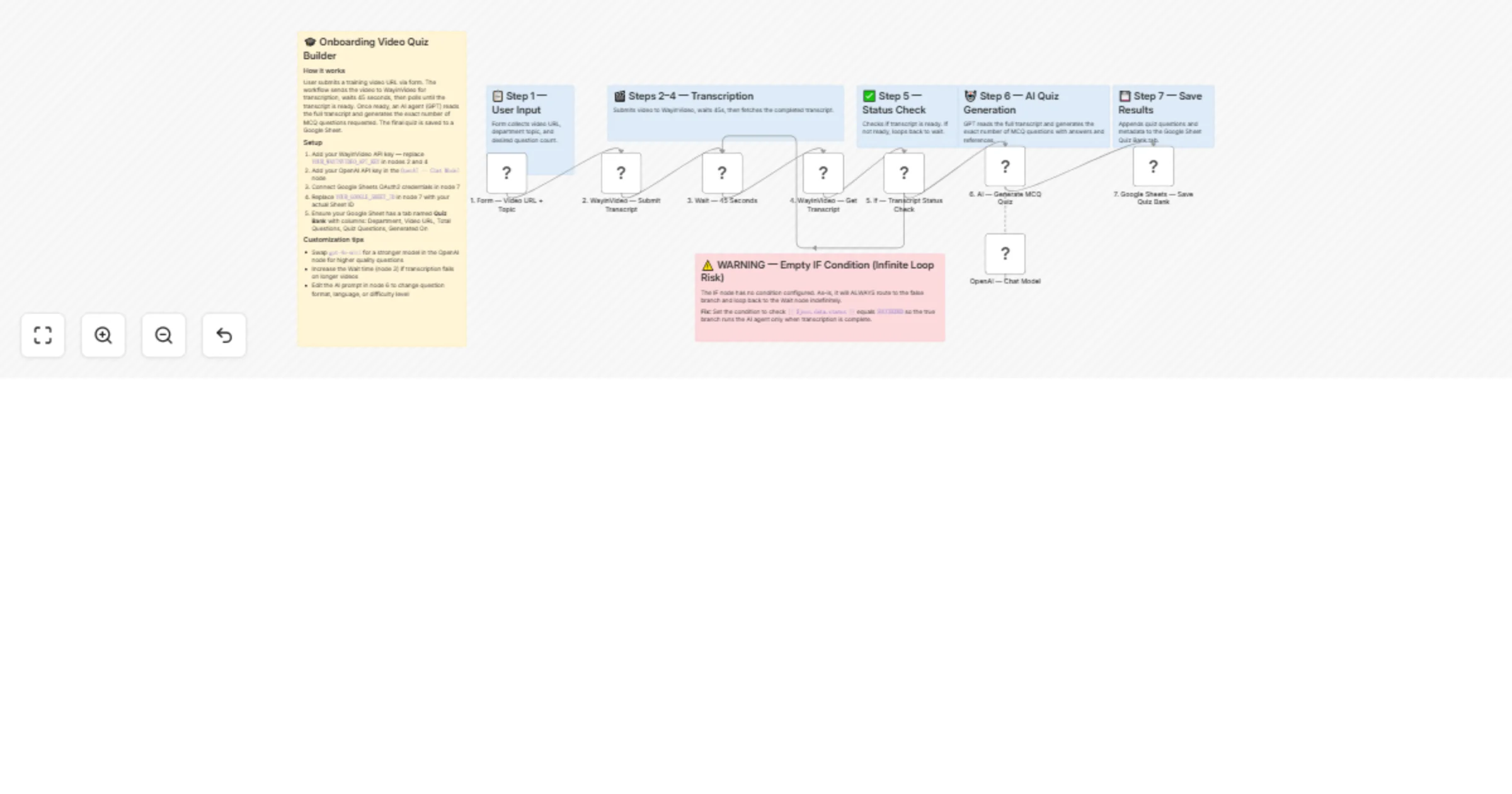
Step 1 — Form Trigger: Collect Video Details The workflow starts when someone submits the web form. They enter the onboarding video URL, their department or topic name, and how many questions they want. This is the only manual step — everything after this is fully automatic.
Step 2 — HTTP Request: Submit Video to WayinVideo The workflow sends the video URL to the WayinVideo API to start the transcription job. WayinVideo processes the video and returns a unique transcription ID that the workflow uses to track progress.
Step 3 — Wait: Pause for 45 Seconds The workflow pauses for 45 seconds to give WayinVideo time to process the video before checking whether it's ready. For longer videos, you can increase this wait time.
Step 4 — HTTP Request: Fetch the Transcript Using the transcription ID from Step 2, the workflow calls WayinVideo again to retrieve the results. The response includes the full transcript with speaker names, timestamps, and spoken text for each segment.
Step 5 — IF Check: Is the Transcript Ready?
The workflow checks whether the transcription status equals SUCCEEDED. If yes, it moves forward to quiz generation. If no, it loops back to the 45-second wait and tries again. This polling loop repeats automatically until the transcript is fully ready.
Step 6 — AI Agent: Generate the Quiz The full transcript is passed to GPT-4o-mini with a detailed prompt. The AI reads only the transcript — no outside knowledge — and generates exactly the number of MCQ questions requested. Each question has four options, one correct answer, and a reference to the speaker and approximate timestamp in the video.
Step 7 — Google Sheets: Save the Quiz The completed quiz, along with the department name, video URL, question count, and generation timestamp, is appended as a new row in your Quiz Bank tab. The quiz is ready to review, share, or export.
✅ Exact question count — The AI always generates exactly the number of questions you requested — no more, no less ✅ Transcript-only questions — Every question is based strictly on what was said in the video, with no general knowledge mixed in ✅ Speaker + timestamp references — Each answer includes a citation so trainers can verify answers directly in the video ✅ Automatic polling loop — The workflow retries until transcription is complete, so you never have to check manually ✅ Simple form interface — Anyone on your team can use it — no n8n knowledge required ✅ Centralised quiz bank — All quizzes are saved to one Google Sheet, organised by department and date ✅ Swap the AI model — Easily upgrade to a stronger model for more complex training content
Increase the wait time for long videos — Open the 3. Wait — 45 Seconds node and increase the wait duration if your training videos are longer than 15–20 minutes.
Upgrade to a stronger AI model — In the OpenAI — Chat Model node, replace gpt-4o-mini with gpt-4o for higher-quality questions on dense or technical content.
Change the quiz language — Edit the system prompt in the 6. AI — Generate MCQ Quiz node to request questions in any language. Also update the target_lang parameter in the 2. WayinVideo — Submit Transcript node to match.
Add a difficulty level to the form — Add a new field to the 1. Form — Video URL + Topic node (e.g. Easy / Medium / Hard) and reference it in the AI prompt to adjust question complexity.
Send the quiz by email — Add a Gmail or Outlook node after 7. Google Sheets — Save Quiz Bank to automatically email the completed quiz to the requester or their manager.
Add a Slack notification — Insert a Slack node at the end to post a message to a team channel whenever a new quiz is saved, including the department name and question count.
Workflow loops forever and never generates questions:
{{ $json.data.status }} equals SUCCEEDEDTranscription fails or returns an error:
Quiz not saving to Google Sheets:
AI generates the wrong number of questions:
You must generate exactly [N] questions. Stop at exactly [N].gpt-4o for stricter instruction-followingForm not collecting responses:
Need help setting this up or want a custom version built for your team or agency?
📧 Email: [email protected] 🌐 Website: https://isawow.com/
This catalog entry is organized from the workflow JSON. The node-level section below shows the executable blocks available for review before importing the template.
| Workflow | Create onboarding video quizzes using WayinVideo, GPT-4o-mini and Google Sheets |
|---|---|
| Complexity | advanced |
| Nodes | 15 |
| Categories | Document Extraction, AI Summarization |
| Author | isaWOW |
| Published | 31 Mar 2026 |
Use the JSON export at /data/workflows/14526/14526.json as the source template for this automation.
Open n8n, import the downloaded JSON, and review each node before activating the workflow.
Replace placeholder credentials, API keys, webhook URLs, account IDs, and environment-specific values with your own settings.
Run the workflow manually or in a staging workspace, inspect node output, and confirm downstream systems receive the expected data.
Enable the workflow only after testing, then monitor executions, errors, and rate limits during the first production runs.
Review imported nodes carefully before activation. This catalog entry is intended to help you inspect the workflow structure, understand required services, and find related templates faster.
Node names, credentials, schedules, webhook paths, and external service limits may need adjustment for your workspace.
Description Paste any onboarding video URL into a simple form and the workflow handles everything automatically. It transcribes the video, sends the full transcript to an AI that writes the exact n...
Review the workflow JSON, configure any required credentials in n8n, and test the automation in a safe workspace before using it in production.
Yes. Use the block-by-block analysis and the downloadable JSON to inspect each node, then adjust credentials, prompts, schedules, filters, or destinations for your Document Extraction, AI Summarization use case.