Block 1 - OpenAI Chat Model
- Type / Role
- @n8n/n8n-nodes-langchain.lmChatOpenAi - lmChatOpenAi
- Config choices
- Version 1.2


 Early Deal
This workflow is provided as-is. Please review and test before using in production.
AI LinkedIn Content Bot with Approval Loop This n8n workflow transforms your Telegram messenger into a personal assistant for creating and publishing LinkedIn posts. You can simply send an idea as ...
@n8n/n8n-nodes-langchain.lmchatopenai, @n8n/n8n-nodes-langchain.openai, n8n-nodes-base.telegram, n8n-nodes-base.if, @n8n/n8n-nodes-langchain.memorybufferwindow, n8n-nodes-base.stickynote, n8n-nodes-base.telegramtrigger, n8n-nodes-base.set
This workflow is cataloged by N8N Workflows and links back to its original n8n.io source page by Feras Dabour.
Original n8n.io sourceAI LinkedIn Content Bot with Approval Loop
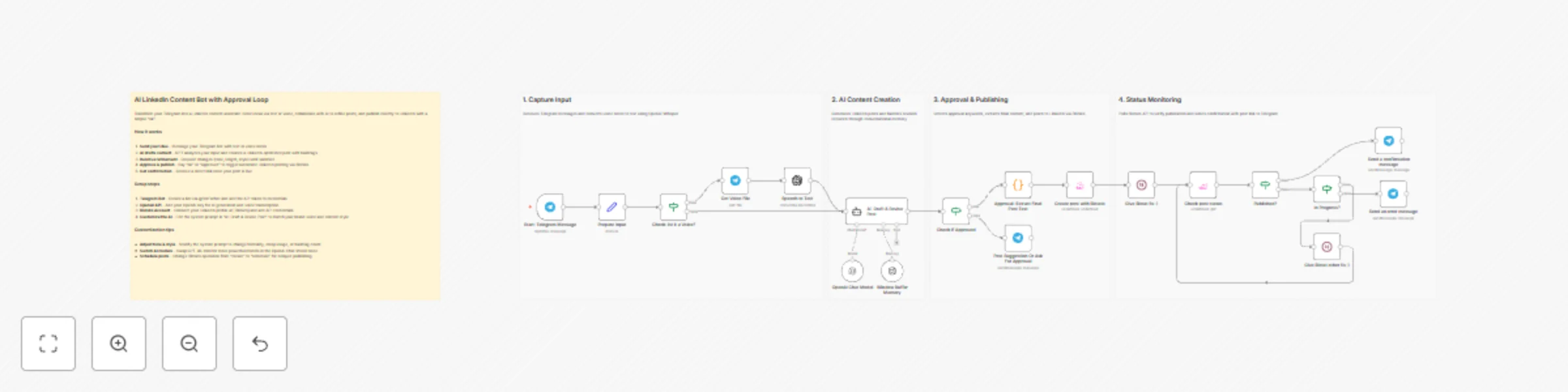
This n8n workflow transforms your Telegram messenger into a personal assistant for creating and publishing LinkedIn posts. You can simply send an idea as a text or voice message, collaboratively edit the AI's suggestion in a chat, and then publish the finished post directly to LinkedIn just by saying "Okay."
Before you can use this workflow, you'll need a few prerequisites set up. This workflow connects three different services, so you will need API credentials for each:
Telegram Bot API Key: You can get this by talking to the "BotFather" on Telegram. It will guide you through creating your new bot and provide you with the API token. New Chat with Telegram BotFather
OpenAI API Key: This is required for the "Speech to Text" and "AI Agent" nodes. You'll need an account with OpenAI to generate this key. OpenAI API Platform
Blotato API Key: This service is used to publish the final post to LinkedIn. You'll need a Blotato account and to connect your LinkedIn profile there to get the key. [Blotato platform for social media publishing]
Once you have these keys, you can add them to the corresponding credentials in your n8n instance.
Here is a detailed breakdown of how the workflow processes your request and handles the publishing.
This phase captures your idea and converts it into usable text.
| Node Name | Role in Workflow |
|---|---|
Start: Telegram Message |
This Telegram Trigger node initiates the entire process upon receiving any message from you in the bot. |
Prepare Input |
Consolidates the message content, ensuring the AI receives only one clean text input. |
Check: ist it a Voice? |
Checks the incoming message for text. If text is empty, it proceeds to voice handling. |
Get Voice File |
If a voice note is detected, this node downloads the raw audio file from Telegram. |
Speech to Text |
This node uses the OpenAI Whisper API to convert the downloaded audio file into a text string. |
This is the central dialogue system where the AI drafts the content and engages in the feedback loop.
| Node Name | Role in Workflow |
|---|---|
AI: Draft & Revise Post |
The main logic agent. It analyzes your request, applies the "System Prompt" rules, drafts the post, and handles revisions based on your feedback. |
OpenAI Chat Model |
Defines the large language model (LLM) used for generating and revising the post. |
Window Buffer Memory |
A memory buffer that stores the last turns of the conversation, allowing the AI to maintain context when you request changes (e.g., "Make it shorter"). |
Check if Approved |
This crucial node detects the specific JSON structure the AI outputs only when you provide an approval keyword (like "ok" or "approved"). |
Post Suggestion Or Ask For Approval |
Sends the AI's post draft back to your Telegram chat for review and feedback. |
The agent operates under a strict prompt that dictates its behavior and formatting (found within the AI: Draft & Revise Post node):
> You are a LinkedIn Content Creator Agent for Telegram.
> Keep the confirmation process, but change the output format as follows:
>
> Your Task
> Analyze the user's message:
>
> * Topic
> * Goal (e.g., reach, show expertise, recruiting, personal branding, leads)
> * Target Audience
> * Tonality (e.g., factual, personal, bold, inspiring)
>
> Create a LinkedIn post as ONE continuous text:
>
> * Strong hook in the first 1–2 lines.
> * Clear main part with added value, story, example, or insight.
> * Optional Call-to-Action (e.g., question to the community, invitation to exchange).
> * Integrate hashtags at the end of the post (5–12 suitable hashtags, mix of niche + somewhat broader).
> * Readable on LinkedIn: short paragraphs, emojis only sparingly.
>
> Present the suggestion to the user in the following format:
>
> Headline: Post Proposal:
> Below that, the complete LinkedIn post (incl. hashtags at the end in the same text).
>
> Ask for feedback:
> For example:
> "Any changes? (Tone, length, formality, personal vs. professional, more technical content, different hashtags?)"
>
> If the user requests changes:
> Adjust the post specifically based on the feedback.
> Again, output only:
> Post Proposal:
> the revised complete post.
>
> If the user says “approved”, “ok”, “sounds good”, or similar:
> Return exclusively this JSON, without additional text, without Markdown:
>
> json > { > "Post": "The final LinkedIn post as one text, including hashtags at the end" > } >
>
> Important:
>
> * Never output JSON before approval, only normal suggestion text.
> * The final output after approval consists of only one field: Post.
Once approved, the workflow handles the publication and monitors the post's status in real-time.
| Node Name | Role in Workflow |
|---|---|
Approval: Extract Final Post Text |
Parses the incoming JSON, extracting only the clean text ready for publishing. |
Create post with Blotato |
Uses the Blotato API to upload the finalized content to your connected LinkedIn account. |
Give Blotat 5s :) |
A brief pause to allow the publishing service to start processing the request. |
Check post status |
Checks back with Blotato to determine if the post is published, in progress, or failed. |
Published? |
Checks if the status is "published" to send the success message. |
In Progress? |
Checks if the post is still being processed. If so, it loops back to the next wait period. |
Give Blotat other 5s :) |
Pauses the workflow before re-checking the post status, preventing unnecessary API calls. |
| Node Name | Role in Workflow |
|---|---|
Send a confirmation message |
Sends a confirmation message and the direct link to the published LinkedIn post. |
Send an error message |
Sends a notification if the post failed to upload or encountered an error during processing. |
The true power of this n8n workflow lies in its flexibility. You can easily modify key components to match your unique brand voice and technical preferences.
The personality, tone, and formatting rules for your LinkedIn content are all defined in the System Prompt.
AI: Draft & Revise Post node, under the System Message setting.You can easily swap the language model used for generation.
OpenAI Chat Model node.gpt-4 family, or models from other providers if you change the node).AI Model and Window Buffer Memory nodes) with an equivalent block using a different provider's Chat/LLM node (e.g., Anthropic, Cohere, or Google Gemini), provided you set up the corresponding credentials and context flow.The final step is currently set to publish immediately, but you might prefer to schedule posts.
Create post with Blotato node.Scheduled Time parameter to the Blotato node.This catalog entry is organized from the workflow JSON. The node-level section below shows the executable blocks available for review before importing the template.
| Workflow | Create LinkedIn content with GPT-4 via Telegram bot & approval loop |
|---|---|
| Complexity | advanced |
| Nodes | 24 |
| Categories | Content Creation, AI Chatbot |
| Author | Feras Dabour |
| Published | 11 Nov 2025 |
Use the JSON export at /data/workflows/10737/10737.json as the source template for this automation.
Open n8n, import the downloaded JSON, and review each node before activating the workflow.
Replace placeholder credentials, API keys, webhook URLs, account IDs, and environment-specific values with your own settings.
Run the workflow manually or in a staging workspace, inspect node output, and confirm downstream systems receive the expected data.
Enable the workflow only after testing, then monitor executions, errors, and rate limits during the first production runs.
Review imported nodes carefully before activation. This catalog entry is intended to help you inspect the workflow structure, understand required services, and find related templates faster.
Node names, credentials, schedules, webhook paths, and external service limits may need adjustment for your workspace.
AI LinkedIn Content Bot with Approval Loop This n8n workflow transforms your Telegram messenger into a personal assistant for creating and publishing LinkedIn posts. You can simply send an idea as ...
Review the workflow JSON, configure any required credentials in n8n, and test the automation in a safe workspace before using it in production.
Yes. Use the block-by-block analysis and the downloadable JSON to inspect each node, then adjust credentials, prompts, schedules, filters, or destinations for your Content Creation, AI Chatbot use case.