Create Dynamic Seating & Venue Layout Plans with Google Sheets

Workflow preview

Workflow preview
100%
Create Dynamic Seating & Venue Layout Plans with Google Sheets preview
Open on n8n.io

Important notice

This workflow is provided as-is. Please review and test before using in production.

1. Workflow Overview

Enhance event logistics with this automated n8n workflow. Triggered by seating requests, it fetches attendee data and venue templates from Google Sheets, calculates totals, and optimizes seating la...

Best for

  • Miscellaneous automation workflows
  • advanced n8n builders looking for reusable templates

Tools used

n8n-nodes-base.webhook, n8n-nodes-base.stickynote, n8n-nodes-base.code, n8n-nodes-base.googlesheets, n8n-nodes-base.respondtowebhook

Source and attribution

This workflow is cataloged by N8N Workflows and links back to its original n8n.io source page by Oneclick AI Squad.

Original n8n.io source

1.1 Workflow description

Title
Create Dynamic Seating & Venue Layout Plans with Google Sheets
Workflow name
Create Dynamic Seating & Venue Layout Plans with Google Sheets

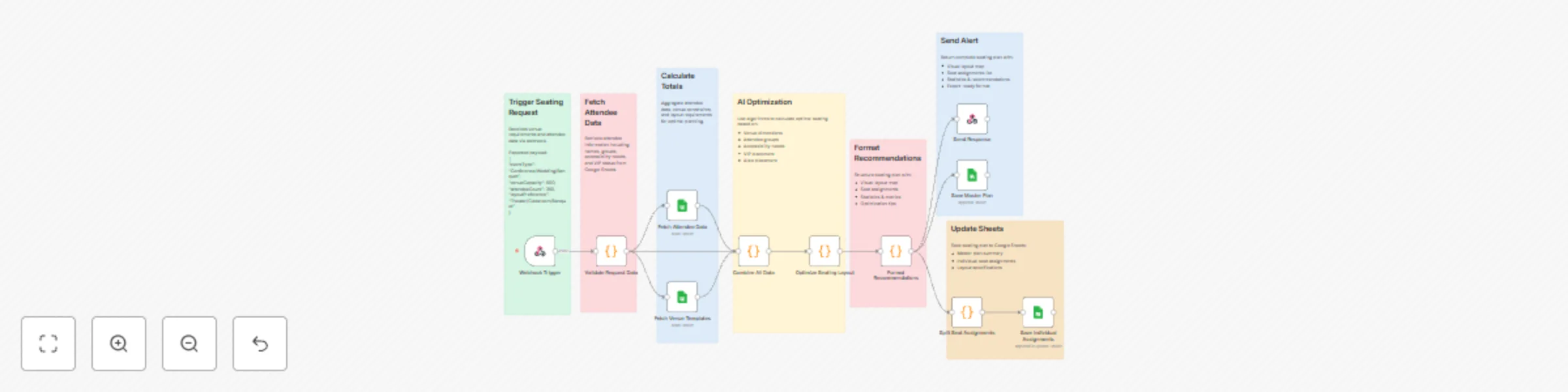
Enhance event logistics with this automated n8n workflow. Triggered by seating requests, it fetches attendee data and venue templates from Google Sheets, calculates totals, and optimizes seating layouts. The workflow generates detailed recommendations, splits individual assignments, and sends alerts, ensuring efficient venue planning and real-time updates. 🎪📋

Key Features

  • Optimizes seating arrangements based on attendee data and event type.
  • Generates venue layouts with visual and statistical insights.
  • Provides real-time alerts with comprehensive seating plans.
  • Logs detailed assignments and layouts in Google Sheets.

Workflow Process

  • The Webhook Trigger node initiates the workflow upon receiving venue requirements and attendee data via webhook.
  • Validate Request Data ensures the incoming data is complete and accurate.
  • Fetch Attendee Data retrieves attendee information, including groups, accessibility needs, and VIP preferences from Google Sheets.
  • Fetch Venue Templates reads venue layout templates from Google Sheets.
  • Calculate Totals aggregates attendee data and venue constraints for optimal planning.
  • Combine All Data merges attendee and venue data for analysis.
  • AI Optimization uses algorithms to calculate optimal seating based on venue dimensions, attendee groups, accessibility needs, VIP placement, and aisle placement.
  • Optimize Seating Layout refines the seating plan for efficiency.
  • Format Recommendations structures the seating plan with visual layout map, seat assignments, statistics & metrics, and optimization tips.
  • Split Seat Assignments divides the plan into individual seat assignments.
  • Send Response returns the complete seating plan with visual layout map, seat assignment list, statistics & recommendations, and export-ready format.
  • Send Alert notifies organizers with the finalized plan details.
  • Update Sheets saves the master plan summary, individual seat assignments, and layout specifications to Google Sheets.
  • Save Individual Assignments appends or updates individual seat assignments to Google Sheets.

Setup Instructions

  • Import the workflow into n8n and configure Google Sheets OAuth2 for data access.
  • Set up the Webhook Trigger with your event management system's API credentials.
  • Configure the AI Optimization node with a suitable algorithm or model.
  • Test the workflow by sending sample seating requests and verifying layouts.
  • Adjust optimization parameters as needed for specific venue or event requirements.

Prerequisites

  • Google Sheets OAuth2 credentials
  • Webhook integration with the event management system
  • Structured attendee and venue data in a Google Sheet

Google Sheet Structure:

  1. Attendee Data Sheet with columns:
    • Name
    • Group
    • Accessibility Needs
    • VIP Status
    • Preferences
    • Updated At
  2. Venue Templates Sheet with columns:
    • Venue Name
    • Capacity
    • Dimensions
    • Layout Template
    • Updated At

Modification Options

  • Customize the Validate Request Data node to include additional validation rules.
  • Adjust the AI Optimization node to prioritize specific criteria (e.g., proximity, accessibility).
  • Modify the Format Recommendations node to include custom visual formats.
  • Integrate with venue management tools for live layout updates.
  • Set custom alert triggers in the Send Alert node.

Discover more workflows – Get in touch with us

1.2 Logical Blocks

This catalog entry is organized from the workflow JSON. The node-level section below shows the executable blocks available for review before importing the template.

2. Block-by-Block Analysis

Block 1 - Webhook Trigger

Type / Role
n8n-nodes-base.webhook - webhook
Config choices
Version 2

Block 2 - Sticky Note - Trigger

Type / Role
n8n-nodes-base.stickyNote - stickyNote
Config choices
Version 1

Block 3 - Validate Request Data

Type / Role
n8n-nodes-base.code - code
Config choices
Version 2

Block 4 - Fetch Attendee Data

Type / Role
n8n-nodes-base.googleSheets - googleSheets
Config choices
Version 4

Block 5 - Sticky Note - Fetch Data

Type / Role
n8n-nodes-base.stickyNote - stickyNote
Config choices
Version 1

Block 6 - Fetch Venue Templates

Type / Role
n8n-nodes-base.googleSheets - googleSheets
Config choices
Version 4

Block 7 - Combine All Data

Type / Role
n8n-nodes-base.code - code
Config choices
Version 2

Block 8 - Sticky Note - Calculate

Type / Role
n8n-nodes-base.stickyNote - stickyNote
Config choices
Version 1

Block 9 - Optimize Seating Layout

Type / Role
n8n-nodes-base.code - code
Config choices
Version 2

Block 10 - Sticky Note - Optimize

Type / Role
n8n-nodes-base.stickyNote - stickyNote
Config choices
Version 1

Block 11 - Format Recommendations

Type / Role
n8n-nodes-base.code - code
Config choices
Version 2

Block 12 - Sticky Note - Format

Type / Role
n8n-nodes-base.stickyNote - stickyNote
Config choices
Version 1

Block 13 - Save Master Plan

Type / Role
n8n-nodes-base.googleSheets - googleSheets
Config choices
Version 4

Block 14 - Save Individual Assignments

Type / Role
n8n-nodes-base.googleSheets - googleSheets
Config choices
Version 4

Block 15 - Sticky Note - Save

Type / Role
n8n-nodes-base.stickyNote - stickyNote
Config choices
Version 1

Block 16 - Send Response

Type / Role
n8n-nodes-base.respondToWebhook - respondToWebhook
Config choices
Version 1

Block 17 - Sticky Note - Response

Type / Role
n8n-nodes-base.stickyNote - stickyNote
Config choices
Version 1

Block 18 - Split Seat Assignments

Type / Role
n8n-nodes-base.code - code
Config choices
Version 2

3. Summary Table

Workflow Create Dynamic Seating & Venue Layout Plans with Google Sheets
Complexity advanced
Nodes 18
Categories Miscellaneous
Author Oneclick AI Squad
Published 27 Oct 2025

4. Reproducing the Workflow from Scratch

  1. 1. Download the workflow JSON

    Use the JSON export at /data/workflows/10223/10223.json as the source template for this automation.

  2. 2. Import the template into n8n

    Open n8n, import the downloaded JSON, and review each node before activating the workflow.

  3. 3. Configure credentials and variables

    Replace placeholder credentials, API keys, webhook URLs, account IDs, and environment-specific values with your own settings.

  4. 4. Test with sample data

    Run the workflow manually or in a staging workspace, inspect node output, and confirm downstream systems receive the expected data.

  5. 5. Activate and monitor

    Enable the workflow only after testing, then monitor executions, errors, and rate limits during the first production runs.

5. General Notes & Resources

Review imported nodes carefully before activation. This catalog entry is intended to help you inspect the workflow structure, understand required services, and find related templates faster.

Node names, credentials, schedules, webhook paths, and external service limits may need adjustment for your workspace.

Frequently asked questions

What does Create Dynamic Seating & Venue Layout Plans with Google Sheets do?

Enhance event logistics with this automated n8n workflow. Triggered by seating requests, it fetches attendee data and venue templates from Google Sheets, calculates totals, and optimizes seating la...

What do I need before importing this workflow?

Review the workflow JSON, configure any required credentials in n8n, and test the automation in a safe workspace before using it in production.

Can I customize this workflow?

Yes. Use the block-by-block analysis and the downloadable JSON to inspect each node, then adjust credentials, prompts, schedules, filters, or destinations for your Miscellaneous use case.