Create AI travel journal stories from WhatsApp using Claude and Google Drive

Workflow preview

Workflow preview
100%
Create AI travel journal stories from WhatsApp using Claude and Google Drive preview
Open on n8n.io

1. Workflow Overview

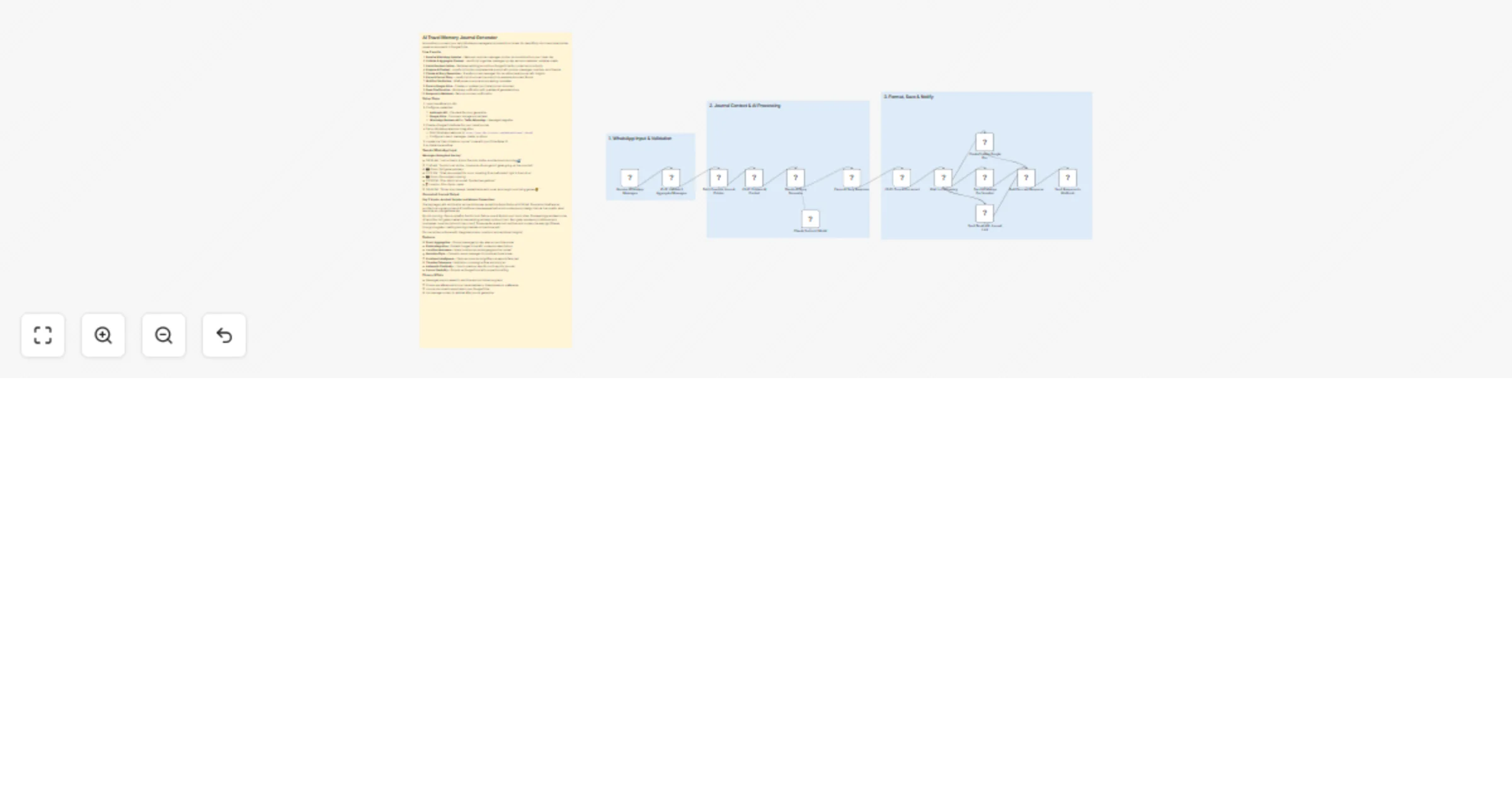
Automatically converts your daily WhatsApp messages and photos from travels into beautifully structured travel stories, saved as documents in Google Drive. How it works 1. Receive WhatsApp Updates ...

Best for

  • Content Creation automation workflows
  • Multimodal AI automation workflows
  • advanced n8n builders looking for reusable templates

Tools used

n8n-nodes-base.stickynote, n8n-nodes-base.webhook, n8n-nodes-base.code, n8n-nodes-base.googledrive, @n8n/n8n-nodes-langchain.agent, @n8n/n8n-nodes-langchain.lmchatanthropic, n8n-nodes-base.wait, n8n-nodes-base.httprequest

Source and attribution

This workflow is cataloged by N8N Workflows and links back to its original n8n.io source page by Oneclick AI Squad.

Original n8n.io source

1.1 Workflow description

Title
Create AI travel journal stories from WhatsApp using Claude and Google Drive
Workflow name
Create AI travel journal stories from WhatsApp using Claude and Google Drive

Automatically converts your daily WhatsApp messages and photos from travels into beautifully structured travel stories, saved as documents in Google Drive.

How it works

  1. Receive WhatsApp Updates - Webhook captures messages, photos, and locations from your travel day
  2. Validate & Aggregate Content - JavaScript organizes messages by day, extracts metadata, validates media
  3. Fetch Previous Entries - Retrieves existing journal from Google Drive for context and continuity
  4. Prepare AI Context - JavaScript builds comprehensive prompt with photos, messages, locations, and timeline
  5. Claude AI Story Generation - Transforms raw messages into narrative travel journal with insights
  6. Parse & Format Story - JavaScript structures the output into readable document format
  7. Wait for Finalization - Brief pause to ensure all processing completes
  8. Save to Google Drive - Creates or updates your travel journal document
  9. Send Confirmation - WhatsApp notification with preview of generated story
  10. Respond to Webhook - Returns success confirmation

Setup Steps

  1. Import workflow into n8n
  2. Configure credentials:
  • Anthropic API - Claude AI for story generation
  • Google Drive - Document storage and retrieval
  • WhatsApp Business API or Twilio WhatsApp - Message integration
  1. Create a Google Drive folder for your travel journals
  2. Set up WhatsApp webhook integration:
  • Point WhatsApp webhook to: https://your-n8n-instance.com/webhook/travel-journal
  • Configure to send: messages, media, locations
  1. Update the "Fetch Previous Journal" node with your Drive folder ID
  2. Activate the workflow

Sample WhatsApp Input

Messages throughout the day:

  • 09:30 AM: "Just arrived in Kyoto! The train station architecture is stunning 🚄"
  • 11:45 AM: "Fushimi Inari shrine - thousands of orange torii gates going up the mountain"
  • 📸 Photo: Torii gates pathway
  • 02:15 PM: "Tried okonomiyaki for lunch. Amazing! The chef made it right in front of us"
  • 📸 Photo: Okonomiyaki cooking
  • 05:30 PM: "Gion district at sunset. Spotted two geishas!"
  • 📍 Location: Gion, Kyoto, Japan
  • 08:45 PM: "Dinner at an izakaya. Made friends with locals who taught us drinking games 😄"

Generated Journal Output

Day 3: Kyoto - Ancient Temples and Modern Connections

The day began with anticipation as the shinkansen pulled into Kyoto Station at 9:30 AM. The station itself was an architectural marvel—a blend of traditional Japanese aesthetics and contemporary design that set the tone for what would be an unforgettable day.

By mid-morning, I found myself at Fushimi Inari Taisha, one of Kyoto's most iconic sites. The seemingly endless tunnel of vermillion torii gates created a mesmerizing pathway up Mount Inari. Each gate, donated by individuals and businesses, bore inscriptions in black kanji. The experience was both spiritual and surreal—the way light filtered through the gates, creating dancing shadows on the stone path...

[Full narrative continues with integrated photos, locations, and emotional insights]

Features

  • Smart Aggregation - Groups messages by day, even across time zones
  • Photo Integration - Embeds images inline with contextual descriptions
  • Location Awareness - Maps locations and adds geographical context
  • Narrative Style - Converts casual messages into polished travel prose
  • Emotional Intelligence - Captures mood and significance beyond literal text
  • Timeline Coherence - Maintains chronological flow and story arc
  • Automatic Continuity - Links to previous days for multi-day trip journals
  • Format Flexibility - Outputs as Google Docs with proper formatting

Privacy & Data

  • Messages are processed in real-time and not stored long-term
  • Photos are referenced but can be embedded or linked based on preference
  • Journal documents are private in your Google Drive
  • No message content is retained after journal generation

1.2 Logical Blocks

This catalog entry is organized from the workflow JSON. The node-level section below shows the executable blocks available for review before importing the template.

2. Block-by-Block Analysis

Block 1 - Main Documentation

Type / Role
n8n-nodes-base.stickyNote - stickyNote
Config choices
Version 1

Block 2 - Section 1 - Input Processing

Type / Role
n8n-nodes-base.stickyNote - stickyNote
Config choices
Version 1

Block 3 - Section 2 - Context Building

Type / Role
n8n-nodes-base.stickyNote - stickyNote
Config choices
Version 1

Block 4 - Section 3 - Storage & Delivery

Type / Role
n8n-nodes-base.stickyNote - stickyNote
Config choices
Version 1

Block 5 - Receive WhatsApp Messages

Type / Role
n8n-nodes-base.webhook - webhook
Config choices
Version 2

Block 6 - JS #1: Validate & Aggregate Messages

Type / Role
n8n-nodes-base.code - code
Config choices
Version 2

Block 7 - Fetch Previous Journal Entries

Type / Role
n8n-nodes-base.googleDrive - googleDrive
Config choices
Version 3

Block 8 - JS #2: Prepare AI Context

Type / Role
n8n-nodes-base.code - code
Config choices
Version 2

Block 9 - Claude AI Story Generator

Type / Role
@n8n/n8n-nodes-langchain.agent - agent
Config choices
Version 1.6

Block 10 - Claude Sonnet 4 Model

Type / Role
@n8n/n8n-nodes-langchain.lmChatAnthropic - lmChatAnthropic
Config choices
Version 1

Block 11 - Parse AI Story Response

Type / Role
n8n-nodes-base.code - code
Config choices
Version 2

Block 12 - JS #3: Format Document

Type / Role
n8n-nodes-base.code - code
Config choices
Version 2

Block 13 - Wait for Processing

Type / Role
n8n-nodes-base.wait - wait
Config choices
Version 1.1

Block 14 - Create/Update Google Doc

Type / Role
n8n-nodes-base.googleDrive - googleDrive
Config choices
Version 3

Block 15 - Send WhatsApp Confirmation

Type / Role
n8n-nodes-base.httpRequest - httpRequest
Config choices
Version 4.2

Block 16 - Send Email with Journal Link

Type / Role
n8n-nodes-base.emailSend - emailSend
Config choices
Version 2.1

Block 17 - Build Success Response

Type / Role
n8n-nodes-base.code - code
Config choices
Version 2

Block 18 - Send Response to Webhook

Type / Role
n8n-nodes-base.respondToWebhook - respondToWebhook
Config choices
Version 1

3. Summary Table

Workflow Create AI travel journal stories from WhatsApp using Claude and Google Drive
Complexity advanced
Nodes 18
Categories Content Creation, Multimodal AI
Author Oneclick AI Squad
Published 23 Mar 2026

4. Reproducing the Workflow from Scratch

  1. 1. Download the workflow JSON

    Use the JSON export at /data/workflows/14265/14265.json as the source template for this automation.

  2. 2. Import the template into n8n

    Open n8n, import the downloaded JSON, and review each node before activating the workflow.

  3. 3. Configure credentials and variables

    Replace placeholder credentials, API keys, webhook URLs, account IDs, and environment-specific values with your own settings.

  4. 4. Test with sample data

    Run the workflow manually or in a staging workspace, inspect node output, and confirm downstream systems receive the expected data.

  5. 5. Activate and monitor

    Enable the workflow only after testing, then monitor executions, errors, and rate limits during the first production runs.

5. General Notes & Resources

Review imported nodes carefully before activation. This catalog entry is intended to help you inspect the workflow structure, understand required services, and find related templates faster.

Node names, credentials, schedules, webhook paths, and external service limits may need adjustment for your workspace.

Frequently asked questions

What does Create AI travel journal stories from WhatsApp using Claude and Google Drive do?

Automatically converts your daily WhatsApp messages and photos from travels into beautifully structured travel stories, saved as documents in Google Drive. How it works 1. Receive WhatsApp Updates ...

What do I need before importing this workflow?

Review the workflow JSON, configure any required credentials in n8n, and test the automation in a safe workspace before using it in production.

Can I customize this workflow?

Yes. Use the block-by-block analysis and the downloadable JSON to inspect each node, then adjust credentials, prompts, schedules, filters, or destinations for your Content Creation, Multimodal AI use case.