Conversing with data: transforming text into SQL queries and visual curves

Workflow preview

Workflow preview
100%
Conversing with data: transforming text into SQL queries and visual curves preview
Open on n8n.io

Important notice

This workflow is provided as-is. Please review and test before using in production.

1. Workflow Overview

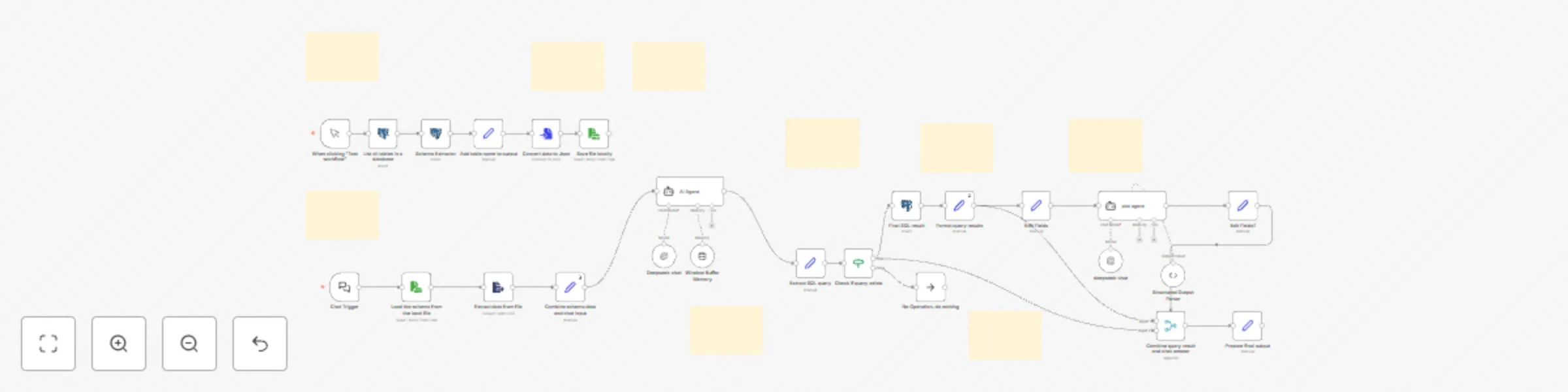
Conversational Data Retrieval and Visualization Workflow This workflow enables users to interact with a PostgreSQL database using natural language. It translates text inputs into SQL queries, retri...

Best for

  • Engineering automation workflows
  • AI Chatbot automation workflows
  • advanced n8n builders looking for reusable templates

Tools used

@n8n/n8n-nodes-langchain.memorybufferwindow, n8n-nodes-base.noop, n8n-nodes-base.set, n8n-nodes-base.readwritefile, n8n-nodes-base.extractfromfile, @n8n/n8n-nodes-langchain.chattrigger, @n8n/n8n-nodes-langchain.agent, n8n-nodes-base.stickynote

Source and attribution

This workflow is cataloged by N8N Workflows and links back to its original n8n.io source page by hippolyte-hu.

Original n8n.io source

1.1 Workflow description

Title
Conversing with data: transforming text into SQL queries and visual curves
Workflow name
Conversing with data: transforming text into SQL queries and visual curves

Conversational Data Retrieval and Visualization Workflow

This workflow enables users to interact with a PostgreSQL database using natural language. It translates text inputs into SQL queries, retrieves the corresponding data, and generates visualizations using QuickChart, facilitating seamless data analysis without manual query writing.

Table of Contents

Pre-conditions and Requirements

1. API Keys and Services Required

To operate this workflow, access to the following services is necessary:

  • DeepSeek API: For converting natural language into SQL queries.
    • API Key: Obtain from your DeepSeek account.
  • QuickChart: For generating data visualizations.
    • Service URL: https://quickchart.io/chart

2. n8n Instance Setup

  • n8n Installation: Install and run n8n using the Official Guide.
  • Credential Configuration:
    • DeepSeek API: Set up DeepSeek credentials in n8n by adding your API key.
    • PostgreSQL Database:
      • Local Database Access: If your PostgreSQL database is hosted locally and needs to be accessed over the internet (e.g., by n8n running on a different machine or in the cloud), you can expose it using ngrok:
        1. Install ngrok: Download and install ngrok from ngrok.com.
        2. Start ngrok Tunnel: Run the command ngrok tcp 5432 to expose your local PostgreSQL server.
          • This will provide a forwarding address like tcp://0.tcp.ngrok.io:12345 that can be used to connect to your local database remotely.
        3. Update n8n Credentials: In n8n, configure the PostgreSQL node to use the ngrok forwarding address, ensuring remote access to your local database.

Database Schema Setup

Before initiating the workflow, ensure that the database schema is extracted and saved:

  1. Extract Schema: Retrieve the database schema, including table names and column details.
  2. Save Schema: Store the extracted schema in a JSON file for reference during query generation.

Step-by-Step Workflow Explanation

  1. User Input Handling

    • The workflow begins by receiving a natural language query from the user.
  2. Schema Retrieval

    • Loads the previously saved database schema from the JSON file.
  3. AI-Based SQL Generation

    • Combines the user's query with the database schema.
    • Utilizes the DeepSeek API to translate the natural language query into a SQL statement.
  4. SQL Query Execution

    • Executes the generated SQL query against the PostgreSQL database.
    • Retrieves the data corresponding to the query.
  5. Data Visualization

    • Formats the retrieved data into a structure compatible with QuickChart.
    • Sends the data to QuickChart to generate a visual representation.
      • Example: To create a bar chart, construct a URL with the chart configuration:
        https://quickchart.io/chart?c={type:'bar',data:{labels:['Label1','Label2'],datasets:[{label:'Dataset1',data:[10,20]}]}}
        
        This URL returns an image of the chart.
  6. Response Delivery

    • Presents the generated visualizations and data insights to the user.

Customization Guide

Modifying the AI Model

  • Alternative AI Services: Replace DeepSeek with other AI models by adjusting the API call configurations in the workflow.

Changing Visualization Services

  • Visualization Tools: Swap QuickChart with other visualization services by modifying the data processing and visualization steps.

Expanding Database Support

  • Additional Databases: Adapt the workflow to support other databases (e.g., MySQL, MongoDB) by configuring the respective database credentials and query execution nodes.

This workflow streamlines the process of data retrieval and visualization, allowing users to interact with their database using natural language, thereby enhancing accessibility and efficiency in data analysis.


1.2 Logical Blocks

This catalog entry is organized from the workflow JSON. The node-level section below shows the executable blocks available for review before importing the template.

2. Block-by-Block Analysis

Block 1 - Window Buffer Memory

Type / Role
@n8n/n8n-nodes-langchain.memoryBufferWindow - memoryBufferWindow
Config choices
Version 1.2

Block 2 - No Operation, do nothing

Type / Role
n8n-nodes-base.noOp - noOp
Config choices
Version 1

Block 3 - Add table name to output

Type / Role
n8n-nodes-base.set - set
Config choices
Version 3.4

Block 4 - Save file locally

Type / Role
n8n-nodes-base.readWriteFile - readWriteFile
Config choices
Version 1

Block 5 - Extract data from file

Type / Role
n8n-nodes-base.extractFromFile - extractFromFile
Config choices
Version 1

Block 6 - Chat Trigger

Type / Role
@n8n/n8n-nodes-langchain.chatTrigger - chatTrigger
Config choices
Version 1.1

Block 7 - AI Agent

Type / Role
@n8n/n8n-nodes-langchain.agent - agent
Config choices
Version 1.6

Block 8 - Sticky Note

Type / Role
n8n-nodes-base.stickyNote - stickyNote
Config choices
Version 1

Block 9 - Sticky Note1

Type / Role
n8n-nodes-base.stickyNote - stickyNote
Config choices
Version 1

Block 10 - When clicking "Test workflow"

Type / Role
n8n-nodes-base.manualTrigger - manualTrigger
Config choices
Version 1

Block 11 - Sticky Note2

Type / Role
n8n-nodes-base.stickyNote - stickyNote
Config choices
Version 1

Block 12 - Sticky Note3

Type / Role
n8n-nodes-base.stickyNote - stickyNote
Config choices
Version 1

Block 13 - Combine schema data and chat input

Type / Role
n8n-nodes-base.set - set
Config choices
Version 3.4

Block 14 - Load the schema from the local file

Type / Role
n8n-nodes-base.readWriteFile - readWriteFile
Config choices
Version 1

Block 15 - Extract SQL query

Type / Role
n8n-nodes-base.set - set
Config choices
Version 3.4

Block 16 - Check if query exists

Type / Role
n8n-nodes-base.if - if
Config choices
Version 2.2

Block 17 - Sticky Note4

Type / Role
n8n-nodes-base.stickyNote - stickyNote
Config choices
Version 1

Block 18 - Sticky Note5

Type / Role
n8n-nodes-base.stickyNote - stickyNote
Config choices
Version 1

Block 19 - Sticky Note7

Type / Role
n8n-nodes-base.stickyNote - stickyNote
Config choices
Version 1

Block 20 - Sticky Note8

Type / Role
n8n-nodes-base.stickyNote - stickyNote
Config choices
Version 1

Block 21 - Format query results

Type / Role
n8n-nodes-base.set - set
Config choices
Version 3.4

Block 22 - Prepare final output

Type / Role
n8n-nodes-base.set - set
Config choices
Version 3.4

Block 23 - Combine query result and chat answer

Type / Role
n8n-nodes-base.merge - merge
Config choices
Version 3

Block 24 - List all tables in a database

Type / Role
n8n-nodes-base.postgres - postgres
Config choices
Version 2.5

Showing the first 24 of 36 workflow blocks. Download the JSON for the full node graph.

3. Summary Table

Workflow Conversing with data: transforming text into SQL queries and visual curves
Complexity advanced
Nodes 36
Categories Engineering, AI Chatbot
Author hippolyte-hu
Published 09 Apr 2025

4. Reproducing the Workflow from Scratch

  1. 1. Download the workflow JSON

    Use the JSON export at /data/workflows/3497/3497.json as the source template for this automation.

  2. 2. Import the template into n8n

    Open n8n, import the downloaded JSON, and review each node before activating the workflow.

  3. 3. Configure credentials and variables

    Replace placeholder credentials, API keys, webhook URLs, account IDs, and environment-specific values with your own settings.

  4. 4. Test with sample data

    Run the workflow manually or in a staging workspace, inspect node output, and confirm downstream systems receive the expected data.

  5. 5. Activate and monitor

    Enable the workflow only after testing, then monitor executions, errors, and rate limits during the first production runs.

5. General Notes & Resources

Review imported nodes carefully before activation. This catalog entry is intended to help you inspect the workflow structure, understand required services, and find related templates faster.

Node names, credentials, schedules, webhook paths, and external service limits may need adjustment for your workspace.

Frequently asked questions

What does Conversing with data: transforming text into SQL queries and visual curves do?

Conversational Data Retrieval and Visualization Workflow This workflow enables users to interact with a PostgreSQL database using natural language. It translates text inputs into SQL queries, retri...

What do I need before importing this workflow?

Review the workflow JSON, configure any required credentials in n8n, and test the automation in a safe workspace before using it in production.

Can I customize this workflow?

Yes. Use the block-by-block analysis and the downloadable JSON to inspect each node, then adjust credentials, prompts, schedules, filters, or destinations for your Engineering, AI Chatbot use case.