Block 1 - Telegram Trigger
- Type / Role
- n8n-nodes-base.telegramTrigger - telegramTrigger
- Config choices
- Version 1.2


 Early Deal
This workflow is provided as-is. Please review and test before using in production.
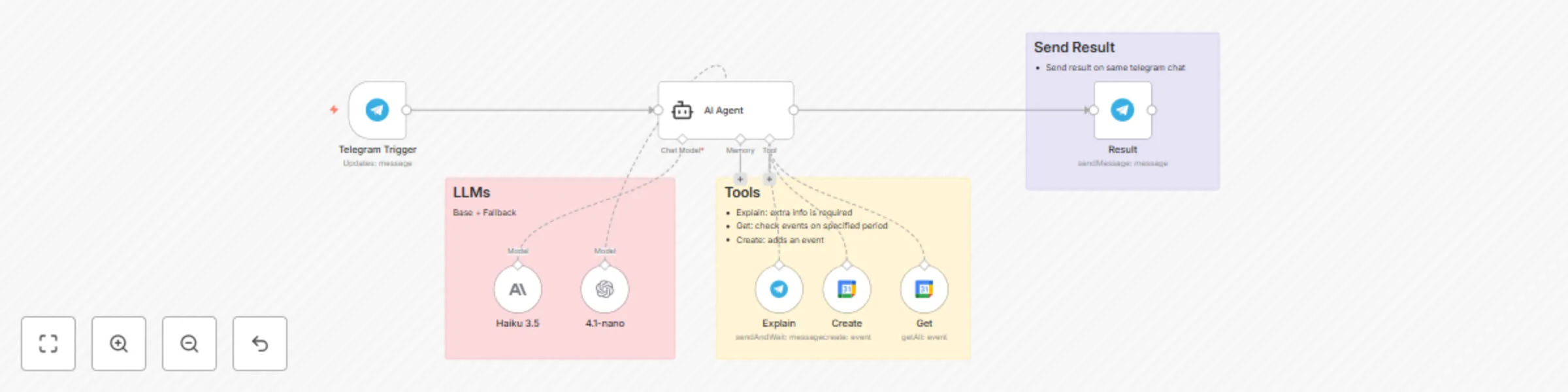
Conversational Calendar Bot for Telegram This workflow creates an AI chatbot on Telegram that intelligently manages your Google Calendar using natural language. It even checks for conflicts befo...
n8n-nodes-base.telegramtrigger, @n8n/n8n-nodes-langchain.agent, @n8n/n8n-nodes-langchain.lmchatopenai, n8n-nodes-base.googlecalendartool, n8n-nodes-base.telegramtool, @n8n/n8n-nodes-langchain.lmchatanthropic, n8n-nodes-base.telegram, n8n-nodes-base.stickynote
This workflow is cataloged by N8N Workflows and links back to its original n8n.io source page by M Sayed.
Original n8n.io source💬 Conversational Calendar Bot for Telegram This workflow creates an AI chatbot on Telegram that intelligently manages your Google Calendar using natural language. It even checks for conflicts before scheduling!
AI Models: Anthropic Claude 3.5 Haiku (Primary) & OpenAI GPT-4.1-mini (Fallback)
How It Works Listen 👂: Triggered by a message in your Telegram chat.
Understand 🧠: An AI Agent extracts the event details (title, date, time).
Check 🧐: It first checks Google Calendar for any conflicting events.
Decide ✅: If the slot is free, it creates the event. If not, it asks you for a new time.
Confirm 👍: Sends a final confirmation message back to you.
Nodes Used Telegram Trigger
LangChain Agent
Anthropic & OpenAI Models
Google Calendar & Telegram Tools
Setup Credentials: Add API keys for Telegram, Google Calendar, Anthropic, and OpenAI.
Configure Nodes:
Telegram Trigger: Add your specific Chat ID.
Google Calendar Nodes ("Create" & "Get"): Select your calendar from the dropdown list.
Example Usage To create a timed event:
🗓️ "Add an appointment to pick up graduation certificates on July 17th at 9 AM"
To create an all-day event:
PASSPORT "Remind me to renew my passport on August 20th"
This catalog entry is organized from the workflow JSON. The node-level section below shows the executable blocks available for review before importing the template.
| Workflow | Conversational Google Calendar management with Claude 3.5 Haiku & Telegram |
|---|---|
| Complexity | intermediate |
| Nodes | 11 |
| Categories | Personal Productivity, AI Chatbot |
| Author | M Sayed |
| Published | 16 Jul 2025 |
Use the JSON export at /data/workflows/6065/6065.json as the source template for this automation.
Open n8n, import the downloaded JSON, and review each node before activating the workflow.
Replace placeholder credentials, API keys, webhook URLs, account IDs, and environment-specific values with your own settings.
Run the workflow manually or in a staging workspace, inspect node output, and confirm downstream systems receive the expected data.
Enable the workflow only after testing, then monitor executions, errors, and rate limits during the first production runs.
Review imported nodes carefully before activation. This catalog entry is intended to help you inspect the workflow structure, understand required services, and find related templates faster.
Node names, credentials, schedules, webhook paths, and external service limits may need adjustment for your workspace.
Conversational Calendar Bot for Telegram This workflow creates an AI chatbot on Telegram that intelligently manages your Google Calendar using natural language. It even checks for conflicts befo...
Review the workflow JSON, configure any required credentials in n8n, and test the automation in a safe workspace before using it in production.
Yes. Use the block-by-block analysis and the downloadable JSON to inspect each node, then adjust credentials, prompts, schedules, filters, or destinations for your Personal Productivity, AI Chatbot use case.