Block 1 - Webhook - Receive Flight Request
- Type / Role
- n8n-nodes-base.webhook - webhook
- Config choices
- Version 2.1


 Early Deal
This workflow is provided as-is. Please review and test before using in production.
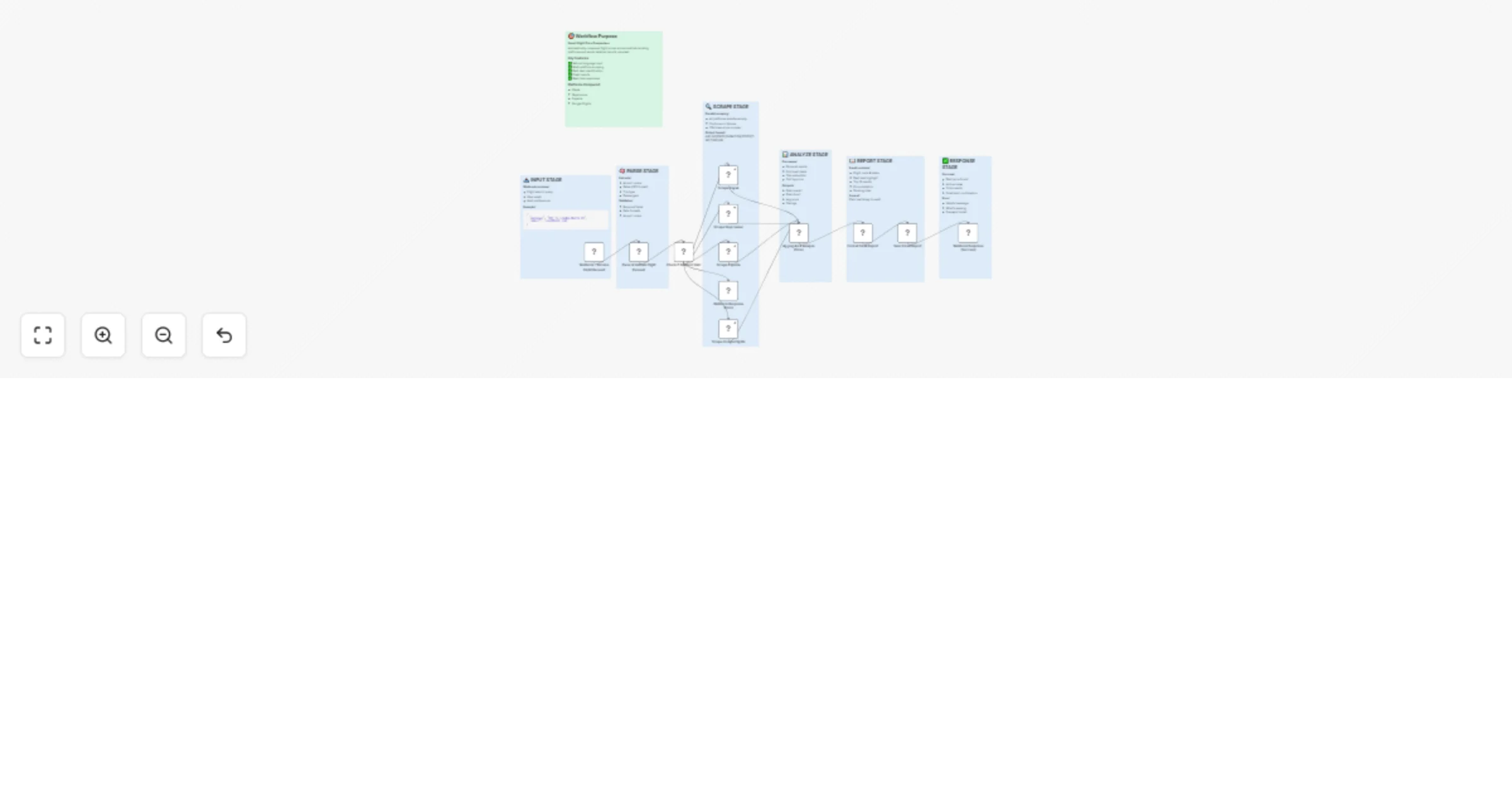
This workflow automates flight price comparison across multiple booking platforms (Kayak, Skyscanner, Expedia, Google Flights). It accepts natural language queries, extracts flight details using NL...
n8n-nodes-base.webhook, n8n-nodes-base.code, n8n-nodes-base.if, n8n-nodes-base.ssh, n8n-nodes-base.emailsend, n8n-nodes-base.respondtowebhook, n8n-nodes-base.stickynote
This workflow is cataloged by N8N Workflows and links back to its original n8n.io source page by Oneclick AI Squad.
Original n8n.io sourceThis workflow automates flight price comparison across multiple booking platforms (Kayak, Skyscanner, Expedia, Google Flights). It accepts natural language queries, extracts flight details using NLP, scrapes prices in parallel, identifies the best deals, and sends professional email reports with comprehensive price breakdowns and booking links.
A fully functional, production-ready n8n workflow that:
✅ Compares flight prices across 4 major platforms (Kayak, Skyscanner, Expedia, Google Flights)
✅ Accepts natural language requests ("Flight from NYC to London on March 25")
✅ Sends beautiful email reports with best deals
✅ Returns real-time JSON responses for web apps
✅ Handles errors gracefully with helpful messages
✅ Includes detailed documentation with sticky notes
On your server (where n8n SSH nodes will connect):
# Navigate to your scripts directory
cd /home/oneclick-server2/

# Create the scraper file
nano flight_scraper.py

# Copy the entire Python script from the second artifact
# Save with Ctrl+X, then Y, then Enter

# Make it executable
chmod +x flight_scraper.py

# Install required packages
pip3 install selenium

# Install Chrome and ChromeDriver
sudo apt update
sudo apt install -y chromium-browser chromium-chromedriver

# Test the scraper
python3 flight_scraper.py JFK LHR 2025-03-25 2025-03-30 round-trip 1 economy kayak
Expected Output:
Delta|$450|7h 30m|0|10:00 AM|6:30 PM|https://kayak.com/...
British Airways|$485|7h 45m|0|11:30 AM|8:15 PM|https://kayak.com/...
...
A. Setup SMTP (for sending emails):
Host: smtp.gmail.com
Port: 587
User: [email protected]
Password: [Your App Password]
For Gmail Users:
B. Setup SSH (already configured if you used existing credentials):
ilPh8oO4GfSlc0Qy/home/oneclick-server2/C. Activate Workflow:
curl -X POST https://your-n8n-domain.com/webhook/flight-price-compare \
  -H "Content-Type: application/json" \
  -d '{
    "message": "Flight from Mumbai to Dubai on 15th March, round-trip returning 20th March",
    "email": "[email protected]",
    "name": "John Doe"
  }'
Response:
{
  "success": true,
  "message": "Flight comparison sent to [email protected]",
  "route": "BOM → DXB",
  "bestPrice": 450,
  "airline": "Emirates",
  "totalResults": 18
}
The workflow understands various formats:
✅ All these work:
Supported cities (auto-converts to airport codes):
{
  "from": "JFK",
  "to": "LHR",
  "departure_date": "2025-03-25",
  "return_date": "2025-03-30",
  "trip_type": "round-trip",
  "passengers": 1,
  "class": "economy",
  "email": "[email protected]",
  "name": "John"
}
Users receive an email like this:
FLIGHT PRICE COMPARISON
==================================================

Route: JFK → LHR
Departure: 25 Mar 2025
Return: 30 Mar 2025
Trip Type: round-trip
Passengers: 1

🏆 BEST DEAL
--------------------------------------------------
British Airways
Price: $450
Duration: 7h 30m
Stops: Non-stop
Platform: Kayak

💰 Save $85 vs highest price!

📊 ALL RESULTS (Top 10)
--------------------------------------------------
1. British Airways - $450 (Non-stop) - Kayak
2. Delta - $475 (Non-stop) - Google Flights
3. American Airlines - $485 (Non-stop) - Expedia
4. Virgin Atlantic - $495 (Non-stop) - Skyscanner
5. United - $520 (1 stop) - Kayak
...

Average Price: $495
Total Results: 23

Prices subject to availability.
Happy travels! ✈️
Add more platforms:
kayak → new-platformflight_scraper.pyRemove platforms:
Edit the "Format Email Report" node:
// Change to HTML format
const html = `
<!DOCTYPE html>
<html>
<body>
<h1>Flight Deals</h1>
<p>Best price: ${bestDeal.currency}${bestDeal.price}</p>
</body>
</html>
`;
return [{
json: {
subject: "...",
html: html, // Instead of text
...data
}
}];
Then update "Send Email Report" node:
emailFormat to html{{$json.html}} instead of {{$json.text}}Edit "Parse & Validate Flight Request" node:
const airportCodes = {
  ...existing codes...,
  'berlin': 'BER',
  'rome': 'FCO',
  'barcelona': 'BCN',
  // Add your cities here
};
In each SSH node, add:
"timeout": 30000 // 30 seconds
Possible causes:
Solutions:
# Test scraper manually
cd /home/oneclick-server2/
python3 flight_scraper.py JFK LHR 2025-03-25 "" one-way 1 economy kayak

# Check if output shows flights
# If no output, check Chrome/ChromeDriver installation
Solutions:
ssh user@your-server/home/oneclick-server2/which python3Solutions:
telnet smtp.gmail.com 587
Solutions:
/webhook/flight-price-compareSolutions:
# In flight_scraper.py, increase wait times
time.sleep(10)  # Instead of time.sleep(5)

# Or increase WebDriverWait timeout
WebDriverWait(driver, 30)  # Instead of 20
1. Webhook - Receive Flight Request
/webhook/flight-price-compare2. Parse & Validate Flight Request
3. Check If Request Valid
4-7. Scrape [Platform] (4 nodes)
8. Aggregate & Analyze Prices
9. Format Email Report
10. Send Email Report
11. Webhook Response (Success)
12. Webhook Response (Error)
Use faster scraping service (like ScraperAPI):
// Replace SSH nodes with HTTP Request nodes
{
  "url": "http://api.scraperapi.com",
  "qs": {
    "api_key": "YOUR_KEY",
    "url": "https://kayak.com/flights/..."
  }
}
Add caching to avoid duplicate scraping:
// In Parse node, check cache first
const cacheKey = `${origin}-${dest}-${departureDate}`;
const cached = await $cache.get(cacheKey);

if (cached && Date.now() - cached.time < 3600000) {
  return cached.data; // Use 1-hour cache
}
Easy to add Momondo, CheapOair, etc.:
flight_scraper.pyHandle more formats:
// Add to Parse node
const formats = [
  'DD/MM/YYYY',
  'MM-DD-YYYY',
  'YYYY.MM.DD',
  // Add your formats
];
This catalog entry is organized from the workflow JSON. The node-level section below shows the executable blocks available for review before importing the template.
| Workflow | Compare flight prices across multiple booking platforms with email reports |
|---|---|
| Complexity | advanced |
| Nodes | 19 |
| Categories | Miscellaneous |
| Author | Oneclick AI Squad |
| Published | 16 Oct 2025 |
Use the JSON export at /data/workflows/9788/9788.json as the source template for this automation.
Open n8n, import the downloaded JSON, and review each node before activating the workflow.
Replace placeholder credentials, API keys, webhook URLs, account IDs, and environment-specific values with your own settings.
Run the workflow manually or in a staging workspace, inspect node output, and confirm downstream systems receive the expected data.
Enable the workflow only after testing, then monitor executions, errors, and rate limits during the first production runs.
Review imported nodes carefully before activation. This catalog entry is intended to help you inspect the workflow structure, understand required services, and find related templates faster.
Node names, credentials, schedules, webhook paths, and external service limits may need adjustment for your workspace.
This workflow automates flight price comparison across multiple booking platforms (Kayak, Skyscanner, Expedia, Google Flights). It accepts natural language queries, extracts flight details using NL...
Review the workflow JSON, configure any required credentials in n8n, and test the automation in a safe workspace before using it in production.
Yes. Use the block-by-block analysis and the downloadable JSON to inspect each node, then adjust credentials, prompts, schedules, filters, or destinations for your Miscellaneous use case.