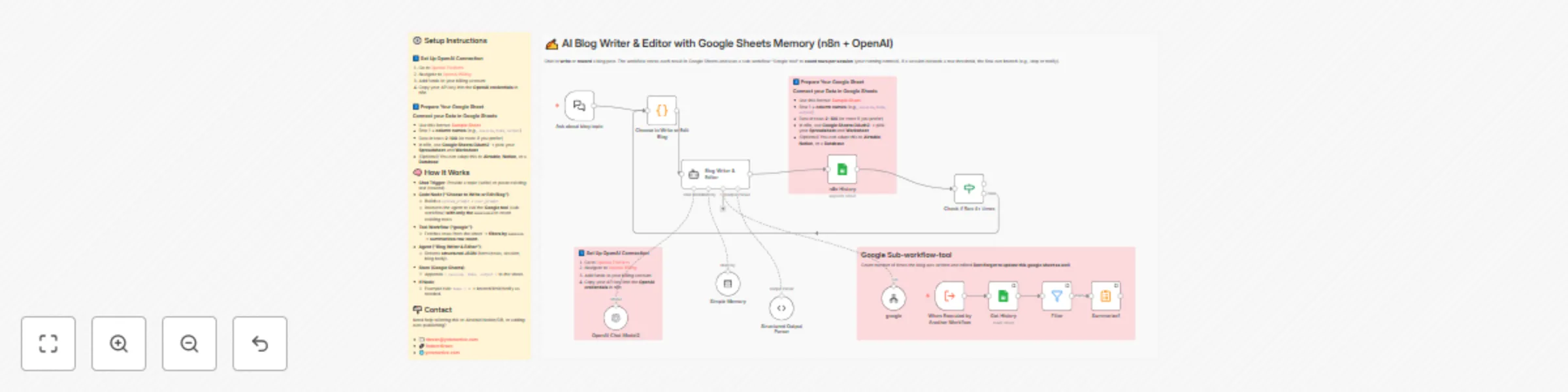
Blog writer & editor with Google Sheets memory (GPT-4)

Workflow preview

Workflow preview
100%
Blog writer & editor with Google Sheets memory (GPT-4) preview
Open on n8n.io

Important notice

This workflow is provided as-is. Please review and test before using in production.

1. Workflow Overview

Chat to write or reword a blog post. The workflow stores each result in Google Sheets and uses a sub workflow “Google tool” to count rows per session (your running context). If a session exceeds a ...

Best for

  • Content Creation automation workflows
  • Multimodal AI automation workflows
  • advanced n8n builders looking for reusable templates

Tools used

@n8n/n8n-nodes-langchain.outputparserstructured, @n8n/n8n-nodes-langchain.lmchatopenai, @n8n/n8n-nodes-langchain.memorybufferwindow, n8n-nodes-base.executeworkflowtrigger, @n8n/n8n-nodes-langchain.toolworkflow, n8n-nodes-base.summarize, n8n-nodes-base.filter, n8n-nodes-base.stickynote

Source and attribution

This workflow is cataloged by N8N Workflows and links back to its original n8n.io source page by Robert Breen.

Original n8n.io source

1.1 Workflow description

Title
Blog writer & editor with Google Sheets memory (GPT-4)
Workflow name
Blog writer & editor with Google Sheets memory (GPT-4)

Chat to write or reword a blog post. The workflow stores each result in Google Sheets and uses a sub-workflow “Google tool” to count rows per session (your running context). If a session exceeds a row threshold, the flow can branch (e.g., stop or notify).


⚙️ Setup Instructions

1️⃣ Set Up OpenAI Connection

  1. Go to OpenAI Platform
  2. Navigate to OpenAI Billing
  3. Add funds to your billing account
  4. Copy your API key into the OpenAI credentials in n8n

2️⃣ Prepare Your Google Sheet

Connect your Data in Google Sheets
  • Use this format: Sample Sheet
  • Row 1 = column names (e.g., session, Rows, output)
  • Data in rows 2–100 (or more if you prefer)
  • In n8n, use Google Sheets OAuth2 → pick your Spreadsheet and Worksheet
  • (Optional) You can adapt this to Airtable, Notion, or a Database

🧠 How It Works

  • Chat Trigger: Provide a topic (write) or paste existing text (reword).
  • Code Node (“Choose to Write or Edit Blog”):
    • Builds a system_prompt + user_prompt
    • Instructs the agent to call the Google tool (sub-workflow) with only the sessionid to count existing rows.
  • Tool Workflow (“google”):
    • Fetches rows from the sheet → filters by sessionsummarizes row count.
  • Agent (“Blog Writer & Editor”):
    • Returns structured JSON (items/rows, session, blog body).
  • Store (Google Sheets):
    • Appends { session, Rows, output } to the sheet.
  • If Node:
    • Example rule: Rows > 3 → branch/limit/notify as needed.

💬 Example Prompts

  • “Write a 600-word blog about n8n agents with 3 bullet takeaways. Session: abc123.”
  • “Reword this post into a concise LinkedIn article. Session: launchQ3:\n<your text here>”
  • “Draft a blog intro and 5 SEO headlines on marketing automation. Session: mkt-01.”

📬 Contact

Need help tailoring this to Airtable/Notion/DB, or adding auto-publishing?

1.2 Logical Blocks

This catalog entry is organized from the workflow JSON. The node-level section below shows the executable blocks available for review before importing the template.

2. Block-by-Block Analysis

Block 1 - Structured Output Parser

Type / Role
@n8n/n8n-nodes-langchain.outputParserStructured - outputParserStructured
Config choices
Version 1.3

Block 2 - OpenAI Chat Model2

Type / Role
@n8n/n8n-nodes-langchain.lmChatOpenAi - lmChatOpenAi
Config choices
Version 1.2

Block 3 - Simple Memory

Type / Role
@n8n/n8n-nodes-langchain.memoryBufferWindow - memoryBufferWindow
Config choices
Version 1.3

Block 4 - When Executed by Another Workflow

Type / Role
n8n-nodes-base.executeWorkflowTrigger - executeWorkflowTrigger
Config choices
Version 1.1

Block 5 - google

Type / Role
@n8n/n8n-nodes-langchain.toolWorkflow - toolWorkflow
Config choices
Version 2.2

Block 6 - Summarize1

Type / Role
n8n-nodes-base.summarize - summarize
Config choices
Version 1.1

Block 7 - Filter

Type / Role
n8n-nodes-base.filter - filter
Config choices
Version 2.2

Block 8 - Sticky Note6

Type / Role
n8n-nodes-base.stickyNote - stickyNote
Config choices
Version 1

Block 9 - Sticky Note55

Type / Role
n8n-nodes-base.stickyNote - stickyNote
Config choices
Version 1

Block 10 - Sticky Note2

Type / Role
n8n-nodes-base.stickyNote - stickyNote
Config choices
Version 1

Block 11 - Sticky Note7

Type / Role
n8n-nodes-base.stickyNote - stickyNote
Config choices
Version 1

Block 12 - Blog Writer & Editor

Type / Role
@n8n/n8n-nodes-langchain.agent - agent
Config choices
Version 2.2

Block 13 - Choose to Write or Edit Blog

Type / Role
n8n-nodes-base.code - code
Config choices
Version 2

Block 14 - Sticky Note10

Type / Role
n8n-nodes-base.stickyNote - stickyNote
Config choices
Version 1

Block 15 - Ask about blog topic

Type / Role
@n8n/n8n-nodes-langchain.chatTrigger - chatTrigger
Config choices
Version 1.3

Block 16 - n8n History

Type / Role
n8n-nodes-base.googleSheets - googleSheets
Config choices
Version 4.7

Block 17 - Check if Ran 4+ times

Type / Role
n8n-nodes-base.if - if
Config choices
Version 2.2

Block 18 - Get History

Type / Role
n8n-nodes-base.googleSheets - googleSheets
Config choices
Version 4.7

3. Summary Table

Workflow Blog writer & editor with Google Sheets memory (GPT-4)
Complexity advanced
Nodes 18
Categories Content Creation, Multimodal AI
Author Robert Breen
Published 20 Aug 2025

4. Reproducing the Workflow from Scratch

  1. 1. Download the workflow JSON

    Use the JSON export at /data/workflows/7671/7671.json as the source template for this automation.

  2. 2. Import the template into n8n

    Open n8n, import the downloaded JSON, and review each node before activating the workflow.

  3. 3. Configure credentials and variables

    Replace placeholder credentials, API keys, webhook URLs, account IDs, and environment-specific values with your own settings.

  4. 4. Test with sample data

    Run the workflow manually or in a staging workspace, inspect node output, and confirm downstream systems receive the expected data.

  5. 5. Activate and monitor

    Enable the workflow only after testing, then monitor executions, errors, and rate limits during the first production runs.

5. General Notes & Resources

Review imported nodes carefully before activation. This catalog entry is intended to help you inspect the workflow structure, understand required services, and find related templates faster.

Node names, credentials, schedules, webhook paths, and external service limits may need adjustment for your workspace.

Frequently asked questions

What does Blog writer & editor with Google Sheets memory (GPT-4) do?

Chat to write or reword a blog post. The workflow stores each result in Google Sheets and uses a sub workflow “Google tool” to count rows per session (your running context). If a session exceeds a ...

What do I need before importing this workflow?

Review the workflow JSON, configure any required credentials in n8n, and test the automation in a safe workspace before using it in production.

Can I customize this workflow?

Yes. Use the block-by-block analysis and the downloadable JSON to inspect each node, then adjust credentials, prompts, schedules, filters, or destinations for your Content Creation, Multimodal AI use case.