AWS Azure GCP multi-cloud cost monitoring & alerts for budget control

Workflow preview

Workflow preview
100%
AWS Azure GCP multi-cloud cost monitoring & alerts for budget control preview
Open on n8n.io

Important notice

This workflow is provided as-is. Please review and test before using in production.

1. Workflow Overview

This automated n8n workflow tracks hourly cloud spending across AWS, Azure, and GCP . It detects cost spikes or budget overruns in real time, tags affected resources, and sends alerts via email, Wh...

Best for

  • DevOps automation workflows
  • Multimodal AI automation workflows
  • intermediate n8n builders looking for reusable templates

Tools used

n8n-nodes-base.cron, n8n-nodes-base.httprequest, n8n-nodes-base.code, n8n-nodes-base.if, n8n-nodes-base.emailsend, n8n-nodes-base.whatsapp, n8n-nodes-base.slack, n8n-nodes-base.stickynote

Source and attribution

This workflow is cataloged by N8N Workflows and links back to its original n8n.io source page by Oneclick AI Squad.

Original n8n.io source

1.1 Workflow description

Title
AWS Azure GCP multi-cloud cost monitoring & alerts for budget control
Workflow name
AWS Azure GCP multi-cloud cost monitoring & alerts for budget control

This automated n8n workflow tracks hourly cloud spending across AWS, Azure, and GCP. It detects cost spikes or budget overruns in real time, tags affected resources, and sends alerts via email, WhatsApp, or Slack. This ensures proactive cost management and prevents budget breaches.


Good to Know

  • AWS, Azure, and GCP APIs must have read access to billing data.
  • Use secure credentials for API keys or service accounts.
  • The workflow runs every hour for near real-time cost tracking.
  • Alerts can be sent to multiple channels (Email, WhatsApp, Slack).
  • Tags are applied automatically to affected resources for easy tracking.

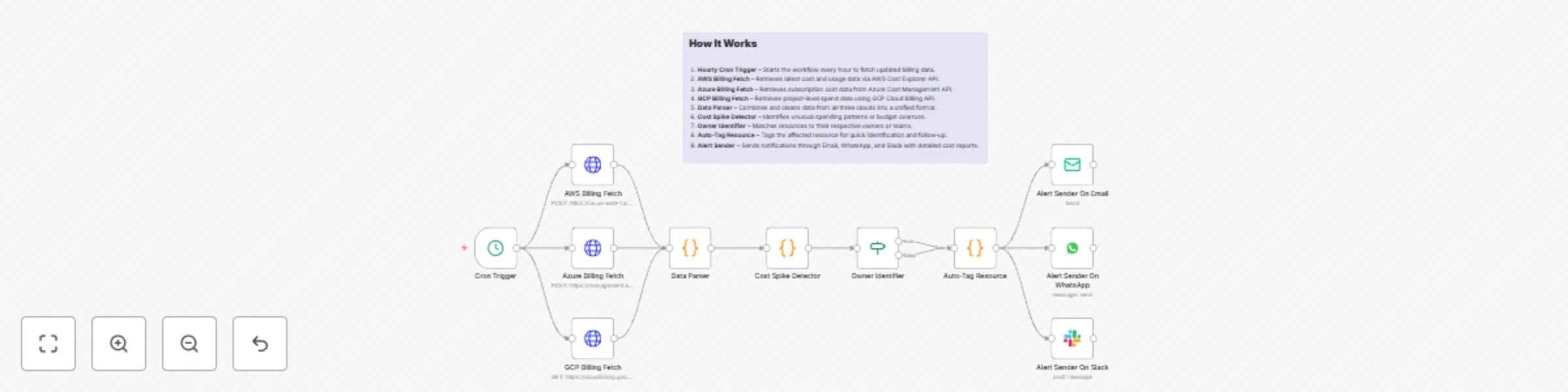
How It Works

  1. Hourly Cron Trigger – Starts the workflow every hour to fetch updated billing data.
  2. AWS Billing Fetch – Retrieves latest cost and usage data via AWS Cost Explorer API.
  3. Azure Billing Fetch – Retrieves subscription cost data from Azure Cost Management API.
  4. GCP Billing Fetch – Retrieves project-level spend data using GCP Cloud Billing API.
  5. Data Parser – Combines and cleans data from all three clouds into a unified format.
  6. Cost Spike Detector – Identifies unusual spending patterns or budget overruns.
  7. Owner Identifier – Matches resources to their respective owners or teams.
  8. Auto-Tag Resource – Tags the affected resource for quick identification and follow-up.
  9. Alert Sender – Sends notifications through Email, WhatsApp, and Slack with detailed cost reports.

How to Use

  1. Import the workflow into n8n.
  2. Configure credentials for AWS, Azure, and GCP billing APIs.
  3. Set your budget threshold in the Cost Spike Detector node.
  4. Test the workflow to ensure all APIs fetch data correctly.
  5. Adjust the Cron Trigger for your preferred monitoring frequency.
  6. Monitor alert logs to track and manage cost spikes.

Requirements

  • AWS Access Key & Secret Key with Cost Explorer Read Permissions.
  • Azure Client ID, Tenant ID, Client Secret with Cost Management Reader Role.
  • GCP Service Account JSON Key with Billing Account Viewer Role.

Customizing This Workflow

  • Change the trigger frequency in the Cron node (e.g., every 15 min for faster alerts).
  • Modify alert channels to include additional messaging platforms.
  • Adjust cost spike detection thresholds to suit your organization’s budget rules.
  • Extend the Data Parser to generate more detailed cost breakdowns.

Want a tailored workflow for your business? Our experts can craft it quickly Contact our team

1.2 Logical Blocks

This catalog entry is organized from the workflow JSON. The node-level section below shows the executable blocks available for review before importing the template.

2. Block-by-Block Analysis

Block 1 - Cron Trigger

Type / Role
n8n-nodes-base.cron - cron
Config choices
Version 1

Block 2 - AWS Billing Fetch

Type / Role
n8n-nodes-base.httpRequest - httpRequest
Config choices
Version 4.2

Block 3 - Azure Billing Fetch

Type / Role
n8n-nodes-base.httpRequest - httpRequest
Config choices
Version 4.2

Block 4 - GCP Billing Fetch

Type / Role
n8n-nodes-base.httpRequest - httpRequest
Config choices
Version 4.2

Block 5 - Data Parser

Type / Role
n8n-nodes-base.code - code
Config choices
Version 2

Block 6 - Cost Spike Detector

Type / Role
n8n-nodes-base.code - code
Config choices
Version 2

Block 7 - Owner Identifier

Type / Role
n8n-nodes-base.if - if
Config choices
Version 2

Block 8 - Auto-Tag Resource

Type / Role
n8n-nodes-base.code - code
Config choices
Version 2

Block 9 - Alert Sender On Email

Type / Role
n8n-nodes-base.emailSend - emailSend
Config choices
Version 2.1

Block 10 - Alert Sender On WhatsApp

Type / Role
n8n-nodes-base.whatsApp - whatsApp
Config choices
Version 1

Block 11 - Alert Sender On Slack

Type / Role
n8n-nodes-base.slack - slack
Config choices
Version 2

Block 12 - Sticky Note

Type / Role
n8n-nodes-base.stickyNote - stickyNote
Config choices
Version 1

3. Summary Table

Workflow AWS Azure GCP multi-cloud cost monitoring & alerts for budget control
Complexity intermediate
Nodes 12
Categories DevOps, Multimodal AI
Author Oneclick AI Squad
Published 14 Aug 2025

4. Reproducing the Workflow from Scratch

  1. 1. Download the workflow JSON

    Use the JSON export at /data/workflows/7374/7374.json as the source template for this automation.

  2. 2. Import the template into n8n

    Open n8n, import the downloaded JSON, and review each node before activating the workflow.

  3. 3. Configure credentials and variables

    Replace placeholder credentials, API keys, webhook URLs, account IDs, and environment-specific values with your own settings.

  4. 4. Test with sample data

    Run the workflow manually or in a staging workspace, inspect node output, and confirm downstream systems receive the expected data.

  5. 5. Activate and monitor

    Enable the workflow only after testing, then monitor executions, errors, and rate limits during the first production runs.

5. General Notes & Resources

Review imported nodes carefully before activation. This catalog entry is intended to help you inspect the workflow structure, understand required services, and find related templates faster.

Node names, credentials, schedules, webhook paths, and external service limits may need adjustment for your workspace.

Frequently asked questions

What does AWS Azure GCP multi-cloud cost monitoring & alerts for budget control do?

This automated n8n workflow tracks hourly cloud spending across AWS, Azure, and GCP . It detects cost spikes or budget overruns in real time, tags affected resources, and sends alerts via email, Wh...

What do I need before importing this workflow?

Review the workflow JSON, configure any required credentials in n8n, and test the automation in a safe workspace before using it in production.

Can I customize this workflow?

Yes. Use the block-by-block analysis and the downloadable JSON to inspect each node, then adjust credentials, prompts, schedules, filters, or destinations for your DevOps, Multimodal AI use case.