Block 1 - When clicking ‘Execute workflow’
- Type / Role
- n8n-nodes-base.manualTrigger - manualTrigger
- Config choices
- Version 1


 Early Deal
This workflow is provided as-is. Please review and test before using in production.
Automated Spotify Playlist Organizer — Sort and Queue Tracks by Popularity Overview This workflow acts as your AI powered Spotify DJ assistant. It retrieves your playlists, cleans and organiz...
n8n-nodes-base.manualtrigger, n8n-nodes-base.spotify, n8n-nodes-base.splitinbatches, n8n-nodes-base.code, n8n-nodes-base.stickynote
This workflow is cataloged by N8N Workflows and links back to its original n8n.io source page by Arthur Dimeglio.
Original n8n.io source🎧 Automated Spotify Playlist Organizer — Sort and Queue Tracks by Popularity
🧠 Overview
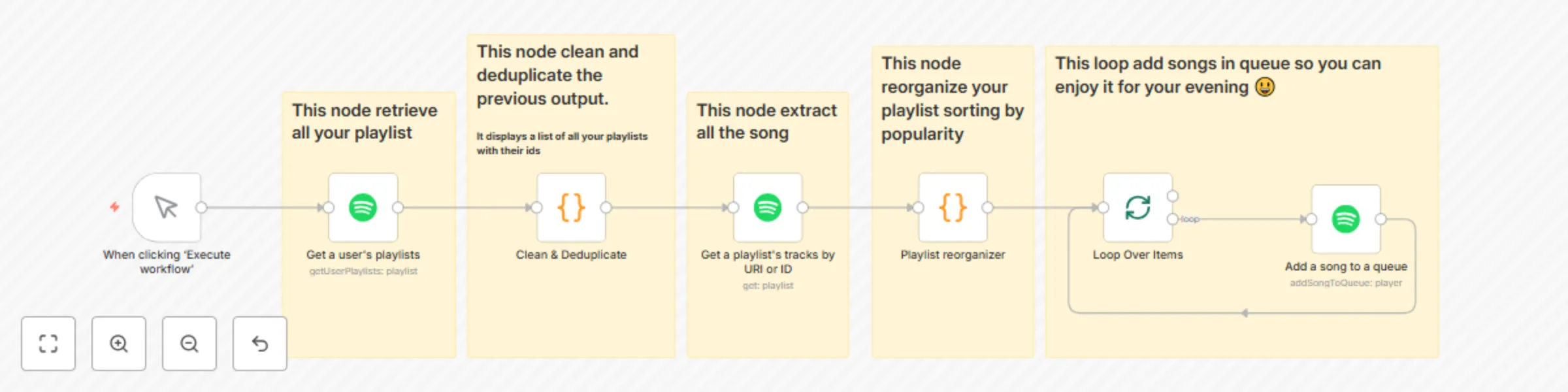
This workflow acts as your AI-powered Spotify DJ assistant. It retrieves your playlists, cleans and organizes them, sorts tracks by popularity, and automatically queues them for playback — creating a ready-to-play, personalized listening session.
⸻
⚙️ Step-by-Step Breakdown
Node: When clicking ‘Execute workflow’ Starts the workflow manually when you click “Execute” in n8n.
⸻
Node: Get a user’s playlists • Uses your Spotify OAuth credentials. • Calls Spotify’s API to retrieve all playlists from your account (returnAll: true). • Output: an array of playlists (name, URI, number of tracks, etc.).
🟢 This is your raw data source.
⸻
Node: Clean & Deduplicate (Code node) This JavaScript block: • Normalizes input (handles arrays and multiple items). • Extracts only useful fields: name, uri, total. • Filters out playlists missing data. • Removes duplicates by URI.
🧹 Result: a clean, uniform list of your playlists.
⸻
Node: Get a playlist’s tracks by URI or ID • Fetches all tracks from a specific playlist. • Returns detailed info: name, popularity, artists, album, added date, etc.
🎵 This retrieves the actual songs from your chosen playlist.
⸻
Node: Playlist reorganizer (Code node) This JavaScript block: • Collects all tracks from the selected playlist. • Avoids duplicates with seenTrackIds. • Extracts key fields: id, name, popularity, artists, album, added_at, url, etc. • Sorts songs by ascending popularity (less popular first).
📊 Result: playlist reorganized by song popularity.
⸻
Node: Split in Batches • Iterates over each track one by one. • Sends each song sequentially to the next node (“Add a song to a queue”).
🔁 Allows each song to be processed individually.
⸻
Node: Add a song to a queue • Uses each song’s Spotify ID to add it to your Spotify playback queue (spotify:track:{{ $json.id }}). • Connected to the “Loop Over Items” node to continue until all songs are queued.
🎶 Result: your Spotify queue fills automatically with the reorganized tracks.
⸻
✅ Final Result
When you execute this workflow: 1. It fetches all your playlists. 2. Cleans and filters them. 3. Extracts tracks from one selected playlist. 4. Sorts them by popularity. 5. Adds them to your playback queue.
🎧 End result: a fully automated “AI DJ” that reorganizes your playlists and lines up your music session — from discovery to playback.
⸻
🪪 Prerequisites
Before using this workflow: • You must have a Spotify account. • You need to set up Spotify OAuth credentials in n8n (Client ID, Client Secret, Redirect URI). • Ensure you have Spotify Premium (API queueing only works on Premium accounts).
⸻
🛠️ Setup Instructions 1. Import this workflow into your n8n instance. 2. Go to the Spotify OAuth2 API credentials section and connect your account.
This catalog entry is organized from the workflow JSON. The node-level section below shows the executable blocks available for review before importing the template.
| Workflow | Automated Spotify playlist organizer - sort and queue tracks by popularity |
|---|---|
| Complexity | intermediate |
| Nodes | 12 |
| Categories | Miscellaneous |
| Author | Arthur Dimeglio |
| Published | 19 Oct 2025 |
Use the JSON export at /data/workflows/9888/9888.json as the source template for this automation.
Open n8n, import the downloaded JSON, and review each node before activating the workflow.
Replace placeholder credentials, API keys, webhook URLs, account IDs, and environment-specific values with your own settings.
Run the workflow manually or in a staging workspace, inspect node output, and confirm downstream systems receive the expected data.
Enable the workflow only after testing, then monitor executions, errors, and rate limits during the first production runs.
Review imported nodes carefully before activation. This catalog entry is intended to help you inspect the workflow structure, understand required services, and find related templates faster.
Node names, credentials, schedules, webhook paths, and external service limits may need adjustment for your workspace.
Automated Spotify Playlist Organizer — Sort and Queue Tracks by Popularity Overview This workflow acts as your AI powered Spotify DJ assistant. It retrieves your playlists, cleans and organiz...
Review the workflow JSON, configure any required credentials in n8n, and test the automation in a safe workspace before using it in production.
Yes. Use the block-by-block analysis and the downloadable JSON to inspect each node, then adjust credentials, prompts, schedules, filters, or destinations for your Miscellaneous use case.