Block 1 - Sticky: Setup
- Type / Role
- n8n-nodes-base.stickyNote - stickyNote
- Config choices
- Version 1


 Early Deal
This workflow is provided as-is. Please review and test before using in production.
Automate document translation and ensure translation accuracy using Straker Verify, Google Drive and Slack. How it works? A workflow step is set up to "watch" a Google Drive folder. When your team ...
n8n-nodes-base.stickynote, n8n-nodes-straker-verify.strakerverify, n8n-nodes-base.googledrive, n8n-nodes-base.googledrivetrigger, n8n-nodes-base.webhook
This workflow is cataloged by N8N Workflows and links back to its original n8n.io source page by Vijayeta Sinel.
Original n8n.io sourceAutomate document translation and ensure translation accuracy using Straker Verify, Google Drive and Slack.
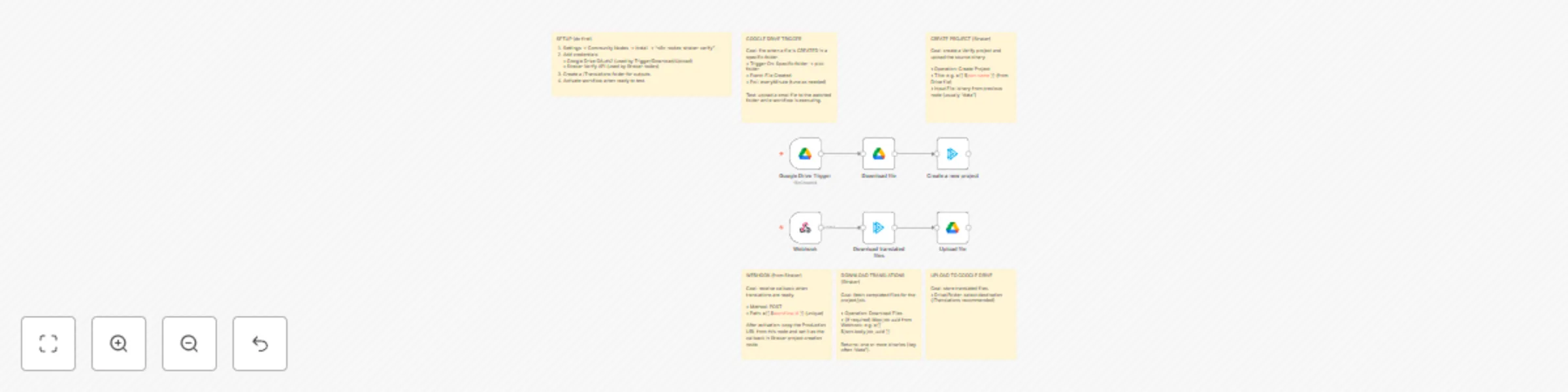
**How it works? ** A workflow step is set up to "watch" a Google Drive folder. When your team members place new files in this folder, they are downloaded. Straker Verify then translates them and provides a quality score.
Once Straker Verify has completed this, the job info is fetched, the translation is saved to an output folder and you are notified via Slack.
What problem does this solve? When using AI to translate documents, you have no idea about the quality and accuracy of the output. This template answers the question “How good is my translation?” so you have a high level of confidence before you publish.
Who is this for? This workflow template is designed for businesses needing translation and localization of documents such as text docs, presentations, web pages, transcripts, video subtitles and others. Use it to build workflows that localize your content at scale while maintaining translation quality, accuracy and compliance.
Set up instructions
Straker Verify Integration with n8n
Connect to Straker Verify: Obtain Your API Key
Sign Up/Log In:
Visit https://verify.straker.ai/ to create an account or log in.
Navigate to API Keys: Go to Verify → Settings → API Keys. **Copy Your Key:** Find and copy your API key. **Add Key to n8n:** In n8n, go to Settings → Credentials → Straker Verify`.
Set Up Credentials for the Straker Verify Node
Assign Credentials to the Node 1.Go to your workflow and open the Straker Verify node. 2.Select the "Straker Verify API" credentials you just created from the dropdown (Credentials to connect with), and save.
✅ You are now ready to use the workflow.
Workflow Steps
Step 1: Initiate Workflow – Upload Files to Google Drive 1.Upload one or more files to the designated Google Drive folder. This triggers the "New File in Google Drive" node in n8n.
Step 2: Select Workflow
The system fetches available workflows via:
Fetch All Users Workflows
No matching workflow found?
You'll be notified via Slack:
No workflow found
Step 3: Create Project in Straker Verify
The following steps are handled automatically:
Fetch language/project options
Download files from Google Drive
Create a new project using:
Create Straker Project
✅ You'll receive a Slack confirmation: > "Project created – ID: xxxxxx"
Step 5: Process Completion & File Return
Once files are processed by Straker:
The Incoming Translation Result webhook is triggered.
The workflow:
Downloads processed files: Get File Content from Strakerh - Uploads them to Google Drive: Upload File to Google Drivee
Step 6: Confirmation - Workflow Complete You'll receive a final Slack message: > "Workflow complete – Files are now available in Google Drive"
This catalog entry is organized from the workflow JSON. The node-level section below shows the executable blocks available for review before importing the template.
| Workflow | Automated document translation with Straker, Google Drive & Slack |
|---|---|
| Complexity | intermediate |
| Nodes | 12 |
| Categories | Document Extraction, Multimodal AI |
| Author | Vijayeta Sinel |
| Published | 10 Jun 2025 |
Use the JSON export at /data/workflows/4832/4832.json as the source template for this automation.
Open n8n, import the downloaded JSON, and review each node before activating the workflow.
Replace placeholder credentials, API keys, webhook URLs, account IDs, and environment-specific values with your own settings.
Run the workflow manually or in a staging workspace, inspect node output, and confirm downstream systems receive the expected data.
Enable the workflow only after testing, then monitor executions, errors, and rate limits during the first production runs.
Review imported nodes carefully before activation. This catalog entry is intended to help you inspect the workflow structure, understand required services, and find related templates faster.
Node names, credentials, schedules, webhook paths, and external service limits may need adjustment for your workspace.
Automate document translation and ensure translation accuracy using Straker Verify, Google Drive and Slack. How it works? A workflow step is set up to "watch" a Google Drive folder. When your team ...
Review the workflow JSON, configure any required credentials in n8n, and test the automation in a safe workspace before using it in production.
Yes. Use the block-by-block analysis and the downloadable JSON to inspect each node, then adjust credentials, prompts, schedules, filters, or destinations for your Document Extraction, Multimodal AI use case.