Block 1 - Get Chorus Engagement per last day
- Type / Role
- n8n-nodes-base.httpRequest - httpRequest
- Config choices
- Version 4.2


 Early Deal
This workflow is provided as-is. Please review and test before using in production.
Who’s it for: SALES teams and AGENCIES that want to automatically send call summaries to their CRM. This flow is best suited for agencies and businesses that use ZoomInfo Chorus AI to capture and a...
n8n-nodes-base.httprequest, n8n-nodes-base.stickynote, n8n-nodes-base.code, n8n-nodes-base.filter, n8n-nodes-base.if, n8n-nodes-base.splitinbatches, n8n-nodes-base.noop, n8n-nodes-base.scheduletrigger
This workflow is cataloged by N8N Workflows and links back to its original n8n.io source page by Rivers Colyer.
Original n8n.io sourceSALES teams and AGENCIES that want to automatically send call summaries to their CRM.
This flow is best suited for agencies and businesses that use ZoomInfo Chorus AI to capture and analyze calls, and HubSpot as their main CRM system for managing client data.
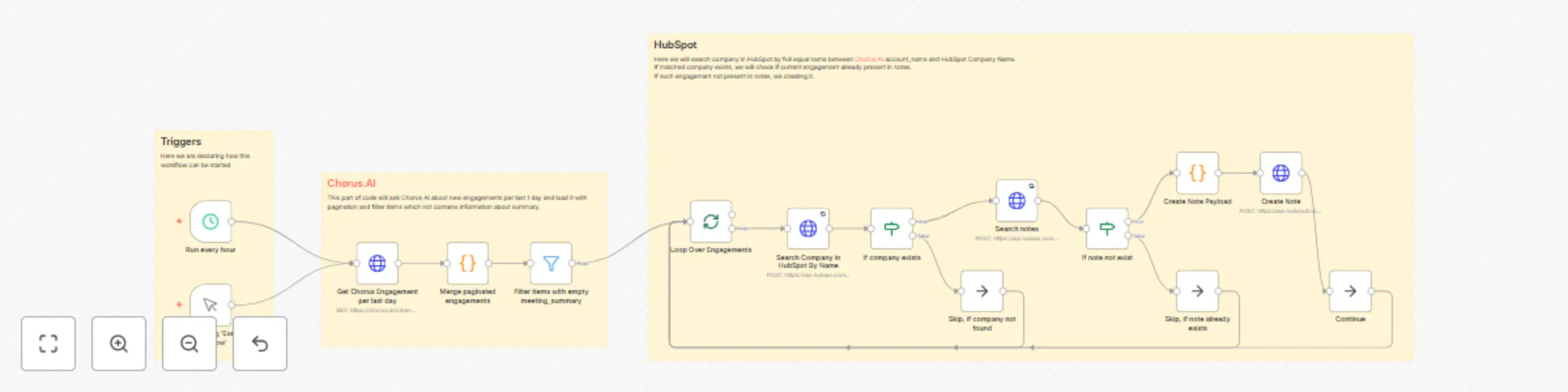
The flow runs every hour and checks Chorus for new call summaries. If new summaries are found, they are added as notes to the corresponding HubSpot company record.
In short: every hour, Chorus → HubSpot notes sync (only when unique & matched).
Here’s how the logic works, step by step:
Run every hour (scheduled)When clicking Execute workflow (manual testing).Get Chorus Engagement per last day: requests new engagements from the last 24h.Merge paginated engagements: combines all pages into a single list.Filter items with empty meeting_summary: removes calls without summaries.Loop Over Engagements: processes each engagement one by one.Search Company In HubSpot By Name: looks for an exact match with account_name.If company exists: continues only if a match is found. Otherwise → Skip, if company not found.Search notes: searches HubSpot for a note containing the engagement_id.If note not exist: continues only if no duplicate is found. Otherwise → Skip, if note already exists.Create Note Payload: builds a formatted note body with:Create Note: inserts the note into HubSpot, associated with the matched company.Loop Over Engagements until all are handled.Generate a Chorus.AI API Token:
Go to Settings → Personal Settings → API Access → Generate API Token. Save this token in a secure place.
In your N8N instance, create new credentials with any name you prefer (e.g., Chorus.AI - API Token).
AuthorizationCreate a HubSpot Application with the following access scopes:
crm.objects.contacts.write
crm.objects.companies.read
Save the Access Token and Client Secret securely. The Access Token will be used in this flow.
In your N8N instance, create new credentials with any name you prefer (e.g., HubSpot App Token).
Install this flow in your N8N instance (cloud or self-hosted).
After installation, some nodes—Get Chorus Engagement per last day, Search Company In HubSpot By Name, Search notes, Create Note—will show errors. This is expected, as they need to be linked to your new credentials.
Open the node Get Chorus Engagement per last day and update the credentials:
Open the node Search Company In HubSpot By Name and update the credentials:
Repeat step 8 for the node Search notes.
Repeat step 8 for the node Create Note.
Save your updated flow by clicking Save in the top-right corner.
Run the workflow by clicking Execute Workflow to test if all credentials work correctly.
Once confirmed, activate your flow by toggling the switch in the top-right corner.
That’s it! 🎉 Your flow will now run every hour, syncing new Chorus call summaries to HubSpot—only when the company names match and the engagement isn’t already logged.
This catalog entry is organized from the workflow JSON. The node-level section below shows the executable blocks available for review before importing the template.
| Workflow | Automated call summary transfer from Chorus AI to HubSpot CRM |
|---|---|
| Complexity | advanced |
| Nodes | 18 |
| Categories | CRM |
| Author | Rivers Colyer |
| Published | 17 Sept 2025 |
Use the JSON export at /data/workflows/8680/8680.json as the source template for this automation.
Open n8n, import the downloaded JSON, and review each node before activating the workflow.
Replace placeholder credentials, API keys, webhook URLs, account IDs, and environment-specific values with your own settings.
Run the workflow manually or in a staging workspace, inspect node output, and confirm downstream systems receive the expected data.
Enable the workflow only after testing, then monitor executions, errors, and rate limits during the first production runs.
Review imported nodes carefully before activation. This catalog entry is intended to help you inspect the workflow structure, understand required services, and find related templates faster.
Node names, credentials, schedules, webhook paths, and external service limits may need adjustment for your workspace.
Who’s it for: SALES teams and AGENCIES that want to automatically send call summaries to their CRM. This flow is best suited for agencies and businesses that use ZoomInfo Chorus AI to capture and a...
Review the workflow JSON, configure any required credentials in n8n, and test the automation in a safe workspace before using it in production.
Yes. Use the block-by-block analysis and the downloadable JSON to inspect each node, then adjust credentials, prompts, schedules, filters, or destinations for your CRM use case.