Automate droplet snapshots on DigitalOcean

Workflow preview

Workflow preview
100%
Automate droplet snapshots on DigitalOcean preview
Open on n8n.io

Important notice

This workflow is provided as-is. Please review and test before using in production.

1. Workflow Overview

This workflow automates the management of DigitalOcean Droplet snapshots by listing all droplets, filtering based on the number of snapshots, and deleting excess snapshots before creating new ones....

Best for

  • DevOps automation workflows
  • advanced n8n builders looking for reusable templates

Tools used

n8n-nodes-base.filter, n8n-nodes-base.httprequest, n8n-nodes-base.cron, n8n-nodes-base.stickynote

Source and attribution

This workflow is cataloged by N8N Workflows and links back to its original n8n.io source page by Darryn Balanco.

Original n8n.io source

1.1 Workflow description

Title
Automate droplet snapshots on DigitalOcean
Workflow name
Automate droplet snapshots on DigitalOcean

This workflow automates the management of DigitalOcean Droplet snapshots by listing all droplets, filtering based on the number of snapshots, and deleting excess snapshots before creating new ones. It ensures your droplet snapshots stay organized and within a manageable limit, preventing unnecessary storage costs due to an excess of snapshots.

Who is this for?

This workflow is perfect for users managing DigitalOcean Droplets and looking to automate the process of snapshot creation and cleanup to save on storage costs and maintain efficient resource management. It’s useful for DevOps teams, cloud administrators, or any developer leveraging DigitalOcean for their infrastructure.

What problem is this workflow solving?

When managing multiple DigitalOcean Droplets, snapshots can quickly accumulate, taking up space and increasing storage costs. Manually deleting and creating snapshots can be time-consuming and inefficient. This automation solves this problem by automating the snapshot management process, ensuring that no more than a defined number of snapshots are kept per droplet.

What this workflow does

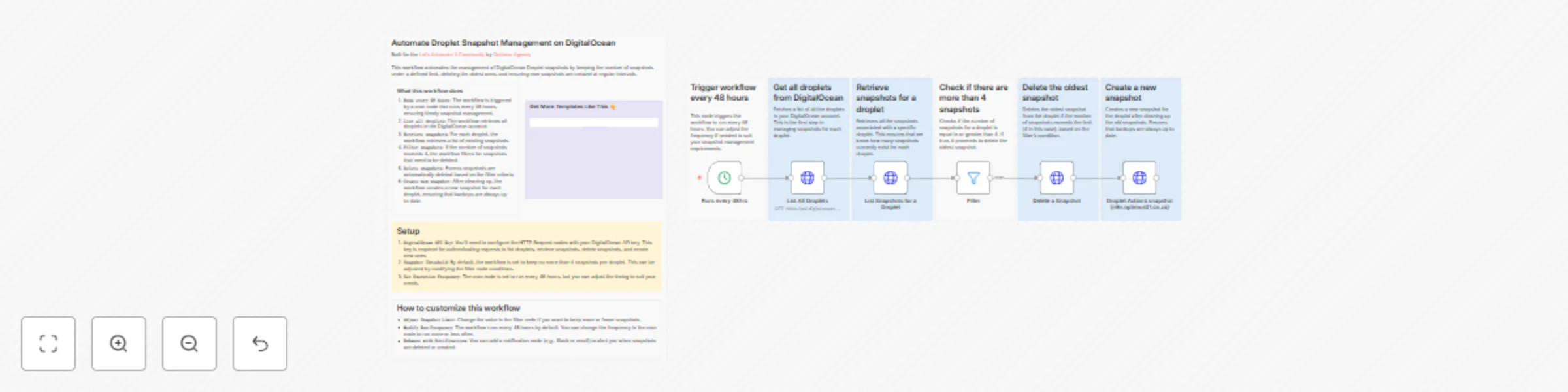
  1. Runs every 48 hours: The workflow is triggered by a cron node that runs every 48 hours, ensuring timely snapshot management.
  2. List all droplets: The workflow retrieves all droplets in the DigitalOcean account.
  3. Retrieve snapshots: For each droplet, the workflow retrieves a list of existing snapshots.
  4. Filter snapshots: If the number of snapshots exceeds 4, the workflow filters for snapshots that need to be deleted.
  5. Delete snapshots: Excess snapshots are automatically deleted based on the filter criteria.
  6. Create new snapshot: After cleaning up, the workflow creates a new snapshot for each droplet, ensuring that backups are always up-to-date.

Setup

  1. DigitalOcean API Key: You’ll need to configure the HTTP Request nodes with your DigitalOcean API key. This key is required for authenticating requests to list droplets, retrieve snapshots, delete snapshots, and create new ones.
  2. Snapshot Threshold: By default, the workflow is set to keep no more than 4 snapshots per droplet. This can be adjusted by modifying the filter node conditions.
  3. Set Execution Frequency: The cron node is set to run every 48 hours, but you can adjust the timing to suit your needs.

How to customize this workflow

  • Adjust Snapshot Limit: Change the value in the filter node if you want to keep more or fewer snapshots.
  • Modify Run Frequency: The workflow runs every 48 hours by default. You can change the frequency in the cron node to run more or less often.
  • Enhance with Notifications: You can add a notification node (e.g., Slack or email) to alert you when snapshots are deleted or created.

Workflow Summary

This workflow automates the management of DigitalOcean Droplet snapshots by keeping the number of snapshots under a defined limit, deleting the oldest ones, and ensuring new snapshots are created at regular intervals.

1.2 Logical Blocks

This catalog entry is organized from the workflow JSON. The node-level section below shows the executable blocks available for review before importing the template.

2. Block-by-Block Analysis

Block 1 - Filter

Type / Role
n8n-nodes-base.filter - filter
Config choices
Version 1

Block 2 - List Snapshots for a Droplet

Type / Role
n8n-nodes-base.httpRequest - httpRequest
Config choices
Version 1

Block 3 - List All Droplets

Type / Role
n8n-nodes-base.httpRequest - httpRequest
Config choices
Version 1

Block 4 - Delete a Snapshot

Type / Role
n8n-nodes-base.httpRequest - httpRequest
Config choices
Version 1

Block 5 - Droplet Actions snapshot (n8n.optimus01.co.za)

Type / Role
n8n-nodes-base.httpRequest - httpRequest
Config choices
Version 1

Block 6 - Runs every 48hrs

Type / Role
n8n-nodes-base.cron - cron
Config choices
Version 1

Block 7 - Sticky Note2

Type / Role
n8n-nodes-base.stickyNote - stickyNote
Config choices
Version 1

Block 8 - Sticky Note3

Type / Role
n8n-nodes-base.stickyNote - stickyNote
Config choices
Version 1

Block 9 - Sticky Note4

Type / Role
n8n-nodes-base.stickyNote - stickyNote
Config choices
Version 1

Block 10 - Sticky Note5

Type / Role
n8n-nodes-base.stickyNote - stickyNote
Config choices
Version 1

Block 11 - Sticky Note6

Type / Role
n8n-nodes-base.stickyNote - stickyNote
Config choices
Version 1

Block 12 - Sticky Note7

Type / Role
n8n-nodes-base.stickyNote - stickyNote
Config choices
Version 1

Block 13 - Sticky Note1

Type / Role
n8n-nodes-base.stickyNote - stickyNote
Config choices
Version 1

Block 14 - Sticky Note11

Type / Role
n8n-nodes-base.stickyNote - stickyNote
Config choices
Version 1

Block 15 - Sticky Note14

Type / Role
n8n-nodes-base.stickyNote - stickyNote
Config choices
Version 1

Block 16 - Sticky Note9

Type / Role
n8n-nodes-base.stickyNote - stickyNote
Config choices
Version 1

Block 17 - Sticky Note15

Type / Role
n8n-nodes-base.stickyNote - stickyNote
Config choices
Version 1

3. Summary Table

Workflow Automate droplet snapshots on DigitalOcean
Complexity advanced
Nodes 17
Categories DevOps
Author Darryn Balanco
Published 23 Oct 2024

4. Reproducing the Workflow from Scratch

  1. 1. Download the workflow JSON

    Use the JSON export at /data/workflows/2485/2485.json as the source template for this automation.

  2. 2. Import the template into n8n

    Open n8n, import the downloaded JSON, and review each node before activating the workflow.

  3. 3. Configure credentials and variables

    Replace placeholder credentials, API keys, webhook URLs, account IDs, and environment-specific values with your own settings.

  4. 4. Test with sample data

    Run the workflow manually or in a staging workspace, inspect node output, and confirm downstream systems receive the expected data.

  5. 5. Activate and monitor

    Enable the workflow only after testing, then monitor executions, errors, and rate limits during the first production runs.

5. General Notes & Resources

Review imported nodes carefully before activation. This catalog entry is intended to help you inspect the workflow structure, understand required services, and find related templates faster.

Node names, credentials, schedules, webhook paths, and external service limits may need adjustment for your workspace.

Frequently asked questions

What does Automate droplet snapshots on DigitalOcean do?

This workflow automates the management of DigitalOcean Droplet snapshots by listing all droplets, filtering based on the number of snapshots, and deleting excess snapshots before creating new ones....

What do I need before importing this workflow?

Review the workflow JSON, configure any required credentials in n8n, and test the automation in a safe workspace before using it in production.

Can I customize this workflow?

Yes. Use the block-by-block analysis and the downloadable JSON to inspect each node, then adjust credentials, prompts, schedules, filters, or destinations for your DevOps use case.