Automate blog content creation from topics to WordPress with AI, Google Drive & Sheets

Workflow preview

Workflow preview
100%
Automate blog content creation from topics to WordPress with AI, Google Drive & Sheets preview
Open on n8n.io

Important notice

This workflow is provided as-is. Please review and test before using in production.

1. Workflow Overview

Blog Post Content Creation (Multi Topic with Brand Research, Google Drive, and WordPress) Description This workflow automates the full lifecycle of generating and publishing SEO optimized blog post...

Best for

  • Content Creation automation workflows
  • Multimodal AI automation workflows
  • advanced n8n builders looking for reusable templates

Tools used

n8n-nodes-base.set, n8n-nodes-base.code, n8n-nodes-base.googledrive, n8n-nodes-base.httprequest, n8n-nodes-base.if, n8n-nodes-base.slack, @n8n/n8n-nodes-langchain.chainllm, @n8n/n8n-nodes-langchain.lmchatopenrouter

Source and attribution

This workflow is cataloged by N8N Workflows and links back to its original n8n.io source page by Jonas Frewert.

Original n8n.io source

1.1 Workflow description

Title
Automate blog content creation from topics to WordPress with AI, Google Drive & Sheets
Workflow name
Automate blog content creation from topics to WordPress with AI, Google Drive & Sheets

Blog Post Content Creation (Multi-Topic with Brand Research, Google Drive, and WordPress)

Description

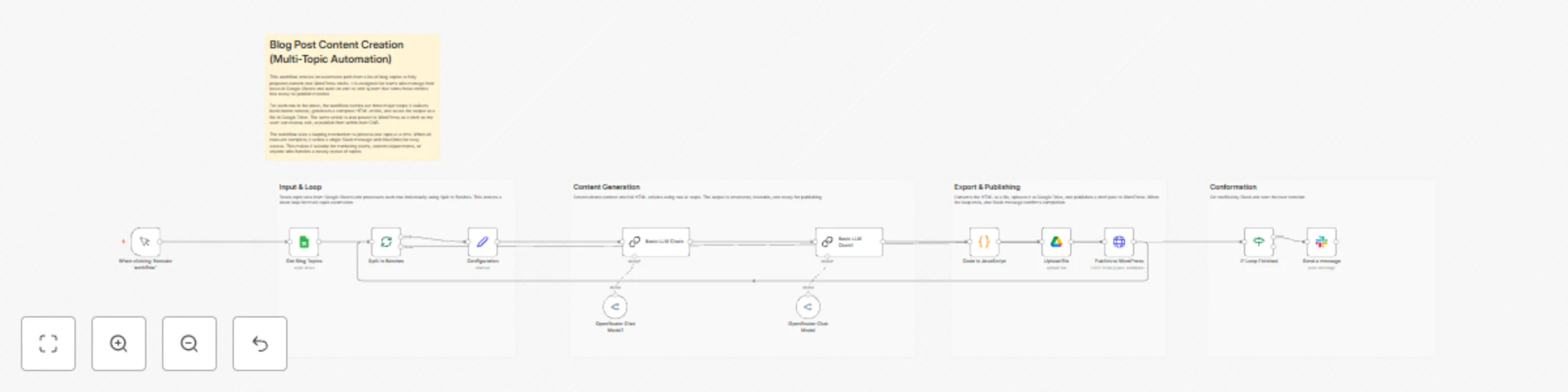
This workflow automates the full lifecycle of generating and publishing SEO-optimized blog posts from a list of topics. It reads topics (and optionally brands) from Google Sheets, performs brand research, generates a structured HTML article via AI, converts it into an HTML file for Google Drive, publishes a draft post on WordPress, and repeats this for every row in the sheet.

When the final topic has been processed, a single Slack message is sent to confirm completion and share links.

How It Works

1. Input from Google Sheets

A Google Sheets node reads rows containing at least:

  • Brand (optional, can be defaulted)
  • Blog Title or Topic

A Split In Batches node iterates through the rows one by one so each topic is processed independently.

2. Configuration

The Configuration node maps each row’s values into:

  • Brand
  • Blog Title

These values are used consistently across brand research, content creation, file naming, and WordPress publishing.

3. Brand Research

A Language Model Chain node calls an OpenRouter model to gather background information about the brand and its services.

The brand context is used as input for better, on-brand content generation.

4. Content Creation

A second Language Model Chain node uses the brand research and the blog title or topic to generate a full-length, SEO-friendly blog article.

Output is clean HTML with:

  • Exactly one <h1> at the top
  • Structured <h2> and <h3> headings
  • Semantic tags only
  • No inline CSS
  • No &lt;html&gt; or &lt;body&gt; wrappers
  • No external resources

5. HTML Processing

A Code node in JavaScript:

  • Strips any markdown-style code fences around the HTML
  • Normalizes paragraph breaks
  • Builds a safe file name from the blog title
  • Encodes the HTML as a binary file payload

6. Upload to Google Drive

A Google Drive node uploads the generated HTML file to a specified folder.

Each topic creates its own HTML file, named after the blog title.

7. Publish to WordPress

An HTTP Request node calls the WordPress REST API to create a post.

The post content is the generated HTML, and the title comes from the Configuration node.
By default, the post is created with status draft (can be changed to publish if desired).

8. Loop Control and Slack Notification

After each topic is processed (Drive upload and WordPress draft), the workflow loops back to Split In Batches to process the next row.

When there are no rows left, an IF node detects that the loop has finished.

Only then is a single Slack message sent to:

  • Confirm that all posts have been processed
  • Share links to the last generated Google Drive file and WordPress post

Integrations Used

  • OpenRouter - AI models for brand research and SEO content generation
  • Google Sheets - Source of topics and (optionally) brands
  • Google Drive - Storage for generated HTML files
  • WordPress REST API - Blog post creation (drafts or published posts)
  • Slack - Final summary notification when the entire batch is complete

Ideal Use Case

  • Content teams and agencies managing a queue of blog topics in a spreadsheet
  • Marketers who want a hands-off pipeline from topic list to WordPress drafts
  • Teams who need generated HTML files stored in Drive for backup, review, or reuse
  • Any workflow where automation should handle the heavy lifting and humans only review the final drafts

Setup Instructions

Google Sheets

  • Create a sheet with columns like Brand and Blog Title or Topic.
  • In the Get Blog Topics node, set the sheet ID and range to match your sheet.
  • Add your Google Sheets credentials in n8n.

OpenRouter (LLM)

  • Add your OpenRouter API key as credentials.
  • In the OpenRouter Chat Model nodes, select your preferred models and options if you want to customize behavior.

Google Drive

  • Add Google Drive credentials.
  • Update the folder ID in the Upload file node to your target directory.

WordPress

  • In the Publish to WordPress node, replace the example URL with your site’s REST API endpoint.
  • Configure authentication (for example, Application Passwords or Basic Auth).
  • Adjust the status field (draft or publish) to match your desired workflow.

Slack

  • Add Slack OAuth credentials.
  • Set the channel ID in the Slack node where the final summary message should be posted.

Run the Workflow

  • Click Execute Workflow.
  • The workflow will loop through every row in the sheet, generating content, saving HTML files to Drive, and creating WordPress posts.
  • When all rows have been processed, a single Slack notification confirms completion.

1.2 Logical Blocks

This catalog entry is organized from the workflow JSON. The node-level section below shows the executable blocks available for review before importing the template.

2. Block-by-Block Analysis

Block 1 - Configuration

Type / Role
n8n-nodes-base.set - set
Config choices
Version 3.4

Block 2 - Code in JavaScript

Type / Role
n8n-nodes-base.code - code
Config choices
Version 2

Block 3 - Upload file

Type / Role
n8n-nodes-base.googleDrive - googleDrive
Config choices
Version 3

Block 4 - Publish to WordPress

Type / Role
n8n-nodes-base.httpRequest - httpRequest
Config choices
Version 3

Block 5 - IF Loop Finished

Type / Role
n8n-nodes-base.if - if
Config choices
Version 1

Block 6 - Send a message

Type / Role
n8n-nodes-base.slack - slack
Config choices
Version 2.3

Block 7 - Basic LLM Chain

Type / Role
@n8n/n8n-nodes-langchain.chainLlm - chainLlm
Config choices
Version 1.7

Block 8 - Basic LLM Chain1

Type / Role
@n8n/n8n-nodes-langchain.chainLlm - chainLlm
Config choices
Version 1.7

Block 9 - OpenRouter Chat Model

Type / Role
@n8n/n8n-nodes-langchain.lmChatOpenRouter - lmChatOpenRouter
Config choices
Version 1

Block 10 - OpenRouter Chat Model1

Type / Role
@n8n/n8n-nodes-langchain.lmChatOpenRouter - lmChatOpenRouter
Config choices
Version 1

Block 11 - When clicking ‘Execute workflow’

Type / Role
n8n-nodes-base.manualTrigger - manualTrigger
Config choices
Version 1

Block 12 - Sticky Note3

Type / Role
n8n-nodes-base.stickyNote - stickyNote
Config choices
Version 1

Block 13 - Get Blog Topics

Type / Role
n8n-nodes-base.googleSheets - googleSheets
Config choices
Version 3

Block 14 - Split In Batches

Type / Role
n8n-nodes-base.splitInBatches - splitInBatches
Config choices
Version 2

Block 15 - Sticky Note5

Type / Role
n8n-nodes-base.stickyNote - stickyNote
Config choices
Version 1

Block 16 - Sticky Note1

Type / Role
n8n-nodes-base.stickyNote - stickyNote
Config choices
Version 1

Block 17 - Sticky Note

Type / Role
n8n-nodes-base.stickyNote - stickyNote
Config choices
Version 1

Block 18 - Sticky Note2

Type / Role
n8n-nodes-base.stickyNote - stickyNote
Config choices
Version 1

3. Summary Table

Workflow Automate blog content creation from topics to WordPress with AI, Google Drive & Sheets
Complexity advanced
Nodes 18
Categories Content Creation, Multimodal AI
Author Jonas Frewert
Published 10 Nov 2025

4. Reproducing the Workflow from Scratch

  1. 1. Download the workflow JSON

    Use the JSON export at /data/workflows/10697/10697.json as the source template for this automation.

  2. 2. Import the template into n8n

    Open n8n, import the downloaded JSON, and review each node before activating the workflow.

  3. 3. Configure credentials and variables

    Replace placeholder credentials, API keys, webhook URLs, account IDs, and environment-specific values with your own settings.

  4. 4. Test with sample data

    Run the workflow manually or in a staging workspace, inspect node output, and confirm downstream systems receive the expected data.

  5. 5. Activate and monitor

    Enable the workflow only after testing, then monitor executions, errors, and rate limits during the first production runs.

5. General Notes & Resources

Review imported nodes carefully before activation. This catalog entry is intended to help you inspect the workflow structure, understand required services, and find related templates faster.

Node names, credentials, schedules, webhook paths, and external service limits may need adjustment for your workspace.

Frequently asked questions

What does Automate blog content creation from topics to WordPress with AI, Google Drive & Sheets do?

Blog Post Content Creation (Multi Topic with Brand Research, Google Drive, and WordPress) Description This workflow automates the full lifecycle of generating and publishing SEO optimized blog post...

What do I need before importing this workflow?

Review the workflow JSON, configure any required credentials in n8n, and test the automation in a safe workspace before using it in production.

Can I customize this workflow?

Yes. Use the block-by-block analysis and the downloadable JSON to inspect each node, then adjust credentials, prompts, schedules, filters, or destinations for your Content Creation, Multimodal AI use case.