Auto-block focus time in Google Calendar on busy days

Workflow preview

Workflow preview
100%
Auto-block focus time in Google Calendar on busy days preview
Open on n8n.io

Important notice

This workflow is provided as-is. Please review and test before using in production.

1. Workflow Overview

How it works: This flow checks the user's Google calender of events from Sunday to Saturday of current week, to determine how many hours have been booked each day. If a day has over 6 hours booked,...

Best for

  • Personal Productivity automation workflows
  • intermediate n8n builders looking for reusable templates

Tools used

n8n-nodes-base.scheduletrigger, n8n-nodes-base.googlecalendar, n8n-nodes-base.code, n8n-nodes-base.if, n8n-nodes-base.itemlists, n8n-nodes-base.stickynote

Source and attribution

This workflow is cataloged by N8N Workflows and links back to its original n8n.io source page by Moe Ahad.

Original n8n.io source

1.1 Workflow description

Title
Auto-block focus time in Google Calendar on busy days
Workflow name
Auto-block focus time in Google Calendar on busy days

How it works:

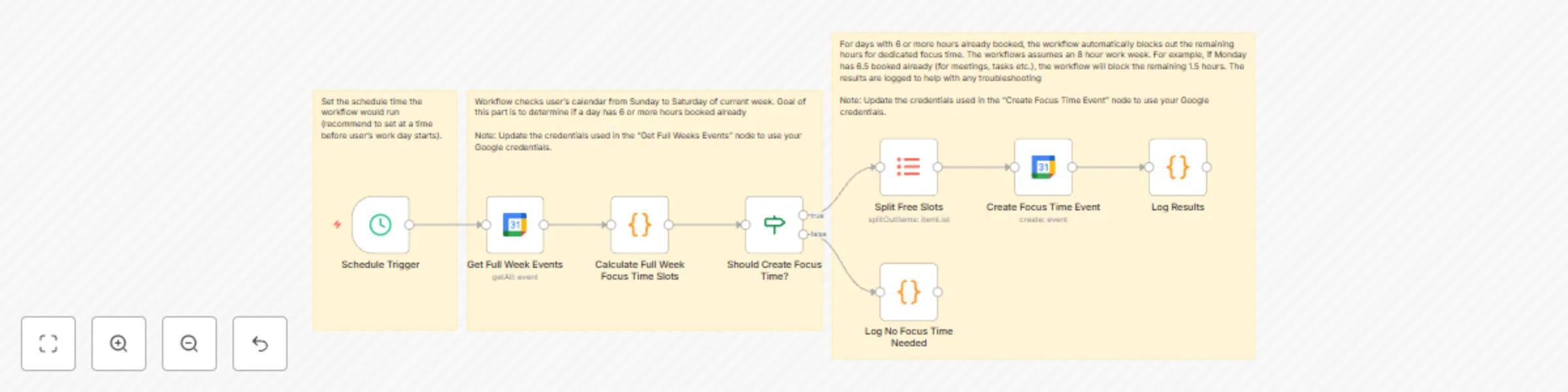
  • This flow checks the user's Google calender of events from Sunday to Saturday of current week, to determine how many hours have been booked each day.
  • If a day has over 6 hours booked, it blocks out the remaining work hours for dedicated focus time.
  • The flow assumes 8 work hours per day. For example, if the Monday of this week has 6.5 hours booked (for meetings, tasks etc.), it automatically blocks off the remaining 1.5 hours for dedicated focus time, so external users can see and not book new events for those hours.
  • Benefit: Prevents users from being overloaded with meetings and gives time for dedicated deep work/focus time.

Set up steps:

  • Update start time of the "Schedule Trigger," this is the time the flow will run daily. Note: the workflow assumes a 9AM-5PM work schedule so it's recommended to schedule the flow to trigger before 9AM.
  • Update the credentials for the "Get Full Weeks Events" and "Create Focus Time Event" nodes. Use your Google credentials so the workflow can connect to your Google calendar.

1.2 Logical Blocks

This catalog entry is organized from the workflow JSON. The node-level section below shows the executable blocks available for review before importing the template.

2. Block-by-Block Analysis

Block 1 - Schedule Trigger

Type / Role
n8n-nodes-base.scheduleTrigger - scheduleTrigger
Config choices
Version 1.1

Block 2 - Get Full Week Events

Type / Role
n8n-nodes-base.googleCalendar - googleCalendar
Config choices
Version 1

Block 3 - Calculate Full Week Focus Time Slots

Type / Role
n8n-nodes-base.code - code
Config choices
Version 2

Block 4 - Should Create Focus Time?

Type / Role
n8n-nodes-base.if - if
Config choices
Version 2

Block 5 - Split Free Slots

Type / Role
n8n-nodes-base.itemLists - itemLists
Config choices
Version 3

Block 6 - Create Focus Time Event

Type / Role
n8n-nodes-base.googleCalendar - googleCalendar
Config choices
Version 1

Block 7 - Log Results

Type / Role
n8n-nodes-base.code - code
Config choices
Version 2

Block 8 - Log No Focus Time Needed

Type / Role
n8n-nodes-base.code - code
Config choices
Version 2

Block 9 - Sticky Note

Type / Role
n8n-nodes-base.stickyNote - stickyNote
Config choices
Version 1

Block 10 - Sticky Note1

Type / Role
n8n-nodes-base.stickyNote - stickyNote
Config choices
Version 1

Block 11 - Sticky Note2

Type / Role
n8n-nodes-base.stickyNote - stickyNote
Config choices
Version 1

3. Summary Table

Workflow Auto-block focus time in Google Calendar on busy days
Complexity intermediate
Nodes 11
Categories Personal Productivity
Author Moe Ahad
Published 21 Jul 2025

4. Reproducing the Workflow from Scratch

  1. 1. Download the workflow JSON

    Use the JSON export at /data/workflows/6246/6246.json as the source template for this automation.

  2. 2. Import the template into n8n

    Open n8n, import the downloaded JSON, and review each node before activating the workflow.

  3. 3. Configure credentials and variables

    Replace placeholder credentials, API keys, webhook URLs, account IDs, and environment-specific values with your own settings.

  4. 4. Test with sample data

    Run the workflow manually or in a staging workspace, inspect node output, and confirm downstream systems receive the expected data.

  5. 5. Activate and monitor

    Enable the workflow only after testing, then monitor executions, errors, and rate limits during the first production runs.

5. General Notes & Resources

Review imported nodes carefully before activation. This catalog entry is intended to help you inspect the workflow structure, understand required services, and find related templates faster.

Node names, credentials, schedules, webhook paths, and external service limits may need adjustment for your workspace.

Frequently asked questions

What does Auto-block focus time in Google Calendar on busy days do?

How it works: This flow checks the user's Google calender of events from Sunday to Saturday of current week, to determine how many hours have been booked each day. If a day has over 6 hours booked,...

What do I need before importing this workflow?

Review the workflow JSON, configure any required credentials in n8n, and test the automation in a safe workspace before using it in production.

Can I customize this workflow?

Yes. Use the block-by-block analysis and the downloadable JSON to inspect each node, then adjust credentials, prompts, schedules, filters, or destinations for your Personal Productivity use case.