Analyze Zoom phone call recordings with Gemini and log results to Google Sheets

Workflow preview

Workflow preview
100%
Analyze Zoom phone call recordings with Gemini and log results to Google Sheets preview
Open on n8n.io

1. Workflow Overview

Analyze Zoom phone call recordings with Gemini AI and log to Google Sheets Who is this for Sales managers and team leads who use Zoom Phone for outbound calls and want automated performance trackin...

Best for

  • CRM automation workflows
  • AI Summarization automation workflows
  • advanced n8n builders looking for reusable templates

Tools used

n8n-nodes-base.stickynote, n8n-nodes-base.httprequest, n8n-nodes-base.splitinbatches, n8n-nodes-base.set, n8n-nodes-base.googledrive, n8n-nodes-base.merge, n8n-nodes-base.googlesheets, n8n-nodes-base.scheduletrigger

Source and attribution

This workflow is cataloged by N8N Workflows and links back to its original n8n.io source page by Oka Hironobu.

Original n8n.io source

1.1 Workflow description

Title
Analyze Zoom phone call recordings with Gemini and log results to Google Sheets
Workflow name
Analyze Zoom phone call recordings with Gemini and log results to Google Sheets

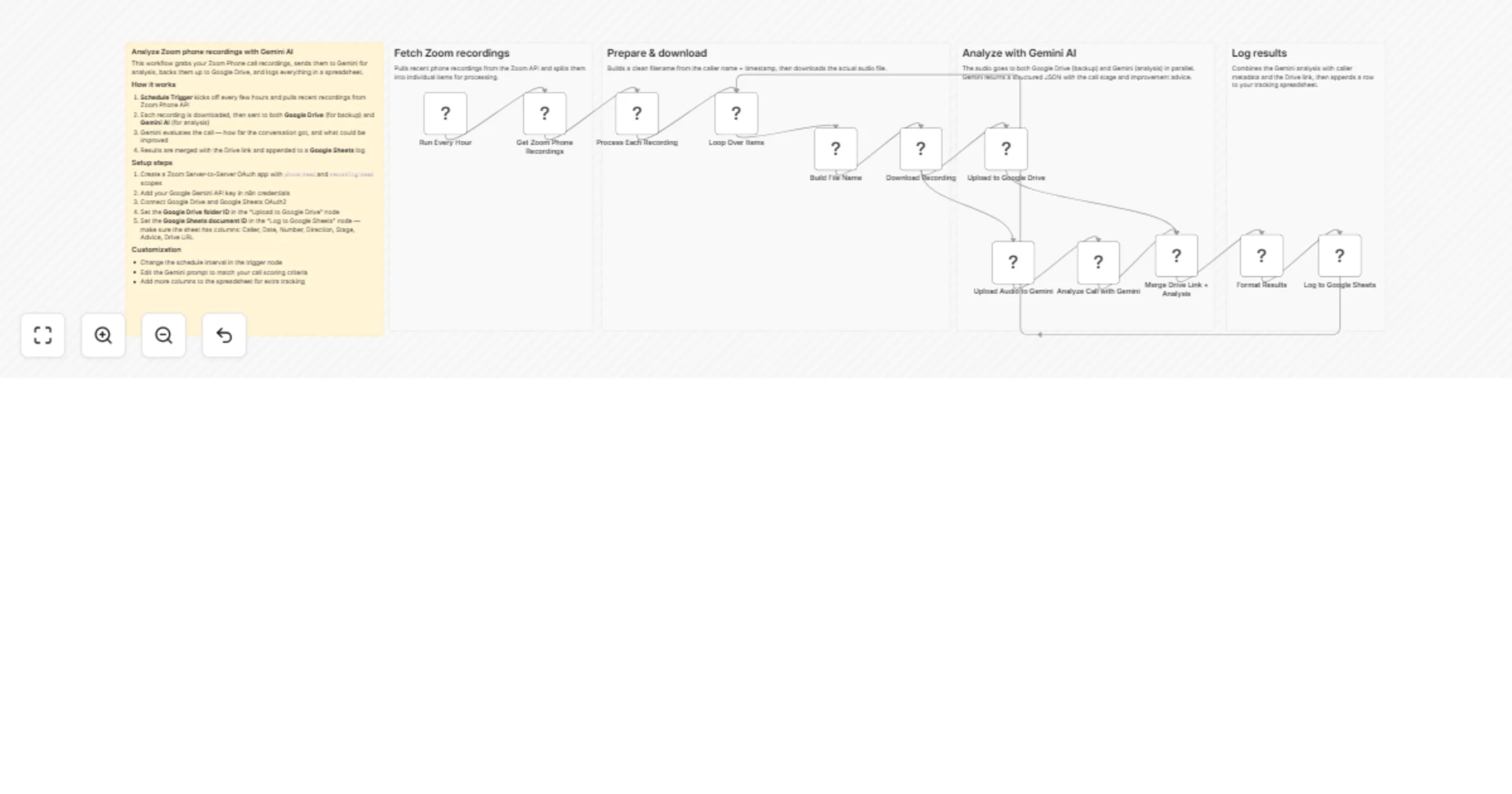
Analyze Zoom phone call recordings with Gemini AI and log to Google Sheets

Who is this for

Sales managers and team leads who use Zoom Phone for outbound calls and want automated performance tracking without manually reviewing every recording.

What this workflow does

  1. A schedule trigger runs periodically and fetches recent phone recordings from the Zoom Phone API
  2. Each recording is split out and processed one by one through a loop
  3. The audio file is downloaded from Zoom, then sent in parallel to:
  • Google Drive for backup storage
  • Google Gemini API for AI-powered call analysis
  1. Gemini evaluates how far the call progressed (contact reached, needs identified, meeting proposed, or appointment booked) and returns specific coaching advice
  2. The analysis results are merged with the Google Drive link and caller metadata
  3. Everything is appended as a new row in a Google Sheets tracking document

How to set up

  1. Zoom credentials — Create a Server-to-Server OAuth app in the Zoom Marketplace with phone:read and recording:read scopes. Add the credentials in n8n as "Zoom OAuth2 API"
  2. Google Gemini API — Get an API key from Google AI Studio and add it as "Google PaLM API" credentials in n8n
  3. Google Drive — Connect your Google Drive OAuth2 account and set the target folder ID in the "Upload to Google Drive" node
  4. Google Sheets — Connect Google Sheets OAuth2 and set your spreadsheet ID in the "Log to Google Sheets" node. Create columns: Caller, Date, Number, Direction, Stage, Advice, DriveURL

Requirements

  • Zoom Phone plan with call recording enabled
  • Google Cloud account with Gemini API access
  • Google Workspace (Drive + Sheets)
  • n8n instance (cloud or self-hosted)

How to customize

  • Schedule frequency: Adjust the interval in the Schedule Trigger node — default runs every hour
  • Analysis prompt: Edit the prompt text in the "Analyze Call with Gemini" node to match your scoring criteria or industry terminology
  • Spreadsheet columns: Add extra fields in the "Format Results" node if you want to track additional metadata like call duration or team name

1.2 Logical Blocks

This catalog entry is organized from the workflow JSON. The node-level section below shows the executable blocks available for review before importing the template.

2. Block-by-Block Analysis

Block 1 - Sticky Note

Type / Role
n8n-nodes-base.stickyNote - stickyNote
Config choices
Version 1

Block 2 - Sticky Note1

Type / Role
n8n-nodes-base.stickyNote - stickyNote
Config choices
Version 1

Block 3 - Sticky Note2

Type / Role
n8n-nodes-base.stickyNote - stickyNote
Config choices
Version 1

Block 4 - Sticky Note3

Type / Role
n8n-nodes-base.stickyNote - stickyNote
Config choices
Version 1

Block 5 - Sticky Note4

Type / Role
n8n-nodes-base.stickyNote - stickyNote
Config choices
Version 1

Block 6 - Get Zoom Phone Recordings

Type / Role
n8n-nodes-base.httpRequest - httpRequest
Config choices
Version 4.2

Block 7 - Loop Over Items

Type / Role
n8n-nodes-base.splitInBatches - splitInBatches
Config choices
Version 3

Block 8 - Build File Name

Type / Role
n8n-nodes-base.set - set
Config choices
Version 3.4

Block 9 - Download Recording

Type / Role
n8n-nodes-base.httpRequest - httpRequest
Config choices
Version 4.2

Block 10 - Upload to Google Drive

Type / Role
n8n-nodes-base.googleDrive - googleDrive
Config choices
Version 3

Block 11 - Upload Audio to Gemini

Type / Role
n8n-nodes-base.httpRequest - httpRequest
Config choices
Version 4.4

Block 12 - Analyze Call with Gemini

Type / Role
n8n-nodes-base.httpRequest - httpRequest
Config choices
Version 4.4

Block 13 - Merge Drive Link + Analysis

Type / Role
n8n-nodes-base.merge - merge
Config choices
Version 3.2

Block 14 - Format Results

Type / Role
n8n-nodes-base.set - set
Config choices
Version 3.4

Block 15 - Log to Google Sheets

Type / Role
n8n-nodes-base.googleSheets - googleSheets
Config choices
Version 4.5

Block 16 - Run Every Hour

Type / Role
n8n-nodes-base.scheduleTrigger - scheduleTrigger
Config choices
Version 1.3

Block 17 - Process Each Recording

Type / Role
n8n-nodes-base.splitOut - splitOut
Config choices
Version 1

3. Summary Table

Workflow Analyze Zoom phone call recordings with Gemini and log results to Google Sheets
Complexity advanced
Nodes 17
Categories CRM, AI Summarization
Author Oka Hironobu
Published 04 Mar 2026

4. Reproducing the Workflow from Scratch

  1. 1. Download the workflow JSON

    Use the JSON export at /data/workflows/13871/13871.json as the source template for this automation.

  2. 2. Import the template into n8n

    Open n8n, import the downloaded JSON, and review each node before activating the workflow.

  3. 3. Configure credentials and variables

    Replace placeholder credentials, API keys, webhook URLs, account IDs, and environment-specific values with your own settings.

  4. 4. Test with sample data

    Run the workflow manually or in a staging workspace, inspect node output, and confirm downstream systems receive the expected data.

  5. 5. Activate and monitor

    Enable the workflow only after testing, then monitor executions, errors, and rate limits during the first production runs.

5. General Notes & Resources

Review imported nodes carefully before activation. This catalog entry is intended to help you inspect the workflow structure, understand required services, and find related templates faster.

Node names, credentials, schedules, webhook paths, and external service limits may need adjustment for your workspace.

Frequently asked questions

What does Analyze Zoom phone call recordings with Gemini and log results to Google Sheets do?

Analyze Zoom phone call recordings with Gemini AI and log to Google Sheets Who is this for Sales managers and team leads who use Zoom Phone for outbound calls and want automated performance trackin...

What do I need before importing this workflow?

Review the workflow JSON, configure any required credentials in n8n, and test the automation in a safe workspace before using it in production.

Can I customize this workflow?

Yes. Use the block-by-block analysis and the downloadable JSON to inspect each node, then adjust credentials, prompts, schedules, filters, or destinations for your CRM, AI Summarization use case.