AI-driven inventory management with OpenAI forecasting & ERP integration

Workflow preview

Workflow preview
100%
AI-driven inventory management with OpenAI forecasting & ERP integration preview
Open on n8n.io

Important notice

This workflow is provided as-is. Please review and test before using in production.

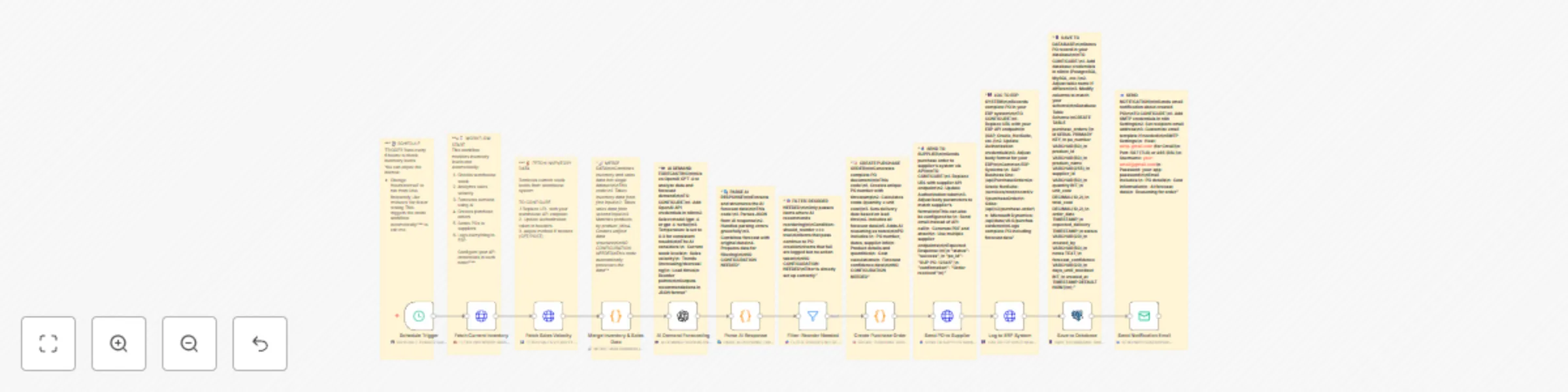
1. Workflow Overview

This n8n workflow automates the monitoring of warehouse inventory and sales velocity to predict demand, generate purchase orders automatically, send them to suppliers, and record all transactions i...

Best for

  • Document Extraction automation workflows
  • AI Summarization automation workflows
  • advanced n8n builders looking for reusable templates

Tools used

n8n-nodes-base.stickynote, n8n-nodes-base.httprequest, n8n-nodes-base.code, @n8n/n8n-nodes-langchain.openai, n8n-nodes-base.filter, n8n-nodes-base.postgres, n8n-nodes-base.emailsend, n8n-nodes-base.scheduletrigger

Source and attribution

This workflow is cataloged by N8N Workflows and links back to its original n8n.io source page by Oneclick AI Squad.

Original n8n.io source

1.1 Workflow description

Title
AI-driven inventory management with OpenAI forecasting & ERP integration
Workflow name
AI-driven inventory management with OpenAI forecasting & ERP integration

This n8n workflow automates the monitoring of warehouse inventory and sales velocity to predict demand, generate purchase orders automatically, send them to suppliers, and record all transactions in ERP and database systems. It uses AI-driven forecasting to ensure timely restocking while maintaining operational efficiency and minimizing stockouts or overstocking.


Key Features

  • Automated Scheduling: Periodically checks inventory and sales data at defined intervals.
  • Real-Time Data Fetching: Retrieves live warehouse stock levels and sales trends.
  • AI Demand Forecasting: Uses OpenAI GPT to predict future demand based on sales velocity and stock trends.
  • Auto-Purchase Orders: Automatically generates and sends purchase orders to suppliers.
  • ERP Integration: Logs completed purchase orders into ERP systems like SAP, Oracle, or Netsuite.
  • Database Logging: Saves purchase order details and forecast confidence data into SQL databases (PostgreSQL/MySQL).
  • Email Notifications: Notifies relevant teams upon successful order creation and logging.
  • Modular Configuration: Each node includes configuration notes and credentials setup instructions.

Workflow Process

  1. Schedule Trigger

    • Runs every 6 hours to monitor stock and sales data.
    • Interval can be adjusted for higher or lower frequency checks.
  2. Fetch Current Inventory Data

    • Retrieves live inventory levels from the warehouse API endpoint.
    • Requires API credentials and optional GET/POST method setup.
  3. Fetch Sales Velocity

    • Pulls recent sales data for forecasting analysis.
    • Used later for AI-based trend prediction.
  4. Merge Inventory & Sales Data

    • Combines inventory and sales datasets into a unified JSON structure.
    • Prepares data for AI model input.
  5. AI Demand Forecasting

    • Sends merged data to OpenAI GPT for demand prediction.
    • Returns demand score, reorder need, and confidence levels.
  6. Parse AI Response

    • Extracts and structures forecast results.
    • Combines AI data with original inventory dataset.
  7. Filter: Reorder Needed

    • Identifies items flagged for reorder based on AI output.
    • Passes only reorder-required products to next steps.
  8. Create Purchase Order

    • Automatically creates a PO document with item details, quantity, and supplier information.
    • Calculates total cost and applies forecast-based reorder logic.
  9. Send PO to Supplier

    • Sends the generated purchase order to supplier API endpoints.
    • Includes response validation for order success/failure.
  10. Log to ERP System

    • Records confirmed purchase orders into ERP platforms (SAP, Oracle, Netsuite).
    • Includes timestamps and forecast metrics.
  11. Save to Database

    • Stores all PO data, supplier responses, and AI forecast metrics into PostgreSQL/MySQL tables.
    • Useful for long-term audit and analytics.
  12. Send Notification Email

    • Sends summary emails upon PO creation and logging.
    • Includes PO ID, supplier, cost, and demand reasoning.

Setup Instructions

  • Schedule Trigger: Adjust to your preferred interval (e.g., every 6 hours or once daily).

  • API Configuration:

    • Provide credentials in Inventory, Sales, and Supplier nodes.
    • Use Authorization headers or API keys as per your system.
  • AI Node (OpenAI):

    • Add your OpenAI API key in the credentials section.
    • Modify the prompt if you wish to include additional forecasting parameters.
  • ERP Integration:

    • Replace placeholder URLs with your ERP system endpoints.
    • Match fields like purchase order number, date, and cost.
  • Database Connection:

    • Configure credentials for PostgreSQL/MySQL in the Save to Database node.
    • Ensure tables (purchase_orders) are created as per schema provided in sticky notes.
  • Email Notifications:

    • Set up SMTP credentials (e.g., Gmail, Outlook, or custom mail server).
    • Add recipients under workflow notification settings.

Industries That Benefit

This automation is highly beneficial for:

  • Retail & E-commerce: Predicts product demand and auto-orders from suppliers.
  • Manufacturing: Ensures raw materials are restocked based on production cycles.
  • Pharmaceuticals: Maintains optimum inventory for high-demand medicines.
  • FMCG & Supply Chain: Balances fast-moving goods availability with minimal overstocking.
  • Automotive & Electronics: Prevents delays due to missing components.

Prerequisites

  • API access to inventory, sales, supplier, and ERP systems.
  • Valid OpenAI API key for demand forecasting.
  • SQL database (PostgreSQL/MySQL) for record storage.
  • SMTP or mail server credentials for email notifications.
  • n8n environment with required nodes installed (HTTP, AI, Filter, Email, Database).

Modification Options

  • Change forecast logic or thresholds for different industries.
  • Integrate Slack/Teams for live notifications.
  • Add approval workflow before sending POs.
  • Extend AI prompt for seasonality or promotional trends.
  • Add dashboard visualization using Grafana or Google Sheets.

Explore More AI Workflows: Get in touch with us to build industry-grade n8n automations with predictive intelligence.

1.2 Logical Blocks

This catalog entry is organized from the workflow JSON. The node-level section below shows the executable blocks available for review before importing the template.

2. Block-by-Block Analysis

Block 1 - Sticky Note

Type / Role
n8n-nodes-base.stickyNote - stickyNote
Config choices
Version 1

Block 2 - Fetch Current Inventory

Type / Role
n8n-nodes-base.httpRequest - httpRequest
Config choices
Version 4.2

Block 3 - Sticky Note1

Type / Role
n8n-nodes-base.stickyNote - stickyNote
Config choices
Version 1

Block 4 - Fetch Sales Velocity

Type / Role
n8n-nodes-base.httpRequest - httpRequest
Config choices
Version 4.2

Block 5 - Merge Inventory & Sales Data

Type / Role
n8n-nodes-base.code - code
Config choices
Version 2

Block 6 - Sticky Note2

Type / Role
n8n-nodes-base.stickyNote - stickyNote
Config choices
Version 1

Block 7 - AI Demand Forecasting

Type / Role
@n8n/n8n-nodes-langchain.openAi - openAi
Config choices
Version 1.3

Block 8 - Parse AI Response

Type / Role
n8n-nodes-base.code - code
Config choices
Version 2

Block 9 - Filter: Reorder Needed

Type / Role
n8n-nodes-base.filter - filter
Config choices
Version 2

Block 10 - Sticky Note3

Type / Role
n8n-nodes-base.stickyNote - stickyNote
Config choices
Version 1

Block 11 - Create Purchase Order

Type / Role
n8n-nodes-base.code - code
Config choices
Version 2

Block 12 - Send PO to Supplier

Type / Role
n8n-nodes-base.httpRequest - httpRequest
Config choices
Version 4.2

Block 13 - Sticky Note4

Type / Role
n8n-nodes-base.stickyNote - stickyNote
Config choices
Version 1

Block 14 - Log to ERP System

Type / Role
n8n-nodes-base.httpRequest - httpRequest
Config choices
Version 4.2

Block 15 - Save to Database

Type / Role
n8n-nodes-base.postgres - postgres
Config choices
Version 2.4

Block 16 - Send Notification Email

Type / Role
n8n-nodes-base.emailSend - emailSend
Config choices
Version 2.1

Block 17 - Sticky Note5

Type / Role
n8n-nodes-base.stickyNote - stickyNote
Config choices
Version 1

Block 18 - Schedule Trigger

Type / Role
n8n-nodes-base.scheduleTrigger - scheduleTrigger
Config choices
Version 1.2

Block 19 - Sticky Note7

Type / Role
n8n-nodes-base.stickyNote - stickyNote
Config choices
Version 1

Block 20 - Sticky Note8

Type / Role
n8n-nodes-base.stickyNote - stickyNote
Config choices
Version 1

Block 21 - Sticky Note6

Type / Role
n8n-nodes-base.stickyNote - stickyNote
Config choices
Version 1

Block 22 - Sticky Note9

Type / Role
n8n-nodes-base.stickyNote - stickyNote
Config choices
Version 1

Block 23 - Sticky Note10

Type / Role
n8n-nodes-base.stickyNote - stickyNote
Config choices
Version 1

Block 24 - Sticky Note11

Type / Role
n8n-nodes-base.stickyNote - stickyNote
Config choices
Version 1

3. Summary Table

Workflow AI-driven inventory management with OpenAI forecasting & ERP integration
Complexity advanced
Nodes 24
Categories Document Extraction, AI Summarization
Author Oneclick AI Squad
Published 05 Nov 2025

4. Reproducing the Workflow from Scratch

  1. 1. Download the workflow JSON

    Use the JSON export at /data/workflows/10531/10531.json as the source template for this automation.

  2. 2. Import the template into n8n

    Open n8n, import the downloaded JSON, and review each node before activating the workflow.

  3. 3. Configure credentials and variables

    Replace placeholder credentials, API keys, webhook URLs, account IDs, and environment-specific values with your own settings.

  4. 4. Test with sample data

    Run the workflow manually or in a staging workspace, inspect node output, and confirm downstream systems receive the expected data.

  5. 5. Activate and monitor

    Enable the workflow only after testing, then monitor executions, errors, and rate limits during the first production runs.

5. General Notes & Resources

Review imported nodes carefully before activation. This catalog entry is intended to help you inspect the workflow structure, understand required services, and find related templates faster.

Node names, credentials, schedules, webhook paths, and external service limits may need adjustment for your workspace.

Frequently asked questions

What does AI-driven inventory management with OpenAI forecasting & ERP integration do?

This n8n workflow automates the monitoring of warehouse inventory and sales velocity to predict demand, generate purchase orders automatically, send them to suppliers, and record all transactions i...

What do I need before importing this workflow?

Review the workflow JSON, configure any required credentials in n8n, and test the automation in a safe workspace before using it in production.

Can I customize this workflow?

Yes. Use the block-by-block analysis and the downloadable JSON to inspect each node, then adjust credentials, prompts, schedules, filters, or destinations for your Document Extraction, AI Summarization use case.