Popular Workflows

Discover the most viewed and downloaded workflows from the community.

7842 Popular Workflows
Sorted by community engagement and views
Filters
Showing 24 of 7842 workflows
Workflow preview: AI agent chat
Free intermediate

AI agent chat

This workflow employs OpenAI's language models and SerpAPI to create a responsive, intelligent conversational agent. It comes equipped with manual chat triggers and memory buffer capabilities to ensure seamless interactions. To use this template, you need to be on n8n version 1.50.0 or later.

n
n8n Team
Personal Productivity
3 Oct 2023
1239622
0
Workflow preview: Creating an API endpoint
Free beginner

Creating an API endpoint

**Task:** Create a simple API endpoint using the Webhook and Respond to Webhook nodes **Why:** You can prototype or replace a backend process with a single workflow **Main use cases:** Replace backend logic with a workflow

J
Jonathan
Engineering
6 Jul 2022
444838
0
Workflow preview: Building your first WhatsApp chatbot
Free advanced

Building your first WhatsApp chatbot

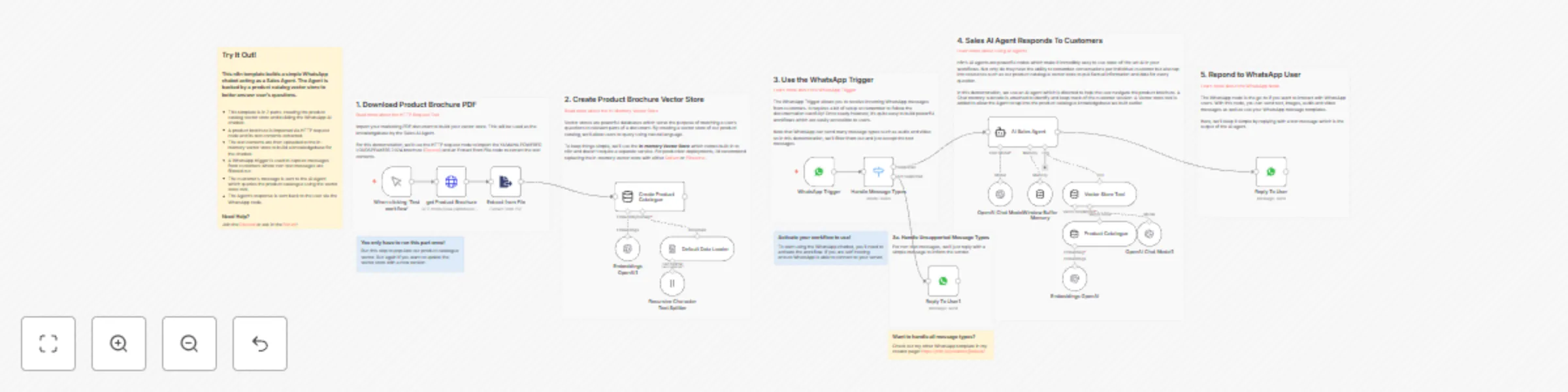
This n8n template builds a simple WhatsApp chabot acting as a Sales Agent. The Agent is backed by a product catalog vector store to better answer user's questions. This template is intended to help introduce n8n users interested in building with WhatsApp. ## How it works * This template is in 2 parts: creating the product catalog vector store and building the WhatsApp AI chatbot. * A product brochure is imported via HTTP request node and its text contents extracted. * The text contents are then uploaded to the in-memory vector store to build a knowledgebase for the chatbot. * A WhatsApp trigger is used to capture messages from customers where non-text messages are filtered out. * The customer's message is sent to the AI Agent which queries the product catalogue using the vector store tool. * The Agent's response is sent back to the user via the WhatsApp node. ## How to use Once you've setup and configured your WhatsApp account and credentials * First, populate the vector store by clicking the "Test Workflow" button. * Next, activate the workflow to enable the WhatsApp chatbot. * Message your designated WhatsApp number and you should receive a message from the AI sales agent. * Tweak datasource and behaviour as required. ## Requirements * WhatsApp Business Account * OpenAI for LLM ## Customising this workflow * Upgrade the vector store to [Qdrant](https://qdrant.tech) for persistance and production use-cases. * Handle different WhatsApp message types for a more rich and engaging experience for customers.

J
Jimleuk
Lead Nurturing
17 Oct 2024
443048
0
Workflow preview: Build your first AI agent
Free intermediate

Build your first AI agent

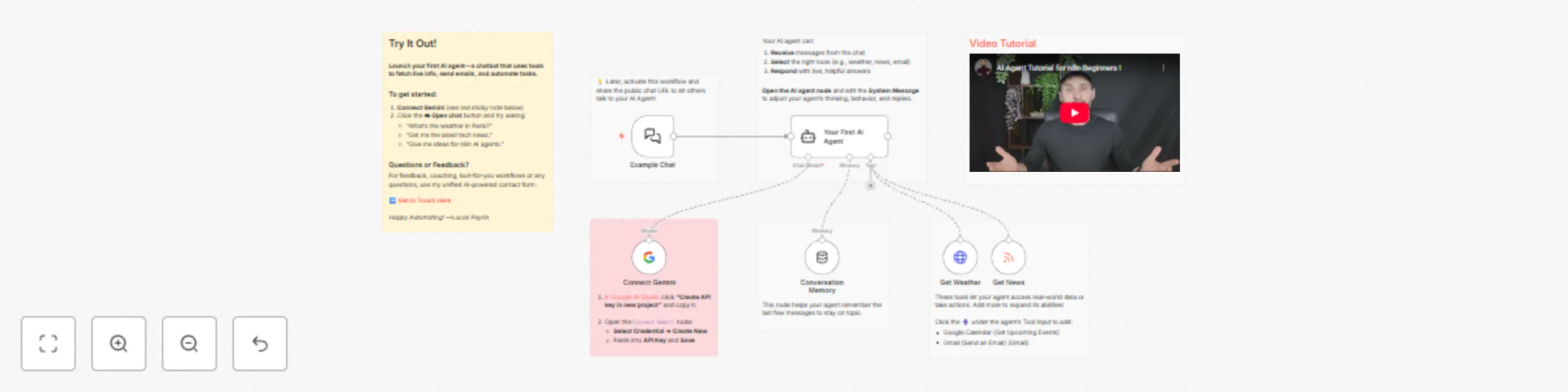
## How it works This template launches your very first **AI Agent** —an AI-powered chatbot that can do more than just talk— it can take action using tools. Think of an AI Agent as a smart assistant, and the tools are the apps on its phone. By connecting it to other nodes, you give your agent the ability to interact with real-world data and services, like checking the weather, fetching news, or even sending emails on your behalf. This workflow is designed to be the perfect starting point: * **The Chat Interface:** A `Chat Trigger` node provides a simple, clean interface for you to talk to your agent. * **The Brains:** The `AI Agent` node receives your messages, intelligently decides which tool to use (if any), and formulates a helpful response. Its personality and instructions are fully customizable in the "System Message". * **The Language Model:** It uses **Google Gemini** to power its reasoning and conversation skills. * **The Tools:** It comes pre-equipped with two tools to demonstrate its capabilities: 1. **Get Weather:** Fetches real-time weather forecasts. 2. **Get News:** Reads any RSS feed to get the latest headlines. * **The Memory:** A `Conversation Memory` node allows the agent to remember the last few messages, enabling natural, follow-up conversations. ### Set up steps **Setup time: ~2 minutes** You only need one thing to get started: a free Google AI API key. 1. **Get Your Google AI API Key:** * Visit Google AI Studio at [aistudio.google.com/app/apikey](https://aistudio.google.com/app/apikey). * Click **"Create API key in new project"** and copy the key that appears. 2. **Add Your Credential in n8n:** * On the workflow canvas, go to the **`Connect your model`** (Google Gemini) node. * Click the **Credential** dropdown and select **`+ Create New Credential`**. * Paste your API key into the **API Key** field and click **Save**. 3. **Start Chatting!** * Go to the **`Example Chat`** node. * Click the **"Open Chat"** button in its parameter panel. * Try asking it one of the example questions, like: *"What's the weather in Paris?"* or *"Get me the latest tech news."* That's it! You now have a fully functional AI Agent. Try adding more tools (like Gmail or Google Calendar) to make it even more powerful.

L
Lucas Peyrin
Personal Productivity
22 Jul 2025
432789
0
Workflow preview: Scrape and summarize webpages with AI
Free advanced

Scrape and summarize webpages with AI

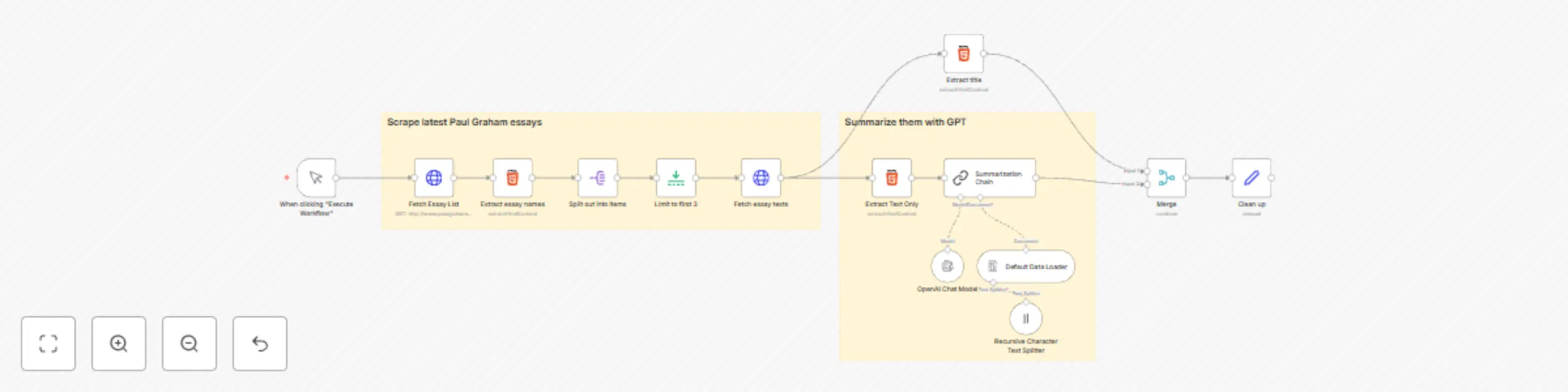
This workflow integrates both web scraping and NLP functionalities. It uses HTML parsing to extract links, HTTP requests to fetch essay content, and AI-based summarization using GPT-4o. It's an excellent example of an end-to-end automated task that is not only efficient but also provides real value by summarizing valuable content. Note that to use this template, you need to be on n8n version 1.50.0 or later.

n
n8n Team
Market Research
3 Oct 2023
367249
0
Workflow preview: ✨🤖Automate Multi-Platform Social Media Content Creation with AI
Free advanced

✨🤖Automate Multi-Platform Social Media Content Creation with AI

# Automate Multi-Platform Social Media Content Creation with AI ## Who is this for? **Social Media Managers** and **Digital Marketers** seeking to streamline content production across 7+ platforms (X/Twitter, Instagram, LinkedIn, Facebook, TikTok, Threads, YouTube Shorts) using AI-powered automation. ## What problem does this solve? Creating platform-optimized content at scale while maintaining brand consistency across multiple channels, reducing manual work by 80% through AI generation and automated publishing. ## What this workflow does 1. **AI Content Generation**: - Uses GPT-4/Gemini to create platform-specific posts - Automatically generates hashtags, CTAs, and emoji placement - Supports image/video suggestions and image creation using OpenAI or Pollinations.ai - Uses SERP api to search for relavent content 2. **Approval Workflow**: - Sends formatted HTML emails for human review - Implements double-approval system with Gmail integration 3. **Cross-Platform Publishing**: - One-click deployment to: - Instagram/Facebook (via Graph API) - X/Twitter (Official API) - LinkedIn (Sales Navigator integration) ## Setup 1. **Credentials**: - OpenAI API key - Google Gemini API - Social media platform tokens (X, LinkedIn, Facebook) - ImgBB for image hosting - Gmail - SERP API - Telegram 2. **Configuration**: - Update all "your-unique-id" placeholders in API nodes - Set email recipients in Gmail nodes - Customize AI prompts 3. **Customization**: - Adjust character limits per platform - Modify approval thresholds - Add/remove social platforms as needed ## How to customize - **Content Style**: Edit prompt templates in the "Social Media Content Factory" agent node - **Approval Process**: Modify email templates - **Analytics**: Connect to Google Sheets for performance tracking - **Image Generation**: Switch between Pollinations.ai/DALL-E/Midjourney

J
Joseph LePage
Social Media
3 Mar 2025
349632
0
Workflow preview: Very quick quickstart
Free intermediate

Very quick quickstart

Want to learn the basics of n8n? Our comprehensive [quick quickstart](https://docs.n8n.io/try-it-out/quickstart/) tutorial is here to guide you through the basics of n8n, step by step. Designed with beginners in mind, this tutorial provides a hands-on approach to learning n8n's basic functionalities.

D
Deborah
Miscellaneous
6 Jun 2022
298420
0
Workflow preview: Generate AI viral videos with Seedance and upload to TikTok, YouTube & Instagram
Free advanced

Generate AI viral videos with Seedance and upload to TikTok, YouTube & Instagram

![Workflow Screenshot](https://www.dr-firas.com/seedanceII.png) # Generate AI videos with Seedance & Blotato, upload to TikTok, YouTube & Instagram ### Who is this for? This template is ideal for creators, content marketers, social media managers, and AI enthusiasts who want to automate the production of short-form, visually captivating videos for platforms like TikTok, YouTube Shorts, and Instagram Reels — all without manual editing or publishing. ### What problem is this workflow solving? Creating engaging videos requires: - Generating creative ideas - Writing detailed scene prompts - Producing realistic video clips and sound effects - Editing and stitching the final video - Publishing across multiple platforms This workflow automates the entire process, saving hours of manual work and ensuring consistent, AI-driven content output ready for social distribution. ### What this workflow does This end-to-end AI video automation workflow: 1. **Generates a creative idea** using OpenAI and LangChain 2. **Creates detailed video prompts** with Seedance AI 3. **Generates video clips** via Wavespeed AI 4. **Generates sound effects** with Fal AI 5. **Stitches the final video** using Fal AI’s ffmpeg API 6. **Logs metadata and video links** to Google Sheets 7. **Uploads the video to Blotato** 8. **Auto-publishes to TikTok, YouTube, Instagram, and other platforms** ### Setup 1. Add your **OpenAI API key** in the LLM nodes 2. Set up **Seedance and Wavespeed AI credentials** for video prompt and clip generation 3. Add your **Fal AI API key** for sound and stitching steps 4. Connect your **Google Sheets account** for tracking ideas and outputs 5. Set your **Blotato API key** and fill in the platform account IDs in the `Assign Social Media IDs` node 6. Adjust the **Schedule Trigger** to control when the automation runs ### How to customize this workflow to your needs - **Change the AI prompts** to target your niche (e.g., ASMR, product videos, humor) - **Add a Telegram or Slack step** for video preview before publishing - **Tweak scene structure** or video duration to match your style - **Disable platforms** you don’t want by turning off specific HTTP Request nodes - **Edit the sound generation prompts** for different moods or effects 📄 **Documentation**: [Notion Guide](https://automatisation.notion.site/Generate-AI-Videos-with-Seedance-Blotato-and-Upload-to-TikTok-YouTube-Instagram-version-II-21d3d6550fd980218096d84f31bfae2d?source=copy_link) --- ### Need help customizing? Contact me for consulting and support : [Linkedin](https://www.linkedin.com/in/dr-firas/) / [Youtube](https:/https://www.youtube.com/@DRFIRASS)

D
Dr. Firas
Content Creation
26 Jun 2025
277125
0
Workflow preview: AI agent that can scrape webpages
Free advanced

AI agent that can scrape webpages

![n8nReAct.webp](fileId:720) ⚙️🛠️🚀🤖🦾 This template is a PoC of a ReAct AI Agent capable of fetching random pages (not only Wikipedia or Google search results). On the top part there's a manual chat node connected to a LangChain ReAct Agent. The agent has access to a workflow tool for getting page content. The page content extraction starts with converting query parameters into a JSON object. There are 3 pre-defined parameters: - **url** – an address of the page to fetch - **method** = full / simplified - **maxlimit** - maximum length for the final page. For longer pages an error message is returned back to the agent Page content fetching is a multistep process: 1. An HTTP Request mode tries to get the page content. If the page content was successfuly retrieved, a series of post-processing begin: 2. Extract HTML BODY; content 3. Remove all unnecessary tags to recuce the page size 4. Further eliminate external URLs and IMG scr values (based on the method query parameter) 5. Remaining HTML is converted to Markdown, thus recuding the page lengh even more while preserving the basic page structure 6. The remaining content is sent back to an Agent if it's not too long (maxlimit = 70000 by default, see CONFIG node). *NB:* - You can isolate the HTTP Request part into a separate workflow. - Check the Workflow Tool description, it guides the agent to provide a query string with several parameters instead of a JSON object. Please reach out to [Eduard](https://www.linkedin.com/in/parsadanyan/) is you need further assistance with you n8n workflows and automations! Note that to use this template, you need to be on n8n version 1.19.4 or later.

E
Eduard
Engineering
6 Dec 2023
268473
0
Workflow preview: Angie, personal AI assistant with Telegram voice and text
Free advanced

Angie, personal AI assistant with Telegram voice and text

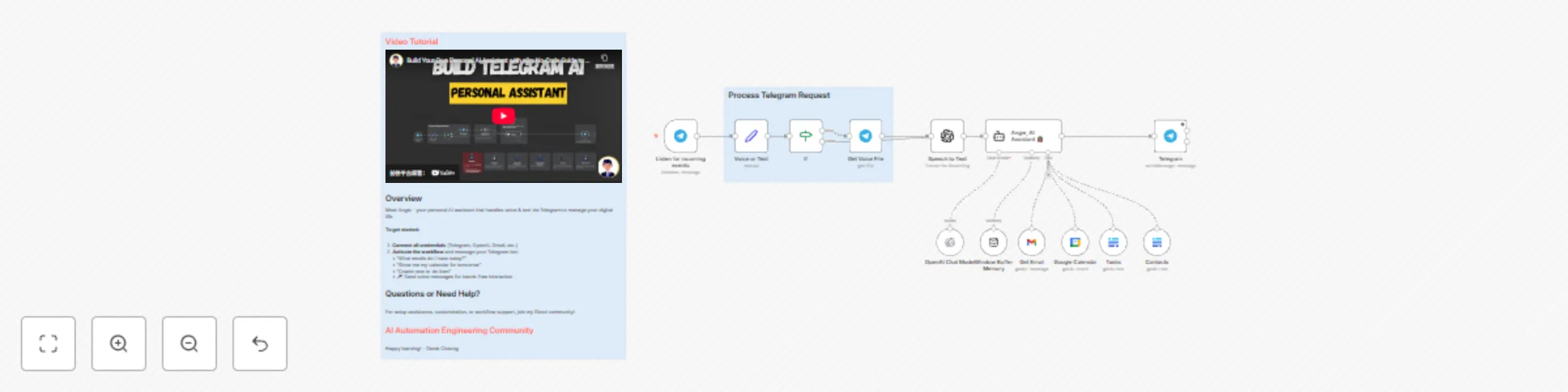
**How it works:** This project creates a personal AI assistant named Angie that operates through Telegram. Angie can summarize daily emails, look up calendar entries, remind users of upcoming tasks, and retrieve contact information. The assistant can interact with users via both voice and text inputs. **Step-by-step:** Telegram Trigger: The workflow starts with a Telegram trigger that listens for incoming message events. The system determines if the incoming message is voice or text. If voice, the voice file is retrieved and transcribed to text using OpenAI's API Speech to Text AI Assistant: The telegram request is passed to the AI assistant (Angie). Tools Integration: The AI assistant is equipped with several tools: - Get Email: Uses Gmail API to fetch recent emails, filtering by date. - Get Calendar: Retrieves calendar entries for specified dates. - Get Tasks: Connects to a Baserow (open-source Airtable alternative) database to fetch to-do list items. - Get Contacts: Also uses Baserow to retrieve contact information. Response Generation: The AI formulates a response based on the gathered information and sends back to the user on Telegram

D
Derek Cheung
Personal Productivity
15 Oct 2024
248655
0
Workflow preview: RAG chatbot for company documents using Google Drive and Gemini
Free advanced

RAG chatbot for company documents using Google Drive and Gemini

This workflow implements a Retrieval Augmented Generation (RAG) chatbot that answers employee questions based on company documents stored in Google Drive. It automatically indexes new or updated documents in a Pinecone vector database, allowing the chatbot to provide accurate and up-to-date information. The workflow uses Google's Gemini AI for both embeddings and response generation. ## How it works The workflow uses two `Google Drive Trigger` nodes: one for detecting new files added to a specified Google Drive folder, and another for detecting file updates in that same folder. 1. Automated Indexing: When a new or updated document is detected 2. The `Google Drive` node downloads the file. 3. The `Default Data Loader` node loads the document content. 4. The `Recursive Character Text Splitter` node breaks the document into smaller text chunks. 5. The Embeddings Google Gemini node generates embeddings for each text chunk using the text-embedding-004 model. 6. The `Pinecone Vector Store` node indexes the text chunks and their embeddings in a specified Pinecone index. 7.The Chat Trigger node receives user questions through a chat interface. The user's question is passed to an AI Agent node. 8. The `AI Agent` node uses a `Vector Store Tool` node, linked to a Pinecone Vector Store node in query mode, to retrieve relevant text chunks from Pinecone based on the user's question. 9. The AI Agent sends the retrieved information and the user's question to the Google Gemini Chat Model (gemini-pro). 10. The `Google Gemini Chat Model` generates a comprehensive and informative answer based on the retrieved documents. 11. A `Window Buffer Memory` node connected to the AI Agent provides short-term memory, allowing for more natural and context-aware conversations. ## Set up steps 1. Google Cloud Project and Vertex AI API: * Create a Google Cloud project. * Enable the Vertex AI API for your project. 2. Google AI API Key: * Obtain a Google AI API key from Google AI Studio. 3. Pinecone Account: * Create a free account on the Pinecone website. Obtain your API key from your Pinecone dashboard. * Create an index named company-files in your Pinecone project. 4. Google Drive: * Create a dedicated folder in your Google Drive where company documents will be stored. 5. Credentials in n8n: Configure credentials in your n8n environment for: * Google Drive OAuth2 * Google Gemini(PaLM) Api (using your Google AI API key) * Pinecone API (using your Pinecone API key) 5. Import the Workflow: * Import this workflow into your n8n instance. 6. Configure the Workflow: * Update both Google Drive Trigger nodes to watch the specific folder you created in your Google Drive. * Configure the Pinecone Vector Store nodes to use your company-files index.

M
Mihai Farcas
Internal Wiki
20 Jan 2025
240293
0
Workflow preview: Generate AI videos with Google Veo3, save to Google Drive and upload to YouTube
Free advanced

Generate AI videos with Google Veo3, save to Google Drive and upload to YouTube

This workflow allows users to **generate AI videos** using **Google Veo3**, save them to **Google Drive**, generate optimized YouTube titles with GPT-4o, and **automatically upload them to YouTube** with [Upload-Post](https://www.upload-post.com/?linkId=lp_144414&sourceId=n3witalia&tenantId=upload-post-app). The entire process is triggered from a Google Sheet that acts as the central interface for input and output. IT automates video creation, uploading, and tracking, ensuring seamless integration between Google Sheets, Google Drive, Google Veo3, and YouTube. --- ### Benefits of this Workflow * **💡 No Code Interface**: Trigger and control the video production pipeline from a simple Google Sheet. * **⚙️ Full Automation**: Once set up, the entire video generation and publishing process runs hands-free. * **🧠 AI-Powered Creativity**: * Generates engaging YouTube titles using GPT-4o. * Leverages advanced generative video AI from Google Veo3. * **📁 Cloud Storage & Backup**: Stores all generated videos on Google Drive for safekeeping. * **📈 YouTube Ready**: Automatically uploads to YouTube with correct metadata, saving time and boosting visibility. * **🧪 Scalable**: Designed to process multiple video prompts by looping through new entries in Google Sheets. * **🔒 API-First**: Utilizes secure API-based communication for all services. --- ### **How It Works** 1. **Trigger**: The workflow can be started manually ("When clicking ‘Test workflow’") or scheduled ("Schedule Trigger") to run at regular intervals (e.g., every 5 minutes). 2. **Fetch Data**: The "Get new video" node retrieves unfilled video requests from a Google Sheet (rows where the "VIDEO" column is empty). 3. **Video Creation**: - The "Set data" node formats the prompt and duration from the Google Sheet. - The "Create Video" node sends a request to the Fal.run API (Google Veo3) to generate a video based on the prompt. 4. **Status Check**: - The "Wait 60 sec." node pauses execution for 60 seconds. - The "Get status" node checks the video generation status. If the status is "COMPLETED," the workflow proceeds; otherwise, it waits again. 5. **Video Processing**: - The "Get Url Video" node fetches the video URL. - The "Generate title" node uses OpenAI (GPT-4.1) to create an SEO-optimized YouTube title. - The "Get File Video" node downloads the video file. 6. **Upload & Update**: - The "Upload Video" node saves the video to Google Drive. - The "HTTP Request" node uploads the video to YouTube via the Upload-Post API. - The "Update Youtube URL" and "Update result" nodes update the Google Sheet with the video URL and YouTube link. --- ### **Set Up Steps** 1. **Google Sheet Setup**: - Create a Google Sheet with columns: **PROMPT**, **DURATION**, **VIDEO**, and **YOUTUBE_URL**. - Share the Sheet link in the "Get new video" node. 2. **API Keys**: - Obtain a Fal.run API key (for Veo3) and set it in the "Create Video" node (Header: `Authorization: Key YOURAPIKEY`). - Get an Upload-Post API key (for YouTube uploads) and configure the "HTTP Request" node (Header: `Authorization: Apikey YOUR_API_KEY`). 3. **YouTube Upload Configuration**: - Replace `YOUR_USERNAME` in the "HTTP Request" node with your Upload-Post profile name. 4. **Schedule Trigger**: - Configure the "Schedule Trigger" node to run periodically (e.g., every 5 minutes). --- ### **Need help customizing?** [Contact me](mailto:[email protected]) for consulting and support or add me on [Linkedin](https://www.linkedin.com/in/davideboizza/).

D
Davide
Content Creation
10 Jun 2025
234632
0
Workflow preview: Pulling data from services that n8n doesn’t have a pre-built integration for
Free beginner

Pulling data from services that n8n doesn’t have a pre-built integration for

You still can use the app in a workflow even if we don’t have a node for that or the existing operation for that. With the HTTP Request node, it is possible to call any API point and use the incoming data in your workflow **Main use cases:** - Connect with apps and services that n8n doesn’t have integration with - Web scraping **How it works** This workflow can be divided into three branches, each serving a distinct purpose: 1.Splitting into Items (HTTP Request - Get Mock Albums): - The workflow initiates with a manual trigger (On clicking 'execute'). - It performs an HTTP request to retrieve mock albums data from "https://jsonplaceholder.typicode.com/albums." - The obtained data is split into items using the Item Lists node, facilitating easier management. 2.Data Scraping (HTTP Request - Get Wikipedia Page and HTML Extract): - Another branch of the workflow involves fetching a random Wikipedia page using an HTTP request to "https://en.wikipedia.org/wiki/Special:Random." - The HTML Extract node extracts the article title from the fetched Wikipedia page. 3.Handling Pagination (The final branch deals with handling pagination for a GitHub API request): - It sends an HTTP request to "https://api.github.com/users/that-one-tom/starred," with parameters like the page number and items per page dynamically set by the Set node. - The workflow uses conditions (If - Are we finished?) to check if there are more pages to retrieve and increments the page number accordingly (Set - Increment Page). - This process repeats until all pages are fetched, allowing for comprehensive data retrieval.

J
Jonathan
Engineering
6 Jul 2022
223504
0
Workflow preview: Telegram AI chatbot
Free advanced

Telegram AI chatbot

The workflow starts by listening for messages from Telegram users. The message is then processed, and based on its content, different actions are taken. If it's a regular chat message, the workflow generates a response using the OpenAI API and sends it back to the user. If it's a command to create an image, the workflow generates an image using the OpenAI API and sends the image to the user. If the command is unsupported, an error message is sent. Throughout the workflow, there are additional nodes for displaying notes and simulating typing actions. ![bot_workflow_annotated.png](fileId:711)

E
Eduard
Support Chatbot
6 Jul 2023
213327
0
Workflow preview: Fully automated AI video generation & multi-platform publishing
Free advanced

Fully automated AI video generation & multi-platform publishing

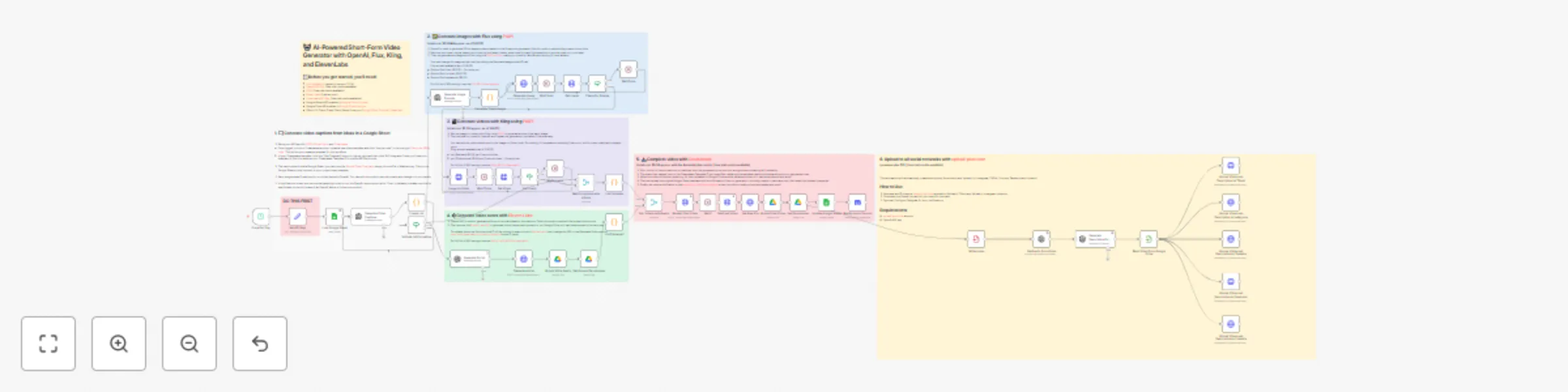
## Description This comprehensive n8n automation template orchestrates a complete end-to-end workflow for generating engaging short-form Point-of-View (POV) style videos using multiple AI services and automatically publishing them across major social media platforms. It takes ideas from a Google Sheet and transforms them into finished videos with captions, voiceovers, and platform-specific descriptions, ready for distribution. ### Who Is This For? * **Content Creators & Agencies:** Mass-produce unique short-form video content for various clients or channels with minimal manual effort. * **Digital Marketers:** Automate video content pipelines to boost online presence and engagement across multiple platforms simultaneously. * **Social Media Managers:** Schedule and distribute consistent video content efficiently without juggling multiple tools and manual uploads. * **Businesses:** Leverage AI to create branded video content for marketing, reducing production time and costs. ### What Problem Does This Workflow Solve? Creating and distributing high-quality short-form video content consistently across multiple social networks is incredibly time-consuming and resource-intensive. This workflow tackles these challenges by: * **Automating Idea-to-Video Pipeline:** Generates video concepts, image prompts, scripts, images, video clips, and voiceovers using AI. * **Streamlining Video Assembly:** Automatically combines generated assets into a final video using a template. * **Generating Platform-Optimized Descriptions:** Creates relevant descriptions for posts by transcribing the final video audio. * **Automating Multi-Platform Publishing:** Uploads the final video and description to TikTok, Instagram, YouTube, Facebook, and LinkedIn simultaneously. * **Reducing Manual Workload:** Drastically cuts down the time and effort required for video production and distribution. * **Centralized Tracking:** Updates a Google Sheet with results, costs, and status for easy monitoring. ### How It Works 1. **Trigger & Input:** Runs on a daily schedule (configurable) and fetches new video ideas from a designated Google Sheet. 2. **AI Content Generation:** * Uses OpenAI to generate video captions and image prompts based on the idea. * Uses PiAPI (Flux) to generate images from prompts. * Uses PiAPI (Kling) to generate video clips from the images (Image-to-Video). * Uses OpenAI to generate a voiceover script based on the captions. * Uses ElevenLabs to generate voiceover audio from the script and uploads it to Google Drive. 3. **Video Assembly:** Combines the generated video clips, captions, and voiceover audio using a Creatomate template to render the final video. 4. **Description Generation:** Uploads the final video to Google Drive, extracts the audio using OpenAI (Whisper), and generates a social media description using OpenAI (GPT). 5. **Multi-Platform Distribution:** Uses upload-post.com to upload the final video and generated description to TikTok, Instagram, YouTube, Facebook, and LinkedIn. 6. **Tracking & Notification:** Updates the original Google Sheet row with output details (video link, costs, tokens used) and sends a completion notification via Discord. ### Setup 1. **Accounts & API Keys:** Obtain accounts and generate API keys/credentials for: * n8n * Google Cloud Platform (for Google Sheets & Google Drive APIs + OAuth Credentials) * OpenAI * PiAPI * ElevenLabs * Creatomate * upload-post.com * Discord (Webhook URL) 2. **Google Sheet:** Make a copy of the provided [Google Sheet Template](https://docs.google.com/spreadsheets/d/1cjd8p_yx-M-3gWLEd5TargtoB35cW-3y66AOTNMQrrM/edit?usp=sharing) and connect it in the `Load Google Sheet` node. 3. **Creatomate Template:** Set up a video template in Creatomate (use the [provided JSON source code](https://pastebin.com/c7aMTeLK) as a base) and note its Template ID. 4. **Configure Nodes:** * Enter all API Keys/Credentials in the `Set API Keys` node and other relevant credential sections (Google nodes, upload-post nodes, etc.). * Configure Google Drive nodes (Folder IDs, Permissions). * Configure the `upload-post.com` nodes with your user identifier and necessary platform details (e.g., Facebook Page ID). * Customize AI prompts within the OpenAI nodes (`Generate Video Captions`, `Generate Image Prompts`, `Generate Script`, `Generate Description...`) if desired. * Set the Discord Webhook URL in the `Notify me on Discord` node. 5. **Enable Google APIs:** Ensure Google Drive API and Google Sheets API are enabled in your Google Cloud Project. ### Requirements * **Accounts:** n8n, Google (Sheets, Drive, Cloud Platform), OpenAI, PiAPI, ElevenLabs, Creatomate, [The social media api Upload-Post](https://www.upload-post.com), Discord. * **API Keys & Credentials:** API Keys for OpenAI, PiAPI, ElevenLabs, Creatomate, upload-post.com. Google Cloud OAuth 2.0 Credentials. Discord Webhook URL. * **Templates:** A configured Google Sheet based on the template, a configured Creatomate video template. * **(Potentially) Paid Plans:** Some services (OpenAI, PiAPI, Creatomate, upload-post.com) may require paid plans depending on usage volume after free trials/credits are exhausted. Use this template to build a powerful, automated video content factory, scaling your production and distribution efforts across the social media landscape.

J
Juan Carlos Cavero Gracia
Content Creation
6 Apr 2025
206095
0
Workflow preview: Chat with a database using AI
Free intermediate

Chat with a database using AI

This workflow allows you to ask questions about data stored in a database using AI. To use it, you'll need an OpenAI API key (although you could also swap in a model from another service). Supported databases: - Postgres - MySQL - SQLite The workflow uses n8n's embedded chat, but you could also modify it to work with a chat service such as Slack, MS Teams or WhatsApp. Note that to use this template, you need to be on n8n version 1.19.4 or later.

D
David Roberts
Internal Wiki
13 Feb 2024
204365
0
Workflow preview: Generate & auto-post AI videos to social media with Veo3 and Blotato
Free advanced

Generate & auto-post AI videos to social media with Veo3 and Blotato

![Workflow Screenshot](https://www.dr-firas.com/Veo3_blotato2.png) # Automate video creation with Veo3 and auto-post to Instagram, TikTok via Blotato ### Who is this for? This template is ideal for content creators, social media managers, YouTubers, and digital marketers who want to generate high-quality videos daily using AI and distribute them effortlessly across multiple platforms. It’s perfect for anyone who wants to scale short-form content creation without video editing tools. ### What problem is this workflow solving? Creating and distributing consistent video content requires: - Generating ideas - Writing scripts and prompts - Rendering videos - Manually posting to platforms This workflow automates all of that. It transforms one prompt into a professional AI-generated video and publishes it automatically — saving time and increasing reach. ### What this workflow does 1. **Triggers daily** to generate a new idea with OpenAI (or your custom prompt). 2. **Creates a video prompt** formatted specifically for Google Veo3. 3. **Generates a cinematic video** using the Veo3 API. 4. **Logs the video data** into a Google Sheet. 5. **Retrieves the final video URL** once Veo3 finishes rendering. 6. **Uploads the video to Blotato** for publishing. 7. **Auto-posts** the video to Instagram, TikTok, YouTube, Facebook, LinkedIn, Threads, Twitter (X), Pinterest, and Bluesky. ### Setup 1. Add your **OpenAI API key** to the GPT-4.1 nodes. 2. Connect your **Veo3 API credentials** in the video generation node. 3. Link your **Google Sheets account** and use a sheet with columns: `Prompt`, `Video URL`, `Status`. 4. Connect your **Blotato API key** and set your platform IDs in the `Assign Social Media IDs` node. 5. Adjust the **Schedule Trigger** to your desired posting frequency. ### How to customize this workflow to your needs - **Edit the AI prompt** to align with your niche (fitness, finance, education, etc.). - **Add your own branding overlays** using JSON2Video or similar tools. - **Change platform selection** by enabling/disabling specific HTTP Request nodes. - **Add a Telegram step** to preview the video before auto-posting. - **Track performance** by adding metrics columns in Google Sheets. 📄 **Documentation**: [Notion Guide](https://automatisation.notion.site/Automate-video-creation-with-Veo3-and-auto-post-to-Instagram-TikTok-via-Blotato-2163d6550fd980768996f05afb2794ea) --- ### Need help customizing? Contact me for consulting and support : [Linkedin](https://www.linkedin.com/in/dr-firas/) / [Youtube](https:/https://www.youtube.com/@DRFIRASS)

D
Dr. Firas
Content Creation
19 Jun 2025
200754
0
Workflow preview: Scrape business emails from Google Maps without the use of any third party APIs
Free advanced

Scrape business emails from Google Maps without the use of any third party APIs

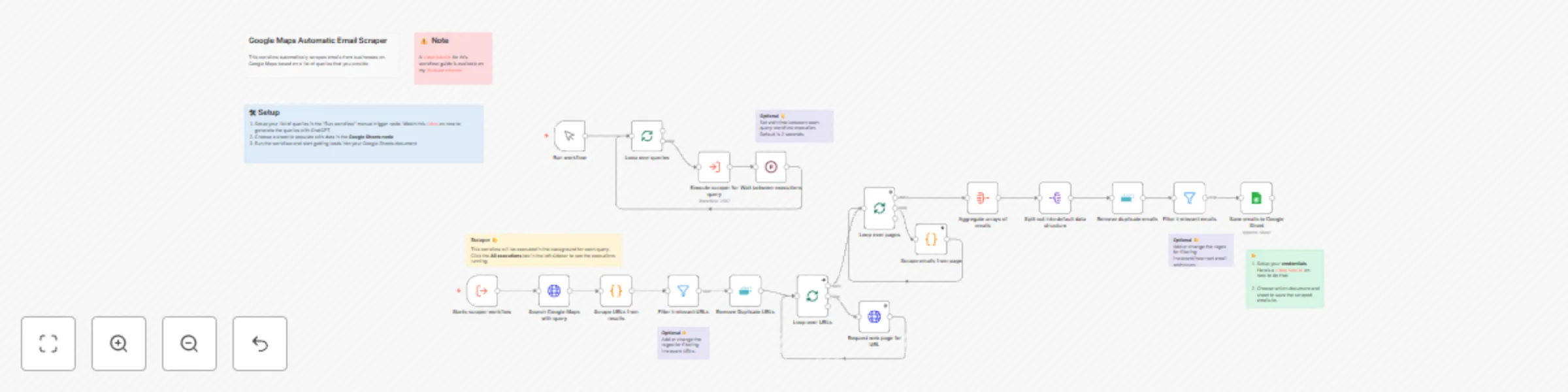
## Who is this template for? This workflow template is designed for sales, marketing, and business development professionals who want a cost-effective and efficient way to generate leads. By leveraging n8n core nodes, it scrapes business emails from Google Maps without relying on third-party APIs or paid services, ensuring there are no additional costs involved. Ideal for small business owners, freelancers, and agencies, this template automates the process of collecting contact information for targeted outreach, making it a powerful tool for anyone looking to scale their lead generation efforts without incurring extra expenses. You can watch the video tutorial here: https://youtu.be/HaiO-UeiKBA ## How it works This template streamlines email scraping from Google Maps using only n8n core nodes, ensuring a completely free and self-contained solution. Here’s how it operates: ### Input Queries You provide a list of queries, each consisting of keywords related to the type of business you want to target and the specific region or subregion you’re interested in. ### Iterates through Queries The workflow processes each query one at a time. For each query, it triggers a sub-workflow dedicated to handling the scraping tasks. ### Scrapes Google Maps for URLs Using these queries, the workflow scrapes Google Maps to collect URLs of business listings matching the provided criteria. ### Fetches HTML Content The workflow then fetches the HTML pages of the collected URLs for further processing. ### Extracts Emails Using a Code Node with custom JavaScript, the workflow runs regular expressions on the HTML content to extract business email addresses. ## Setup 1. **Add Queries:** Open the first node, "Run Workflow" and input a list of queries, each containing the business keywords and the target region. 2. **Configure the Google Sheets Node:** Open the Google Sheets node and select a document and specific sheet where the scraped results will be saved. 3. **Run the workflow**: Click on "Test workflow" and watch your Google Sheets document gradually receive business email addresses. ## Customize as Needed: You can adjust the regular expressions in the Code Node to refine the email extraction logic or add logic to extract other kinds of information.

A
Akram Kadri
Lead Generation
24 Nov 2024
198089
0
Workflow preview: Chat with local LLMs using n8n and Ollama
Free intermediate

Chat with local LLMs using n8n and Ollama

## Chat with local LLMs using n8n and Ollama This n8n workflow allows you to seamlessly interact with your self-hosted Large Language Models (LLMs) through a user-friendly chat interface. By connecting to Ollama, a powerful tool for managing local LLMs, you can send prompts and receive AI-generated responses directly within n8n. ### Use cases * Private AI Interactions Ideal for scenarios where data privacy and confidentiality are important. * Cost-Effective LLM Usage Avoid ongoing cloud API costs by running models on your own hardware. * Experimentation & Learning A great way to explore and experiment with different LLMs in a local, controlled environment. * Prototyping & Development Build and test AI-powered applications without relying on external services. ### How it works 1. When chat message received: Captures the user's input from the chat interface. 2. Chat LLM Chain: Sends the input to the Ollama server and receives the AI-generated response. 3. Delivers the LLM's response back to the chat interface. ### Set up steps * Make sure Ollama is installed and running on your machine before executing this workflow. * Edit the Ollama address if different from the default.

M
Mihai Farcas
Engineering
19 Aug 2024
169903
0
Workflow preview: Analyze Landing Page with OpenAI and Get Optimization Tips
Free beginner

Analyze Landing Page with OpenAI and Get Optimization Tips

## Your Landing Page is Leaking Sales—Here’s How to Fix It in Seconds Visitors land on your page. But instead of converting, they bounce. Why? Something’s broken. Something’s missing. But what? ❌ Is your CTA too weak? ❌ Is your messaging unclear? ❌ Is your design creating friction? You know something is off, but don’t know what. **What if you could get an instant, expert-level report on exactly what to fix?** This workflow will do an AI Analysis of your landing page, provide a CRO Audit, so you can optimize your landing page. ## Who is This For? - **SaaS Founders & Startups**: Stop leaving money on the table. Make every visitor count. - **Marketers & Growth Experts**: Turn landing pages into high-converting assets. - **E-commerce & Lead Gen Businesses**: More conversions = more revenue. ## How It Works 1. Paste your URL 2. Get an instant roast + fix list 3. Implement changes & watch conversions jump **The workflow scrapes the url you input, gets the htlm source code of the landing page, and sends it to OpenAI AI Agent.** The Agent makes a deep analysis, roasts the landing page, and provides 10 Conversion Rate Optimization Tips to improve your landing page. ## Setup Guide **You will need OpenAI Credentials with an API Key to run the workflow.** The workflow is using the OpenAI-o1 model to deliver the best results. It costs between $0.20/0.30 per run. You can adjust the prompt to your wish in the AI Agent parameters. Once the workflow has been completed, select Logs to get a readable version. Below is an example. ![Screenshot 20250307 at 14.33.52.png](fileId:991) ![Screenshot 20250307 at 14.34.01.png](fileId:990)

N
Not Another Marketer
Market Research
6 Mar 2025
168094
0
Workflow preview: Build your first AI data analyst chatbot
Free advanced

Build your first AI data analyst chatbot

Enhance your data analysis by connecting an AI Agent to your dataset, using n8n tools. This template teaches you how to build an AI Data Analyst Chatbot that is capable of pulling data from your sources, using tools like Google Sheets or databases. It's designed to be easy and efficient, making it a good starting point for AI-driven data analysis. You can easily replace the current Google Sheets tools for databases like Postgres or MySQL. ![image_template_data.png](fileId:969) ### How It Works The core of the workflow is the AI Agent. It's connected to different data retrieval tools, to get data from Google Sheets (or your preferred database) in many different ways. Once the data is retrieved, the Calculator tool allows the AI to perform mathematical operations, making your data analysis precise. ### Who is this template for - **Data Analysts & Researchers:** Pull data from different sources and perform quick calculations. - **Developers & AI Enthusiasts:** Learn to build your first AI Agent with easy dataset access. - **Business Owners:** Streamline your data analysis with AI insights and automate repetitive tasks. - **Automation Experts:** Enhance your automation skills by integrating AI with your existing databases. ### How to Set Up You can find detailed instructions in the workflow itself. ### Check out my other templates 👉 [**https://n8n.io/creators/solomon/**](https://n8n.io/creators/solomon/)

S
Solomon
Internal Wiki
1 Mar 2025
161465
0
Workflow preview: AI-powered WhatsApp chatbot for text, voice, images, and PDF with RAG
Free advanced

AI-powered WhatsApp chatbot for text, voice, images, and PDF with RAG

### Who is this for? This template is designed for internal support teams, product specialists, and knowledge managers in technology companies who want to automate ingestion of product documentation and enable AI-driven, retrieval-augmented question answering via WhatsApp. ### What problem is this workflow solving? Support agents often spend too much time manually searching through lengthy documentation, leading to inconsistent or delayed answers. This solution automates importing, chunking, and indexing product manuals, then uses retrieval-augmented generation (RAG) to answer user queries accurately and quickly with AI via WhatsApp messaging. ### What these workflows do #### Workflow 1: Document Ingestion & Indexing - Manually triggered to import product documentation from Google Docs. - Automatically splits large documents into chunks for efficient searching. - Generates vector embeddings for each chunk using OpenAI embeddings. - Inserts the embedded chunks and metadata into a MongoDB Atlas vector store, enabling fast semantic search. #### Workflow 2: AI-Powered Query & Response via WhatsApp - Listens for incoming WhatsApp user messages, supporting various types: - Text messages: Plain text queries from users. - Audio messages: Voice notes transcribed into text for processing. - Image messages: Photos or screenshots analyzed to provide contextual answers. - Document messages: PDFs, spreadsheets, or other files parsed for relevant content. - Converts incoming queries to vector embeddings and performs similarity search on the MongoDB vector store. - Uses OpenAI’s GPT-4o-mini model with retrieval-augmented generation to produce concise, context-aware answers. - Maintains conversation context across multiple turns using a memory buffer node. - Routes different message types to appropriate processing nodes to maximize answer quality. ### Setup #### Setting up vector embeddings 1. Authenticate Google Docs and connect your Google Docs URL containing the product documentation you want to index. 2. Authenticate MongoDB Atlas and connect the collection where you want to store the vector embeddings. Create a search index on this collection to support vector similarity queries. 3. Ensure the index name matches the one configured in n8n (data_index). 4. See the example MongoDB search index template below for reference. #### Setting up chat 1. Authenticate the WhatsApp node with your Meta account credentials to enable message receiving and sending. 2. Connect the MongoDB collection containing embedded product documentation to the MongoDB Vector Search node used for similarity queries. 3. Set up the system prompt in the Knowledge Base Agent node to reflect your company’s tone, answering style, and any business rules, ensuring it references the connected MongoDB collection for context retrieval. ### Make sure Both MongoDB nodes (in ingestion and chat workflows) are connected to the same collection with: An embedding field storing vector data, Relevant metadata fields (e.g., document ID, source), and The same vector index name configured (e.g., data_index). ### Search Index Example: { "mappings": { "dynamic": false, "fields": { "_id": { "type": "string" }, "text": { "type": "string" }, "embedding": { "type": "knnVector", "dimensions": 1536, "similarity": "cosine" }, "source": { "type": "string" }, "doc_id": { "type": "string" } } } }

N
NovaNode
Support Chatbot
10 Jun 2025
151719
0
Workflow preview: Generate leads with Google Maps
Free advanced

Generate leads with Google Maps

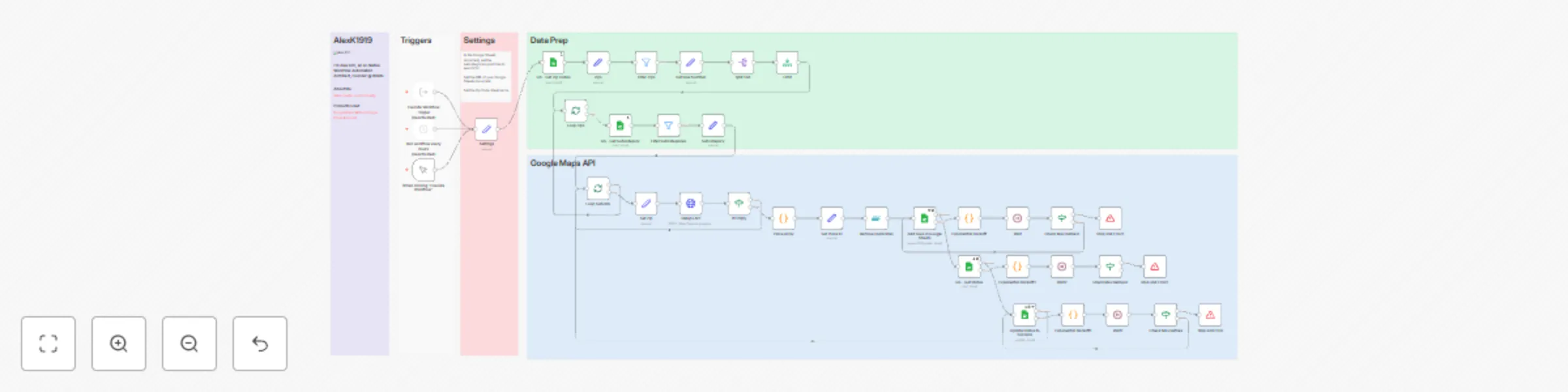
This workflow leverages **n8n** to perform automated Google Maps API queries and manage data efficiently in Google Sheets. It's designed to extract specific location data based on a given list of ZIP codes and categories. --- ## Features - Queries the Google Maps API for location data using predefined ZIP codes and subcategories. - Filters, de-duplicates, and organizes data into structured rows in Google Sheets. - Implements **exponential backoff retries** to handle API rate limits. - Logs and updates statuses directly in Google Sheets for easy tracking. --- ## Prerequisites 1. **Google OAuth Credentials**: A configured Google Cloud project for Google Maps API and Sheets API access. 2. **Google Sheets**: A sheet with ZIP codes and categories defined (e.g., "AZ Zips"). 3. **n8n Setup**: A running instance of n8n with credentials configured for Google OAuth. --- ## Setup Instructions ### 1. Prepare Google Sheets - Add the ZIP codes to the "AZ Zips" sheet. - Define subcategories in another sheet (e.g., "Google Maps Categories"). - Provide the sheet's URL in the `Settings` node of the workflow. ### 2. Configure API Access - Set up Google OAuth credentials for Maps and Sheets APIs in n8n. - Ensure your API key has access to the `places.searchText` endpoint. ### 3. Workflow Customization - Modify `textQuery` parameters in the **GMaps API** node to match your query needs. - Adjust trigger intervals as required (e.g., manual or scheduled execution). ### 4. Run the Workflow - Execute the workflow manually or schedule periodic runs to keep your data updated. --- ## Notes - This workflow includes robust error handling to retry failed API calls with exponential backoff. - All data is organized and logged directly in Google Sheets for easy reference and updates. For more information or issues, feel free to reach out!

A
Alex Kim
Lead Generation
5 Dec 2024
147373
0
Workflow preview: Extract text from a PDF file
Free beginner

Extract text from a PDF file

Companion workflow for Read PDF node docs ![workflow-screenshot](fileId:174)

a
amudhan
Document Extraction
4 Aug 2020
142296
0

Why These Workflows Are Popular

High Download Volume

The "AI agent chat" workflow has been downloaded 123,962 times, proving its reliability and usefulness.

123,962 downloads
Massive User Interest

With 1,239,622 visitors, "AI agent chat" demonstrates exceptional community engagement.

1,239,622 visitors
Community Favorite

"AI agent chat" has earned 0 likes, reflecting strong community approval and quality.

0 likes