Social Media Workflows
Social media automation and content management workflows

Create and schedule LinkedIn posts from Google Sheets with Gemini and DALL·E
## Overview This n8n automation is a complete LinkedIn Content Engine that turns simple topic ideas into fully written, visual, and scheduled posts. It features a "Human-in-the-Loop" design, meaning AI handles the heavy lifting of writing and image creation, but nothing goes live until you manually approve it in Google Sheets. ## How It Works The system runs two separate workflows in parallel: ### 1. The "Creator" Workflow **Input:** Detects when you add a new topic to your "Content Calendar" Google Sheet. **Brand Alignment:** Pulls your specific "Brand Voice" guidelines from a separate tab to ensure the AI sounds like you. **Creation:** Uses Gemini Flash 1.5 to write the post and DALL-E 3 to generate a matching professional image. **Drafting:** Uploads the image to ImgBB and saves the full draft back to your sheet with a status of "Draft." ### 2. The "Publisher" Workflow **Daily Scan:** Wakes up every morning to check your Content Calendar. **Verification:** Looks for posts that match two criteria: * Date Scheduled matches today's date. * Status is marked as "Approved" (by you). **Publishing:** If both match, it automatically uploads the text and image to LinkedIn and updates the sheet status to "Posted." **Tools Used:** n8n, Google Sheets, OpenRouter (Gemini / OpenAI), ImgBB. ## Connect & Learn More **YouTube Channel:** **[Simon Scrapes](https://www.youtube.com/@simonscrapes)** – More tutorials on AI & Automation. **Community:** **[Skool Community](https://www.skool.com/scrapes/about)** – Master AI & Automation with us. **Full Video Tutorial:** [Watch the step-by-step build here](https://youtu.be/eiIRSUhPgOI?si=lgZTrPZPMqWF4uqz&t=4276)
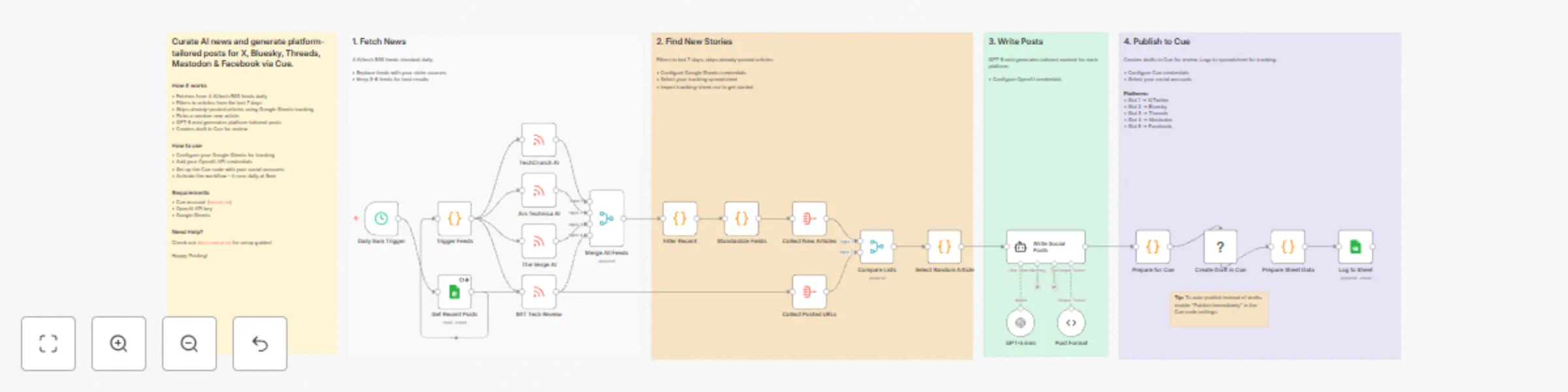
Curate and post AI news to X, Bluesky, Threads and more with GPT-5 mini and Cue
# Curate & post AI news to X, Bluesky, Threads & more via GPT-5 mini & Cue This n8n template automatically curates AI news from RSS feeds and generates platform-tailored social media posts using GPT-5 mini. Posts are saved as drafts in Cue for review before publishing to X, Bluesky, Threads, Mastodon, and Facebook. Use cases include: * Daily automated AI/tech news curation * Multi-platform social media content creation * Building thought leadership with consistent posting * Staying on top of industry news without manual effort ## Who is this for? This workflow is ideal for: * Tech content creators who want to share AI news across multiple platforms * Social media managers handling multiple accounts * Anyone building an audience around AI/tech topics * Teams who want consistent daily content without manual curation ## What problem does this workflow solve? Manually curating news, writing platform-specific posts, and publishing across 5 different social networks is time-consuming. This workflow automates the entire process: * **Curation** - Pulls from 4 trusted AI/tech RSS feeds daily * **Deduplication** - Tracks posted articles in Google Sheets so you never share the same story twice * **Content creation** - GPT-5 mini writes posts tailored to each platform's style and character limits * **Review workflow** - Creates drafts in Cue so you can review before publishing ## How it works 1. **Schedule Trigger** - Runs daily at 9am (configurable) 2. **RSS Feeds** - Fetches articles from TechCrunch AI, Ars Technica AI, The Verge AI, and MIT Tech Review 3. **Filter & Merge** - Combines all feeds and filters to articles from the last 7 days 4. **Deduplication** - Compares against Google Sheets to find unposted articles 5. **Random Selection** - Picks one random article from available stories 6. **AI Generation** - GPT-5 mini generates 5 platform-specific posts with appropriate tone and length 7. **Save to Cue** - Creates a draft post with all 5 platform variations 8. **Log to Sheet** - Records the article URL to prevent future duplicates ## Setup ### Requirements * [Cue account](https://oncue.so) with connected social accounts * OpenAI API key * Google account for Sheets ### Step 1: Install the Cue community node 1. Go to **Settings** → **Community Nodes** 2. Click **Install** 3. Enter `@cuehq/n8n-nodes-cue` ### Step 2: Create tracking spreadsheet 1. Create a new Google Sheet named "AI News Tracker" 2. Add these column headers in row 1: * `article_url` * `title` * `source` * `processed_at` ### Step 3: Configure credentials 1. **Google Sheets** - Add OAuth2 credentials and connect to the "Get Recent Posts" node 2. **OpenAI** - Add your API key and connect to the "GPT-5 mini" node 3. **Cue** - Add your API key from [Cue Settings](https://app.oncue.so/settings/api) ### Step 4: Configure the Cue node 1. Open the **Create Draft in Cue** node 2. Select your **Profile** 3. For each platform slot, select your social account: * Slot 1 → X/Twitter * Slot 2 → Bluesky * Slot 3 → Threads * Slot 4 → Mastodon * Slot 5 → Facebook Don't have all 5 platforms? Simply delete the unused slots. ### Step 5: Publish Save and click **Publish** to activate the workflow. ## Customizing this workflow ### Change the schedule Edit the **Daily 9am Trigger** node to run at a different time or frequency. ### Use different RSS feeds Replace the feed URLs with sources relevant to your niche. The workflow handles any standard RSS feed. Keep 3-6 feeds for best results. ### Auto-publish instead of drafts To publish immediately instead of creating drafts, enable **Publish Immediately** in the Cue node settings. ### Adjust the AI tone Modify the system prompt in the **Write Social Posts** node to match your brand voice or adjust platform-specific guidelines. ## Good to know * **Cost** - Each run uses one OpenAI API call. With GPT-5 mini, this costs approximately $0.01-0.02 per execution. * **Draft review** - Posts are created as drafts in Cue, giving you a chance to review and edit before publishing. * **Deduplication** - The Google Sheet tracks all posted URLs, so the same article is never shared twice. ## About Cue [Cue](https://oncue.so) is a social media scheduling platform that lets you manage and publish content across X, Bluesky, Threads, Mastodon, Facebook, LinkedIn, TikTok, and Instagram from a single dashboard. Key features: * **Multi-platform publishing** - Schedule once, publish everywhere * **Platform-specific content** - Tailor each post for different audiences * **Draft workflow** - Review and edit before publishing * **API & integrations** - Connect with n8n, Zapier, Make, and custom apps [Get started free](https://oncue.so) · [Documentation](https://docs.oncue.so) · [n8n Community Node](https://www.npmjs.com/package/@cuehq/n8n-nodes-cue)

Create and post social media image captions with GPT-4.1-mini and Google Sheets
# Social Media Posting Automation with Image and Caption ## How it works This AI-powered workflow streamlines your social media posting process, transforming hours of manual caption writing, image uploading, and scheduling into a fully automated system. You define the topic and image once, and the workflow handles caption generation, review, approval, and posting to your selected platforms. ### Automated Flow 1. **Generate Caption** Trigger the workflow manually and set your post topic and image URL in the Set node. The AI (GPT-4.1-mini) generates a high-quality, engaging social media caption tailored to your audience, platform, and content goals. 2. **Store in Google Sheet** The generated caption, along with your image URL and post metadata, is automatically appended to your Google Sheet. This creates a central location to review and manage all your social media content. 3. **Review and Approve** You review the generated caption in the sheet, make any edits if needed, and update the status to **Approved**. You can also select the platform(s) where you want to post. 4. **Automatic Posting** Once the status is updated to Approved, the next workflow is triggered automatically. It posts your caption and image to the selected social media platform(s) without any further manual effort. **The result?** A seamless, end-to-end social media posting process where captions are AI-generated, stored, reviewed, and posted automatically. Focus on strategy and engagement instead of repetitive manual posting. --- ## Setup Steps **Setup time:** ~10–15 minutes **What you’ll need:** OpenAI API key, Google account, access to your social media platform(s) 1. **Connect Your Google Account** - Click on the Google Sheets node in your workflow. - Select the Credential dropdown and choose **+ Create New Credential**. - Authenticate your Google account and grant the necessary permissions. 2. **Initialize Your Spreadsheet** - Run the workflow once by clicking the play button on the start node. - This will automatically create a Google Sheet with all the required columns for caption tracking and approval. 3. **Add Your OpenAI API Key** - Navigate to the AI Agent node. - Click the Credential dropdown and select **+ Create New Credential**. - Paste your OpenAI API key and save. - Get your API key from [platform.openai.com/api-keys](https://platform.openai.com/api-keys). 4. **Set Post Topic and Image** - Update the title in the Set node with the topic you want to post. - Add the image URL associated with your post. 5. **Review Captions and Approve** - Open your Google Sheet, review the generated captions, and update the status to **Approved**. - Select the platform(s) where the post should go live. 6. **Go Live** - Once the status is updated, the workflow will automatically post your content to the selected social media platform(s). - Sit back and watch your AI-generated captions and images go live automatically. **Ready to automate your social media?** Activate your workflow and start posting smarter today! 🚀💡✅

Extract text from PDFs and images in Google Drive and post to WordPress and social media with OpenAI GPT-4.1 and DALL·E
## Who is this for? This workflow is designed for content creators, social media managers, digital marketers, and business owners who want to automate their content creation and distribution process across multiple platforms. It's perfect for those who regularly create content from PDFs or images and want to streamline their social media posting workflow. ## Key Features * Monitors a specific Google Drive folder for new PDFs or images * Extracts text from PDFs or images using AI * Optionally generates new images from text using OpenAI's DALL-E * Automatically posts content with images to multiple platforms * Sends notifications about successful posts * Handles different file types with specialized extraction methods ## Workflow Does This workflow automates monitoring a Google Drive folder for new PDFs and images, extracting content using AI, and distributing it across social media platforms like WordPress, Facebook, Telegram, LinkedIn, and Discord. It can also generate new images from text and sends notifications about successful posts. The process ensures efficient handling of different file types and streamlines content sharing across multiple channels. ## Requirements - Google Drive account with a dedicated folder for content - OpenAI API credentials for image generation - WordPress API credentials for website posting - Social media API credentials: * Facebook Graph API * Telegram Bot API * LinkedIn OAuth2 API * Discord Bot API * X/Twitter OAuth2 API - Gmail credentials for email notifications - Rapiwa account for WhatsApp notifications ## Important Notes - Make sure all API credentials are properly configured before running the workflow - The workflow handles both PDF and image files differently based on their MIME type - Image generation is optional and can be disabled if not needed - All social media posting nodes can be individually enabled or disabled based on your needs - The workflow includes rate limiting to avoid API restrictions ## Support & Help - **WhatsApp**: [Chat on WhatsApp](https://wa.me/8801322827799) - **Discord**: [SpaGreen Community](https://discord.gg/SsCChWEP) - **Facebook Group**: [SpaGreen Support](https://www.facebook.com/groups/spagreenbd) - **Website**: [https://spagreen.net](https://spagreen.net) - **Developer Portfolio**: [Codecanyon SpaGreen](https://codecanyon.net/user/spagreen/portfolio)
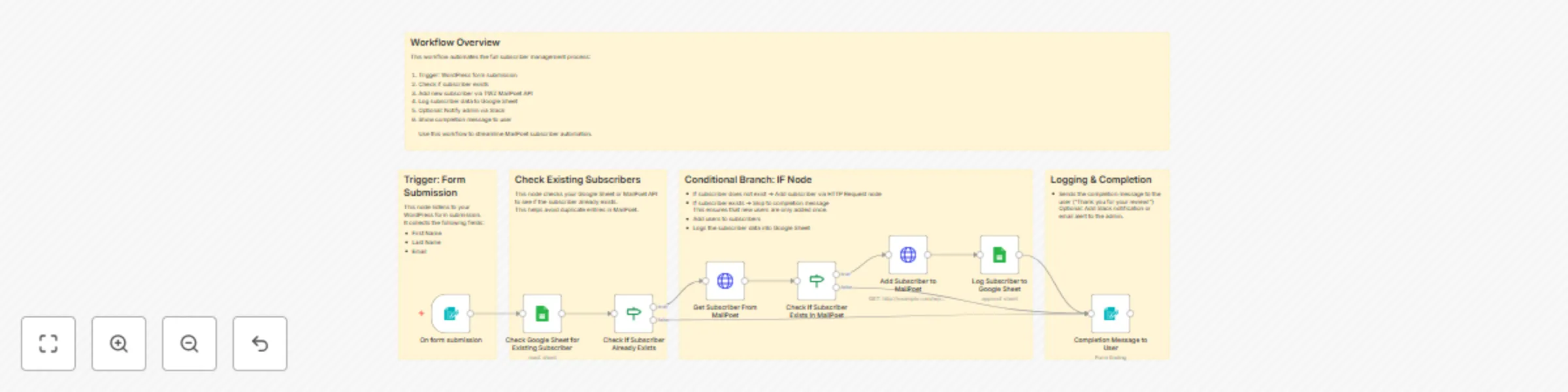
Add MailPoet subscribers from WordPress forms via TWZ plugin and log to Google Sheets
What Is TWZ n8n MailPoet Integration? This workflow adds subscribers to MailPoet using n8n by bridging WordPress through a custom REST API and logging results in Google Sheets. MailPoet is a popular WordPress email marketing plugin, but it does not provide a public REST API. Because of this limitation, n8n cannot connect to MailPoet directly using native nodes or standard integrations. This workflow demonstrates a practical and production-ready solution for connecting n8n → WordPress → MailPoet using a custom WordPress REST API plugin called [TWZ N8N MailPoet](https://themewizz.com/product/twz-n8n-mailpoet-add-subscriber-api/). 🚧 Problem This Workflow Solves ❌ MailPoet has no public REST API ❌ n8n cannot add MailPoet subscribers natively ❌ External forms and automations cannot push data into MailPoet ✅ Solution Architecture This workflow solves the problem by: Creating a secure REST API endpoint inside WordPress Using an n8n HTTP Request node to send subscriber data Adding subscribers directly to MailPoet Preventing duplicate subscribers Logging subscribers in Google Sheets for visibility This creates a reliable bridge between n8n and MailPoet, enabling automation workflows that were previously not possible. 🔌 How It Works (High Level) 📥 n8n receives form submission data 🔍 The workflow checks if the subscriber already exists 📧 The subscriber is added to MailPoet via the custom REST API 📊 Subscriber data is logged in Google Sheets ✅ The workflow returns a success or error response 🎯 Why This Workflow Is Useful Works around MailPoet’s missing API Enables full automation from external tools Uses standard n8n nodes (HTTP Request, IF, Google Sheets) Secure and reusable integration pattern Ideal for WordPress-based businesses 🧩 About the TWZ n8n MailPoet Plugin TWZ n8n MailPoet is a free, lightweight WordPress plugin designed to provide a simple and reliable integration between n8n (or any external service) and MailPoet. It implements a single MailPoet API operation: ➡ Add Subscriber This keeps the plugin lightweight, fast, and focused.
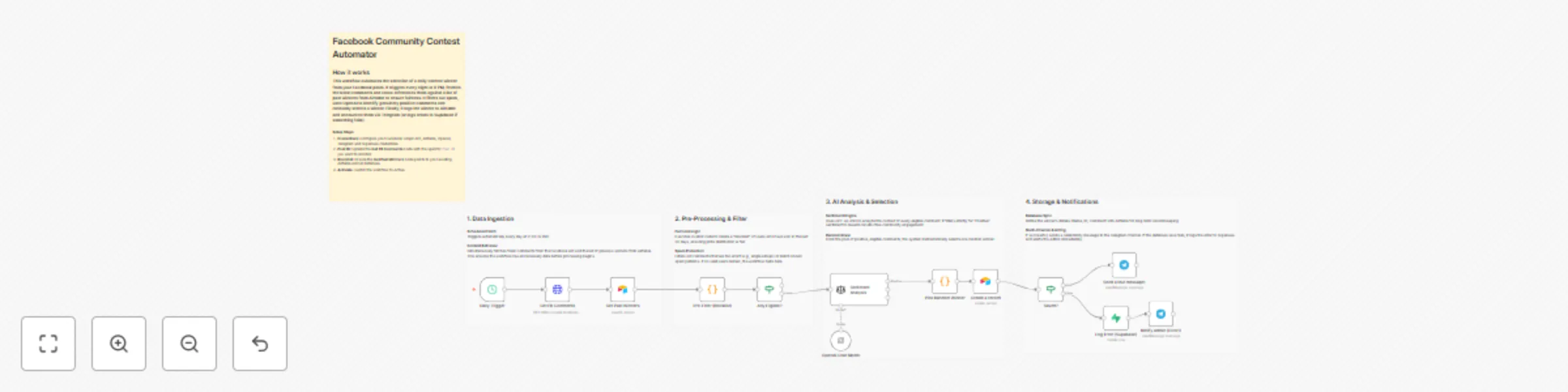
Pick a daily Facebook comment contest winner with OpenAI, Airtable and Telegram
# Community Contest Tracker (FB Comments) → Sentiment Analysis → Telegram Winner Alerts + Airtable Proof This workflow automatically monitors a Facebook post, extracts comments, enforces a "past winner" blocklist, analyzes sentiment using AI to find positive entries, randomly selects a winner, stores them in Airtable and announces the result via Telegram. This workflow runs every night to manage your daily community giveaways. It fetches fresh comments from a specific Facebook post and cross-references users against a list of previous winners stored in Airtable to ensure fairness. It uses OpenAI to filter for genuinely positive sentiment (removing spam), selects a random winner, saves the record and sends a celebratory announcement to your Telegram channel. You receive: * **Daily automated comment collection** * **Fairness enforcement (Blocklist for past winners)** * **AI-powered sentiment filtering (Positive vibes only)** * **Automated winner selection & notification** Ideal for community managers and brand owners who want to run fair, high-engagement contests without manually reading hundreds of comments or tracking past winners in spreadsheets. ### Quick Start – Implementation Steps 1. Add your **Facebook Graph API Credentials** in the HTTP Request node. 2. Connect and configure your **Airtable** base (Winners Table). 3. Add your **OpenAI API Key** for sentiment analysis. 4. Connect your **Telegram Bot** credentials and set the Chat ID. 5. Update the **Post ID** in the "Get FB Comments" node. 6. Activate the workflow — daily contest automation begins instantly. ## What It Does This workflow automates the entire lifecycle of a social media contest: 1. **Daily Trigger:** Runs automatically at 9:00 PM every day. 2. **Data Ingestion:** Fetches the latest comments from Facebook and the full list of past winners from Airtable simultaneously. 3. **Pre-Processing:** * Creates a blocklist of users who won in the last 30 days. * Filters out spam, short comments (e.g., single emojis) and blocklisted users. 4. **AI Analysis:** * Uses GPT-4o-mini to analyze the text of eligible comments. * Filters specifically for "Positive" sentiment. 5. **Selection:** Randomly picks one winner from the pool of positive comments. 6. **Storage:** Saves the winner's Name, Facebook ID and Comment to Airtable. 7. **Notification:** * Sends a "Winner Announcement" to your public Telegram channel. * If any errors occur (e.g., DB save fail), logs them to Supabase and alerts the Admin. This ensures your contests are fair, spam-free and consistently managed with zero manual effort. ## Who’s It For This workflow is ideal for: * Social Media Managers * Community Moderators * Digital Marketing Agencies * Brand Owners running daily giveaways * Influencers managing high-volume comment sections * Customer Experience teams rewarding positive feedback ## To run this workflow, you will need * **n8n instance** (cloud or self-hosted) * **Facebook Developer App** (Graph API Access Token) * **Airtable Base** + Personal Access Token * **OpenAI API Key** (or compatible LLM) * **Telegram Bot Token** * **Supabase Project** (Optional, for error logging) ## How It Works 1. **Daily Trigger** – The schedule node initiates the process. 2. **Fetch Data** – Comments are pulled from FB; Winners pulled from Airtable. 3. **Code Filter** – JavaScript node removes past winners and low-quality spam. 4. **Sentiment Analysis** – AI determines if the comment is Positive, Neutral or Negative. 5. **Pick Winner** – A randomized logic block selects one "Positive" user. 6. **Record Keeping** – The winner is officially logged in your database. 7. **Broadcast** – The winner is announced to the community via Telegram. ## Setup Steps 1. Import the provided n8n JSON file. 2. Open **Get FB Comments** node → Add credentials and paste your specific `Post ID`. 3. Open **Get Past Winners** node → Link to your Airtable "Winners" table. 4. Open **OpenAI Chat Model** node → Add your API Key. 5. Open **Create a record** (Airtable) → Map the fields: * Name * Facebook ID * Date 6. Open **Send a text message** (Telegram) → Add your Chat ID (e.g., `@mychannel`). 7. Activate the workflow — done! ## How To Customize Nodes ### Customize Filtering Logic Modify the **Pre-Filter (Blocklist)** Code node: * Change the minimum character length (default is 2). * Adjust the "Blocklist" duration (e.g., allow users to win again after 7 days instead of 30). ### Customize AI Criteria Modify the **Sentiment Analysis** or **OpenAI** prompt: * Look for "Creative" or "Humorous" comments instead of just "Positive". * Filter for specific keywords related to your brand. ### Customize Notifications Replace Telegram with: * **Slack** (for internal team updates). * **Discord** (for gaming communities). * **Email** (SMTP/Gmail) to notify the marketing team. ### Customize Storage Replace Airtable with: * Google Sheets * Notion * PostgreSQL / MySQL ## Add-Ons (Optional Enhancements) You can extend this workflow to: * **Auto-Reply:** Use the Facebook API to reply to the winner's comment automatically ("Congrats! DM us to claim."). * **Image Generation:** Use OpenAI DALL-E or Bannerbear to generate a "Winner Certificate" image. * **Cross-Posting:** Automatically post the winner's name to Twitter/X or LinkedIn. * **Sentiment Report:** Create a weekly summary of overall community sentiment (Positive vs Negative ratio). * **Prize Tiering:** Assign different prizes based on the quality of the comment. ## Use Case Examples ### 1. Daily Product Giveaways Reward one user every day who comments why they love your product. ### 2. Feedback Drives Encourage users to leave constructive feedback and reward the most helpful positive comment. ### 3. Community Engagement Keep your group active by automating "Best Comment of the Day" rewards. ### 4. Brand Loyalty Programs Track "Super Fans" by counting how many times they participate (even if they don't win). ## Troubleshooting Guide | Issue | Possible Cause | Solution | | :--- | :--- | :--- | | **No comments found** | Invalid Post ID or Token | Check Facebook Graph API token and Post ID. | | **No winner selected** | No positive comments | AI found no "Positive" sentiment. Check prompt or input data. | | **Airtable Error** | Field Mismatch | Ensure column names in Airtable match exactly (Name, Facebook ID). | | **Telegram Error** | Bot Permissions | Ensure the Bot is an Admin in the channel. | | **Workflow Stuck** | API Rate Limit | Check OpenAI or Facebook API usage limits. | ## Need Help? If you need help customizing or extending this workflow, adding multi-platform support (Instagram/YouTube), integrating complex prize logic or setting up advanced dashboards, feel free to [hire n8n automation developers](https://www.weblineindia.com/hire-n8n-developers/) at **WeblineIndia**. We are happy to assist you with advanced automation solutions.
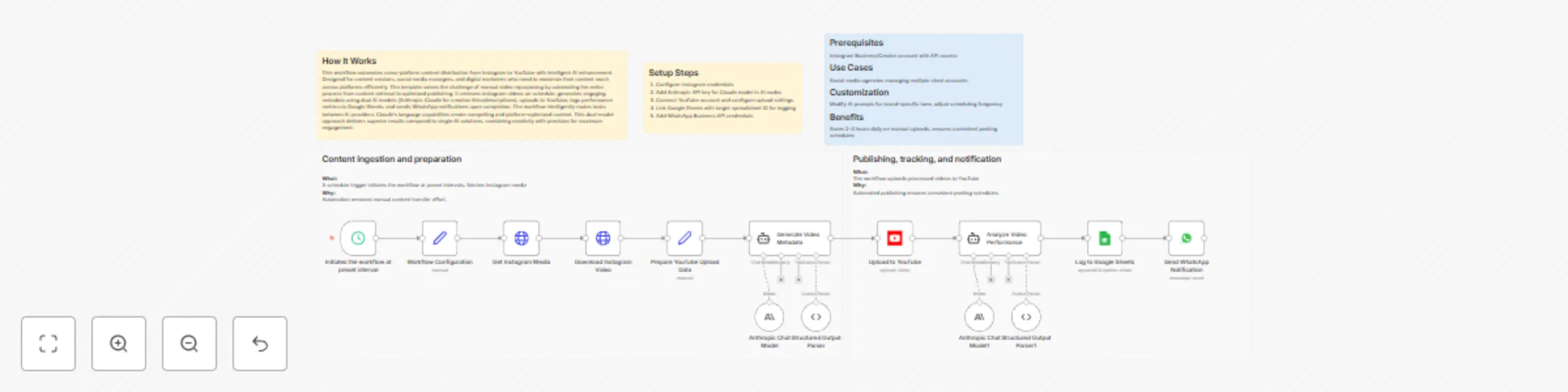
Repurpose Instagram videos to YouTube with Claude and Google Sheets tracking
## How It Works This workflow automates cross-platform content distribution from Instagram to YouTube with intelligent AI enhancement. Designed for content creators, social media managers, and digital marketers who need to maximize their content reach across platforms efficiently. The template solves the challenge of manual video repurposing by automating the entire process from content retrieval to optimized publishing. It retrieves Instagram videos on schedule, generates engaging metadata using dual AI models (Anthropic Claude for creative titles/descriptions), uploads to YouTube, logs performance metrics to Google Sheets, and sends WhatsApp notifications upon completion. The workflow intelligently routes tasks between AI providers: Claude's language capabilities create compelling and platform-optimized content. This dual-model approach delivers superior results compared to single-AI solutions, combining creativity with precision for maximum engagement. ## Setup Steps 1. Configure Instagram credentials 2. Add Anthropic API key for Claude model in AI nodes 3. Connect YouTube account and configure upload settings 4. Link Google Sheets with target spreadsheet ID for logging 5. Add WhatsApp Business API credentials ## Prerequisites Instagram Business/Creator account with API access ## Use Cases Social media agencies managing multiple client accounts ## Customization Modify AI prompts for brand-specific tone, adjust scheduling frequency ## Benefits Saves 2-3 hours daily on manual uploads, ensures consistent posting schedules

Curate daily tech news for Slack and Telegram using BrowserAct and OpenRouter
# Curate daily tech news for Slack and Telegram using BrowserAct & OpenRouter This workflow automates the creation and delivery of a professional morning tech briefing. It scrapes headlines from major sources like *The Verge* and *Product Hunt*, uses parallel AI agents to format the content specifically for Telegram (HTML) and Slack (Markdown), and broadcasts the updates to your team or community channels. ## Target Audience Product managers, development teams, community managers, and tech enthusiasts who want a consolidated daily news digest without manual curation. ## How it works 1. **Daily Trigger**: A **Schedule Trigger** starts the workflow every morning at 10:00 AM. 2. **Fetch News**: A **BrowserAct** node executes a background task to scrape the latest headlines and links from defined sources (default: The Verge and Product Hunt). 3. **Parallel Formatting**: The data splits into two paths: * **Telegram Path**: The "Telegram Master" AI Agent formats the news into clean HTML, adding emojis and ensuring links work within Telegram's API constraints. * **Slack Path**: The "Slack Master" AI Agent formats the same news into Slack-compatible Markdown, prioritizing developer tools and using Slack-specific syntax. 4. **Smart Splitting**: Both AI agents automatically split the content into multiple message parts if the text exceeds the character limits of the respective platforms. 5. **Broadcast**: The workflow iterates through the generated message parts and sends them sequentially to **Telegram** and **Slack**. ## How to set up 1. **Configure Credentials**: Connect your **BrowserAct**, **OpenRouter** (for AI models), **Telegram**, and **Slack** accounts in n8n. 2. **Prepare BrowserAct**: Ensure the **Automated Multi-Site Morning Brief** template is saved in your BrowserAct account. 3. **Configure Channels**: * Open the **Send a text message** (Telegram) node and enter your Chat ID. * Open the **Send a message** (Slack) node and select your target channel. 4. **Activate**: Turn on the workflow to start receiving daily briefs. ## Requirements * **BrowserAct** account with the **Automated Multi-Site Morning Brief** template. * **OpenRouter** account (or credentials for a specific LLM like Claude or Gemini). * **Telegram** Bot Token. * **Slack** account. ## How to customize the workflow 1. **Add News Sources**: Update the **BrowserAct** node inputs to scrape different websites (e.g., Hacker News, TechCrunch). 2. **Change AI Persona**: Modify the system prompts in the **Telegram Master** or **Slack Master** nodes to change the tone from "Professional" to "Casual" or "Sarcastic." 3. **Add More Platforms**: Duplicate one of the formatting branches to create a version for **Discord** or **Microsoft Teams**. ## Need Help? * [How to Find Your BrowserAct API Key & Workflow ID](https://www.youtube.com/watch?v=pDjoZWEsZlE) * [How to Connect n8n to BrowserAct](https://www.youtube.com/watch?v=RoYMdJaRdcQ) * [How to Use & Customize BrowserAct Templates](https://www.youtube.com/watch?v=CPZHFUASncY) --- ### Workflow Guidance and Showcase Video * #### [Keep Your Team Updated Automatically 🌅 n8n Morning Brief Workflow](https://youtu.be/MIvUFkpobvc)

Automate follower resource distribution on BlueSky with keyword-triggered DMs
This workflow acts as an automated engagement bot. It sends a Direct Message (DM) with a link or resource to any follower who replies to your post with a specific target keyword. ## Who is this for Ideal for creators and community managers who want to distribute resources (PDFs, links, invites) to their audience automatically without manually messaging each person. ## What it does It scans your notifications for new replies and applies a strict filter to ensure only the right people get messaged: * **Targeted:** It only monitors replies on the specific post you choose. * **Keyword Match:** Checks if the user's reply contains your specific trigger word (e.g., "Send"). * **Follower Check:** Verifies if the user is following you (if not, it skips them). * **Delivery:** Opens a chat conversation and sends your pre-set message. * **Engagement:** Automatically "Likes" the user's reply to confirm receipt. * **Anti-Spam:** Remembers processed replies so it never messages the same user twice for the same interaction. ## How to set up 1. **Configuration:** Open the first node ("Configuration") and enter: * **BlueSky Credentials:** Your Handle and App Password. * **Target Post URL:** The full link to the specific BlueSky post you want to monitor. * **Trigger Keyword:** The word users must type (e.g., "Template"). * **DM Message:** The actual text/link to send them. 2. **Activate:** Turn the workflow on. It runs every 30 minutes to batch-process new replies. ## 🚀 The BlueSky Growth Suite This workflow is part of a 3-part automation suite designed to help you grow on BlueSky: * **Part 1: Post Scheduler** (Manage content from Google Sheets) * **Part 2: Analytics Tracker** (Track likes/reposts back to Sheets) * **Part 3: Auto-DM Bot** (This template)
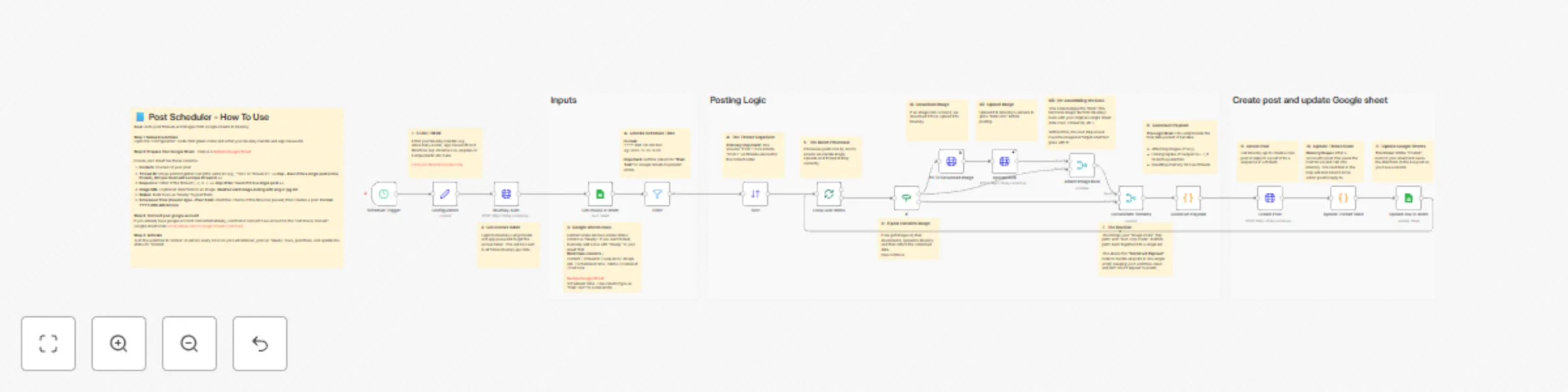
Schedule BlueSky posts and threads using Google Sheets as content calendar
This workflow turns a Google Sheet into a fully automated content calendar for BlueSky. It handles single posts, multi-post threads, and image attachments, allowing you to manage your entire social presence from a simple spreadsheet. ## Who is this for Ideal for social media managers, content creators, and growth marketers who want to schedule content in bulk without using expensive third-party tools. ## What it does It runs on a schedule to check your Google Sheet for posts marked "Ready." It automatically handles: * **Threading:** Links posts together if they share a Thread ID and Sequence. * **Images:** Downloads image URLs and uploads them as blobs to BlueSky. * **Status Updates:** Marks rows as "Posted" and saves the live URL back to your sheet. ## How to set up 1. **Google Sheet:** Create a sheet with these columns: `Content`, `Thread ID`, `Sequence` (use '1' for single posts), `Image URL`, `Scheduled Time`, `Status`, `Post Link`. * **Important:** Even if it is a single post (not a thread), you must add a unique `Thread ID`. * **Note:** `Image URL` is optional. * **Format:** Set the "Scheduled Time" column type to **Plain Text** to prevent date errors. * *(A sample Google Sheet link is provided inside the workflow notes)*. 2. **Credentials:** Enter your BlueSky Handle and App Password in the "Configuration" node. 3. **Select Sheet:** In both the "Get row(s)" and "Update row" nodes, select your specific Google Sheet. ## 🚀 The BlueSky Growth Suite This workflow is part of a 3-part automation suite designed to help you grow on BlueSky: * **Part 1: Post Scheduler** (This template) * **Part 2: Analytics Tracker** (Track likes/reposts back to Sheets) * **Part 3: Lead Magnet Bot** (Auto-DM users who reply to your posts)
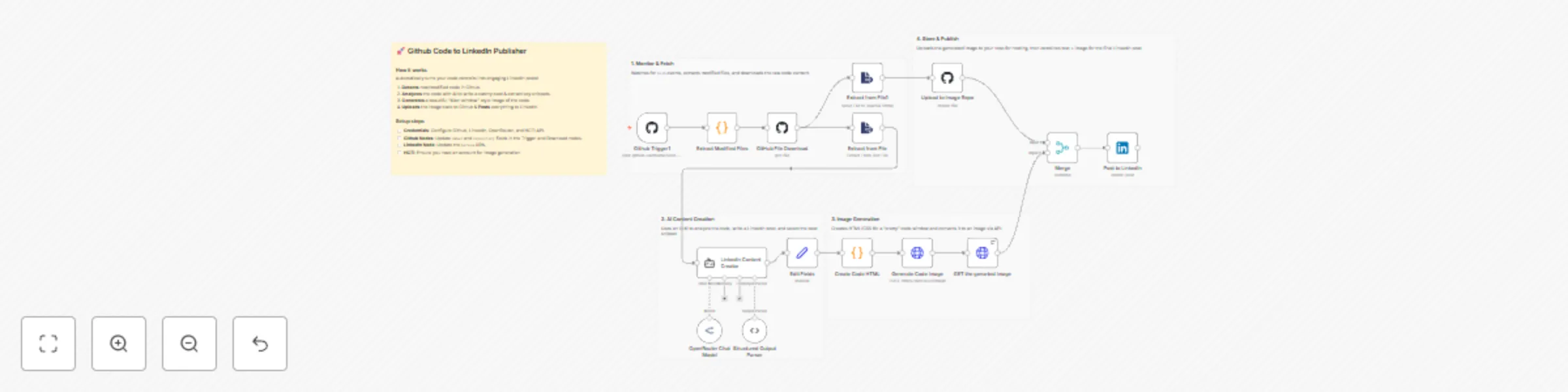
Convert GitHub code commits to LinkedIn posts with Gemini AI and code image generation
Turn your code commits into engaging social media content automatically. This workflow monitors a GitHub repository, uses AI to write a LinkedIn post about your changes, generates a beautiful "Mac-window" style image of your code, and publishes it all to LinkedIn. ## How it works 1. **GitHub Trigger**: Watches for new `push` events in your selected repository. 2. **AI Analysis**: Passes the code changes to an LLM (via LangChain) to write a professional LinkedIn post and select the best code snippet. 3. **Image Generation**: Creates a custom HTML view of your code (with syntax highlighting and window controls) and converts it to an image using the HCTI API. 4. **Hosting & Posting**: Uploads the generated image back to GitHub for hosting, then combines the text and image to publish a live post on LinkedIn. ## Set up steps 1. **Configure Credentials**: You will need credentials for: - GitHub (OAuth2 or Access Token) - LinkedIn (OAuth2) - OpenRouter (or swap the model node for OpenAI/Anthropic) - HCTI.io (for the HTML-to-Image conversion) 2. **Update GitHub Nodes**: - In the **Trigger** node: Set your `Owner` and `Repository`. - In the **File Download** node: Set the same `Owner` and `Repository`. - In the **Upload Image** node: Set the target repo where you want images stored. 3. **Update LinkedIn Node**: - Add your LinkedIn Person URN in the `Person` field.
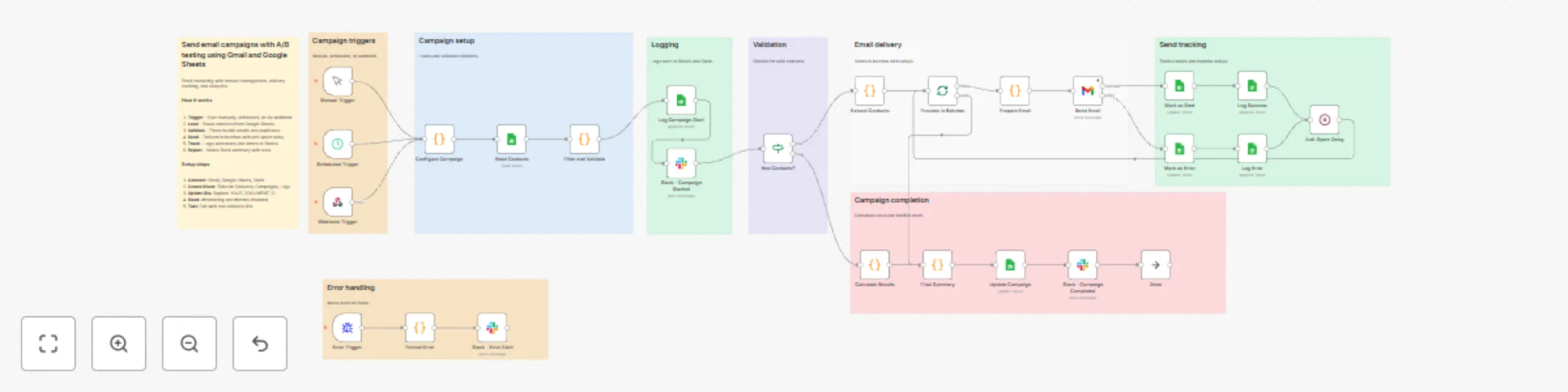
Run A/B-tested email campaigns using Gmail, Google Sheets, and Slack
Run professional email campaigns with A/B testing, Google Sheets tracking, and Slack analytics. FEATURES: A/B testing with automatic 50/50 split Email validation and deduplication Batch processing with anti-spam delays Professional HTML email templates Complete campaign tracking and logging Real-time Slack notifications WORKFLOW: Trigger campaign (manual, scheduled Monday 9AM, or webhook) Read and validate contacts from Google Sheets Assign A/B variants automatically Send personalized HTML emails via Gmail Log results and update contact status Slack notifications on start/completion/errors SETUP: Create Google Sheet with 4 tabs: Contacts: name, email, segment, sent, unsubscribed, sent_date, campaign, variant, error_msg Campaigns: Campaign ID, Name, Start Date, Total Contacts, Valid, Invalid, Already Sent, Unsubscribed, Variant A, Variant B, Status, End Date, Duration Send Log: Timestamp, Campaign ID, Email, Name, Variant, Subject, Status Metrics: Campaign ID, Opens, Clicks, Unsubscribes Replace YOUR_DOCUMENT_ID in all Sheets nodes Connect Gmail credentials Connect Slack (#marketing, #errors channels) CUSTOMIZABLE: Company name, colors, logo in Configure Campaign node Email content and design in Prepare Email node A/B test subjects Batch size and delays IDEAL FOR: Newsletters, product launches, marketing campaigns, announcements, and any bulk email needs.
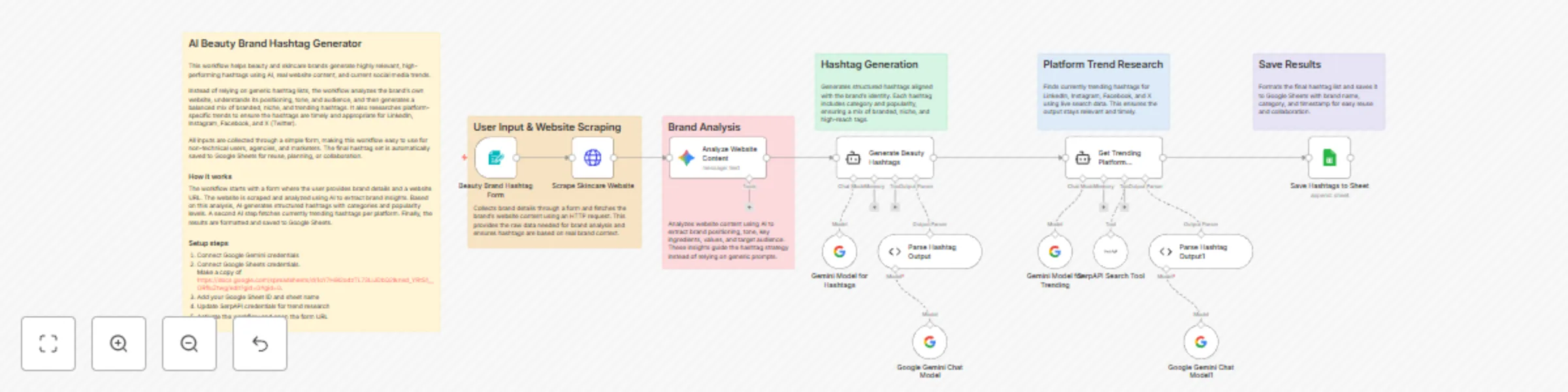
Generate beauty brand hashtags with Gemini AI, website analysis and SerpAPI
## Description This n8n template generates high-quality, platform-ready hashtags for beauty and skincare brands by combining AI, live website analysis, and current social media trends. It is designed for marketers, agencies, and founders who want smarter hashtag strategies without manual research. ## Use cases - Beauty & skincare brands building social media reach - Agencies managing multiple client accounts - Content teams creating Instagram, LinkedIn, or Facebook posts - Founders validating brand positioning through hashtags ## What this template demonstrates - Form-based user input in n8n - Website scraping with HTTP Request - AI-driven brand analysis using Gemini - Structured AI outputs with output parsers - Live trend research using search tools - Automated storage in Google Sheets ## How it works Users submit brand details through a form. The workflow scrapes the brand’s website, analyzes it with AI, generates tailored hashtags, enriches them with platform-specific trends, and stores the final result in Google Sheets. ## How to use 1. Activate the workflow 2. Open the form URL 3. Enter brand details and website URL 4. Submit the form 5. View generated hashtags in Google Sheets ## Requirements - Google Gemini API credentials - Google Sheets account - SerpAPI account for trend research ## Good to know - Website scraping is best suited for public, text-rich sites - Hashtags are generated dynamically based on brand tone and audience - You can reuse the Google Sheet as a hashtag library ## Customising this workflow - Change the number of hashtags generated - Modify the AI prompt for different industries - Add filters for banned or restricted hashtags - Extend the workflow to auto-post to social platforms
Social media auto-posting to Instagram, Facebook & LinkedIn from Google Sheets
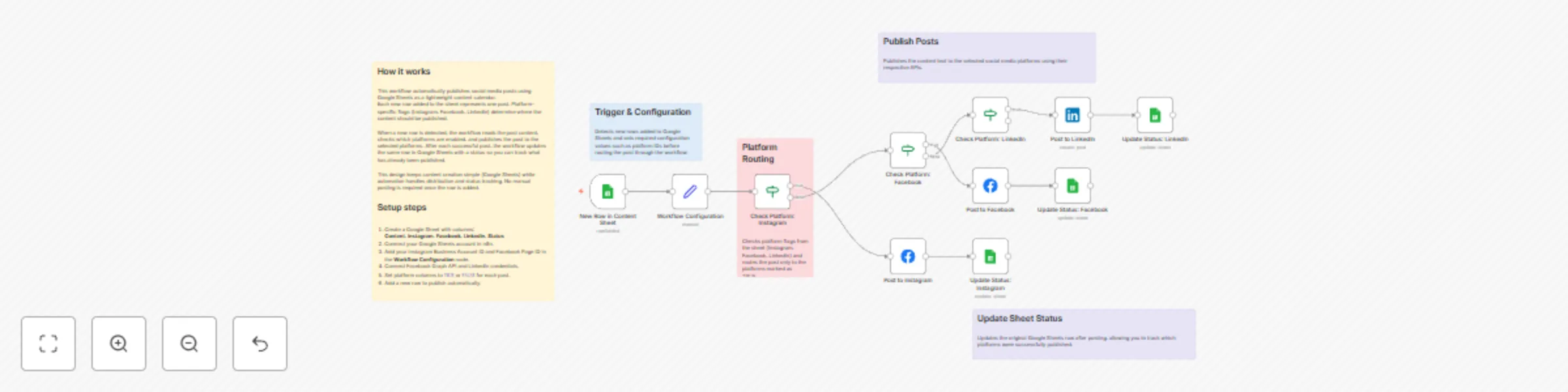
## 📌 Workflow Overview This workflow enables **multi-platform social media posting** using **Google Sheets as the control center**. Whenever a new row is added to the sheet, the workflow automatically posts the content to **Instagram, Facebook, and/or LinkedIn** based on platform flags, then updates the post status to prevent duplicates. ### Supported Platforms - Instagram (Business) - Facebook Pages - LinkedIn Pages --- ## 🧠 Key Concept *Google Sheets acts as a lightweight CMS and automation trigger.* Each row represents **one post**, and simple TRUE/FALSE columns decide where that post should be published. --- ## 📄 Required Google Sheets Columns The content sheet must include the following columns: - **Content** – Text to publish - **Instagram** – TRUE / FALSE - **Facebook** – TRUE / FALSE - **LinkedIn** – TRUE / FALSE - **Status** – Updated after posting - **Row Number** – Used for precise updates --- ## ⚙️ How This Workflow Works ### 1️⃣ Trigger: New Content Added - The workflow starts when a **new row is added** to Google Sheets. - This allows near real-time publishing without manual execution. --- ### 2️⃣ Configuration Setup - Platform-specific values like: - Instagram Business Account ID - Facebook Page ID - Are defined once in a **configuration node** for easy reuse and maintenance. --- ### 3️⃣ Platform Routing Logic - IF nodes check each platform column: - Instagram = TRUE → post to Instagram - Facebook = TRUE → post to Facebook - LinkedIn = TRUE → post to LinkedIn - One row can trigger posting to **multiple platforms**. --- ### 4️⃣ Platform Posting - Posts are published using: - Facebook Graph API (Instagram + Facebook) - LinkedIn API (LinkedIn Pages) - The **Content** column is used directly as the post body. --- ### 5️⃣ Status Update (Per Platform) - After posting: - The workflow updates the same row using **Row Number** - Marks the post as completed for that platform - This prevents duplicate or accidental re-posts. --- ## 🔄 Current Capabilities - Multi-platform posting from one sheet - Platform-specific routing logic - Real-time execution on new content - Safe status updates using row matching --- ## 🚀 Designed for Easy Expansion This workflow is intentionally modular and can be extended with: - Scheduled posting (date/time columns) - Image & media handling - AI-generated captions - Hashtag optimization - Engagement analytics - Retry & error handling logic --- ## ✅ Best Practices - Use **TRUE / FALSE** consistently in platform columns - Keep Google Sheets as the single source of truth - Add validation or approval columns if used by teams --- ## 📦 Ideal Use Cases - Social media managers - Marketing teams - Founders & creators - Agencies handling multiple platforms --- *This workflow provides a scalable foundation for social media automation while remaining simple, transparent, and easy to maintain.*
Schedule and optimize Twitter and LinkedIn posts from Google Sheets with OpenAI GPT-4o-mini
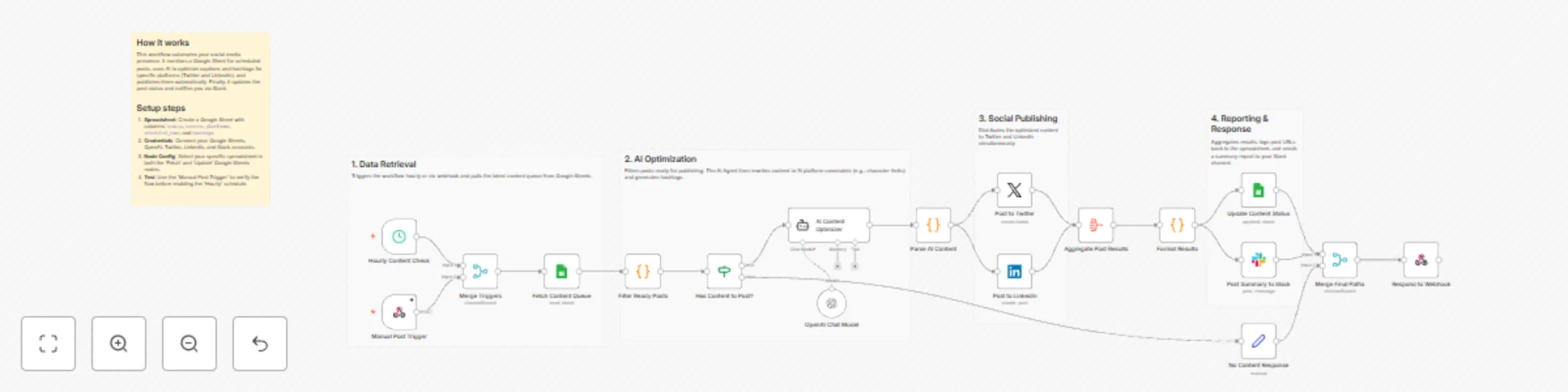
# Schedule and optimize social media posts to Twitter and LinkedIn using AI This workflow automates the entire lifecycle of social media management—from fetching draft content to AI-driven optimization and multi-platform publishing. ## Who’s it for Social media managers, marketing teams, and content creators who use Google Sheets to plan their content but want to leverage AI for better engagement and automate the repetitive task of cross-platform posting. ## How it works The workflow is triggered either hourly or manually via a webhook. It fetches scheduled content from a designated Google Sheet and identifies posts ready for publication. An AI Agent (OpenAI) then analyzes the raw content to generate two optimized versions: a punchy, character-limited post for Twitter and a more professional, detailed version for LinkedIn. After generating relevant hashtags and engagement tips, the workflow publishes the posts simultaneously. Finally, it logs the live URLs back to your spreadsheet and sends a performance summary to a Slack channel for easy tracking. ## How to set up 1. **Google Sheet**: Create a sheet with columns for `status`, `content`, `platforms`, `scheduled_time`, `hashtags`, and `tone`. 2. **Credentials**: Connect your Google Sheets, OpenAI, Twitter (X), LinkedIn, and Slack accounts. 3. **Node Configuration**: Select your specific spreadsheet and worksheet in both the "Fetch Content" and "Update Content" nodes. 4. **Slack**: Specify the channel name or ID in the Slack node to receive notifications. 5. **Activation**: Test with the Manual Webhook, then toggle the workflow to "Active." ## Requirements - **Google Sheets OAuth2** - **OpenAI API Key** (using GPT-4o-mini or higher) - **Twitter (X) OAuth2** - **LinkedIn OAuth2** - **Slack Bot Token** ## How to customize the workflow - **AI Tone**: Modify the "System Message" in the AI Content Optimizer node to match your brand's unique voice. - **Additional Platforms**: Extend the branching logic after the AI Parse node to include platforms like Discord, Facebook, or Mastodon. - **Advanced Scheduling**: Adjust the Filter node's JavaScript code if you use a different date format or status labels in your spreadsheet.
Schedule and auto-post images to Instagram with Google Sheets, Drive and AI captions
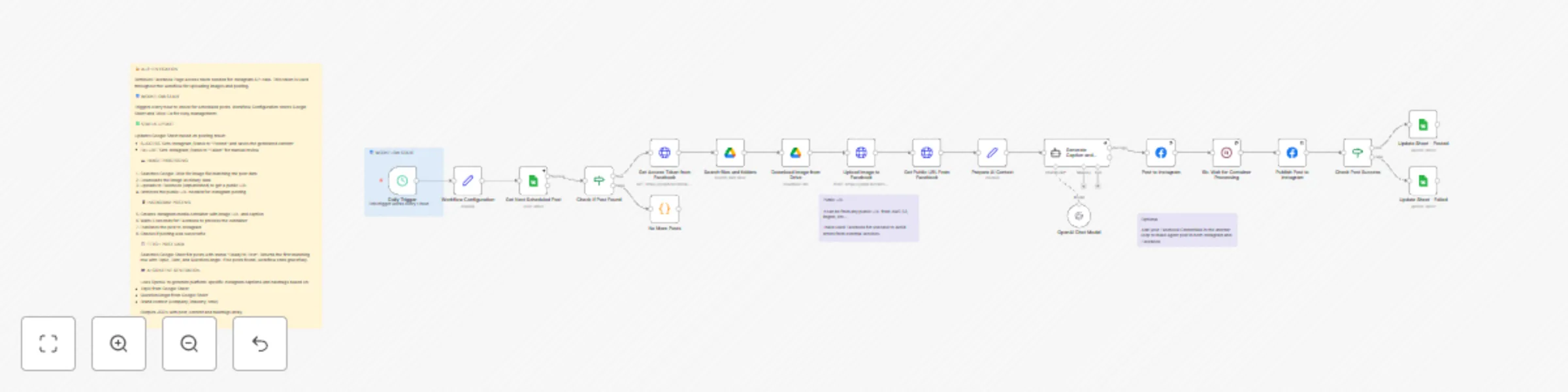
## **Description** This n8n workflow automatically publishes posts to Instagram Business accounts and Facebook Pages using Google Sheets as your content calendar. You schedule posts in the sheet, and n8n processes them, uploads media (if any), posts via Meta’s Graph API, and updates the sheet with success/failure. n8n ### **How it Works** Google Sheets rows marked “Pending” and due for publishing are picked up by a scheduled trigger. Posts are then routed to the proper social platforms and published via Meta’s Graph API. Finally, n8n writes back the publish status and timestamp to the sheet. n8n ### **🧠 Step-by-Step** **1️⃣ Scheduled Trigger** The workflow automatically checks Google Sheets at fixed intervals (e.g., every 15 min) for posts that are ready (status = Pending, publish time reached). **2️⃣ Config & Credentials** Store reusable settings including: - Google Sheets ID & Sheet name - Meta App credentials (App ID, App Secret) - Access token for Meta Graph API - Instagram Business Account ID - Facebook Page ID These configs make the workflow modular and secure. **3️⃣ Setup: Create a Meta (Facebook) App** To post via the Graph API, you must first set up a Meta developer app: 🔗 Create App (Meta for Developers): Go here to start: https://developers.facebook.com/docs/development/create-an-app/ Steps: - Log in at Meta for Developers. - Click Create App and choose Business as the app type. - Facebook Developers - Add a name and contact email. - In the app dashboard, Add Product → choose Instagram Graph API and Facebook Login. 📌 After creation, your app will have an App ID and App Secret in Settings → Basic — save both for n8n. **4️⃣ Link Accounts & Get IDs** Before publishing you need: - Instagram Business account (not a personal account) - Facebook Page linked to that Instagram account Link them in Facebook Page settings → Linked Accounts. Then, generate an access token with permissions (instagram_basic, pages_show_list, etc.) using the Graph API Explorer and your new Meta app. From the token response or via Graph API calls, extract: - Facebook Page ID - Instagram Business Account ID These go into your n8n nodes for publishing. **5️⃣ Fetch & Filter Posts** Read rows from Google Sheets and filter those ready to publish (status = Pending, scheduled time reached). **6️⃣ Image Handling** If an image link is present, download or retrieve it (Google Drive or external URL). If not, continue with a text-only post. **7️⃣ Platform Routing** Route the post to: - Instagram publishing branch - Facebook publishing branch (or both depending on the sheet’s platform column) **8️⃣ Posting via Meta Graph API** **Instagram** - Use Graph API endpoints to create and publish media containers and then make the publish call. **Facebook** - Use Graph API to post to the Facebook Page feed (via /feed or /photos endpoint). **9️⃣ Update Sheet Status** After each attempt, update Google Sheets with: - Status (Success/Fail) - Published timestamp
Send AI-curated weekly news digests with RSS, Vector DB & GPT-4o
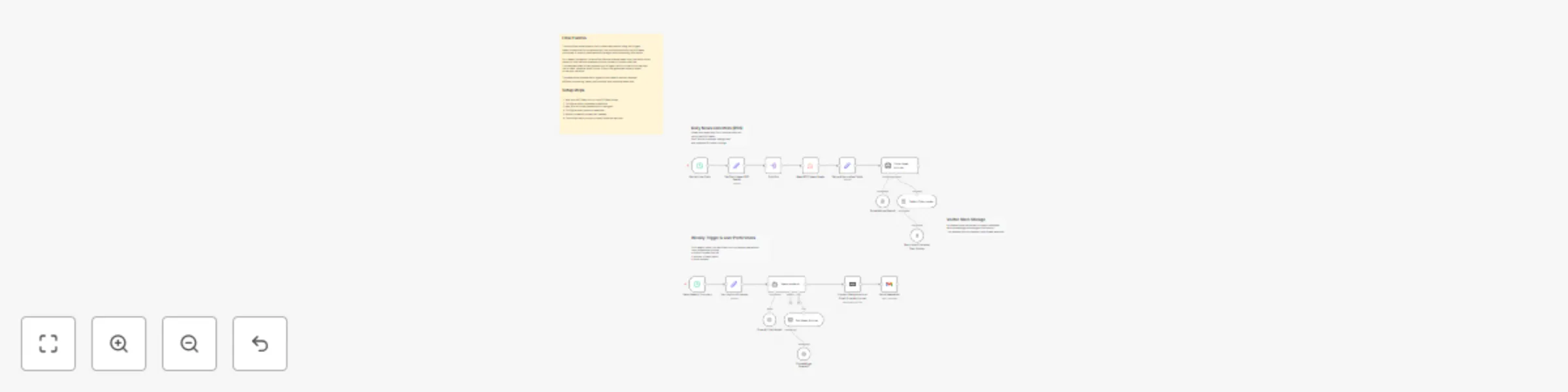
## What this workflow does This workflow implements a two-stage news automation system designed for reusable and topic-driven email delivery. News articles are continuously collected from multiple platforms using RSS feeds and stored in a vector database with semantic embeddings and category metadata. Instead of fetching news on demand, the workflow separates daily ingestion from weekly delivery. This allows the same news data to be reused across different topics, audiences, or delivery schedules. On a weekly basis, relevant articles are retrieved from the vector store based on defined areas of interest and item limits. The selected news is then processed by an AI agent, which converts the raw articles into a structured, email-ready format before sending the final content to users. ## How it works 1. News articles are collected daily from multiple RSS feeds 2. Articles are categorized and stored in a vector database 3. On a weekly trigger, topic preferences are evaluated 4. Relevant articles are retrieved using vector-based search 5. An AI agent formats the content for email delivery 6. The email is sent to the user ## Setup To use this workflow, complete the following steps: 1. Add and configure your RSS feed sources 2. Connect a vector database and embedding model 3. Configure AI model credentials for content generation 4. Set up email service credentials 5. Define weekly scheduling and topic inputs 6. Test retrieval and email output ## Customization You can customize this workflow by: - Adding or removing RSS feed sources - Adjusting news categories or topic filters - Changing the number of articles retrieved per topic - Modifying the AI agent’s writing tone or structure - Reusing the vector store for other content workflows - Updating email frequency or delivery format ## Requirements - RSS feed URLs - Vector database credentials - AI model credentials - Email service credentials

Automate event registration and reminder emails with Forms, Sheets & Gmail
## How it works This workflow automates event registrations and attendee communication from initial signup to event day. It captures form submissions, prevents duplicate entries, and stores registrations in Google Sheets. Confirmed attendees receive immediate confirmation emails, while failures trigger admin alerts. A scheduled process then sends pre-event and event-day reminders, with all communication tracked to ensure emails are sent only once. ## Step-by-step - **Step 1: Capture and process registration** - **Event Registration Form** – Collects attendee details through a public registration form. - **Edit Fields** – Normalizes and prepares form data for processing. - **Read Existing Registrations** – Fetches existing attendee records from Google Sheets. - **Check for Duplicate Email** – Compares the submitted email against stored records. - **If Not Duplicate** – Stops the workflow when a duplicate email is detected and continues only for new registrations. - **Store Registration (Google Sheets)** – Appends the new registration only when no duplicate is found. - **Step 2: Confirm registration and send notifications** - **Add Status & Event Date** – Assigns confirmed status and event date to the registration. - **Check Registration Success** – Verifies whether the registration is confirmed. - **Send Welcome Email** – Sends a confirmation email to the attendee. - **Send Admin Alert** – Sends an alert email to the admin if registration fails. - **Code in JavaScript** – Confirms email delivery and prepares tracking data. - **Update Welcome Email Status** – Updates the welcome email status in Google Sheets. - **Step 3: Scheduled trigger and reminder routing** - **Schedule Trigger** – Runs daily to initiate reminder processing. - **Edit Fields** – Marks the execution source as a scheduled run. - **Switch** – Ensures the workflow runs only for scheduled executions. - **Get Confirmed Aptitude Candidates** – Retrieves confirmed event registrations from Google Sheets. - **Filter Reminder Candidates** – Calculates remaining days until the event. - **Switch Reminder Type** – Routes attendees to 3-day or event-day reminder flows. - **Step 4: Send reminders and update event communication status** - **Loop 3-Day** – Iterates through attendees eligible for the 3-day reminder. - **Send 3-Day Reminder** – Sends a personalized pre-event reminder email. - **Prepare 3-Day Update** – Prepares reminder status data. - **Wait** – Adds delay to control email sending rate. - **Update 3-Day Status** – Updates the 3-day reminder status in Google Sheets. - **Loop Event-Day** – Iterates through attendees eligible for the event-day reminder. - **Send Event-Day Reminder** – Sends final event-day instructions and check-in details. - **Prepare Event-Day Update** – Prepares event-day reminder tracking data. - **Wait** – Adds delay between event-day emails. - **Update Event-Day Status** – Updates the event-day reminder status in Google Sheets. ## Why use this? - Blocks duplicate registrations automatically at submission time. - Sends instant confirmation emails to attendees. - Alerts admins immediately when a registration fails. - Delivers perfectly timed reminders without manual follow-ups. - Keeps a complete communication log inside Google Sheets.
Auto-schedule Instagram & Facebook posts from Google Sheets
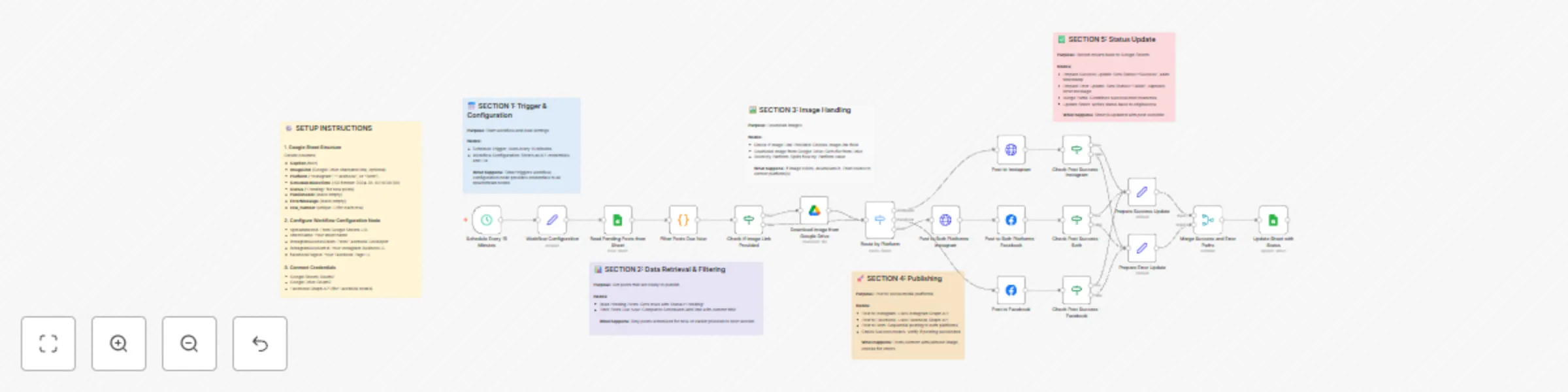
**How it works** This workflow automatically publishes Instagram and Facebook posts using Google Sheets as a content calendar. Users add post details to a sheet, and the workflow handles scheduling, image processing, posting, and status updates without manual intervention. **Step-by-step** **Scheduled Trigger** The workflow runs automatically at a fixed interval (for example, every 15 minutes) to check for posts that are ready to be published. **Configuration & Credentials** A configuration step stores reusable values such as spreadsheet ID, sheet name, and platform settings, keeping the workflow easy to customize and secure. **Data Retrieval & Filtering** Posts are read from Google Sheets and filtered to include only rows marked as “Pending” and scheduled for the current time or earlier. **Image Handling** If an image link is provided, the workflow downloads the image from Google Drive. If no image is present, the post continues as text-only. **Platform Routing** Based on the selected platform (Instagram, Facebook, or both), the workflow routes the post to the appropriate publishing path. **Social Media Publishing** The post is published to Instagram and/or Facebook using the connected business account credentials. **Status Update** After publishing, the workflow updates the original Google Sheet with the post status (Success or Failed), published timestamp, and error message if applicable.
Bulk WhatsApp & Gmail messenger with Google Sheets status tracking via InboxPlus
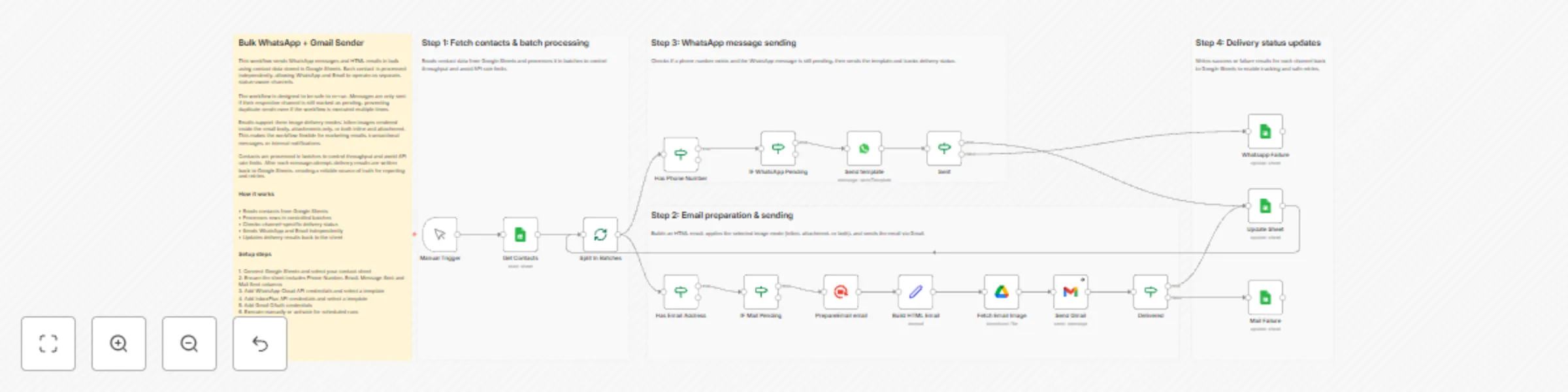
## How it works This workflow sends WhatsApp messages and emails in bulk using contact data stored in Google Sheets. Contacts are processed in small batches to control throughput and avoid API rate limits. WhatsApp and email are treated as independent channels and are sent only when their status is marked as pending. All success and failure results are written back to Google Sheets to enable tracking, retries, and safe re-runs. ## Step-by-step - **Step 1: Fetch contacts & batch processing** - **Manual Trigger** – Starts the workflow manually. - **Get Contacts** – Reads contact data from Google Sheets. - **Split In Batches** – Processes contacts in controlled batch sizes. - **Step 2: Email preparation & sending** - **Has Email Address** – Checks whether the contact has an email address. - **IF Mail Pending** – Ensures the email is still marked as pending. - **PrepareEmail email** – Loads the selected InboxPlus email template. - **Build HTML Email** – Builds the final HTML email body. - **Fetch Email Image** – Downloads images for inline or attachment usage. - **Send Gmail** – Sends the email via Gmail. - **Delivered** – Confirms successful email delivery. - **Step 3: WhatsApp message sending** - **Has Phone Number** – Checks whether the contact has a phone number. - **IF WhatsApp Pending** – Ensures the WhatsApp message is still pending. - **Send template** – Sends the approved WhatsApp template message. - **Sent** – Confirms message acceptance by WhatsApp. - **Step 4: Delivery status updates** - **Update Sheet** – Writes successful delivery results back to Google Sheets. - **Mail Failure** – Updates Google Sheets if email delivery fails. - **Whatsapp Failure** – Updates Google Sheets if WhatsApp delivery fails. ## Why use this? - Prevents duplicate messages with channel-level pending checks - Handles WhatsApp and email independently in one workflow - Supports safe retries without resending completed messages - Keeps Google Sheets as the single source of truth - Scales bulk outreach safely using batch-based execution

Automated marketing campaign email system with GPT-4 and HubSpot customer tracking
## Overview * This workflow automates customer outreach for marketing campaigns, including customer prioritization, AI-generated emails, automated sending, reply tracking, and meeting scheduling. --- ## How It Works 1. **Data Synchronization** * Customer and campaign data are periodically synchronized from Google Sheets and internal data tables. * New customers and campaigns are inserted into the system if they do not already exist. 2. **Customer Evaluation and Prioritization** * Customers are evaluated based on revenue, industry, capital, and location. * Each customer is classified into High / Medium / Low priority using AI. * Only high-priority customers are selected for campaign outreach. 3. **Campaign Detection** * The workflow checks for new, unsent marketing campaigns. * Campaigns marked as already sent are excluded. 4. **Personalized Email Generation** * For each eligible customer, past email history is retrieved. * An AI agent generates a personalized campaign email: * Uses historical interaction data when available. * Uses customer interests and keywords for new customers. * Produces a professional, friendly email proposing a meeting. 5. **Automated Email Sending** * Emails are sent automatically via Gmail. * Sent emails are logged into the message history database. * Campaign status is updated to “sent” after completion. 6. **Reply Handling** * Incoming customer replies are detected via Gmail triggers. * Replies are matched with previous messages and stored in the database. * AI generates an appropriate follow-up reply when required. 7. **Reply Classification and Scheduling** * Customer replies are classified as Positive / Pending / Negative. * If a reply includes scheduling information, meeting details are extracted. * Calendar events are automatically created in Google Calendar. --- ## Setup Steps 1. **Prepare Data Sources** * Set up Google Sheets for: * Customer master data Format includes the following columns: #/メール/ 氏名/ 会社名/ 所在地/ 売上(万円)/ 資本金(万円)/ 業界/関心/ Hubspot同期 * Campaign data Format includes the following columns: No / campaign_name / description / sent * Prepare internal data tables for: * Campaign records * Email message histories 2. **Create Data table** * Campaign table: * campaign_name: String * description: String * is_sent: boolean * Mail Histories table: * customer_email: String * email_subject: String * message: String * reply: String * reply_category: String 3. **Configure Credentials** * Google Sheets API * Gmail OAuth * Google Calendar API * HubSpot App Token (for customer synchronization) * OpenAI API (for AI agents)

Automate professional LinkedIn posts with OpenAI GPT, DALL-E and trending topics
## Overall Description This workflow fully automates the process of creating and publishing professional LinkedIn posts based on real-world experience in AI automation and workflow engineering, enriched with latest industry insights from the internet, and paired with a relevant high-quality image #### The workflow ensures: - Content relevance to AI automation, backend/frontend systems, IT - Professional, human-friendly post tone - Image validation before posting - Post validation before publishing - Automatic success/failure email alerts ## Worflow Logic 1. Trigger workflow (daily, weekly, custom date) 2. Define posting context (based on your expertise) 3. Fetch latest AI/automation trends (you can change based on your interested trends) 4. Filter insights relevant to your field 5. Generate linkedin ready post using AI Agent (OpenAI API) 6. Generate image from Open AI Image model related to the post 7. Validate image and text quality 8. Merge approved text and image 9. Convert content into LinkedIn format 10. Publish post on LinkedIn 11. Send email notification on success or failure ## Setup Instructions #### Credentials - OpenAI API Key – For text generation. - LinkedIn API Token – For publishing posts. - Image Generation API – DALL-E, Pollinations, or MidJourney. - Gmail / SMTP – For notifications. - Optional APIs: SERP API for trending topics.

Automated LinkedIn company page growth with Browserflow and Google Sheets
## Automate LinkedIn Company Page Growth End-to-End - ⚠️ **Important — Start Here** - Before importing this template, **make a personal copy of the provided [Google Sheets template](https://docs.google.com/spreadsheets/d/1-zak-RUGU4ubw3aZ_9lF9LF1dxEo9ME_-mtzRGtIDFg/edit?gid=0#gid=0)**. - This workflow is designed to work **out of the box** with that sheet.  Growing a LinkedIn Company Page usually requires time, consistency, and manual outreach. With **Browserflow + n8n**, you can turn the entire process into a **hands-off LinkedIn growth engine**. This template automates everything from: * Scraping LinkedIn engagement * Sending connection invites * Tracking acceptance * Inviting new connections to follow your company page All activity is logged, deduplicated, and fully automated. --- ## ⚠️ Disclaimer – Community Node Notice This template uses a **verified community node** available inside the n8n Cloud environment. To use it: * Go to **Nodes** * Search for **Browserflow for Linkedin** * Click **Install** If you are running n8n locally: * Go to **Settings → Community Nodes** * Search for **n8n-nodes-browserflow** * Install and restart n8n --- ## 📦 Requirements To use this template, you need: * n8n (Cloud or self-hosted) * Installed community node: **Browserflow for Linkedin** * An account for [Browserflow (7-day free trial)](Browserflow (7-day free trial)) * LinkedIn account * A copy of the [Google Sheets template](https://docs.google.com/spreadsheets/d/1-zak-RUGU4ubw3aZ_9lF9LF1dxEo9ME_-mtzRGtIDFg/edit?gid=0#gid=0) --- ## ⚙️ Setup Instructions 1. **Make a copy of the provided [Google Sheets template](https://docs.google.com/spreadsheets/d/1-zak-RUGU4ubw3aZ_9lF9LF1dxEo9ME_-mtzRGtIDFg/edit?gid=0#gid=0)** 2. **Import the n8n template into your n8n workflow** 3. Create an account with [Browserflow (7-day free trial)](Browserflow (7-day free trial)) 3. Reconnect credentials: * Google Sheets * Browserflow (API key via credentials) 4. (Optional) Adjust schedule intervals if needed 5. Add your Company Page URL in the final workflow That’s it — no column mapping required if you use the sheet as provided. --- ## 🤖 Tip – Quickly Switch to Your Own Google Sheet Using n8n AI (Beta) If you already imported the workflow and want to swap the Google Sheet later, you can use the **n8n AI assistant (beta)**. Paste this prompt (replace the URL): ``` I would like to change all my google sheets integrations to use the following sheet instead: ****** It has the exact same sheets and tables and fields ``` The AI will update all Google Sheets nodes automatically. --- ## 🧩 What This Template Does This template consists of **four connected workflows**, each represented with **sticky notes** inside n8n. ### 🔍 Step 1 – Retrieve Leads from LinkedIn Post Engagement This workflow scrapes users who engage with LinkedIn posts and stores them in Google Sheets. **Workflow actions:** * Fetch LinkedIn post URLs from Google Sheets * Scrape: * Commenters * (Optional) Likers * Split results into individual profiles * Filter invalid or duplicate profiles * Append new leads to Google Sheets * Mark posts as “scraped” to prevent reprocessing --- ### 🤝 Step 2 – Send LinkedIn Connection Invites Automatically This workflow sends connection requests to new leads on a schedule. **Workflow actions:** * Schedule trigger (e.g. every 10 minutes) * Fetch leads not yet invited * Check connection status: * ❌ Not connected → Send invite * ⏳ Pending → Mark as pending * ✅ Connected → Mark as connected * Update Google Sheets with status + timestamp --- ### 🔄 Step 3 – Track Connection Acceptance This workflow keeps your lead sheet accurate by tracking accepted invitations. **Workflow actions:** * Scheduled trigger * Fetch recent LinkedIn connections via Browserflow * Match profiles with Google Sheets * Update: * Connection status * Acceptance timestamp --- ### ⭐ Step 4 – Invite Connections to Follow Your Company Page Once someone accepts your connection request, this workflow invites them to follow your Company Page. **Workflow actions:** * Fetch connected leads from Google Sheets * Filter: * Connected * Not yet invited to follow * Use Browserflow to: * Visit your LinkedIn Connections page * Send “Invite to Follow Page” action * Update follow-invite status in Google Sheets **Important configuration:** * Enter your **Company Page URL** * You must be **Admin** of the page --- ## 📊 Final Result – Your Automated LinkedIn Growth Engine After setup, you get: * 🔍 Automated lead scraping from niche engagement * 🤝 Automated LinkedIn connection requests * 🔄 Automatic acceptance tracking * ⭐ Automated Company Page follow invites * 📊 Centralized Google Sheets dashboard This system saves hours every week and turns every new connection into a Company Page follower — **with zero manual work**. --- ## 🚀 Need Help? If you need help customizing or extending this automation, feel free to reach out. Happy automating! 🚀
Auto-upload Instagram videos to YouTube with GPT-4o and Google Sheets tracking
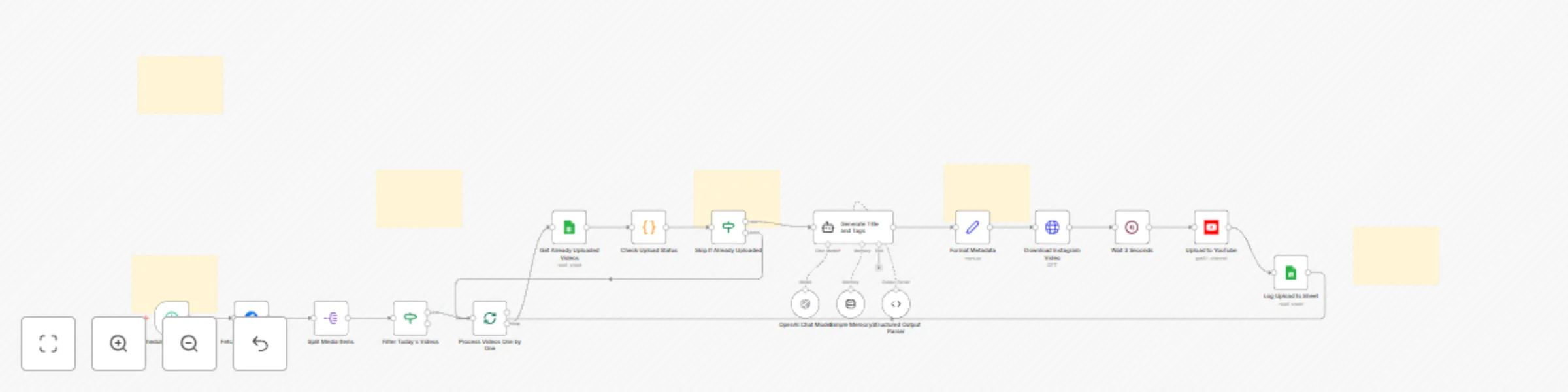
## 📊 Description Automate your cross-platform publishing workflow by automatically uploading Instagram videos to YouTube with AI-optimized titles and tags. 🚀🎬 This workflow runs every six hours, fetches newly posted Instagram videos, checks Google Sheets to avoid duplicate uploads, generates SEO-ready YouTube metadata using GPT-4o, downloads the video in high quality, uploads it to YouTube, and logs the full upload details for tracking. Perfect for creators, agencies, and businesses managing multi-platform content distribution at scale. 📈✨ ## 🔁 What This Template Does 1️⃣ Runs every 6 hours to fetch recent Instagram media via Graph API. ⏰ 2️⃣ Splits the media list and filters for today’s video posts only. 🎥 3️⃣ Checks Google Sheets to see if the video was already uploaded. 🔎 4️⃣ Sends Instagram caption to AI to generate: — a YouTube-optimized title (max 60 chars) — SEO-friendly tags extracted from text + hashtags 5️⃣ Downloads the Instagram video binary file. ⬇️ 6️⃣ Waits 3 seconds to avoid YouTube rate limits. ⏳ 7️⃣ Uploads the video to YouTube with: — title — tags — caption as description 8️⃣ Logs the upload details into Google Sheets (ID, title, link, date, status). 📊 9️⃣ Prevents future duplicate uploads using a spreadsheet lookup. ✔️ ## ⭐ Key Benefits ✅ Fully automates Instagram → YouTube video publishing ✅ AI-generated metadata increases YouTube visibility & search ranking ✅ Duplicate upload prevention ensures clean channel management ✅ Tracks upload history in a Google Sheet for transparency ✅ Requires zero manual downloading, editing, or re-uploading ✅ Ideal for creators, brands, community managers & agencies ## 🧩 Features - Instagram Business API media fetch - Filter for today’s videos using timestamps - Google Sheets duplicate checker - GPT-4o caption analysis for metadata generation - Structured JSON output for reliable AI parsing - YouTube video upload with custom metadata - Spreadsheet logging with append/update - Automatic scheduling with cron trigger - Full workflow batching & safe retry logic ## 🔐 Requirements - Facebook Graph API credentials (Instagram Business Account) - YouTube OAuth2 credentials - OpenAI API key (GPT-4o) - Google Sheets OAuth2 credentials - A Google Spreadsheet for tracking uploaded videos - Instagram Business Account ID + Access Token ## 🎯 Target Audience - Social media creators & influencers - Digital marketing agencies - YouTube automation teams - Brands repurposing Instagram content for YouTube - Content managers handling multiple accounts - Community managers needing hands-free cross-posting