Project Management Workflows
191 workflows found
Workflow preview: Track employee performance KPIs from ClickUp with GPT-4.1 and Google Sheets
Free intermediate

Track employee performance KPIs from ClickUp with GPT-4.1 and Google Sheets

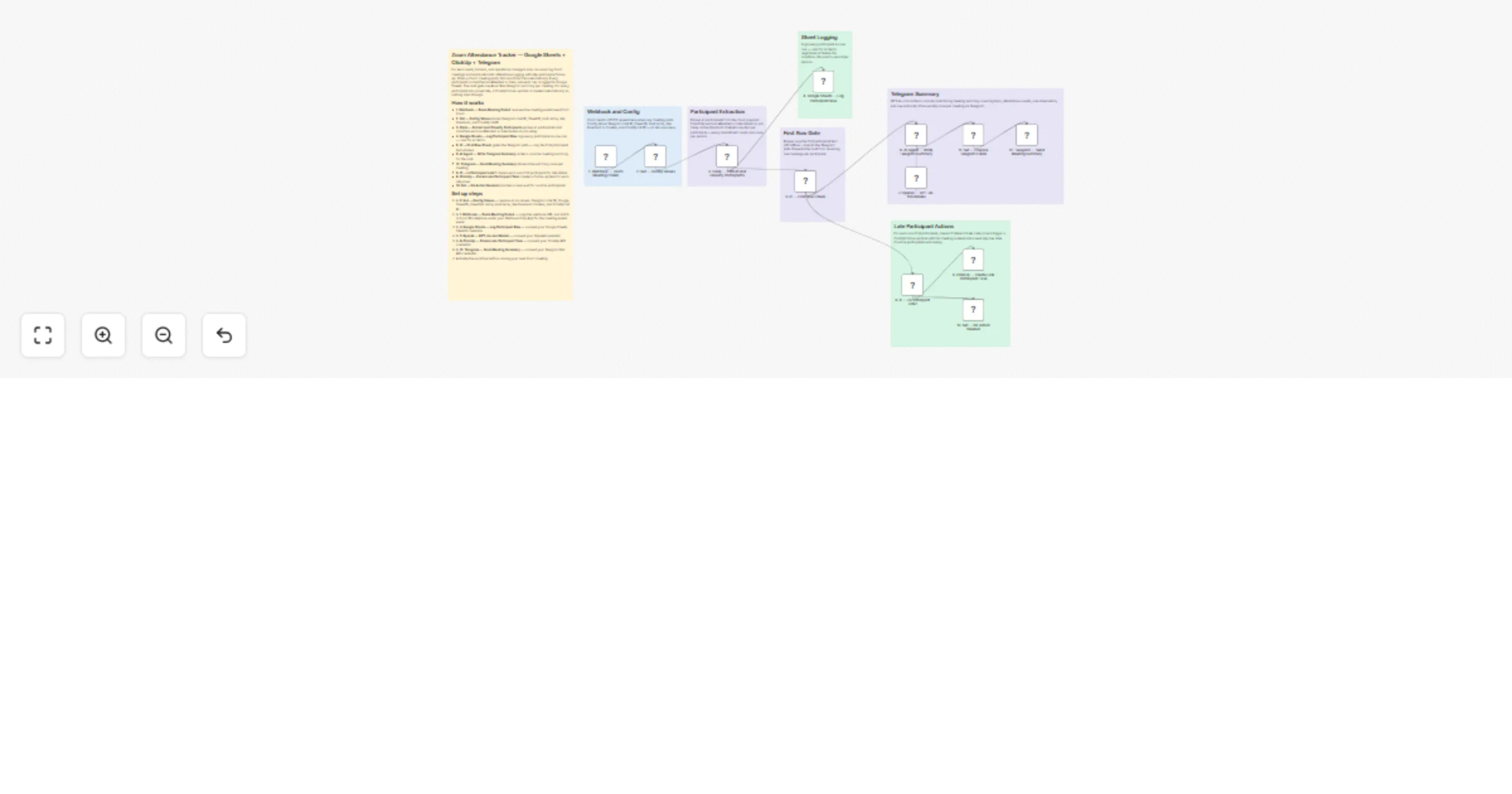
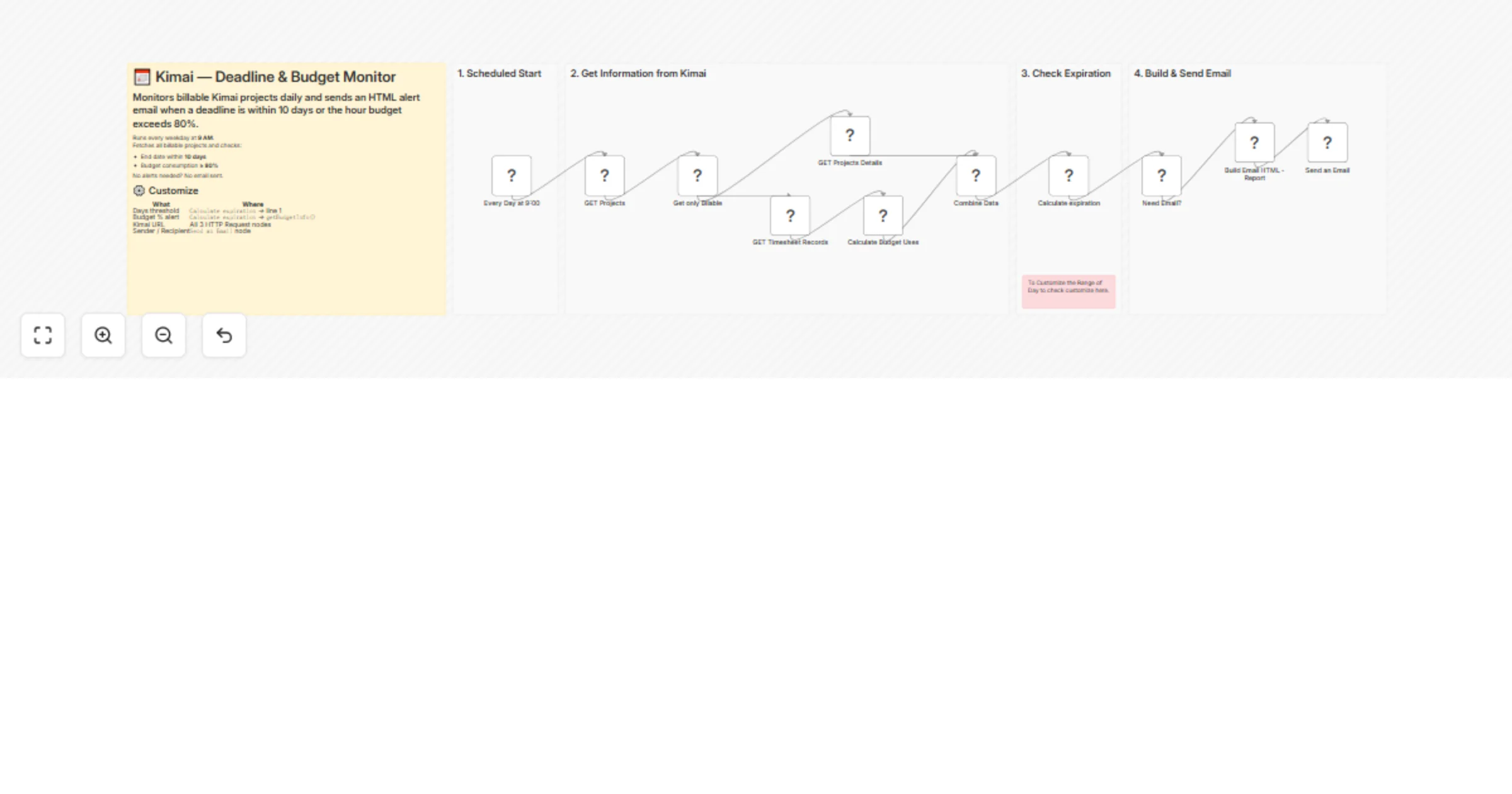
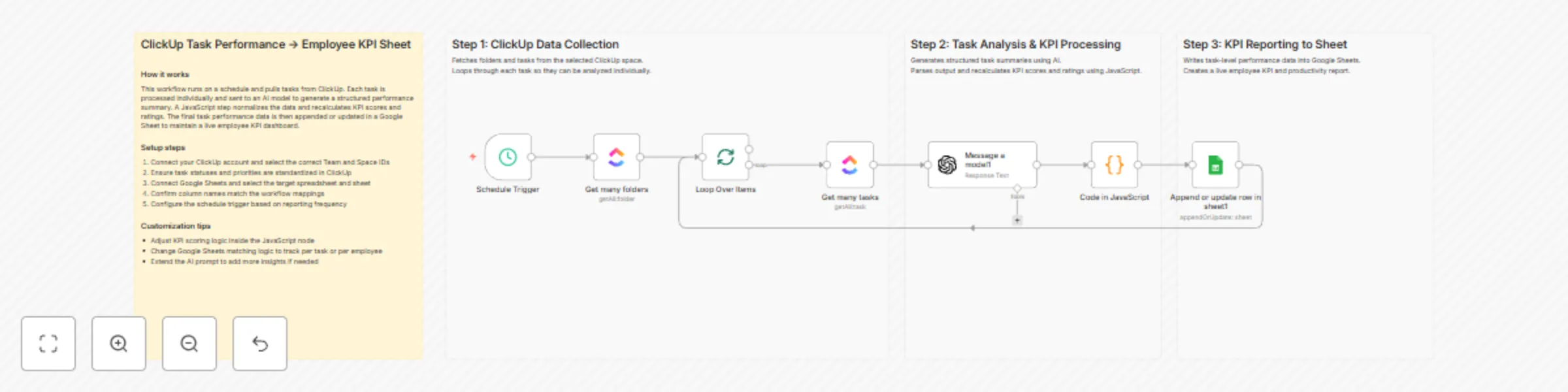
## How it works This workflow runs on a schedule to collect task data from ClickUp and evaluate employee performance using AI. Tasks are analyzed to generate structured summaries, productivity metrics, and KPI scores. JavaScript logic refines and standardizes the results. The final performance data is stored in Google Sheets as a live KPI dashboard. ## Step-by-step - **Step 1: Collect ClickUp task data** - **Schedule Trigger** – Starts the workflow automatically at defined intervals. - **Get many folders** – Fetches all folders from the selected ClickUp space. - **Loop Over Items** – Iterates through folders to process tasks sequentially. - **Get many tasks** – Retrieves tasks associated with each folder or list. - **Step 2: Analyze tasks and compute KPIs** - **Message a model** – Sends task details to an AI model to generate summaries and raw performance metrics. - **Code in JavaScript** – Parses AI output, recalculates KPI scores, and assigns standardized ratings. - **Step 3: Update employee KPI dashboard** - **Append or update row in sheet** – Writes or updates task and employee performance data in Google Sheets. ## Why use this? - Automates employee performance tracking without manual reporting. - Produces consistent KPI scores across all ClickUp tasks. - Helps managers quickly identify overdue or high-priority work. - Keeps Google Sheets dashboards continuously up to date. - Improves visibility into productivity and task execution trends.

A
Avkash Kakdiya
Project Management
8 Jan 2026
36
0
Workflow preview: Coordinate move-out cleaning and repair tasks with Google Sheets, Slack, email and Claude
Free advanced

Coordinate move-out cleaning and repair tasks with Google Sheets, Slack, email and Claude

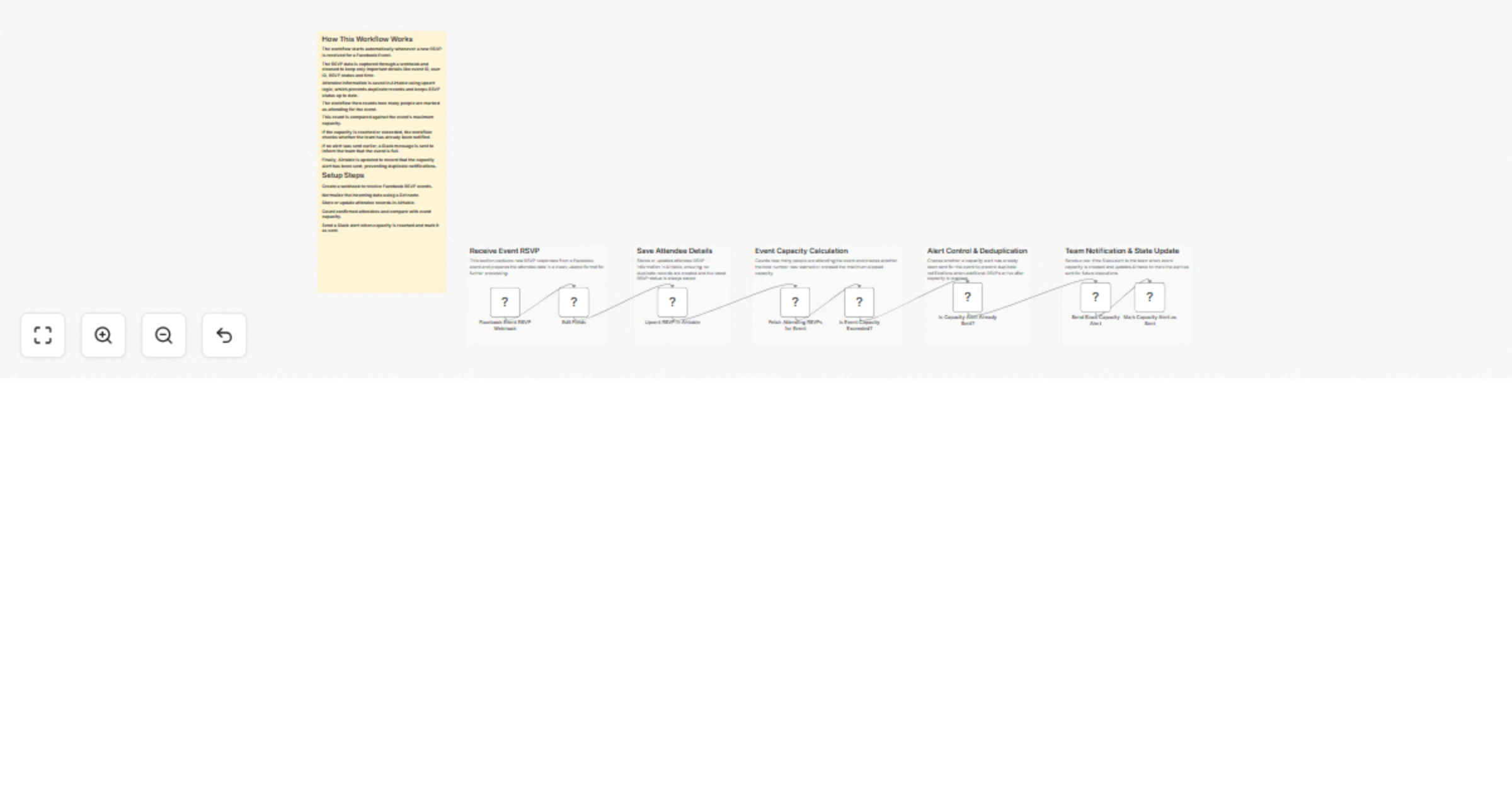
## Who this is for Property management companies managing frequent tenant move-outs across multiple units. ## What this workflow does Automatically schedules and coordinates move-out cleaning and repair tasks, sends vendor instructions, notifies internal teams, tracks completions, and logs everything for reporting. ## How it works 1. Cron triggers workflow before lease end. 2. AI generates personalized move-out instructions and checklists. 3. Vendors and property management teams are notified. 4. Completion updates logged in Google Sheets. 5. Optional AI suggests follow-up actions for delays. ## How to set up Connect tenant data, configure Cron, Slack, Email, and Task Manager credentials. Customize AI prompts and verify notification flows. ## Requirements - Google Sheets - Email & Slack credentials - AI Node access - Task Manager (Trello/Asana/etc.) Built by QuarterSmart. Created by Hyrum Hurst.

H
Hyrum Hurst
Project Management
4 Jan 2026
18
0
Workflow preview: Notify Redmine project members in Slack about teammates’ approved Odoo leave
Free advanced

Notify Redmine project members in Slack about teammates’ approved Odoo leave

## 📌Who is this for? This workflow is designed for engineering teams, project managers, and IT operations who need consistent visibility into team availability across multiple projects. It’s perfect for organizations that use Odoo for leave management and Redmine for project collaboration, and want to ensure that everyone involved gets timely, automated Slack notifications whenever a team member will be absent the next day. ## 📌The problem When team members go dark, everything grinds to a halt. You're stuck with: - Last-minute meeting reschedules (and frustrated stakeholders) - Tasks assigned to people who aren't there - No time to redistribute workload - Bottlenecks affecting multiple projects ## 📌How it works 1. **Runs** daily at 17:15 - Set it and forget it. Executes every afternoon, giving teams time to prepare. 2. **Fetches** Tomorrow's Approved Leaves from Odoo - Pulls all leave records with tomorrow's start date and "approved" status. 3. **Maps** Employee & Project Data - Grabs the employee's details and identifies every Redmine project they're assigned to. 4. **Finds** All Teammates on the Same Projects - Deduplicates across overlapping projects to avoid notification spam. 5. **Sends** Targeted Slack Notifications - Only notifies people who actually work with the absent member, plus optional manager alerts. ## 📌Quick setup Before you start, you’ll need: - Odoo API key - Redmine API key - Slack Bot Token (or Incoming Webhook URL) - Subflows need to be created within a new flow; the main flow will call these subflows. ## 📌Results What changes immediately: - Zero surprises - teams know absences 24 hours ahead - Workload rebalancing happens before the person goes off - Managers make proactive decisions, not reactive ones - No more wasted Slack messages to irrelevant people - This creates a more predictable and transparent workflow across your engineering and project teams. ## 📌Take it further Ready to supercharge it? Add: - Auto-assign backup owners for critical tasks - Sync absences to Google Calendar/Outlook - Log notifications to a database for auditing - Conditional alerts (key roles, high-priority projects only) - Daily summary digest of all upcoming absences ## 📌Need help customizing? Contact me for consulting and support: [Linkedin](https://www.linkedin.com/company/bac-ha-software/posts/?feedView=all) / [Website](https://bachasoftware.com/bhsoft-contacts)

B
BHSoft
Project Management
30 Dec 2025
4
0
Workflow preview: Triage product UAT feedback with OpenAI, Notion, Slack and Gmail
Free advanced

Triage product UAT feedback with OpenAI, Notion, Slack and Gmail

## Description Automatically triage Product UAT feedback with AI, deduplicate it against your existing Notion backlog, create/update the right Notion item, and close the loop with the tester (Slack or email). This workflow standardizes incoming UAT feedback, runs AI classification (type, severity, summary, suggested title, confidence), searches Notion to prevent duplicates, and upserts the roadmap entry for product review. It then confirms receipt to the tester and returns a structured webhook response. ## Context Feature requests often arrive unstructured and get lost across channels. Product teams waste time re-triaging the same ideas, creating duplicates, and manually confirming receipt. This workflow ensures: - Faster feature request triage - Fewer duplicates in your roadmap/backlog - Consistent structure for every feedback item - Automatic tester acknowledgement - Full traceability via webhook response ## Who is this for? - Product Managers running UAT or beta programs - Product Ops teams managing a roadmap backlog - Teams collecting feature requests via forms, Slack, or internal tools - Anyone who wants AI speed with clean backlog hygiene ## Requirements - Webhook trigger (form / Slack / internal tool) - OpenAI account (AI triage) - Notion account (roadmap/backlog database) - Slack and/or Gmail (tester notification) ## How it works ![image.png](fileId:3835) - Trigger: feedback received via webhook - Normalize & Clean: standardizes fields and cleans message - AI Triage: returns structured JSON (type, severity, title, confidence…) - Notion Dedupe & Upsert: search by suggested title → update if found, else create - Closed Loop: notify tester (Slack or email) + webhook response payload ## What you get - One workflow to capture and structure feature requests - Clean Notion backlog without duplicates - Automatic tester confirmation - Structured output for downstream automation ## About me : I’m Yassin a Product Manager Scaling tech products with a data-driven mindset. 📬 Feel free to connect with me on [Linkedin](https://www.linkedin.com/in/yassin-zehar)

Y
Yassin Zehar
Project Management
27 Dec 2025
13
0
Workflow preview: Automate post-meeting tasks with Fireflies, GPT-4o & ClickUp
Free advanced

Automate post-meeting tasks with Fireflies, GPT-4o & ClickUp

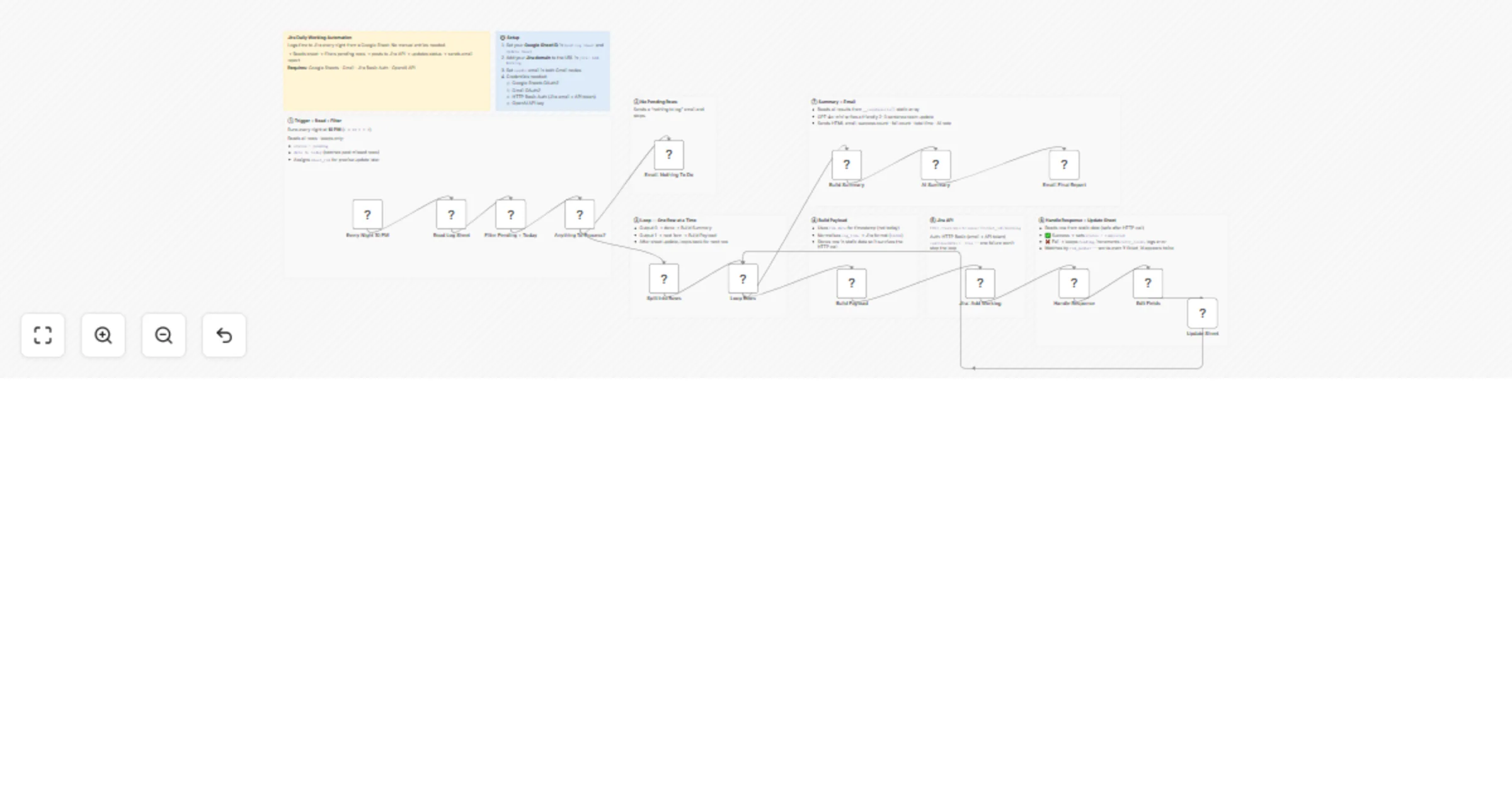
## AI Meeting Assistant: Sync Fireflies Transcripts to ClickUp & Gmail Act as your personal executive assistant with this high-level automation designed to handle the most tedious post-meeting tasks. This workflow ensures that no action item is forgotten and that participants receive professional follow-ups without you having to lift a finger. ## Who is this for? - Busy executives and managers who have back-to-back meetings. - Project managers who need to sync action items directly into ClickUp. - Sales teams who want to automate professional follow-up emails based on meeting context. ## How it works 1. **Fetch Transcripts:** The workflow runs on a schedule and retrieves your latest meeting data directly from the Fireflies.ai API using HTTP nodes. 2. **Intelligent Filtering:** A JavaScript node filters the list to process only today's meetings. 3. **AI Task Extraction:** An AI Agent (using GPT-4o-mini) analyzes the transcript to find tasks specifically assigned to the host. It then uses the ClickUp tool to create these tasks with priorities and descriptions. 4. **Human-in-the-Loop:** To ensure quality, the workflow sends a summary to your Telegram. It asks for approval before sending any external emails. 5. **Automated Follow-up:** Once approved, a second AI Agent drafts a concise, professional email summary and sends it via Gmail to the external participants. ## Requirements - **Fireflies.ai Account:** You need an API Key (Settings -> Integrations -> Fireflies API). - **OpenAI API Key:** To power the AI Agents. - **ClickUp Workspace:** To manage the generated tasks. - **Telegram Bot:** For the approval notifications. - **Gmail Account:** For sending the follow-up emails. ## How to set up 1. **Fireflies API Key:** Create a **Header Auth** credential in n8n. Set the Name to `Authorization` and the Value to `Bearer YOUR_API_KEY_HERE`. 2. **Configure Credentials:** Add your credentials for OpenAI, ClickUp, Telegram, and Gmail. 3. **ClickUp Configuration:** In the "Create ClickUp Task" node, select your specific Workspace, Space, and List from the dropdown menus. 4. **Identity Setup:** Open the "Format Transcript Data" code node. Update the `hostNames` array with your name and aliases (e.g., `['Host', 'My Name']`) so the AI correctly identifies you. 5. **Telegram Chat ID:** Enter your Chat ID in the Telegram nodes to receive the approval prompts.

V
Vasu Gupta
Project Management
25 Dec 2025
40
0
Workflow preview: Handle Calendly bookings, cancellations and reschedules with Gmail, Google Calendar, Sheets and Slack
Free advanced

Handle Calendly bookings, cancellations and reschedules with Gmail, Google Calendar, Sheets and Slack

Complete Calendly automation that handles confirmations, cancellations and reschedules in a single workflow. WHAT IT DOES: Logs all meetings to Google Sheets automatically Creates events in organizer's Google Calendar Sends professional HTML emails to guests Notifies your team on Slack (#meetings) Handles errors with Slack alerts (#errors) INCLUDED FLOWS: New booking: Sheets + Calendar + Slack + Confirmation email Cancellation: Sheets (updates status) + Slack + Cancellation email Reschedule: Sheets + Slack + Email with new date/time SETUP: Connect Google Sheets (create sheet with columns: Event ID, Date Logged, Name, Email, Meeting Type, Date, Time, Status, Meeting URL, Timezone) Connect Google Calendar Connect Slack (create channels #meetings and #errors) Connect Gmail Configure webhook in Calendly > Integrations > Webhooks CUSTOMIZABLE: Emails include professional HTML design with editable colors and text directly in the code nodes. IDEAL FOR: Consultants, coaches, agencies and sales teams using Calendly.

M
Manu
Project Management
24 Dec 2025
3
0
Workflow preview: Intelligent project delivery and task management system
Free advanced

Intelligent project delivery and task management system

## How It Works Automates daily project monitoring by fetching project data, analyzing tasks and team capacity with anthropic models, and generating resource optimization recommendations. Target audience: project managers, engineering leads, and resource planners managing complex team assignments. Problem solved: manual capacity planning misses bottlenecks; AI analysis identifies effort mismatches and delays proactively. Workflow runs daily checks, merges project and team profiles, analyzes tasks via multiple anthropic agents (breakdown, estimation, assignment), calculates effort allocation, detects delays, generates rebalancing recommendations, notifies stakeholders, and tracks milestones. ## Setup Steps 1. Configure daily trigger schedule. 2. Connect project management system APIs. 3. Set anthropic API keys with task analysis prompts. 4. Enable email notifications for managers. 5. Connect reporting database for tracking. ## Prerequisites Anthropic API access, project management tool credentials, team capacity database ## Use Cases SaaS teams managing feature backlogs, consulting firms balancing client projects ## Customization Adjust effort estimation models. Add Slack notifications for urgency. ## Benefits Detects delays 2-3 weeks early, improves team utilization by 25%

C
Cheng Siong Chin
Project Management
16 Dec 2025
368
0
Workflow preview: Automate medical rep visit workflow with Google Sheets, Gmail & OpenAI summaries
Free advanced

Automate medical rep visit workflow with Google Sheets, Gmail & OpenAI summaries

# MR Daily Visit Assignment, Reminder & AI Summary Reporting (Google Sheets + Gmail + OpenAI) This workflow automates the entire daily reporting cycle for field representatives. It assigns daily visits from Google Sheets, emails each MR their task details, sends reminders to those who haven't submitted updates and uses an AI agent to convert form responses into structured summaries. Finally, it sends a clear end-of-day report to the manager, reducing manual coordination and ensuring consistent reporting. ### Quick Implementation Steps 1. Connect Google Sheets credentials in all relevant nodes. 2. Update `documentId` and `sheetName (gid)` for MR Plan and Form Responses sheets. 3. Add Gmail OAuth credentials for sending emails. 4. Ensure your Google Form link is present in the MR plan sheet. 5. Add OpenAI credentials for the AI Agent and Chat Model nodes. 6. Adjust all three Schedule Trigger nodes to your preferred timings. 7. Run a complete test execution. ## What This Workflow Does This workflow handles work assignment, reminders and summary reporting for daily field activities. Every morning, it reads Google Sheets data to determine which MRs have pending assignments and sends them their visit details along with the reporting form link. In the evening, it sends reminder emails to those who have not yet completed their visit updates. At night, the workflow collects all form responses and uses the built-in AI agent to convert raw entries into structured summaries. These summaries are automatically emailed to the manager, giving a clear overview of each MR’s activity and outcomes. This workflow minimizes manual follow-up, improves reporting consistency, and ensures managers always receive timely and organized updates. ## Who’s It For - Pharma field-force teams such as Medical Representatives (MRs), ASMs and RSMs. - Organizations with daily client visits, service calls or appointment-based work. - Automation teams using Google Sheets, Gmail and AI for workflow optimization. ## Requirements to Use This Workflow - A Google Sheet containing MR visit assignments. - A Google Sheet capturing Google Form responses. - Valid Gmail OAuth credentials. - Google Sheets OAuth credentials in n8n. - OpenAI credentials for AI summarization. - A working Google Form for visit reporting. - Configured schedule triggers for morning, evening and night automation. ## How It Works & How To Set Up ### 1. Daily Visit Assignment (Morning) - A Schedule Trigger runs at the configured hour (e.g., 9 AM). - The workflow reads the MR Plan sheet and filters rows marked as `Status = Pending`. - For each pending entry: - The MR receives an email containing their doctor visit details and reporting link. - The workflow updates the row in the sheet and sets `Status = Assigned`. ### 2. Reminder Flow (Evening) - A second Schedule Trigger starts the reminder process at the configured evening time. - The workflow reads all records where `Status = Pending`. - A reminder email is sent to each MR who has not yet submitted their update. - The row is updated with `Reminder = Yes` and `Status = Assigned` (as per your sheet mapping). ### 3. Reporting and Summary (Night) - A third scheduled trigger activates at night. - The workflow reads all form responses from the "Form Responses 1" sheet. - Each response is passed to the AI Agent node, which: - Normalizes the data - Extracts key points - Creates a structured summary JSON output - The "Send Summary to Manager" node then formats these into a final daily summary email. ## How To Customize Nodes ### Google Sheets Nodes - Change filters (e.g., by date, MR, region). - Adjust column mapping directly in the node settings. - Replace `Status` logic if your sheet uses different labels. ### Gmail Nodes - Update subject, message formatting or add conditional messaging. - Add CC/BCC fields using Gmail node options. ### AI Agent Node - Modify the built-in instructions to customize: - Summary style - Bullet points - Action items - Urgency logic - Extend prompt rules based on your form structure. ### Schedule Triggers - Set specific hours (e.g., 08:45, 17:30, 23:00) based on your time zone and reporting schedules. ## Add-Ons (Optional Extensions) - Add Slack or Microsoft Teams notifications for managers. - Auto-export daily summaries to another Google Sheet or a shared folder. - Add WhatsApp/SMS reminders via Twilio or other integrations. - Push AI-generated summaries into CRM systems. - Add automatic daily backups of MR plan and responses. ## Use Case Examples 1. Pharma field-force visit planning and daily reporting. 2. Sales teams performing client visits and follow-ups. 3. Service engineers logging on-site work with daily summaries. 4. Outreach teams conducting school, hospital or community visits. 5. Real estate agents performing property visit updates. Many additional use cases are possible with slight adjustments to sheets and form fields. ## Troubleshooting Guide | Issue | Possible Cause | Solution | |------|----------------|----------| | Emails not sending | Gmail OAuth expired or not connected | Reconnect Gmail credentials in n8n | | Sheet data not loading | Wrong Sheet ID or GID | Confirm IDs directly from Google Sheets URL | | Rows not updating | Sheet column names differ from workflow mapping | Align column names exactly as defined in Google Sheets node | | AI summary missing | OpenAI credentials missing OR unexpected form structure | Check OpenAI credentials and ensure forms produce expected fields | | Summary email blank | Parsed output may not include expected fields | Inspect AI Agent output in execution logs | ## Need Help? If you would like assistance setting up, testing or extending this workflow — including adapting it to your organization, enhancing AI summaries or connecting it with external systems, our [n8n workflow development](https://www.weblineindia.com/n8n-automation/) team at WeblineIndia can help. Contact WeblineIndia for expert automation support, customizations and add-on development.

W
WeblineIndia
Project Management
11 Dec 2025
59
0
Workflow preview: Track & alert team holidays across countries with Nager.Date API, Notion and Slack
Free intermediate

Track & alert team holidays across countries with Nager.Date API, Notion and Slack

## Who is this for This template is essential for **Remote Operations Managers**, **HR Teams**, and **Project Leads** managing distributed teams across different countries. It prevents scheduling conflicts by automatically flagging when a regional team is out of office and identifying when multiple teams are off simultaneously. ## What it does Stop manually Googling "Is it a holiday in Berlin today?" This workflow automates your team availability calendar. 1. It triggers on a weekly schedule. 2. It takes your team's locations (e.g., KR, MX) and a "Lookahead" range (e.g., 50 days). 3. It fetches official public holidays for **both the current and next year** using the **Nager.Date API** (to ensure year-end holidays aren't missed). 4. It filters the results to find only holidays occurring within your defined lookahead window. 5. **It compares dates across countries to identify "Shared Holidays" (dates where multiple teams are off).** 6. It logs these holidays into a **Notion** database and notifies the team via **Slack**, specifically highlighting if a holiday is shared. ## How to set up 1. **Notion:** Create a Database with properties: `Name` (Title), `Date` (Date), and `Shared Countries` (Text). 2. **Slack:** Connect your Slack account in the credentials. 3. **Configuration:** * **Define Team Countries:** Enter the 2-letter country codes (e.g., "KR", "US") in the Set node. * **Define Days to Lookahead:** Set how many days into the future you want to check (default is 50). * **Add to Notion:** Select your Database ID. ## How to customize * **Filter Logic:** The "Filter Upcoming" node handles the date logic. You can modify this to check for specific holiday types (e.g., exclude "Optional" holidays). * **Shared Logic:** The "Find Shared Holidays" node calculates overlaps. You can adjust the JavaScript here if you want to change the format of the shared message sent to Slack. * **Destinations:** Swap the Notion node for Google Calendar to block off time directly.

G
GYEONGJUN CHAE
Project Management
4 Dec 2025
41
0
Workflow preview: Automate client onboarding across Google Drive, Slack, Notion & Gmail with GPT-4o-mini
Free advanced

Automate client onboarding across Google Drive, Slack, Notion & Gmail with GPT-4o-mini

Who is this for? This template is perfect for agencies, consultancies, freelancers, and project-based teams who want to eliminate repetitive onboarding tasks. If you're tired of manually creating folders, Slack channels, and project pages every time a new client signs a contract, this automation will save you hours. What this workflow does When a new contract PDF is uploaded to a designated Google Drive folder, this workflow automatically: Parses the filename to extract client name, project name, and contact email Creates a project folder structure in Google Drive with organized subfolders Creates a dedicated Slack channel for project communication Sets up a Notion project page with initial kickoff tasks Logs project details to a master Google Sheet for tracking Drafts a personalized welcome email using OpenAI GPT-4o-mini Notifies your team on Slack with all relevant links when complete Setup steps Time required: ~15 minutes Configure OAuth credentials for Google Drive, Gmail, Google Sheets, Slack, and Notion Add your OpenAI API key for AI-powered email drafting Update the "Set Config Variables" node with your specific IDs: Google Drive parent folder ID Notion database ID Google Sheet ID Slack notification channel ID Set up the trigger folder in Google Drive where contracts will be uploaded Prepare your Google Sheet with columns: Client, Project Code, Notion Link, Slack Channel, Drive Folder Requirements Google Workspace account (Drive, Gmail, Sheets) Slack workspace with bot permissions to create channels Notion workspace with API integration OpenAI API key File naming convention Upload PDF files using this format: [email protected] Example: [email protected] How to customize Add more subfolders: Duplicate the "Create Deliverables Subfolder" node Customize the email prompt: Edit the "AI Draft Welcome Email" node Add more Notion properties: Extend the "Create Notion Project Page" node Change notification format: Modify the "Notify Team on Slack" message

長谷 真宏
Project Management
2 Dec 2025
147
0
Workflow preview: Daily team progress checks & reports with Slack, ChatGPT and Google Sheets
Free advanced

Daily team progress checks & reports with Slack, ChatGPT and Google Sheets

## Overview This workflow is a **daily progress check flow that runs automatically at 17:00**. It integrates Google Sheets, Slack, and ChatGPT to automate progress inquiries to team members and generate daily reports. --- ## Overall Workflow Steps * Triggered **every day at 17:00**. * Reads the specified WBS management sheet. * Automatically sends a Slack DM to each member based on their Slack ID. * After 30 minutes, retrieves and aggregates progress information for the day. * Sending Report to Slack Channel (e.g., "#daily-report"). * The report includes the date, each member’s progress, comments, etc. --- ## Sample Output * **Individual Member DM** “Hello Sato-san, could you briefly share today’s progress?” * **Team Report Sample** ``` 📅 2025/10/20 Daily Progress Report ✅ Sato: Task A completed, B at 80% ✅ Suzuki: Design review completed ⚠️ Tanaka: API test delayed (Reason: data not received) ``` --- ## Maintenance Tips * To avoid Slack rate limits, it is recommended to add a few seconds delay between messages * Update node settings when Google Sheets column names change * When using ChatGPT API, adjust `temperature` and `max_tokens` as needed --- ## Setup Instructions 1. **Google Sheets API** authenticated (OAuth2) * Obtain the Spreadsheet ID of the target sheet. 2. **Slack Bot Token** with `chat:write`, `users:read`, `im:write` permissions 3. **OpenAI API Key** registered 4. WBS sheet must include the following columns: * `Name` * `Slack ID` or `Email` * `Today Progress` * `Remarks` --- --- # 日次進捗チェック自動化フロー ## 概要 本ワークフローは、**毎日 17:00 に自動実行される日次進捗チェックフロー** です。Google Sheets・Slack・ChatGPT を連携させ、チームメンバーへの進捗確認と報告作成を自動化します。 --- ## フロー全体の流れ * トリガーは **毎日 17:00 に実行**。 * 指定された WBS 管理シートを読み込み。 * 各メンバーの Slack ID を元に、Slack の DM を自動送信。 * 全メンバーへの送信完了後、**30分間待機**。 * メンバーが Slack 上で進捗を入力する時間を確保。 * Slack グループへの報告送信(例:「#daily-report」など)。 * 投稿には日付・メンバーごとの進捗・コメントなどが含まれます。 --- ## 実行結果のイメージ * **メンバー個別DM** 「こんにちは佐藤さん、今日の進捗を簡単に教えてくださいね😊」 * **チーム報告投稿(例)** ``` 📅 2025/10/20 日次進捗報告 ✅ 佐藤:タスクA完了、Bは80% ✅ 鈴木:設計レビュー完了 ⚠️ 田中:APIテスト遅延(原因:データ未受領) ``` --- ## メンテナンスTips * Slack rate limit 回避のため、メッセージ間に数秒の遅延を設定推奨 * Google Sheets の列名変更時はノード設定を更新 * ChatGPT API 使用時は `temperature` や `max_tokens` を調整可 --- ## セットアップ手順 1. **Google Sheets API** 認証済み(OAuth2) * 対象シートの Spreadsheet ID を取得しておく。 2. **Slack Bot Token**(`chat:write`, `users:read`, `im:write` 権限付与) 3. **OpenAI API Key** 登録済み。 4. WBS シートに以下の列が存在すること: * `Name` * `Slack ID` または `Email` * `Today Progress` * `Remarks`

S
Satoshi
Project Management
29 Nov 2025
20
0
Workflow preview: Schedule supplier follow-ups from Airtable POs to Google Calendar with AI, Slack & Gmail
Free advanced

Schedule supplier follow-ups from Airtable POs to Google Calendar with AI, Slack & Gmail

## 📊 Description Ensure suppliers never miss a follow-up by automating overdue purchase order tracking and scheduling. 📦⏰ This workflow checks Airtable every weekday morning for open POs older than seven days without scheduled follow-ups, generates Google Calendar events, updates Airtable with the follow-up link, and sends notifications to your team via Slack and Gmail. It centralizes supplier management and eliminates manual reminders, helping operations teams stay on top of aging purchase orders and vendor commitments. 📅📣 ## 🔁 What This Template Does 1️⃣ Runs on a weekday schedule (default: 10 AM) to scan Airtable for overdue open POs. 📆 2️⃣ Filters POs with missing follow-up links and older than 7 days. 🔍 3️⃣ Processes each overdue PO one by one. 🔄 4️⃣ Creates a Google Calendar event for each supplier follow-up. 📅 5️⃣ Saves the event link back into Airtable and updates follow-up status to “Pending.” 📝 6️⃣ Sends initial and final Slack notifications with PO details and scheduling links. 💬 7️⃣ Sends a Gmail confirmation email to the assigned supplier or internal team. ✉️ 8️⃣ Ensures all stakeholders have quick access to follow-up links and event details. 🔗 ## ⭐ Key Benefits ✅ Automates supplier follow-up scheduling with zero manual effort ✅ Prevents overdue purchase orders from being forgotten ✅ Consolidates PO aging logic, event creation, and notifications ✅ Keeps suppliers and internal teams aligned with one workflow ✅ Ensures follow-ups are consistently logged and traceable in Airtable ✅ Improves accountability for purchasing and operations teams ## 🧩 Features - Weekday schedule trigger (cron-based) - Airtable “Purchase Orders” table integration - Google Calendar event creation with tracking links - Airtable record update with follow-up status - Slack notifications (initial + final) - Gmail email confirmations - Batch processing for multiple overdue POs - Automated vendor accountability loop ## 🔐 Requirements - Airtable Personal Access Token - Google Calendar OAuth2 credentials - Slack API token - Gmail OAuth2 credentials - Airtable table containing: PO ID, Supplier Info, Status, PO Date, Follow-up Link ## 🎯 Target Audience - Procurement & purchasing teams - Operations managers handling vendor communication - Supply chain coordinators tracking overdue POs - Teams using Airtable for purchase order management - Businesses that need consistent supplier follow-ups

R
Rahul Joshi
Project Management
27 Nov 2025
69
0
Workflow preview: Track Calendly schedule changes with Google Sheets & Slack notifications
Free advanced

Track Calendly schedule changes with Google Sheets & Slack notifications

## This n8n template implements a Calendly Booking & Cancellation Automation Hub that automatically processes Calendly webhook events, logs data to Google Sheets, and sends intelligent Slack notifications ## Who's it for This template is designed for **professionals, teams, and businesses** who use Calendly for scheduling and want to automate their booking management workflow. It's perfect for: - **Sales teams** who need instant notifications about new bookings and cancellations - **Service providers** (consultants, coaches, therapists) who want to track appointments automatically - **Businesses** that need centralized logging of all booking events for analytics - **Teams** that want smart categorization of urgent bookings and last-minute cancellations - **Organizations** requiring automated follow-up workflows based on booking status ## How it works / What it does This workflow creates a **comprehensive Calendly automation system** that automatically processes booking confirmations and cancellations. The system: 1. **Listens for Calendly events** via webhook trigger for: - `invitee.created` - New booking confirmations - `invitee.canceled` - Booking cancellations 2. **Routes events intelligently** using a Switch node to separate booking and cancellation processing 3. **For Bookings:** - Extracts and transforms all booking data (invitee info, event details, timing, location, guests) - Calculates computed fields (formatted dates/times, duration, days until event, urgency flags) - **Detects urgent bookings** (same-day or next-day appointments) for priority handling - Logs complete booking information to Google Sheets - Sends formatted Slack notifications with meeting links, reschedule/cancel options 4. **For Cancellations:** - Extracts cancellation details (reason, who canceled, timing) - **Categorizes cancellations** into three types: - **Last Minute** (within 24 hours of event) - High priority follow-up - **Standard** (upcoming events) - Normal priority - **Past Event** (already occurred) - Low priority - Calculates hours before event for timing analysis - Logs cancellation data to Google Sheets - Sends categorized Slack alerts with follow-up priority indicators 5. **Data Management:** - Stores all bookings in a dedicated Google Sheets tab - Stores all cancellations in a separate Google Sheets tab - Maintains complete event history for analytics and reporting ## How to set up ### 1. Configure Calendly Webhook Trigger - Go to [developer.calendly.com](https://developer.calendly.com) - Create an OAuth2 application or use Personal Access Token - In n8n, add Calendly OAuth2 credentials - The workflow automatically registers webhooks for `invitee.created` and `invitee.canceled` events - Ensure your Calendly account has the necessary permissions ### 2. Set up Google Sheets - Create a Google Sheets spreadsheet with two tabs: - **Bookings** - For logging new booking confirmations - **Cancellations** - For logging cancelled appointments - Configure Google Sheets OAuth2 credentials in n8n - Update the document ID in both Google Sheets nodes: - "Log to Bookings Sheet1" node - "Log to Cancellations Sheet" node - The workflow uses auto-mapping, so ensure your sheet headers match the data fields ### 3. Configure Slack Notifications - Create a Slack app at [api.slack.com](https://api.slack.com) - Add Bot Token Scopes: `chat:write`, `channels:read` - Install the app to your workspace - Add Slack OAuth2 credentials in n8n - Update the channel name in both Slack nodes (default: "general") - Customize notification messages if needed ### 4. Test the Workflow - Activate the workflow in n8n - Create a test booking in Calendly - Verify that: - Data appears in Google Sheets - Slack notification is received - All fields are correctly populated - Test cancellation flow by canceling a booking ### 5. Customize (Optional) - Adjust urgency detection logic (currently same-day or next-day) - Modify Slack notification formatting - Add email notifications using Email nodes - Integrate with CRM systems (HubSpot, Salesforce, etc.) - Add follow-up email automation ## Requirements - **Calendly account** with active scheduling links - **Google Sheets account** with a spreadsheet set up - **Slack workspace** with app installation permissions - **n8n instance** (self-hosted or cloud) - **OAuth2 credentials** for Calendly, Google Sheets, and Slack ## How to customize the workflow ### Modify Urgency Detection - Edit the "Check Urgency" IF node to change what constitutes an urgent booking - Currently flags same-day or next-day bookings - Adjust the `days_until_event` threshold as needed ### Enhance Slack Notifications - Customize message formatting in Slack nodes - Add emoji or formatting to match your team's style - Include additional fields from the booking data - Add @mentions for urgent bookings ### Add Email Notifications - Insert Email nodes after Slack notifications - Send confirmation emails to invitees - Notify team members via email - Create email templates for different event types ### Integrate with CRM - Add HTTP Request nodes to sync bookings to your CRM - Update contact records when bookings are created - Create opportunities or deals from booking data - Sync cancellation reasons for analysis ### Add Analytics - Create additional Google Sheets tabs for analytics - Use formulas to calculate booking rates, cancellation rates - Track popular time slots and event types - Monitor team member availability ### Customize Data Fields - Modify the "Transform Booking Data" and "Transform Cancellation Data" Set nodes - Add custom fields based on your Calendly form questions - Extract additional metadata from the webhook payload - Calculate business-specific metrics ## Key Features - **Automatic event processing** - No manual intervention required - **Smart urgency detection** - Identifies same-day and next-day bookings automatically - **Intelligent cancellation categorization** - Classifies cancellations by timing and priority - **Comprehensive data extraction** - Captures all booking details including guests, questions, and metadata - **Dual logging system** - Separate sheets for bookings and cancellations - **Rich Slack notifications** - Formatted messages with meeting links and action buttons - **Computed fields** - Automatically calculates duration, days until event, formatted dates/times - **Error handling** - Nodes configured with `continueRegularOutput` to prevent workflow failures - **Scalable architecture** - Handles high-volume booking scenarios ## Use Cases - **Sales team automation** - Instant notifications when prospects book demos - **Consultant scheduling** - Track all client appointments in one place - **Service business management** - Monitor bookings and cancellations for service providers - **Team calendar coordination** - Keep team members informed about schedule changes - **Analytics and reporting** - Build dashboards from logged booking data - **Customer relationship management** - Sync booking data with CRM systems - **Follow-up automation** - Trigger email sequences based on booking status - **Resource planning** - Analyze booking patterns to optimize scheduling ## Data Fields Captured ### Booking Data - Event ID, invitee name, email, first name - Event name, start/end times (ISO format) - Formatted date and time (human-readable) - Timezone, duration in minutes - Meeting URL (Google Meet, Zoom, etc.) - Reschedule and cancel URLs - Location type (virtual, in-person, etc.) - Guest count and guest emails - Questions and answers (JSON format) - Days until event, same-day flag - Urgency status and label - Processing timestamp ### Cancellation Data - Event ID, invitee name, email - Original scheduled date and time - Cancellation reason - Who canceled (invitee/host) - Canceler type - Hours before event - Last-minute flag (< 24 hours) - Cancellation category and priority - Cancellation timestamp ## Workflow Architecture The workflow uses a **routing pattern** to handle different event types: 1. **Calendly Webhook Trigger** → Receives all events 2. **Route Event Type (Switch)** → Separates bookings from cancellations 3. **Parallel Processing** → Each path processes independently 4. **Data Transformation** → Set nodes extract and format data 5. **Intelligent Routing** → IF/Switch nodes categorize by urgency/type 6. **Data Logging** → Google Sheets stores all events 7. **Notifications** → Slack alerts team members ## Example Scenarios ### Scenario 1: New Booking 1. Customer books a 30-minute consultation for tomorrow 2. Workflow detects it's a next-day booking (urgent) 3. Data logged to "Bookings" sheet with urgency flag 4. Slack notification sent with 🚨 URGENT label 5. Team member receives instant alert ### Scenario 2: Last-Minute Cancellation 1. Customer cancels meeting 2 hours before scheduled time 2. Workflow categorizes as "last-minute" cancellation 3. Data logged to "Cancellations" sheet with high priority 4. Slack alert sent with 🚨 LAST MINUTE label 5. Team can immediately follow up or fill the slot ### Scenario 3: Standard Cancellation 1. Customer cancels meeting 3 days in advance 2. Workflow categorizes as "standard" cancellation 3. Data logged with normal priority 4. Slack notification sent with standard formatting 5. Team can plan accordingly This template transforms your Calendly scheduling into a fully automated booking management system, ensuring no booking goes unnoticed and providing valuable insights into your scheduling patterns and customer behavior.

O
Omer Fayyaz
Project Management
26 Nov 2025
69
0
Workflow preview: Manage Trello tasks with AI assistants via MCP server
Free advanced

Manage Trello tasks with AI assistants via MCP server

A lean MCP Server that exposes the essential Trello tools for everyday task management. Built for clean, reliable LLM automation with n8n, ChatGPT, or Gemini. # Description A minimal MCP Server offering the core Trello operations—create, update, search, list, and comment—designed to keep task management simple and predictable. Each tool has a clear, LLM-friendly schema, ensuring safe automation without heavy context or complex payloads. Use it to create tasks, move cards between lists, update details, add comments, or retrieve board structure. All through natural language. --- # ⭐ Key Features - **Lean Toolset** – only the operations needed for real task flows - **LLM-Ready** – minimal, explicit parameters for safe execution - **Extendable** – add more Trello endpoints or custom logic easily - **Predictable Updates** – partial updates with safe defaults - **MCP + Tool Calling** – works in n8n Agents, ChatGPT, Gemini, and MCP clients --- # 🧠 Examples (Natural Language) **“What tasks do I still have pending from last week?”** → Searches by due date and status for weekly planning. **“Move all tasks due yesterday into today’s list and add a ‘rescheduled’ comment.”** → Combines search + update + comment. **“Create a new card called ‘Prepare onboarding materials’ for next Monday.”** → Simple card creation with due date handling. --- # ⚙️ How It Works This MCP Server exposes 6 core tools: ### 📥 Create Card Create tasks with title, description, and optional due date. ### 🔍 Search Cards Find cards using Trello’s native search syntax (keywords, lists, due filters). ### 🗂 List Backlog & List All Lists Provide structure and situational awareness for agents. ### ✏️ Update Card Rename, update description, adjust due dates, or move cards. ### 💬 Add Comment Add quick notes to any card without modifying other fields. --- # 🔐 Required Credentials | Service | Use | |--------|-----| | Trello API | API Key + Token for card, list, search, and comment operations | Use a dedicated Trello automation token for clean audit logs. Please check [Authorizing With Trello's REST API](https://developer.atlassian.com/cloud/trello/guides/rest-api/authorization/) --- # 🧰 Customization Tips - Replace board/list IDs with your own - Add labels, checklists, or custom fields if needed - Add domain logic (priority rules, conventions, or workflows) - Use `list_all_lists` in agents to give LLMs workflow awareness --- # 🧠 Who It’s For - Automation builders exploring MCP - AI assistants for personal task planning - Teams with simple Trello workflows - Consultants building lightweight agents --- # 🚀 Try It Out 1) Import the MCP workflow into n8n 2) Add your Trello API credentials 3) Replace IDs with your board/list values 4) Test with ChatGPT or Gemini via natural-language prompts 5) (Optional) Register it as an MCP Server in VS Code or any MCP client --- # 💬 Feedback Welcome This MCP Server is intentionally simple and extendable. If you adapt or evolve it, I’d love to hear your ideas. 📧 [[email protected]](mailto:[email protected]) 🔗 [Linkedin](https://www.linkedin.com/in/alejandro-scuncia-60a62348/)

A
Alejandro Scuncia
Project Management
25 Nov 2025
110
0
Workflow preview: Multi-channel feedback to Jira pipeline with AI analysis & Notion reporting
Free advanced

Multi-channel feedback to Jira pipeline with AI analysis & Notion reporting

## Description This workflow turns scattered user feedback into a structured product backlog pipeline. - It collects feedback from three channels (Telegram bot, Google Form/Sheets, and Gmail), normalizes it, and sends it to an AI model that: - Classifies the feedback (bug, feature request, question, etc.) - Extracts sentiment and pain level - Estimates business impact and implementation effort - Generates a short summary - Then a custom RICE-style priority score is computed, a Jira ticket is created automatically, a Notion page is generated for documentation, and a monthly product report is sent by email to stakeholders. It helps product & support teams move from “random feedback in multiple tools” to a repeatable, data-driven product intake process with zero manual triage. ## Context In most teams, feedback is: - spread across emails, forms, and chat messages - manually copy–pasted into Jira (when someone remembers) - hard to prioritize objectively - nearly impossible to review at the end of the month This workflow solves that by: - Centralizing feedback from Telegram, Google Forms/Sheets, and Gmail - Automatically normalizing all inputs into the same JSON structure - Using AI to categorize, tag, summarize, and score each request - Calculating a RICE-based priority adapted to your tiers (free / pro / enterprise) - Creating a Jira issue with all the context and acceptance criteria - Generating a Notion page for each feedback+ticket pair - Sending a monthly “Product Intelligence Report” by email with insights & recommendations The result: less manual work, better prioritization, and a clear story of what users are asking for. ## Target Users This template is designed for: - Product Managers and Product Owners - SaaS teams with multiple feedback channels - Support / CS teams that need a structured escalation path - Project Managers who want objective, data-driven prioritization - Any team that wants “feedback → backlog” automation without building a custom platform ## Technical Requirements You’ll need: - Google Sheets credential - Gmail credential - Telegram Bot + Chat ID - Google Form connected to a Google Sheet ![image.png](fileId:3320) ![image.png](fileId:3319) - Jira credential (Jira Cloud) - Notion credential - OpenAI/ Anthropic credential for the AI analysis node - An existing Jira project where tickets will be created - A Notion database or parent page where feedback pages will be stored ## Workflow Steps The workflow is organized into four main sections: ![image.png](fileId:3339) 1) Triggers (Multi-channel Intake) - Telegram Trigger – Listens for new messages sent to your bot - Google Form / Sheet Trigger – Listens for new form responses / rows - Gmail Trigger – Listens for new emails matching your filter (e.g. [Feedback] in subject) - All three paths send their payloads into a “Data Normalizer” node that outputs a unified structure: 2) Request Treated and Enriched (AI Analysis) - Instant Reply (Telegram only) – Sends a quick “Thanks, we’re analysing your feedback” message - User Enrichment – Enriches user tier based on mapping - Message a Model (AI) - classifies the feedback - extracts tags - scores sentiment, pain, business impact, effort - generates a short summary & acceptance criteria - JSON Parse / Merge – Merges AI output back into the original feedback object 3) Priority Calculation & Jira Ticket Creation - Priority Calculator applies a RICE-style formula using: - pain level - business impact - implementation effort - user tier weight - assigns internal priority: P0 / P1 / P2 / P3 - maps to Jira priority: Highest / High / Medium / Low - Create Jira Issue – Creates a ticket with: - summary from AI - description including raw feedback, AI analysis, and RICE breakdown - labels based on tags - priority based on the calculator - Post-processing – Prepares a clean payload for notifications & logging - IF (Source = Telegram) – Sends a rich Telegram message back to the user with: - Jira key + URL - category, priority, RICE score, tags, and estimated handling time - Append to Google Sheet (Analytics Log) – Logs each feedback with: - source, user, category, sentiment, RICE score, priority, Jira key, Jira URL - Create Notion Page – Creates a documentation page linking: - the feedback - the Jira ticket - AI analysis - acceptance criteria 4) Monthly Reporting (Product Intelligence Report) - Monthly Trigger – Runs once a month - Query Google Sheet – Fetches all feedback logs for the previous month - Aggregate Monthly Stats – Computes: - feedback volume - breakdown by category / sentiment / source / tier / priority - average RICE, pain, and impact - top P0/P1 issues and top feature requests - Message a Model (AI) – Generates a written “Product Intelligence Report” with: - executive summary - key insights & trends - top pain points - strategic recommendations - Parse Response: Extracts structured insights + short summary - Create Notion Report Page with: - metrics, charts-ready tables, insights, and recommendations - Append Monthly Log to Google Sheet – Stores high-level stats for historical tracking - Send Email with a formatted HTML report to stakeholders with: - key metrics - top issues - recommendations - link to the full Notion report ## Key Features - Multi-channel intake: Telegram + Google Forms/Sheets + Gmail - AI-powered triage: automatic category, sentiment, tags, and summary - RICE-style priority scoring with tier weighting - Automatic Jira ticket creation with full context - Notion documentation for each feedback and for monthly reports - Google Sheets analytics log for exploration and dashboards - Monthly “Product Intelligence Report” sent automatically by email - Designed to be adaptable: you can plug in your own labels, tiers, and scoring rules ## Expected Output When the workflow is running, you can expect: - A Jira issue created automatically for each relevant feedback ![image.png](fileId:3323) - A confirmation email ![image.png](fileId:3314) - A Telegram confirmation message when the feedback comes from Telegram ![image.png](fileId:3316) ![image.png](fileId:3317) - A Google Sheet filled with normalized feedback and scoring data ![image.png](fileId:3315) - A Notion page per feedback/ticket with AI analysis and acceptance criteria ![image.png](fileId:3325) Every month: - a Notion “Monthly Product Intelligence Report” page ![image.png](fileId:3324) ![image.png](fileId:3322) - a summary email with key metrics and insights for your stakeholders ![image.png](fileId:3318) ## How it works - Trigger – Listens to Telegram / Google Forms / Gmail - Normalize – Converts all inputs to a unified feedback format - Enrich with AI – Category, sentiment, pain, impact, effort, tags, summary - Score – Computes RICE-style priority and maps to Jira priority - Create Ticket – Opens a Jira issue + Notion page + logs to Google Sheets - Notify – Sends Telegram confirmation (if source is Telegram) - Report – Once a month, aggregates everything and sends a Product Intelligence Report ## Tutorial Video Tutorial video: [Watch the Youtube Tutorial video](https://www.youtube.com/watch?v=q0Is11oU18Y) ## About me I’m Yassin a Project & Product Manager Scaling tech products with data-driven project management. 📬 Feel free to connect with me on [Linkedin](https://www.linkedin.com/in/yassin-zehar)

Y
Yassin Zehar
Project Management
17 Nov 2025
65
0
Workflow preview: Automate task deadline reminders with Google Sheets and Gmail (Today/3-Day/7-Day)
Free advanced

Automate task deadline reminders with Google Sheets and Gmail (Today/3-Day/7-Day)

## Task Deadline Reminder Workflow (Today / 3-Day / 7-Day) Task deadline management manually is inefficient and leads to missed deadlines—especially when teams rely on spreadsheets and individual reminders. This workflow automates the entire follow-up process by reading a centralized task sheet in Google Sheets every morning, checking the deadline for each task, and sending automatic email notifications to the responsible person based on urgency. Tasks due **today**, **within three days**, or **within one week** are identified and routed to customized Gmail notifications, ensuring that every team member is aware of upcoming deadlines without manual checking. ## Who’s it for This workflow is ideal for teams and organizations that manage multiple tasks across departments and need a reliable way to stay on top of deadlines. It is especially useful for: - Project managers coordinating many deadlines - Back-office teams monitoring routine operational tasks - Organizations with distributed members - Anyone who relies on spreadsheets but needs automated follow-up By integrating Google Sheets, n8n, and Gmail, you gain a proactive notification system that keeps everyone aligned and reduces the risk of forgotten tasks. ## How it works ### 1. Daily trigger The workflow runs every morning at 9:00 using a Schedule Trigger. ### 2. Load task list from Google Sheets The workflow retrieves all rows from the designated spreadsheet, including task name, deadline, responsible person, and email address. ### 3. Process tasks individually A loop node evaluates each task one by one. ### 4. Evaluate deadline conditions - **Due today:** Deadline matches today’s date - **Due within 3 days:** Deadline falls between today and three days ahead - **Due within 7 days:** Deadline falls between today and one week ahead ### 5. Send notifications Depending on urgency: - “本日が締め切りです” for tasks due today - “タスク期限が三日前となりました” for tasks due within 3 days - “タスクの期限が一週間以内です” for tasks due within 7 days Each email is automatically sent to the responsible person based on the “メールアドレス” field in the sheet. ### 6. Complete processing The loop continues until all task rows have been checked. ## How to set up - Import the workflow into your n8n instance - Authenticate Google Sheets and select the task spreadsheet - Authenticate Gmail as the sender account - Confirm required columns: タスク, 期限, 担当, メールアドレス - Adjust time, message text, or conditions based on your internal rules ## Requirements - Active n8n instance - Google Sheets access with permission to read the task list - Gmail OAuth connection for email sending - Spreadsheet with at least: task name, deadline, responsible person, email address ## How to customize You can expand and refine this workflow to match your company’s processes: - Add Slack, Chatwork, or LINE notifications - Add overdue task detection - Add task priority sorting (High / Medium / Low) - Log notifications back into the spreadsheet - Send daily summary reports to managers This workflow provides a flexible foundation for building a complete automated task governance system.

Y
Yuki Hirota
Project Management
14 Nov 2025
178
0
Workflow preview: Automate daily Google Calendar events to Trello cards
Free intermediate

Automate daily Google Calendar events to Trello cards

## 📋 Overview This n8n workflow automatically converts your **Google Calendar events** for the current day into **Trello cards** every morning at 8 AM. It fetches all calendar events for the day, filters out routine events (like Lunch or Check email), and creates neatly formatted Trello cards with a predefined meeting notes template. Perfect for professionals who want to keep their daily meetings and tasks synced with their Trello board. --- ## ⚙️ Key Features * 🕗 **Runs daily at 8 AM** (configurable via Cron node) * 📅 **Fetches all Google Calendar events** for the current day * 🚫 **Skips routine/repetitive events** (Lunch, Check email, etc.) * 🧩 **Creates Trello cards** with structured meeting notes * 🔗 **Includes event URL and due date** in Trello card * 🧠 **Customizable filters and templates** for full control --- ## 🧱 Workflow Steps ### 1. **Run Daily at 8 AM** (`Cron Node`) Automatically triggers the workflow every morning at 8:00 AM. You can adjust the time as needed. ### 2. **Calculate Today's Date Range** (`Function Node`) Generates the ISO-formatted start and end times for the current day (00:00–23:59). These values are passed to the Google Calendar node for querying events. ### 3. **Fetch All Today's Calendar Events** (`Google Calendar Node`) Fetches all events scheduled for today using your Google account. The calendar email (`[email protected]`) should be replaced with your actual email. ### 4. **Process Events One by One** (`SplitInBatches Node`) Splits the list of events into single items for individual processing. ### 5. **Extract Event Details for Trello** (`Set Node`) Maps each event’s details (summary, description, start time, and URL) into structured fields ready for Trello card creation. ### 6. **Filter Out Routine Events** (`If Node`) Skips over common recurring events (like “Check email,” “Lunch,” “Wrap Up & Clear Desk,” or “Beers and Griping”). You can customize this list as needed. ### 7. **Create New Trello Card with Template** (`Trello Node`) For non-filtered events, creates a new Trello card using a predefined meeting notes template. Includes: * Title: Event summary * Due date: Event start time * Description: Preformatted meeting notes layout * Source URL: Event link from Google Calendar ### 8. **Skip Filtered Event** (`NoOp Node`) Handles skipped events gracefully without performing any action. --- ## 🧰 Setup Instructions ### 1. **Add Credentials** * Add **Google Calendar OAuth2 credentials** in n8n. * Add **Trello API credentials** in n8n. ### 2. **Replace Placeholder Values** * Update the calendar email in the **Google Calendar node**. * Add your **Trello board and list IDs** in the Trello node. ### 3. **Optional Customizations** * Modify the **Cron node** to change trigger time. * Edit the **Trello card template** to match your meeting format. * Add labels using `idLabels` in the Trello node. * Adjust the **filter conditions** for different recurring tasks. --- ## 🧠 Example Use Case Imagine you have daily meetings in your Google Calendar. Each morning, this workflow: 1. Collects all your events for the day. 2. Skips unimportant ones (like lunch breaks). 3. Automatically adds Trello cards for real meetings, each with a structured template for you to take notes and assign next steps. --- ## 🧾 Example Trello Card Template **Title:** Meeting with Client A **Due Date:** 2025-11-11T10:00:00Z **Description:** ``` **Meeting purpose (*Integrations, Playbooks, UI Issues, Project*):** - Task **Next Steps (*Task, Assigned to, Checkpoint Date*):** - Task **Decisions Made (*What, Why, Impacts*):** - Task **Discussion (*Items/Knowledge Shared*):** - Task ``` --- ## ✅ Requirements * Google Calendar OAuth2 credentials * Trello API credentials * Active Google Calendar with events * A Trello board/list to create cards in --- ## 📌 Notes * You can adjust the workflow to run multiple times a day if needed. * You can integrate Slack or email notifications for newly created cards. * The workflow is lightweight and suitable for daily automation tasks. --- **✨ Tip:** Combine this with n8n’s Slack or Notion integrations to get a full daily planning system that syncs your meetings, notes, and tasks automatically!

P
PrideVel
Project Management
11 Nov 2025
27
0
Workflow preview: Task escalation system with Google Sheets, Gmail, Telegram & Jira automation
Free intermediate

Task escalation system with Google Sheets, Gmail, Telegram & Jira automation

## Description This workflow sends an instant email alert when a task in a Google Sheet is marked as Urgent, and then sends a Telegram reminder notification after 2 hours if the task still hasn’t been updated. Then a Jira ticket is created so the task enters in the formal workflow and another Telegram message is sent with the details of the issue created. It helps teams avoid missed deadlines and ensures urgent tasks get attention — without requiring anyone to refresh or monitor the sheet manually. ## Context In shared task lists, urgent items can be overlooked if team members aren't actively checking the spreadsheet. This workflow solves that by: - Sending an email as soon as a task becomes Urgent - Waiting 2 hours - Checking if the task is still open - Sending a Telegram reminder only if action has not been taken - Creating a Jira issue - Sending a Telegram message with the details of the issue created - This prevents both silence and spam, creating a smart and reliable alert system. ## Target Users - Project Managers using Google Sheets - Team leads managing shared task boards - Remote teams needing lightweight coordination - Anyone who wants escalation notifications without complex systems ## Technical Requirements - Google Sheets credential - Gmail credential - Telegram Bot + Chat ID - Google Sheet with a column named Priority - Jira credential ## Workflow Steps ![image.png](fileId:3300) - Trigger: Google Sheets Trigger (on update in the “Priority” column) - IF Node – Checks if Priority = Urgent - Send Email – Sends alert email with task name, owner, status, deadline - Mark Notified = Yes in the sheet - Wait 2 hours - IF Status is still not resolved - Send Telegram reminder - create an Issue on Jira based on the information provided - Send Telegram message with the details of the ticket ## Key Features - Real-time alerts on critical tasks - Simple logic (no code required) - Custom email body with dynamic fields - Works on any Google Sheet with a “Priority” column - Telegram notification ensures the task doesn’t get forgotten ## Expected Output ![image.png](fileId:3173) ![image.png](fileId:3171) ![image.png](fileId:3246) - Personalized email alert when a task is marked as "Urgent" - Email includes task info: title, owner, deadline, status, next step - Telegram message after 2 hours if the task is still open - Automatic creation of a Jira issue with the higgest priority - Telegram message to notify about the new Jira ticket ## How it works Trigger: Watches for “Priority” updates 🔍 Check: If Priority = Urgent AND Notified is empty 📧 Email: Sends a personalized alert ✏️ Sheet Update: Marks the task as already notified ⏳ Wait: 2-hour delay 🤖 Check Again: If Status hasn’t changed → send Telegram reminder, create Jira ticket and send the details. ## Tutorial video: [Watch the Youtube Tutorial video](https://www.youtube.com/watch?v=2iFMqQSjq7U) ## About me : I’m Yassin a Project & Product Manager Scaling tech products with data-driven project management. 📬 Feel free to connect with me on [Linkedin](https://www.linkedin.com/in/yassin-zehar)

Y
Yassin Zehar
Project Management
5 Nov 2025
144
0
Workflow preview: AI meeting summary & action item tracker with Notion, Slack, and Gmail
Free advanced

AI meeting summary & action item tracker with Notion, Slack, and Gmail

## How it Works This workflow accepts meeting transcripts via webhook (Zoom, Google Meet, Teams, Otter.ai, or manual notes), immediately processing them through an intelligent pipeline that eliminates post-meeting admin work. The system parses multiple input formats (JSON, form data, transcription outputs), extracting meeting metadata including title, date, attendees, transcript content, duration, and recording URLs. OpenAI analyzes the transcript to extract eight critical dimensions: executive summary, key decisions with ownership, action items with assigned owners and due dates, discussion topics, open questions, next steps, risks/blockers, and follow-up meeting requirements—all returned as structured JSON. The intelligence engine enriches each action item with unique IDs, priority scores (weighing urgency + owner assignment + due date), status initialization, and meeting context links, then calculates a completeness score (0-100) that penalizes missing owners and undefined deadlines. Multi-channel distribution ensures visibility: Slack receives formatted summaries with emoji categorization for decisions (✅), action items (🎯) with priority badges and owner assignments, and completeness scores (📊). Notion gets dual-database updates—meeting notes with formatted decisions and individual task cards in your action item database with full filtering and kanban capabilities. Task owners receive personalized HTML emails with priority color-coding and meeting context, while Google Calendar creates due-date reminders as calendar events. Every meeting logs to Google Sheets for analytics tracking: attendee count, duration, action items created, priority distribution, decision count, completeness score, and follow-up indicators. The workflow returns a JSON response confirming successful processing with meeting ID, action item count, and executive summary. The entire pipeline executes in 8-12 seconds from submission to full distribution. --- ## Who is this for? - Product and engineering teams drowning in scattered action items across tools - Remote-first companies where verbal commitments vanish after calls - Executive teams needing auditable decision records without dedicated note-takers - Startups juggling 10+ meetings daily without time for manual follow-up - Operations teams tracking cross-functional initiatives requiring accountability --- ## Setup Steps - **Setup time:** 25-35 minutes - **Requirements:** OpenAI API key, Slack workspace, Notion account, Google Workspace (Calendar/Gmail/Sheets), optional transcription service 1. **Webhook Trigger:** Automatically generates URL, configure as POST endpoint accepting JSON with title, date, attendees, transcript, duration, recording_url, organizer 2. **Transcription Integration:** Connect Otter.ai/Fireflies.ai/Zoom webhooks, or create manual submission form 3. **OpenAI Analysis:** Add API credentials, configure GPT-4 or GPT-3.5-turbo, temperature 0.3, max tokens 1500 4. **Intelligence Synthesis:** JavaScript calculates priority scores (0-40 range) and completeness metrics (0-100), customize thresholds 5. **Slack Integration:** Create app with `chat:write` scope, get bot token, replace channel ID placeholder with your #meeting-summaries channel 6. **Notion Databases:** Create "Meeting Notes" database (title, date, attendees, summary, action items, completeness, recording URL) and "Action Items" database (title, assigned to, due date, priority, status, meeting relation), share both with integration, add token 7. **Email Notifications:** Configure Gmail OAuth2 or SMTP, customize HTML template with company branding 8. **Calendar Reminders:** Enable Calendar API, creates events on due dates at 9 AM (adjustable), adds task owner as attendee 9. **Analytics Tracking:** Create Google Sheet with columns for Meeting_ID, Title, Date, Attendees, Duration, Action_Items, High_Priority, Decisions, Completeness, Unassigned_Tasks, Follow_Up_Needed 10. **Test:** POST sample transcript, verify Slack message, Notion entries, emails, calendar events, and Sheets logging --- ## Customization Guidance - **Meeting Types:** Daily standups (reduce tokens to 500, Slack-only), sprint planning (add Jira integration), client calls (add CRM logging), executive reviews (stricter completeness thresholds) - **Priority Scoring:** Add urgency multiplier for <48hr due dates, owner seniority weights, customer impact flags - **AI Prompt:** Customize to emphasize deadlines, blockers, or technical decisions; add date parsing for phrases like "by end of week" - **Notification Routing:** Critical priority (score >30) → Slack DM + email, High (20-30) → channel + email, Medium/Low → email only - **Tool Integrations:** Add Jira/Linear for ticket creation, Asana/Monday for project management, Salesforce/HubSpot for CRM logging, GitHub for issue creation - **Analytics:** Build dashboards for meeting effectiveness scores, action item velocity, recurring topic clustering, team productivity metrics - **Cost Optimization:** ~1,200 tokens/meeting × $0.002/1K (GPT-3.5) = $0.0024/meeting, use batch API for 50% discount, cache common patterns --- Once configured, this workflow becomes your team's institutional memory—capturing every commitment and decision while eliminating hours of weekly admin work, ensuring accountability is automatic and follow-through is guaranteed. --- **Built by Daniel Shashko** [Connect on LinkedIn](https://www.linkedin.com/in/daniel-shashko/)

D
Daniel Shashko
Project Management
29 Oct 2025
296
0
Workflow preview: Add Project Tasks to Google Sheets with GPT-4.1-mini Chat Assistant
Free advanced

Add Project Tasks to Google Sheets with GPT-4.1-mini Chat Assistant

Let your team create, track, and manage project tasks through natural conversation. This workflow uses an **AI Project Manager Agent** that chats with users, gathers the task details it needs, and automatically adds them to a **Google Sheet**. --- ## ✅ What this template does - Lets you **chat naturally** with an AI to add new project tasks - Automatically detects if the user wants to *create* or *update* an item (updates coming soon) - Collects `Task`, `Description`, and `Status` fields — allows “don’t know” responses - Appends new entries directly into your connected **Google Sheets** - Provides real-time confirmation when the task is added > **Trigger:** n8n Chat Trigger > **Integrations:** OpenAI GPT-4.1-mini + Google Sheets (OAuth2) --- ## 🧠 How it works 1. The **Chat Trigger** starts a chat with the user. 2. The **AI Project Manager Agent** asks guiding questions to gather the task name, description, and status. 3. When all fields are complete (`all Info = Yes`), the data is passed to the **Google Sheets node**. 4. The task is automatically added to your project tracker sheet. 5. The AI confirms completion in chat. --- ## ⚙️ Setup instructions ### 1. Connect OpenAI 1. Go to [OpenAI Platform](https://platform.openai.com/api-keys) → copy your API key. 2. In n8n, create **New Credentials → OpenAI API** and paste your key. 3. Ensure your account has active billing under [OpenAI Billing](https://platform.openai.com/settings/organization/billing/overview). ### 2. Connect Google Sheets (OAuth2) 1. In **n8n → Credentials → New → Google Sheets (OAuth2)** 2. Sign in with your Google account and **grant access**. 3. Select your spreadsheet and tab (e.g., “Tasks”) when prompted. - Example sheet: `https://docs.google.com/spreadsheets/d/1pbK-B-Q9p8fVjxJIsjEVrAfRgqEPCeYw8rZojZPAb84/edit` ### 3. Test your chat Click **Execute Workflow**, then start chatting: > “Add a task for reviewing the project report tomorrow.” The agent will ask questions if needed, then add the record to your sheet. --- ## 🧩 Customization ideas - Add a **Date Added** or **Assigned To** column to the Google Sheet - Integrate with **Slack or Outlook** to message assigned users - Extend the agent to support task *updates* and *deletes* - Replace Google Sheets with **Airtable** or **Notion** if preferred --- ## 🪄 Requirements - n8n version ≥ 1.100 - OpenAI API key - Google Sheets account --- ## 📬 Contact Need help customizing this (e.g., adding deadlines, linking to Notion, or Slack notifications)? - 📧 **[email protected]** - 🔗 **[Robert Breen](https://www.linkedin.com/in/robert-breen-29429625/)** - 🌐 **[ynteractive.com](https://ynteractive.com)**

R
Robert Breen
Project Management
28 Oct 2025
9616
0
Workflow preview: Automate event planning & budget optimization with Claude AI and Google Sheets
Free advanced

Automate event planning & budget optimization with Claude AI and Google Sheets

This enterprise-grade **n8n workflow** automates the **entire event planning lifecycle** — from client briefs to final reports — using **Claude AI**, real-time financial data, and smart integrations. It converts raw client data into **optimized, insight-driven event plans** with **cost savings**, **risk management**, and **automatic reporting**, all with zero manual work. ## **Key Features** * **Multi-source data fusion** from Google Sheets (`ClientBriefs`, `BudgetEstimates`, `ActualCosts`, `VendorDatabase`) * **AI-powered orchestration** using **Claude 3.5 Sonnet** for event plan optimization * **Automatic ROI and variance analysis** with cost-saving insights * **Vendor intelligence** — ranks suppliers by cost, rating, and reliability * **Risk engine** computes event risk (probability × impact) * **Auto-approval logic** for safe, high-ROI events * **Multi-channel delivery:** Slack + Email + Google Sheets * **Audit-ready:** Full JSON plan + execution logs * **Scalable triggers:** Webhook or daily schedule ## **Workflow Process** | Step | Node | Description | | ---- | --------------------------- | -------------------------------------------------------- | | 1 | **Orchestrate Trigger** | Runs daily at 7 AM or via webhook (`/event-orchestrate`) | | 2 | **Read Client Brief** | Loads event metadata from the `ClientBriefs` sheet | | 3 | **Read Budget Estimates** | Fetches estimated budgets and vendor data | | 4 | **Read Actual Costs** | Loads live cost data for comparison | | 5 | **Read Vendor Database** | Pulls vendor pricing, reliability, and rating | | 6 | **Fuse All Data** | Merges data into a unified dataset | | 7 | **Data Fusion Engine** | Calculates totals, variances, and validates inputs | | 8 | **AI Orchestration Engine** | Sends structured prompt to **Claude AI** for analysis | | 9 | **Parse & Finalize** | Extracts JSON, computes ROI, risks, and savings | | 10 | **Save Orchestrated Plan** | Updates `OrchestratedPlans` sheet with results | | 11 | **Team Sync** | Sends status & summary to Slack | | 12 | **Executive Report** | Emails final interactive plan to event planner | ## **Setup Instructions** ### 1. Import Workflow * Open **n8n → Workflows → Import from Clipboard** * Paste the JSON workflow ### 2. Configure Credentials | Integration | Details | | ----------------- | -------------------------------------------------- | | **Google Sheets** | Service account with spreadsheet access | | **Claude AI** | Anthropic API key for `claude-3-5-sonnet-20241022` | | **Slack** | Webhook or OAuth app | | **Email** | SMTP or Gmail OAuth credentials | ### 3. Update Spreadsheet IDs Ensure your Google Sheets include: * `ClientBriefs` * `BudgetEstimates` * `ActualCosts` * `VendorDatabase` * `OrchestratedPlans` ### 4. Set Triggers * **Webhook:** `/webhook/event-orchestrate` * **Schedule:** Daily at 7:00 AM ### 5. Run a Test Use **manual execution** to confirm: * Sheet updates * Slack notifications * Email delivery ## **Google Sheets Structure** ### **ClientBriefs** | eventId | clientName | eventType | attendees | budget | eventDate | plannerEmail | spreadsheetId | teamChannel | priority | |----------|-------------|------------|-----------|----------|------------|---------------|---------------|-------------| | EVT-2025-001 | Acme Corp | Conference | 200 | 75000 | 2025-06-15 | [[email protected]](mailto:[email protected]) | 1A... | #event-orchestration | High | ### **BudgetEstimates** | category | item | budgetAmount | estimatedCost | vendor | | -------- | -------------- | ------------ | ------------- | ----------- | | Venue | Grand Ballroom | 20000 | 22500 | Luxe Events | ### **ActualCosts** | category | actualCost | | -------- | ---------- | | Venue | 23000 | ### **VendorDatabase** | vendorName | category | avgCost | rating | reliability | | ----------- | -------- | ------- | ------ | ----------- | | Luxe Events | Venue | 21000 | 4.8 | High | ### **OrchestratedPlans** Automatically filled with: `eventId`, `savings`, `roi`, `riskLevel`, `status`, `summary`, `fullPlan (JSON)` ## **System Requirements** | Requirement | Version/Access | | --------------------- | ---------------------------------------------- | | **n8n** | v1.50+ (LangChain supported) | | **Claude AI API** | `claude-3-5-sonnet-20241022` | | **Google Sheets API** | `https://www.googleapis.com/auth/spreadsheets` | | **Slack Webhook** | Required for notifications | | **Email Service** | SMTP, Gmail, or SendGrid | ## **Optional Enhancements** * Add **PDF export** for management reports * Connect **Google Calendar** for event scheduling * Integrate **CRM (HubSpot / Salesforce)** for client updates * Add **interactive Slack buttons** for approvals * Export results to **Notion** or **Airtable** * Enable **multi-event batch orchestration** * Add **forecasting** from past data trends **Result:** A single automated system that plans, analyzes, and reports events — **with full AI intelligence and zero manual work.** **Explore More AI Workflows:** [https://www.oneclickitsolution.com/contact-us/](https://www.oneclickitsolution.com/contact-us/)

O
Oneclick AI Squad
Project Management
27 Oct 2025
223
0
Workflow preview: Process meeting transcripts into Notion notes & tasks with AI and Google Drive
Free advanced

Process meeting transcripts into Notion notes & tasks with AI and Google Drive

Ingest meeting webhooks, process transcript, classify the meeting, generate structured notes with AI Agent, file the transcript to Google Drive, write rich pages to Notion, and create assigned tasks. Includes optional polling path if webhooks aren’t available. ## Who is this for? Teams that record calls and want instant, structured notes in **Notion**, with transcripts archived in **Google Drive** and action items auto-created—without manual copy/paste. --- ## What problem does it solve? Manual note taking is slow and inconsistent. This flow listens for a meeting webhook, flattens the transcript, classifies the call, runs a tailored notetaker prompt, and writes a clean Notion page plus tasks—hands-free and standardized. --- ## How it works | # | Node | Purpose | |---|------|---------| | 1 | **New Meeting Webhook** | Receives meeting payload with transcript segments and metadata. ([Webhook Node](https://docs.n8n.io/integrations/builtin/core-nodes/n8n-nodes-base.webhook/)) | | 2 | **Flatten Transcript** (Code) | Joins segments to `speaker: text` lines and extracts `title`, `meetingId`, `url`. | | 3 | **Set Title + Transcript + URL** | Normalizes fields for downstream nodes. | | 4 | **Categorize Meeting** | Uses OpenAI to return `{ "meetingType": "DiscoveryCall" | "MiscMeeting" }`. ([OpenAI](https://platform.openai.com/docs/guides/realtime-and-responses/responses)) | | 5 | **Switch** | Routes to the correct notetaker branch based on `meetingType`. | | 6a | **Discovery Call Notetaker** | Anthropic model + structured parser to extract sales-specific fields. ([Anthropic Docs](https://docs.anthropic.com/en/docs)) | | 6b | **Misc Meeting Notetaker** | General meeting notetaker with strict JSON schema. | | 7a | **Add Discovery Meeting Notes to Notion** | Writes a formatted page with overview, goals, pains, risks, and action items. | | 7b | **Add Meeting Notes to Notion** | Writes a simpler page for non-discovery meetings. | | 8 | **Set Notion Page ID** | Captures created page ID and the action-items array. | | 9 | **Create File** (Google Drive) | Saves raw transcript text and returns the file ID. ([Drive API](https://developers.google.com/drive/api)) | | 10 | **Link Transcript in Notion** | Updates the Notion page with a viewable Drive link. | | 11 | **Split out Tasks** | Expands the action-items array to one item per execution. | | 12 | **If Assigned to Me** | Filters tasks where `assignee = "Matty Reed"`. | | 13 | **Add Tasks** (Notion) | Creates tasks in your Notion Tasks DB, links to the meeting page. ([Notion API](https://developers.notion.com/docs)) | | * | *(Optional polling path)* | If webhooks aren’t available: **Schedule Trigger → Get Meetings from Notion → List Meetings (HTTP Request) → Get New Meetings (Code) → Get Transcript (HTTP) → Transcript Ready? → Wait → Flatten**. Disabled by default. | --- ## Setup steps 1. **Import the JSON flow into n8n** Confirm nodes marked *disabled* stay off unless you need the polling path. Docs: [n8n](https://docs.n8n.io/) 2. **Credentials** - **OpenAI**: add API key and attach to **Categorize Meeting**. - **Anthropic**: add API key and attach to both notetaker agents. - **Notion**: create an internal integration, share your **Meetings** and **Tasks** databases with it, then attach the credential to Notion nodes. - **Google Drive**: OAuth2 credential for **Create File**. 3. **Map your databases and properties** Replace the placeholder Notion database IDs with your **Meetings** and **Tasks** DB IDs. Verify property names like `Meeting Name|title`, `Summary|rich_text`, `Category|multi_select`, `Assignee|people`, etc., match your schema. 4. **Drive folder** Update the `folderId` in **Create File** to your preferred folder. Ensure link-sharing fits your privacy policy. 5. **Webhook** Expose **New Meeting Webhook** via your n8n instance. Send a sample payload from your meeting recorder to verify the `calendar_invitees`, `transcript`, `title`, and `url` fields match the code node expectations. 6. **Test** Run the flow with a recorded meeting. Confirm: - Page created in **Meetings** DB with structured sections. - Transcript file created in **Drive** and linked back to Notion. - Tasks created in **Tasks** DB when `assignee = "Matty Reed"`. --- ## Notes and tips - **Schemas are strict.** Both notetakers output fixed JSON keys. Missing values become empty strings. - **PII handling.** Transcripts may include personal data. Limit access to Notion pages and Drive files per policy. - **Do not hardcode secrets.** Store API keys in n8n credentials. Avoid putting tokens in Code nodes. - **Rate limits.** Long transcripts increase token usage. Consider chunking upstream if needed. - **Extensibility.** Add more branches in **Switch** for other meeting types with custom prompts and parsers. --- ## Resources - n8n Webhook Node – https://docs.n8n.io/integrations/builtin/core-nodes/n8n-nodes-base.webhook/ - n8n HTTP Request Node – https://docs.n8n.io/integrations/builtin/core-nodes/n8n-nodes-base.httprequest/ - OpenAI Responses – https://platform.openai.com/docs/guides/realtime-and-responses/responses - Anthropic Docs – https://docs.anthropic.com/en/docs - Notion API – https://developers.notion.com/docs - Google Drive API – https://developers.google.com/drive/api

M
Matty Reed
Project Management
20 Oct 2025
71
0
Workflow preview: Trello task management with Telegram notifications and Supabase database
Free advanced

Trello task management with Telegram notifications and Supabase database

# Trello Task-Sync Assistant ## Description This n8n workflow automates task management by integrating Trello, Supabase, and Telegram to streamline card creation, user assignment, and due date notifications. It ensures seamless synchronization of Trello card data with a Supabase database and sends timely Telegram notifications to keep team members informed about task assignments and deadlines. ### Key Features - **Trello Card Syncing**: Automatically registers new Trello cards in Supabase and keeps card details (e.g., due dates, URLs) updated. - **User Management**: Tracks Trello user assignments in Supabase, creating new user entries and linking them to cards as needed. - **Real-Time Notifications**: Sends Telegram messages when users are added to or removed from Trello cards, using dynamic, engaging message templates. - **Due Date Reminders**: Schedules daily checks to notify users via Telegram about tasks due on the current day. ### Workflow Structure 1. **Trello Trigger Flow**: - **Trigger**: Activates when a new Trello card is created. - **Actions**: - Registers the card in Supabase (`cards` table) with details like ID, name, and board. - Sets up a Trello webhook for real-time updates on the card. - Syncs due date changes to Supabase. - Detects member additions/removals, checks for existing users in Supabase, creates new user entries if needed, and links users to cards in the `card_user` table. 2. **Webhook Event Flow**: - **Trigger**: Processes Trello webhook events (e.g., member changes, due date updates). - **Actions**: - Validates event types (add/remove member). - Maps Trello usernames to Telegram handles. - Sends formatted Telegram notifications with card details and playful, randomized messages for engagement. 3. **Due-Date Notification Flow**: - **Trigger**: Runs twice daily (every 12 hours) via a scheduled trigger. - **Actions**: - Fetches cards due on the current day from Supabase. - Retrieves assigned users for each card. - Sends Telegram reminders with urgent, formatted messages including card name, board, URL, and due date. ### Technical Details - **Tools Used**: - **Trello**: Triggers on card creation and updates via webhooks. - **Supabase**: Stores card, user, and card-user relationship data in `cards`, `users`, and `card_user` tables. - **Telegram**: Sends notifications using a bot. - **Credentials Required**: - Trello API key and token. - Supabase URL and key. - Telegram bot token and chat ID. - **Scheduling**: Due date checks run every 12 hours (adjustable). - **Error Handling**: Includes checks for user existence and conditional logic to manage add/remove events. ### Use Case Ideal for teams using Trello for project management, this workflow ensures real-time data syncing with Supabase and keeps members informed via Telegram, reducing manual oversight and improving task accountability. It’s particularly useful for remote or distributed teams needing automated task tracking and reminders. ### Setup Requirements - Configure Trello webhooks to point to the n8n webhook URL. - Set up Supabase with the required tables (`cards`, `users`, `card_user`). - Provide Telegram bot token and chat IDs - Test the workflow by creating a Trello card, assigning a member, and setting a due date to verify Supabase entries and Telegram notifications. This workflow enhances productivity by automating task synchronization and communication, ensuring no deadline is missed.

H
Hermon
Project Management
20 Oct 2025
235
0
Workflow preview: Transform meeting notes into Asana tasks & Slack summaries with GPT-4o
Free intermediate

Transform meeting notes into Asana tasks & Slack summaries with GPT-4o

## Transform meeting notes into organized tasks automatically This workflow uses AI to extract action items, decisions, and key details from any meeting notes format—then creates tasks in Asana and sends a formatted summary to Slack. Perfect for sales teams, project managers, and anyone who wants to stop manually tracking action items from meetings. ## What gets extracted - Action items with assignees and due dates - Key decisions made - Pain points or challenges mentioned - Budget discussions - Next meeting dates ## How it works The workflow uses a simple form where you paste meeting notes (from AI notetakers like Otter.ai, manual notes, or any text). GPT-4o analyzes the content and extracts structured data. Each action item becomes an Asana task with the assignee name, due date, and full meeting context in the notes. All tasks are then aggregated into a formatted Slack message with clickable links, key decisions, pain points, and budget info. Your team gets a complete meeting summary without reading through pages of notes. ## Setup requirements - OpenAI API key for GPT-4o - Asana workspace with OAuth2 connection - Slack workspace with OAuth2 connection ## Customization ideas - Replace the form trigger with an email trigger to auto-process notes sent to a specific inbox - Modify the AI prompt to extract additional fields like risks, dependencies, or next steps - Add conditional logic to route different meeting types to different Asana projects or Slack channels - Connect to other project management tools like ClickUp, Monday.com, or Jira instead of Asana - Add Google Calendar integration to automatically schedule next meetings ## Good to know - GPT-4o costs approximately $0.01-0.03 per meeting analysis - The form can be shared with your team for easy submission - All meeting context is preserved in Asana task notes for reference - Slack messages include clickable task links for quick access

K
Kareem
Project Management
19 Oct 2025
307
0