Multimodal AI Workflows

Generate VEED AI talking head videos from sheet rows with OpenAI or ElevenLabs
A production-ready n8n workflow that generates AI avatar videos from images and text using **VEED Fabric 1.0**, with flexible multi-platform publishing capabilities. ## Key Capabilities ### Unlimited Scale - **Process any number of videos**: Sequential processing ensures each video is fully generated and published before moving to the next - **Batch processing**: Add multiple video requests to Google Sheet and let the workflow process them automatically - **No context mixing**: Each video maintains its own configuration throughout the entire pipeline ### Flexible Publishing - **Per-video platform selection**: Each video can target different platforms (e.g., Video 1 → Instagram+YouTube, Video 2 → Telegram only) - **Optional publishing**: Leave PLATFORMS column empty to generate videos without publishing (videos saved to Drive) - **Supported platforms**: Instagram Reels, YouTube/Shorts, Facebook, Telegram, Threads - **Platform-specific formatting**: Automatic optimization for each platform's requirements ### Smart Processing - **Two TTS providers**: Choose OpenAI or ElevenLabs per video - **Configurable quality**: Select resolution (480p/720p) and aspect ratio (9:16, 16:9, 1:1) per video - **Approval workflow**: Review videos before publishing with email approve/reject buttons - **Error handling**: Automatic error detection with detailed email notifications ### Status Tracking - **Real-time status updates**: Google Sheet updates as workflow progresses (new → processing → published) - **Detailed results**: Per-platform success/failure tracking with post URLs - **Email reports**: Comprehensive publishing reports with links to all posted content ## How It Works 1. **Input**: Add rows to Google Sheet with video details 2. **TTS**: Generate speech using OpenAI or ElevenLabs 3. **Video**: VEED Fabric 1.0 creates talking head video 4. **Approval**: Email with video preview and approve/reject buttons 5. **Publish**: Sequential publishing to selected platforms 6. **Report**: Status update in sheet + email with results ## Requirements - Fal.ai API Key (for VEED) - Google OAuth (Sheets, Drive, Gmail) - TTS: OpenAI or ElevenLabs API Key - Social Media credentials (optional, only for platforms you use) - Telegram Bot Token (optional, only for Telegram) **Node:** n8n-nodes-veed **Author:** VEED.io

Translate 🎙️and upload dubbed YouTube videos 📺 using ElevenLabs AI Dubbing
This workflow automates the end-to-end process of **video dubbing** using **ElevenLabs**, storage on Google Drive, and publishing on **Youtube**. This workflow is ideal for creators, agencies, and media teams that need to **TRANSLATE process** and publish large volumes of video content consistently. For this workflow, I started from my [Italian YouTube Short](https://iframe.mediadelivery.net/play/580928/c445daec-e3fe-4019-b035-58ac3bf386dd), and by applying the same workflow, the result was this [English version](https://iframe.mediadelivery.net/play/580928/2179db44-e7e2-43e6-82a1-13b12e18ba8b). --- ### Key Advantages #### 1. ✅ Full Automation of Video Localization The entire process—from video download to AI dubbing and publishing—is automated, eliminating manual steps and reducing human error. #### 2. ✅ Fast Multilingual Content Scaling With AI-powered dubbing, the same video can be quickly localized into different languages, enabling global audience expansion. #### 3. ✅ Efficient Time Management The workflow intelligently waits for the dubbing process to finish using dynamic timing, avoiding unnecessary retries or failures. #### 4. ✅ Centralized Content Distribution A single workflow handles storage, social posting, and YouTube uploads, simplifying content operations across platforms. #### 5. ✅ Reduced Operational Costs Automating dubbing and publishing significantly lowers costs compared to manual voiceovers, video editing, and uploads. #### 6. ✅ Easy Customization & Reusability Parameters like video URL, language, title, and platform can be easily changed, making the workflow reusable for different projects or clients. --- ### **How It Works** 1. The workflow begins with a manual trigger that sets input parameters: a video URL and the target language for dubbing (e.g., `en` for English). 2. The video is fetched from the provided URL via an HTTP request. 3. The video file is sent to the **ElevenLabs Dubbing API**, which initiates audio dubbing in the specified target language. 4. The workflow then waits for a calculated duration (video length + 120 seconds) to allow the dubbing process to complete. 5. After the wait, it checks the dubbing status using the `dubbing_id` and retrieves the final dubbed audio file. 6. The dubbed video is then processed in parallel: - Uploaded to **Google Drive** in a designated folder. - Uploaded to **Postiz** for social media management. - Uploaded via **Upload-Post.com API** for YouTube publishing. 7. Finally, the workflow triggers a **Postiz** node to schedule or publish the content to YouTube with the prepared metadata. --- ### **Set Up Steps** 1. **Configure Input Parameters** In the *Set params* node, define: - `video_url`: Direct URL to the source video. - `target_audio`: Language code (e.g., `en`, `es`, `fr`) for dubbing. 2. **Set Up Credentials** Ensure the following credentials are configured in n8n: - **[ElevenLabs API](https://try.elevenlabs.io/ahkbf00hocnu)** (for dubbing) - **Google Drive OAuth2** (for file upload) - **[Postiz API](https://affiliate.postiz.com/n3witalia)** (for social media scheduling) - **[Upload-Post.com API](https://www.upload-post.com/?linkId=lp_144414&sourceId=n3witalia&tenantId=upload-post-app)** (for YouTube upload) 3. **Adjust Wait Time** Modify the *Wait* node if needed: `expected_duration_sec + 120` ensures enough time for dubbing. Adjust based on video length. 4. **Customize Upload Destinations** Update folder IDs (Google Drive) and platform settings (Upload-Post.com) as needed. 5. **Set Post Content** In the *Youtube Postiz* and *Youtube Upload-Post* nodes, replace `YOUR_CONTENT` and `YOUR_USERNAME` with actual titles, descriptions, and channel details. 6. **Activate and Test** Activate the workflow in n8n, click *Execute workflow*, and monitor execution for errors. Ensure all API keys and permissions are valid. --- 👉 [Subscribe to my new **YouTube channel**](https://youtube.com/@n3witalia). Here I’ll share videos and Shorts with practical tutorials and **FREE templates for n8n**. [](https://youtube.com/@n3witalia) --- ### **Need help customizing?** [Contact me](mailto:[email protected]) for consulting and support or add me on [Linkedin](https://www.linkedin.com/in/davideboizza/).

Create and schedule LinkedIn posts from Google Sheets with Gemini and DALL·E
## Overview This n8n automation is a complete LinkedIn Content Engine that turns simple topic ideas into fully written, visual, and scheduled posts. It features a "Human-in-the-Loop" design, meaning AI handles the heavy lifting of writing and image creation, but nothing goes live until you manually approve it in Google Sheets. ## How It Works The system runs two separate workflows in parallel: ### 1. The "Creator" Workflow **Input:** Detects when you add a new topic to your "Content Calendar" Google Sheet. **Brand Alignment:** Pulls your specific "Brand Voice" guidelines from a separate tab to ensure the AI sounds like you. **Creation:** Uses Gemini Flash 1.5 to write the post and DALL-E 3 to generate a matching professional image. **Drafting:** Uploads the image to ImgBB and saves the full draft back to your sheet with a status of "Draft." ### 2. The "Publisher" Workflow **Daily Scan:** Wakes up every morning to check your Content Calendar. **Verification:** Looks for posts that match two criteria: * Date Scheduled matches today's date. * Status is marked as "Approved" (by you). **Publishing:** If both match, it automatically uploads the text and image to LinkedIn and updates the sheet status to "Posted." **Tools Used:** n8n, Google Sheets, OpenRouter (Gemini / OpenAI), ImgBB. ## Connect & Learn More **YouTube Channel:** **[Simon Scrapes](https://www.youtube.com/@simonscrapes)** – More tutorials on AI & Automation. **Community:** **[Skool Community](https://www.skool.com/scrapes/about)** – Master AI & Automation with us. **Full Video Tutorial:** [Watch the step-by-step build here](https://youtu.be/eiIRSUhPgOI?si=lgZTrPZPMqWF4uqz&t=4276)
Generate scalable e-commerce product images with GPT-4 and NanoBanana Pro
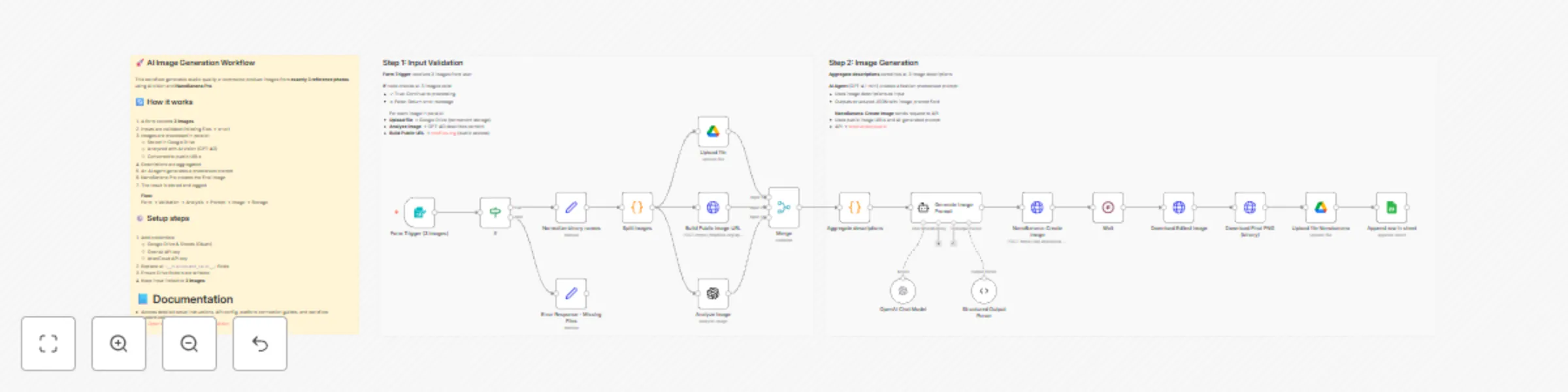
## 🚀 AI Image Generation Workflow – Scalable E-commerce Product Images This workflow automates the creation of high-quality, AI-generated product images using **NanoBanana Pro**. It analyzes multiple reference images, generates a professional photoshoot-style prompt, creates a new image, and stores the final result with a public URL for reuse. 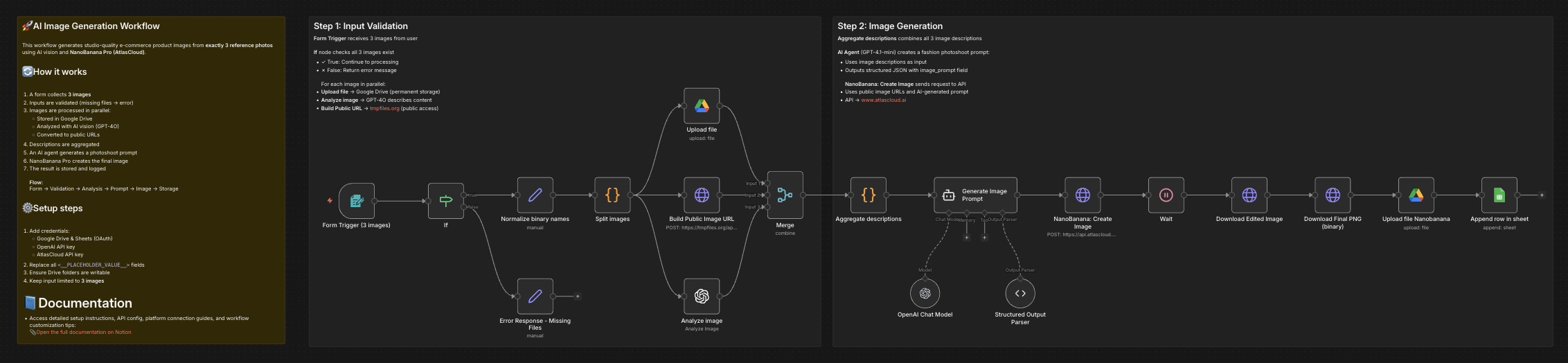 --- 📄 **Documentation**: [Notion Guide](https://automatisation.notion.site/Create-scalable-e-commerce-product-images-from-photos-using-NanoBanana-Pro-2e33d6550fd9808e8891f7d606b49df7?source=copy_link) ## 👤 Who is this for? This workflow is designed for: - E-commerce store owners - Digital marketers and growth teams - Creative agencies - Automation builders using n8n - Anyone who wants to generate scalable, consistent product images from existing photos No advanced coding skills are required. --- ## ❓ What problem does this workflow solve? / Use case Creating professional product images at scale is expensive, slow, and inconsistent. This workflow solves: - Manual photoshoot costs - Inconsistent visual branding - Time wasted on prompt writing - Difficulty generating AI-ready public image URLs - Repetitive image upload and storage steps **Typical use case:** Transform 3 reference photos (model + product) into a studio-quality fashion image automatically. --- ## ⚙️ What this workflow does 1. Collects **exactly 3 images** via a form upload 2. Validates inputs to ensure all required images are present 3. Splits images into individual processing paths 4. Uploads original images to Google Drive (permanent storage) 5. Generates public, crawlable image URLs 6. Analyzes each image using AI vision (GPT-4O) 7. Aggregates image descriptions into a structured context 8. Generates a professional photoshoot prompt using an AI agent 9. Creates a new image via NanoBanana Pro 10. Polls the API until the image generation is completed 11. Downloads the final image as a binary file 12. Uploads the final image to Google Drive 13. Logs results (images + descriptions) into Google Sheets --- ## 🛠️ Setup ### Required credentials - Google Drive (OAuth) - Google Sheets (OAuth) - OpenAI API key - AtlasCloud API key ### Required configuration 1. Replace all `<__PLACEHOLDER_VALUE__>` fields: - Google Drive folder IDs - Google Sheets document ID and sheet name - AtlasCloud API key 2. Ensure Google Drive folders have write permissions 3. Confirm tmpfiles.org is reachable from your environment ### Important notes - The workflow expects **exactly 3 images** - The final image is downloaded as binary before upload - Public URLs are normalized to `https://tmpfiles.org/dl/...` for maximum AI compatibility ### 🎥 [Watch This Tutorial](https://youtu.be/EVIvyyoNrQE)  --- ### 👋 Need help or want to customize this? 📩 Contact: [LinkedIn](https://www.linkedin.com/in/dr-firas/) 📺 YouTube: [@DRFIRASS](https://www.youtube.com/@DRFIRASS) 🚀 Workshops: [Mes Ateliers n8n](https://hotm.art/formation-n8n) ### Need help customizing? Contact me for consulting and support : [Linkedin](https://www.linkedin.com/in/dr-firas/) / [Youtube](https://www.youtube.com/channel/UCriIQI8uaoEro5FEnOpeidQ) / [🚀 Mes Ateliers n8n ](https://hotm.art/formation-n8n)
Curate and post AI news to X, Bluesky, Threads and more with GPT-5 mini and Cue
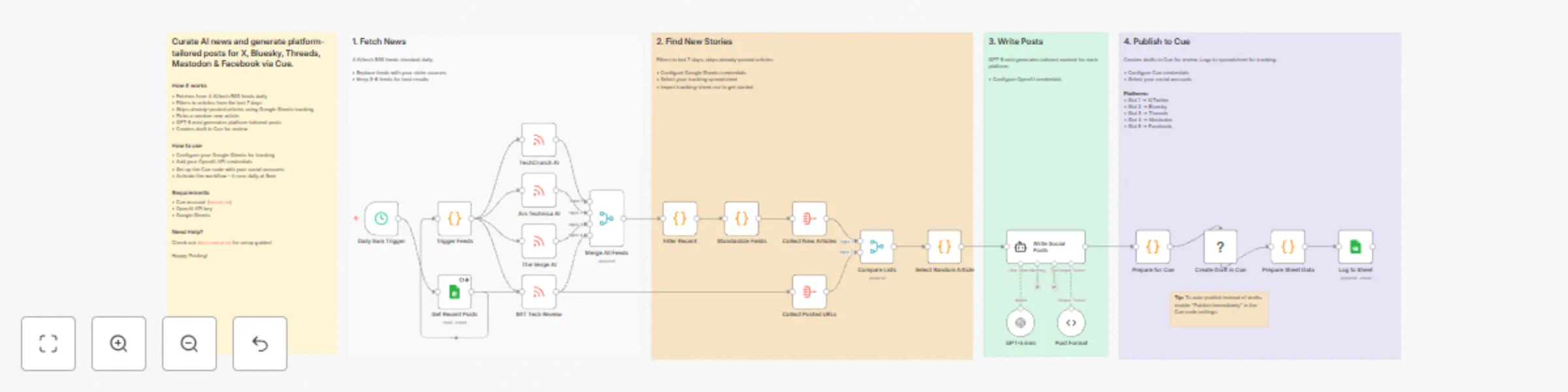
# Curate & post AI news to X, Bluesky, Threads & more via GPT-5 mini & Cue This n8n template automatically curates AI news from RSS feeds and generates platform-tailored social media posts using GPT-5 mini. Posts are saved as drafts in Cue for review before publishing to X, Bluesky, Threads, Mastodon, and Facebook. Use cases include: * Daily automated AI/tech news curation * Multi-platform social media content creation * Building thought leadership with consistent posting * Staying on top of industry news without manual effort ## Who is this for? This workflow is ideal for: * Tech content creators who want to share AI news across multiple platforms * Social media managers handling multiple accounts * Anyone building an audience around AI/tech topics * Teams who want consistent daily content without manual curation ## What problem does this workflow solve? Manually curating news, writing platform-specific posts, and publishing across 5 different social networks is time-consuming. This workflow automates the entire process: * **Curation** - Pulls from 4 trusted AI/tech RSS feeds daily * **Deduplication** - Tracks posted articles in Google Sheets so you never share the same story twice * **Content creation** - GPT-5 mini writes posts tailored to each platform's style and character limits * **Review workflow** - Creates drafts in Cue so you can review before publishing ## How it works 1. **Schedule Trigger** - Runs daily at 9am (configurable) 2. **RSS Feeds** - Fetches articles from TechCrunch AI, Ars Technica AI, The Verge AI, and MIT Tech Review 3. **Filter & Merge** - Combines all feeds and filters to articles from the last 7 days 4. **Deduplication** - Compares against Google Sheets to find unposted articles 5. **Random Selection** - Picks one random article from available stories 6. **AI Generation** - GPT-5 mini generates 5 platform-specific posts with appropriate tone and length 7. **Save to Cue** - Creates a draft post with all 5 platform variations 8. **Log to Sheet** - Records the article URL to prevent future duplicates ## Setup ### Requirements * [Cue account](https://oncue.so) with connected social accounts * OpenAI API key * Google account for Sheets ### Step 1: Install the Cue community node 1. Go to **Settings** → **Community Nodes** 2. Click **Install** 3. Enter `@cuehq/n8n-nodes-cue` ### Step 2: Create tracking spreadsheet 1. Create a new Google Sheet named "AI News Tracker" 2. Add these column headers in row 1: * `article_url` * `title` * `source` * `processed_at` ### Step 3: Configure credentials 1. **Google Sheets** - Add OAuth2 credentials and connect to the "Get Recent Posts" node 2. **OpenAI** - Add your API key and connect to the "GPT-5 mini" node 3. **Cue** - Add your API key from [Cue Settings](https://app.oncue.so/settings/api) ### Step 4: Configure the Cue node 1. Open the **Create Draft in Cue** node 2. Select your **Profile** 3. For each platform slot, select your social account: * Slot 1 → X/Twitter * Slot 2 → Bluesky * Slot 3 → Threads * Slot 4 → Mastodon * Slot 5 → Facebook Don't have all 5 platforms? Simply delete the unused slots. ### Step 5: Publish Save and click **Publish** to activate the workflow. ## Customizing this workflow ### Change the schedule Edit the **Daily 9am Trigger** node to run at a different time or frequency. ### Use different RSS feeds Replace the feed URLs with sources relevant to your niche. The workflow handles any standard RSS feed. Keep 3-6 feeds for best results. ### Auto-publish instead of drafts To publish immediately instead of creating drafts, enable **Publish Immediately** in the Cue node settings. ### Adjust the AI tone Modify the system prompt in the **Write Social Posts** node to match your brand voice or adjust platform-specific guidelines. ## Good to know * **Cost** - Each run uses one OpenAI API call. With GPT-5 mini, this costs approximately $0.01-0.02 per execution. * **Draft review** - Posts are created as drafts in Cue, giving you a chance to review and edit before publishing. * **Deduplication** - The Google Sheet tracks all posted URLs, so the same article is never shared twice. ## About Cue [Cue](https://oncue.so) is a social media scheduling platform that lets you manage and publish content across X, Bluesky, Threads, Mastodon, Facebook, LinkedIn, TikTok, and Instagram from a single dashboard. Key features: * **Multi-platform publishing** - Schedule once, publish everywhere * **Platform-specific content** - Tailor each post for different audiences * **Draft workflow** - Review and edit before publishing * **API & integrations** - Connect with n8n, Zapier, Make, and custom apps [Get started free](https://oncue.so) · [Documentation](https://docs.oncue.so) · [n8n Community Node](https://www.npmjs.com/package/@cuehq/n8n-nodes-cue)

Create and post social media image captions with GPT-4.1-mini and Google Sheets
# Social Media Posting Automation with Image and Caption ## How it works This AI-powered workflow streamlines your social media posting process, transforming hours of manual caption writing, image uploading, and scheduling into a fully automated system. You define the topic and image once, and the workflow handles caption generation, review, approval, and posting to your selected platforms. ### Automated Flow 1. **Generate Caption** Trigger the workflow manually and set your post topic and image URL in the Set node. The AI (GPT-4.1-mini) generates a high-quality, engaging social media caption tailored to your audience, platform, and content goals. 2. **Store in Google Sheet** The generated caption, along with your image URL and post metadata, is automatically appended to your Google Sheet. This creates a central location to review and manage all your social media content. 3. **Review and Approve** You review the generated caption in the sheet, make any edits if needed, and update the status to **Approved**. You can also select the platform(s) where you want to post. 4. **Automatic Posting** Once the status is updated to Approved, the next workflow is triggered automatically. It posts your caption and image to the selected social media platform(s) without any further manual effort. **The result?** A seamless, end-to-end social media posting process where captions are AI-generated, stored, reviewed, and posted automatically. Focus on strategy and engagement instead of repetitive manual posting. --- ## Setup Steps **Setup time:** ~10–15 minutes **What you’ll need:** OpenAI API key, Google account, access to your social media platform(s) 1. **Connect Your Google Account** - Click on the Google Sheets node in your workflow. - Select the Credential dropdown and choose **+ Create New Credential**. - Authenticate your Google account and grant the necessary permissions. 2. **Initialize Your Spreadsheet** - Run the workflow once by clicking the play button on the start node. - This will automatically create a Google Sheet with all the required columns for caption tracking and approval. 3. **Add Your OpenAI API Key** - Navigate to the AI Agent node. - Click the Credential dropdown and select **+ Create New Credential**. - Paste your OpenAI API key and save. - Get your API key from [platform.openai.com/api-keys](https://platform.openai.com/api-keys). 4. **Set Post Topic and Image** - Update the title in the Set node with the topic you want to post. - Add the image URL associated with your post. 5. **Review Captions and Approve** - Open your Google Sheet, review the generated captions, and update the status to **Approved**. - Select the platform(s) where the post should go live. 6. **Go Live** - Once the status is updated, the workflow will automatically post your content to the selected social media platform(s). - Sit back and watch your AI-generated captions and images go live automatically. **Ready to automate your social media?** Activate your workflow and start posting smarter today! 🚀💡✅
Generate Sora v2 ASMR clips with GPT-5.1, stitch via Cloudinary, and post to Twitter/X
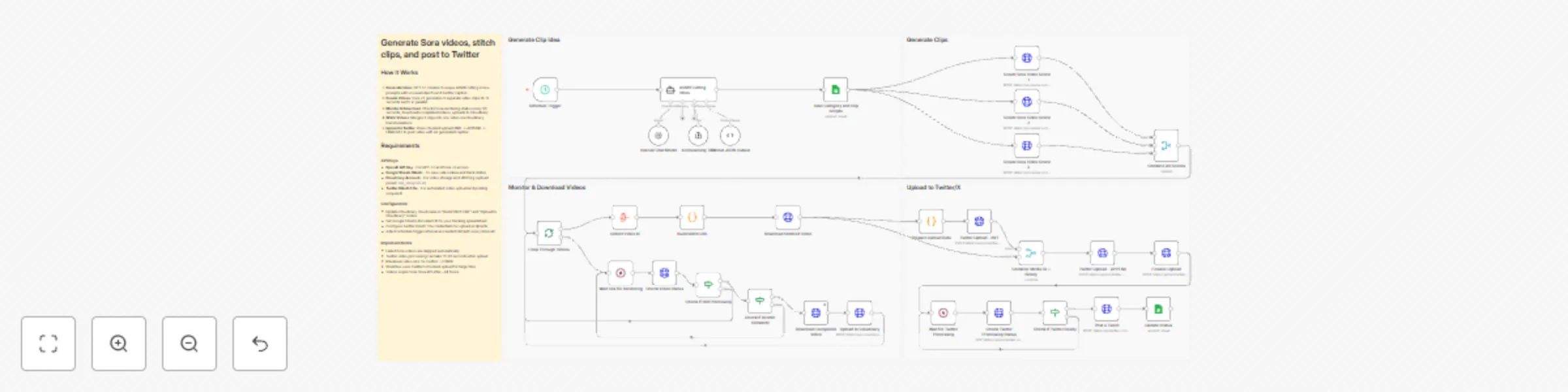
# Generate Sora videos, stitch clips, and post to Twitter Generate creative ASMR cutting video concepts with GPT-5.1, create high-quality video clips using Sora v2, stitch them together with Cloudinary, and automatically post to Twitter/X—transforming ideas into viral content without manual video editing. ## **How it works** **Step 1: Generate Video Concepts** - Schedule Trigger activates the workflow automatically - GPT-5.1 AI agent generates 3 unique ASMR cutting scene prompts with unusual objects - Creates structured video prompts optimized for Sora v2 (frontal camera angle, cutting actions) - Generates Twitter-ready captions with relevant hashtags - Saves all concepts and scripts to Google Sheets for tracking **Step 2: Create Video Clips with Sora v2** - Generates 3 separate Sora v2 video clips in parallel (8-12 seconds each) - Each clip uses unique prompts from GPT-5.1 output - Videos render at 720x1280 resolution (vertical format for social media) - System waits 30 seconds for rendering to complete **Step 3: Monitor & Download Videos** - Loops through all 3 video generation requests - Checks Sora API status every 30 seconds until rendering completes - Automatically skips failed renders (continues workflow with successful videos) - Downloads completed videos from Sora API - Uploads each clip to Cloudinary for storage and processing **Step 4: Stitch Videos Together** - Collects all uploaded Cloudinary video IDs - Builds Cloudinary transformation URL to stitch 3 clips into one seamless video - Applies Twitter-compatible encoding (H.264 baseline, AAC audio, MP4 format) - Downloads the final stitched video **Step 5: Upload to Twitter/X** - Prepares video file data and calculates total file size - Uses Twitter's chunked upload API (INIT → APPEND → FINALIZE) - Waits for Twitter's video processing to complete - Checks processing status until video is ready - Posts tweet with AI-generated caption and attached video - Updates Google Sheets status to "Posted" ## **What you'll get** - **AI-Generated Concepts**: Creative ASMR cutting ideas with unusual objects (glass avocados, lava rocks, rainbow soap) - **Professional Video Clips**: Three 8-12 second Sora v2 videos per concept with 720x1280 resolution - **Seamless Stitching**: Single combined video optimized for Twitter/X specifications - **Engaging Captions**: GPT-5.1 generated tweets with hashtags designed for virality - **Automated Posting**: Direct upload to Twitter/X without manual intervention - **Cloud Backup**: All videos stored in Cloudinary with metadata - **Progress Tracking**: Google Sheets integration shows workflow status (In Progress → Posted) - **Error Handling**: Failed Sora renders are automatically skipped ## **Why use this** - **Save 4+ hours per video**: Eliminate scripting, shooting, editing, and posting time - **Consistent posting schedule**: Set it and forget it with the Schedule Trigger - **Scale content creation**: Generate multiple video variations in 20-30 minutes - **Professional quality**: Leverage Sora v2's AI video generation for realistic cutting scenes - **Optimize for virality**: GPT-5.1 creates concepts and captions designed for engagement - **Reduce creative burnout**: AI handles ideation, execution, and distribution - **No video editing skills needed**: Complete automation from concept to post - **Test multiple concepts**: Generate 3 variations per run to see what resonates ## **Setup instructions** ### **Required accounts and credentials:** 1. **OpenAI API Key** (GPT-5.1 and Sora v2 access required) - Sign up at https://platform.openai.com - Ensure your account has Sora v2 API access enabled - Generate API key from API Keys section - Note: Sora v2 is currently in limited beta 2. **Google Sheets OAuth** (for tracking video ideas and status) - Free Google account required - Create a spreadsheet with columns: Category, Scene 1, Scene 2, Scene 3, Status - n8n will request OAuth permissions during setup 3. **Cloudinary Account** (for video storage and stitching) - Sign up at https://cloudinary.com (free tier available) - Note your cloud name from the dashboard - Create an upload preset named `n8n_integration` - Enable unsigned uploads for the preset 4. **Twitter OAuth 1.0a Credentials** (for automated posting) - Apply for Twitter Developer access at https://developer.twitter.com - Create a new app in the Developer Portal - Generate: API Key, API Secret, Access Token, Access Token Secret - Enable "Read and Write" permissions (not just Read) - OAuth 1.0a is required for media uploads (OAuth 2.0 won't work) ### **Configuration steps:** 1. **Update OpenAI API Key**: - Add your OpenAI API key to these nodes: - "OpenAI Chat Model" credentials - "Create Sora Video Scene - 1" (Authorization header) - "Create Sora Video Scene - 2" (Authorization header) - "Create Sora Video Scene - 3" (Authorization header) - "Check Video Status" (Authorization header) - "Download Completed Video" (Authorization header) - Replace `Bearer API KEY` with `Bearer YOUR_ACTUAL_API_KEY` 2. **Configure Google Sheets**: - Open "Save Category and Clip Scripts" and "Update Status" nodes - Authenticate with your Google account (OAuth 2.0) - Select your spreadsheet and sheet name - Ensure columns match: Category, Scene 1, Scene 2, Scene 3, Status - The workflow will update Status from "In Progress" to "Posted" 3. **Update Cloudinary Settings**: - In "Upload to Cloudinary" node: - Replace `{Cloud name here}` in the URL with your Cloudinary cloud name - Verify upload preset is set to `n8n_integration` - In "Build Stitch URL" node: - Open the Code node - Replace `dph9n4uei` on line 1 with your cloud name - This builds the video stitching transformation URL 4. **Add Twitter OAuth 1.0a Credentials**: - Configure OAuth 1.0a in these nodes: - "Twitter Upload - INIT" - "Twitter Upload - APPEND" - "Finalize Upload" - "Check Twitter Processing Status" - "Post a Tweet" - Use the same OAuth 1.0a credential for all nodes - Ensure your Twitter app has "Read and Write" permissions 5. **Adjust Schedule Trigger** (optional): - Default: Runs on every interval - Modify in "Schedule Trigger" node to set specific times - Recommended: Once per day or every few hours to avoid rate limits 6. **Test the workflow**: - Click "Execute Workflow" to test manually first - Verify GPT-5.1 generates 3 video concepts - Check that Sora v2 creates all 3 videos - Confirm Cloudinary stitches videos correctly - Ensure Twitter post appears with video and caption ### **Important notes:** - **Sora API Rate Limits**: Sora v2 may have rendering quotas. Monitor your usage - **Video Rendering Time**: Each Sora clip takes 2-5 minutes. Total workflow: 15-25 minutes - **Failed Videos**: The workflow automatically skips failed renders and continues - **Twitter Video Limits**: Maximum 512MB per video, MP4 format required - **Cloudinary Free Tier**: 25 credits/month includes video transformations - **Cost Estimate**: ~$1-3 per run (Sora API pricing varies) ### **Troubleshooting:** - **"Sora API access required"**: Contact OpenAI to enable Sora v2 API on your account - **Twitter upload fails**: Verify OAuth 1.0a credentials have "Read and Write" permissions - **Cloudinary upload fails**: Check cloud name and ensure upload preset exists - **Videos don't stitch**: Verify all 3 videos uploaded successfully to Cloudinary - **Google Sheets not updating**: Confirm OAuth permissions and sheet column names match ### **Next steps:** 1. Enable the Schedule Trigger to automate daily/weekly posts 2. Monitor Google Sheets to track posted content 3. Adjust GPT-5.1 prompts in "ASMR Cutting Ideas" for different content themes 4. Experiment with different video durations (8 vs 12 seconds) 5. Add error notifications using Email or Slack nodes

Consolidate and report monthly financial PDFs with Google Drive and Slack
# Consolidate and report monthly financial documents using Google Drive and Slack ## 🎯 Description Streamline your month-end accounting processes with this enterprise-grade automation designed to aggregate, validate, and merge fragmented financial documents into a single, professional reporting bundle. This workflow transforms manual document chaos into a structured, touchless system using Google Drive and Slack. ### ✨ How to achieve automated document consolidation You can achieve a fully autonomous financial reporting cycle by using the available tools to: 1. **List and scan folders** — Automatically retrieve all documents from a designated Google Drive folder at the end of each month. 2. **Validate file formats** — Use an **IF Node** to ensure only PDF documents (invoices, receipts, statements) are processed, preventing workflow crashes from incompatible file types. 3. **Aggregate binary data** — Gather separate file streams into a unified data array using the **Aggregate Node** to ensure stable processing for the merge engine. 4. **Merge into master reports** — Utilize the **HTML to PDF** engine to consolidate individual files into one "Monthly Finance Pack" with professional naming conventions. 5. **Secure and archive** — Upload the consolidated master file back to a secure archive folder in Google Drive. 6. **Notify the team** — Send a real-time **Slack** alert with the final filename, ensuring the accounting team knows exactly when the report is ready. ### 💡 Key features **Intelligent filtering and validation** The workflow auto-detects MIME types to filter out non-PDF noise and system files. This ensures a consistent input for the merge engine and prevents processing errors. **Advanced data aggregation** By utilizing the **Aggregate Node**, the workflow handles multiple binary files simultaneously. This architecture prevents the "looping errors" common in basic PDF workflows and maintains document order during the merge process. **Dynamic time-stamping with Luxon** A critical technical feature of this template is the use of **Luxon expressions** for professional document naming. By utilizing `{{ $now.setZone('America/New_York').toFormat('MMMM yyyy') }}` within the Slack and upload nodes, the workflow automatically generates accurate timestamps. This eliminates manual renaming and ensures your archives are perfectly organized by month and year. ### 🎯 Perfect for * **Finance departments** — Consolidate hundreds of monthly vendor invoices into one audit-ready file. * **Property managers** — Bundle monthly utility bills and maintenance receipts for property owners. * **Freelancers and agencies** — Collate all business expenses for the month to send to a tax preparer. ### 📦 What you will need **Required integrations:** 1. **Google Drive** — Source folder for documents and destination for the final bundle. 2. **HTML to PDF Node** — The core engine for PDF merging operations. 3. **Slack** — For automated team notifications and status updates. ### 📈 Expected results * **90% time savings** — Reduce manual report creation from 30 minutes to seconds. * **Zero lost documents** — Maintain a complete digital trail with automatic archival. * **Audit readiness** — Ensure a consistent naming and storage structure for all past financial reports. *** **Ready to automate your reporting?** Import this template, connect your credentials, and turn your monthly document collection into a 100% automated workflow.

Create Viral 😎 AI celebrity selfies 📸 with Nano Banana Pro & upload to Instagram
This workflow automates the creation of **AI-generated viral selfie images with celebrities** using **Nano Banana Pro Edit** via [RunPod](https://get.runpod.io/n3witalia), generates engaging social media captions, and publishes the content to **Instagram** via [Postiz](https://affiliate.postiz.com/n3witalia). It starts with a form submission where the user provides an image URL, a custom prompt, and an aspect ratio. | START | RESULT | |------|--------| |  |  | --- ### Key Advantages #### 1. ✅ Full Automation, Zero Manual Effort From image generation to caption writing and publishing, the entire process is automated. This drastically reduces production time and eliminates repetitive manual tasks. #### 2. ✅ Scalable Content Creation The workflow can handle unlimited submissions, making it ideal for: * Creators * Agencies * Growth teams * SaaS products offering AI-generated content #### 3. ✅ Consistent Viral Quality By using a dedicated AI content agent with strict guidelines, every post is: * Optimized for engagement * Consistent in tone and quality * Designed to maximize comments, shares, and saves #### 4. ✅ No Technical Skills Required for End Users The form-based entry point allows anyone to generate high-quality, celebrity-style content without understanding AI, APIs, or automation. #### 5. ✅ Multi-Tool Integration in One Pipeline The workflow seamlessly connects: * AI image generation (RunPod) * AI content intelligence (Google Gemini) * Asset storage (Google Drive) * Social media distribution (Postiz) #### 6. ✅ Brand-Safe and Platform-Native Output The captions are written to feel human and authentic, avoiding: * Obvious AI language * Overuse of emojis * Mentions of AI generation This increases trust and platform compatibility. #### 7. ✅ Perfect for Growth and Monetization This workflow is ideal for: * Viral growth experiments * Personal brand scaling * Automated influencer-style content * AI-powered SaaS or lead magnets --- ### How it works The workflow then: 1. Sends the image and prompt to RunPod’s Nano Banana Pro Edit API for AI image generation. 2. Periodically checks the generation status until it is completed. 3. Once the image is ready, it is downloaded and analyzed by Google Gemini to generate a viral-ready Instagram caption and hashtags. 4. The final image is uploaded to Google Drive and to Postiz for social media publishing. 5. The caption and image are combined and scheduled for posting on Instagram through the Postiz integration. The process includes conditional logic, waiting intervals, and error handling to ensure reliable execution from input to publication. --- ### Set up steps To use this workflow in n8n: 1. **Configure credentials**: - Add [RunPod API](https://get.runpod.io/n3witalia) credentials under `httpBearerAuth` named “Runpods”. - Set up Google Gemini (PaLM) API credentials for caption generation. - Add [Postiz API](https://affiliate.postiz.com/n3witalia) credentials for social media posting. - Configure Google Drive OAuth2 credentials for image backup. 2. **Prepare nodes**: - Ensure the Form Trigger node is properly set up with the required fields: `IMAGE_URL`, `PROMPT`, and `FORMAT`. - Update the RunPod API endpoints in the “Generate selfie” and “Get status clip” nodes if needed. - Verify the Google Drive folder ID in the “Upload file” node. - Replace `XXX` in the “Upload to Social” node with a valid Postiz integration ID. 3. **Test the flow**: - Use the pinned test data in the “On form submission” node to simulate a form entry. - Activate the workflow and submit the form to trigger the process. - Monitor execution in n8n’s workflow view to ensure all nodes run successfully. --- 👉 [Subscribe to my new **YouTube channel**](https://youtube.com/@n3witalia). Here I’ll share videos and Shorts with practical tutorials and **FREE templates for n8n**. [](https://youtube.com/@n3witalia) --- ### **Need help customizing?** [Contact me](mailto:[email protected]) for consulting and support or add me on [Linkedin](https://www.linkedin.com/in/davideboizza/).

Create AI Viral Selfie videos 🎬 with celebrities 😎 using Google Veo 3.1
This workflow demonstrates how to create **viral AI-generated selfie videos featuring famous characters** using a fully automated and platform-independent approach. The process is designed to replicate the kind of celebrity selfie videos that are currently going viral on social media and YouTube, where a **realistic selfie-style video** appears to show the creator together with a well-known **public figure**. Instead of relying on a proprietary or closed platform, the workflow explains how to build the entire pipeline using direct access to **Google Veo 3.1** APIs, giving full control over generation, orchestration, and distribution. --- ### Key Advantages #### 1. ✅ Fully automated video pipeline From prompt to final published video, the entire process runs without manual intervention. #### 2. ✅ Spreadsheet-driven control Non-technical users can manage video production simply by editing Google Sheets: * Add new prompts * Adjust duration * Control merge logic #### 3. ✅ Scalable and modular * Supports batch processing of many videos * Easy to extend with new AI models, platforms, or output formats #### 4. ✅ Reliable async handling * Built-in wait and status-check logic ensures robustness * Prevents failures caused by long-running AI jobs #### 5. ✅ Centralized asset management * Automatically stores video URLs and statuses * Keeps production data organized and auditable #### 6. ✅ Multi-platform ready * One generated video can be reused for: * YouTube * TikTok * Instagram * Other social channels #### 7. ✅ Cost and time efficiency * Eliminates repetitive manual video editing * Reduces production time from hours to minutes #### Ideal Use Cases * AI-generated storytelling videos * Social media content automation * Marketing video campaigns * Short-form video experiments at scale * Faceless or semi-automated content channels --- ### **How it Works** This workflow automates the generation of short video clips using AI, merges them into a final video, and optionally uploads the result to multiple platforms. 1. **Trigger & Data Fetching** The workflow starts with a manual trigger. It reads a Google Sheet containing prompts, image URLs (first and last frames), and duration settings for each video clip to be generated. 2. **Video Clip Generation** For each row in the sheet, the workflow calls the **fal.ai VEO 3.1 API** to generate a video clip based on the provided prompt, start image, end image, and duration. The clip is created asynchronously, so the workflow polls the API for status until completion. 3. **Status Polling & URL Retrieval** Once a clip is marked as `COMPLETED`, its video URL is fetched and written back to the Google Sheet in the corresponding row. 4. **Video Merging** After all clips are generated, the workflow collects the video URLs from rows marked for merging and sends them to the **fal.ai FFmpeg API** to be combined into a single video. 5. **Final Video Processing** The merged video is polled until ready, then its final URL is retrieved. The video file is downloaded via HTTP request. 6. **Upload & Distribution** The final video can be uploaded to: - Google Drive - YouTube (via [upload-post.com API](https://www.upload-post.com/?linkId=lp_144414&sourceId=n3witalia&tenantId=upload-post-app)) - [Postiz](https://affiliate.postiz.com/n3witalia) (for multi-platform social media posting) Each upload step is currently disabled and requires configuration (usernames, titles, platform settings). **WARNING** It may happen that the workflow stops at the video generation node with the following message: > *Your request is invalid or could not be processed by the service [item 0]* > *The content could not be processed because it contained material flagged by a content checker.* This occurs because images are checked both **before and after** the video generation process. If this happens, you can either use **less restrictive video models** while keeping the same workflow structure, or **change the source images** in the Google Sheets file. --- ### **Set Up Steps** 1. **Google Sheets Setup** - Prepare a Google Sheet with columns: `START`, `LAST`, `PROMPT`, `DURATION`, `VIDEO URL`, `MERGE` - Connect n8n to Google Sheets using OAuth2 credentials. 2. **Fal.ai API Configuration** - Obtain an API key from fal.ai. - Set up **HTTP Header Auth** credentials in n8n with the key. 3. **Upload Services Configuration** - **Google Drive**: Configure OAuth2 credentials and specify the target folder ID. - [**YouTube/upload-post.com**](https://www.upload-post.com/?linkId=lp_144414&sourceId=n3witalia&tenantId=upload-post-app): Enter your username and title in the respective node. - [**Postiz**](https://affiliate.postiz.com/n3witalia): Set up Postiz API credentials and configure platform channels. 4. **Enable Required Nodes** - Enable the upload nodes (`Upload Video`, `Upload to Youtube`, `Upload to Postiz`, `Upload to Social`) once credentials are configured. 5. **Adjust Polling Intervals** - Modify wait times (`Wait 30 sec.`, `Wait 60 sec.`) as needed based on video processing times. 6. **Test Execution** - Start the workflow manually via the trigger node. - Monitor execution in n8n’s editor and check the Google Sheet for updated video URLs. This workflow is designed for batch video creation and merging, ideal for content pipelines involving AI-generated media. --- 👉 [Subscribe to my new **YouTube channel**](https://youtube.com/@n3witalia). Here I’ll share videos and Shorts with practical tutorials and **FREE templates for n8n**. [](https://youtube.com/@n3witalia) --- ### **Need help customizing?** [Contact me](mailto:[email protected]) for consulting and support or add me on [Linkedin](https://www.linkedin.com/in/davideboizza/).

Generate product feature announcements from Notion to Google Docs with GPT-5 Mini and Claude
This n8n workflow automatically generates professional product announcements and blog articles from your Notion content planning database. ## Who's it for & Use Cases Product Marketers, Content Teams, Product Managers, and Founders who want to: * Automate product announcement creation from their Notion product backlog. * Generate SEO and AI Search/ALLMO optimized blog articles with consistent structure and brand voice * Maintain an up to date product changelog for products with frequent udpates. ## How It Works ### Phase 1: Notion Trigger & Validation 1. Workflow monitors your Notion "Content Plan" database for page updates 2. Validates that the entry is marked as ready for writing 3. Checks that content type is set to "Product" (filters other content types) ### Phase 2: AI Outline Generation 1. GPT-5 Mini creates a structured outline based on: - Project name from Notion - Notes field (context/instructions) - Built-in SEO and ALLMO best practices 2. Output includes sections, subsections, and key talking points ### Phase 3: Full Article Generation 1. Claude Sonnet 4.5 writes the complete product announcement using: - The generated outline - Project details from Notion - Expert product communications system prompt 2. Article follows structured format: headline, summary, feature sections, FAQ, CTA, and SEO metadata ### Phase 4: Google Docs Creation & Notion Update 1. Creates new Google Doc with your project name as title 2. Inserts the complete Markdown article into the document 3. Updates Notion page with Google Docs link for instant access 4. Marks the project as complete in Notion ## How to Setup * Connect your Notion account and select your Content Plan database * Enter API credentials in the Claude and OpenAI nodes * Configure your Google Docs folder location * Customize system prompts with your company description, target audience, and brand voice ## How to Expand * Replace the Notion node with a product backlog tool of your choice. * Update and fine tune the prompts. ## Output Structure * Full Markdown article with YAML front matter * Structured sections: headline, summary, feature descriptions, additional improvements, FAQ, CTA * SEO metadata included (title, meta description, slug, tags) * Automatically saved to Google Docs with link in Notion ## Requirements **API Credentials:** * Anthropic API (Claude Sonnet 4.5) * OpenAI API (GPT-5 Mini) **Connected Services:** * Notion workspace with Content Plan database * Google Docs/Drive account **Notion Database Fields:** * Project name (title/text) * Notes (text/description field) * Google_Docs_Link (URL field) * Status field to mark entries as ready (e.g., "Ready for Writing") * Content Type field set to "Product"

Generate pain-driven content ideas from market signals with GPT-4o, Xpoz MCP, Google Sheets, ClickUp, and Slack
 ## 📘 Description This workflow automates market-driven content ideation by continuously discovering real user pain points from public discussions and converting them into execution-ready content ideas. It is designed for growth and content teams who want ideas grounded in actual customer language, frustrations, and unmet needs—rather than assumptions or generic brainstorming. On a scheduled basis, the workflow scans public search and social platforms for conversations related to a defined niche and keyword set. An AI discovery agent extracts recurring pain points, common complaints, and the exact phrasing users use when describing their problems. These raw market signals are then transformed by a second AI agent into pain-driven content ideas, each mapped to a platform, format, hook, core pain point, resonance logic, and CTA. All generated ideas are normalized, stored in a central Google Sheets content database, converted into execution tasks in ClickUp, and summarized in Slack for immediate team visibility. Built-in error handling ensures failures are reported instantly. ## ⚠️ Deployment Disclaimer This workflow is intended for self-hosted n8n instances only. It relies on MCP-based social intelligence tools and advanced AI agent orchestration not supported on n8n Cloud. ## ⚙️ What This Workflow Does (Step-by-Step) - ⏰ Scheduled Market Discovery Trigger Runs automatically on a defined schedule. - 🧾 Inject Niche and Keyword Parameters Defines the research scope for discovery. - 🔎 Extract Raw User Pain Points (AI) Scans public discussions to capture real frustrations, questions, and language—no solutions, no opinions. - 📡 Public Search & Social Intelligence (MCP) Fetches relevant public conversations for analysis. - 🧠 Generate Pain-Driven Content Ideas (AI) Converts raw pain points into platform-ready content ideas with hooks, formats, and CTAs. - 🧹 Normalize & Parse AI Output Cleans and standardizes content ideas for downstream systems. - 📊 Store Content Ideas in Google Sheets Appends ideas to a centralized content database. - 🗂 Create Content Tasks in ClickUp Automatically creates execution-ready tasks for the content team. - 📣 Aggregate & Summarize Ideas Generates a concise Slack summary highlighting volume, platforms, and strongest hooks. - 🚨 Workflow Error Handler → Email Alert Sends immediate error notifications if any step fails. ## 🧩 Prerequisites • Self-hosted n8n instance • OpenAI API credentials • MCP (Xpoz) public search & social intelligence credentials • Google Sheets API access • ClickUp API credentials • Slack API access ## 💡 Key Benefits ✔ Content ideas grounded in real user pain ✔ Eliminates manual research and brainstorming ✔ Produces creator-ready, platform-specific ideas ✔ Centralized storage and task creation ✔ Clear Slack visibility for growth teams ✔ Reliable error monitoring ## 👥 Perfect For Content strategists Growth marketers B2B SaaS teams Automation and n8n-focused creators Marketing operations teams
Generate research-backed blog articles from news with OpenAI, Tavily and Google Docs
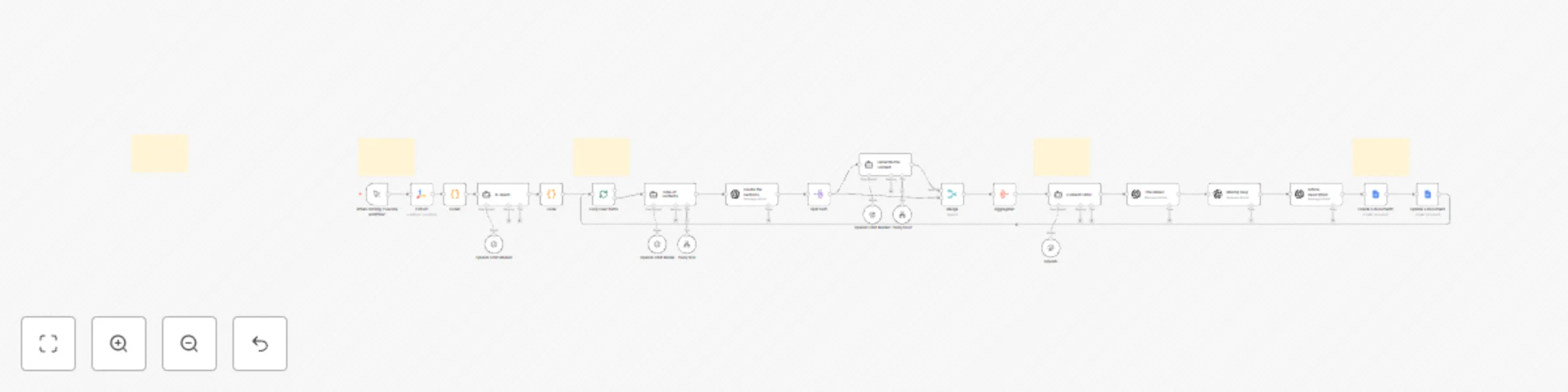
## **How it works** This workflow automatically generates full-length, research-backed blog articles from online news sources. It collects headlines from selected URLs, extracts topic ideas, creates an outline, writes well-structured sections with citations, compiles the article, and finally exports the completed piece to Google Docs. The workflow supports SEO outputs such as title, slug, and meta description, making the article ready for publication. --- ## **Key Features** * **Automatically discovers article topics** from live news sources * **Uses AI + Tavily research** to create credible, well-structured content * **Generates full article sections** with inline citations and internal links * **Merges sections into a refined 1000–1500 word article** * **Creates SEO metadata** — title, slug, and meta description * **Exports the final article to Google Docs automatically** * Supports multiple topics via batch looping --- ## **Step-by-Step Workflow** ### **1️⃣ News Extraction** The workflow begins by fetching content from the configured URLs using the **Extract** node. The scraped page content is processed to pull out headlines and article references. ### **2️⃣ Topic Identification** The **AI Agent** analyzes the extracted headlines and converts them into meaningful blog topic suggestions. ### **3️⃣ Topic Looping** Each topic is processed individually using a loop, ensuring one full article is generated per topic. ### **4️⃣ Table of Contents Generation** The **Table of Contents Agent** creates a structured outline for the article: * Performs research via **Tavily** * Identifies key subtopics * Produces an engaging section plan ### **5️⃣ Section Writing** For each section in the outline: * Content is expanded into a complete paragraph or section * Tavily research is used for validation * Inline hyperlinks and citations are added where appropriate * Content is written in an **informational article style** ### **6️⃣ Article Assembly** All generated sections are merged and refined into a complete article: * Improves readability and flow * Ensures consistent tone * Adds a **Sources** section at the end ### **7️⃣ SEO Enhancements** The workflow automatically generates: * **Article Title** * **SEO Slug** (hyphen-separated, lowercase) * **Meta Description** (~160 characters) ### **8️⃣ Google Docs Export** The workflow: * Creates a new Google Doc * Inserts the complete article * Saves it to the configured Drive folder --- ## **API & Services Required** * **OpenAI API** — article generation, structuring, and metadata * **Tavily API** — research and citation support * **Google Docs OAuth2** — document creation and export *(Optional)* You may add additional sources, categories, or CMS publishing integrations.

Create AI product images and marketing videos with NanoBanana Pro, Veo 3.1 and Blotato
# 💥 Generate product images with NanoBanana Pro to Veo videos and Blotato 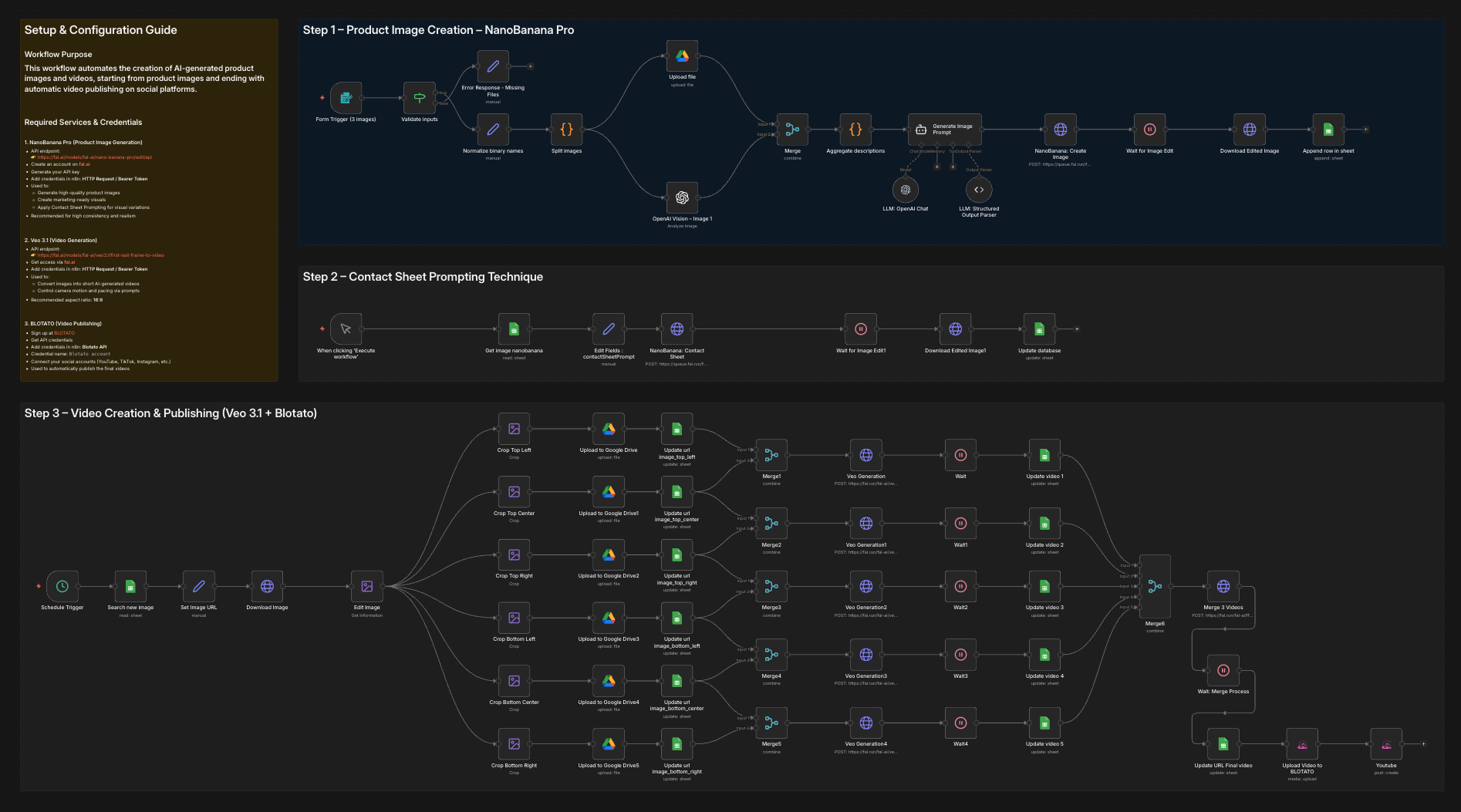 ### Who is this for? This workflow is designed for: - Content creators and marketers - E-commerce and product-based businesses - Agencies producing social media visuals and videos - Automation builders looking for AI-powered creative pipelines It is ideal for anyone who wants to automate product image and video creation using AI and publish content without manual work. --- ### What problem is this workflow solving? / Use case Creating product visuals and marketing videos usually requires multiple tools, manual prompt writing, and repetitive steps. This workflow solves: - Manual image and video creation - Inconsistent visual quality across assets - Time-consuming prompt iteration - Manual video publishing to social platforms The workflow automates the entire process from **image generation to video publishing** using AI. --- ### What this workflow does This workflow provides an end-to-end automation pipeline: 1. Generates high-quality product images using **NanoBanana Pro** 2. Applies **Contact Sheet Prompting** to explore multiple visual variations 3. Converts selected images into short marketing videos using **Veo 3.1** 4. Automatically publishes the final videos via **[BLOTATO](https://blotato.com/?ref=firas)** The result is a fully automated creative workflow that turns AI prompts into ready-to-publish video content. --- ### Setup To use this workflow, you need the following services and credentials: - **OpenAI API** - Used for image analysis and prompt generation - **NanoBanana Pro (fal.ai)** - Product image generation - API: https://fal.ai/models/fal-ai/nano-banana-pro/edit/api - **Veo 3.1 (fal.ai)** - Video generation - API: https://fal.ai/models/fal-ai/veo3.1/first-last-frame-to-video - **Blotato** - Video publishing to social platforms - Sign up at [BLOTATO](https://blotato.com/?ref=firas) All credentials must be added in n8n before running the workflow. --- ### How to customize this workflow to your needs You can easily adapt this workflow by: - Modifying AI prompts to match your brand style - Adjusting image composition and realism parameters in NanoBanana Pro - Changing video motion, pacing, and aspect ratio in Veo 3.1 - Selecting different social platforms or publishing rules in Blotato - Replacing or extending individual steps while keeping the same architecture The workflow is modular and can be reused for multiple products or campaigns. ### 🎥 [Watch This Tutorial](https://youtu.be/-xQFnB-htQY) 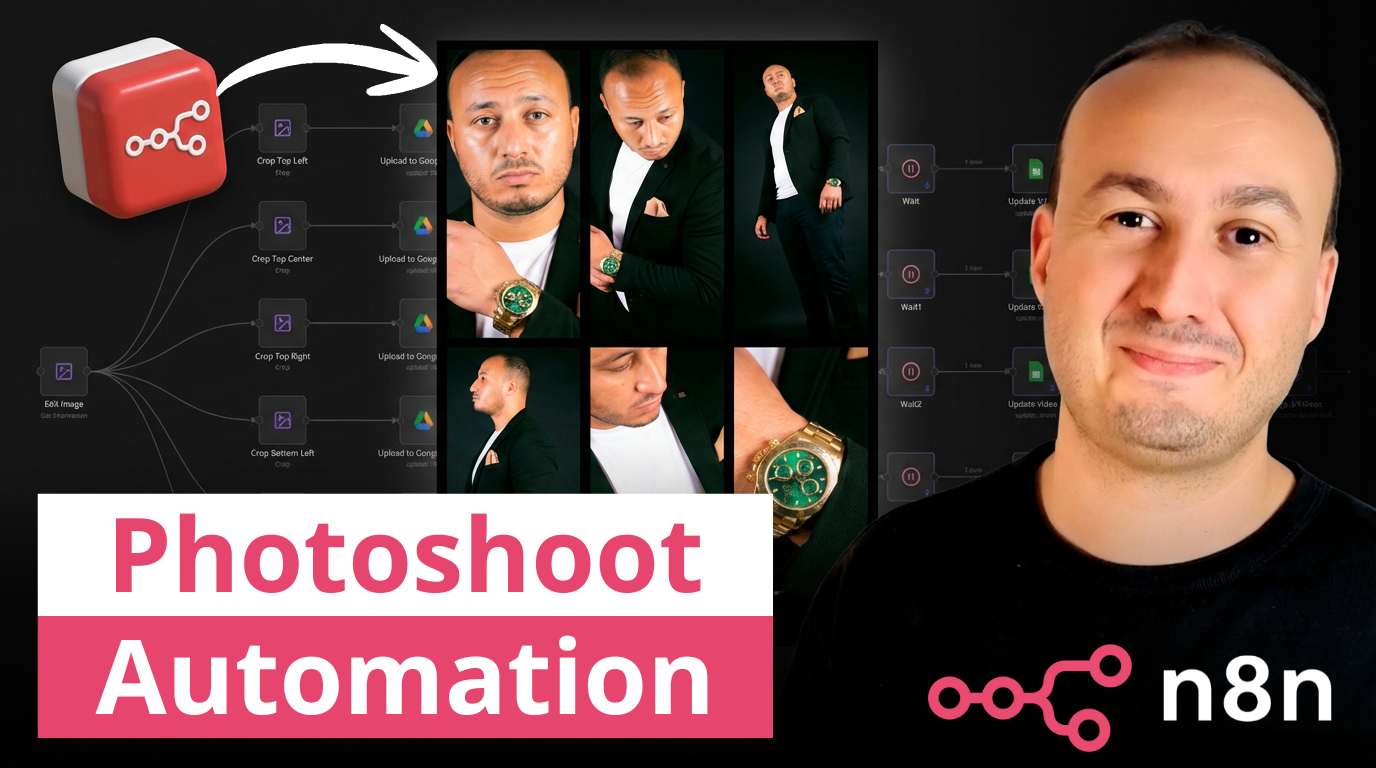 --- ### 👋 Need help or want to customize this? 📩 Contact: [LinkedIn](https://www.linkedin.com/in/dr-firas/) 📺 YouTube: [@DRFIRASS](https://www.youtube.com/@DRFIRASS) 🚀 Workshops: [Mes Ateliers n8n](https://hotm.art/formation-n8n) --- 📄 **Documentation**: [Notion Guide](https://automatisation.notion.site/NonoBanan-PRO-2-2b53d6550fd981a5acbecf7cf50aeb3c?source=copy_link) ### Need help customizing? Contact me for consulting and support : [Linkedin](https://www.linkedin.com/in/dr-firas/) / [Youtube](https://www.youtube.com/channel/UCriIQI8uaoEro5FEnOpeidQ) / [🚀 Mes Ateliers n8n ](https://hotm.art/formation-n8n)

Generate 3D models from images using Hunyuan3D v2 and Google Sheets
*This workflow automates the conversion of 2D images into high-quality 3D models (`.glb` format) by integrating **Google Sheets** with the **Hunyuan3D v2** model on **Fal.ai**. It handles the entire pipeline—from fetching image URLs to polling for completion and saving the final asset—eliminating manual modeling time for artists and developers.*  ### How it works This template operates on a schedule to process images in batches or individually: 1. **Data Retrieval:** The workflow fetches new rows from a Google Sheet where the `RESULT_GLB` column is empty. 2. **AI Generation:** It sends the `IMAGE_URL` to the **Hunyuan3D v2** API on Fal.ai to initiate the 3D generation process. 3. **Status Polling:** The workflow automatically enters a loop, checking the job status every 30 seconds until the model is marked "COMPLETED." 4. **Result Update:** Once finished, it retrieves the download link for the `.glb` file and writes it back to the specific row in your Google Sheet. ### Use Cases * **Game Development:** Rapidly create prototype props and assets from concept art. * **E-commerce:** Convert product photos into 3D models for web viewers. * **AR/VR:** Generate background assets for immersive environments from simple 2D inputs. ### Setup steps 1. **Google Sheet:** * Create a new sheet with two header columns: `IMAGE_URL` and `RESULT_GLB`. * Add the images you want to convert in the first column. 2. **Fal.ai Credentials:** * Sign up at [Fal.ai](https://fal.ai) and generate an API Key. * In n8n, create a **Header Auth** credential with the name `Authorization` and value `Key YOUR_API_KEY`. 3. **Configure Nodes:** * Update the **Get new image** and **Update Result** nodes to select your specific Google Sheet. * Ensure the **HTTP Request** nodes are using your Fal.ai Header Auth credential.

Extract text from PDFs and images in Google Drive and post to WordPress and social media with OpenAI GPT-4.1 and DALL·E
## Who is this for? This workflow is designed for content creators, social media managers, digital marketers, and business owners who want to automate their content creation and distribution process across multiple platforms. It's perfect for those who regularly create content from PDFs or images and want to streamline their social media posting workflow. ## Key Features * Monitors a specific Google Drive folder for new PDFs or images * Extracts text from PDFs or images using AI * Optionally generates new images from text using OpenAI's DALL-E * Automatically posts content with images to multiple platforms * Sends notifications about successful posts * Handles different file types with specialized extraction methods ## Workflow Does This workflow automates monitoring a Google Drive folder for new PDFs and images, extracting content using AI, and distributing it across social media platforms like WordPress, Facebook, Telegram, LinkedIn, and Discord. It can also generate new images from text and sends notifications about successful posts. The process ensures efficient handling of different file types and streamlines content sharing across multiple channels. ## Requirements - Google Drive account with a dedicated folder for content - OpenAI API credentials for image generation - WordPress API credentials for website posting - Social media API credentials: * Facebook Graph API * Telegram Bot API * LinkedIn OAuth2 API * Discord Bot API * X/Twitter OAuth2 API - Gmail credentials for email notifications - Rapiwa account for WhatsApp notifications ## Important Notes - Make sure all API credentials are properly configured before running the workflow - The workflow handles both PDF and image files differently based on their MIME type - Image generation is optional and can be disabled if not needed - All social media posting nodes can be individually enabled or disabled based on your needs - The workflow includes rate limiting to avoid API restrictions ## Support & Help - **WhatsApp**: [Chat on WhatsApp](https://wa.me/8801322827799) - **Discord**: [SpaGreen Community](https://discord.gg/SsCChWEP) - **Facebook Group**: [SpaGreen Support](https://www.facebook.com/groups/spagreenbd) - **Website**: [https://spagreen.net](https://spagreen.net) - **Developer Portfolio**: [Codecanyon SpaGreen](https://codecanyon.net/user/spagreen/portfolio)

Generate highly expressive audio 🎙️ using ElevenLabs v3 TTS Audio Tags
This workflow is an **AI-powered text-to-speech production pipeline** designed to generate highly expressive audio using **ElevenLabs v3**. It automates the entire process from raw text input to final audio distribution and upload the mp3 file to Google Drive and an FTP space. --- ### Key Advantages #### 1. ✅ Cinematic-quality audio output By combining AI-driven emotional tagging with ElevenLabs v3, the workflow produces audio that feels **acted**, not simply read. #### 2. ✅ Fully automated pipeline From raw text to hosted audio file, everything is handled automatically: * No manual tagging * No manual uploads * No post-processing #### 3. ✅ Multi-input flexibility The workflow supports: * Manual testing * Chat-based usage * API/Webhook integrations This makes it ideal for **apps, CMSs, games, and content platforms**. #### 4. ✅ Language-agnostic The agent preserves the **original language** of the input text and applies tags accordingly, making it suitable for **international projects**. #### 5.✅ Consistent and correct tagging The use of **Context7** ensures that all audio tags follow the **official ElevenLabs v3 specifications**, reducing errors and incompatibilities. #### 6. ✅ Scalable and production-ready Automatic uploads to Drive and FTP make this workflow ready for: * Large content volumes * CDN delivery * Team collaboration #### 7.✅ Perfect for storytelling and media The workflow is especially effective for: * Horror and cinematic storytelling * Audiobooks and podcasts * Games and immersive narratives * Voiceovers with emotional depth --- ### How it Works 1. **Text Input & Processing**: The workflow accepts text input through multiple triggers - manual execution via "Set text" node, webhook POST requests, or chat message inputs. This text is passed to the Audio Tagger Agent. 2. **AI-Powered Audio Tagging**: The Audio Tagger Agent uses Claude Sonnet 4.5 to analyze the input text and intelligently insert ElevenLabs v3 audio tags. The agent follows strict rules: maintaining original meaning, adding tags for pauses, rhythm, emphasis, emotional tones, breathing, laughter, and delivery variations while keeping the output in the original language. 3. **Reference Validation**: During tagging, the agent consults the Context7 MCP tool, which provides access to the official ElevenLabs v3 audio tags guide to ensure correct and consistent tag usage. 4. **Text-to-Speech Conversion**: The tagged text is sent to ElevenLabs' v3 (alpha) model, which converts it into speech using a specific voice with customized voice settings including stability, similarity boost, style, speaker boost, and speed controls. 5. **Dual Output Distribution**: The generated audio file is simultaneously uploaded to two destinations: Google Drive (in a specified "Elevenlabs" folder) and an FTP server (BunnyCDN), ensuring the file is stored in both cloud storage platforms. --- ### Set Up Steps 1. **Prerequisite Configuration**: - Configure Anthropic API credentials for Claude Sonnet access - Set up [ElevenLabs API](https://try.elevenlabs.io/ahkbf00hocnu) credentials with access to v3 (alpha) models - Configure Google Drive OAuth2 credentials with access to the target folder - Set up FTP credentials for BunnyCDN or alternative storage - Configure Context7 MCP tool with appropriate authentication headers 2. **Workflow-Specific Setup**: - In the "Set text" node, replace "YOUR TEXT" with the default text you want to process (for manual execution) - In the "Upload to FTP" node, update the path from "/YOUR_PATH/" to your actual FTP directory structure - Verify the Google Drive folder ID points to your intended destination folder - Ensure the webhook path is correctly configured for external integrations - Adjust voice parameters in the ElevenLabs node if different voice characteristics are desired 3. **Execution Options**: - For one-time processing: Use the manual trigger and set text in the "Set text" node - For API integration: Use the webhook endpoint to receive text via POST requests - For chat-based interaction: Use the chat trigger for conversational text input --- 👉 [Subscribe to my new **YouTube channel**](https://youtube.com/@n3witalia). Here I’ll share videos and Shorts with practical tutorials and **FREE templates for n8n**. [](https://youtube.com/@n3witalia) --- ### **Need help customizing?** [Contact me](mailto:[email protected]) for consulting and support or add me on [Linkedin](https://www.linkedin.com/in/davideboizza/).

Create YouTube videos with OpenAI scripts, ElevenLabs voice, Pixabay and Shotstack
Complete YouTube video automation workflow that creates ready-to-upload videos from start to finish. No manual editing required. **How it works:** This n8n automation fetches stock videos from Pixabay, generates AI-powered voiceover scripts with OpenAI, creates professional narration using ElevenLabs text-to-speech, merges all clips with beautiful transitions using Shotstack rendering, and automatically uploads your finished video to Google Drive. **What you'll achieve:** - Create 5-10 minute videos automatically - Generate unlimited faceless YouTube content - Save hours of manual video editing - Build a consistent content pipeline - Scale your YouTube channel effortlessly **Requirements:** - Pixabay API (free tier available) - ElevenLabs API (text-to-speech) - Shotstack API (video rendering) - OpenAI API (script generation) - Google Drive API credentials Perfect for content creators, YouTube automation, educational channels, social media marketers, and faceless channel owners. 📧 **Questions?** Need customization? Connect with me on LinkedIn: [Click here](https://www.linkedin.com/in/gilbert-onyebuchi/) 👀 Check out my other automation workflows on my n8n creator profile for more productivity tools!
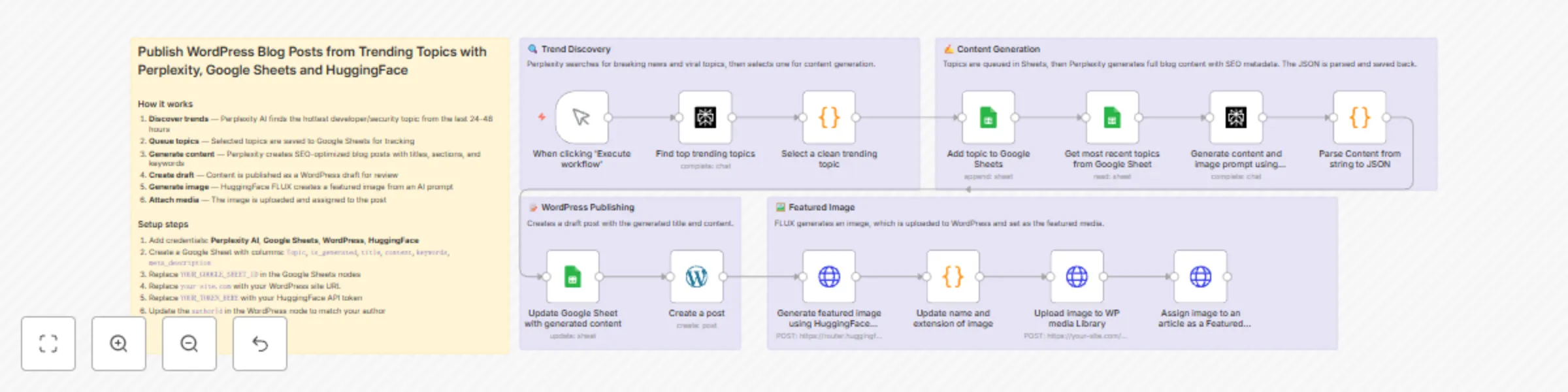
Create SEO blog drafts in WordPress from trending topics with Perplexity and HuggingFace
Automatically discover trending developer and security topics, generate SEO-optimized blog posts, and publish them to WordPress as drafts — complete with AI-generated featured images. ### How it works 1. **Discover trends** — Perplexity AI identifies the hottest topic from the last 24-48 hours 2. **Queue topics** — Topics are saved to Google Sheets for tracking and management 3. **Generate content** — Perplexity creates complete blog posts with titles, sections, keywords, and meta descriptions 4. **Create draft** — Content is published as a WordPress draft for your review 5. **Generate image** — HuggingFace FLUX creates a featured image based on the content 6. **Attach media** — The image is uploaded to WordPress and assigned to the post ### Setup steps 1. Add credentials for Perplexity AI, Google Sheets, WordPress, and HuggingFace 2. Create a Google Sheet with columns: `Topic`, `is_generated`, `title`, `content`, `keywords`, `meta_description` 3. Replace `YOUR_GOOGLE_SHEET_ID` in the Google Sheets nodes with your sheet ID 4. Replace `your-site.com` with your WordPress site URL 5. Replace `YOUR_TOKEN_HERE` with your HuggingFace API token 6. Update the `authorId` in the WordPress node to match your author ### Tools used - **Perplexity AI** — Trend discovery and content generation - **Google Sheets** — Topic queue and workflow tracking - **WordPress REST API** — Post creation and media uploads - **HuggingFace FLUX** — AI image generation Ideal for developers, content marketers, and agencies who want automated content pipelines with editorial control.

Convert Japanese scripts to multilingual speech with GPT-4 and ElevenLabs
## How It Works This workflow provides enterprise-grade translation and text-to-speech automation for international communication teams, content publishers, and localization services. It addresses producing high-quality multilingual audio content with consistent accuracy and natural delivery at scale. An AI orchestrator analyzes source content to determine optimal translation strategy, selecting specialized agents based on content type, complexity, and target languages. The translation agent processes text with contextual awareness, generating structured output that feeds into ElevenLabs' neural text-to-speech engine. Each audio file undergoes automated quality validation checking pronunciation accuracy, natural flow, and technical specifications. High-quality outputs proceed to standardized formatting for delivery, while failures trigger dedicated error handling with diagnostic reporting, ensuring reliable production of professional multilingual audio assets. ## Setup Steps 1. Configure OpenAI API key in "Translation Orchestrator" 2. Set up ElevenLabs credentials in "Text-to-Speech" 3. Define source and target languages in "Workflow Configuration" 4. Customize orchestration logic based on content types and complexity 5. Set quality thresholds in "Audio Quality Validation" matching output ## Prerequisites OpenAI API access with GPT-4 capabilities, active ElevenLabs subscription. ## Use Cases Enterprise content localization, multilingual customer communications ## Customization Add language-specific translation agents, modify orchestration routing logic ## Benefits Delivers consistent translation quality through intelligent routing

Create multilingual localized speech audio with GPT-4 and ElevenLabs
## How It Works This workflow delivers intelligent multilingual audio content creation for global marketing teams, e-learning providers, and content production studios. It solves the complex challenge of generating culturally adapted, professionally voiced translations optimized for each target language. The system begins with AI-powered localization that adapts source content for cultural context, idioms, and regional preferences rather than literal translation. Specialized AI agents then optimize speech parameters (pace, tone, emphasis) and voice characteristics (pitch, timbre, style) specific to each language's phonetic requirements. The workflow prepares language arrays and loops through each target language, generating optimized audio via ElevenLabs with customized voice parameters. All audio files are processed, formatted with metadata, and aggregated into a complete deliverable package, transforming single-source content into publication-ready multilingual audio assets. ## Setup Steps 1. Configure OpenAI API credentials in all AI agent nodes 2. Set up ElevenLabs account, obtain API key 3. Define target languages list in "Workflow Configuration" node using ISO language codes 4. Customize localization prompts in AI agents to match brand voice and content type 5. Adjust voice parameter ranges and optimization criteria based on audio requirements 6. Configure output formatting in "Aggregate Results" node ## Prerequisites OpenAI API access with GPT-4 capabilities, active ElevenLabs subscription with multi-voice access. ## Use Cases Global product launch campaigns, international e-learning course production ## Customization Modify AI prompts for industry-specific terminology, add quality validation checkpoints ## Benefits Achieves native-quality audio across languages, reduces production time by 80%
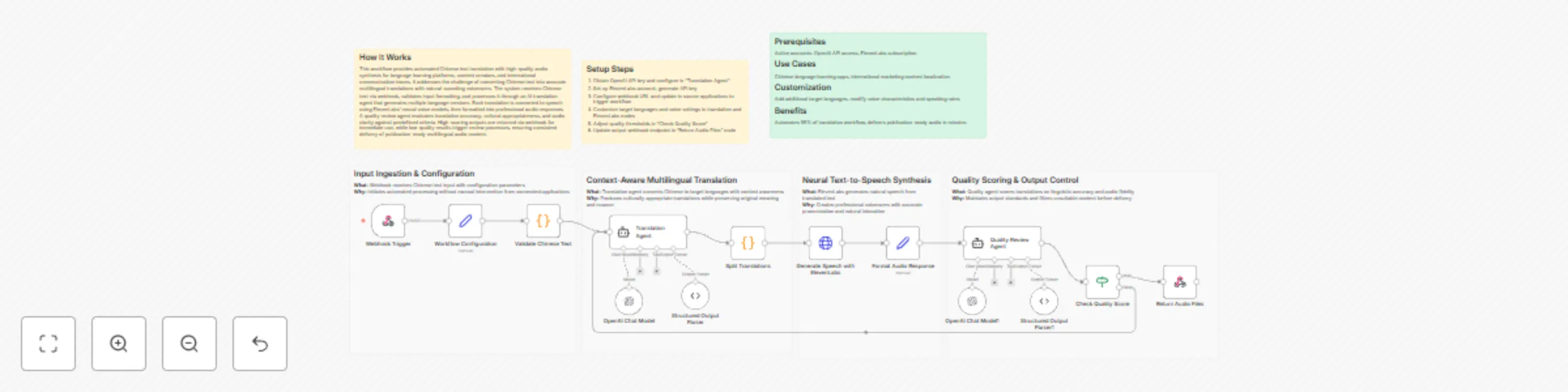
Translate Chinese text to multilingual audio with GPT-4o and ElevenLabs
## How It Works This workflow provides automated Chinese text translation with high-quality audio synthesis for language learning platforms, content creators, and international communication teams. It addresses the challenge of converting Chinese text into accurate multilingual translations with natural-sounding voiceovers. The system receives Chinese text via webhook, validates input formatting, and processes it through an AI translation agent that generates multiple language versions. Each translation is converted to speech using ElevenLabs' neural voice models, then formatted into professional audio responses. A quality review agent evaluates translation accuracy, cultural appropriateness, and audio clarity against predefined criteria. High-scoring outputs are returned via webhook for immediate use, while low-quality results trigger review processes, ensuring consistent delivery of publication-ready multilingual audio content. ## Setup Steps 1. Obtain OpenAI API key and configure in "Translation Agent" 2. Set up ElevenLabs account, generate API key 3. Configure webhook URL and update in source applications to trigger workflow 4. Customize target languages and voice settings in translation and ElevenLabs nodes 5. Adjust quality thresholds in "Check Quality Score" 6. Update output webhook endpoint in "Return Audio Files" node ## Prerequisites Active accounts: OpenAI API access, ElevenLabs subscription. ## Use Cases Chinese language learning apps, international marketing content localization ## Customization Add additional target languages, modify voice characteristics and speaking rates ## Benefits Automates 95% of translation workflow, delivers publication-ready audio in minutes
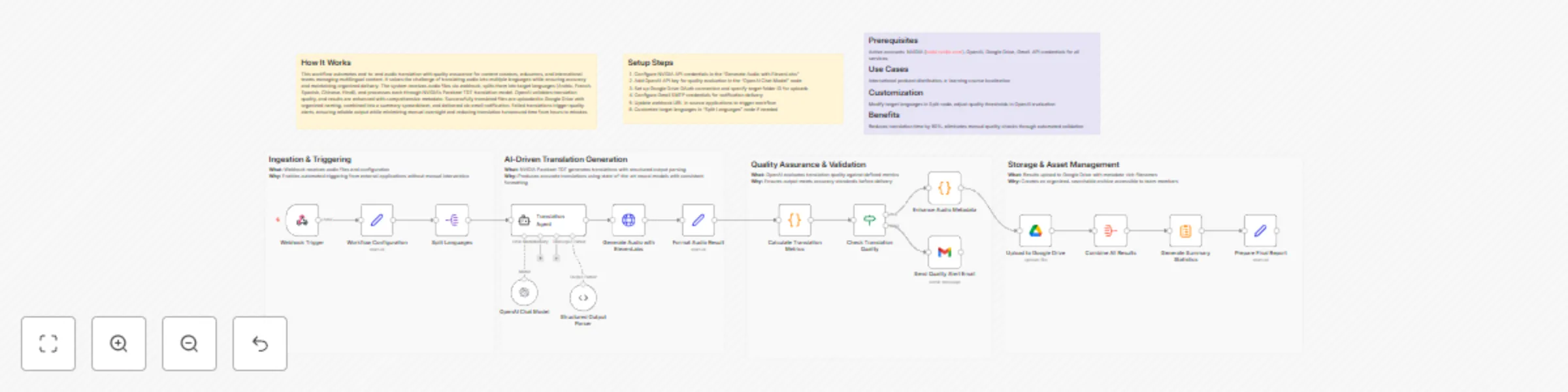
Translate Chinese audio into multilingual voiceovers with GPT-4o and ElevenLabs
## How It Works This workflow automates end-to-end audio translation with quality assurance for content creators, educators, and international teams managing multilingual content. It solves the challenge of translating audio into multiple languages while ensuring accuracy and maintaining organized delivery. The system receives audio files via webhook, splits them into target languages (Arabic, French, Spanish, Chinese, Hindi), and processes each through NVIDIA's Parakeet TDT translation model. OpenAI validates translation quality, and results are enhanced with comprehensive metadata. Successfully translated files are uploaded to Google Drive with organized naming, combined into a summary spreadsheet, and delivered via email notification. Failed translations trigger quality alerts, ensuring reliable output while minimizing manual oversight and reducing translation turnaround time from hours to minutes. ## Setup Steps 1. Configure NVIDIA API credentials in the "Generate Audio with ElevenLabs" 2. Add OpenAI API key for quality evaluation in the "OpenAI Chat Model" node 3. Set up Google Drive OAuth connection and specify target folder ID for uploads 4. Configure Gmail SMTP credentials for notification delivery 5. Update webhook URL in source applications to trigger workflow 6. Customize target languages in "Split Languages" node if needed ## Prerequisites Active accounts: NVIDIA (build.nvidia.com), OpenAI, Google Drive, Gmail. API credentials for all services. ## Use Cases International podcast distribution, e-learning course localization ## Customization Modify target languages in Split node, adjust quality thresholds in OpenAI evaluation ## Benefits Reduces translation time by 90%, eliminates manual quality checks through automated validation Here are **clear, professional subheadings** for each *What / Why* pair. They’re concise, action-oriented, and fit well in technical workflow documentation.

Generate multilingual audio content with OpenAI, ElevenLabs, Google Drive and Slack
## How It Works This workflow automates multilingual audio content creation for content creators, educators, and marketing teams distributing materials globally. It solves the challenge of producing high-quality, translated audio content at scale without manual intervention. Starting with source text, the system translates content into English, Spanish, French, and German using AI translation services, validates translation quality through automated scoring, generates natural-sounding audio using ElevenLabs text-to-speech technology, calculates audio metrics for quality assurance, combines all language versions into a single package, uploads to Google Drive for centralized storage, and sends Slack notifications for team collaboration. The workflow eliminates weeks of manual translation and voice recording work while maintaining consistent quality across all language variants. ## Setup Steps 1. Configure AI translation service credentials for multilingual processing 2. Add ElevenLabs API key and select voice models for each target language 3. Set quality threshold scores for translation validation gates 4. Connect Google Drive with designated folder for audio storage 5. Configure Slack webhook for team notifications with custom message ## Prerequisites AI translation API access (OpenAI/DeepL), ElevenLabs account with sufficient character quota ## Use Cases E-learning course localization, podcast multilingual distribution ## Customization Add additional languages, modify quality score thresholds ## Benefits Reduces content localization time by 95%, eliminates voice talent costs