Engineering Workflows
473 workflows found
Workflow preview: Coordinate patient care and alerts with EHR/FHIR, GPT-4, Twilio, Gmail and Slack
Free advanced

Coordinate patient care and alerts with EHR/FHIR, GPT-4, Twilio, Gmail and Slack

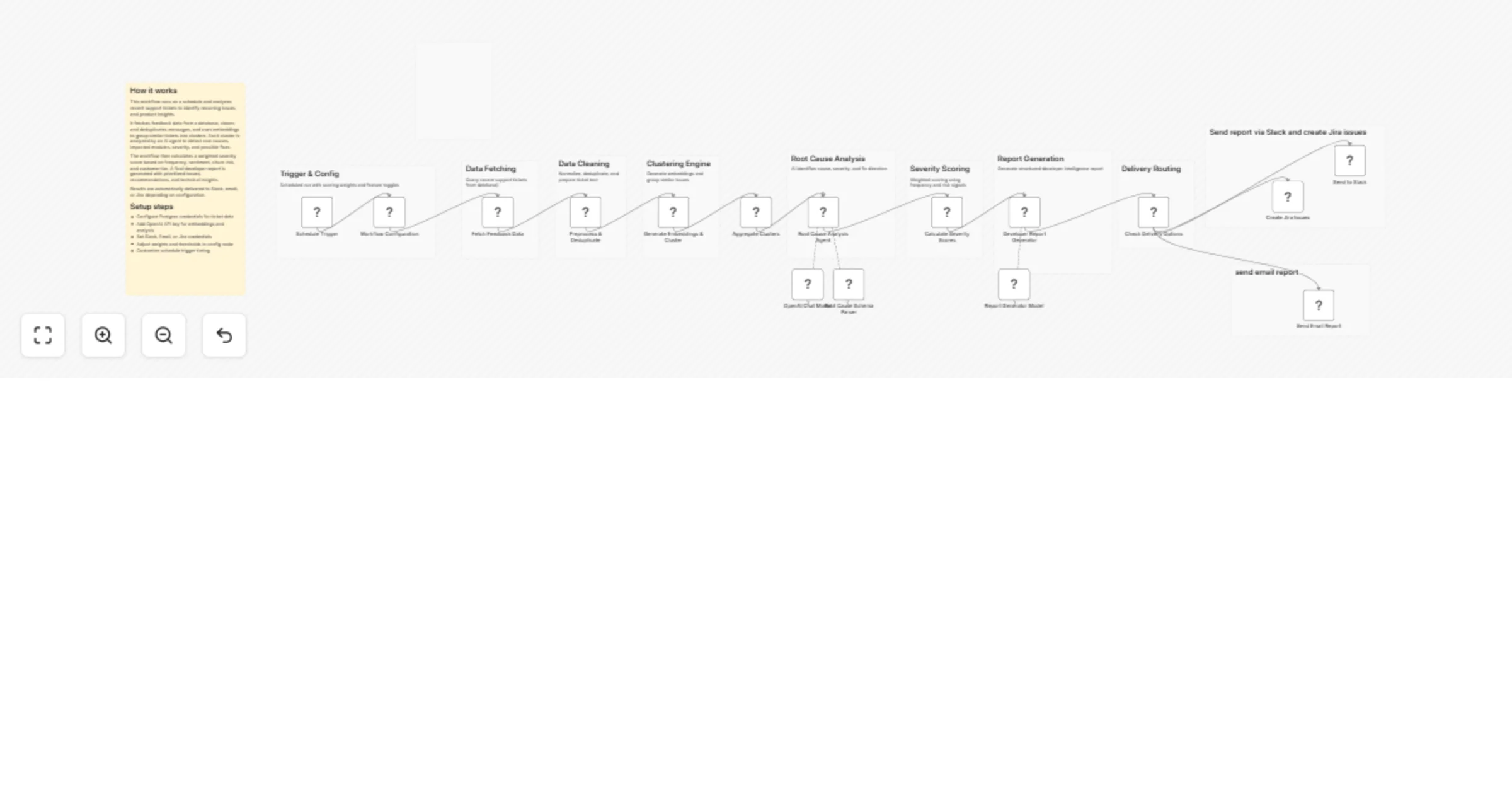
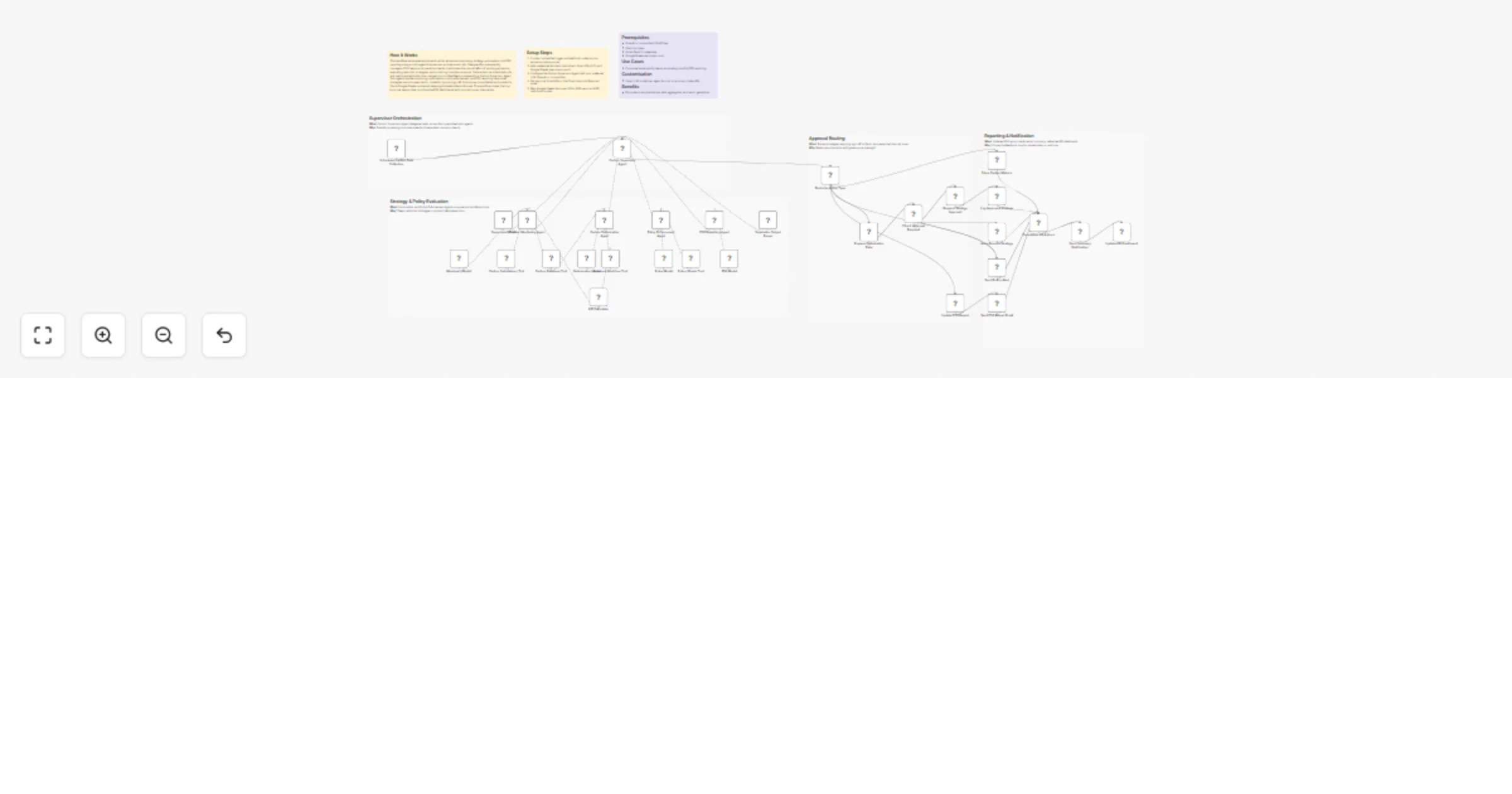
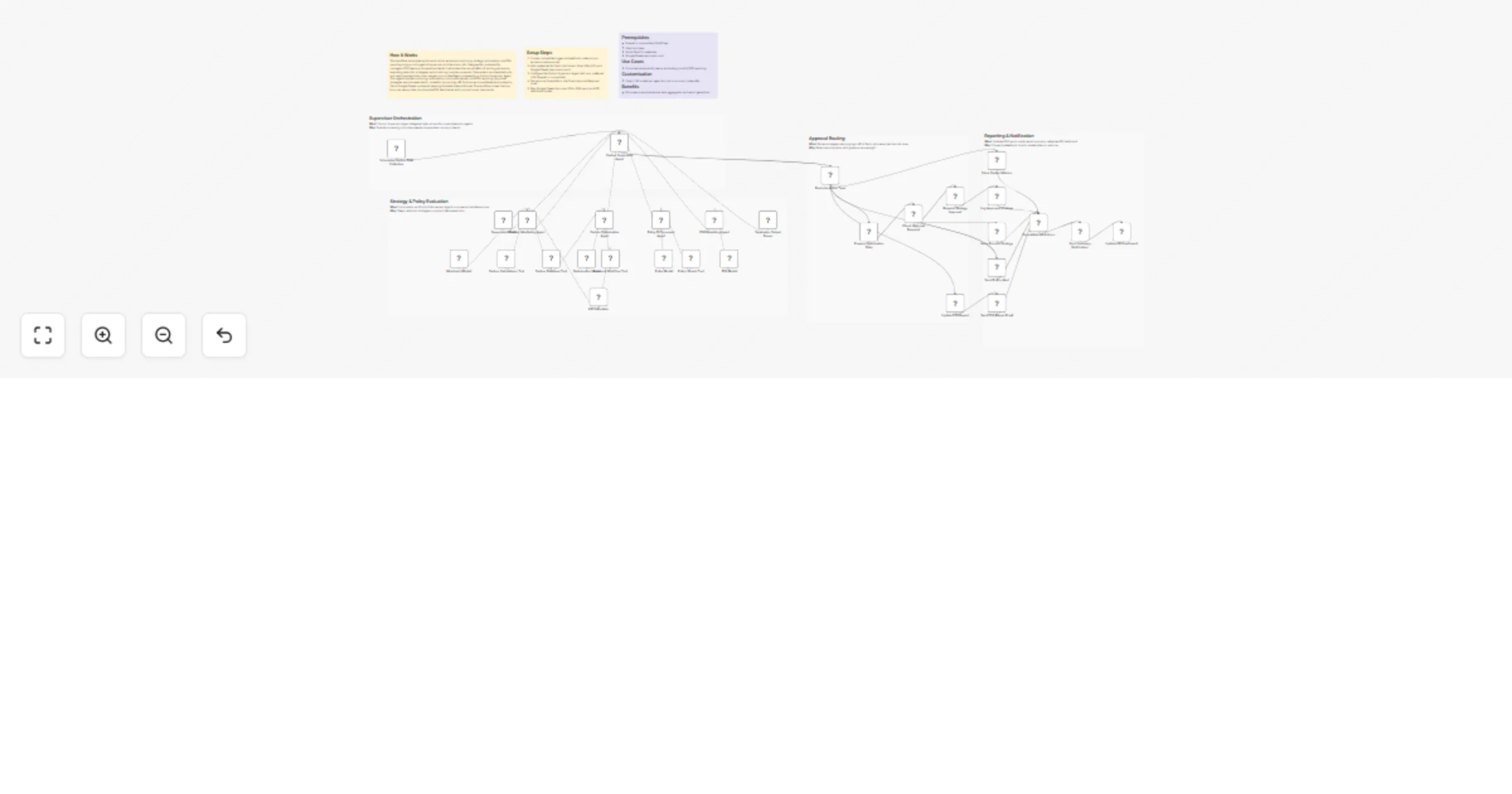
## How It Works This workflow automates end-to-end patient care coordination by monitoring appointment schedules, clinical events, and care milestones while orchestrating personalized communications across multiple channels. Designed for healthcare operations teams, care coordinators, and patient engagement specialists, it solves the challenge of manual patient follow-up, missed appointments, and fragmented communication across care teams. The system triggers on scheduled intervals and real-time clinical events, ingesting data from EHR systems, appointment schedulers, and lab result feeds. Patient records flow through validation and risk stratification layers using AI models that identify high-risk patients, predict no-show probability, and recommend intervention timing. The workflow applies clinical protocols for appointment reminders, medication adherence checks, and post-discharge follow-ups. Critical cases automatically route to care coordinators via Slack alerts, while routine communications deploy via SMS, email, and patient portal notifications. All interactions log to secure databases for compliance documentation. This eliminates manual outreach coordination, reduces no-shows by 40%, and ensures HIPAA-compliant patient engagement at scale. ## Setup Steps 1. Configure EHR/FHIR API credentialsfor patient data access 2. Set up webhook endpoints for real-time clinical event notifications 3. Add OpenAI API key for patient risk stratification and communication personalization 4. Configure Twilio credentials for SMS and voice call delivery 5. Set Gmail OAuth or SMTP credentials for email appointment reminders 6. Connect Slack workspace and define care coordination alert channels ## Prerequisites Active EHR system with FHIR API access or HL7 integration capability. ## Use Cases Automated appointment reminder campaigns reducing no-shows. ## Customization Modify risk scoring models for specialty-specific patient populations. ## Benefits Reduces patient no-show rates by 40% through timely, personalized reminders.

C
Cheng Siong Chin
Engineering
16 Jan 2026
0
0
Workflow preview: Evaluate AI workflows using Google Sheets, Gemini, Claude, GPT, and Perplexity
Free advanced

Evaluate AI workflows using Google Sheets, Gemini, Claude, GPT, and Perplexity

This template and YouTube video goes over 5 different implementations of evaluations within n8n. - Categorization - Correctness - Tools used - String similarity - Helpfulness You’ll learn when to use each type, how to set up test datasets in Google Sheets or data tables, and how to track your results over time. I also explain best practices like only changing one variable at a time, documenting your prompts and model settings, and building proper training datasets with enough examples to confidently validate your workflow. YouTube Video: https://www.youtube.com/watch?v=-4LXYOhQ-Z0 Thank you for downloading our free n8n Evaluations template. If you enjoyed the template + tutorial please subscribe to the YouTube channel. We are uploading weekly content on AI/n8n Connect With Us Check out the links down below. If you need help with this template, want 1:1 coaching, or have a n8n project you want to build, reach out at [email protected] Free Skool AI/n8n Group: https://www.skool.com/data-and-ai LinkedIn: https://www.linkedin.com/in/ryan-p-nolan/ Twitter/X:https://x.com/RyanMattDS Website: https://ryanandmattdatascience.com/

R
Ryan Nolan
Engineering
12 Jan 2026
56
0
Workflow preview: Extract meeting details with GPT-4.1-mini and evaluate accuracy in Google Sheets
Free advanced

Extract meeting details with GPT-4.1-mini and evaluate accuracy in Google Sheets

## Who's it for Developers building AI-powered workflows who want to ensure their agents work reliably. If you need to validate AI outputs, test agent behavior systematically, or build maintainable automation, this template shows you how. ## What it does This subworkflow extracts structured meeting details (title, date, time, location, links, attendees) from natural language messages using an AI agent. It demonstrates production-ready patterns: - **Structured output validation**: JSON schema enforcement prevents malformed responses - **Error handling**: Graceful failures with full execution traceability - **Automated evaluation**: Test agent accuracy against expected outputs using Google Sheets - **Dual execution modes**: Normal extraction + evaluation/testing mode The AI resolves relative time ("tomorrow", "next Friday") using timezone context and handles incomplete data gracefully. ## How to set it up 1. Connect OpenAI API credential to the AI agent node 2. Copy the test data sheet: https://docs.google.com/spreadsheets/d/1U89nPsasM2WNv1D7gEYINhDwylyxYw7BOd_i8ipFC0M/edit?usp=sharing 3. Update Google Sheet IDs in `load_eval_data` and `record_eval_output` nodes 4. Test normal mode: Execute workflow "from trigger" 5. Test evaluation mode: Execute workflow "from load_eval_data" ## Requirements - OpenAI API key - Google Sheets OAuth credential ## Why subworkflow architecture? **Reusability**: Wrap AI agents in subworkflows to call them from multiple parent workflows. Extract meetings from Slack, email, or webhooks—same agent, consistent results. **Testability**: This pattern enables isolated testing for each AI component. Set up evaluation datasets, run automated tests, and validate accuracy before deploying to production. You can't do this easily with inline agents. **Maintainability**: Update the agent logic once, and all parent workflows benefit. Error handling and validation are built-in, so failures are traceable with execution IDs. **This framework includes**: - Dual-trigger pattern (normal + evaluation modes) - Output validation that catches silent AI failures - Error bubbling with execution metadata for debugging - Evaluation framework with semantic/exact matching - Proper routing that returns output to parent workflows ## Following this pattern for other agents To adapt this for any AI task (contact extraction, invoice processing, sentiment analysis, etc.): 1. Replace `extract_meeting_details` with your AI agent (add tools, memory, etc. as needed) 2. Update `Structured Output Parser` schema to match your data structure 3. Modify `evaluate_match` prompt for your validation criteria 4. Create test cases in Google Sheets with your inputs/expected outputs 5. Adjust `normalize_eval_data` timezone/reference time if needed The validation, error handling, and evaluation infrastructure stays the same regardless of what your agent does.

S
Sergey Filippov
Engineering
7 Jan 2026
3
0
Workflow preview: Generate your GitLab year-in-review wrapped report automatically
Free advanced

Generate your GitLab year-in-review wrapped report automatically

# GitLab Wrapped Generator ✨ **Automatically generate your personalized GitLab Wrapped**, a stunning year-in-review of your contributions, activity, and stats. Powered by [gitlab-wrapped](https://gitlab.com/michaelangelorivera/gitlab-wrapped) by [@michaelangelorivera](https://gitlab.com/michaelangelorivera). ## 🚀 How it works 1. **Forks** the gitlab-wrapped project (or finds your existing fork) 2. **Configures** CI/CD environment variables 3. **Triggers** the GitLab pipeline 4. **Monitors** until completion (polls every 2 minutes) 🎉 **Your wrapped will be available at:** `https://YOUR-USERNAME.gitlab.io/gitlab-wrapped` --- ## ⚙️ Setup 1. **Create a GitLab PAT** with these scopes: - `api` - `read_repository` - `write_repository` 2. **Fill out the form:** - Your GitLab username - Your PAT token - GitLab instance URL *(defaults to gitlab.com)* - Year *(defaults to 2025)* 3. **Submit & relax!** ☕ The workflow handles everything automatically. --- 💡 Works with **GitLab.com** and **self-hosted instances** 📅 Generate wrapped reports for **any past year**

J
Jannik Lehmann
Engineering
2 Jan 2026
91
0
Workflow preview: Synthesize and compare multiple LLM responses with OpenRouter council
Free advanced

Synthesize and compare multiple LLM responses with OpenRouter council

This template adapts Andrej Karpathy’s **LLM Council** concept for use in **n8n**, creating a workflow that collects, evaluates, and synthesizes multiple large language model (LLM) responses to reduce individual model bias and improve answer quality. ## 🎯 The gist This LLM Council workflow acts as a moderation board for multiple LLM “opinions”: - The same question is answered independently by several models. - All answers are anonymized. - Each model then evaluates and ranks *all* responses. - A designated **Council Chairman** model synthesizes a final verdict based on these evaluations. - The final output includes: - The original query - The Chairman’s verdict - The ranking of each response by each model - The original responses from all models The goal is to reduce single‑model bias and arrive at more balanced, objective answers. ## 🧰 Use cases This workflow enables several practical applications: - Receiving more balanced answers by combining multiple model perspectives - Benchmarking and comparing LLM responses - Exploring diverse viewpoints on complex or controversial questions ## ⚙️ How it works - The workflow leverages **OpenRouter**, allowing access to many LLMs through a single API credential. - In the **Initialization** node, you define: - **Council member models**: Models that answer the query and later evaluate all responses - **Chairman model**: The model responsible for synthesizing the final verdict - Any OpenRouter-supported model can be used: https://openrouter.ai/models - For simplicity: - Input is provided via a Chat Input trigger - Output is sent via an email node with a structured summary of the council’s results ## 👷 How to use - Select the LLMs to include in your council: - **Council member models**: Models that independently answer and evaluate the query. The default template uses: - openai/gpt-4o - google/gemini-2.5-flash - anthropic/claude-sonnet-4.5 - perplexity/sonar-pro-search - **Chairman model**: Choose a model with a sufficiently large context window to process all evaluations and rankings. - Start the Chat Input trigger. - Observe the workflow execution and review the synthesized result in your chosen output channel. ⚠️ Avoid using too many models simultaneously. The total context size grows quickly (n responses + n² evaluations), which may exceed the Chairman model’s context window. ## 🚦 Requirements - **OpenRouter API access** configured in n8n credentials - **SMTP credentials** for sending the final council output by email (or replace with another output method) ## 🤡 Customizing this workflow - Replace the Chat Input trigger with alternatives such as Telegram, email, or WhatsApp. - Redirect output to other channels instead of email. - Modify council member and chairman models directly in the Initialization node by updating their OpenRouter model names.

U
Ulf Morys
Engineering
31 Dec 2025
15
0
Workflow preview: Score telematics driving risk with Claude and adjust insurance premiums via HTTP, Gmail, and Slack
Free advanced

Score telematics driving risk with Claude and adjust insurance premiums via HTTP, Gmail, and Slack

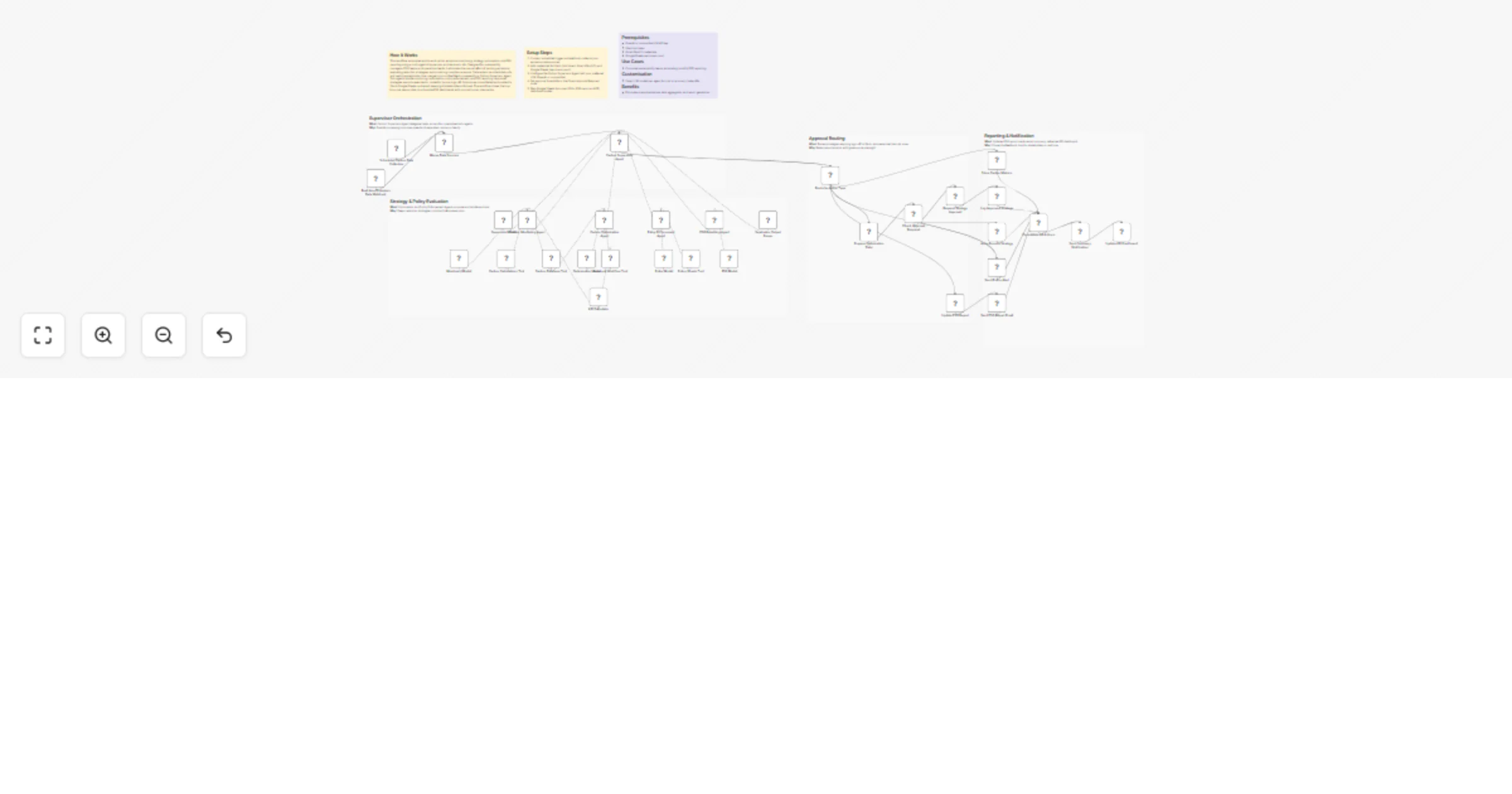
## How It Works This workflow automates insurance premium adjustments by analyzing telematics data with AI-driven risk assessment and syncing changes across underwriting systems. Designed for carriers, actuaries, and underwriting teams managing usage-based insurance programs, it eliminates manual review of driving patterns, speed, braking, and mileage while ensuring compliance. Scheduled execution fetches telematics data via HTTP from vehicles or mobile apps. Anthropic Claude analyzes behavior with structured output parsing, generating risk scores from acceleration, harsh braking, speeding, and time-of-day driving. Calculator node applies scores to premiums, and HTTP node updates policy systems. High-risk cases trigger Gmail alerts to underwriting managers and Slack notifications to claims teams. Final HTTP sync ensures compliance across all systems. ## Setup Steps 1. Configure Schedule node for desired analysis frequency 2. Set up HTTP node with telematics platform API 3. Add Anthropic API key to Chat Model node for behavioral risk analysis 4. Connect policy management system API credentials in HTTP nodes 5. Integrate Gmail and Slack with underwriting team addresses ## Prerequisites Anthropic API key, telematics data platform API access ## Use Cases Auto insurance carriers implementing usage-based insurance programs ## Customization Modify AI prompts to incorporate additional risk factors like weather conditions ## Benefits Reduces premium calculation time from days to minutes

C
Cheng Siong Chin
Engineering
29 Dec 2025
5
0
Workflow preview: Escalate product UAT critical bugs with OpenAI, Jira and Slack
Free advanced

Escalate product UAT critical bugs with OpenAI, Jira and Slack

## Description Automatically detect and escalate Product UAT critical bugs using AI, create Jira issues, notify engineering teams, and close the feedback loop with testers. This workflow analyzes raw UAT feedback submitted via a webhook, classifies it with an AI model, validates severity, and automatically escalates confirmed critical bugs to Jira and Slack. Testers are notified, and the original webhook receives a structured response for full traceability. It is designed for teams that want fast, reliable critical bug handling during UAT without manual triage. ## Context During Product UAT and beta testing, critical bugs are often buried in unstructured feedback coming from forms, Slack, or internal tools. Missing or delaying these issues can block releases and create friction between Product and Engineering. This workflow ensures: - Faster detection of critical bugs - Immediate escalation to engineering - Clear ownership and visibility - Consistent communication with testers It combines AI-based classification with deterministic routing to keep UAT feedback actionable and production-ready. ## Who is this for? - Product Managers running UAT or beta programs - Project Managers coordinating QA and release readiness - Engineering teams who need fast, clean bug escalation - Product Ops teams standardizing feedback workflows - Any team handling high-volume UAT feedback - Perfect for teams that want speed, clarity, and traceability during UAT. ## Requirements - Webhook trigger (form, Slack integration, internal tool, etc.) - OpenAI account (for AI triage) - Jira (critical bug tracking) - Slack (engineering alerts) - Gmail or Slack (tester notifications) ## How it works ![image.png](fileId:3834) - Trigger The workflow starts when UAT feedback is submitted via a webhook. - Normalize & Clean Incoming data is normalized (tester, build, page, message) and cleaned to ensure a consistent, AI-ready structure. - AI Triage & Validation An AI model analyzes the feedback and returns a structured triage result (type, severity, summary, confidence), which is parsed and validated. - Critical Bug Escalation Validated critical bugs automatically: - create a Jira issue with full context - trigger an engineering Slack alert - Closed Loop The tester is notified via Slack or email, and the workflow responds to the original webhook with a structured status payload. ## What you get - Automated critical bug detection during UAT - Instant Jira ticket creation - Real-time engineering alerts in Slack - Automatic tester communication - Full traceability via structured webhook responses ## About me : I’m Yassin a Product Manager Scaling tech products with a data-driven mindset. 📬 Feel free to connect with me on [Linkedin](https://www.linkedin.com/in/yassin-zehar)

Y
Yassin Zehar
Engineering
27 Dec 2025
20
0
Workflow preview: Monitor IoT sustainability compliance and ESG reports with OpenAI, Airtable, Slack and Gmail
Free advanced

Monitor IoT sustainability compliance and ESG reports with OpenAI, Airtable, Slack and Gmail

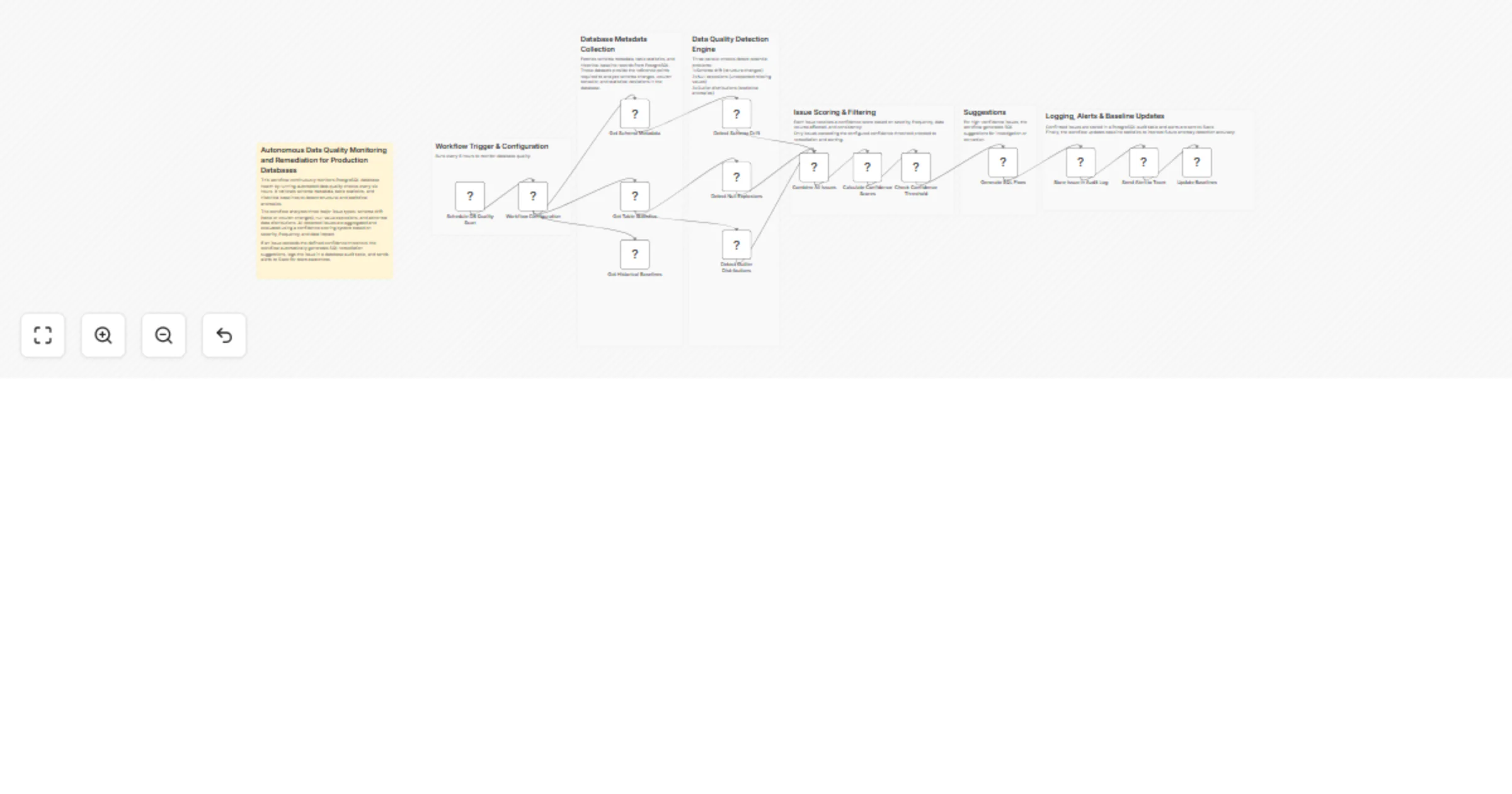
## How It Works This workflow automates IoT device compliance monitoring and anomaly detection for industrial operations. Designed for facility managers, quality assurance teams, and regulatory compliance officers, it solves the challenge of continuously monitoring sensor networks while ensuring regulatory adherence and detecting operational issues in real-time.The system runs every 15 minutes, fetching IoT sensor data and structuring it for analysis. Dual AI agents evaluate compliance against regulatory standards and detect operational anomalies. Issues trigger immediate email and Slack alerts for rapid response. Daily data aggregates into comprehensive ESG reports with AI-generated insights, automatically emailed to stakeholders for transparency and audit trails. ## Setup Steps 1. Configure AirTable credentials and set 15-minute schedule interval 2. Add OpenAI API keys for compliance and anomaly detection agents, configure regulatory thresholds 3. Set Gmail/Slack credentials for alerts and ESG report distribution ## Prerequisites IoT sensor platform API access, OpenAI API key, Gmail/Slack accounts ## Use Cases Manufacturing quality control, environmental compliance monitoring ## Customization Modify sensor polling frequency, adjust compliance rules, customize anomaly thresholds ## Benefits Continuous compliance assurance, instant anomaly detection

C
Cheng Siong Chin
Engineering
27 Dec 2025
32
0
Workflow preview: Automate demand forecasting & inventory ordering with AI, MySQL & optimal supplier selection
Free advanced

Automate demand forecasting & inventory ordering with AI, MySQL & optimal supplier selection

This workflow streamlines the entire inventory replenishment process by leveraging AI for demand forecasting and intelligent logic for supplier selection. It aggregates data from multiple sources—POS systems, weather forecasts, SNS trends, and historical sales—to predict future demand. Based on these predictions, it calculates shortages, requests quotes from multiple suppliers, selects the optimal vendor based on cost and lead time, and executes the order automatically. ## 🚀 Who is this for? - **Retail & E-commerce Managers** aiming to minimize stockouts and reduce overstock. - **Supply Chain Operations** looking to automate procurement and vendor selection. - **Data Analysts** wanting to integrate external factors (weather, trends) into inventory planning. ## 💡 How it works 1. **Data Aggregation**: Fetches data from POS systems, MySQL (historical sales), OpenWeatherMap (weather), and SNS trend APIs. 2. **AI Forecasting**: Formats the data and sends it to an AI prediction API to forecast demand for the next 7 days. 3. **Shortage Calculation**: Compares the forecast against current stock and safety stock to determine necessary order quantities. 4. **Supplier Optimization**: For items needing replenishment, the workflow requests quotes from multiple suppliers (A, B, C) in parallel. It selects the best supplier based on the lowest total cost within a 7-day lead time. 5. **Execution & Logging**: Places the order via API, updates the inventory system, and logs the transaction to MySQL. 6. **Anomaly Detection**: If the AI's confidence score is low, it skips the auto-order and sends an alert to **Slack** for manual review. ## ⚙️ Setup steps 1. **Configure Credentials**: Set up credentials for **MySQL** and **Slack** in n8n. 2. **API Keys**: You will need an API key for **OpenWeatherMap** (or a similar service). 3. **Update Endpoints**: The HTTP Request nodes use placeholder URLs (e.g., `pos-api.example.com`, `ai-prediction-api.example.com`). Replace these with your actual internal APIs, ERP endpoints, or AI service (like OpenAI). 4. **Database Prep**: Ensure your MySQL database has a table named `forecast_order_log` to store the order history. 5. **Schedule**: The workflow is set to run daily at 03:00. Adjust the **Schedule Trigger** node as needed. ## 📋 Requirements - **n8n** (Self-hosted or Cloud) - **MySQL** database - **Slack** workspace - External APIs for POS, Inventory, and Supplier communication (or mock endpoints for testing).

s
sato rio
Engineering
26 Dec 2025
130
0
Workflow preview: Compare LLM token costs across 350+ models with OpenRouter
Free advanced

Compare LLM token costs across 350+ models with OpenRouter

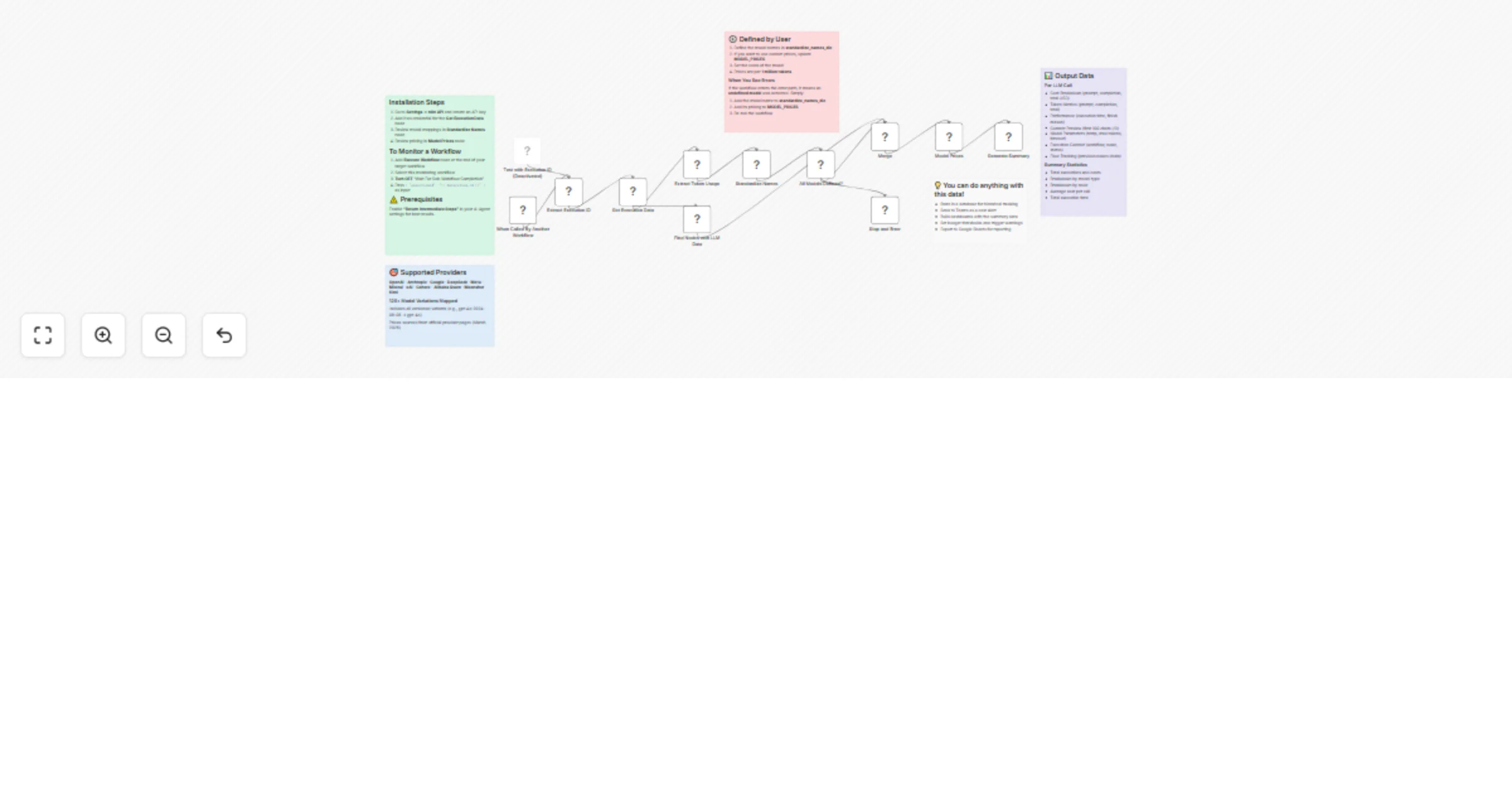
### This n8n template lets you run prompts against 350+ LLM models and see exactly what each request costs with real-time pricing from OpenRouter Use cases are many: Compare costs across different models, plan your AI budget, optimize prompts for cost efficiency, or track expenses for client billing! ## Good to know - OpenRouter charges a platform fee on top of model costs. See [OpenRouter Pricing](https://openrouter.ai/pricing) for details. - You need an OpenRouter account with API credits. Free signup available with some free models included. - Pricing data is fetched live from OpenRouter's API, so costs are always up-to-date. ## How it works 1. All available models are fetched from OpenRouter's API when you start. 2. You select a model and enter your prompt via the form (or just use the chat). 3. The prompt is sent to OpenRouter and the response is captured. 4. Token usage (input/output) is extracted from the response using a LangChain Code node. 5. Real-time pricing for your selected model is fetched from OpenRouter. 6. The exact cost is calculated and displayed alongside your AI response. ## How to use - **Chat interface**: Quick testing - just type a prompt and get the response with costs. - **Form interface**: Select from all available models via dropdown, enter your prompt, and get a detailed cost breakdown. - Click **"Show Details"** on the result form to see the full breakdown (input tokens, output tokens, cost per type). ## Requirements - OpenRouter account with API key ([Get one here](https://openrouter.ai/settings/keys)) ## Customising this workflow - Add a database node to log all requests and costs over time - Connect to Google Sheets for cost tracking and reporting - Extend with LLM-as-Judge evaluation to also check response quality

P
Philflow
Engineering
24 Dec 2025
68
0
Workflow preview: AI-powered RAG configuration assistant: From form to email recommendations
Free advanced

AI-powered RAG configuration assistant: From form to email recommendations

## Description An intelligent RAG Configuration Assistant that analyzes your retrieval-augmented generation requirements and delivers AI-powered recommendations via email. Get expert guidance on embedding models, chunk sizes, vector stores, and cost estimates—all automated through a simple form submission. ## Key Features • AI-powered analysis using LLM • 14 predefined use cases (Document Q&A, Chatbot, Legal, Medical, etc.) • Optional document upload for enhanced analysis • Beautiful HTML email reports with modern dashboard design • Customized n8n workflow JSON attachment • Cost estimation based on budget and usage • Deterministic AI (temperature=0) for consistent results • Dual-branch architecture (file upload or manual input) ## How it works 1. **Form Submission**: User provides use case, document type, pages, budget, query volume 2. **AI Analysis**: Claude evaluates requirements and complexity 3. **Recommendation Engine**: Generates optimal configuration (embedding model, chunk size, vector store) 4. **Report Generation**: Creates professional HTML email with all recommendations 5. **Workflow Creation**: Builds customized n8n workflow JSON 6. **Email Delivery**: Sends report + workflow attachment via Gmail ## How to use 1. **Setup credentials**: Add OpenRouter API key and Gmail OAuth 2. **Activate workflow**: Enable the Form Trigger 3. **Share form URL**: Distribute to your team or clients 4. **Receive requests**: Users fill out the form 5. **Get results**: Recipients receive email with recommendations + workflow file 6. **Import workflow**: Download attached JSON and import to n8n ## Requirements **Essential:** - n8n instance (v1.0+) - OpenRouter account + API key - Gmail account with OAuth2 setup

S
Sridevi Edupuganti
Engineering
21 Dec 2025
68
0
Workflow preview: Real-time IoT incident management with Jira & Slack technician alerts
Free advanced

Real-time IoT incident management with Jira & Slack technician alerts

# Webhook from IoT Devices → Jira Maintenance Ticket → Slack Factory Alert This workflow automates predictive maintenance by receiving IoT machine-failure webhooks, creating Jira maintenance tickets, checking technician availability in Slack and sending the alert to the correct Slack channel. If an active technician is available, the system notifies the designated technician channel; if not, it escalates automatically to your chosen emergency/escalation channel. ### ⚡ Quick Implementation: Start Using in 10 Seconds 1. Import the workflow JSON into n8n. 2. Add Slack API credentials (with all required scopes). 3. Add Jira Cloud credentials. 4. Select Slack channels for: * Technician alerts * Emergency/escalation alerts 5. Deploy the webhook URL to your IoT device. 6. Run a test event. ## What It Does This workflow implements a real-time predictive maintenance automation loop. An IoT device sends machine data — such as temperature, vibration and timestamps — to an n8n webhook whenever a potential failure is detected. The workflow immediately evaluates whether the values exceed a defined safety threshold. If a failure condition is detected, a Jira maintenance ticket is automatically created with all relevant machine information. The workflow then gathers all technicians from your selected Slack channel and checks each technician’s presence status in real time. A built-in decision engine chooses the first available technician. If someone is active, the workflow sends a maintenance alert to your technician channel. If no technicians are available, the workflow escalates the alert to your chosen emergency channel to avoid operational downtime. This eliminates manual monitoring, accelerates response times and ensures no incident goes unnoticed — even if the team is unavailable. ## Who’s It For This workflow is ideal for: * Manufacturing factories * Industrial automation setups * IoT monitoring systems * Warehouse operations * Maintenance & facility management teams * Companies using Jira + Slack * Organizations implementing predictive maintenance or automated escalation workflows ## Requirements to Use This Workflow You will need: * An n8n instance (Cloud or Self-hosted) * Slack App with the scopes: * `users:read` * `users:read.presence` * `channels:read` * `chat:write` * Jira Cloud credentials (email + API token) * Slack channels of your choice for: * Technician alerts * Emergency/escalation alerts * IoT device capable of POST webhook calls * Machine payload must include: * `machineId` * `temperature` * `vibration` * `timestamp` ## How It Works & How To Set Up ### 🔧 High-Level Workflow Logic 1. **IoT Webhook** receives machine data. 2. **IF Condition** checks whether values exceed safety thresholds. 3. **Jira Ticket** is created with machine details if failure detected. 4. **Slack Channel Members** are fetched from your selected technician channel. 5. **Loop Through Technicians** to check real-time presence. 6. **Code Node** determines: * first available (active) technician * or fallback mode if none available 7. **IF Condition** checks technician availability. 8. **Slack Notification** is sent to: * your chosen technician channel if someone is available * your chosen emergency/escalation channel if no one is online ### 🛠 Step-by-Step Setup Instructions 1. **Import Workflow:** `n8n → Workflows → Import from File → Select JSON`. 2. **Configure Slack:** Add required scopes (`users:read`, `users:read.presence`, `channels:read`, `chat:write`) and reconnect credentials. 3. **Select Slack Channels:** Choose any Slack channels you want for technician notifications and emergency alerts—no fixed naming is required. 4. **Configure Jira:** Add credentials, select project and issue type, and set priority mapping if needed. 5. **Deploy Webhook:** Copy the n8n webhook URL and configure your IoT device to POST machine data. 6. **Test System:** Send a test payload to ensure Jira tickets are created and Slack notifications route correctly based on technician availability. This setup allows real-time monitoring, automated ticket creation and flexible escalation — reducing manual intervention and ensuring fast maintenance response. ## How To Customize Nodes ### Webhook Node * Add security tokens * Change webhook path * Add response message ### IF Node (Threshold Logic) * Lower/raise temperature threshold * Change OR to AND * Add more conditions (humidity, RPM, pressure) ### Jira Node * Customize fields like summary, labels or assign issues based on technician availability ### Slack Presence Node * Add DND checks * Treat “away” as “available” during night shift * Combine multiple channels ### Code Node * Randomly rotate technicians * Pick technician with lowest alert count * Keep a history log ## Add-Ons * SMS fallback notifications (Twilio) * WhatsApp alerts * Telegram alerts * Notify supervisors via email * Store machine failures into Google Sheets * Push metrics into PowerBI * Auto-close Jira tickets after normalizing machine values * Create a daily maintenance report ## Use Case Examples 1. **Overheating Machine Alert** – Detect spikes and notify technician instantly. 2. **Vibration Pattern Anomaly Detection** – Trigger early maintenance before full breakdown. 3. **Multi-Shift Technician Coverage** – Automatically switch to emergency mode when no technician is online. 4. **Factory Night-Shift Automation** – Night alerts automatically escalate without manual verification. 5. **Warehouse Robotics Malfunction** – Sends instant Slack + Jira alerts when robots overheat or jam. ## Troubleshooting Guide | Issue | Possible Cause | Solution | | ----------------------------- | ----------------------------------- | -------------------------------------------- | | Webhook returns no data | Wrong endpoint or method | Use POST + correct URL | | Slack presence returns error | Missing Slack scopes | Add `users:read.presence` | | Jira ticket not created | Invalid project key or credentials | Reconfigure Jira API credentials | | All technicians show offline | Wrong channel or IDs | Ensure correct channel members | | Emergency alert not triggered | Code node returning incorrect logic | Test code with all technicians set to “away” | | Slack message fails | Wrong channel ID | Replace with correct Slack channel | ## Need Help? If you need help customizing this workflow, adding new automation features, connecting additional systems or building enterprise IoT maintenance solutions, our [n8n automation development](https://www.weblineindia.com/n8n-automation/) team at **WeblineIndia** team can help. We can assist with: * Workflow setup * Advanced alert logic * Integrating SMS / WhatsApp / Voice alerts * Custom escalation rules * Industrial IoT integration Reach out anytime for support or enhancements.

W
WeblineIndia
Engineering
19 Dec 2025
9
0
Workflow preview: IoT sensor monitoring with GPT-4o anomaly detection, MQTT & multi-channel alerts
Free advanced

IoT sensor monitoring with GPT-4o anomaly detection, MQTT & multi-channel alerts

{ "name": "IoT Sensor Data Aggregation with AI-Powered Anomaly Detection", "nodes": [ { "parameters": { "content": "## How it works\nThis workflow monitors IoT sensors in real-time. It ingests data via MQTT or a schedule, normalizes the format, and removes duplicates using data fingerprinting. An AI Agent then analyzes readings against defined thresholds to detect anomalies. Finally, it routes alerts to Slack or Email based on severity and logs everything to Google Sheets.\n\n## Setup steps\n1. Configure the **MQTT Trigger** with your broker details.\n2. Set your specific limits in the **Define Sensor Thresholds** node.\n3. Connect your OpenAI credential to the **Chat Model** node.\n4. Authenticate the **Gmail**, **Slack**, and **Google Sheets** nodes.\n5. Create a Google Sheet with headers: `timestamp`, `sensorId`, `location`, `readings`, `analysis`.", "height": 484, "width": 360 }, "id": "298da7ff-0e47-4b6c-85f5-2ce77275cdf3", "name": "Main Overview", "type": "n8n-nodes-base.stickyNote", "typeVersion": 1, "position": [ -2352, -480 ] }, { "parameters": { "content": "## 1. Data Ingestion\nCaptures sensor data via MQTT for real-time streams or runs on a schedule for batch processing. Both streams are merged for unified handling.", "height": 488, "width": 412, "color": 7 }, "id": "4794b396-cd71-429c-bcef-61780a55d707", "name": "Section: Ingestion", "type": "n8n-nodes-base.stickyNote", "typeVersion": 1, "position": [ -1822, -48 ] }, { "parameters": { "content": "## 2. Normalization & Deduplication\nSets monitoring thresholds, standardizes the JSON structure, creates a content hash, and filters out duplicate readings to prevent redundant API calls.", "height": 316, "width": 884, "color": 7 }, "id": "339e7cb7-491e-44c9-b561-983e147237d8", "name": "Section: Processing", "type": "n8n-nodes-base.stickyNote", "typeVersion": 1, "position": [ -1376, 32 ] }, { "parameters": { "content": "## 3. AI Anomaly Detection\nAn AI Agent evaluates sensor data against thresholds to identify anomalies, assigning severity levels and providing actionable recommendations.", "height": 528, "width": 460, "color": 7 }, "id": "ebcb7ca3-f70c-4a90-8a2a-f489e7be4c73", "name": "Section: AI Analysis", "type": "n8n-nodes-base.stickyNote", "typeVersion": 1, "position": [ -422, 24 ] }, { "parameters": { "content": "## 4. Routing & Archiving\nRoutes alerts based on severity (Critical = Email+Slack, Warning = Slack) and archives all data points to Google Sheets for historical analysis.", "height": 756, "width": 900, "color": 7 }, "id": "7f2b32a5-d3b2-4fea-844f-4b39b8e8a239", "name": "Section: Alerting", "type": "n8n-nodes-base.stickyNote", "typeVersion": 1, "position": [ 94, -196 ] }, { "parameters": { "topics": "sensors/+/data", "options": {} }, "id": "bc86720b-9de9-4693-b090-343d3ebad3a3", "name": "MQTT Sensor Trigger", "type": "n8n-nodes-base.mqttTrigger", "typeVersion": 1, "position": [ -1760, 88 ] }, { "parameters": { "rule": { "interval": [ { "field": "minutes", "minutesInterval": 15 } ] } }, "id": "1c38f2d0-aa00-447e-bdae-bffd08c38461", "name": "Batch Process Schedule", "type": "n8n-nodes-base.scheduleTrigger", "typeVersion": 1.2, "position": [ -1760, 280 ] }, { "parameters": { "mode": "chooseBranch" }, "id": "f9b41822-ee61-448b-b324-38483036e0e1", "name": "Merge Triggers", "type": "n8n-nodes-base.merge", "typeVersion": 3, "position": [ -1536, 184 ] }, { "parameters": { "mode": "raw", "jsonOutput": "{\n \"thresholds\": {\n \"temperature\": {\"min\": -10, \"max\": 50, \"unit\": \"C\"},\n \"humidity\": {\"min\": 20, \"max\": 90, \"unit\": \"%\"},\n \"pressure\": {\"min\": 950, \"max\": 1050, \"unit\": \"hPa\"},\n \"co2\": {\"min\": 400, \"max\": 2000, \"unit\": \"ppm\"}\n },\n \"alertConfig\": {\n \"criticalChannel\": \"#iot-critical\",\n \"warningChannel\": \"#iot-alerts\",\n \"emailRecipients\": \"[email protected]\"\n }\n}", "options": {} }, "id": "308705a8-edc7-4435-9250-487aa528e033", "name": "Define Sensor Thresholds", "type": "n8n-nodes-base.set", "typeVersion": 3.4, "position": [ -1312, 184 ] }, { "parameters": { "jsCode": "const items = $input.all();\nconst thresholds = $('Define Sensor Thresholds').first().json.thresholds;\nconst results = [];\n\nfor (const item of items) {\n let sensorData;\n try {\n sensorData = typeof item.json.message === 'string' \n ? JSON.parse(item.json.message) \n : item.json;\n } catch (e) {\n sensorData = item.json;\n }\n \n const now = new Date();\n const reading = {\n sensorId: sensorData.sensorId || sensorData.topic?.split('/')[1] || 'unknown',\n location: sensorData.location || 'Main Facility',\n timestamp: now.toISOString(),\n readings: {\n temperature: sensorData.temperature ?? null,\n humidity: sensorData.humidity ?? null,\n pressure: sensorData.pressure ?? null,\n co2: sensorData.co2 ?? null\n },\n metadata: {\n receivedAt: now.toISOString(),\n source: item.json.topic || 'batch',\n thresholds: thresholds\n }\n };\n \n results.push({ json: reading });\n}\n\nreturn results;" }, "id": "a2008189-5ace-418b-b0db-d51d63dcf2d8", "name": "Parse Sensor Payload", "type": "n8n-nodes-base.code", "typeVersion": 2, "position": [ -1088, 184 ] }, { "parameters": { "type": "SHA256", "value": "={{ $json.sensorId + '-' + $json.timestamp + '-' + JSON.stringify($json.readings) }}", "dataPropertyName": "dataHash" }, "id": "bf8db555-a10e-4468-a44a-cdc4c97e5b80", "name": "Generate Data Fingerprint", "type": "n8n-nodes-base.crypto", "typeVersion": 1, "position": [ -864, 184 ] }, { "parameters": { "compare": "selectedFields", "fieldsToCompare": "dataHash", "options": {} }, "id": "a45405e2-d211-449d-84d7-4538eaf56fcd", "name": "Remove Duplicate Readings", "type": "n8n-nodes-base.removeDuplicates", "typeVersion": 1, "position": [ -640, 184 ] }, { "parameters": { "text": "=Analyze this IoT sensor reading and determine if there are any anomalies:\n\nSensor ID: {{ $json.sensorId }}\nLocation: {{ $json.location }}\nTimestamp: {{ $json.timestamp }}\n\nReadings:\n- Temperature: {{ $json.readings.temperature }}°C (Normal: {{ $json.metadata.thresholds.temperature.min }} to {{ $json.metadata.thresholds.temperature.max }})\n- Humidity: {{ $json.readings.humidity }}% (Normal: {{ $json.metadata.thresholds.humidity.min }} to {{ $json.metadata.thresholds.humidity.max }})\n- CO2: {{ $json.readings.co2 }} ppm (Normal: {{ $json.metadata.thresholds.co2.min }} to {{ $json.metadata.thresholds.co2.max }})\n\nProvide your analysis in this exact JSON format:\n{\n \"hasAnomaly\": true/false,\n \"severity\": \"critical\"/\"warning\"/\"normal\",\n \"anomalies\": [\"list of detected issues\"],\n \"reasoning\": \"explanation of your analysis\",\n \"recommendation\": \"suggested action\"\n}", "options": { "systemMessage": "You are an IoT monitoring expert. Analyze sensor data and detect anomalies based on the provided thresholds. Be precise and provide actionable recommendations. Always respond in valid JSON format." } }, "id": "b60194ba-7b99-44e0-b0d7-9f1632dce4d4", "name": "AI Anomaly Detector", "type": "@n8n/n8n-nodes-langchain.agent", "typeVersion": 1.7, "position": [ -416, 184 ] }, { "parameters": { "jsCode": "const item = $input.first();\nconst originalData = $('Remove Duplicate Readings').first().json;\n\nlet aiAnalysis;\ntry {\n const responseText = item.json.output || item.json.text || '';\n const jsonMatch = responseText.match(/\\{[\\s\\S]*\\}/);\n aiAnalysis = jsonMatch ? JSON.parse(jsonMatch[0]) : {\n hasAnomaly: false,\n severity: 'normal',\n anomalies: [],\n reasoning: 'Unable to parse AI response',\n recommendation: 'Manual review required'\n };\n} catch (e) {\n aiAnalysis = {\n hasAnomaly: false,\n severity: 'normal',\n anomalies: [],\n reasoning: 'Parse error: ' + e.message,\n recommendation: 'Manual review required'\n };\n}\n\nreturn [{\n json: {\n ...originalData,\n analysis: aiAnalysis,\n alertLevel: aiAnalysis.severity,\n requiresAlert: aiAnalysis.hasAnomaly && aiAnalysis.severity !== 'normal'\n }\n}];" }, "id": "a145a8c7-538c-411a-95c6-9485acdcb969", "name": "Parse AI Analysis", "type": "n8n-nodes-base.code", "typeVersion": 2, "position": [ -64, 184 ] }, { "parameters": { "rules": { "values": [ { "conditions": { "options": { "caseSensitive": true, "typeValidation": "strict" }, "combinator": "and", "conditions": [ { "id": "critical", "operator": { "type": "string", "operation": "equals" }, "leftValue": "={{ $json.alertLevel }}", "rightValue": "critical" } ] }, "renameOutput": true, "outputKey": "Critical" }, { "conditions": { "options": { "caseSensitive": true, "typeValidation": "strict" }, "combinator": "and", "conditions": [ { "id": "warning", "operator": { "type": "string", "operation": "equals" }, "leftValue": "={{ $json.alertLevel }}", "rightValue": "warning" } ] }, "renameOutput": true, "outputKey": "Warning" } ] }, "options": { "fallbackOutput": "extra" } }, "id": "1ab9785d-9f7f-4840-b1e9-0afc62b00b12", "name": "Route by Severity", "type": "n8n-nodes-base.switch", "typeVersion": 3.2, "position": [ 160, 168 ] }, { "parameters": { "sendTo": "={{ $('Define Sensor Thresholds').first().json.alertConfig.emailRecipients }}", "subject": "=CRITICAL IoT Alert: {{ $json.sensorId }} - {{ $json.analysis.anomalies[0] || 'Anomaly Detected' }}", "message": "=CRITICAL IoT SENSOR ALERT\n\nSensor: {{ $json.sensorId }}\nLocation: {{ $json.location }}\nTime: {{ $json.timestamp }}\n\nReadings:\n- Temperature: {{ $json.readings.temperature }}°C\n- Humidity: {{ $json.readings.humidity }}%\n- CO2: {{ $json.readings.co2 }} ppm\n\nAI Analysis:\n{{ $json.analysis.reasoning }}\n\nDetected Issues:\n{{ $json.analysis.anomalies.join('\\n- ') }}\n\nRecommendation:\n{{ $json.analysis.recommendation }}", "options": {} }, "id": "28201a6c-10b5-4387-be89-10a57c634622", "name": "Send Critical Email", "type": "n8n-nodes-base.gmail", "typeVersion": 2.1, "position": [ 384, -80 ], "webhookId": "35b9f8fa-4a50-456e-b552-9fd20a25ccc5" }, { "parameters": { "select": "channel", "channelId": { "__rl": true, "mode": "name", "value": "#iot-critical" }, "text": "=🚨 *CRITICAL IoT ALERT*\n\n*Sensor:* {{ $json.sensorId }}\n*Location:* {{ $json.location }}\n\n*Readings:*\n• Temperature: {{ $json.readings.temperature }}°C\n• Humidity: {{ $json.readings.humidity }}%\n• CO2: {{ $json.readings.co2 }} ppm\n\n*AI Analysis:* {{ $json.analysis.reasoning }}\n*Recommendation:* {{ $json.analysis.recommendation }}", "otherOptions": {} }, "id": "c5a297be-ccef-40ba-9178-65805262efba", "name": "Slack Critical Alert", "type": "n8n-nodes-base.slack", "typeVersion": 2.2, "position": [ 384, 112 ], "webhookId": "19113595-0208-4b37-b68c-c9788c19f618" }, { "parameters": { "select": "channel", "channelId": { "__rl": true, "mode": "name", "value": "#iot-alerts" }, "text": "=⚠️ *IoT Warning*\n\n*Sensor:* {{ $json.sensorId }} | *Location:* {{ $json.location }}\n*Issue:* {{ $json.analysis.anomalies[0] || 'Threshold approaching' }}\n*Recommendation:* {{ $json.analysis.recommendation }}", "otherOptions": {} }, "id": "5c3d7acf-0211-44dd-9f4b-a43d3796abb1", "name": "Slack Warning Alert", "type": "n8n-nodes-base.slack", "typeVersion": 2.2, "position": [ 384, 400 ], "webhookId": "37abfb19-f82f-4449-bd69-a65635b99606" }, { "parameters": {}, "id": "6bcbb42f-ec14-4f00-a091-babcc2d2d5c4", "name": "Merge Alert Outputs", "type": "n8n-nodes-base.merge", "typeVersion": 3, "position": [ 608, 184 ] }, { "parameters": { "operation": "append", "documentId": { "__rl": true, "mode": "list", "value": "" }, "sheetName": { "__rl": true, "mode": "list", "value": "" } }, "id": "6243aa23-408d-4928-a512-811eeb3b5f9e", "name": "Archive to Google Sheets", "type": "n8n-nodes-base.googleSheets", "typeVersion": 4.5, "position": [ 832, 184 ] }, { "parameters": { "model": "gpt-4o-mini", "options": { "temperature": 0.3 } }, "id": "61081e8a-ebc9-465f-8beb-88af225e59f2", "name": "OpenAI Chat Model", "type": "@n8n/n8n-nodes-langchain.lmChatOpenAi", "typeVersion": 1.2, "position": [ -344, 408 ] } ], "pinData": {}, "connections": { "MQTT Sensor Trigger": { "main": [ [ { "node": "Merge Triggers", "type": "main", "index": 0 } ] ] }, "Batch Process Schedule": { "main": [ [ { "node": "Merge Triggers", "type": "main", "index": 1 } ] ] }, "Merge Triggers": { "main": [ [ { "node": "Define Sensor Thresholds", "type": "main", "index": 0 } ] ] }, "Define Sensor Thresholds": { "main": [ [ { "node": "Parse Sensor Payload", "type": "main", "index": 0 } ] ] }, "Parse Sensor Payload": { "main": [ [ { "node": "Generate Data Fingerprint", "type": "main", "index": 0 } ] ] }, "Generate Data Fingerprint": { "main": [ [ { "node": "Remove Duplicate Readings", "type": "main", "index": 0 } ] ] }, "Remove Duplicate Readings": { "main": [ [ { "node": "AI Anomaly Detector", "type": "main", "index": 0 } ] ] }, "AI Anomaly Detector": { "main": [ [ { "node": "Parse AI Analysis", "type": "main", "index": 0 } ] ] }, "Parse AI Analysis": { "main": [ [ { "node": "Route by Severity", "type": "main", "index": 0 } ] ] }, "Route by Severity": { "main": [ [ { "node": "Send Critical Email", "type": "main", "index": 0 }, { "node": "Slack Critical Alert", "type": "main", "index": 0 } ], [ { "node": "Slack Warning Alert", "type": "main", "index": 0 } ], [ { "node": "Merge Alert Outputs", "type": "main", "index": 0 } ] ] }, "Send Critical Email": { "main": [ [ { "node": "Merge Alert Outputs", "type": "main", "index": 0 } ] ] }, "Slack Critical Alert": { "main": [ [ { "node": "Merge Alert Outputs", "type": "main", "index": 0 } ] ] }, "Slack Warning Alert": { "main": [ [ { "node": "Merge Alert Outputs", "type": "main", "index": 0 } ] ] }, "Merge Alert Outputs": { "main": [ [ { "node": "Archive to Google Sheets", "type": "main", "index": 0 } ] ] }, "OpenAI Chat Model": { "ai_languageModel": [ [ { "node": "AI Anomaly Detector", "type": "ai_languageModel", "index": 0 } ] ] } }, "active": false, "settings": { "executionOrder": "v1" }, "versionId": "", "meta": { "instanceId": "15d6057a37b8367f33882dd60593ee5f6cc0c59310ff1dc66b626d726083b48d" }, "tags": [] }

T
TOMOMITSU ASANO
Engineering
18 Dec 2025
62
0
Workflow preview: MCP employee performance & productivity insights engine with automated manager
Free advanced

MCP employee performance & productivity insights engine with automated manager

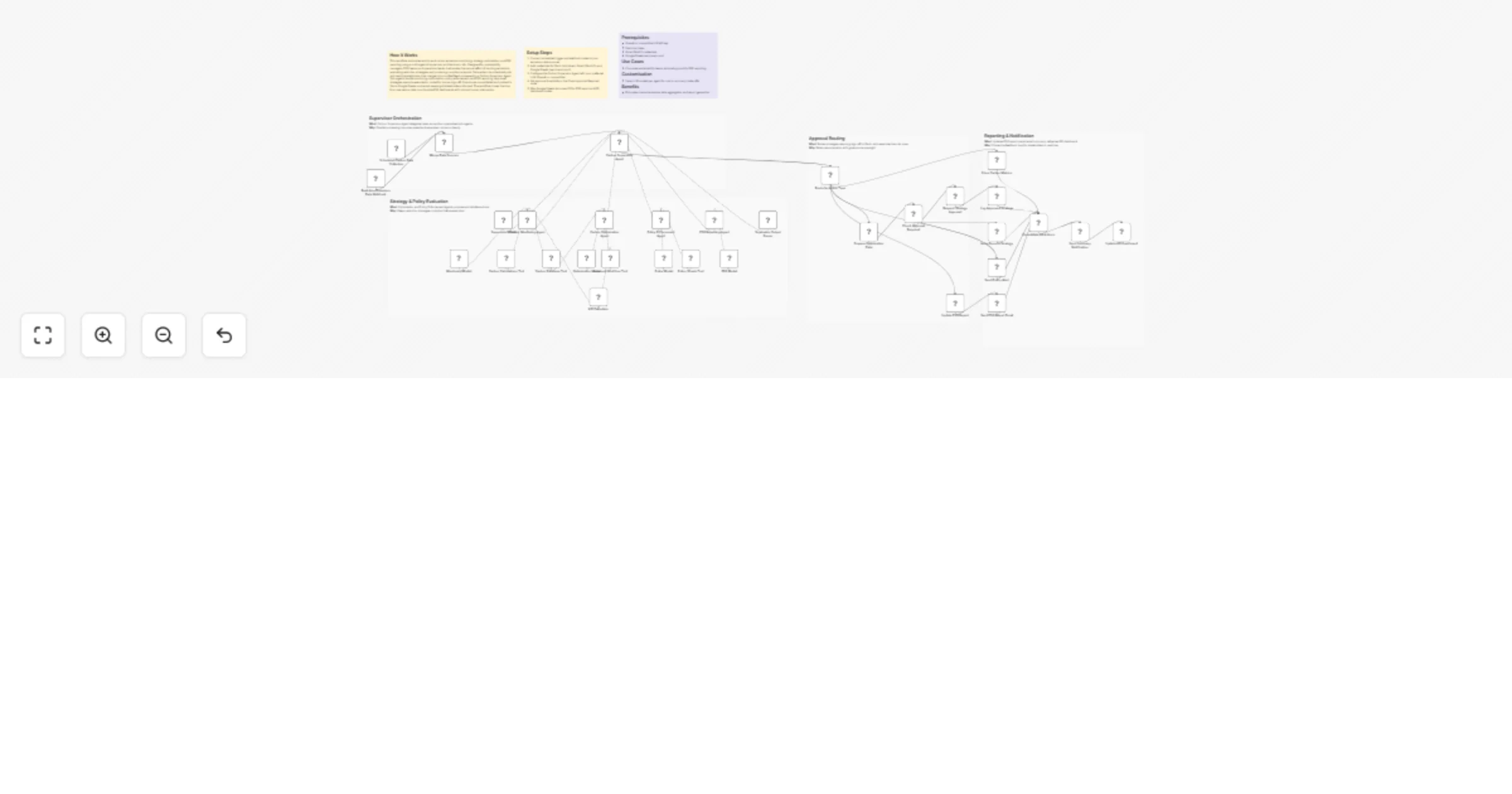
## How It Works This workflow automates performance monitoring by aggregating data from PM tools, code repositories, meeting logs, and CRM systems. It processes team metrics using AI-powered analysis via OpenAI, identifies bottlenecks and workload issues, then creates manager follow-ups and tasks. The system runs weekly, collecting 4 data sources, combining them, analyzing trends, evaluating team capacity, and routing alerts to managers via Gmail. Managers receive structured summaries highlighting performance gaps and required actions. Target audience: Engineering managers and team leads monitoring team velocity, code quality, and capacity planning. ## Setup Steps 1. Configure credentials: PM Tool API key, Code Repo token, and CRM API key. 2. Set the OpenAI API key. 3. Connect your Gmail account via OAuth. 4. In the Workflow Configuration node, adjust API endpoints and polling intervals. 5. Map data field names to match your tools. 6. Test data fetch nodes using sample queries before deployment. ## Prerequisites PM tool API access, GitHub/GitLab token, CRM credentials, OpenAI API key, Gmail OAuth connection ## Use Cases Track engineering team productivity weekly; identify code review bottlenecks; ## Customization Replace PM tool with Jira/Linear; swap OpenAI for Claude/Gemini; ## Benefits Reduces manual performance tracking by 6+ hours weekly; provides real-time visibility into team capacity;

C
Cheng Siong Chin
Engineering
16 Dec 2025
49
0
Workflow preview: Slack workflow router: AI-powered workflow selection
Free advanced

Slack workflow router: AI-powered workflow selection

### Slack Workflow Router: AI-Powered Workflow Selection #### Problem Statement Slack only allows one webhook per Slack app, and n8n generates a unique webhook for each workflow. This limitation means you typically need to create multiple Slack apps to trigger multiple n8n workflows from Slack. This workflow solves that problem by acting as a gateway for a single Slack app, enabling it to trigger multiple n8n workflows. #### How It Works When a message is received from Slack, an AI agent analyzes the message and selects the most suitable workflow to execute. The available workflows are stored in a data table, including their ID, name, and description, which the agent uses to make its decision. This approach allows you to manage and trigger multiple workflows from a single Slack app, making your Slack-to-n8n integration much more scalable and maintainable. #### Key Features * Trigger multiple n8n workflows from a single Slack app mention. * AI-powered workflow selection based on user message and workflow descriptions. * Centralized management of available workflows via a data table. * Scalable and easy to maintain—no need to create multiple Slack apps. #### Setup Instructions * Create a data table in your n8n project with these columns: workflow_id, workflow_name, and workflow_description. * Add your workflows to the table. * Connect your Slack and OpenAI accounts. * Deploy the workflow and mention your Slack app to trigger automations. This template is ideal for teams who want to centralize and scale their Slack automation without creating multiple Slack apps.

E
Ertay Kaya
Engineering
16 Dec 2025
46
0
Workflow preview: Generate consensus answers with multiple AI models & peer review system
Free advanced

Generate consensus answers with multiple AI models & peer review system

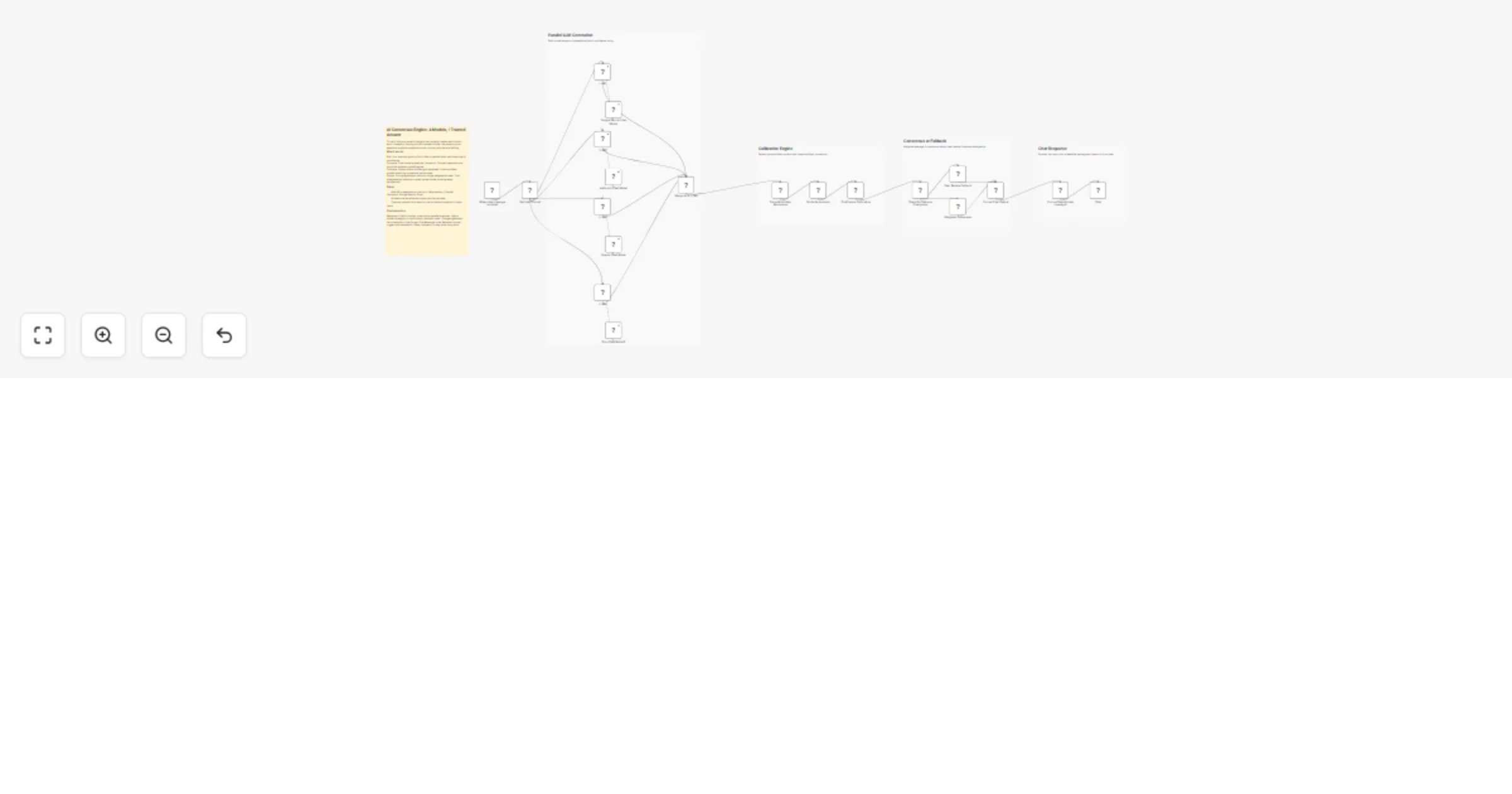
## AI Council: Multi-Model Consensus with Peer Review **Inspired by [Andrej Karpathy's LLM Council](https://github.com/karpathy/llm-council)**, but rebuilt in n8n. This workflow creates a "council" of AI models that independently answer your question, then peer-review each other's responses before a final arbiter synthesizes the best answer. --- ## Who is this for? - If you want to prepare for an upcoming meeting with different people and prep for their different views - find any "blind spots" in your view on a certain subject - Researchers wanting more robust AI-generated answers - Developers exploring multi-model architectures - Anyone seeking higher-quality responses through AI consensus, potentially with faster/cheaper models. - Teams evaluating different LLM capabilities side-by-side --- ## How it works 1. **Ask a Question** — Submit your query via the Chat Trigger 2. **Individual Answers** — Four different models (Gemini, Llama, Gemma, Mistral) independently generate responses 3. **Peer Review** — Each model reviews ALL answers, identifying pros, cons, and overall assessment 4. **Final Synthesis** — DeepSeek R1 analyzes all peer reviews and produces a refined, consensus-based final answer --- ## Setup Instructions ### Prerequisites - Access to an LLM (e.g. [OpenRouter](https://openrouter.ai/) account with API credits) ### Steps 1. **Create OpenRouter credentials** in n8n: - Go to *Settings → Credentials → Add Credential* - Select "OpenRouter" and paste your API key 2. **Connect all model nodes** to your OpenRouter credential. In this example I used Gemini, Llama, Gemma, Mistral and Deepseek, but you can use whatever you want. You can also use the same models, but change their parameters. Play around to find out what suits you best. 3. **Activate the workflow** and open the Chat interface to test --- ## Customization Ideas - You can add as many answer and review models as you want. Do note that each AI node is executed in series, so each will add to the total duration. - Swap models via OpenRouter's model selector (e.g., use Claude, GPT-4, etc.) - Adjust the peer review prompt to represent a certain persona or with domain-specific evaluation criteria - Add memory nodes for multi-turn conversations - Connect to Slack/Discord instead of the Chat Trigger

G
Guido X Jansen
Engineering
10 Dec 2025
415
0
Workflow preview: Compare GPT-4, Claude & Gemini Responses with Contextual AI's LMUnit Evaluation
Free advanced

Compare GPT-4, Claude & Gemini Responses with Contextual AI's LMUnit Evaluation

## PROBLEM Evaluating and comparing responses from multiple LLMs (OpenAI, Claude, Gemini) can be challenging when done manually. - Each model produces outputs that differ in clarity, tone, and reasoning structure. - Traditional evaluation metrics like ROUGE or BLEU fail to capture nuanced quality differences. - Human evaluations are inconsistent, slow, and difficult to scale. ### This workflow automates **LLM response quality evaluation** using **Contextual AI’s LMUnit**, a natural language unit testing framework that provides systematic, fine-grained feedback on response clarity and conciseness. > **Note:** LMUnit offers natural language-based evaluation with a 1–5 scoring scale, enabling consistent and interpretable results across different model outputs. ## How it works - A **chat trigger node** collects responses from multiple LLMs such as **OpenAI GPT-4.1, **Claude 4.5 Sonnet**, and **Gemini 2.5 Flash**. - Each model receives the same input prompt to ensure fair comparison, which is then aggregated and associated with each test cases - We use Contextual AI's LMUnit node to evaluate each response using predefined quality criteria: - “Is the response clear and easy to understand?” - Clarity - “Is the response concise and free from redundancy?” - Conciseness - **LMUnit** then produces evaluation scores (1–5) for each test - Results are aggregated and formatted into a structured summary showing model-wise performance and overall averages. ## How to set up - Create a free [Contextual AI account](https://app.contextual.ai/) and obtain your `CONTEXTUALAI_API_KEY`. - In your **n8n** instance, add this key as a credential under “Contextual AI.” - Obtain and add credentials for each model provider you wish to test: - **OpenAI API Key:** [platform.openai.com/account/api-keys](https://platform.openai.com/account/api-keys) - **Anthropic API Key:** [console.anthropic.com/settings/keys](https://console.anthropic.com/settings/keys) - **Gemini API Key:** [ai.google.dev/gemini-api/docs/api-key](https://ai.google.dev/gemini-api/docs/api-key) - Start sending prompts using chat interface to automatically generate model outputs and evaluations. ## How to customize the workflow - Add more **evaluation criteria** (e.g., factual accuracy, tone, completeness) in the LMUnit test configuration. - Include additional **LLM providers** by duplicating the response generation nodes. - Adjust **thresholds and aggregation logic** to suit your evaluation goals. - Enhance the final summary formatting for dashboards, tables, or JSON exports. - For detailed API parameters, refer to the [LMUnit API reference](https://docs.contextual.ai/api-reference/lmunit/lmunit). - If you have feedback or need support, please email **[email protected]**.

J
Jinash Rouniyar
Engineering
9 Dec 2025
868
0
Workflow preview: Convert CDP network topology to Lucidchart prompts with AWX and Gemini AI
Free advanced

Convert CDP network topology to Lucidchart prompts with AWX and Gemini AI

# AI NETWORK DIAGRAM PROMPT GENERATOR ## Template Description This workflow automates the creation of network diagram prompts using AI. It retrieves Layer-2 topology data from AWX, parses device relationships, and generates a clean, structured prompt ready for Lucidchart’s AI diagram generator. ## How It Works The workflow triggers an AWX Job Template that runs commands such as show cdp neighbors detail. After the job completes, n8n fetches the stdout, extracts neighbor relationships through a JavaScript parser, and sends the structured data to an LLM (Gemini). The LLM transforms the topology into a formatted prompt you can paste directly into Lucidchart to instantly generate a visual network diagram. ## Setup Steps 1. Configure AWX: - Ensure your Job Template runs the required network commands and produces stdout. - Obtain your AWX base URL, credentials, and Job Template ID. 2. Add Credentials in n8n: - Create AWX API credentials. - Add Google Gemini credentials for the LLM node. 3. Update Workflow Nodes: - Insert your AWX URL and Job Template ID in the “Launch Job” node. - Verify endpoints in the “Job Status” and “Job Stdout” nodes. 4. Run the workflow: - After execution, copy the generated Lucidchart prompt and paste it into Lucidchart’s AI to produce the network diagram.

M
Mr Shifu
Engineering
6 Dec 2025
81
0
Workflow preview: Automatically optimize AI prompts with OpenAI using OPRO & DSPy methodology
Free advanced

Automatically optimize AI prompts with OpenAI using OPRO & DSPy methodology

This workflow implements cutting-edge concepts from **Google DeepMind's OPRO** (Optimization by PROmpting) and **Stanford's DSPy** to automatically refine AI prompts. It iteratively generates, evaluates, and optimizes responses against a ground truth, allowing you to "compile" your prompts for maximum accuracy. ## Why this is powerful Instead of manually tweaking prompts (trial and error), this workflow treats prompt engineering as an **optimization problem**: - **OPRO-style Optimization**: The "Optimizer" LLM analyzes past performance scores and reasons to mathematically deduce a better prompt. - **DSPy-style Logic**: It separates the "Logic" (Workflow) from the "Parameters" (Prompts), allowing the system to self-correct until it matches the Ground Truth. ## How it works - **Define**: Set your initial prompt and a test case with the expected answer (Ground Truth). - **Generate**: The workflow generates a response using the current prompt. - **Evaluate**: An AI Evaluator scores the response (0-100) based on accuracy and format. - **Optimize**: If the score is low, the Optimizer AI analyzes the failure and rewrites the prompt. - **Loop**: The process repeats until the score reaches 95/100 or the loop limit is hit. ## Setup steps 1. **Configure OpenAI**: Ensure you have an OpenAI credential set up in the `OpenAI Chat Model` node. 2. **Customize**: Open the `Define Initial Prompt & Test Data` node and set your `initial_prompt`, `test_input`, and `ground_truth`. 3. **Run**: Execute the workflow and check the `Manage Loop & State` node output for the optimized prompt.

S
Shun Nakayama
Engineering
4 Dec 2025
247
0
Workflow preview: Convert task ideas to implementation plans with GPT-4o, Slack & Google Sheets
Free advanced

Convert task ideas to implementation plans with GPT-4o, Slack & Google Sheets

## 🚀 Turn your random ideas into concrete automation specs This workflow acts as your **interactive "n8n Consultant."** Simply write down a rough automation idea in **Google Tasks** (e.g., "Send weather updates to Telegram"), and the AI will research, design, and send a detailed n8n implementation plan to your **Slack**. **✨ Why is this workflow special?** Unlike simple notification workflows, this features a **Human-in-the-Loop** review process. You don't just get a message; you get control. - **Regenerate:** Not satisfied with the AI's plan? Click a button in Slack to have the AI rewrite it instantly. - **Archive:** Happy with the plan? Click "Approve" to automatically save the detailed specs to **Google Sheets** and mark the task as complete. ### How it works 1. **Fetch:** The workflow periodically checks a specific Google Tasks list for new ideas. 2. **AI Design:** The AI (OpenAI) analyzes your idea and generates a structured plan, including node configuration and potential pitfalls. 3. **Human Review:** It sends the plan to Slack with interactive **"Approve"** and **"Regenerate"** buttons. The workflow waits for your input. - **If Regenerate:** The AI re-analyzes the idea and creates a new variation. - **If Approve:** The workflow proceeds to the next step. 4. **Archive:** The approved plan (Title, Nodes, Challenges) is saved to a Google Sheet for future development. 5. **Close:** The original Google Task is updated with a "Processed" flag. ### How to set up 1. **Google Tasks:** Create a new list named "n8n Ideas". 2. **Google Sheets:** Create a new sheet with the following headers in the first row (A to H): - `Date Added` - `Idea Title` - `Status` - `Recommended Nodes` - `Key Challenges` - `Improvement Ideas` - `Alternatives` - `Source Task ID` 3. **Credentials:** Configure credentials for **Google Tasks**, **Google Sheets**, **OpenAI**, and **Slack**. 4. **Configure Nodes:** - **[Step 1] Fetch New Ideas:** Select your Task list. - **[Step 4] Slack — Review & Approve:** Select your target channel. - **[Action] Archive to Sheets:** Select your Spreadsheet and Sheet. - **[Close] Mark Task Done:** Select your Task list again. ### Requirements - Google Tasks account - Google Sheets account - OpenAI API Key - Slack account

S
Shun Nakayama
Engineering
30 Nov 2025
239
0
Workflow preview: Complete AI safety suite: test 9 guardrail layers with Groq LLM
Free advanced

Complete AI safety suite: test 9 guardrail layers with Groq LLM

# Who's It For AI developers, automation engineers, and teams building chatbots, AI agents, or workflows that process user input. Perfect for those concerned about security, compliance, and content safety. # What It Does This workflow demonstrates all 9 guardrail types available in n8n's Guardrails node through real-world test cases. It provides a comprehensive safety testing suite that validates: - Keyword blocking for profanity and banned terms - Jailbreak detection to prevent prompt injection attacks - NSFW content filtering for inappropriate material - PII detection and sanitization for emails, phone numbers, and credit cards - Secret key detection to catch leaked API keys and tokens - Topical alignment to keep conversations on-topic - URL whitelisting to block malicious domains - Credential URL blocking to prevent URLs with embedded passwords - Custom regex patterns for organization-specific rules (employee IDs, order numbers) - Each test case flows through its corresponding guardrail node, with results formatted into clear pass/fail reports showing violations and sanitized text. # How to Set Up - Add your Groq API credentials (free tier works fine) - Import the workflow - Click "Test workflow" to run all 9 cases - Review the formatted results to understand each guardrail's behavior # Requirements - n8n version 1.119.1 or later (for Guardrails node) - Groq API account (free tier sufficient) - Self-hosted instance (some guardrails use LLM-based detection) # How to Customize - Modify test cases in the "Test Cases Data" node to match your specific scenarios - Adjust threshold values (0.0-1.0) for AI-based guardrails to fine-tune sensitivity - Add or remove guardrails based on your security requirements - Integrate individual guardrail nodes into your production workflows - Use the sticky notes as reference documentation for implementation This is a plug-and-play educational template that serves as both a testing suite and implementation reference for building production-ready AI safety layers.

M
Muhammad Shaheer Awan
Engineering
23 Nov 2025
241
0
Workflow preview: Batch process data with Redis-powered debouncing system
Free advanced

Batch process data with Redis-powered debouncing system

## How it works This implementation aggregates incoming data into a Redis list from potentially concurrent workflow executions. It buffers the data for a set period before a single execution retrieves and processes the entire batch. ## Step-by-step Flow: 1. Trigger: Data is received from a trigger (e.g., an external workflow execution). 2. Lock Check: The system verifies that the queue is not currently locked; if it is, the process waits. 3. Append: The received data is appended to a Redis list. 4. Tagging: A unique execution identifier is generated and written to a specific Redis key (acting as a "last writer" marker). 5. Wait: The execution pauses for a configured duration. 6. Verification: After the wait, the execution checks if the Redis key still contains its specific identifier. 7. Exit Condition: If the identifier has changed, it indicates a newer execution has arrived. The current execution terminates. 8. Processing: If the identifier matches, this execution assumes responsibility for the batch. It locks the queue, retrieves all data, clears the Redis list, releases the lock, and forwards the aggregated data further. ## Setup 1. Add your Redis instance credentials 2. Configure the debounce period (2 seconds by default) 3. Adjust this workflow's trigger and what it calls in the end

G
Gregory
Engineering
20 Nov 2025
59
0
Workflow preview: Singapore Lottery Predictive Analytics and Pattern Mining System
Free advanced

Singapore Lottery Predictive Analytics and Pattern Mining System

## How It Works A scheduled trigger initiates automated retrieval of TOTO/4D data, including both current and historical records. The datasets are merged and validated to ensure structural consistency before branching into parallel analytical pipelines. One track performs pattern mining and anomaly detection, while the other generates statistical and time-series forecasts. Results are then routed to an AI agent that integrates multi-model insights, evaluates prediction confidence, and synthesizes the final output. The system formats the results and delivers them through the selected export channel. ## Setup Instructions **1. Scheduler Config:** Adjust the trigger frequency (daily or weekly). **2. Data Sources:** Configure API endpoints or database connectors for TOTO/4D retrieval. **3. Data Mapping:** Align and map column structures for both 1D and 4D datasets in merge nodes. **4. AI Integration:** Insert the OpenAI API key and connect the required model nodes. **5. Export Paths:** Select and configure output channels (email, Google Sheets, webhook, or API). ## Prerequisites - TOTO/4D historical data source with API access - OpenAI API key (GPT-4 recommended) - n8n environment with HTTP/database connectivity - Basic time series analysis knowledge ## Use Cases **Traders:** Pattern recognition for draw prediction with confidence scoring **Analysts:** Multivariate forecasting across cycles with validation ## Customization **Data:** Swap TOTO/4D with stock prices, crypto, sensors, or any time series **Models:** Replace OpenAI with Claude, local LLMs, or HuggingFace models ## Benefits **Automation:** Runs 24/7 without manual intervention **Intelligence:** Ensemble approach prevents overfitting and single-model bias

C
Cheng Siong Chin
Engineering
17 Nov 2025
107
0
Workflow preview: Auto Generate Descriptive Node Names with AI for Workflow Readability
Free advanced

Auto Generate Descriptive Node Names with AI for Workflow Readability

## ⚡Auto Rename n8n Workflow Nodes with AI✨ This workflow uses AI to automatically generate clear and descriptive names for every node in your n8n workflows. It analyzes each node's type, parameters, and connections to create meaningful names, making your workflows instantly readable. ### Who is it for? This workflow is for n8n users who manage complex workflows with dozens of nodes. If you've ever: - Built workflows full of generic names like `HTTP Request 2` or `Edit Fields 1` - Struggled to understand your own work after a few weeks - Copied workflows from others with unclear node names - Spent hours manually renaming nodes one by one ...then this workflow will save you significant time and effort. ### Requirements - **n8n API Credentials**: Must be configured to allow listing and updating workflows - **AI Provider Credentials**: An API key for your preferred AI provider (OpenRouter is used currently) ### How it works 1. **Trigger**: Launch via form (select from dropdown) or manual trigger (quick testing with pre-selected workflow) 2. **Fetch**: Retrieve the target workflow's JSON and extract nodes and connections 3. **Generate**: Send the workflow JSON to the AI, which creates a unique, descriptive name for every node 4. **Validate**: Verify the AI mapping covers all original node names 5. **Apply**: If valid, update all node names, parameter references, and connections throughout the workflow 6. **Save**: Save/Update the workflow with renamed nodes and provide links to both new and previous versions If validation fails (e.g., AI missed nodes), the workflow stops with an error. You can modify the error handling to retry or loop back to the AI node. ### Setup 1. **Connect n8n API credentials** - Open any n8n node in the workflow and make sure your n8n API credentials is connected 2. **Configure AI provider credentials** - Open the "OpenRouter" node (or replace with your preferred AI) - Add your API credentials - Adjust the model if needed (current: `openai/gpt-5.1-codex-mini`) 3. **Test the workflow** - Use Manual Trigger for quick testing with a pre-selected workflow - Use Form Trigger for a user-friendly interface with workflow selection ### Important notice **If you're renaming a currently opened workflow**, you must **reload the page** after execution to see the latest version, n8n doesn't automatically refresh the canvas when workflow versions are updated via API. ### Need help? If you're facing any issues using this workflow, [join the community discussion on the n8n forum.](https://community.n8n.io/t/auto-rename-n8n-workflow-nodes-with-ai)

A
Anan
Engineering
16 Nov 2025
2289
0