Document Extraction Workflows
Analyze legal contracts with GPT-4.1 and manage cases in Google Sheets and Slack
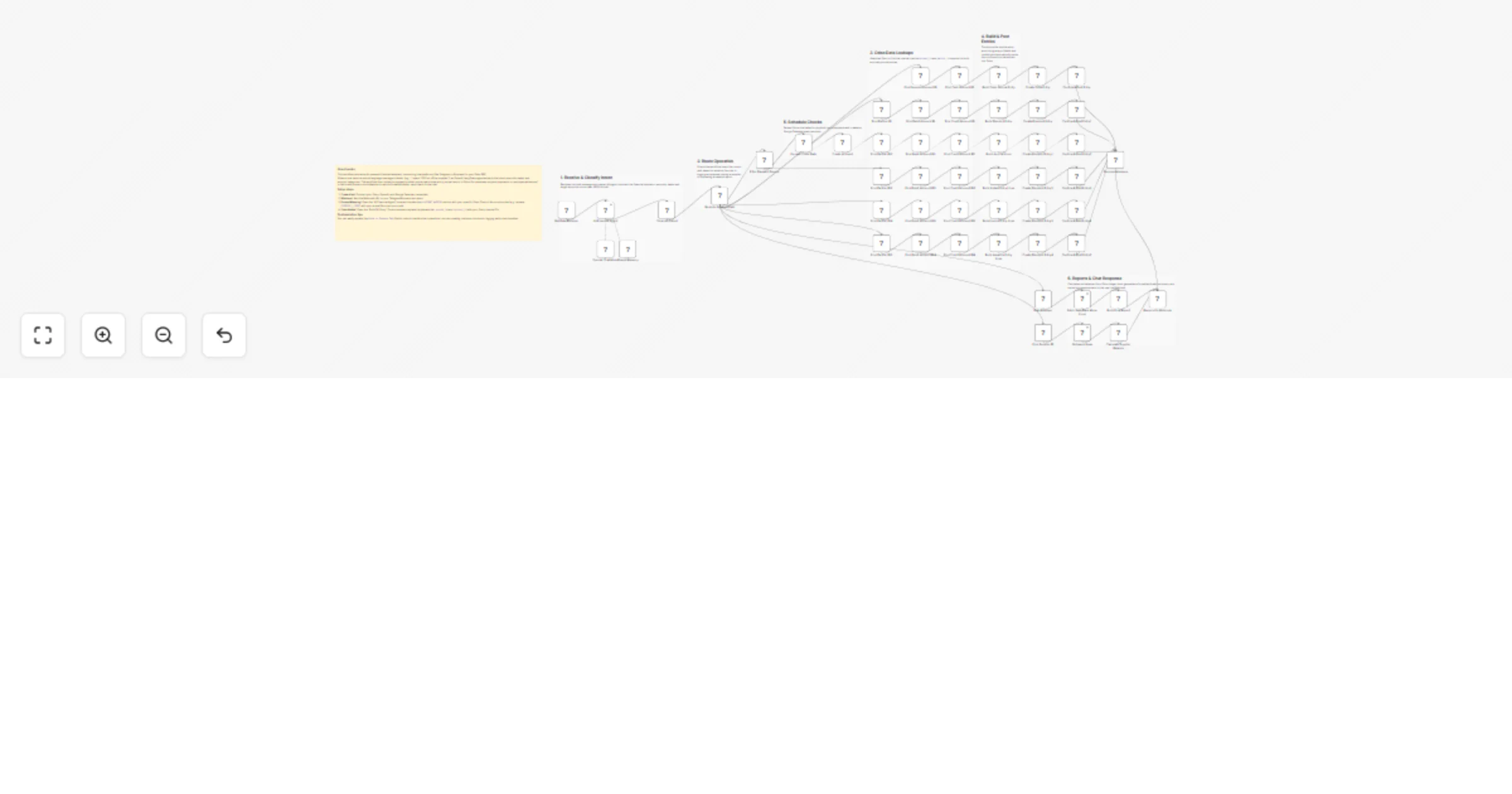
## Who this workflow is for Law firms in corporate, litigation, or family law needing streamlined case and contract management. ## What this workflow does Automatically analyzes contracts using AI, extracts key clauses, logs cases in Google Sheets, routes cases to attorneys, sends client summaries, generates PDFs, and schedules follow-ups. ## How the workflow works 1. Webhook triggers on new case or contract 2. AI analyzes contract 3. Case routed by type 4. Logs case info in Google Sheets 5. Notifies attorney via Slack 6. Sends client email summary 7. Generates PDF report 8. Schedules follow-up events 9. Optional integration with practice management software **Author:** Hyrum Hurst, AI Automation Engineer **Company:** QuarterSmart **Contact:** [email protected]
Forecast and report multi-channel tax liabilities with OpenAI, Gmail, Sheets and Airtable
## How It Works This workflow automates tax compliance by aggregating multi-channel revenue data, calculating jurisdiction-specific tax obligations, detecting anomalies, and generating submission-ready reports for tax authorities. Designed for finance teams, tax professionals, and e-commerce operations, it solves the challenge of manually reconciling transactions across multiple sales channels, applying complex tax rules, and preparing compliant filings under tight deadlines. The system triggers monthly or on-demand, fetching revenue data from e-commerce platforms, payment processors, and accounting systems. Transaction records flow through validation layers that merge historical context, classify revenue streams, and calculate tax obligations using jurisdiction-specific rules engines. AI models detect anomalies in tax calculations, identify unusual deduction patterns, and flag potential audit risks. The workflow routes revenue data by tax jurisdiction, applies progressive tax brackets, and generates formatted reports matching authority specifications. Critical anomalies trigger immediate alerts to tax teams via Gmail, while finalized reports store in Google Sheets and Airtable for audit trails. This eliminates 80% of manual tax preparation work, ensures multi-jurisdiction compliance, and reduces filing errors. ## Setup Steps 1. Configure e-commerce API credentials for transaction access 2. Set up payment processor integrations (Stripe, PayPal) for revenue reconciliation 3. Add accounting system credentials (QuickBooks, Xero) for financial data 4. Configure OpenAI API key for anomaly detection and tax analysis 5. Set Gmail OAuth credentials for tax team alert notifications 6. Link Google Sheets for report storage and audit trail documentation 7. Connect Airtable workspace for structured tax record management ## Prerequisites Active e-commerce platform accounts with API access. Payment processor credentials. ## Use Cases Automated monthly sales tax calculations for multi-state e-commerce. ## Customization Modify tax calculation rules for specific jurisdiction requirements. ## Benefits Reduces tax preparation time by 80% through end-to-end automation.
Automate satellite data analysis and regulatory reporting with GPT-4 and Slack
## How It Works This workflow automates satellite data processing by ingesting raw geospatial data, applying AI analysis, and submitting formatted reports to regulatory authorities. Designed for environmental agencies, research institutions, and compliance teams, it solves the challenge of manually processing large satellite datasets and preparing standardized submissions for government agencies. The system triggers on scheduled intervals or event webhooks, fetching satellite imagery and sensor data from ECC/climate APIs. Raw data flows through parsing and normalization stages, then routes to AI models for analysis—detecting environmental changes, calculating metrics, and identifying anomalies. Processed results are validated against agency specifications, formatted into SDQAR reports, and automatically stored in designated repositories. The workflow generates submission packages with required metadata, notifies stakeholders via Slack and email, and logs all activities to Google Sheets for audit trails. This eliminates hours of manual data processing, ensures compliance with submission standards, and accelerates environmental monitoring workflows. ## Setup Steps 1. Configure ECC/climate API credentials for satellite data access 2. Set up webhook endpoints for event-driven data ingestion triggers 3. Add OpenAI API key for geospatial analysis and anomaly detection 4. Configure NVIDIA NIM API for specialized environmental modeling 5. Set Google Sheets credentials for audit logging and tracking 6. Connect Slack workspace and specify notification channels for submission updates 7. Configure Gmail OAuth for automated stakeholder notifications ## Prerequisites Active satellite data API access (ECC, NASA, ESA) with authentication credentials. ## Use Cases Automated climate monitoring with monthly regulatory submissions. ## Customization Modify AI analysis prompts for specific environmental parameters. ## Benefits Reduces satellite data processing time by 85% through end-to-end automation.
Grade and deliver multi-course assignment feedback with GPT-4o, Google Drive, Slack, and Gmail
## How It Works This workflow automates business intelligence reporting by aggregating data from multiple sources, processing it through AI models, and delivering formatted dashboards via email. Designed for business analysts, operations managers, and executive teams, it solves the challenge of manually compiling metrics from disparate systems into coherent reports. The system triggers on schedule or webhook, extracting data from Google Sheets, databases, and APIs. Raw data flows through transformation nodes that calculate KPIs, generate trend analyses, and create visualizations. AI models (OpenAI) provide natural language insights and anomaly detection. Results populate multiple dashboard templates—executive summary, departmental metrics, and detailed analytics—each tailored to specific stakeholder needs. Formatted reports are automatically distributed via Gmail with embedded charts and actionable recommendations. This eliminates hours of manual data gathering, reduces reporting errors, and ensures stakeholders receive timely, consistent insights. ## Setup Steps 1. Configure Google Sheets credentials and specify source spreadsheet IDs 2. Set up database connections (PostgreSQL, MySQL) with read-only access 3. Add OpenAI API key for GPT-4 analytics and narrative generation 4. Set Gmail OAuth credentials for automated email delivery 5. Define recipient lists for each dashboard type (executive, departmental, detailed) 6. Customize dashboard templates with company branding and preferred KPIs ## Prerequisites Active Google Workspace account with Sheets and Gmail access. ## Use Cases Automated weekly executive dashboards with YoY comparisons. ## Customization Modify dashboard templates to match corporate branding standards. ## Benefits Reduces report preparation time by 80% through full automation.
Track monthly OpenAI token usage with Google Sheets and Gmail reports
**Who's this for** Finance teams, AI developers, product managers, and business owners who need to monitor and control OpenAI API costs across different models and projects. If you're using GPT-4, GPT-3.5, or other OpenAI models and want to track spending patterns, identify cost optimization opportunities, and generate stakeholder reports, this workflow is for you. **What it does** This workflow automatically tracks your OpenAI token usage on a monthly basis, breaks down costs by model and date, stores the data in Google Sheets with automatic cost calculations, and emails PDF reports to stakeholders. It transforms raw API usage data into actionable insights, helping you understand which models are driving costs, identify usage trends over time, and maintain budget accountability. The workflow runs completely hands-free once configured, generating comprehensive monthly reports without manual intervention. **How it works** The workflow executes automatically on the 5th of each month and follows these steps: Creates a new Google Sheet from your template with the naming format "Token_Tracking_[Month]_[Year]" Fetches the previous month's OpenAI usage data via the OpenAI Admin API Transforms raw API responses into a clean daily breakdown showing usage by model Appends the data to Google Sheets with columns for date, model, input tokens, and output tokens Your Google Sheets formulas automatically calculate costs based on OpenAI's pricing for each model Exports the completed report as both PDF and Excel formats Emails the PDF report to designated stakeholders with a summary message Archives the Excel file to Google Drive for long-term recordkeeping and historical analysis **Requirements** OpenAI account with Admin API access (required to access organization usage endpoints) Google Sheets template pre-configured with cost calculation formulas Google Drive for report storage and archiving Gmail account for sending email notifications n8n instance (self-hosted or cloud) with the following credentials configured: OpenAI API credentials Google Sheets OAuth2 Google Drive OAuth2 Gmail OAuth2 **Setup instructions** 1. Create your Google Sheets template Set up a Google Sheet with these columns: - Date - Model - Token Usage In - Token Usage Out - Token Cost Input (formula: =C2 * [price per 1M input tokens] / 1000000) - Token Cost Output (formula: =D2 * [price per 1M output tokens] / 1000000) - Total Cost USD (formula: =E2 + F2) - Total Cost AUD (optional, formula: =G2 * [exchange rate]) (workflow contains a template) Include pricing formulas based on OpenAI's current pricing. Add summary calculations at the bottom to total costs by model. **2. Configure n8n credentials** In your n8n instance, set up credentials for: OpenAI API (you'll need admin access to your organization) Google Sheets (OAuth2 connection) Google Drive (OAuth2 connection) Gmail (OAuth2 connection) **3. Update workflow placeholders** Replace the following placeholders in the workflow: your-api-key-id: Your OpenAI API key ID (find this in your OpenAI dashboard) your-template-file-id: The ID of your Google Sheets template your-archive-folder-id: The Google Drive folder ID where reports should be archived [email protected]: The email address that should receive monthly reports **4. Assign credentials to nodes** Open each node that requires credentials and select the appropriate credential from your configured options: "Fetch OpenAI Usage Data" → OpenAI API credential "Append Data to Google Sheet" → Google Sheets credential "Create Monthly Report from Template" → Google Drive credential "Export Sheet as Excel" → Google Drive credential "Export Sheet as PDF for Email" → Google Drive credential "Archive Report to Drive" → Google Drive credential "Email Report to Stakeholder" → Gmail credential **5. Test the workflow** Before enabling the schedule, manually execute the workflow to ensure: The template copies successfully OpenAI data fetches correctly Data appends to the sheet properly PDF and Excel exports work Email sends successfully File archives to the correct folder **6. Enable the schedule** Once testing is complete, activate the workflow. It will run automatically on the 5th of each month.
Detect and score refund risk with Webhook, OpenAI and Google Sheets
## How it works This workflow automatically evaluates refund and chargeback risk for incoming e-commerce orders. Orders are received via a webhook, processed individually, and checked to avoid duplicate analysis. Each transaction is normalized and sent to OpenAI for structured risk scoring and classification. Results are logged for auditing, alerts are triggered for high-risk cases, and processed orders are marked to prevent reprocessing. ## Step-by-step - **Step 1 – Ingest incoming orders** - **Webhook** – Receives single or bulk order payloads from external systems. - **Split Out** – Breaks array-based payloads into individual order records. - **Split In Batches** – Iterates through each order in a controlled loop. - **Step 2 – Deduplication check** - **IF (DEDUPE CHECK)** – Verifies whether an order was already processed and skips duplicates. - **Step 3 – Normalize transaction data** - **Code (Normalize Data)** – Validates required fields and standardizes order, customer, and behavioral attributes. - **Step 4 – AI risk assessment** - **OpenAI (Message a model)** – Sends normalized transaction data to the AI model and requests a strict JSON risk evaluation. - **Step 5 – Parse AI output** - **Code (Parse AI Output)** – Cleans the AI response and extracts risk score, risk level, key drivers, and recommendations. - **Step 6 – Log results** - **Google Sheets (Append)** – Stores timestamps, order details, and AI risk outcomes for reporting and audits. - **Step 7 – Risk decision and alerts** - **IF (High Risk)** – Filters only transactions classified as HIGH risk. - **Discord** – Sends real-time alerts to operations or finance teams. - **Gmail** – Emails finance stakeholders with full risk context. - **Step 8 – Mark order as processed** - **Google Sheets (Update)** – Updates the source row to prevent duplicate processing. ## Why use this? - Automatically detects high refund or chargeback risk before losses occur. - Eliminates manual review with consistent, AI-driven risk scoring. - Sends instant alerts so teams can act quickly on high-risk orders. - Maintains a clear audit trail for compliance and reporting. - Scales easily to handle single or bulk order evaluations.
Analyze contract risk from Google Drive with OpenAI and log to Gmail & Sheets
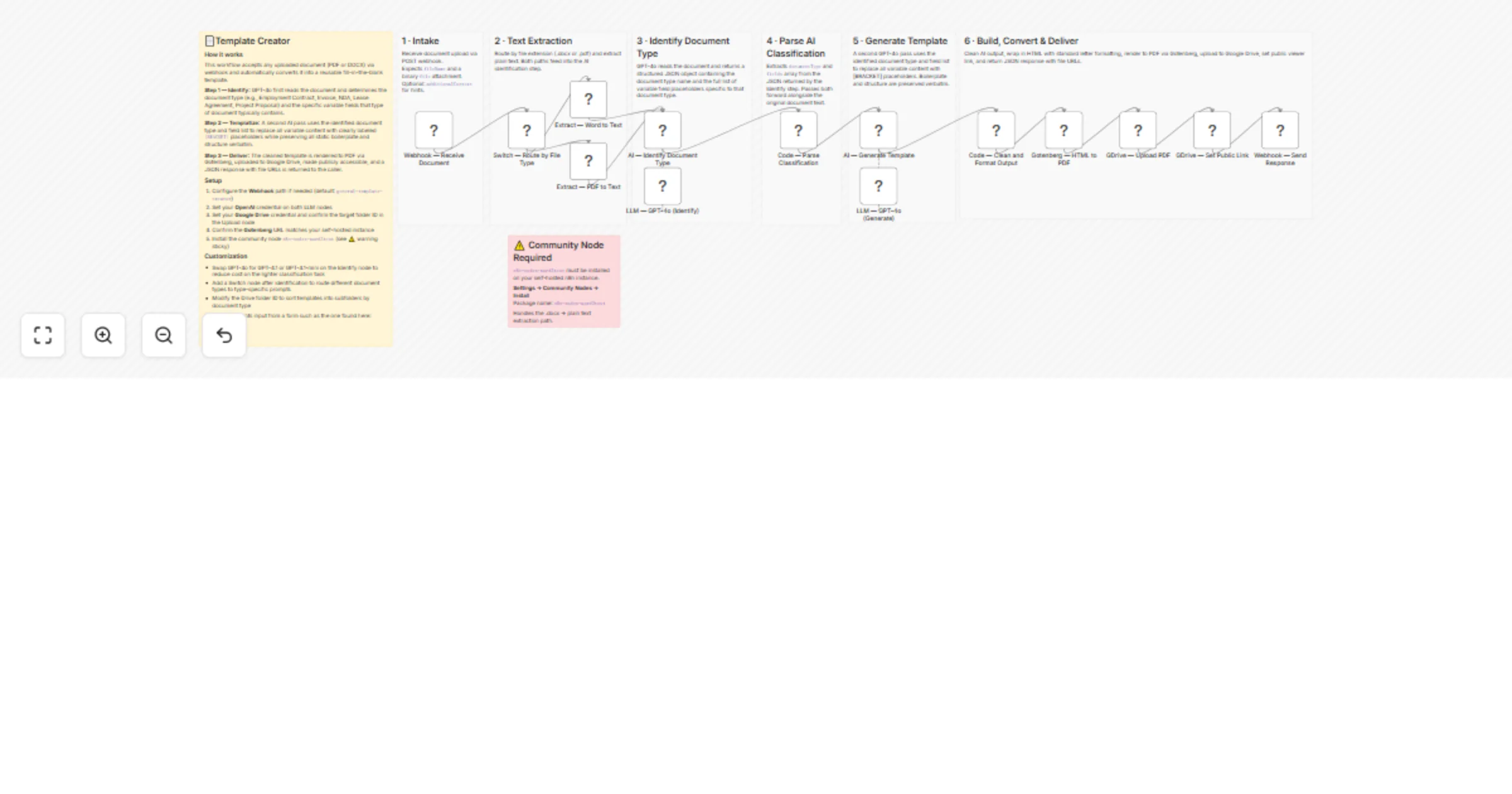
## How it works This workflow automates end-to-end contract analysis when a new file is uploaded to Google Drive. It downloads the contract, extracts its content, and uses AI to analyze legal terms, obligations, and risks. Based on the assessed risk level, it notifies stakeholders and logs structured results into Google Sheets for audit and compliance. ## Step-by-step - **Step 1: Contract ingestion and AI analysis** - **Google Drive Trigger** – Monitors a specific folder for newly uploaded contract files. - **Download file** – Downloads the uploaded contract from Google Drive. - **Extract Text From Downloaded File** – Extracts readable text or prepares raw content for complex files. - **AI Contract Analysis** – Analyzes legal, commercial, and financial clauses using AI. - **Format AI Output** – Parses and structures the AI response into clean, usable fields. - **Step 2: Risk alerts and audit logging** - **Alert Teams Automatically** – Evaluates risk level and checks for significant risks. - **Send a message (Risk Alert)** – Sends a detailed alert email for medium-risk contracts. - **Send a message (Info Only)** – Sends an informational email when no action is required. - **Get The Data To Save In Google Sheet (Alert Path)** – Prepares alert-related contract data. - **Get The Data To Save In Google Sheet (Info Path)** – Prepares non-alert contract data. - **Append row in sheet** – Stores contract details, risks, and timestamps in Google Sheets. ## Why use this? - Eliminates manual contract screening and repetitive reviews. - Detects explicit and inferred risks consistently using AI. - Automatically alerts teams only when attention is required. - Creates a centralized audit log for compliance and reporting. - Scales contract analysis without increasing legal workload.
Generate PDF documents from HTML with PDF Generator API, Gmail and Supabase
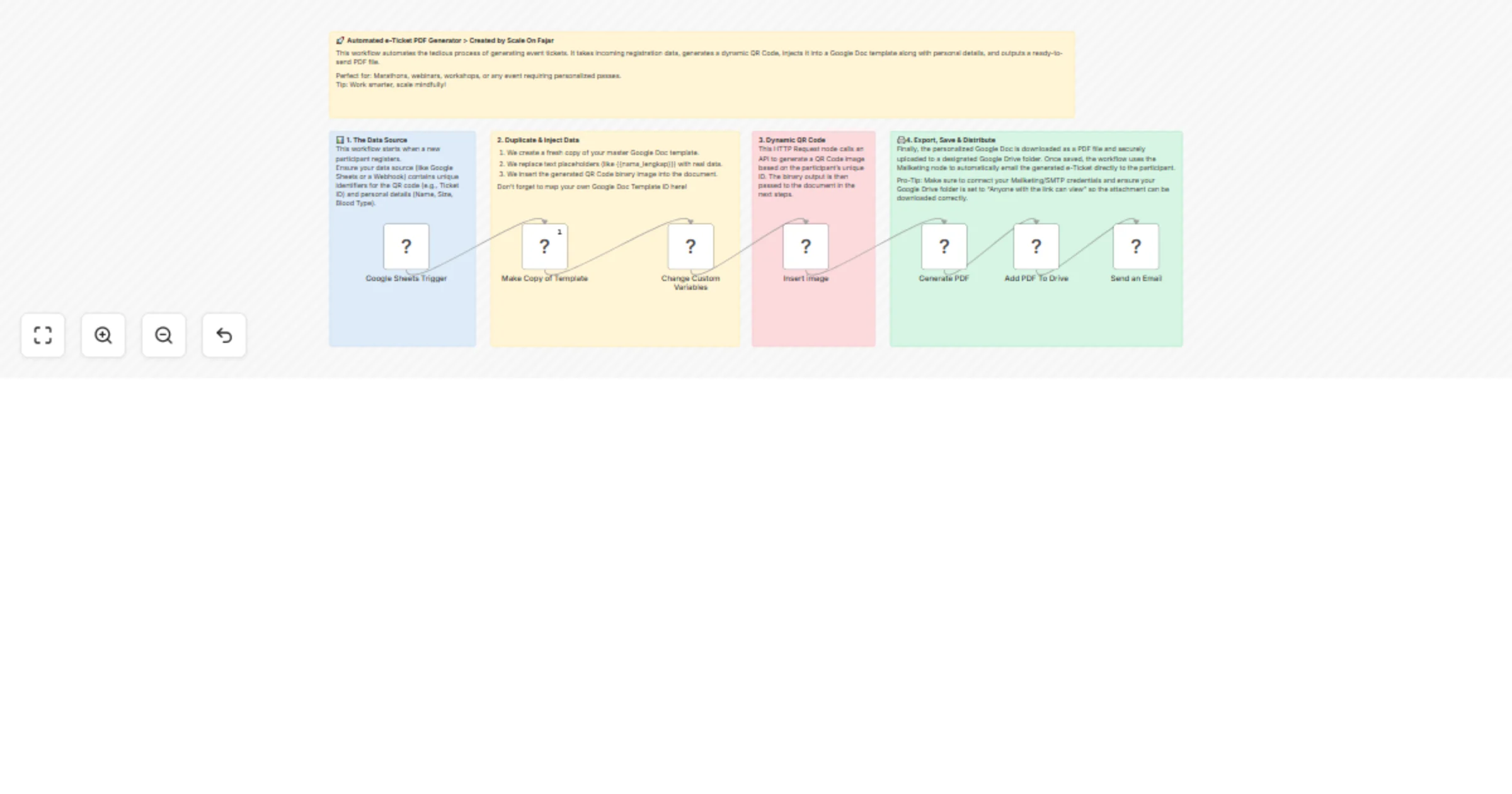
## Who’s this for 💼 This template is designed for teams and developers who need to generate PDF documents automatically from HTML templates. It’s suitable for use cases such as invoices, confirmations, reports, certificates, or any custom document that needs to be created dynamically based on incoming data. ## What this workflow does ⚙️ This workflow automates the full lifecycle of document generation, from request validation to delivery and storage. It is triggered by a POST webhook that receives structured JSON data describing the requested document and client information. Before generating the document, the workflow validates the client’s email address using Hunter Email Verification to prevent invalid or mistyped emails. If the email is valid, the workflow loads the appropriate HTML template from a Postgres database, fills it with the incoming data, and converts it into a PDF using PDF Generator API. Once the PDF is generated, it is sent to the client via Gmail, uploaded to Supabase Storage, and the transaction is recorded in the database for tracking and auditing purposes. ## How it works 🛠️ 1. Receives a document generation request via a POST webhook. 2. Validates the client’s email address using Hunter. 3. Generates a PDF document from an HTML template using PDF Generator API. 4. Sends the PDF via Gmail and uploads it to Supabase Storage. 5. Stores a document generation record in the database. ## How to set up 🖇️ Before activating the workflow, make sure all required services and connections are prepared and available in your n8n environment. - Create a POST webhook endpoint that accepts structured JSON input. - Add Hunter API credentials for email verification. - Add PDF Generator API credentials for HTML to PDF conversion. - Prepare a Postgres database with tables for HTML templates and document generation records. - Set up Gmail or SMTP credentials for email delivery. - Configure Supabase Storage for storing generated PDF files. ## Requirements ✅ - PDF Generator API account - Hunter account - Postgres database - Gmail or SMTP-compatible email provider - Supabase project with Storage enabled ## How to customize the workflow 🤖 This workflow can be adapted to different document generation scenarios by extending or modifying its existing steps: - Add extra validation steps before document generation if required. - Extend delivery options by sending the generated PDF to additional services or webhooks. - Enhance security by adding document encryption or access control. - Add support for additional document types by storing more HTML templates in the database. - Modify the database schema or queries to store additional metadata related to generated documents. - Adjust the data mapping logic in the Code node to match your input structure.
Evaluate OMR answer sheets with Gemini vision AI and Google Sheets
## ✅ What problem does this workflow solve? Manual checking of OMR (Optical Mark Recognition) answer sheets is time-consuming, error-prone, and difficult to scale—especially for schools, coaching institutes, and exam centers. This workflow automates **OMR evaluation end-to-end** using AI, from reading a scanned answer sheet image to calculating scores and storing structured results in Google Sheets. --- ## ⚙️ What does this workflow do? 1. Accepts a **scanned OMR answer sheet image** via webhook. 2. Uses **AI vision** to extract only the marked answers from the sheet. 3. Extracts basic **student details** (Name, Roll Number, Class). 4. Compares extracted answers with a predefined **answer key**. 5. Calculates: - Total questions - Correct answers - Incorrect answers - Score percentage 6. Generates **question-wise binary results** (1 = correct, 0 = incorrect). 7. Stores the complete result in **Google Sheets**. 8. Returns a structured **JSON response** to the calling system. --- ## 🧠 How It Works – Step by Step ### 1. 📥 Webhook Trigger (Student OMR Upload) - A client uploads the OMR image via a `POST` request. - Image is received as `form-data` (`key: file`). ### 2. 👁️ AI-Based OMR Image Analysis - An AI vision model analyzes the image. - Strict rules ensure: - Only answer bubbles are considered - Multiple markings → darkest option is selected - Unmarked questions are skipped - No guessing or hallucination - Output includes: - Student details - Question–answer pairs ### 3. 🔄 Answer Formatting - Raw AI output is converted into a clean, structured format: - `1:A, 2:B, 3:C, ...` - Student metadata is preserved separately. ### 4. 🧮 Answer Key Setup - Correct answers are defined inside the workflow (editable anytime). - Supports any number of questions. ### 5. 📊 Result Calculation - User answers are compared with the answer key. - Generates: - Correct / Incorrect counts - Percentage score - Detailed per-question result - Binary output (`Q.1 = 1 / 0`) for analytics ### 6. 📄 Google Sheets Logging - Results are appended to a Google Sheet with columns such as: - Student Name - Roll No - Class - Correct - Incorrect - Score Percentage - Q.1 → Q.n (binary values) ### 7. 📤 API Response - Workflow responds with a JSON payload containing: - Student details - Full evaluation summary - Per-question analysis --- ## 📂 Sample Google Sheet Output | Student Name | Roll No | Class | Correct | Incorrect | Score % | Q.1 | Q.2 | Q.3 | ... | |-------------|--------|-------|---------|-----------|---------|-----|-----|-----|-----| | Rahul Shah | 1023 | 10-A | 16 | 4 | 80% | 1 | 0 | 1 | ... | --- ## 🛠 Integrations Used - 🤖 **AI Vision Model** – for accurate OMR detection - ⚙️ **n8n Webhook** – to accept image uploads - 🧠 **Custom Code Nodes** – for parsing and evaluation logic - 📊 **Google Sheets** – for persistent result storage --- ## 👤 Who can use this? This workflow is ideal for: - 🏫 **Schools & Colleges** - 📚 **Coaching Institutes** - 🧪 **Online Exam Platforms** - 🧑💻 **EdTech Developers** - 📝 **Mock Test Providers** If you need fast, reliable, and scalable OMR checking without expensive hardware—this workflow delivers. --- ## 🚀 Benefits - ⏱ Saves hours of manual checking - 🎯 Eliminates human error - 📊 Produces analytics-ready data - 🔄 Easy to update answer keys - 🌐 API-ready for integration with any system --- ## 📦 Ready to Deploy? Just configure: - ✅ AI model credentials - ✅ Google Sheets access - ✅ Your correct answer key …and start evaluating OMR sheets automatically at scale.
Consolidate and report monthly financial PDFs with Google Drive and Slack
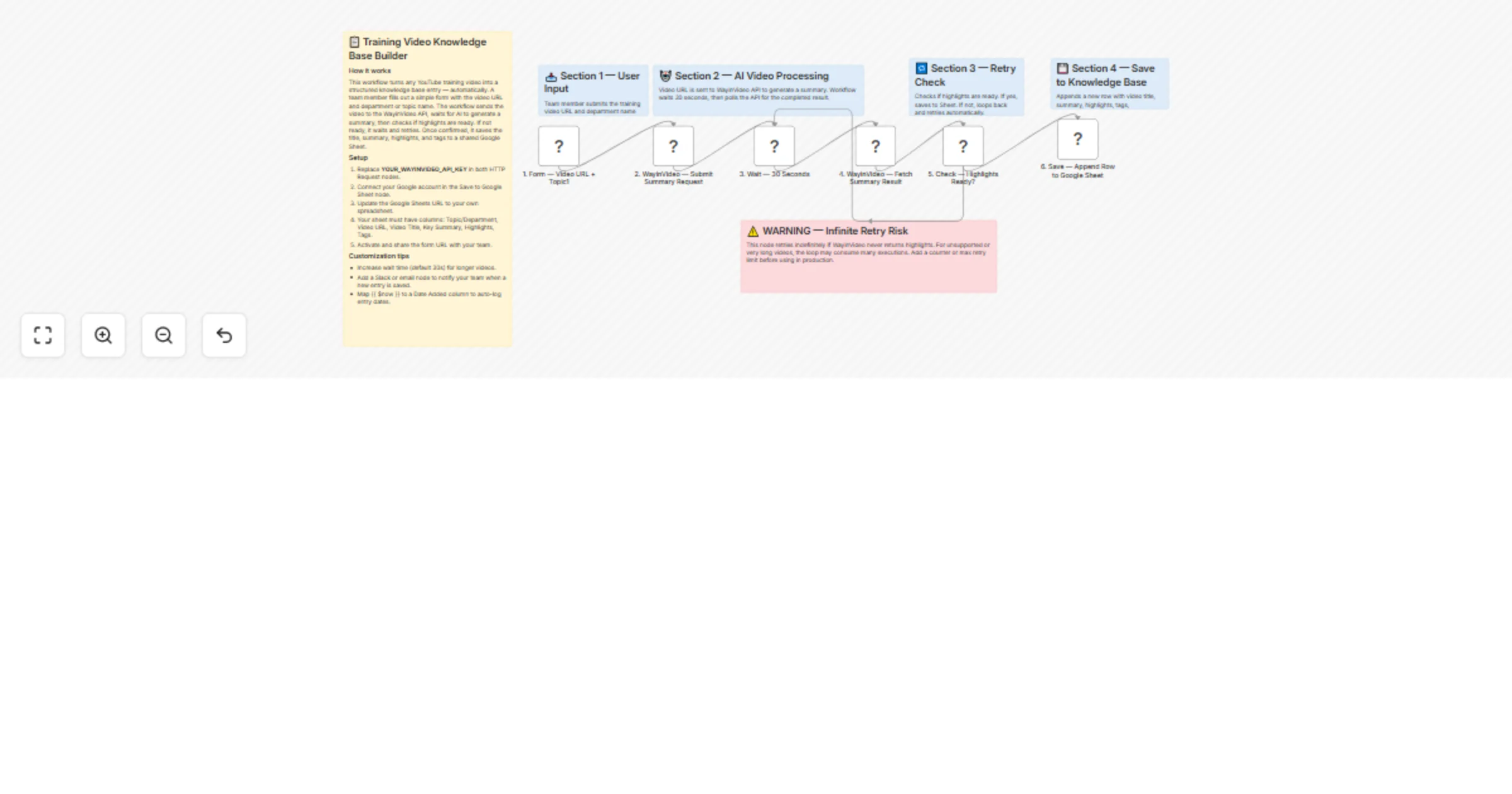
# Consolidate and report monthly financial documents using Google Drive and Slack ## 🎯 Description Streamline your month-end accounting processes with this enterprise-grade automation designed to aggregate, validate, and merge fragmented financial documents into a single, professional reporting bundle. This workflow transforms manual document chaos into a structured, touchless system using Google Drive and Slack. ### ✨ How to achieve automated document consolidation You can achieve a fully autonomous financial reporting cycle by using the available tools to: 1. **List and scan folders** — Automatically retrieve all documents from a designated Google Drive folder at the end of each month. 2. **Validate file formats** — Use an **IF Node** to ensure only PDF documents (invoices, receipts, statements) are processed, preventing workflow crashes from incompatible file types. 3. **Aggregate binary data** — Gather separate file streams into a unified data array using the **Aggregate Node** to ensure stable processing for the merge engine. 4. **Merge into master reports** — Utilize the **HTML to PDF** engine to consolidate individual files into one "Monthly Finance Pack" with professional naming conventions. 5. **Secure and archive** — Upload the consolidated master file back to a secure archive folder in Google Drive. 6. **Notify the team** — Send a real-time **Slack** alert with the final filename, ensuring the accounting team knows exactly when the report is ready. ### 💡 Key features **Intelligent filtering and validation** The workflow auto-detects MIME types to filter out non-PDF noise and system files. This ensures a consistent input for the merge engine and prevents processing errors. **Advanced data aggregation** By utilizing the **Aggregate Node**, the workflow handles multiple binary files simultaneously. This architecture prevents the "looping errors" common in basic PDF workflows and maintains document order during the merge process. **Dynamic time-stamping with Luxon** A critical technical feature of this template is the use of **Luxon expressions** for professional document naming. By utilizing `{{ $now.setZone('America/New_York').toFormat('MMMM yyyy') }}` within the Slack and upload nodes, the workflow automatically generates accurate timestamps. This eliminates manual renaming and ensures your archives are perfectly organized by month and year. ### 🎯 Perfect for * **Finance departments** — Consolidate hundreds of monthly vendor invoices into one audit-ready file. * **Property managers** — Bundle monthly utility bills and maintenance receipts for property owners. * **Freelancers and agencies** — Collate all business expenses for the month to send to a tax preparer. ### 📦 What you will need **Required integrations:** 1. **Google Drive** — Source folder for documents and destination for the final bundle. 2. **HTML to PDF Node** — The core engine for PDF merging operations. 3. **Slack** — For automated team notifications and status updates. ### 📈 Expected results * **90% time savings** — Reduce manual report creation from 30 minutes to seconds. * **Zero lost documents** — Maintain a complete digital trail with automatic archival. * **Audit readiness** — Ensure a consistent naming and storage structure for all past financial reports. *** **Ready to automate your reporting?** Import this template, connect your credentials, and turn your monthly document collection into a 100% automated workflow.
Assess document fraud risk and compliance with GPT-4, Claude and Slack alerts
# n8n Template Submission: AI-Powered Multi-Document Analysis & Recommendation Engine ## 1. Title **AI Multi-Document Analyzer with Smart Recommendations & Reporting** ## How It Works This workflow automates intelligent document analysis by processing multiple uploaded files through parallel AI pipelines to extract insights, generate comparative analysis, and produce actionable recommendations delivered via email. Designed for business analysts, consultants, and researchers, it enables efficient synthesis of insights from diverse document types into strategic, data-driven conclusions. The workflow eliminates the manual effort of reviewing documents, identifying patterns, cross-referencing information, and formulating recommendations by orchestrating structured data extraction, routing content through specialized AI models (OpenAI and Claude), aggregating and validating results, and formatting professional-grade reports. End-to-end processing includes batch document ingestion, structured extraction, parallel AI analysis, comparative evaluation, recommendation generation, report formatting, and tracked delivery via Gmail. ## Setup Steps 1. Configure NVIDIA NIM API credentials for creative content analysis 2. Add OpenAI API key with GPT-4 access for strategic evaluation 3. Connect Anthropic Claude API for technical assessment capabilities 4. Set up Google Sheets integration with read/write permissions 5. Configure Gmail OAuth2 credentials for automated report delivery 6. Customize analysis prompts and recommendation thresholds ## Prerequisites NVIDIA NIM API access, OpenAI API key (GPT-4), Anthropic Claude API key ## Use Cases Multi-vendor proposal evaluation, regulatory compliance document review ## Customization Adjust AI model parameters per analysis depth, modify recommendation scoring algorithms ## Benefits Processes multiple documents 90% faster than manual review, eliminates bias through multi-model
Run multi-model research analysis and email reports with GPT-4, Claude and NVIDIA NIM
## How It Works This workflow automates end-to-end research analysis by coordinating multiple AI models—including NVIDIA NIM (Llama), OpenAI GPT-4, and Claude to analyze uploaded documents, extract insights, and generate polished reports delivered via email. Built for researchers, academics, and business analysts, it enables fast, accurate synthesis of information from multiple sources. The workflow eliminates the manual burden of document review, cross-referencing, and report compilation by running parallel AI analyses, aggregating and validating model outputs, and producing structured, publication-ready documents in minutes instead of hours. Data flows from Google Sheets (user input) through document extraction, parallel AI processing, response aggregation, quality validation, structured storage in Google Sheets, automated report formatting, and final delivery via Gmail with attachments. ## Setup Steps 1. Configure API credentials 2. Add OpenAI API key with GPT-4 access enabled 3. Connect Anthropic Claude API credentials 4. Set up Google Sheets integration with read/write permissions 5. Configure Gmail credentials with OAuth2 authentication for automated email 6. Customize email templates and report formatting preferences ## Prerequisites NVIDIA NIM API access, OpenAI API key (GPT-4 enabled), Anthropic Claude API key ## Use Cases Academic literature reviews, competitive intelligence reports ## Customization Adjust AI model parameters (temperature, tokens) per analysis depth needs ## Benefits Reduces research analysis time by 80%, eliminates single-source bias through multi-model consensus
Build a RAG chat system using Aryn DocParse, AWS S3, Pinecone and GPT-4o
### How it works 1. Provide your S3 bucket containing documents such as PDFs and MS Word in the "Get Files from S3" node. You will need to provide AWS credentials that will allow the node to access the bucket and download the files in the specified location. 2. Choose document processing options in the Aryn node. The main options are for text and table extraction. You can also provide a JSON schema for property extraction. You can refer to https://docs.aryn.ai/docparse/processing_options for details on these options. You will also need an Aryn API key which you can obtain by going to https://aryn.ai/signup. Please note that use of vision models for OCR and table extraction is restricted to paid tiers. 3. The resulting content of parsing and extraction is then chunked and ingested into Pinecone. 4. Once at least one document has been ingested into a Pinecone index, you can start asking questions about anything that may be found in ingested documents in the chat box. ### Setup steps 1. For data retrieval, you will need a "folder" in a bucket on AWS S3 as well as valid AWS credentials with permission to fetch those files. 2. For document parsing, you will need to obtain an Aryn API key. You can sign up for free at https://aryn.ai/signup. 3. For the Pinecone vector database, head over to https://pinecone.io and create an account and create a sample index for free. You will also need to generate an API key. 4. For the AI agent and RAG, you will also need an OpenAI API key. Please go to https://openai.com and get a free API key.
Audit SharePoint Online external sharing and anonymous links with Microsoft Graph
## Audit external sharing in SharePoint to ensure compliance This workflow audits your **SharePoint Online** environment for **external sharing risks** by identifying files and folders that are shared with **anonymous links** or **external/guest users**. It is designed to **traverse SharePoint recursively**, giving you full visibility into sharing across all sites, document libraries, folders and files. ### What it does * Scans **all SharePoint sites** in the tenant. * **Traverses SharePoint recursively** through every folder and file, starting at the root of each drive. * Fetches **permissions for every item** (files and folders). * Detects and flags: * **Anonymous sharing links** (anyone links) * **External or guest users**, identified by: * SharePoint guest login markers (`#ext#`, `urn:spo:guest`) * Email domains not matching your internal tenant domains * Outputs **only items that are externally shared**, including detailed metadata and permission evidence. ### How it works * In the **Set Variables** node you define your internal `tenantDomains`, used to distinguish internal users from external ones. * **Microsoft Graph** is used to: * Fetch all SharePoint sites * Retrieve drives (document libraries) per site * Each drive triggers a **recursive subworkflow** that: * Starts at the root level * Determines whether an item is a folder or a file * If a folder, drills down into its children * Keeps both folders and files, since both can have unique permissions * For every discovered item: * Permissions are retrieved via Microsoft Graph * Item metadata and permissions are merged * A custom **filtering step** analyzes permissions and: * Flags anonymous links and external principals * Drops items with no external exposure * The final output is a clean, normalized list of **externally shared SharePoint items**, enriched with: * Item name, type, URL and last modified date * Site, drive, and parent identifiers * Detailed lists of anonymous links and external users found ### Setup * Create a **Microsoft Entra ID (Azure AD) App Registration**. * Grant **Microsoft Graph – Application permissions**: * `Sites.Read.All` * Configure an **OAuth2 Client Credentials** credential in n8n and assign it to all HTTP Request nodes. * Update the **Set Variables** node: * Add all internal tenant domains (e.g. `yourDomain.onmicrosoft.com`, `yourDomain.com`) * Run the workflow manually or attach a **Schedule Trigger** for recurring audits. ### Notes * The workflow **traverses SharePoint recursively**, ensuring no nested folder or file is missed. * Both folders and files are included because **permissions can be broken at any level**. * External users are detected defensively using **both login-name patterns and email domain checks**.
Automate actuarial premium adjustments and claims reporting with GPT-4.1, Gmail and Slack
## How It Works This workflow automates insurance claims processing by deploying specialized AI agents to analyze actuarial data, draft claim memos, and perform risk assessments. Designed for insurance adjusters, underwriters, and claims managers handling high claim volumes, it solves the bottleneck of manual claim review that delays settlements and increases operational costs. The system ingests new claims data via scheduled triggers, then routes information to an actuarial analysis agent that calculates loss ratios and risk scores. A memo writer agent generates detailed claim summaries with recommendations, while a risk assessment agent evaluates fraud indicators and coverage implications. An orchestrator agent coordinates these specialists, ensuring consistent analysis standards. Final reports are automatically distributed via email to product teams and Slack notifications to risk management, creating transparent workflows while reducing claim processing time from days to hours with standardized, comprehensive evaluations. ## Setup Steps 1. Configure claims database API credentials in "Fetch New Claims Data" node 2. Input NVIDIA API key for all OpenAI Model nodes 3. Add OpenAI API key in Orchestrator Agent configuration 4. Set up Calculator Tool parameters for premium adjustment calculations 5. Configure Gmail credentials and recipient addresses for product team 6. Connect Slack workspace and specify risk team channel for alerts ## Prerequisites NVIDIA API access, OpenAI API key, claims management system API ## Use Cases Auto insurance claim triage, property damage assessment automation ## Customization Adjust risk scoring thresholds, add industry-specific analysis criteria ## Benefits Reduces claim processing time by 85%, ensures consistent evaluation standards
Reconcile Stripe, bank, and e-commerce data with GPT-4.1 and Google Sheets
## How It Works This workflow automates financial reconciliation by orchestrating multiple AI agents to detect mismatches, analyze root causes, and apply corrections across bank statements, invoices, and e-commerce platforms. Designed for finance teams, accountants, and business owners managing high transaction volumes, it eliminates manual reconciliation tedious work that typically consumes hours weekly. The system retrieves financial data from Stripe, banking APIs, and e-commerce platforms, then feeds it to specialized AI agents: one detects discrepancies using pattern recognition, another performs root cause analysis, and a third generates ledger corrections. An orchestrator agent coordinates these specialists, ensuring systematic processing. Results are logged to Google Sheets and trigger email notifications for critical issues, creating an audit trail while reducing reconciliation time from hours to minutes with 95%+ accuracy. ## Setup Steps 1. Configure Stripe API credentials in "Get Stripe Transactions" node 2. Add banking API authentication for "Get Bank Feed Data" node 3. Connect e-commerce platform (Shopify/WooCommerce) credentials 4. Input NVIDIA API key for all OpenAI Model nodes 5. Set OpenAI API key in Orchestrator Agent 6. Configure Gmail credentials for notification node ## Prerequisites NVIDIA API access, OpenAI API key, Stripe account ## Use Cases Monthly financial close automation, daily transaction reconciliation ## Customization Modify detection thresholds, add custom financial data sources ## Benefits Reduces reconciliation time by 90%, eliminates manual data entry errors
Automate property inspections and reporting with OpenAI, Google Sheets and Slack
## Who’s it for Property management companies, building managers, and inspection teams who want to automate recurring property inspections, improve issue tracking, and streamline reporting. ## How it works / What it does This n8n workflow schedules periodic property inspections using a Cron trigger. AI generates customized inspection checklists for each property, which are sent to assigned inspectors. Inspectors submit photos and notes via a connected form or mobile app. AI analyzes these submissions to flag issues based on priority (high, medium, low). High-priority issues are routed to managers via Slack/email, while routine notes are logged for reporting. The workflow also generates weekly or monthly summary reports and can optionally notify tenants of resolved issues. ## How to set up - Configure the Cron trigger with your desired inspection frequency. - Connect Google Sheets or your CRM to fetch property and tenant data. - Set up OpenAI node with your API key and checklist generation prompts. - Configure email/SMS notifications for inspectors. - Connect a form or mobile app via Webhook to collect inspection data. - Set up Slack/email notifications for managers. - Log all inspection results, photos, and flagged issues into Google Sheets. - Configure summary report email recipients. ## Requirements - n8n account with Google Sheets, Email, Slack, Webhook, and OpenAI nodes. - Property and tenant data stored in Google Sheets or CRM. - OpenAI API credentials for AI checklist generation and note analysis. ## How to customize the workflow - Adjust Cron frequency to match inspection schedule. - Customize AI prompts for property-specific checklist items. - Add or remove branches for issue severity (high/medium/low). - Include additional notification channels if needed (Teams, SMS, etc.). ## Workflow Use Case Automates property inspections for property management teams, ensuring no inspections are missed, AI-generated checklists standardize the process, and potential issues are flagged and routed efficiently. Saves time, improves compliance, and increases tenant satisfaction. **Created by QuarterSmart | Hyrum Hurst**
Detect financial anomalies and reconcile revenue with GPT-4o and API integrations
## How It Works This workflow automates financial oversight for accounting teams, tax professionals, and financial controllers managing monthly transaction volumes. It solves the challenge of identifying and correcting revenue discrepancies, tax calculation errors, and unusual patterns that manual review often misses. The system collects monthly financial transactions via scheduled trigger, then fetches complete transaction data through API integration. An AI anomaly detection agent analyzes patterns using multiple specialized tools: an OpenAI model identifies statistical outliers and unusual behaviors, a calculator validates mathematical accuracy of revenue entries, and a historical pattern analyzer compares against baseline trends. Detected anomalies undergo verification by a secondary AI agent to eliminate false positives. Confirmed issues route to automated revenue adjustments and tax agent notifications, while alert emails provide detailed anomaly reports with recommended actions, ensuring financial accuracy and compliance. ## Setup Steps 1. Configure OpenAI API credentials in "Anomaly Detection Agent" 2. Set up financial data source API connection in "Fetch Financial Transactions" node with authentication 3. Define anomaly detection thresholds and rules in AI agent tool configurations 4. Configure tax system integration credentials in "Update Revenue Entries" 5. Set up email notification service with recipient lists in "Send Anomaly Alert" node ## Prerequisites OpenAI API access, financial system API credentials with read/write permissions. ## Use Cases Monthly financial close automation, revenue recognition validation ## Customization Modify anomaly detection algorithms for industry-specific patterns ## Benefits Reduces financial close time by 60%, catches revenue errors before reporting
Reconcile bank transactions and generate reports with GPT-4 and Gmail
## How It Works This workflow automates end-to-end financial transaction processing for finance teams managing high-volume bank data. It eliminates manual reconciliation by intelligently classifying transactions, detecting anomalies, and generating executive summaries. The system pulls transaction data from Fable Bank, routes it through multiple AI models (OpenAI GPT-4, NVIDIA NIM) for classification and analysis, reconciles accounts, and distributes formatted reports via email. Finance managers and accounting teams benefit from reduced processing time, improved accuracy, and real-time anomaly detection. The workflow handles transaction categorization, reconciliation schema generation, account matching, journal entry creation, and comprehensive reporting—transforming hours of manual work into minutes of automated processing with AI-enhanced accuracy. ## Setup Steps 1. Configure Fable Bank API credentials for transaction data access 2. Add OpenAI API key for GPT-4 classification and reconciliation models 3. Set up NVIDIA NIM credentials for anomaly detection services 4. Connect Google Sheets for reconciliation schema storage 5. Configure Gmail account for automated report distribution ## Prerequisites OpenAI API account with GPT-4 access ## Use Cases Monthly financial close automation, daily transaction monitoring for fraud detection ## Customization Replace Fable Bank with your banking API ## Benefits Reduces reconciliation time by 90%, eliminates manual data entry errors
Generate visual resumes from Telegram using Google Gemini and BrowserAct
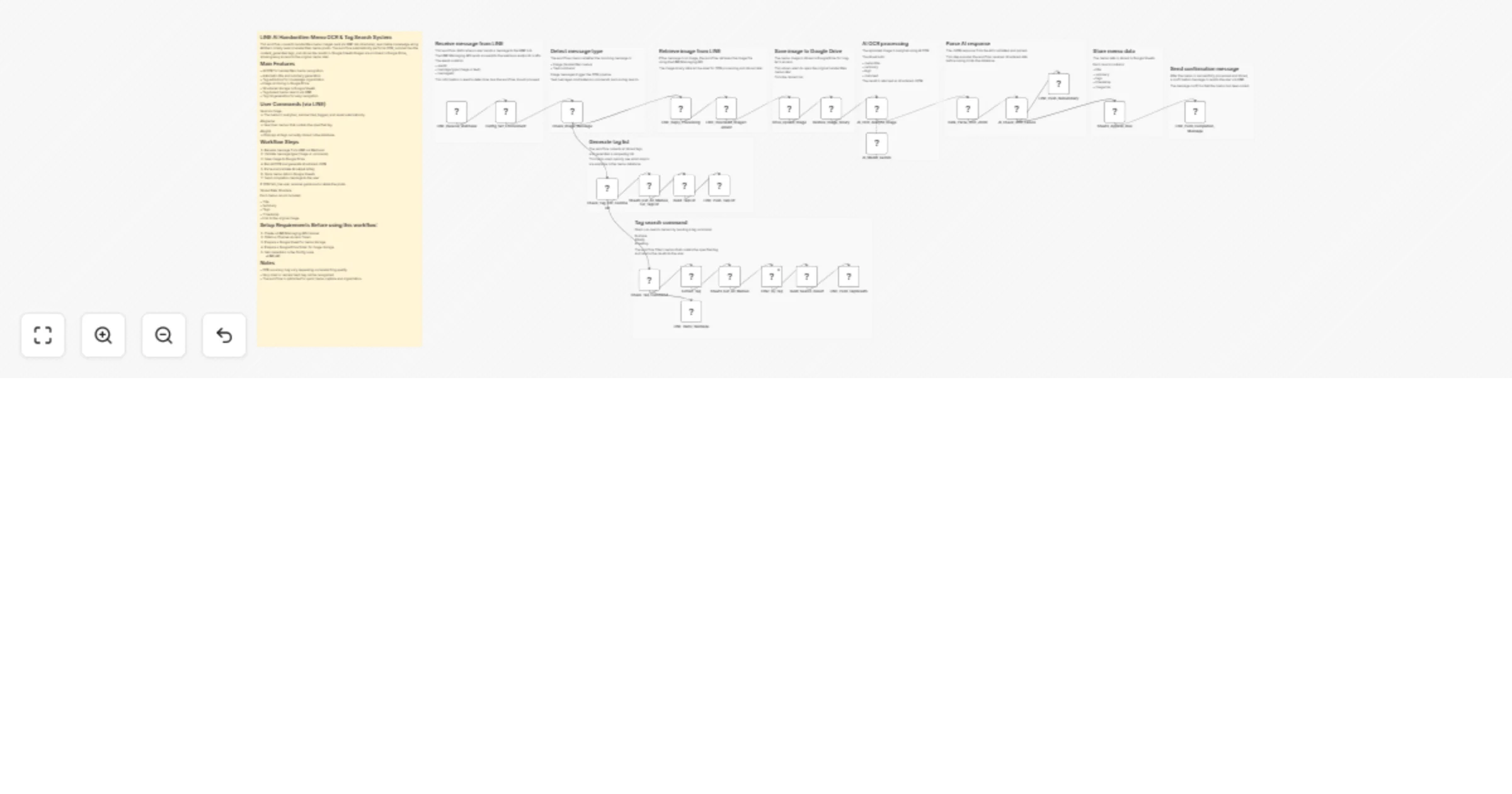
# Generate visual resumes from Telegram inputs using Google Gemini This workflow transforms text-based resume data into visually stunning images by leveraging Google Gemini's reasoning and vision capabilities. It autonomously analyzes the candidate's profile, selects an appropriate design template based on their industry, and renders a high-quality resume image directly in Telegram. ## Target Audience Job seekers, career coaches, resume writers, and recruitment agencies looking to automate design generation. ## How it works 1. **Classify Input**: The workflow starts with a **Telegram** trigger. A **Google Gemini** agent analyzes the incoming message to determine if it is a casual chat or a resume generation request. 2. **Fetch Context**: If it is a resume request, a **BrowserAct** node triggers a workflow (using the "AI Resume Replicant" template) to fetch necessary external context or data. 3. **Ingest Designs (Optional)**: If a reference image is provided, **CloudConvert** standardizes the file, and **Google Gemini Vision** reverse-engineers the layout and style, saving the "Visual DNA" to **Google Sheets**. 4. **Draft Blueprint**: The "Resume Writer" AI agent selects a stored design template that matches the candidate's industry (e.g., "Corporate" for Finance, "Creative" for Design) and maps the text content to the layout. 5. **Generate Prompt**: A "Visualizer" AI agent converts the structured blueprint into a highly detailed natural language prompt for image generation. 6. **Render & Deliver**: **Google Gemini** generates the final resume image, which is then sent back to the user via **Telegram**. ## How to set up 1. **Configure Credentials**: Connect your **Telegram**, **Google Gemini**, **Google Sheets**, **CloudConvert**, and **BrowserAct** accounts in n8n. 2. **Prepare BrowserAct**: Ensure the **AI Resume Replicant** template is saved in your BrowserAct account. 3. **Setup Google Sheet**: Create a new Google Sheet with the required header (listed below). 4. **Connect Sheet**: Open the **Google Sheets** nodes (Clear, Get, Append) and select your new spreadsheet. 5. **Configure Telegram**: Ensure your Telegram Bot is connected to the Trigger and Message nodes. ## Google Sheet Headers To use this workflow, create a Google Sheet with the following header: * Resume Details ## Requirements * **BrowserAct** account (Template: **AI Resume Replicant**). * **Google Gemini** account. * **Telegram** account (Bot Token). * **CloudConvert** account. * **Google Sheets** account. ## How to customize the workflow 1. **Refine Design Logic**: Modify the system prompt in the "Resume Writer" agent to change how the AI matches industries to design styles (e.g., force specific colors for specific roles). 2. **Change Output Format**: Replace the **Telegram** response node with a **Google Drive** node to save the generated images as PDF or PNG files instead of sending them. 3. **Switch Image Model**: Update the "Generate an image" node to use a different image generation model if preferred (e.g., OpenAI DALL-E). ## Need Help? * [How to Find Your BrowserAct API Key & Workflow ID](https://www.youtube.com/watch?v=pDjoZWEsZlE) * [How to Connect n8n to BrowserAct](https://www.youtube.com/watch?v=RoYMdJaRdcQ) * [How to Use & Customize BrowserAct Templates](https://www.youtube.com/watch?v=CPZHFUASncY) --- ### Workflow Guidance and Showcase Video * #### [I Built a Resume Bot that CLONES Any Template! 🤖 (BrowserAct + n8n + Gemini Tutorial)](https://youtu.be/TnObYpgHXSs)
Verify document authenticity with Claude and record proofs on blockchain
## How It Works This workflow automates document authenticity verification by combining AI-based content analysis with immutable blockchain records. It is built for compliance teams, legal departments, supply chain managers, and regulators who need tamper-proof validation and auditable proof. The solution addresses the challenge of detecting forged or altered documents while producing verifiable evidence that meets legal and regulatory standards. Documents are submitted via webhook and processed through PDF content extraction. Anthropic’s Claude analyzes the content for authenticity signals such as inconsistencies, anomalies, and formatting issues, returning structured authenticity scores. Verified documents trigger blockchain record creation and publication to a distributed ledger, with cryptographic proofs shared automatically with carriers and regulators through HTTP APIs. ## Setup Steps 1. Configure webhook endpoint URL for document submission 2. Add Anthropic API key to Chat Model node for AI 3. Set up blockchain network credentials in HTTP nodes for record preparation 4. Connect Gmail account and specify compliance team email addresses 5. Customize authenticity thresholds ## Prerequisites Anthropic API key, blockchain network access and credentials ## Use Cases Supply chain documentation verification for import/export compliance ## Customization Adjust AI prompts for industry-specific authenticity criteria ## Benefits Eliminates manual document review time while improving fraud detection accuracy
Detect and correct claims cost leakage with GPT-4 and automated alerts
## How It Works This workflow automates enterprise claims cost leakage detection by identifying overpayments, policy deviations, and pricing inconsistencies across claims data. It supports claims operations, finance, and audit teams by providing continuous, AI-driven monitoring without manual review. Claims data is ingested through parallel HTTP requests, including claim history, policy details, pricing rules, and enrichment data. Historical claim patterns feed calculator-based risk scoring to flag potential leakage scenarios. All data streams are consolidated and analyzed using GPT-4 with structured outputs to detect anomalies, quantify leakage risk, and recommend corrective adjustments. The workflow generates claim-level findings and routes outcomes by severity: high-risk leakage triggers immediate email and Slack alerts, while lower-risk issues are compiled into periodic audit and recovery reports. ## Setup Steps 1. Configure HTTP nodes with competitor website APIs 2. Add OpenAI API key to Chat Model node for AI analysis 3. Connect Gmail account and set leadership distribution list 4. Integrate Slack workspace and configure strategy team 5. Adjust Schedule node timing for preferred monitoring frequency ## Prerequisites OpenAI API key, competitor data source API access, vendor monitoring service credentials ## Use Cases SaaS companies tracking competitor feature releases and pricing changes ## Customization Modify risk scoring formulas in Calculator nodes for industry-specific metrics ## Benefits Transforms hours of manual competitor research into automated minutes-long cycles
Screen DPDP consent manager registrations with GPT-4o, Google Sheets and Gmail
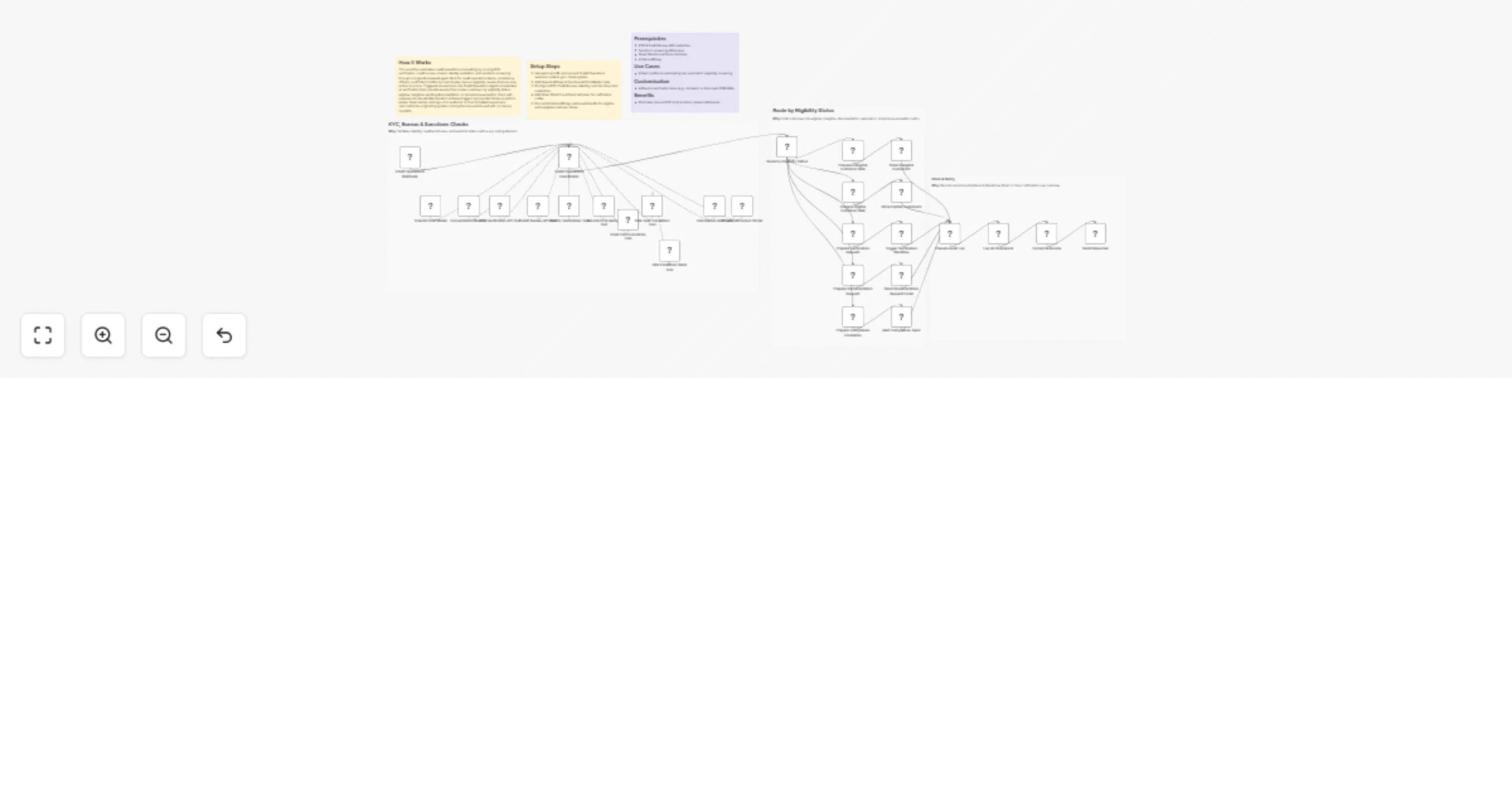
## 📘 Description This workflow automates the complete DPDP-aligned Consent Manager Registration screening pipeline — from intake to eligibility evaluation and final compliance routing. Every incoming registration request is normalized, validated, logged, evaluated by an AI compliance engine (GPT-4o), and then routed into either approval or rejection flows. It intelligently handles missing documentation (treated as a minor issue), evaluates financial/technical/operational capacity, generates structured eligibility JSON, updates registration records in Google Sheets, and sends outcome-specific emails to applicants and compliance teams. The workflow creates a full audit trail while reducing manual screening workload and ensuring consistent eligibility decisions. ## ⚙️ What This Workflow Does (Step-by-Step) ▶️ Receive Consent Registration Event (Webhook) Collects incoming Consent Manager registration applications and triggers the processing pipeline. 🧹 Extract & Normalize Registration Payload (Code Node) Cleans the body payload and extracts key fields: action, organizationName, applicationType, contactEmail, netWorth, technicalCapacity, operationalCapacity, documentAttached, submittedAt. 🔍 Validate Registration Payload Structure (IF Node) Checks the presence of mandatory fields. Valid → continue to eligibility evaluation Invalid → log in the audit sheet. 📄 Log Invalid Registration Requests to Sheet (Google Sheets) Stores malformed or incomplete submissions for audit, follow-up, and retry handling. 📝 Write Initial Registration Entry to Sheet (Google Sheets) Creates the initial intake row in the master registration sheet before applying eligibility logic. 🧠 Configure GPT-4o — Eligibility Evaluation Model (Azure OpenAI) Prepares the AI model used to determine whether the applicant meets DPDP’s eligibility criteria. 🤖 AI Eligibility Evaluator (DPDP Compliance) Analyzes applicant data and evaluates their eligibility based on: financial capacity, technical capability, operational readiness, and documentation status. Missing documents → NOT a rejection condition. Returns strictly formatted JSON with: eligible, riskLevel, decisionReason, missingItems, recommendedNextSteps. 🧼 Parse AI Eligibility JSON Output (Code Node) Converts AI output into valid JSON by removing markdown artifacts and ensuring safe parsing. 🔎 Validate Eligibility Status (IF Node) Routes the outcome: Eligible → approval workflow Ineligible → rejection email. 📧 Send Rejection Email to Applicant (Gmail) Sends a structured rejection email listing issues and re-submission instructions. 🔗 Merge Registration + Eligibility Summary (Code Node) Combines raw registration data with AI eligibility results into one unified JSON package. 📬 Send Approval Email to Compliance Team (Gmail) Notifies compliance officers that an applicant passed eligibility and is ready for verification. 🧩 Prepare Status Update Fields (Set Node) Constructs the final status value (e.g., “passed”) for updating the database. 📘 Update Registration Status in Sheet (Google Sheets) Updates the applicant’s record using contactEmail as the key, marking the final eligibility status. ## 🧩 Prerequisites Azure OpenAI (GPT-4o) credentials Gmail OAuth connection Google Sheets OAuth connection Valid webhook endpoint for intake ## 💡 Key Benefits ✔ Fully automates DPDP Consent Manager registration screening ✔ AI-driven eligibility evaluation with standardized JSON output ✔ Smart handling of missing documents without unnecessary rejections ✔ Automatic routing to approval or rejection flows ✔ Complete audit logs for all submissions ✔ Reduces manual review time and improves consistency ## 👥 Perfect For - DPDP compliance teams - Regulatory operations units - SaaS platforms handling consent manager onboarding - Organizations managing structured eligibility workflows
Review and approve employee expenses with forms, OpenAI and Google Workspace
## How it works This workflow automates employee expense reimbursements from submission to final resolution. Expenses are captured via a form, reviewed by an AI agent for justification, and routed to managers for approval or clarification. Approved expenses notify employees instantly, while rejected or unclear cases automatically schedule a follow-up discussion. All actions are logged to keep finance records clean and auditable. ## Step-by-step - **Step 1: Capture, summarize, and request approval** - **On Expense Form Submission** – Captures structured expense details submitted by employees. - **Append row in sheet** – Stores each expense entry in Google Sheets for tracking. - **AI Agent** – Reviews the expense description and validates whether the full amount is justified. - **OpenAI Chat Model** – Powers the AI reasoning used to analyze the expense. - **Output Parser** – Converts the AI response into a structured decision format. - **If** – Routes the flow based on whether the expense is appropriate or not. - **Step 2: Manager reviews and responds** - **Send Email to Manager for Approval** – Sends an approval email when the expense is justified. - **Send Email to Manager for Approval1** – Sends a clarification-required email when justification is unclear. - **If1** – Checks the manager’s approve or reject response from the email. - **Step 3: Notify employee or schedule discussion** - **Send a message** – Notifies the employee when the expense is approved. - **Booking Agent** – Automatically finds the next available business-day time slot if the expense is rejected. - **OpenAI** – Interprets availability rules and slot selection logic. - **Get Events** – Fetches existing calendar events for the selected day. - **Check Availability** – Identifies free time slots within working hours. - **Output Parser1** – Structures the selected meeting time. - **Send a message2** – Emails the employee with discussion details when clarification is required. ## Why use this? - Enforce consistent expense validation before manager review. - Reduce manual back-and-forth between employees, managers, and finance. - Keep a centralized, auditable record of all expense submissions. - Speed up reimbursements with automated approvals and notifications. - Handle rejected expenses professionally with automatic discussion scheduling.