🔧

DevOps Workflows

Automation workflows for DevOps and infrastructure management
345 workflows found
Workflow preview: Email reports on expiring Microsoft Entra ID app secrets and certificates with Microsoft Graph
Free advanced

Email reports on expiring Microsoft Entra ID app secrets and certificates with Microsoft Graph

## Monitor expiring EntraID application secrets and notify responsible Stay ahead of credential expirations by automatically detecting Entra ID application client secrets and certificates that are about to expire, and sending a neatly formatted email report. ### What this workflow solves Expired client secrets and certificates are a common cause of unexpected outages and failed integrations. Manually checking expiration dates across many Entra ID applications is tedious and easy to miss. This workflow automates the discovery and reporting of credentials that will expire within a configurable time window. ### Key features - Fetches all **Microsoft Entra ID applications** along with: - **Client secrets** (`passwordCredentials`) - **Certificates** (`keyCredentials`) - Splits credentials into individual entries for easier processing - Filters credentials expiring **within the next _N_ days** (configurable) - Normalizes results into a consistent structure including: - Application name - App ID - Credential type (Client Secret / Certificate) - Credential name + ID - Days remaining until expiration - Generates an **HTML table report**, sorted by application name - Sends an email **only when expiring items are found** (otherwise does nothing) ### How it works 1. Fetches all Entra ID applications and their credential metadata via Microsoft Graph 2. Separates client secrets and certificates into individual entries 3. Filters entries that expire within the configured time window 4. Builds a normalized list of expiring items with days remaining 5. Emails an HTML table report (only if results exist) ### Setup requirements - **Microsoft Entra ID app registration** with Microsoft Graph **Application permissions**: - `Application.Read.All` - In n8n: - Create **Microsoft Graph OAuth2** credentials (Client Credentials flow recommended) - Assign those credentials to the **Get EntraID Applications and Secrets** HTTP Request node - Update the **Set Variables** node: - `notificationEmail`: where to send the report - `daysBeforeExpiry`: alert window in days (e.g., 14) ### Notes - The email table highlights soon-to-expire credentials more prominently (based on remaining days). - For automation, replace the manual trigger with a **Schedule Trigger** (e.g., daily/weekly). - The workflow accesses **metadata only** (names/IDs/expiry), not secret values.

A
Alexander Schnabl
DevOps
2 Jan 2026
117
0
Workflow preview: Get domain expiry reminders with Google Sheets, WHOIS, Telegram, and Ollama AI
Free advanced

Get domain expiry reminders with Google Sheets, WHOIS, Telegram, and Ollama AI

This workflow helps you monitor domain expiration dates and send automated reminders via Telegram when a domain is about to expire or has already expired, using WHOIS data and AI-powered information extracting. It helps prevent service downtime, lost traffic, and missed renewals for individuals and teams managing multiple domains. Common use cases: - Track and remind on agency-managed client domains - Monitor personal or business domain portfolios - Send automated expiry alerts for IT and DevOps teams ## How it works - Runs daily at 08:00 AM - Reads domain data from Google Sheets - Fetches WHOIS information from whois.com for each domain - Extracts the data (expired date, domain owner, status domain) using AI - Sends a Telegram reminder if the domain expires within 90 days - Records the notification date to avoid duplicate alerts ## Setup steps 1. Add your Google Sheets ID and ensure the required columns exist 2. Connect your [Google Sheets credentials](https://docs.n8n.io/integrations/builtin/app-nodes/n8n-nodes-base.googlesheets) 3. Connect your [Telegram credentials](https://docs.n8n.io/integrations/builtin/app-nodes/n8n-nodes-base.telegram/chat-operations) 4. Configure your LLM provider (Ollama or other) 5. Activate the workflow ### Need Help? Contact me on [LinkedIn](https://www.linkedin.com/in/dwicahyas/)!

C
Cahya
DevOps
2 Jan 2026
19
0
Workflow preview: Analyze mobile app build-time hotspots with Gradle, CocoaPods, Airtable, GitHub, Gmail and GPT-4.1-mini
Free advanced

Analyze mobile app build-time hotspots with Gradle, CocoaPods, Airtable, GitHub, Gmail and GPT-4.1-mini

# Mobile App Build Time Hotspot Tracker - Gradle/CocoaPods Analyzer Alerting This workflow automates the monitoring and analysis of CI/CD build performance for mobile projects using Gradle and CocoaPods. It triggers upon build completion, compares metrics against historical performance stored in Airtable, and leverages AI to identify regressions. The system provides automated feedback via GitHub PR comments and email alerts for critical performance drops. ### ⚡ Quick Implementation Steps 1. Configure CI Pipeline: Set your CI job to send a POST request with build metrics to the workflow's Webhook URL. 2. Set Configuration: Adjust the regressionThreshold (default: 20%) and excludeModules in the Set Configuration node. 3. Connect Airtable: Link your credentials to the Fetch Historical Builds and Store Build Data nodes. 4. Connect GitHub & Gmail: Authenticate your GitHub and Gmail OAuth2 credentials for reporting. 5. Verify AI Model: Ensure the OpenAI Chat Model is connected to power the performance analysis. ## What It Does The workflow acts as an intelligent performance gatekeeper for development pipelines: 1. **Metric Collection:** Captures detailed task durations, build IDs, and PR context directly from CI/CD webhooks. 2. **Historical Comparison:** Automatically retrieves the last 10 builds for a specific repository to calculate average baselines. 3. **AI-Powered Diagnostics:** Uses a specialized AI agent to analyze slowdowns, identify root causes, and provide optimization recommendations. 4. **Automated Reporting:** Categorizes findings by severity (Critical, Warning, Info) and updates stakeholders through PR comments and high-priority emails. ## Who’s It For - Mobile Engineering Teams looking to prevent "death by a thousand cuts" in build time slowdowns. - DevOps/Platform Engineers who need automated auditing of build infrastructure health. - Release Managers requiring an audit trail of performance regressions across different pull requests. ## Technical Workflow Breakdown ### Entry Points (Triggers) 1. Webhook: Listens for POST requests at /webhook/build-hotspot-tracker containing build metrics and repository metadata. ### Processing & Logic 1. Set Configuration: Defines static variables like regression sensitivity and modules to ignore (e.g., test modules). 2. Historical Analysis: Aggregate nodes calculate min, max, and average build times from historical records. 3. AI Build Analyzer: An AI Agent utilizing GPT-4.1-mini to synthesize current build data with historical trends and PR context. 4. Route by Severity: A switch node that directs the workflow based on whether the AI classifies the regression as Critical, Warning, or Info. ### Output & Integrations 1. GitHub (Comment on PR): Posts a formatted markdown report including a severity badge, regressions list, and root causes. 2. Airtable (Store Build Data): Logs the build ID, total duration, and AI recommendations for long-term tracking. 3. Gmail (Notify Email): Sends immediate alerts to the team for critical regressions, including a direct link to the affected PR. ## Customization ### Adjust Sensitivity Modify the regressionThreshold in the Set Configuration node to change how aggressive the system is in flagging slowdowns (e.g., set to 10 for stricter monitoring). ### Module Filtering Update the excludeModules parameter to ignore specific tasks like linting or unit tests that may have volatile durations but do not represent core build performance. ### Analysis Detail The AI Build Analyzer prompt can be customized to focus on specific platform needs, such as focusing heavily on CocoaPods link times or Gradle configuration phases. ## Troubleshooting Guide | Issue | Possible Cause | Solution | | :-------------------------- | :----------------------------------------- | :----------------------------------------------------------------------------------------- | | **No PR Comments** | GitHub permissions or incorrect PR number. | Verify your GitHub token has write access and the CI payload includes a valid prNumber. | | **Historical Data Missing** | Airtable Filter failure. | Ensure the repository and prNumber fields in Airtable match the incoming Webhook data. | | **AI Analysis Errors** | OpenAI credits or model timeout. | Check your OpenAI API quota and verify the gpt-4.1-mini model is available in your region. | | **Emails Not Sending** | Gmail OAuth2 expired. | Re-authenticate the Gmail node in your n8n credentials settings. | ## Need Help? If you need assistance customizing this workflow, adding new features or integrating more systems (like JIRA, Slack or Google Sheets), feel free to reach out. Our [n8n automation experts](https://www.weblineindia.com/hire-n8n-developers/) at WeblineIndia are here to support you in scaling your automation journey.

W
WeblineIndia
DevOps
1 Jan 2026
0
0
Workflow preview: Back up self-hosted workflows to Google Drive daily with change detection
Free advanced

Back up self-hosted workflows to Google Drive daily with change detection

This workflow creates a **daily, automated backup** of all workflows in a self-hosted n8n instance and stores them in Google Drive. Instead of exporting every workflow on every run, it uses **content hashing** to detect meaningful changes and only updates backups when a workflow has actually been modified. To keep Google Drive clean and predictable, the workflow intentionally **deletes the existing backup file before uploading the updated version**. This avoids duplicate files and ensures there is always *one authoritative backup per workflow*. A **Data Table** is used as an index to track workflow IDs, hash values, and timestamps. This allows the workflow to quickly determine whether a workflow already exists, whether its content has changed, or whether it should be skipped entirely. ### How it works - Runs daily using a Cron Trigger. - Fetches all workflows from the n8n API. - Processes workflows one-by-one for reliability. - Generates a SHA-256 hash for each workflow. - Compares hashes against a stored Data Table. - Deletes existing Google Drive backups when changes are detected. - Uploads updated workflows and skips unchanged ones. - Store new or updated workflows details in Data Table. - Filters workflows based on the configured backup scope (all | active | tagged ). Backs up all workflows, only active workflows, or only workflows matching a specific tag. - Applies the scope filter before hashing and comparison, ensuring only relevant workflows are processed. ### Setup steps - **Set the Cron schedule** Open the Cron Trigger node and choose the time you want the backup to run (for example, once daily during off-peak hours). - **Create a Data Table** Create a new n8n Data Table with the title defined in dataTableTitle. This table stores workflowId, workflowName, hashCode, and DriveFiveId. - **Configure the Set node** In the Set Backup Configuration node, provide the following values: { "n8nHost": "https://your-n8n-domain", "apiKey": "your-n8n-api-key", "backupFolder": "/n8n/workflow-backups", "hashAlgorithm": "sha256", "dataTableTitle": "n8n_workflow_backup_index", "backupScope" : "", "requiredTag" : "" } - In the Set Backup Configuration node, choose how workflows should be selected for backup: **all** – backs up every workflow (default) **active** – backs up only enabled workflows **tagged** – backs up only workflows containing a specific tag If using the tagged option, provide the required tag name to match. { "backupScope": "tagged", "requiredTag": "production" } - **Connect Google Drive credentials** Authorize your Google Drive account and ensure the backup folder exists. - **Activate the workflow** Once enabled, backups run automatically with no further action required.

C
Chandan Singh
DevOps
29 Dec 2025
4
0
Workflow preview: Monitor Cloudflare incidents and alert via Slack, Telegram, and Jira
Free advanced

Monitor Cloudflare incidents and alert via Slack, Telegram, and Jira

# Cloudflare Incident Monitoring & Escalation Workflow ## 🚀 Try Decodo — Web Scraping & Data API (Coupon: **TRUNG**) ![Decodo Logo](https://s3.ap-southeast-1.amazonaws.com/automatewith.me/decodo-logo-black.jpg) **Decodo** is a powerful public data access platform offering managed web scraping APIs and proxy infrastructure to collect structured web data at scale. It handles proxies, anti-bot protection, JavaScript rendering, retries, and global IP rotation—so you can focus on data, not scraping complexity. **Why Decodo** - Managed **Web Scraping API** with anti-bot bypass & high success rates - Works with JS-heavy sites; outputs JSON/HTML/CSV - Easy integration (Python, Node.js, cURL) for eCommerce, SERP, social & general web data **🎟️ Special Discount** Use coupon **`TRUNG`** to get the **Advanced Scraping API** plan — ~**23,000 requests for ~$5**. ## Who this workflow is for For **DevOps, SRE, IT Ops, and Platform teams** running production traffic behind Cloudflare who need reliable incident awareness without alert fatigue. Use it if you want: - Continuous Cloudflare incident monitoring - Clear severity-based routing - Automatic escalation into JIRA - Clean Slack & Telegram notifications - Deduplicated, noise-controlled alerts ## What this workflow does This workflow polls the **Cloudflare Status API**, detects unresolved incidents, scores their impact, and routes them to the right channels. High-impact incidents are escalated to JIRA. Lower-impact updates are notified (or skipped) to reduce noise. ## How it works (high level) 1. Runs on a fixed schedule (e.g. every 5 minutes) 2. Fetches current Cloudflare incidents 3. Stops early if no active issues exist 4. Normalizes and scores incidents (severity, impact, affected service) 5. Deduplicates previously-alerted incidents 6. Builds human-readable notification payloads 7. Routes by impact: - **High** → create JIRA incident + notify - **Low** → notify or suppress 8. Sends alerts to Slack and Telegram ## Requirements - Decoco Scrapper API credential - n8n (self-hosted or Cloud) - Cloudflare Status API (public) - Slack bot (`chat:write`) - Telegram bot + chat ID - JIRA project with issue-create permission - Optional LLM credentials (summarization/classification) ## Notes - All secrets are stored in **n8n Credentials** - Workflow is **idempotent** and safe to rerun - No assumptions about root cause or remediation Built for production-grade incident visibility with **n8n**.

T
Trung Tran
DevOps
24 Dec 2025
7
0
Workflow preview: Real-time uptime alerts to Jira with smart Slack on-call routing
Free intermediate

Real-time uptime alerts to Jira with smart Slack on-call routing

# Real-Time Uptime Alerts to Jira with Smart Slack On-Call Routing This workflow automatically converts uptime monitoring alerts received via webhook into Jira incident tasks and intelligently notifies an available on-call team member on Slack based on their real-time presence status. It ensures critical service outages never go unnoticed by selecting an active responder and sending a detailed direct message immediately. ### ⚡ Quick Implementation Steps 1. Import the workflow JSON into n8n. 2. Configure your **Webhook**, **Slack**, and **Jira** credentials. 3. Update the IF node to filter for `status = down` (already configured). 4. Set the Jira project and issue type as required. 5. Connect your Slack on-call channel. 6. Activate the workflow and send a test alert using Postman or your monitoring tool. ## What It Does This automation listens for incoming alerts from any uptime monitoring service. When a system or service goes down, the workflow instantly validates whether the alert is critical (status = *down*). Once validated, it automatically creates a detailed Jira Task containing all relevant service details such as timestamp, downtime duration, error code, customer impact and priority. After the Jira incident is created, the workflow retrieves a list of all members from a dedicated Slack on-call rotation channel. It checks each member’s Slack presence (active, away, offline) and uses smart selection logic to choose the best person to notify. The selected team member then receives a richly formatted direct Slack message containing all incident details and a link to the Jira ticket. This ensures the alert is not only logged properly but also reaches the right responder at the right time. ## Who’s It For This workflow is perfect for: - DevOps teams managing uptime & system reliability. - Support teams responsible for incident response. - SRE teams using Jira and Slack. - Organizations with an on-call rotation setup. - Teams wanting automated escalation for downtime alerts. ## Requirements to Use This Workflow - **n8n installed** (self-hosted or cloud) - **Slack API credentials** with permission to read user presence and send direct messages - **Jira Software Cloud** credentials allowing issue creation - **A monitoring system** capable of sending webhook alerts (e.g., UptimeRobot, Uptime Kuma, StatusCake, custom system, etc.) - Access to a Slack channel that includes your on-call rotation members ## How It Works & How to Set Up ### Step 1: Receive Alert from Uptime Monitoring Tool - The workflow starts with the **Webhook node** (`Receive Uptime Alert`). - Your monitoring tool must send a POST request with JSON payload including fields like: - `serviceName` - `status` - `timestamp` - `customerImpact` - `errorCode` - `priority` - etc. ### Step 2: Filter for Critical Status - The **IF node** (`Filter for Critical Status`) checks: - Only when the service is *down* does the workflow continue to create a Jira incident. ### Step 3: Create Jira Incident Task - The **Create New Jira Incident** node generates a Jira **Task** with: - Summary: `serviceName + timestamp` - Description: dynamic fields based on the alert payload - Set your Jira **Project** and **Issue Type** as needed. ### Step 4: Fetch Slack On-Call Channel Members - The workflow calls Slack API to retrieve all user IDs in a designated channel (e.g., `#on-call-team`). ### Step 5: Loop Through Each Member - **Split In Batches Node** loops each Slack member individually. - For each user, their Slack **presence** is fetched using: ### Step 6: Build Final Data for Each User - The **Set node** (`Collect & Set Final Data`) stores: - presence - member ID - service details - Jira ticket ID - downtime info - and more ### Step 7: Select the Best On-Call User A custom **Code node** uses presence-based logic: #### Selection Logic 1. If one or more users are **active** → randomly pick one active user. 2. If only one user is active → pick that user. 3. If **no users are active** → default to the **first** member from the channel. This ensures you always get a responder. ### Step 8: Notify Selected User - The **Slack Notify Node** sends a formatted direct message with: - service status - downtime duration - error code - customer impact - Jira ticket link - priority The selected on-call responder receives everything they need to act immediately. ## How to Customize Nodes ### Webhook Node - Change the path to something meaningful (e.g., `/uptime-alerts`). - Customize expected fields based on your monitoring tool's payload. ### IF Node - Modify status condition for: - `"critical"` - `"error"` - or multiple conditions ### Jira Node You can customize: - Issue type (Incident, Bug, Task) - Priority field mapping - Project ID - Custom fields or labels ### Slack Retrieval Node - Change the channel to your team's actual on-call rotation channel. ### Slack Message Node - Modify message formatting, tone, emojis, or add links. - Add @mentions or tags. - Include escalation instructions. ## Add-Ons (Optional Extensions) Enhance the workflow by adding: ### 1. Escalation Logic If the selected user doesn’t respond within X minutes, notify next user. ### 2. PagerDuty / OpsGenie Integration Trigger paging systems for SEV-1 incidents. ### 3. Status Page Updates Automatically update public status pages. ### 4. Auto-Resolution When service status returns to *up*, automatically: - Update Jira ticket - Notify the team - Close the incident ### 5. Logging & Analytics Store incidents in Google Sheets, Notion, or a database. ## Use Case Examples This workflow can support multiple real-world scenarios: 1. **Website Uptime Monitoring** If your main website goes down, instantly create a Jira incident and notify your on-call engineer. 2. **API Downtime Alerting** When an API endpoint fails health checks, alert active developers only. 3. **Microservices Monitoring** Each microservice alert triggers a consistent, automated incident creation and notification. 4. **Infrastructure Failure Detection** When servers, containers, or VMs become unreachable, escalate to your infrastructure team. 5. **Database Performance Degradation** If DB uptime drops or error rate spikes, create a Jira ticket and ping the database admin. And many more variations of outage, error, and performance monitoring events. ## Troubleshooting Guide | Issue | Possible Cause | Solution | |-------|----------------|----------| | Workflow not triggering | Webhook URL not updated in monitoring tool | Copy n8n webhook URL and update in monitoring source | | No Jira ticket created | Invalid Jira credentials or missing project permissions | Reauthorize Jira credentials and verify permissions | | Slack users not found | Wrong channel ID or bot not added to channel | Ensure bot is invited to the Slack channel | | Slack presence not returning | Slack app lacks presence permission (`users:read.presence`) | Update Slack API scopes and reinstall | | No user receives notification | Presence logic always returns empty list | Test Slack presence API and verify real-time presence | | Wrong user selected | Intended selection logic differs | Update the JS logic in the code node | | Jira fields not populated | Alert payload fields missing | Verify webhook payload structure and match expected fields | ## Need Help? If you need assistance setting up this workflow, customizing integrations, building escalations or extending the logic with add-ons — **WeblineIndia is here to help**. We can assist with: - Custom Slack/Jira/Monitoring automation - On-call rotation logic enhancements - Cloud deployment & workflow optimization - Any custom n8n automation - Production-grade monitoring workflows 👉 **Contact WeblineIndia for professional support, implementation and [custom workflow development](https://www.weblineindia.com/n8n-automation/).**

W
WeblineIndia
DevOps
23 Dec 2025
3
0
Workflow preview: Automated credentials backup to Google Drive via SSH and Docker
Free intermediate

Automated credentials backup to Google Drive via SSH and Docker

This workflow automates the backup of decrypted n8n credentials from a self-hosted Docker instance to Google Drive. It allows you to export credentials on n8n versions 2.x.x (where old CLI commands may not work) without accessing the server terminal manually. ## How it works * **Configuration**: Defines the Docker container name and file paths using a centralized variables node. * **SSH Execution**: Connects to the host machine via SSH and executes the `n8n export:credentials` command inside the specified Docker container. * **File Retrieval**: Reads the newly created decrypted JSON file from the host filesystem. * **Cloud Upload**: Uploads the JSON file to a specified folder in Google Drive with a timestamped filename. ## Set up steps * **Configure Variables**: Open the "Variables" node and enter your `Docker Container name` (usually `n8n` or an ID). * **SSH Connection**: Configure the "Execute a command" (SSH) node with your host machine's IP, username, and SSH key/password. * **Google Drive Auth**: Authenticate the "Google Drive Upload File" node with your Google credentials. * **Select Folder**: In the "Google Drive Upload File" node, select the specific folder on your Drive where you want the backups to be saved. * **Schedule**: (Optional) Adjust the "Schedule Trigger" to your preferred backup frequency (default is set to run periodically).

A
Alexandru Florea
DevOps
16 Dec 2025
113
0
Workflow preview: CI artifact completeness gate (Git push, Sentry artifact verification, commit)
Free intermediate

CI artifact completeness gate (Git push, Sentry artifact verification, commit)

# CI Artifact Completeness Gate (GitHub Push → Sentry Release Files → Artifact Validation → GitHub Commit Status Update) This workflow acts as a CI/CD *quality gate* for mobile app crash-symbolication artifacts. Whenever a new commit is pushed to GitHub, the workflow automatically checks the corresponding Sentry release and confirms whether required build artifacts (dSYM or ProGuard + mapping.txt) exist. If artifacts are complete, it updates the GitHub commit status to **success**, allowing the PR to be merged. If incomplete, the workflow fails silently (no commit status update), effectively blocking merges. ### ⚡ Quick Implementation Steps 1. Configure **GitHub Trigger** for your repo. 2. Add **Sentry API credentials**. 3. Add **GitHub API credentials**. 4. Update Sentry project URLs with your **org_slug** and **proj_slug**. 5. Ensure your build pipeline uploads artifacts to Sentry **before** the workflow runs. 6. Activate workflow. ## What It Does This workflow ensures your mobile crash-symbolication artifacts are fully present in Sentry for every release. When a new GitHub push occurs, the workflow: 1. Reads the commit SHA and repo info from the GitHub Push event. 2. Fetches the list of all releases from Sentry. 3. Locates the correct release and fetches its uploaded artifact files. 4. Runs custom validation logic: - **Success if:** - a `*.dSYM` file exists **OR**\ - both `proguard.txt` AND `mapping.txt` are present\ - **Failure if:** - neither dSYM nor both mapping artifacts exist. 5. If validated successfully, the commit receives a **success** status on GitHub → PR can be merged. This provides a strong CI gate ensuring symbolication completeness and preventing un-debuggable releases. ## Who's It For - Mobile development teams using Sentry for crash reporting. - Engineering teams enforcing strict release-quality gates. - DevOps teams wanting automated artifact validation. - CI/CD pipeline engineers integrating Sentry symbolication checks. - Teams who frequently upload dSYM or ProGuard mapping files. ## Requirements to Use This Workflow - n8n instance (cloud or self-hosted) - GitHub repository access (API credentials) - Sentry project with: - org_slug - project_slug - Auth Token with release access - Build process that uploads artifacts to Sentry releases - The release version must match the format expected by the workflow ## How It Works & How To Set Up ### Step 1: GitHub Push Trigger The **GithubPushTrigger** node listens for push events and extracts: - Commit SHA - Repository full name - Branch - Metadata No configuration required except selecting your GitHub credentials. ### Step 2: Configure Sentry Release Fetching Open **Check Sentry Artifacts Releases** and update: https://sentry.io/api/0/projects/<org_slug>/<proj_slug>/releases/ Make sure the Sentry credential is correctly selected. ### Step 3: Fetch Files for the Specific Release The next HTTP Request (**Check Sentry Artifacts Files**) uses a dynamic URL: https://sentry.io/api/0/projects/<org_slug>/<proj_slug>/releases/{{ $json.version }}/files/ Ensure your build pipeline sets `version` consistently with what Sentry receives. ### Step 4: Artifact Validation Logic The **Verify Artifacts** node runs JS logic to check: #### ✔ Condition 1 --- Valid dSYM Any file ending with `.dSYM` #### ✔ Condition 2 --- Valid Android Mapping - `proguard.txt`\ - `mapping.txt` #### ✖ Failure --- If neither set exists The Code node returns: ``` json { "status": "failure", "description": "Missing artifacts..." } ``` This stops the workflow and prevents GitHub commit-status update. ### Step 5: Extract Commit Info & Prepare Update The **Artifacts Validation and Get Repository Data** node compiles: - repo full name - commit SHA - validation status If validation failed → workflow ends here. ### Step 6: Update GitHub Commit Status The **Update Status** node hits: POST https://api.github.com/repos/<repoFullName>/statuses/<commitSHA> And sends: ``` json { "state": "success", "description": "Artifacts successfully verified." } ``` This appears as a green check on your commit/PR. ### Step 7: Activate the Workflow Turn on the workflow to start enforcing symbolication completeness for all releases. ## How To Customize Nodes ### Change Sentry Project Edit URLs in both Sentry HTTP Request nodes: - `org_slug` - `proj_slug` ### Add Additional Artifact Rules Modify JS inside **Verify Artifacts**, e.g., require: - native symbols - extra asset files - other platform artifacts ### Customize Commit Status Message Edit the request body in **Update Status**. ### Support Multiple Platforms / Multiple Releases Branch logic in: - Code nodes - Conditional checks ## Add-Ons (Optional Enhancements) - Add Slack/Teams notifications when artifacts are missing. - Auto-retry release checks after build completes. - Merge-blocking PR checks for GitHub. - Multi-platform artifact validation (iOS + Android + Unity). - Upload artifacts directly from n8n. - Store validation logs in Airtable or Google Sheets. - Add GitHub Checks API rich reporting. ## Use Case Examples 1. Block merges until symbolication artifacts are uploaded. 2. Enforce strict Sentry release completeness for every build. 3. Ensure Android mapping files always match the correct release version. 4. Automatically verify multiple release types (debug, staging, production). 5. Improve crash debugging by preventing un-symbolicated builds from shipping. ## Troubleshooting Guide | Issue | Possible Cause | Solution | |----------------------------|-----------------------------------------------|--------------------------------------------------------------------------| | Commit status never updates| Validation failed silently | Check logs from **Verify Artifacts** | | "version undefined" in URL | Sentry release list not matched | Ensure your build uploads a valid `version` | | 401 from Sentry API | Invalid/broken Sentry token | Regenerate token and update credentials | | Always failing validation | Artifact names differ (e.g., `.dsym.zip`) | Update RegEx patterns in Code node | | GitHub status API returns 404 | Missing repo permissions | Update GitHub credentials (repo status scope) | | Files array empty | Build system not uploading artifacts | Verify build → Sentry upload step | ## Need Help? If you need help customizing the artifact rules, integrating multiple platforms or automating Sentry/GitHub workflows, reach out to our [n8n automation developers](https://www.weblineindia.com/hire-n8n-developers/) at WeblineIndia. We can assist with: - Mobile CI/CD pipelines - Sentry automation - Multi-artifact validation - GitHub PR quality-gates - Advanced Code-node scripting - And so much more. Happy automating! 🚀

W
WeblineIndia
DevOps
15 Dec 2025
22
0
Workflow preview: Website downtime monitoring with smart alerts via Telegram & Email
Free advanced

Website downtime monitoring with smart alerts via Telegram & Email

Get ==Instant== Alerts When Your Website Goes Down — Using ==n8n== as ==Website Downtime Checker Robot== If you manage websites (your own or clients’), downtime alerts are critical.
But most monitoring tools create alert fatigue — ==emails for every tiny hiccup==, even 30–60 second outages. This setup shows how to use n8n as a smart uptime monitor:
 ✅ No extra subscriptions
 ✅ No false-positive spam
 ✅ Alerts only for real downtime
 ✅ Optional instant phone notifications Why Use n8n for Website Monitoring? Traditional tools like Uptime Robot become limiting or expensive as you scale. With n8n, you get: * Full control over alert logic * Custom timing & thresholds * No forced notification rules * One tool for uptime and other automations You decide when, how, and why alerts are sent. **Quick Start:** Free n8n Website Monitoring Workflow Get running in minutes: * Use the prebuilt n8n template * Sign up for n8n Cloud or self-host for free * Set your schedule (default: hourly) * Add the websites you want to monitor **Key Setting** (Important) Wait time: ==300 seconds (5 minutes)== >Recommended* 
If a site goes down, the workflow waits before alerting.
 ➡️ Short hiccups = ignored
 ➡️ Real outages = ==alerted== **How to Test & Use** 1. Activate the workflow
Toggle it on — monitoring runs automatically. 2. Test instantly
Add a fake or non-existent URL and run the workflow.
After the wait period, you’ll receive an alert. 3. Stay organized
Alerts arrive cleanly in your inbox
(Tip: pair with an AI email labeling workflow for color-coded alerts) Get Critical Alerts on Your Phone (Telegram) Email is fine — but critical sites need instant mobile alerts. Best option: Telegram bots * Free * Fast * No extra APIs or subscriptions How It Works * Create a Telegram bot via BotFather * Add the bot token & chat ID to n8n * Receive downtime alerts instantly on your phone No missed notifications. No noise. **FAQ** * Can I monitor unlimited sites?
 > ==Yes== — just add more URLs. * What about short downtime (seconds)? > Filtered out by the 5-minute wait. * Do I need a paid n8n plan?
 > ==No.== Self-hosting is ==free==, and this works on free plans. * Why not SMS or WhatsApp?
 > **Telegram** is ==faster, simpler, and doesn’t require paid APIs.== 📩 **Contact Me** If you have any questions, ideas to share, or would like to collaborate on a project, feel free to reach out. I’m always open to meaningful discussions, feedback, and new opportunities. 🔗 ==Connect with me== * [Facebook](https://facebook.com/the.mubiin) * [LinkedIn](https://www.linkedin.com/in/mubiiin/) 💬 You’re welcome to send me a message on any platform, and I’ll get back to you as soon as possible.

M
Muntasir Mubin
DevOps
13 Dec 2025
148
0
Workflow preview: Monitor website uptime with Google Sheets, Slack, Email & Phone Call alerts
Free advanced

Monitor website uptime with Google Sheets, Slack, Email & Phone Call alerts

## Who’s it for This template is ideal for developers, agencies, hosting providers, and website owners who need real-time alerts when a website goes down. It helps teams react quickly to downtime by sending multi-channel notifications and keeping a historical uptime log for tracking performance over time. ## What it does / How it works This workflow runs on a schedule and checks a list of websites stored in Google Sheets. For every website URL, it performs an HTTP status check and determines whether the site is **up** or **down**. If the website is up, the workflow logs the status and timestamp into a separate uptime log sheet. If the website is down, it sends immediate alerts through Slack and Gmail, and also triggers an automated phone call using a voice-call API service. All uptime and downtime events are logged automatically, enabling long-term monitoring and reporting. ## Requirements - Google Sheets OAuth2 credentials - Slack credentials - Gmail OAuth2 credentials - Voice-call API credentials (e.g., Vapi.ai) - A Google Sheet containing the list of website URLs - A second Google Sheet for logging uptime history ## How to set up 1. Connect your Google Sheets, Slack, Gmail, and call-API credentials. 2. Replace both Google Sheet IDs with your own. 3. Update the HTTP Request node to reference your sheet’s URL column. 4. Configure your Slack user or channel for downtime alerts. 5. Add your API Key, assistant ID, and phone number variables to the call alert node. 6. Adjust the schedule interval in the Schedule Trigger node. ## How to customize the workflow - Add SMS alerts (Twilio, Vonage) - Log uptime to a database instead of Sheets - Add retry logic for false positives - Monitor response time in addition to status codes - Connect alerts to your incident-management tools (PagerDuty, Jira, Discord)

P
Pixcels Themes
DevOps
10 Dec 2025
77
0
Workflow preview: Detect AWS Orphaned Resources & Send Cost Reports to Slack, Email, and Sheets
Free advanced

Detect AWS Orphaned Resources & Send Cost Reports to Slack, Email, and Sheets

## How it works This workflow automatically scans AWS accounts for orphaned resources (unattached EBS volumes, old snapshots >90 days, unassociated Elastic IPs) that waste money. It calculates cost impact, validates compliance tags, and sends multi-channel alerts via Slack, Email, and Google Sheets audit logs. **Key Features:** - 🔍 Multi-region scanning with parallel execution - 💰 Monthly/annual cost calculation with risk scoring - 📊 Professional HTML reports with charts and tables - 🏷️ Tag compliance validation (SOC2/ISO27001/HIPAA) - ✅ Conditional alerting (only alerts when resources found) - 📈 Google Sheets audit trail for trend analysis **What gets detected:** - Unattached EBS volumes ($0.10/GB/month waste) - Snapshots older than 90 days ($0.05/GB/month) - Unassociated Elastic IPs ($3.60/month each) **Typical savings:** $50-10K/month depending on account size ## Set up steps ### Prerequisites **AWS Configuration:** 1. Create IAM user `n8n-resource-scanner` with these permissions: - `ec2:DescribeVolumes` - `ec2:DescribeSnapshots` - `ec2:DescribeAddresses` - `ec2:DescribeInstances` - `lambda:InvokeFunction` 2. Deploy Lambda function `aws-orphaned-resource-scanner` (Node.js 18+) 3. Add EC2 read-only permissions to Lambda execution role 4. Generate AWS Access Key + Secret Key **Lambda Function Code:** See sticky notes in workflow for complete implementation using `@aws-sdk/client-ec2` **Credentials Required:** - AWS IAM (Access Key + Secret) - Slack (OAuth2 or Webhook) - Gmail (OAuth2) - Google Sheets (OAuth2) ### Configuration 1. **Initialize Config Node:** Update these settings: - `awsRegions`: Your AWS regions (default: us-east-1) - `emailRecipients`: FinOps team emails - `slackChannel`: Alert channel (e.g., #cloud-ops) - `requiredTags`: Compliance tags to validate - `snapshotAgeDays`: Age threshold (default: 90) 2. **Set Region Variables:** Choose regions to scan 3. **Lambda Function:** Deploy function with provided code (see workflow sticky notes) 4. **Google Sheet:** Create spreadsheet with headers: - Scan Date | Region | Resource Type | Resource ID | Monthly Cost | Compliance | etc. 5. **Credentials:** Connect all four credential types in n8n 6. **Schedule:** Enable "Weekly Scan Trigger" (default: Mondays 8 AM UTC) ### Testing 1. Click "Execute Workflow" to run manual test 2. Verify Lambda invokes successfully 3. Check Slack alert appears 4. Confirm email with HTML report received 5. Validate Google Sheets logging works ### Customization Options - **Multi-region:** Add regions in "Initialize Config" - **Alert thresholds:** Modify cost/age thresholds - **Additional resource types:** Extend Lambda function - **Custom tags:** Update required tags list - **Schedule frequency:** Adjust cron trigger ## Use Cases - **FinOps Teams:** Automated cloud waste detection and cost reporting - **Cloud Operations:** Weekly compliance and governance audits - **DevOps:** Resource cleanup automation and alerting - **Security/Compliance:** Tag validation for SOC2/ISO27001/HIPAA - **Executive Reporting:** Monthly cost optimization metrics ## Resources - [AWS IAM Best Practices](https://docs.aws.amazon.com/IAM/latest/UserGuide/best-practices.html) - [Lambda Function Code](https://github.com/chadmcrowell/lambda-function-for-aws-orphaned-resource-scanner)

C
Chad M. Crowell
DevOps
9 Dec 2025
69
0
Workflow preview: Automate Incident Management with PagerDuty, Port AI, Jira & Slack
Free advanced

Automate Incident Management with PagerDuty, Port AI, Jira & Slack

Complete incident workflow from detection through resolution to post-mortem, with full organizational context from Port's catalog. This template handles both incident triggered and resolved events from PagerDuty, automatically creating Jira tickets with context, notifying teams via Slack, calculating MTTR, and using Port AI Agents to schedule post-mortem meetings and create documentation. ## How it works The n8n workflow orchestrates the following steps: **On Incident Triggered:** - PagerDuty webhook — Receives incident events from PagerDuty via POST request. - Event routing — Routes to triggered or resolved flow based on event type. - Port context enrichment — Uses Port's n8n node to query your software catalog for service context, on-call engineers, recent deployments, runbooks, and past incidents. - AI severity assessment — OpenAI assesses severity based on Port context and recommends investigation actions. - Escalation routing — Critical incidents automatically escalate to leadership Slack channel. - Jira ticket creation — Creates incident ticket with full context, investigation checklist, and recommended actions. - Team notification — Notifies the team's Slack channel with incident details and resources. **On Incident Resolved:** - Port context extraction — Gets post-incident context from Port including stakeholders and documentation spaces. - MTTR calculation — Calculates mean time to resolution from incident timestamps. - Post-mortem generation — AI generates a structured post-mortem template with timeline. - Port AI Agent scheduling — Triggers Port AI Agent to schedule post-mortem meeting, invite stakeholders, and create documentation. - Resolution notification — Notifies team with MTTR, post-mortem document link, and meeting details. - Metrics logging — Logs MTTR metrics back to Port for service reliability tracking. ## Setup - [ ] Register for free on [Port.io](https://www.port.io) - [ ] Configure Port with services, on-call schedules, and deployment history - [ ] Set up Port AI agents for post-mortem scheduling - [ ] Connect PagerDuty webhook for incident events - [ ] Configure Jira project for incident tickets (use project key 'INC' or customize) - [ ] Set up Slack channels for alerts (#incidents and #leadership-alerts) - [ ] Add OpenAI credentials for severity assessment - [ ] Test with a sample incident event - [ ] You should be good to go! ## Prerequisites - You have a Port account and have completed the onboarding process. - Port's integrations are configured (GitHub, Jira, PagerDuty if available). - You have a working n8n instance (Cloud or self-hosted) with Port's n8n custom node installed. - PagerDuty account with webhook capabilities. - Jira Cloud account with appropriate project permissions. - Slack workspace with bot permissions to post messages. - OpenAI API key for severity assessment and post-mortem generation. ⚠️ This template is intended for Self-Hosted instances only.

P
Port IO
DevOps
9 Dec 2025
21
0
Workflow preview: Generate GitHub release notes with AI comparison
Free advanced

Generate GitHub release notes with AI comparison

# Generate GitHub Release Notes with AI Automatically **generate GitHub release notes** using AI. This workflow compares your latest two GitHub releases, summarises the changes, and produces a clean, ready-to-paste changelog entry. It’s ideal for automating GitHub Releases, versioning workflows, and keeping your documentation or CHANGELOG.md up to date without manual editing. --- ### What this workflow does - Listens for newly published GitHub Releases. - Fetches and compares the latest two GitHub release versions. - Uses an AI Chat Model to summarise changes and generate structured release notes. - Outputs clean, reusable release note content for GitHub, documentation, or CI/CD pipelines. --- ## How it works 1. GitHub Trigger detects a new published release. 2. Release detail nodes extract the latest tag, body, and repository metadata. 3. Comparison logic fetches the previous release and prepares a diff. 4. Chat Model nodes (via OpenRouter) generate both a summary and a final, formatted release note. --- ## Requirements / Connections - GitHub OAuth credential configured in n8n. - OpenRouter API key connected to the Chat Model nodes. --- ## Setup instructions 1. Import the template. 2. Select your GitHub OAuth connection in all GitHub nodes. 3. Add your OpenRouter credential to the Chat Model nodes. 4. **(Optional)** Adjust the AI prompts to customise tone or formatting. --- ## Output The workflow produces: - A concise summary of differences between the last two GitHub releases. - A polished AI-generated GitHub release note ready to publish. --- ## Customisation ideas - Push generated notes directly into a CHANGELOG.md or documentation repo. - Send release summaries to Slack or Teams. - Include commit messages, PR titles, or labels for deeper analysis.

R
Richard Black
DevOps
7 Dec 2025
26
0
Workflow preview: Automated error notifications with optional GPT-4o diagnostics via email
Free intermediate

Automated error notifications with optional GPT-4o diagnostics via email

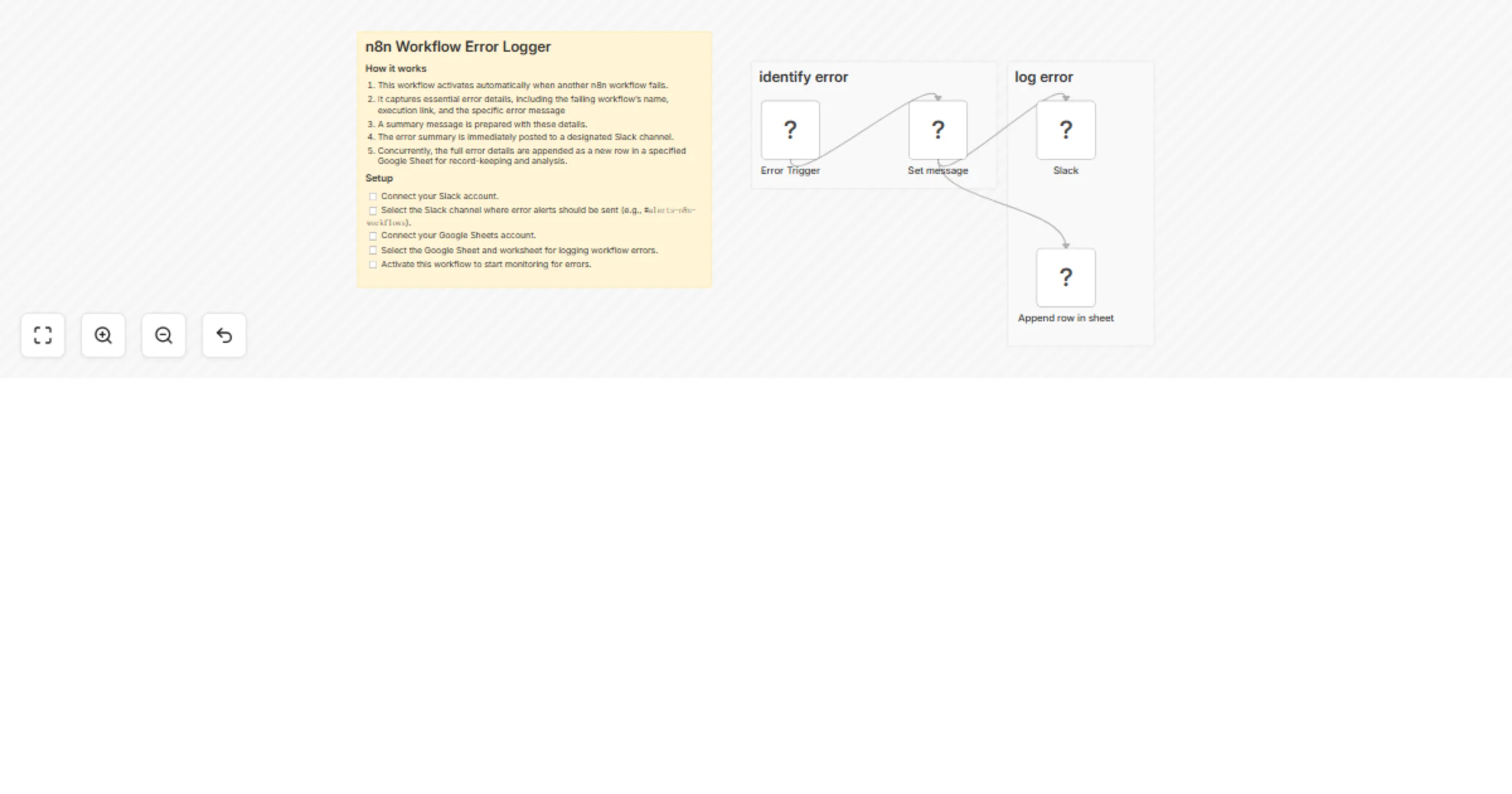
**++Who’s it for++** This template is ideal for anyone who needs reliable, real-time visibility into failed executions in n8n. Whether you’re a developer, operator, founder, or part of a small team, this workflow helps you detect issues quickly without digging through execution logs. It’s especially useful for users who want the flexibility to enable AI-powered diagnostics when needed. **++What it does++** The workflow sends an automated email alert whenever any workflow in your n8n instance encounters an error. It captures key details such as workflow name, timestamp, node name, and error message. If you enable AI analysis, the alert also includes a Severity Level and a Quick Resolution—giving you an instant, actionable understanding of the problem. If AI is disabled, you receive a clean, minimal error notification. **++How it works++** **1.** Error Trigger activates when any workflow fails. **2.** Config — Set Fields stores your SMTP settings and the AnalyzeErrorWithAI toggle. **3.** Use AI Analysis? decides whether to run the AI node. **4.** If enabled, Analyze Error with AI generates structured recommendations. **5.** Format Email Body builds the message based on the selected mode. **6.** Send Email delivers the notification. **++Requirements++** **1.** SMTP credentials **2.** A valid sender & recipient email **3.** Optional: OpenAI credentials if using AI analysis **++How to set up++** **1.** Open the Config node and fill in email settings and the AI toggle. **2.** Add your SMTP and (optional) OpenAI credentials. **3.** Save, activate, and test the workflow.

C
Chandan Singh
DevOps
5 Dec 2025
368
0
Workflow preview: Automate ETL error monitoring with AI classification, Sheets logging & Jira alerts
Free advanced

Automate ETL error monitoring with AI classification, Sheets logging & Jira alerts

# ETL Monitoring & Alert Automation: Jira & Slack Integration This workflow automatically processes ETL errors, extracts important details, generates a preview, creates a log URL, classifies the issue using AI and saves the processed data into Google Sheets. If the issue is important or needs attention, it also creates a Jira ticket automatically. The workflow reduces manual debugging effort, improves visibility and ensures high-severity issues are escalated instantly without human intervention. ### Quick Start – Implementation Steps 1. Connect your webhook or ETL platform to trigger the workflow. 2. Add your OpenAI, Google Sheets and Jira credentials. 3. Enable the workflow. 4. Send a sample error to verify Sheets logging and Jira ticket creation. 5. Deploy and let the workflow monitor ETL pipelines automatically. ## What It Does This workflow handles ETL errors end-to-end by: - Extracting key information from ETL error logs. - Creating a short preview for quick understanding. - Generating a URL to open the full context log. - Asking AI to identify root cause and severity. - Parsing the AI output into clean fields. - Saving the processed error to Google Sheets. - Creating a Jira ticket for medium/high-severity issues. This creates a complete automated system for error tracking, analysis and escalation. ## Who’s It For - DevOps & engineering teams monitoring data pipelines. - ETL developers who want automated error reporting. - QA teams verifying daily pipeline jobs. - Companies using Jira for issue tracking. - Teams needing visibility into ETL failures without manual log inspection. ## Requirements to Use This Workflow - n8n account or self-hosted instance. - ETL platform capable of sending error payloads (via webhook). - OpenAI API Key. - Google Sheets credentials. - Jira Cloud API credentials. - Optional: log storage URL (S3, Supabase, server logs). ## How It Works & Setup Steps ### 1. Get ETL Error (Webhook Trigger) Receives ETL error payload and starts the workflow. ### 2. Prepare ETL Logs (Code Node) Extracts important fields and makes a clean version of the error.Generates a direct link to open the full ETL log. ### 3. AI Severity Classification (OpenAI / AI Agent) AI analyzes the issue, identifies cause and assigns severity. ### 4. Parse AI Output (Code Node) Formats AI results into clean fields: severity, cause, summary, recommended action. ### 5. Prepare Data for Logging (Set / Edit Fields) Combines all extracted info into one final structured record. ### 6. Save ETL Logs (Google Sheets Node) Logs each processed ETL error in a spreadsheet for tracking. ### 7. Create Jira Ticket (Jira Node) Automatically creates a Jira issue when severity is Medium, High or Critical. ### 8. ETL Failure Alert (Slack Node) Sends a Slack message to notify the team about the issue. ### 9. ETL Failure Notify (Gmail Node) Sends an email with full error details to the team. ## How to Customize Nodes ### ETL Log Extractor Add/remove fields based on your ETL log structure. ### AI Classification Modify the OpenAI prompt for custom severity levels or deep-dive analysis. ### Google Sheets Logging Adjust columns for environment, job name or log ID. ### Jira Fields Customize issue type, labels, priority and assignees. ## Add-Ons (Extend the Workflow) - Send Slack or Teams alerts for high severity issues - Store full logs in cloud storage (S3, Supabase, GCS) - Add daily/weekly error summary reports - Connect monitoring tools like Datadog or Grafana - Trigger automated remediation workflows ## Use Case Examples 1. Logging all ETL failures to Google Sheets 2. Auto-creating Jira tickets with AI-driven severity 3. Summarizing large logs with AI for quick analysis 4. Centralized monitoring of multiple ETL pipelines 5. Reducing manual debugging effort across teams ## Troubleshooting Guide | Issue | Possible Cause | Solution | |-------|----------------|----------| | Sheets not updating | Wrong Sheet ID or missing permission | Reconnect and reselect the sheet | | Jira ticket fails | Missing required fields or invalid project key | Update Jira mapping | | AI output empty | Invalid OpenAI key or exceeded usage | Check API key or usage limits | | Severity always “low” | Prompt too broad | Adjust AI prompt with stronger rules | | Log preview empty | Incorrect error field mapping | Verify the structure of the ETL error JSON | ## Need Help? For assistance setting up this workflow, customizing nodes or adding additional features, feel free to contact our [n8n developers](https://www.weblineindia.com/hire-n8n-developers/) at WeblineIndia. We can help configure, scale or build similar automation workflows tailored to your ETL and business requirements.

W
WeblineIndia
DevOps
20 Nov 2025
38
0
Workflow preview: Automatic email notifications for n8n version releases with Gmail
Free advanced

Automatic email notifications for n8n version releases with Gmail

## 📢 Monitor n8n releases and get notifications for new versions 🆕 This workflow automatically monitors n8n’s release channels (latest and beta) and sends you email notifications whenever a new version is published. It also reads the version of your current n8n instance, allowing you to integrate automatic updates and ensure you never miss a release. ### Who is this for This workflow is designed for n8n users who want to stay informed and up to date with new releases and features without manually checking for updates, especially those managing their own instances who need to plan upgrades and review release notes. ### How it works The workflow performs the following steps: - **Fetches version information from the npm registry** (latest and beta releases) - **Identifies only new versions** by deduplication - **Retrieves release notes from GitHub** for any newly detected version - **Converts Markdown to HTML** for email template formatting - **Sends a styled email notification** including the release name, version tag, your current version, and the complete release notes ### Setup - Configure your n8n instance URL (Set `my_n8n_url`) to detect your current version (optional — can be left blank) - Connect and authorize the Gmail account used to send emails - Update the recipient email address in the Gmail node ### Requirements - A Gmail account for sending emails ### Customization tips - Adjust the schedule trigger if hourly checks are too frequent - Modify the release channel (e.g., “latest” or “beta”) if you want to track a different tag - Change the npm registry link if you want to monitor a different package - Customize the email template/styling in the Gmail node - Add additional notification channels (Slack, Discord, etc.) alongside or instead of email - Extend this workflow to automatically update your n8n instance when a new release becomes available ### Need help? If you're facing any issues using this workflow, [join the community discussion on the n8n forum.](https://community.n8n.io/t/monitor-n8n-releases-and-get-notifications-for-new-versions/225265)

A
Anan
DevOps
19 Nov 2025
136
0
Workflow preview: Automate daily workflow backups to Google Drive
Free intermediate

Automate daily workflow backups to Google Drive

## Daily n8n Workflow Backup Automatically backs up all workflows to Google Drive daily. ### How it works 1. Triggers daily at 11 PM (or manually on demand) 2. Creates a timestamped backup folder in Google Drive 3. Fetches all workflows from your n8n instance 4. Converts each workflow to a JSON file 5. Uploads files to the backup folder 6. Automatically deletes old backup folders to save storage ### Setup steps 1. Ensure your n8n instance has API access enabled 2. Connect your Google Drive account (OAuth2) 3. Create a Google Drive folder for backups and copy its **Folder ID** 4. **Important:** Open the 'Cleanup Old Backups' node and paste that Folder ID into the code

P
Panth1823
DevOps
17 Nov 2025
75
0
Workflow preview: Automated n8n workflow audit & export tool (JSON + Excel)
Free advanced

Automated n8n workflow audit & export tool (JSON + Excel)

## Automated n8n Workflow Audit & Export Tool (JSON + Excel) **Stop Auditing Workflows Manually — Automate Your n8n Reports.** This workflow delivers complete visibility across every automation in your n8n instance — instantly, reliably, and without opening the editor. --- ## Purpose of This Workflow As your automation stack grows, keeping track of workflows becomes time-consuming. This tool collects key workflow details, applies filters you choose, and returns structured output in **clean JSON** or a **fully formatted Excel report**. It empowers teams to make decisions faster, maintain governance, and document their automation landscape with zero manual effort. --- ## ✅ What This Workflow Helps You Do * Get a **complete overview of every workflow** in your n8n instance * Quickly identify **active vs inactive** workflows * Understand configuration and structure **at a glance** * Export workflow details for **audits, documentation, handovers, or reports** * Reuse the data in **dashboards, admin panels, or integrations** --- ## What’s Included in Each Report This workflow goes beyond simple lists. It analyzes each workflow and provides detailed metrics such as: * **Export all worklfow report in Excel to filter according to your need** * **Workflow Name & ID** * **Status (active / inactive)** * **Created and Updated Timestamps** * **Total Number of Nodes** * **Node Type Breakdown**, including: * Number of **HTTP Request nodes** * Number of **AWS S3 nodes** * Custom / Other node types detected * Any specialized integrations used This helps teams understand **not just what exists — but how each workflow is built.** --- ## Why It’s Useful Auditing workflows manually becomes painful as your system scales: * Opening each workflow * Checking settings * Reviewing nodes * Counting integrations * Copying notes This workflow eliminates that entire process. It gives you a clear, automated snapshot of what’s running, how it’s structured, and where each workflow is used — **without logging into the editor** or performing any manual checks. --- ## How to Use It Send a request to the Webhook endpoint and define your filters: * `status = all | active | inactive` * `output = json | excel` The workflow returns a fully processed, filtered report — formatted for your needs. --- ## Configuration Requirements To run successfully, you will need: * Valid **n8n API credentials** * A **public URL** for generating shareable workflow links * An accessible **Webhook URL** from your environment --- ## Output Options ### JSON * Ideal for dashboards, admin tools, APIs, or data processing * Easy to integrate into DevOps or monitoring systems ### Excel * Perfect for audits, compliance, documentation, or internal reviewing * Clean table format ready for stakeholders, clients, or teams --- ## Additional Notes * **Default limit:** 25 workflows per request * Fully automated — no manual steps after setup * Ideal for teams managing many workflows or performing periodic audits * Works great for onboarding, internal reviews, or automation audits ## Excel example image ![n8n_report.png](fileId:3457)

V
V3 Code Studio
DevOps
15 Nov 2025
44
0
Workflow preview: 👲 Monitor & debug n8n workflows with Claude AI assistant and MCP server
Free advanced

👲 Monitor & debug n8n workflows with Claude AI assistant and MCP server

***Tags**: AI Agent, MCP Server, n8n API, Monitoring, Debugging, Workflow Analytics, Automation* ### Context Hi! I’m [Samir](https://samirsaci.com) — a Supply Chain Engineer and Data Scientist based in Paris, and founder of [LogiGreen Consulting](https://logi-green.com). This workflow is part of my latest project: an **AI assistant that automatically analyses n8n workflow executions, detects failures, and identifies root causes** through natural conversation with Claude Desktop. [![Concept](https://www.samirsaci.com/content/images/2025/11/image-2.png)](https://youtu.be/oJzNnHIusZs) > Turn your automation logs into intelligent conversations with an AI that understands your workflows. The idea is to use *Claude Desktop* to help monitor and debug your workflows deployed in production. The workflow shared here is part of the setup. 📬 For business inquiries, you can find me on [LinkedIn](https://www.linkedin.com/in/samir-saci) ### Who is this template for? This template is designed for **automation engineers**, **data professionals**, and **AI enthusiasts** who manage multiple workflows in **n8n** and want a smarter way to track errors or performance without manually browsing execution logs. If you’ve ever discovered a failed workflow hours after it happened — this is for you. ### What does this workflow do? This workflow acts as the **bridge** between your n8n instance and the **Claude MCP Server**. [![Principle](https://www.samirsaci.com/content/images/size/w1000/2025/11/image-1.png)](https://youtu.be/oJzNnHIusZs) It exposes three main routes that can be triggered via a webhook: 1. `get_active_workflows` → Fetches all currently active workflows 2. `get_workflow_executions` → Retrieves the latest executions and calculates health KPIs 3. `get_execution_details` → Extracts detailed information about failed executions for debugging Each request is automatically routed and processed, providing Claude with structured execution data for real-time analysis. ### How does it fit in the overall setup? Here’s the complete architecture: ``` Claude Desktop ←→ MCP Server ←→ n8n Monitor Webhook ←→ n8n API ``` - The **MCP Server** (Python-based) communicates with your n8n instance through this workflow. - The **Claude Desktop app** can then query workflow health, execution logs, and error patterns using natural language. - The **n8n workflow** aggregates, cleans, and returns the relevant metrics (failures, success rates, timing, alerts). 📘 The full concept and architecture are explained in my article published on my blog: 👉 [Deploy your AI Assistant to Monitor and Debug n8n Workflows using Claude and MCP](https://towardsdatascience.com/deploy-your-ai-assistant-to-monitor-and-debug-n8n-workflows-using-claude-and-mcp) ### 🎥 Tutorial The full setup tutorial (with source code and demo) is available on YouTube: [![Tutorial + Demo](https://www.samirsaci.com/content/images/2025/11/temp-8.png)](https://youtu.be/oJzNnHIusZs) ### How does it work? - 🌐 Webhook Trigger receives the MCP server requests - 🔀 Switch node routes actions based on `"action"` parameter - ⚙️ HTTP Request nodes fetch execution and workflow data via the n8n API - 🧮 A Code node calculates KPIs (success/failure rates, timing, alerts) - 📤 The processed results are returned as JSON for Claude to interpret ### Example use cases Once connected, you can ask Claude questions like: - “Show me all workflows that failed in the last 25 executions.” - “Why is my `Bangkok Meetup Scraper` workflow failing?” - “Give me a health report of my n8n instance.” [![Example](https://www.samirsaci.com/content/images/size/w1000/2025/11/image-3.png)](https://youtu.be/oJzNnHIusZs) Claude will reply with structured insights, including failure patterns, node diagnostics, and health status indicators (🟢🟡🔴). ### What do I need to get started? You’ll need: - A **self-hosted n8n instance** - **Claude Desktop** app installed - The **MCP server source code** (shared in the tutorial description) - The **webhook URL** from this workflow is configured in your `.env` file Follow the tutorial for more details, don't hesitate to leave your questions in the comment section. ### Next Steps 🗒️ Use the sticky notes inside the workflow to: - Replace <YOUR_N8N_INSTANCE> with your own URL - Test the webhook routes individually using the “Execute Workflow” button - Connect the MCP server and Claude Desktop to start monitoring *This template was built using n8n v.116.2* *Submitted: November 2025*

S
Samir Saci
DevOps
13 Nov 2025
3396
0
Workflow preview: Simple error workflow
Free intermediate

Simple error workflow

## Error workflow alert This workflow sends an alert to the channel of your choice when an execution fails. ### How to use - Connect the tool where you want alerts to be sent (eg. Gmail, Slack, Teams, etc.) - Save the workflow - Turn on error notification in the workflows you want to monitor ### Help Step-by-step [tutorial](https://www.youtube.com/watch?v=bTF3tACqPRU)

P
Paul I
DevOps
12 Nov 2025
161
0
Workflow preview: Daily pull request summaries from GitHub to Telegram using GPT-4o-mini
Free advanced

Daily pull request summaries from GitHub to Telegram using GPT-4o-mini

### Stay informed about the latest n8n updates automatically! This workflow monitors the n8n GitHub repository for new pull requests, filters updates from today, generates an AI-powered summary, and sends notifications to your Telegram channel. ### Who's it for - n8n users who want to stay up-to-date with platform changes - Development teams tracking n8n updates - Anyone managing n8n workflows who needs to know about breaking changes or new features ### How it works 1. **Daily scheduled check** at 10 AM for new pull requests 2. **Fetches latest PR** from n8n GitHub repository 3. **Filters** to only process today's updates 4. **Extracts** the pull request summary 5. **AI generates** a clear, technical summary in English 6. **Sends notification** to your Telegram channel

M
Mattis
DevOps
7 Nov 2025
177
0
Workflow preview: Monitor & manage Docker containers with Telegram bot & AI log analysis
Free advanced

Monitor & manage Docker containers with Telegram bot & AI log analysis

Monitor and manage Docker containers from Telegram with AI log analysis This workflow gives you a smart Telegram command center for your homelab. It lets you monitor Docker containers, get alerts the moment something fails, view logs, and restart services remotely. When you request logs, they're automatically analyzed by an LLM so you get a clear, structured breakdown instead of raw terminal output. **Who it's for** Anyone running a self-hosted environment who wants quick visibility and control without SSHing into a server. Perfect for homelab enthusiasts, self-hosters, and DevOps folks who want a lightweight on-call assistant. **What it does** Receives container heartbeat alerts via webhook Sends Telegram notifications for status changes or failures Lets you request logs or restart services from chat Analyzes logs with GPT and summarizes them clearly Supports manual “status” and “update all containers” commands **Requirements** - Telegram Bot API credentials - SSH access to your Docker host **How to set it up** 1. Create a Telegram bot and add its token as credentials 2. Enter your server SSH credentials in the SSH node 3. Deploy the workflow and set your webhook endpoint 4. Tailor container names or heartbeat logic to your environment **Customize it** Swap SSH commands for Kubernetes if you're on k8s Change the AI model to another provider Extend with health checks or auto-healing logic

M
Malte Sohns
DevOps
4 Nov 2025
2637
0
Workflow preview: Self update Docker-based n8n with email approval and SSH
Free advanced

Self update Docker-based n8n with email approval and SSH

# n8n Self-Updater Workflow > An automated **n8n workflow** originally built for **DigitalOcean-based n8n deployments**, but fully compatible with **any VPS or cloud hosting** (e.g., AWS, Google Cloud, Hetzner, Linode, etc.) where n8n runs via Docker. This workflow checks for the latest Docker image of n8n, notifies you via email for approval, and securely updates your n8n instance via SSH once approved. --- ## How It Works 1. **Trigger**: The workflow runs automatically every 3 days at 4 PM UTC (or manually if triggered). 2. **Check Version**: It retrieves your current n8n Docker version and image digest via SSH. 3. **Compare**: Fetches the remote digest from Docker Hub and compares it with the local one. 4. **Notify via Email**: If a new update is available, an approval email is sent with details: * Current version * Local digest * Remote digest * What will happen after approval 5. **Approval Logic**: * **Approve** → Workflow connects via SSH and updates the n8n container automatically. * **Decline** → Workflow ends; next check occurs in the next cycle. 6. **Auto Update Execution**: * Creates (if missing) a `update_docker.sh` script on the server. * Runs it in the background (`nohup`) to: ```bash cd /opt/n8n-docker-caddy docker compose pull docker compose down docker compose up -d ``` * The delay ensures n8n restarts only after workflow completion. --- ## Requirements * **SSH Access** to your server (where n8n runs). * Add your credentials in n8n under *Credentials → SSH Password*. * **SMTP Connection** for email notifications. * Configure in *Credentials → SMTP*. * Fill in: * **From Email** → e.g., `[email protected]` * **To Email** → your email for receiving approvals * **Docker-based n8n Deployment**, e.g., `n8n-docker-caddy` setup. * **Docker and docker-compose** installed on the server. --- ## How to Use 1. **Import the Workflow**: * Copy the provided JSON file. * In your n8n instance → click **Import Workflow** → paste the JSON. 2. **Set Up Credentials**: * Create two credentials in n8n: * `SSH Password` → Your server's SSH credentials. * `SMTP` → Your email provider's SMTP credentials. 3. **Edit the Email Node**: * Replace: * `fromEmail`: `[email protected]` → with your email. * `toEmail`: `[email protected]` → with your desired recipient. 4. **Enable Auto Trigger** (optional): * Go to the **Schedule Trigger** node and set your desired interval/time. 5. **Run the Workflow**: * Test manually first. * Once verified, activate it for automatic checks. --- ## Notes * Originally designed for **DigitalOcean VPS setups**, but can run on **any Docker-based n8n server**. * The workflow avoids duplicate updates by comparing digests instead of version tags. * If the `update_docker.sh` file already exists, it reuses it safely. * Approval emails include full details for transparency. * Background execution ensures no interruptions during restart. --- ## Example Behavior * **Day 1**: Workflow checks → detects update → sends email → user approves. * **30 seconds later**: Workflow runs update script → n8n restarts with latest Docker image. * **Day 4**: Workflow checks again → digests match → silently completes (no email sent). --- **Author:** Muhammad Anas Farooq

M
Muhammad Anas Farooq
DevOps
3 Nov 2025
341
0
Workflow preview: Monitor & auto-heal AWS EC2 instances with multi-channel alerts
Free intermediate

Monitor & auto-heal AWS EC2 instances with multi-channel alerts

This n8n workflow automates the monitoring, health assessment, and self-healing of AWS EC2 instances in production environments. It runs periodic checks, identifies unhealthy instances based on status and metrics, restarts them automatically, and notifies teams via multi-channel alerts while logging data for auditing and reporting. ### Key Features - Triggers health checks every 5 minutes to proactively monitor EC2 fleet status. - Fetches and loops through all production EC2 instances for individualized analysis. - Evaluates instance health using AWS metrics and custom thresholds to detect issues like high CPU or stopped states. - Performs automatic restarts on unhealthy instances to minimize downtime. - Sends instant WhatsApp notifications for urgent alerts, detailed email reports for team review, and logs metrics to Google Sheets for long-term tracking. - Includes sticky notes for quick reference on configuration, self-healing logic, and alert setup. ### Workflow Process - The **Schedule Trigger** node runs the workflow every 5 minutes, ensuring frequent health monitoring without overwhelming AWS APIs. - The **Get EC2 Instances** node fetches all production-tagged EC2 instances from AWS, filtering by environment (e.g., tag: Environment=Production). - The **Loop Over Instances** node iterates through each fetched instance individually, allowing parallel processing for scalability. - The **Check Instance Status** node retrieves detailed health metrics for the current instance via AWS API (e.g., status checks, CPU utilization, and state). - The **Health Status Check** node evaluates the instance's status against predefined thresholds (e.g., failed system checks or high load); if healthy, it skips to logging. - The **Analyze Health Data** node assesses metrics in depth to determine action (e.g., restart if CPU > 90% for 5+ minutes) and prepares alert payloads. - The **Restart Instance** node automatically initiates a reboot on unhealthy instances using AWS EC2 API, with optional dry-run mode for testing. - The **WhatsApp Notification** node (part of Multi-Channel Alerts) sends instant alerts via Twilio WhatsApp API, including instance ID, issue summary, and restart status. - The **Email Report** node generates and sends a detailed HTML report to the team via SMTP, summarizing checked instances, actions taken, and metrics trends. - The **Google Sheets Logging** node appends health data, timestamps, and outcomes to a specified spreadsheet for historical analysis and dashboards. - The **Sticky Notes** nodes provide inline documentation: one for AWS credential setup, one explaining self-healing thresholds, and one for alert channel configurations. ### Setup Instructions - Import the workflow into n8n and activate the **Schedule Trigger** with a 5-minute cron expression (e.g., `*/5 * * * *`). - Configure AWS credentials in the **Get EC2 Instances**, **Check Instance Status**, and **Restart Instance** nodes using IAM roles with EC2 read/restart permissions. - Set up Twilio credentials in the **WhatsApp Notification** node, including your Twilio SID, auth token, and WhatsApp-enabled phone numbers for sender/receiver. - Add SMTP credentials (e.g., Gmail or AWS SES) in the **Email Report** node, and update sender/receiver email addresses in the node parameters. - Link Google Sheets in the **Google Sheets Logging** node by providing the spreadsheet ID, sheet name, and OAuth credentials for write access. - Customize health thresholds in **Health Status Check** and **Analyze Health Data** (e.g., via expressions for CPU/memory limits). - Test the workflow by manually executing it on a small set of instances and verifying alerts/logging before enabling production scheduling. - Review sticky notes within n8n for quick tips, and monitor executions in the dashboard to fine-tune intervals or error handling. ### Prerequisites - AWS account with EC2 access and IAM user/role for DescribeInstances, DescribeInstanceStatus, and RebootInstances actions. - Twilio account with WhatsApp sandbox or approved number for notifications. - SMTP email service (e.g., Gmail, Outlook) with app-specific passwords enabled. - Google Workspace or personal Google account for Sheets integration. - n8n instance with AWS, Twilio, SMTP, and Google Sheets nodes installed (cloud or self-hosted). - Production EC2 instances tagged consistently (e.g., Environment=Production) for filtering. ### Modification Options - Adjust the **Schedule Trigger** interval to hourly for less frequent checks or integrate with AWS CloudWatch Events for dynamic triggering. - Expand **Analyze Health Data** to include advanced metrics (e.g., disk I/O via CloudWatch) or ML-based anomaly detection. - Add more alert channels in **Multi-Channel Alerts**, such as Slack webhooks or PagerDuty integrations, by duplicating the WhatsApp/Email branches. - Enhance **Google Sheets Logging** with charts or conditional formatting via Google Apps Script for visual dashboards. - Implement approval gates in **Restart Instance** (e.g., via email confirmation) to prevent auto-restarts in sensitive environments. **Explore More AI Workflows: [Get in touch with us](https://www.oneclickitsolution.com/contact-us/) for custom n8n automation!**

O
Oneclick AI Squad
DevOps
30 Oct 2025
109
0