AI Summarization Workflows
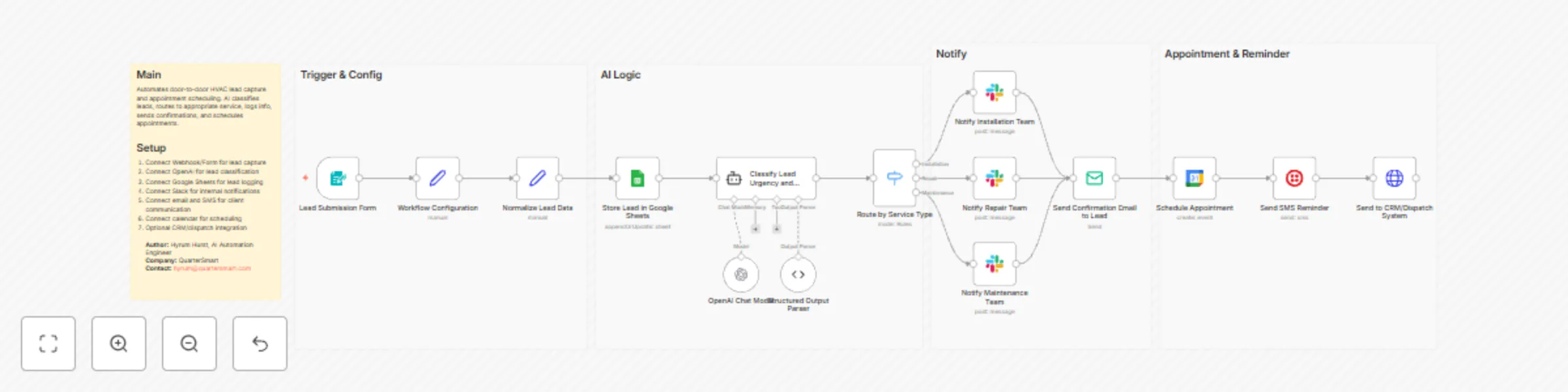
Capture and schedule HVAC leads with OpenAI, Google Sheets, Slack and SMS
## Who this workflow is for Door-to-door HVAC companies seeking automated lead capture and appointment scheduling. ## What this workflow does AI classifies incoming leads, routes them by service type, logs lead info in Google Sheets, notifies team via Slack, sends confirmations, schedules appointments, and optionally sends SMS reminders. ## How the workflow works 1. Lead submission triggers workflow 2. AI classifies lead 3. Route lead based on service type 4. Log in Google Sheets 5. Notify team via Slack 6. Send confirmation email 7. Schedule appointment in calendar 8. Send SMS reminder (optional) 9. Optional CRM/dispatch integration **Author:** Hyrum Hurst, AI Automation Engineer **Company:** QuarterSmart **Contact:** [email protected]

Send Stripe invoice reminders with GPT-4.1-mini, Google Sheets and Slack
## Who this workflow is for Accounting and bookkeeping firms needing automated invoice creation and payment reminders. ## What this workflow does AI generates personalized emails for overdue invoices, logs invoice info in Google Sheets, notifies accountants via Slack, creates PDF invoices, and schedules follow-ups. ## How the workflow works 1. Invoice creation triggers workflow 2. AI drafts personalized email 3. Routes based on payment status 4. Logs invoice info in Google Sheets 5. Sends Slack notifications to accountant 6. Sends email to client 7. Generates PDF invoice 8. Schedules follow-up events 9. Optional CRM/accounting tool integration **Author:** Hyrum Hurst, AI Automation Engineer **Company:** QuarterSmart **Contact:** [email protected]
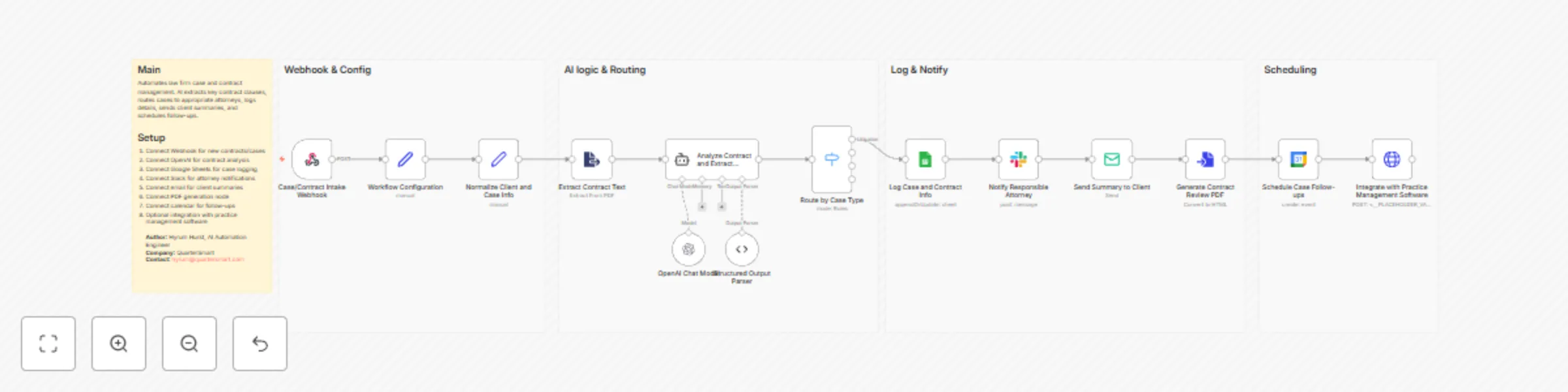
Analyze legal contracts with GPT-4.1 and manage cases in Google Sheets and Slack
## Who this workflow is for Law firms in corporate, litigation, or family law needing streamlined case and contract management. ## What this workflow does Automatically analyzes contracts using AI, extracts key clauses, logs cases in Google Sheets, routes cases to attorneys, sends client summaries, generates PDFs, and schedules follow-ups. ## How the workflow works 1. Webhook triggers on new case or contract 2. AI analyzes contract 3. Case routed by type 4. Logs case info in Google Sheets 5. Notifies attorney via Slack 6. Sends client email summary 7. Generates PDF report 8. Schedules follow-up events 9. Optional integration with practice management software **Author:** Hyrum Hurst, AI Automation Engineer **Company:** QuarterSmart **Contact:** [email protected]
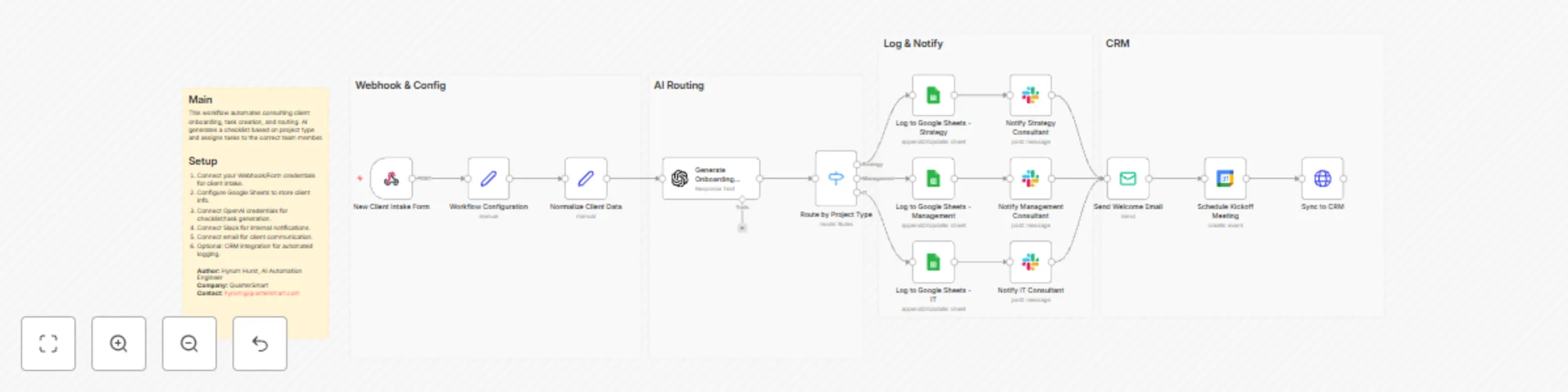
Create consulting client onboarding tasks with GPT-4o-mini, Google Sheets and Slack
## Who this workflow is for Consulting firms in strategy, management, or IT who want to automate client onboarding and internal task assignment. ## What this workflow does Automatically creates onboarding tasks and checklists using AI, routes them to the right consultant, logs client info in Google Sheets, and sends client welcome emails. Internal teams get Slack notifications, and kickoff meetings can be scheduled automatically. ## How the workflow works 1. New client intake triggers workflow 2. AI generates onboarding checklist 3. Tasks routed based on project type 4. Client info logged in Google Sheets 5. Slack notifications sent to consultants 6. Optional PDF of onboarding sent to client 7. Email confirmation delivered to client 8. Optional CRM integration ## Setup Instructions - Connect Webhook/Form for intake - Connect Google Sheets - Connect OpenAI - Connect Slack and email - Configure optional CRM integration **Author:** Hyrum Hurst, AI Automation Engineer **Company:** QuarterSmart **Contact:** [email protected]

Forecast and report multi-channel tax liabilities with OpenAI, Gmail, Sheets and Airtable
## How It Works This workflow automates tax compliance by aggregating multi-channel revenue data, calculating jurisdiction-specific tax obligations, detecting anomalies, and generating submission-ready reports for tax authorities. Designed for finance teams, tax professionals, and e-commerce operations, it solves the challenge of manually reconciling transactions across multiple sales channels, applying complex tax rules, and preparing compliant filings under tight deadlines. The system triggers monthly or on-demand, fetching revenue data from e-commerce platforms, payment processors, and accounting systems. Transaction records flow through validation layers that merge historical context, classify revenue streams, and calculate tax obligations using jurisdiction-specific rules engines. AI models detect anomalies in tax calculations, identify unusual deduction patterns, and flag potential audit risks. The workflow routes revenue data by tax jurisdiction, applies progressive tax brackets, and generates formatted reports matching authority specifications. Critical anomalies trigger immediate alerts to tax teams via Gmail, while finalized reports store in Google Sheets and Airtable for audit trails. This eliminates 80% of manual tax preparation work, ensures multi-jurisdiction compliance, and reduces filing errors. ## Setup Steps 1. Configure e-commerce API credentials for transaction access 2. Set up payment processor integrations (Stripe, PayPal) for revenue reconciliation 3. Add accounting system credentials (QuickBooks, Xero) for financial data 4. Configure OpenAI API key for anomaly detection and tax analysis 5. Set Gmail OAuth credentials for tax team alert notifications 6. Link Google Sheets for report storage and audit trail documentation 7. Connect Airtable workspace for structured tax record management ## Prerequisites Active e-commerce platform accounts with API access. Payment processor credentials. ## Use Cases Automated monthly sales tax calculations for multi-state e-commerce. ## Customization Modify tax calculation rules for specific jurisdiction requirements. ## Benefits Reduces tax preparation time by 80% through end-to-end automation.

Coordinate patient care and alerts with EHR/FHIR, GPT-4, Twilio, Gmail and Slack
## How It Works This workflow automates end-to-end patient care coordination by monitoring appointment schedules, clinical events, and care milestones while orchestrating personalized communications across multiple channels. Designed for healthcare operations teams, care coordinators, and patient engagement specialists, it solves the challenge of manual patient follow-up, missed appointments, and fragmented communication across care teams. The system triggers on scheduled intervals and real-time clinical events, ingesting data from EHR systems, appointment schedulers, and lab result feeds. Patient records flow through validation and risk stratification layers using AI models that identify high-risk patients, predict no-show probability, and recommend intervention timing. The workflow applies clinical protocols for appointment reminders, medication adherence checks, and post-discharge follow-ups. Critical cases automatically route to care coordinators via Slack alerts, while routine communications deploy via SMS, email, and patient portal notifications. All interactions log to secure databases for compliance documentation. This eliminates manual outreach coordination, reduces no-shows by 40%, and ensures HIPAA-compliant patient engagement at scale. ## Setup Steps 1. Configure EHR/FHIR API credentialsfor patient data access 2. Set up webhook endpoints for real-time clinical event notifications 3. Add OpenAI API key for patient risk stratification and communication personalization 4. Configure Twilio credentials for SMS and voice call delivery 5. Set Gmail OAuth or SMTP credentials for email appointment reminders 6. Connect Slack workspace and define care coordination alert channels ## Prerequisites Active EHR system with FHIR API access or HL7 integration capability. ## Use Cases Automated appointment reminder campaigns reducing no-shows. ## Customization Modify risk scoring models for specialty-specific patient populations. ## Benefits Reduces patient no-show rates by 40% through timely, personalized reminders.
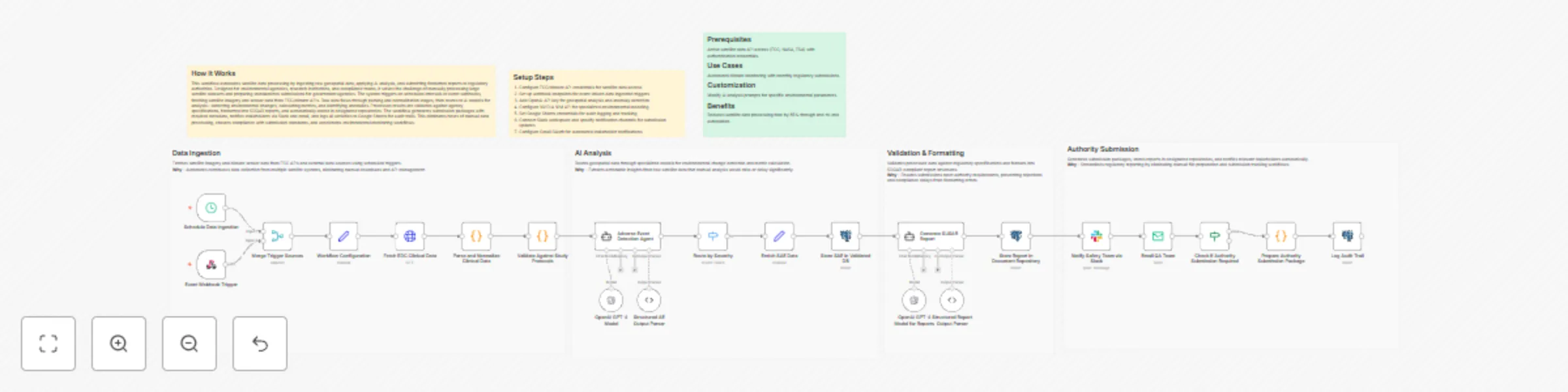
Automate satellite data analysis and regulatory reporting with GPT-4 and Slack
## How It Works This workflow automates satellite data processing by ingesting raw geospatial data, applying AI analysis, and submitting formatted reports to regulatory authorities. Designed for environmental agencies, research institutions, and compliance teams, it solves the challenge of manually processing large satellite datasets and preparing standardized submissions for government agencies. The system triggers on scheduled intervals or event webhooks, fetching satellite imagery and sensor data from ECC/climate APIs. Raw data flows through parsing and normalization stages, then routes to AI models for analysis—detecting environmental changes, calculating metrics, and identifying anomalies. Processed results are validated against agency specifications, formatted into SDQAR reports, and automatically stored in designated repositories. The workflow generates submission packages with required metadata, notifies stakeholders via Slack and email, and logs all activities to Google Sheets for audit trails. This eliminates hours of manual data processing, ensures compliance with submission standards, and accelerates environmental monitoring workflows. ## Setup Steps 1. Configure ECC/climate API credentials for satellite data access 2. Set up webhook endpoints for event-driven data ingestion triggers 3. Add OpenAI API key for geospatial analysis and anomaly detection 4. Configure NVIDIA NIM API for specialized environmental modeling 5. Set Google Sheets credentials for audit logging and tracking 6. Connect Slack workspace and specify notification channels for submission updates 7. Configure Gmail OAuth for automated stakeholder notifications ## Prerequisites Active satellite data API access (ECC, NASA, ESA) with authentication credentials. ## Use Cases Automated climate monitoring with monthly regulatory submissions. ## Customization Modify AI analysis prompts for specific environmental parameters. ## Benefits Reduces satellite data processing time by 85% through end-to-end automation.
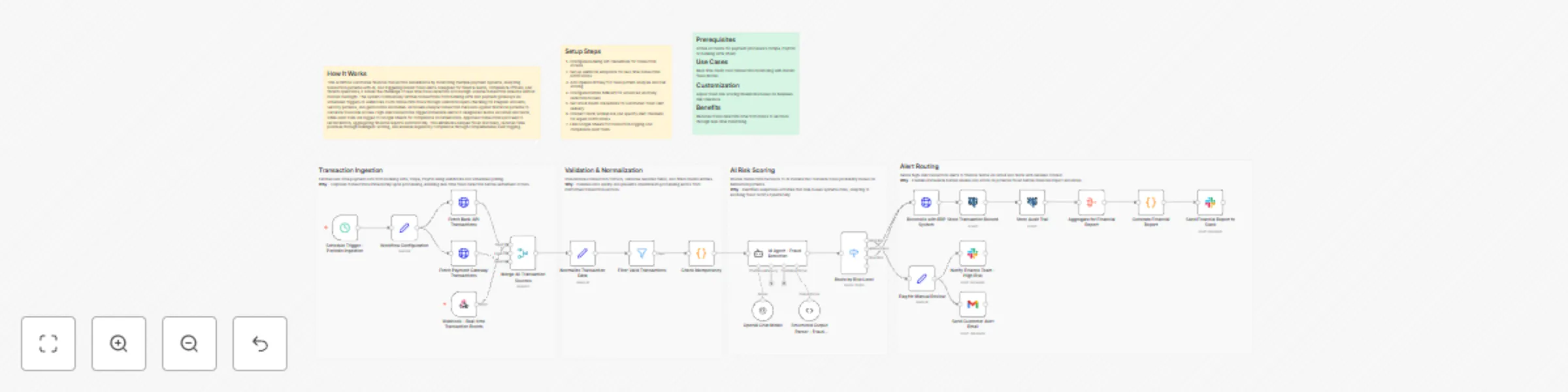
Detect multi-source transaction fraud and reconcile finances with OpenAI, Nvidia NIM, Gmail, Slack and Google Sheets
## How It Works This workflow automates financial transaction surveillance by monitoring multiple payment systems, analyzing transaction patterns with AI, and triggering instant fraud alerts. Designed for finance teams, compliance officers, and fintech operations, it solves the challenge of real-time fraud detection across high-volume transaction streams without manual oversight. The system continuously fetches transactions from banking APIs and payment gateways via scheduled triggers or webhooks. Each transaction flows through validation layers checking for irregular amounts, velocity patterns, and geolocation anomalies. AI models analyze transaction metadata against historical patterns to calculate fraud risk scores. High-risk transactions trigger immediate alerts to designated teams via Gmail and Slack, while audit trails are logged to Google Sheets for compliance documentation. Approved transactions proceed to reconciliation, aggregating financial reports automatically. This eliminates delayed fraud discovery, reduces false positives through intelligent scoring, and ensures regulatory compliance through comprehensive audit logging. ## Setup Steps 1. Configure banking API credentials for transaction access 2. Set up webhook endpoints for real-time transaction notifications 3. Add OpenAI API key for fraud pattern analysis and risk scoring 4. Configure NVIDIA NIM API for advanced anomaly detection models 5. Set Gmail OAuth credentials for automated fraud alert delivery 6. Connect Slack workspace and specify alert channels for urgent notifications 7. Link Google Sheets for transaction logging and compliance audit trails ## Prerequisites Active accounts for payment processors (Stripe, PayPal) or banking APIs (Plaid) ## Use Cases Real-time credit card transaction monitoring with instant fraud blocks ## Customization Adjust fraud risk scoring thresholds based on business risk tolerance ## Benefits Reduces fraud detection time from hours to seconds through real-time monitoring.

Grade and deliver multi-course assignment feedback with GPT-4o, Google Drive, Slack, and Gmail
## How It Works This workflow automates business intelligence reporting by aggregating data from multiple sources, processing it through AI models, and delivering formatted dashboards via email. Designed for business analysts, operations managers, and executive teams, it solves the challenge of manually compiling metrics from disparate systems into coherent reports. The system triggers on schedule or webhook, extracting data from Google Sheets, databases, and APIs. Raw data flows through transformation nodes that calculate KPIs, generate trend analyses, and create visualizations. AI models (OpenAI) provide natural language insights and anomaly detection. Results populate multiple dashboard templates—executive summary, departmental metrics, and detailed analytics—each tailored to specific stakeholder needs. Formatted reports are automatically distributed via Gmail with embedded charts and actionable recommendations. This eliminates hours of manual data gathering, reduces reporting errors, and ensures stakeholders receive timely, consistent insights. ## Setup Steps 1. Configure Google Sheets credentials and specify source spreadsheet IDs 2. Set up database connections (PostgreSQL, MySQL) with read-only access 3. Add OpenAI API key for GPT-4 analytics and narrative generation 4. Set Gmail OAuth credentials for automated email delivery 5. Define recipient lists for each dashboard type (executive, departmental, detailed) 6. Customize dashboard templates with company branding and preferred KPIs ## Prerequisites Active Google Workspace account with Sheets and Gmail access. ## Use Cases Automated weekly executive dashboards with YoY comparisons. ## Customization Modify dashboard templates to match corporate branding standards. ## Benefits Reduces report preparation time by 80% through full automation.

Sync and enrich HubSpot leads from Google Sheets and Telegram with Gemini and Lusha
This workflow automates lead ingestion from Google Sheets and Telegram, leveraging Gemini AI and Lusha for intelligent matching and deep data enrichment. By normalizing incoming data into a standard structure, it uses custom fuzzy logic to identify existing HubSpot records—preventing duplicates and ensuring your CRM stays clean with validated contact and company details. **Key Features:** **Agnostic Intake:** Seamlessly processes leads from structured Google Sheets or raw Telegram messages parsed by Gemini AI. **Intelligent Matching:** Custom JS engine performs two-tier matching (hard & fuzzy) to save Lusha credits and keep CRM data integrity. **Deep Enrichment:** Automatically triggers Lusha API to find missing emails and update firmographic data like revenue and industry. **Automated Sync:** Closes the loop by notifying the team on Telegram and updating the spreadsheet status once a lead is processed. **Setup Instructions:** 1. Connect your HubSpot, Lusha, Gemini, Google Sheets, and Telegram credentials. 2. Input your Spreadsheet ID in the 'Trigger' and 'Acknowledge' nodes. 3. Adjust the similarity threshold in the 'Switch Logic' node (default 80) based on your data needs.

Create a daily AI & automation content digest from YouTube, Reddit, X and Perplexity with OpenAI and Airtable
What It Does This workflow automates the creation of a daily AI and automation content digest by aggregating trending content from four sources: YouTube (n8n-related videos with AI-generated transcript summaries), Reddit (rising posts from r/n8n), X/Twitter (tweets about n8n, AI automation, AI agents, and Claude via Apify scraping), and Perplexity AI (top 3 trending AI news stories). The collected data is analyzed using OpenAI models to extract key insights, stored in Airtable for archival, and then compiled into a beautifully formatted HTML email report that includes TL;DR highlights, content summaries, trending topics, and AI-generated content ideas—delivered straight to your inbox via Gmail. --- Setup Guide Prerequisites You will need accounts and API credentials for the following services: ┌──────────────────┬───────────────────────────────────────────────┐ │ Service │ Purpose │ ├──────────────────┼───────────────────────────────────────────────┤ │ YouTube Data API │ Fetch video metadata and search results │ ├──────────────────┼───────────────────────────────────────────────┤ │ Apify │ Scrape YouTube transcripts and X/Twitter data │ ├──────────────────┼───────────────────────────────────────────────┤ │ Reddit API │ Pull trending posts from subreddits │ ├──────────────────┼───────────────────────────────────────────────┤ │ Perplexity AI │ Get real-time AI news summaries │ ├──────────────────┼───────────────────────────────────────────────┤ │ OpenAI │ Content analysis and summarization │ ├──────────────────┼───────────────────────────────────────────────┤ │ OpenRouter │ Report generation (GPT-4.1) │ ├──────────────────┼───────────────────────────────────────────────┤ │ Airtable │ Store collected content │ ├──────────────────┼───────────────────────────────────────────────┤ │ Gmail │ Send the daily report │ └──────────────────┴───────────────────────────────────────────────┘ Step-by-Step Setup 1. Import the workflow into your n8n instance 2. Configure YouTube credentials: - Set up YouTube OAuth2 credentials - Replace YOURAPIKEY in the "Get Video Data" HTTP Request node with your YouTube Data API key 3. Configure Apify credentials: - In the "Get Transcripts" and "Scrape X" HTTP Request nodes, replace YOURAPIKEY in the Authorization header with your Apify API token 4. Configure Reddit credentials: - Set up Reddit OAuth2 credentials (see note below) 5. Configure AI service credentials: - Add your Perplexity API credentials - Add your OpenAI API credentials - Add your OpenRouter API credentials 6. Configure Airtable: - Create a base called "AI Content Hub" with three tables: YouTube Videos, Reddit Posts, and Tweets - Update the Airtable nodes with your base and table IDs 7. Configure Gmail: - Set up Gmail OAuth2 credentials - Replace YOUREMAIL in the Gmail node with your recipient email address 8. Customize search terms (optional): - Modify the YouTube search query in "Get Videos" node - Adjust the subreddit in "n8n Trending" node - Update Twitter search terms in "Scrape X" node Important Note: Reddit API Access The Reddit node requires OAuth2 authentication. If you do not already have a Reddit developer account, you will need to submit a request for API access: 1. Go to https://www.reddit.com/prefs/apps 2. Click "create another app..." at the bottom 3. Select "script" as the application type 4. Fill in the required fields (name, redirect URI as http://localhost) 5. Important: Reddit now requires additional approval for API access. Visit https://www.reddit.com/wiki/api to review their API terms and submit an access request if prompted 6. Once approved, use your client ID and client secret to configure the Reddit OAuth2 credentials in n8n API approval can take 1-3 business days depending on your use case. --- Recommended Schedule Set up a Schedule Trigger to run this workflow daily (e.g., 7:00 AM) for a fresh content digest each morning.

Scrape Trustpilot reviews 📊 with ScrapegraphAI and OpenAI Reputation analysis
This workflow automates the **collection, analysis, and reporting of Trustpilot reviews** for a specific company, transforming unstructured customer feedback into **structured insights and actionable intelligence**. --- ### Key Advantages #### 1. ✅ End-to-End Automation The entire process—from scraping reviews to delivering a polished management report—is fully automated, eliminating manual data collection and analysis . #### 2. ✅ Structured Insights from Unstructured Data The workflow transforms raw, unstructured review text into structured fields and standardized sentiment categories, making analysis reliable and repeatable. #### 3. ✅ Company-Level Reputation Intelligence Instead of focusing on individual products, the analysis evaluates the **overall brand, service quality, customer experience, and operational performance**, which is critical for leadership and strategic teams. #### 4. ✅ Action-Oriented Outputs The AI-generated report goes beyond summaries by: * Identifying reputational risks * Highlighting improvement opportunities * Proposing concrete actions with priorities, effort estimates, and KPIs #### 5. ✅ Visual & Executive-Friendly Reporting Automatic sentiment charts and structured executive summaries make insights immediately understandable for non-technical stakeholders. #### 6. ✅ Scalable and Configurable * Easily adaptable to different companies or review volumes * Page limits and batching protect against rate limits and excessive API usage #### 7. ✅ Cross-Team Value The output is tailored for multiple internal teams: * Management * Marketing * Customer Support * Operations * Product & UX --- ### Ideal Use Cases * Brand reputation monitoring * Voice-of-the-customer programs * Executive reporting * Customer experience optimization * Competitive benchmarking (by reusing the workflow across brands) --- ### **How It Works** This workflow automates the complete process of scraping Trustpilot reviews, extracting structured data, analyzing sentiment, and generating comprehensive reports. The workflow follows this sequence: 1. **Trigger & Configuration**: The workflow starts with a manual trigger, allowing users to set the target company URL and the number of review pages to scrape. 2. **Review Scraping**: An HTTP request node fetches review pages from Trustpilot with pagination support, extracting review links from the HTML content. 3. **Review Processing**: The workflow processes individual review pages in batches (limited to 5 reviews per execution for efficiency). Each review page is converted to clean markdown using ScrapegraphAI. 4. **Data Extraction**: An information extractor using OpenAI's GPT-4.1-mini model parses the markdown to extract structured review data including author, rating, date, title, text, review count, and country. 5. **Sentiment Analysis**: Another OpenAI model performs sentiment classification on each review text, categorizing it as Positive, Neutral, or Negative. 6. **Data Aggregation**: Processed reviews are collected and compiled into a structured dataset. 7. **Analytics & Visualization**: - A pie chart is generated showing sentiment distribution - A comprehensive reputation analysis report is created using an AI agent that evaluates company-level insights, recurring themes, and provides actionable recommendations 8. **Reporting & Delivery**: The analysis is converted to HTML format and sent via email, providing stakeholders with immediate insights into customer feedback and company reputation. ## **Set Up Steps** To configure and run this workflow: 1. **Credential Setup**: - Configure OpenAI API credentials for the chat models and information extraction - Set up ScrapegraphAI credentials for webpage-to-markdown conversion - Configure Gmail OAuth2 credentials for email notifications 2. **Company Configuration**: - In the "Set Parameters" node, update `company_id` to the target Trustpilot company URL - Adjust `max_page` to control how many review pages to scrape 3. **Review Processing Limits**: - The "Limit" node restricts processing to 5 reviews per execution to manage API costs and processing time - Adjust this value based on your needs and OpenAI usage limits 4. **Email Configuration**: - Update the "Send a message" node with the recipient email address - Customize the email subject and content as needed 5. **Analysis Customization**: - Modify the prompt in the "Company Reputation Analyst" node to tailor the report format - Adjust sentiment analysis categories if different classification is needed 6. **Execution**: - Click "Test workflow" to execute the manual trigger - Monitor execution in the n8n editor to ensure all API calls succeed - Check the configured email inbox for the generated report **Note**: Be mindful of API rate limits and costs associated with OpenAI and ScrapegraphAI services when processing large numbers of reviews. The workflow includes a 5-second delay between paginated requests to comply with Trustpilot's terms of service. --- 👉 [Subscribe to my new **YouTube channel**](https://youtube.com/@n3witalia). Here I’ll share videos and Shorts with practical tutorials and **FREE templates for n8n**. [](https://youtube.com/@n3witalia) --- ### **Need help customizing?** [Contact me](mailto:[email protected]) for consulting and support or add me on [Linkedin](https://www.linkedin.com/in/davideboizza/).
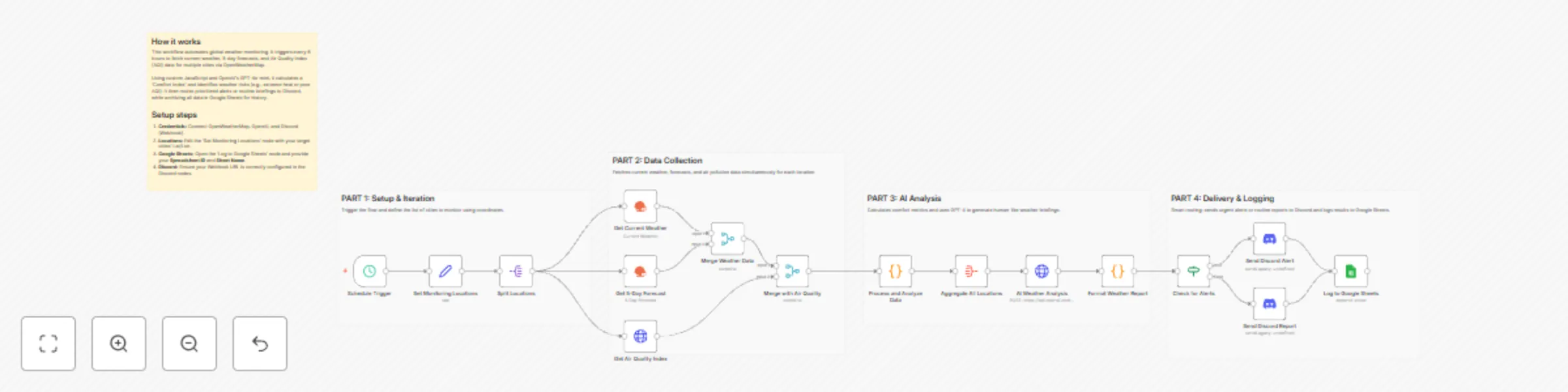
Monitor multi-city weather with OpenWeatherMap, GPT-4o-mini, and Discord
## Weather Monitoring Across Multiple Cities with OpenWeatherMap, GPT-4o-mini, and Discord This workflow provides an automated, intelligent solution for global weather monitoring. It goes beyond simple data fetching by calculating a custom "Comfort Index" and using AI to provide human-like briefings and activity recommendations. Whether you are managing remote teams or planning travel, this template centralizes complex environmental data into actionable insights. ## Who’s it for - **Remote Team Leads:** Keep an eye on environmental conditions for team members across different time zones. - **Frequent Travelers & Event Planners:** Monitor weather risks and comfort levels for multiple destinations simultaneously. - **Smart Home/Life Enthusiasts:** Receive daily morning briefings on air quality and weather alerts directly in Discord. ## How it works 1. **Schedule Trigger:** The workflow runs every 6 hours (customizable) to ensure data is up to date. 2. **Data Collection:** It loops through a list of cities, fetching current weather, 5-day forecasts, and Air Quality Index (AQI) data via the **OpenWeatherMap node** and **HTTP Request node**. 3. **Smart Processing:** A **Code node** calculates a "Comfort Index" (based on temperature and humidity) and flags specific alerts (e.g., extreme heat, high winds, or poor AQI). 4. **AI Analysis:** The **OpenAI node** (using GPT-4o-mini) analyzes the aggregated data to compare cities and recommend the best location for outdoor activities. 5. **Conditional Routing:** An **If node** checks for active weather alerts. Urgent alerts are routed to a specific Discord notification, while routine briefings are sent normally. 6. **Archiving:** All processed data is appended to **Google Sheets** for historical tracking and future analysis. ## How to set up 1. **Credentials:** Connect your OpenWeatherMap, OpenAI, Discord (Webhook), and Google Sheets accounts. 2. **Locations:** Open the **'Set Monitoring Locations'** node and edit the JSON array with the cities, latitudes, and longitudes you wish to track. 3. **Google Sheets:** Configure the **'Log to Google Sheets'** node with your specific Spreadsheet ID and Sheet Name. 4. **Discord:** Ensure your Webhook URL is correctly pasted into the **Discord nodes**. ## Requirements - **OpenWeatherMap API Key** (Free tier is sufficient). - **OpenAI API Key** (Configured for GPT-4o-mini). - **Discord Webhook URL**. - **Google Sheet** with headers ready for logging. ## How to customize - **Adjust Alert Thresholds:** Modify the logic in the 'Process and Analyze Data' Code node to change what triggers a "High Wind" or "Extreme Heat" alert. - **Refine AI Persona:** Edit the System Prompt in the 'AI Weather Analysis' node to change the tone or focus of the weather briefing. - **Change Frequency:** Adjust the Schedule Trigger to run once a day or every hour depending on your needs.
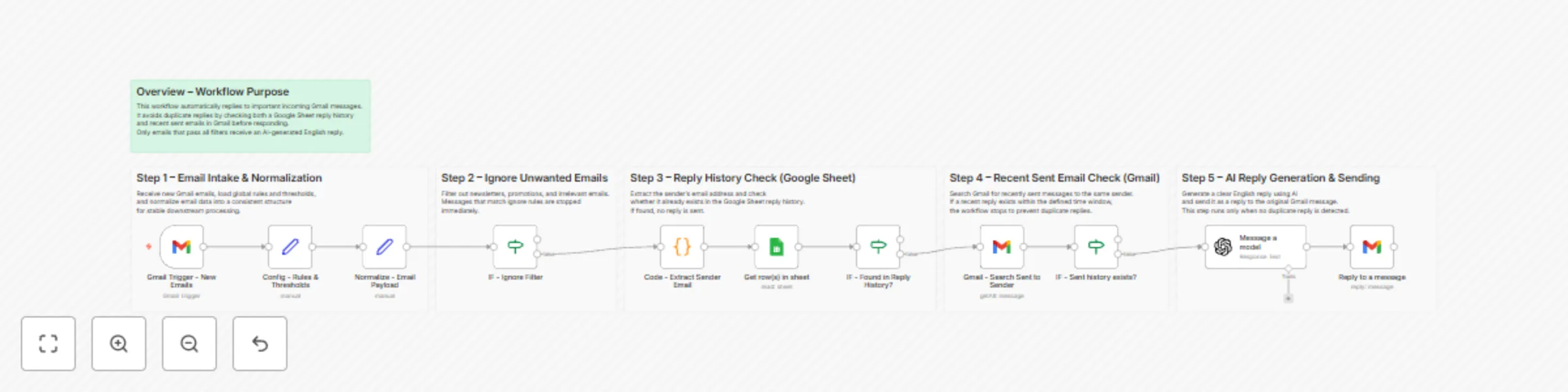
Send AI-generated Gmail auto replies with GPT-4o-mini and Google Sheets
## Overview This workflow automatically replies to important incoming Gmail messages using AI, while preventing duplicate or unnecessary replies. It applies multiple safety checks (filters, Google Sheets history, and Gmail sent history) to ensure replies are sent only when appropriate. This template is designed for creators, freelancers, and teams who want a reliable and maintainable AI-powered email auto-reply system. --- ## How it works 1. New Gmail messages are received and normalized into a consistent structure. 2. Unwanted emails (newsletters, promotions, no-reply senders) are filtered out. 3. The sender’s email is checked against a Google Sheets reply history. 4. Gmail is searched to confirm no recent reply was already sent. 5. If no duplicate is found, an AI-generated English reply is created and sent. --- ## Setup steps 1. Connect your Gmail account. 2. Connect a Google Sheet for reply history tracking. 3. Review the ignore rules and thresholds in the config node. 4. Customize the AI prompt if needed. 5. Activate the workflow. Estimated setup time: 5–10 minutes. --- ## Notes - Sticky notes inside the workflow explain each processing step in detail. - No hardcoded API keys are used. - The workflow is intentionally linear for clarity and easy maintenance.

Evaluate AI workflows using Google Sheets, Gemini, Claude, GPT, and Perplexity
This template and YouTube video goes over 5 different implementations of evaluations within n8n. - Categorization - Correctness - Tools used - String similarity - Helpfulness You’ll learn when to use each type, how to set up test datasets in Google Sheets or data tables, and how to track your results over time. I also explain best practices like only changing one variable at a time, documenting your prompts and model settings, and building proper training datasets with enough examples to confidently validate your workflow. YouTube Video: https://www.youtube.com/watch?v=-4LXYOhQ-Z0 Thank you for downloading our free n8n Evaluations template. If you enjoyed the template + tutorial please subscribe to the YouTube channel. We are uploading weekly content on AI/n8n Connect With Us Check out the links down below. If you need help with this template, want 1:1 coaching, or have a n8n project you want to build, reach out at [email protected] Free Skool AI/n8n Group: https://www.skool.com/data-and-ai LinkedIn: https://www.linkedin.com/in/ryan-p-nolan/ Twitter/X:https://x.com/RyanMattDS Website: https://ryanandmattdatascience.com/
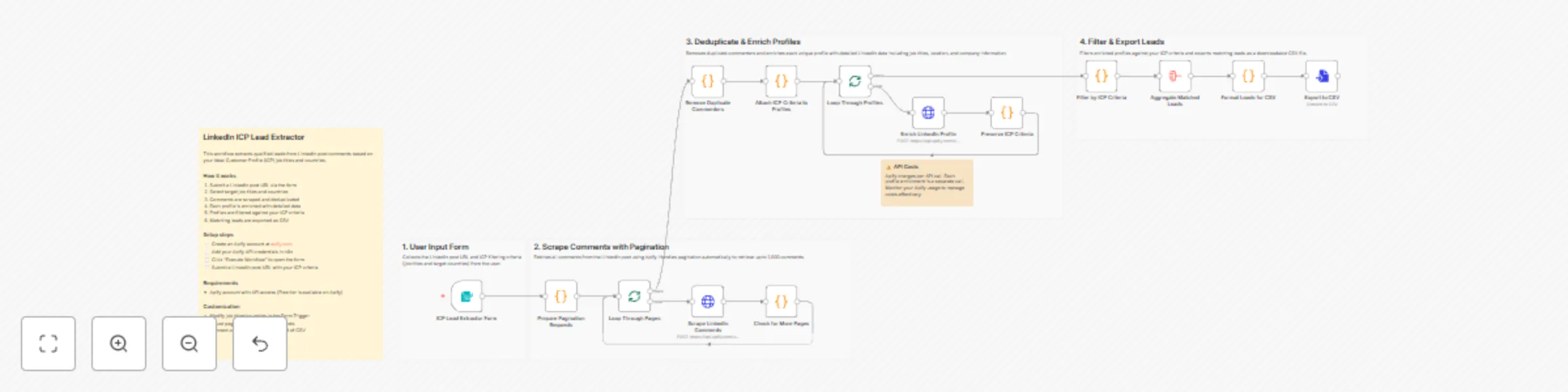
Extract ICP-targeted LinkedIn leads from post comments using Apify
This workflow automates the process of extracting and qualifying leads from LinkedIn post comments based on your Ideal Customer Profile (ICP) criteria. It turns LinkedIn engagement into a structured, downloadable list of qualified leads—without manual review. --- ## Who’s this for * Sales and business development teams generating outbound lead lists * Marketing teams running LinkedIn engagement campaigns * Recruiters sourcing candidates with specific job titles * Operators who want to convert LinkedIn comments into actionable data --- ## What problem does this solve Manually reviewing LinkedIn post comments to identify relevant prospects is slow, repetitive, and error-prone. This workflow automates the entire process—from scraping comments to enriching profiles and filtering by ICP—saving hours of manual work and ensuring consistent results. --- ## What this workflow does 1. Collects a LinkedIn post URL and ICP criteria via a form 2. Scrapes post comments using Apify (supports up to 1,000 comments) 3. Deduplicates commenters and enriches profiles with LinkedIn data 4. Filters profiles by selected job titles and countries 5. Exports matched leads as a downloadable CSV file --- ## How to set up 1. Create an Apify account and generate an API key 2. Add your Apify credentials in n8n (**Settings → Credentials → Apify API**) 3. Execute the workflow and submit a LinkedIn post URL and ICP criteria --- ## Requirements * Apify account with API access - Apify offers a free tier with $5 in monthly credits, which is enough to test this workflow on smaller LinkedIn posts --- ## How to customize the workflow * Update job titles and target countries in the Form Trigger * Increase pagination limits to support larger posts * Replace CSV export with a CRM, Google Sheets, or database integration

Publish Zoom class recordings to Google Classroom automatically
## About This flow is ideal for online schools that use Zoom to teach classes and Google Classroom for storing materials and homework. It listens for Zoom webhooks that come after each recorded call is uploaded to Zoom Cloud (you'll need Zoom paid plan). When new meeting comes, it filters out calls that last less than 30 mins. After duration check, it checks if there is a Google Class that matches the call name. Your call must be named exactly as the Google Class you want the call to be uploaded to. If the class is found, it will extract the Class ID. This flow assumes that you have a specific topic used for storing class recordings and materials, so it will look for this topic and upload the material. If topic is not found, you'll get an email. ## Requirements You'll need a: - Zoom paid plan that supports Zoom Cloud - Google cloud console to set up Classroom API and Gmail API - OpenAI API key or any other provider

Analyze post-event survey feedback from Google Forms with GPT-4o, Slack and Google Docs
## 🎉 AI Event Feedback Analyzer → Instant Slack Alerts + Google Docs Reports **Turn raw Google Forms into actionable insights**—AI extracts sentiment, themes, testimonials → posts Slack digests + builds running Doc report. Perfect for conferences, webinars, workshops. ### 🎯 Use Cases - Event planners tracking NPS + improvements live - Webinar hosts surfacing testimonials automatically - Conference organizers sharing #event-feedback in Slack - Marketing teams building case studies from attendee quotes ### 🔧 How It Works 📝 Webhook catches Google Form → Typeform submissions 🧠 AI analyzes: Sentiment 😍/😞, Likes, Improvements, Testimonial quote 💬 Posts Slack #event-feedback: "4/5 ⭐ Marketing Pro: 'Loved networking' → Add more breaks" 📄 Appends Google Doc: "{{EventName}} Feedback Log" with bullets + aggregates 🔄 Optional: Manual aggregate last 50 → "Avg 4.2⭐ Top 3 actions: ..." text ### ⚙️ Setup (3 min) ✅ Google Forms → Sheets (auto) ✅ Slack #channel + OpenAI key ✅ Google Docs (variable ID) ✅ No hardcodes—plug & play **💰 Impact**: 30% faster feedback loops → 15% better next events. **Keywords**: event survey analysis, Google Forms AI, post-event feedback automation, Slack NPS alerts, conference testimonial generator
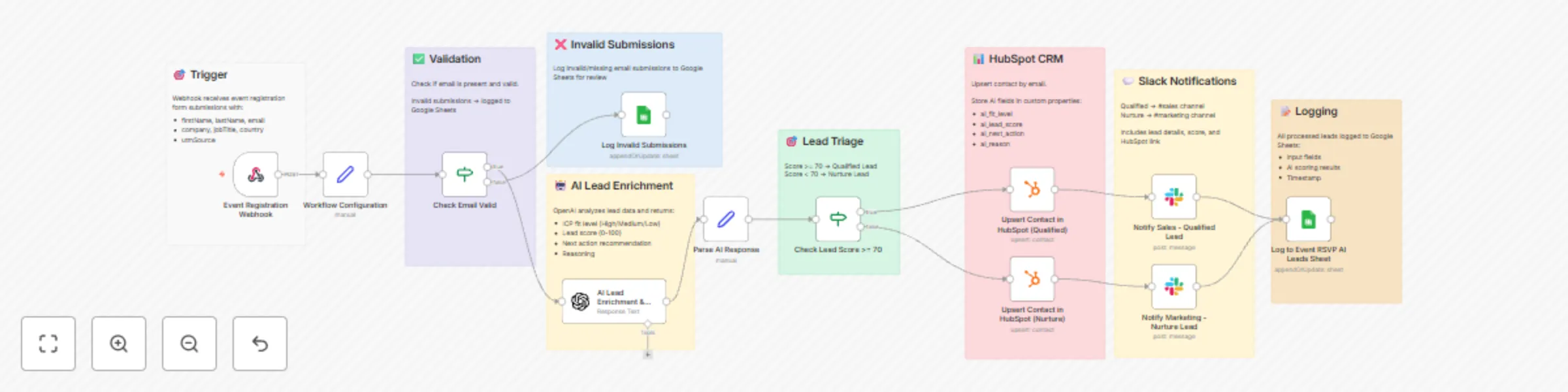
Score event RSVPs with GPT-4o-mini and sync leads to HubSpot with Slack alerts
🚀 **Auto-qualify event RSVPs into sales-ready leads** ✅ Form → AI scoring (0-100) → HubSpot CRM ✅ Slack alerts: "Director @ Acme = 87/100 → Book call" ✅ High-fit leads auto-assigned, nurture path for rest *Perfect for conferences, webinars, meetups* Free CRM tier, 100% configurable EventTech, LeadQualification, RevOps, eventregistration, events, lead scoring, rsvp, conferences, webinars, crm, hubspot, ai qualification

WooCommerce 🛒 Product Review Sentiment Analysis and AI Report 🤖 for Improvement
This workflow automates the **end-to-end analysis of WooCommerce product reviews**, transforming raw customer feedback into **actionable product and customer-care insights**, and delivering them in a structured, visual, and shareable format. This workflow analyzes product review sentiment from WooCommerce using AI. It starts by retrieving reviews for a specified product via the WooCommerce. Each review then undergoes sentiment analysis using LangChain's Sentiment Analysis. The workflow aggregates sentiment data, creates a pie chart visualization via QuickChart, and compiles a comprehensive report using an AI Agent. The report includes executive summaries, quantitative data, qualitative analysis, product diagnostics, and operational recommendations. Finally, the **AI-generated report** is converted to HTML and emailed to a designated recipient for review by customer and product teams. --- ### Key Advantages #### 1. ✅ Full Automation of Review Analysis Eliminates manual work by automating data collection, sentiment analysis, reporting, visualization, and delivery in a single workflow. #### 2. ✅ Scalable and Reliable Batch processing ensures the workflow can handle **dozens or hundreds of reviews** without performance issues. #### 3. ✅ Action-Oriented Insights (Not Just Sentiment) Instead of stopping at sentiment scores, the workflow produces: * Root-cause hypotheses * Concrete improvement actions * Prioritized recommendations (P0 / P1 / P2) * Measurable KPIs #### 4. ✅ Combines Quantitative and Qualitative Analysis Merges hard metrics (averages, distributions, outliers) with qualitative insights (themes, risks, opportunities), giving a **360° view of customer feedback**. #### 5. ✅ Visual + Narrative Output Stakeholders receive both: * **Visual sentiment charts** for quick understanding * **Structured written reports** for strategic decision-making #### 6. ✅ Ready for Product & Customer Care Teams The output format is tailored for non-technical teams: * Clear language * Masked personal data (GDPR-friendly) * Immediate usability in meetings, emails, or documentation #### 7. ✅ Easily Extensible The workflow can be extended to: * Run on a schedule * Analyze multiple products * Store results in a database or CRM * Trigger alerts for negative sentiment spikes #### Ideal Use Cases * Continuous monitoring of product sentiment * Supporting product roadmap decisions * Identifying customer pain points early * Improving customer support response strategies * Reporting customer voice to stakeholders automatically --- ### How it works 1. **Manual Trigger & Configuration** The workflow starts manually and sets the target **WooCommerce product ID** and **store URL**. 2. **Data Retrieval from WooCommerce** * Fetches **all reviews** for the selected product via the WooCommerce REST API. * Retrieves **product details** (name, description, categories) to enrich the analysis context. 3. **Batch Processing of Reviews** Reviews are processed in batches to ensure scalability and reliability, even with a large number of reviews. 4. **AI-Powered Sentiment Analysis** * Each review is analyzed using an OpenAI-based sentiment analysis model. * For every review, the workflow extracts: * Sentiment category (Positive / Negative / Neutral) * Strength (intensity) * Confidence (reliability of the classification) 5. **Data Normalization & Aggregation** * Review text is cleaned and structured. * Sentiment data is aggregated to compute overall distributions and metrics. 6. **Visual Sentiment Distribution** * A pie chart is dynamically generated via QuickChart to visually represent sentiment distribution. 7. **Advanced AI Insight Generation** A specialized AI agent (“Product Insights Analyst”) transforms the raw and aggregated data into a **professional, structured report**, including: * Executive summary * Quantitative statistics * Qualitative themes * Product diagnosis * Operational recommendations * Product backlog ideas * Next steps 8. **HTML Conversion & Delivery** * The report is converted into clean HTML. * The final output is automatically sent via **email** to stakeholders (e.g. product or customer care teams). --- ### Set up steps 1. **Configure credentials**: - Set up WooCommerce API credentials in the HTTP Request node. - Add OpenAI API credentials for both sentiment analysis and reporting. - Configure Gmail OAuth2 credentials for sending the final email report. 2. **Set parameters**: - In the "Product ID" node, replace `PRODUCT_ID` and `YOUR_WEBSITE` with actual product ID and WooCommerce site URL. - Update the recipient email address in the "Send a message" node. 3. **Optional adjustments**: - Modify the pie chart design in the "QuichChart" node if needed. - Adjust the report structure or language in the "Product Insights Analyst" system prompt. 4. **Run the workflow**: - Click "Execute workflow" on the manual trigger to start the process. - Monitor execution in n8n to ensure all nodes process correctly. Once configured, the workflow will automatically analyze product reviews, generate insights, and deliver a formatted report via email. --- 👉 [Subscribe to my new **YouTube channel**](https://youtube.com/@n3witalia). Here I’ll share videos and Shorts with practical tutorials and **FREE templates for n8n**. [](https://youtube.com/@n3witalia) --- ### **Need help customizing?** [Contact me](mailto:[email protected]) for consulting and support or add me on [Linkedin](https://www.linkedin.com/in/davideboizza/).
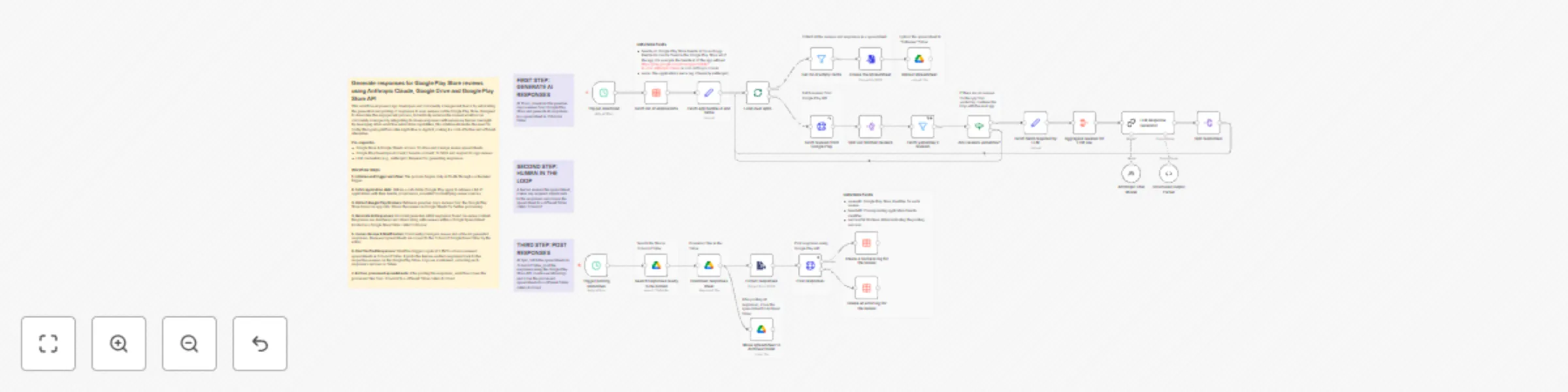
Generate and post Google Play review replies with Anthropic Claude and Google Drive
## Generate responses for Google Play Store reviews using Anthropic Claude, Google Drive and Google Play Store API This workflow empowers app developers and community management teams by automating the generation and posting of responses to user reviews on the Google Play Store. Designed to streamline the engagement process, it drastically reduces the manual workload on community managers by integrating AI-driven responses with necessary human oversight. By leveraging n8n's workflow automation capabilities, this solution eliminates the need for costly third-party platforms like AppFollow or Appbot, making it a cost-effective and efficient alternative. **Pre-requisites** * Google Drive & Google Sheets access: To store and manage review spreadsheets. * Google Play Developer Account / Service account: To fetch and respond to app reviews. * LLM credentials (e.g., Anthropic): Required for generating responses. ### Workflow steps **1. Initialise and trigger workflow:** The process begins daily at 10 AM through a scheduled trigger. **2. Fetch application data:** Utilizes a data table (Google Play apps) to retrieve a list of applications with their bundle_id and name, essential for identifying review sources. **3. Collect Google Play Reviews:** Retrieves previous day's reviews from the Google Play Store based on app data. Stores the reviews in Google Sheets for further processing. **4. Generate AI Responses:** AI model generates initial responses based on review content. Responses are structured and stored along with reviews within a Google Spreadsheet located in a Google Drive folder called *ToReview*. **5. Human Review & Modification:** Community managers review and refine AI-generated responses. Reviewed spreadsheets are moved to the *ToSubmit* Google Drive folder by the editor. **6. Post Verified Responses:** Workflow triggers again at 5 PM to access reviewed spreadsheets in *ToSubmit* folder. It posts the human-verified responses back to the respective reviews on the Google Play Store. Logs are maintained, recording each response's success or failure. **7. Archive processed spreadsheets:** After posting the responses, workflow moves the processed files from *ToSubmit* to a different folder called *Archived*
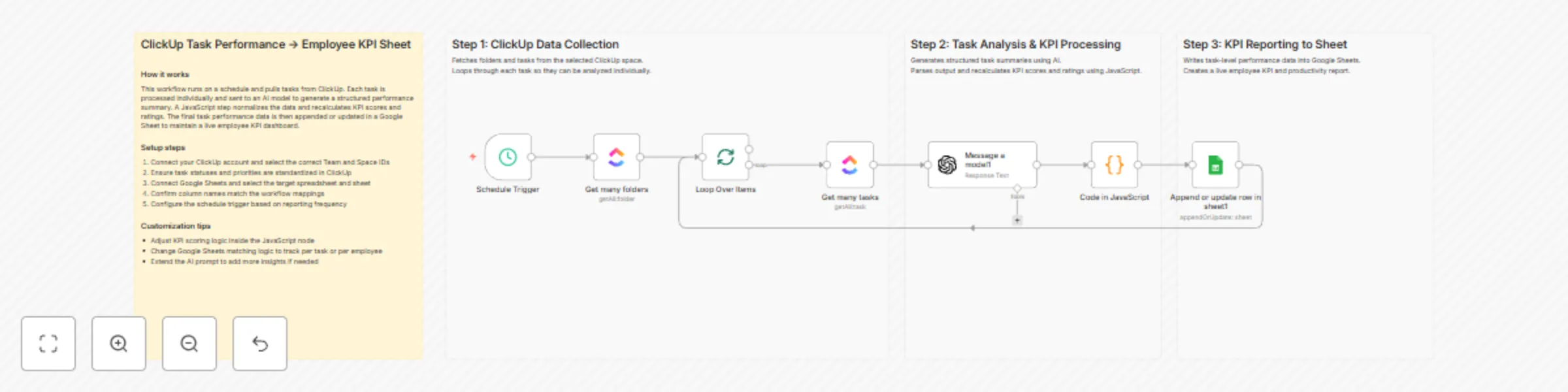
Track employee performance KPIs from ClickUp with GPT-4.1 and Google Sheets
## How it works This workflow runs on a schedule to collect task data from ClickUp and evaluate employee performance using AI. Tasks are analyzed to generate structured summaries, productivity metrics, and KPI scores. JavaScript logic refines and standardizes the results. The final performance data is stored in Google Sheets as a live KPI dashboard. ## Step-by-step - **Step 1: Collect ClickUp task data** - **Schedule Trigger** – Starts the workflow automatically at defined intervals. - **Get many folders** – Fetches all folders from the selected ClickUp space. - **Loop Over Items** – Iterates through folders to process tasks sequentially. - **Get many tasks** – Retrieves tasks associated with each folder or list. - **Step 2: Analyze tasks and compute KPIs** - **Message a model** – Sends task details to an AI model to generate summaries and raw performance metrics. - **Code in JavaScript** – Parses AI output, recalculates KPI scores, and assigns standardized ratings. - **Step 3: Update employee KPI dashboard** - **Append or update row in sheet** – Writes or updates task and employee performance data in Google Sheets. ## Why use this? - Automates employee performance tracking without manual reporting. - Produces consistent KPI scores across all ClickUp tasks. - Helps managers quickly identify overdue or high-priority work. - Keeps Google Sheets dashboards continuously up to date. - Improves visibility into productivity and task execution trends.
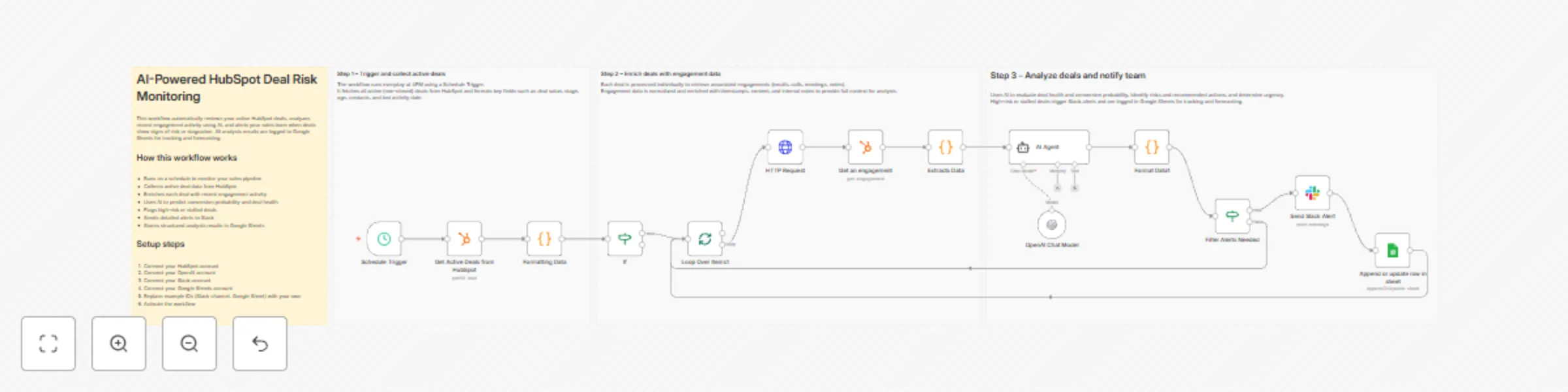
Monitor HubSpot deal risk with OpenAI scoring and Slack alerts
## How it works This workflow runs on a daily schedule to analyze all active HubSpot deals and their latest engagement activity. It applies AI-driven behavioral scoring to predict conversion probability and deal health. High-risk or stalled deals automatically trigger Slack alerts. All insights are logged in Google Sheets for forecasting and performance tracking. ## Step-by-step - **Step 1 – Trigger and collect active deals** - **Schedule Trigger** – Runs the workflow automatically at a fixed time each day. - **Get Active Deals from HubSpot** – Retrieves all non-closed deals with key properties like value, stage, and activity dates. - **Formatting Data** – Cleans and normalizes deal data while calculating metrics such as deal age and inactivity duration. - **Step 2 – Enrich deals with engagement data** - **If** – Filters only active deals to ensure closed deals are excluded. - **Loop Over Items** – Processes each deal individually to handle enrichment safely. - **HTTP Request** – Fetches engagement associations linked to each deal. - **Get an engagement** – Retrieves detailed engagement records from HubSpot. - **Extracts Data** – Structures engagement content, timestamps, and internal notes for AI analysis. - **Step 3 – Analyze risk and notify the team** - **AI Agent** – Analyzes behavioral signals and predicts conversion probability, risk level, and next actions. - **Format Data** – Parses the AI output into structured fields and risk indicators. - **Filter Alerts Needed** – Identifies deals that require immediate attention. - **Send Slack Alert** – Sends a detailed alert with risks, signals, and recommended actions. - **Append or update row in sheet** – Stores analysis results in Google Sheets for tracking and forecasting. ## Why use this? - Detect deal risk early using consistent, AI-based analysis - Reduce manual pipeline reviews for sales managers - Provide clear, actionable next steps to sales reps - Keep a historical log of deal health and forecasts - Improve close rates through timely, data-driven intervention

Detect and score refund risk with Webhook, OpenAI and Google Sheets
## How it works This workflow automatically evaluates refund and chargeback risk for incoming e-commerce orders. Orders are received via a webhook, processed individually, and checked to avoid duplicate analysis. Each transaction is normalized and sent to OpenAI for structured risk scoring and classification. Results are logged for auditing, alerts are triggered for high-risk cases, and processed orders are marked to prevent reprocessing. ## Step-by-step - **Step 1 – Ingest incoming orders** - **Webhook** – Receives single or bulk order payloads from external systems. - **Split Out** – Breaks array-based payloads into individual order records. - **Split In Batches** – Iterates through each order in a controlled loop. - **Step 2 – Deduplication check** - **IF (DEDUPE CHECK)** – Verifies whether an order was already processed and skips duplicates. - **Step 3 – Normalize transaction data** - **Code (Normalize Data)** – Validates required fields and standardizes order, customer, and behavioral attributes. - **Step 4 – AI risk assessment** - **OpenAI (Message a model)** – Sends normalized transaction data to the AI model and requests a strict JSON risk evaluation. - **Step 5 – Parse AI output** - **Code (Parse AI Output)** – Cleans the AI response and extracts risk score, risk level, key drivers, and recommendations. - **Step 6 – Log results** - **Google Sheets (Append)** – Stores timestamps, order details, and AI risk outcomes for reporting and audits. - **Step 7 – Risk decision and alerts** - **IF (High Risk)** – Filters only transactions classified as HIGH risk. - **Discord** – Sends real-time alerts to operations or finance teams. - **Gmail** – Emails finance stakeholders with full risk context. - **Step 8 – Mark order as processed** - **Google Sheets (Update)** – Updates the source row to prevent duplicate processing. ## Why use this? - Automatically detects high refund or chargeback risk before losses occur. - Eliminates manual review with consistent, AI-driven risk scoring. - Sends instant alerts so teams can act quickly on high-risk orders. - Maintains a clear audit trail for compliance and reporting. - Scales easily to handle single or bulk order evaluations.