Z

Zain Ali

6
Workflows

Workflows by Zain Ali

Workflow preview: Chat-based financial analysis of P&L and balance sheets with GPT-4 & PostgreSQL
Free intermediate

Chat-based financial analysis of P&L and balance sheets with GPT-4 & PostgreSQL

## 🧾 Who’s it for This workflow is designed for **finance teams**, **accountants**, and **data analysts** 📊 who want to interact with financial data from **two PostgreSQL databases** — one containing **Profit & Loss** data and another containing **Balance Sheet** data — using natural language chat. It’s perfect for those who need **quick, AI-powered insights** with the correct database automatically selected based on the question. --- ## ⚙️ How it works / What it does 1. **Chat Trigger 💬** – Starts the workflow when a chat message is received. 2. **AI Agent 🤖** – Processes the user’s question and decides: - **Profit & Loss DB** → If the question is about revenue, costs, expenses, or profit. - **Balance Sheet DB** → If the question is about assets, liabilities, or equity. 3. **PostgreSQL Query Nodes 🗄️** – - **P_L_Reports** queries the `financial_agent_pl_reports` table. - **Balance_Sheets** queries the `financial_agent_balancesheets` table. 4. **AI Model (OpenAI) 🧠** – Uses `gpt-4.1-nano` to interpret results and provide an easy-to-read answer. 5. **Memory Buffer 📝** – Keeps recent conversation context for a smoother chat experience. 6. **Table Output 📋** – Always formats the results as a **clean, readable table** with two decimal precision. --- ## 🛠️ How to set up 1. **Prepare Your Databases** - Feed your Profit & Loss and Balance Sheet data into **PostgreSQL**. - Ensure the correct table structures are used: - **financial_agent_pl_reports** → P&L data. - **financial_agent_balancesheets** → Balance Sheet data. 2. **Configure the PostgreSQL Nodes** - Add connection credentials for both databases. - Link **P_L_Reports** and **Balance_Sheets** nodes to the correct tables. 3. **Set Up the AI Agent** - Paste the provided **system message** into the AI Agent node (already configured in your workflow). 4. **Connect the Nodes** - Ensure **Chat Trigger → AI Agent → DB Nodes → AI Model** connections match your workflow. 5. **Deploy** - Save and activate the workflow. - Start sending finance-related queries to test. --- ## 📋 Requirements - **n8n** (latest version recommended) - **PostgreSQL databases** with: - `financial_agent_pl_reports` table (P&L data). - `financial_agent_balancesheets` table (Balance Sheet data). - **OpenAI API credentials** with access to `gpt-4.1-nano`. - **Active Webhook/Chat Trigger** for receiving queries. --- ## 🎨 How to customize - **Expand AI Instructions** 🗒️ – Add more rules in the system message for different data sources or formatting styles. - **Change AI Model** 🧠 – Switch to a different OpenAI model for faster or more accurate results. - **Add More Databases** 🗄️ – Connect extra financial datasets, e.g., cash flow, sales analytics. - **Enhance Table Styling** 📊 – Use Markdown or HTML formatting for richer outputs. - **Refine Query Logic** 🔍 – Modify filtering logic to better match your reporting needs.

Z
Zain Ali
Document Extraction
9 Aug 2025
113
0

Workflow preview: Match medical symptoms to products with OpenAI, Qdrant & Google Sheets RAG
Free advanced

Match medical symptoms to products with OpenAI, Qdrant & Google Sheets RAG

## 🧠 RAG AI Medical Agent – n8n Workflow ## 👥 Who’s it for This workflow is perfect for: - **Healthcare ecommerce businesses** that want to automate product recommendations. - **Founders or developers** building an AI assistant using retrieval-augmented generation (RAG) with product data. - **Anyone** wanting to combine OpenAI, Qdrant vector search, and Google Sheets to power intelligent medical queries. --- ## ⚙️ How it works / What it does This RAG-based workflow allows users to **ask medical questions** related to hair or scalp issues (e.g., hair loss, thinning). It: 1. Retrieves product info from a **Google Sheet**. 2. Converts product data into **text embeddings** using OpenAI. 3. Stores those embeddings in a **Qdrant vector database**. 4. On chat message trigger, performs a **vector similarity search** to match user symptoms with relevant products. 5. Uses an **AI agent** to respond with top 3 matching products from your catalog. --- ## 🛠️ How to set up ## Step 1: 🗂 Get your data - Make sure your **Google Sheet** contains the following columns: - `Product Name` - `Symptoms Involved` - `Product Description` - `ForeverBetty Product Page Link` - `Category` (optional but recommended) ## Step 2: 🔐 Connect your accounts - Add your **Google Sheets OAuth2 credentials** in the "Get all products" node. - Add your **OpenAI API key** in the embedding nodes. - Add your **Qdrant credentials** in the vector store nodes. ## Step 3: 🧠 Populate the Vector DB 1. Click **“Execute workflow”** manually. 2. This pulls data from the Google Sheet. 3. Each row is: - Formatted properly into a vector-friendly string. - Converted into an embedding using OpenAI. - Stored into Qdrant. ## Step 4: 💬 Enable Chat Interface - Use the **ChatTrigger** to receive user queries. - The agent searches Qdrant for relevant vectors. - Replies with product suggestions via LangChain's LLM agent. --- ## 📋 Requirements - 🧠 **n8n** - 📄 A Google Sheet with product data. - 🔐 Google Sheets OAuth2 credentials. - 🧠 OpenAI API key (for embeddings + chat LLM). - 🗃️ Qdrant Vector DB instance (Cloud or self-hosted). --- ## 🧩 How to customize it ## 🔄 Change the data structure - Update the "Set Data Properly in vector database" node to modify what fields are embedded. - Example: ```handlebars --- Product: {{ $json['Product Name '] }} Use-case: {{ $json['Symptoms Involved'] }} Link: {{ $json['ForeverBetty Product Page Link '] }}

Z
Zain Ali
Lead Nurturing
30 Jul 2025
139
0
Workflow preview: Google Drive workflow with nested folder support
Free intermediate

Google Drive workflow with nested folder support

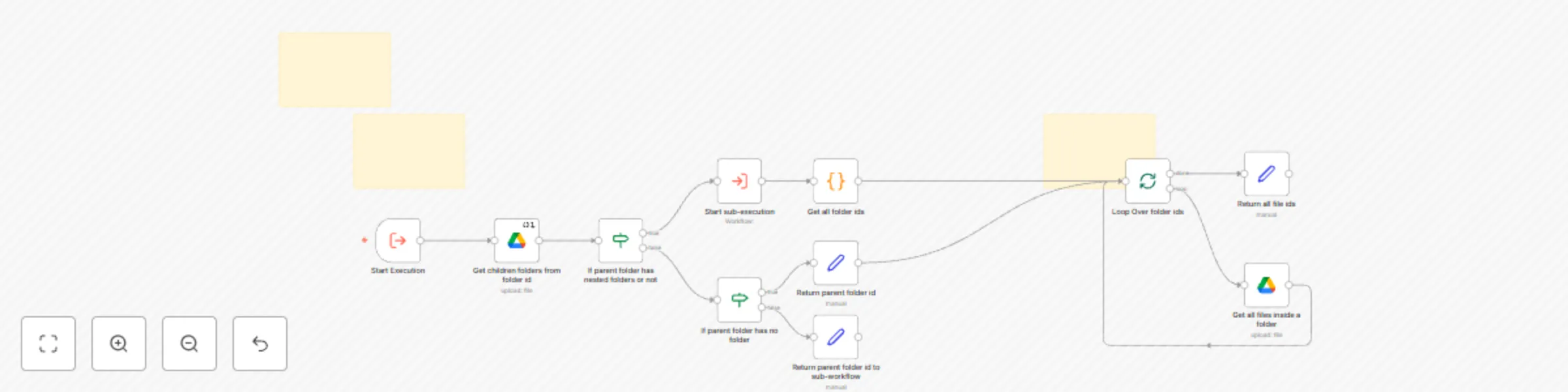
## 👤 Who’s it for - **Anyone** who needs to recursively fetch **all files** from a specific Google Drive folder, including files inside all its nested (child) folders. - Ideal for **automation builders**, **admins**, and **integrators** who want to process, move, list, or report on all files in a complex folder tree. --- ## ⚙️ How it works / What it does This workflow will: 1. **Accept a Google Drive Folder ID** as an input (from another workflow or trigger). 2. **Recursively discover all child folders** starting from the parent, no matter how many levels deep. 3. **Collect all file IDs & names** from every folder (parent + all descendants). 4. **Return a clean list** of all found files (with IDs and names) for further automation, downloading, or processing. **Key features:** - 💡 **Works recursively** (handles any depth of nested folders). - 🏷️ **Outputs file ID & file name** for each discovered file. - 🔄 **Can be triggered by other workflows** (great for modular automation). --- ## 🛠️ How to set up #### 1. **Google Drive Credentials** - Make sure you’ve set up a **Google Drive OAuth2 credential** in n8n. - Connect this credential to all Google Drive nodes in the workflow. #### 2. **Parent Folder ID** - Input the Google Drive folder ID you want to start from. - **How to pass it:** - If running standalone: update the `When Executed by Another Workflow` node with your folder ID. - If called from another workflow: pass the folder ID as an input named `id`. #### 3. **Check Set Nodes** - There are two Set nodes (`Return parent` and `Return parent1`) and one trigger (`When Executed by Another Workflow`) where you might want to update the hardcoded folder ID. - ⚠️ **Change these IDs to match your use case.** #### 4. **Run the Workflow** - Start the workflow (or execute it via another workflow). - The result will be a flat list of files in all subfolders. --- ## ✅ Requirements - 🟢 **n8n instance** - 🟢 **Google Drive OAuth2 credentials** connected in n8n - 🟢 **A valid Google Drive folder ID** to start from --- ## 🧑‍💻 How to customize - **Return Extra Data:** Add fields in the “Search files” node options to return more Google Drive file metadata (e.g., size, webViewLink). - **Filter by File Type:** Adjust the search query or add a filter node to only include certain file types (e.g., PDFs, Docs). - **Change Output Format:** Edit the “Edit Fields” Set node to structure your output differently. - **Integrate Further:** Add new nodes after the Loop to, for example, download, email, or sync files as needed. --- ## 🚨 Notes & Tips - **Performance:** This workflow is optimized for up to hundreds of folders. For very large Drive accounts (thousands of folders/files), consider pagination or batching. - **Credential Security:** Always use n8n’s built-in credential manager—never hard-code sensitive data. - **Static IDs:** As noted in the sticky note, make sure to update all hardcoded folder IDs for your production use. --- ## 🗂️ Node Overview - **When Executed by Another Workflow:** Accepts a folder ID (entry point). - **Google Drive – Get children folders:** Lists subfolders of the given folder. - **If:** Checks if the folder contains any subfolders. - **Execute Workflow:** Handles recursion (calls itself on child folders). - **Code:** Flattens all discovered folder IDs for next step. - **Loop Over Items:** Iterates over all folders to process files. - **Google Drive – Search files:** Finds all files in each folder. - **Edit Fields (Set):** Structures file data for output. - **Sticky Note:** Documentation and reminders inside your workflow. --- ## 🔄 Example Output ```json [ { "file_id": "1A2B3C...", "file_name": "MyDoc.pdf" }, { "file_id": "2B3C4D...", "file_name": "Presentation.pptx" } ]

Z
Zain Ali
File Management
23 Jul 2025
192
0
Workflow preview: Create project summaries from meeting transcripts with GPT-4 and Google Docs
Free intermediate

Create project summaries from meeting transcripts with GPT-4 and Google Docs

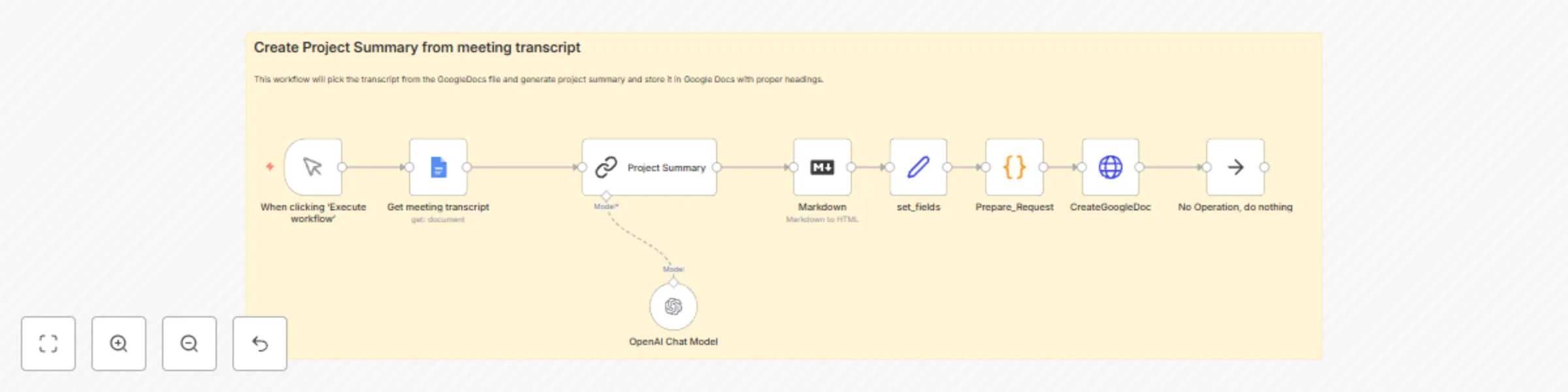
### 🧾 Generate Project Summary from meeting transcript #### **Who’s it for** 🤝 - Project managers looking to automate client meeting summaries - Client success teams needing structured deliverables from transcripts - Agencies and consultants who want consistent, repeatable documentation #### **How it works / What it does** ⚙️ 1. **Trigger**: Manual or webhook trigger kicks off the workflow. 2. **Get meeting transcript**: Reads the raw transcript from a specified Google Docs file. 3. **Generate summary**: Sends transcript + instructions to OpenAI (gpt-4.1-mini) to produce a structured project summary. 4. **Convert to HTML**: Transforms the LLM-generated Markdown into styled HTML. 5. **Prepare request**: Wraps HTML and metadata into a multipart request body. 6. **Create Google Doc**: Uploads the new “Project Summary” document into your Drive folder. #### **How to set up** 🛠️ 1. **Credentials** - Google Docs & Drive OAuth2 credentials - OpenAI API key (gpt-4.1-mini) 2. **Nodes configuration** - **Manual Trigger** / webhook node - **Google Docs** “Get meeting transcript” node: set `documentURL` - **AI Chat Model** node: select `gpt-4.1-mini` - **Markdown** node: enable tables & emoji - **Google Drive** “CreateGoogleDoc” node: set target folder ID 3. **Paste in your IDs** - Update `documentURL` to your transcript doc - Update `google_drive_folder_id` in the Set node 4. **Execute** - Click “Execute Workflow” or call via webhook #### **Requirements** 📋 - n8n - Google OAuth2 scopes for Docs & Drive - OpenAI account with GPT-4.1-mini access - A Google Drive folder to store summaries #### **How to customize** ✨ - **Output format**: Edit the Markdown prompt in the ChainLlm node to adjust headings or tone - **Timeline section**: Extend LLM prompt template with your own phase table - **Styling**: Tweak inline CSS in the Code node (`Prepare_Request`) for fonts or margins - **Trigger**: Swap Manual Trigger for HTTP/Webhook trigger to integrate with other tools - **Language model**: Upgrade to a different model by changing `model.value` in the AI node

Z
Zain Ali
Document Extraction
19 Jul 2025
549
0

Workflow preview: Gmail assistant with full Gmail history RAG using OpenAI
Free advanced

Gmail assistant with full Gmail history RAG using OpenAI

# 🧠 RAG with Full Gmail history + Real time email updates in RAG using OpenAI & Qdrant > **Summary:** > This workflow listens for new Gmail messages, extracts and cleans email content, generates embeddings via OpenAI, stores them in a Qdrant vector database, and then enables a Retrieval‑Augmented‑Generation (RAG) agent to answer user queries against those stored emails. It’s designed for teams or bots that need conversational access to past emails. --- ## 🧑‍🤝‍🧑 Who’s it for - **Support teams** who want to surface past customer emails in chatbots or help‑desk portals - **Sales ops** that need AI‑powered summaries and quick lookup of email histories - **Developers** building RAG agents over email archives --- ## ⚙️ How it works / What it does 1. **Trigger** - **Gmail Trigger** polls every minute for new messages. 2. **Fetch & Clean** - **Get Mail Data** pulls full message metadata and body. - **Code node** normalizes the body (removes line breaks, collapses spaces). 3. **Embed & Store** - **Embeddings OpenAI** node computes vector embeddings. - **Qdrant Vector Store** inserts embeddings + metadata into the `emails_history` collection. 4. **Batch Processing** - **SplitInBatches** handles large inbox loads in chunks of 50. 5. **RAG Interaction** - **When chat message received** → **RAG Agent** → uses **Qdrant Email Vector Store** as a tool to retrieve relevant email snippets before responding. 6. **Memory** - **Simple Memory** buffer ensures the agent retains recent context. --- ## 🛠️ How to set up 1. **n8n Instance** - Deploy n8n (self‑hosted or via Coolify/Docker). 2. **Credentials** - Create an **OAuth2** credential in n8n for Gmail (with Gmail API scopes). - Add your **OpenAI API key** in n8n credentials. 3. **Qdrant** - Stand up a Qdrant instance (self‑hosted or Qdrant Cloud). - Note your host, port, and API key (if any). 4. **Import Workflow** - In n8n, go to **Workflows → Import** → paste the JSON you provided. - Ensure each credential reference (Gmail & OpenAI) matches your n8n credential IDs. 5. **Test** - Click **Execute Workflow** or send a test email to your Gmail. - Monitor n8n logs: you should see new points in Qdrant and RAG responses. --- ## 📋 Requirements - **n8n** (Self-hosted or Cloud) - **Gmail API** enabled on a Google Cloud project - **OpenAI API** access (with Embedding & Chat endpoints) - **Qdrant** (hosted or cloud) with a collection named `emails_history` --- ## 🎨 How to customize the workflow - **Change Collection Name** - Update the `qdrantCollection.value` in all Qdrant nodes if you prefer a different collection. - **Adjust Polling Frequency** - In the Gmail Trigger node, switch from `everyMinute` to `everyFiveMinutes` or a webhook‑style trigger. - **Metadata Tags** - In **Enhanced Default Data Loader**, tweak the `metadataValues` to tag by folder, label, or sender domain. - **Batch Size** - In **SplitInBatches**, change `batchSize` to suit your inbox volume. - **RAG Agent Prompt** - Customize the `systemMessage` in the **RAG Agent** node to set the assistant’s tone, instruct on date handling, or add additional tools. - **Additional Tools** - Chain other n8n nodes (e.g., Slack, Discord) after the RAG Agent to broadcast AI answers to team channels.

Z
Zain Ali
Internal Wiki
19 Jul 2025
1277
0
Workflow preview: Real-time email RAG assistant with Gmail, OpenAI GPT, and PGVector
Free intermediate

Real-time email RAG assistant with Gmail, OpenAI GPT, and PGVector

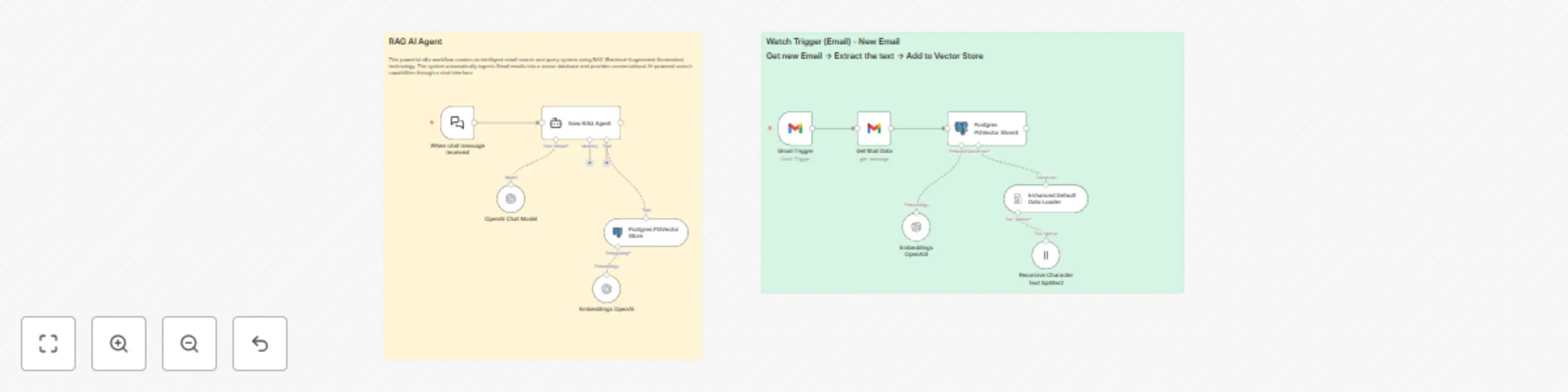
# 🧠 Email real time RAG Assistant with Gmail, OpenAI & PGVector ## 📌 Who’s it for This workflow is ideal for: - Professionals - Project managers - Sales and support teams - Anyone managing high volumes of Gmail messages It enables fast and intelligent search through your email inbox using **natural language queries**. --- ## ⚙️ How it works / What it does - Continuously monitors your **Gmail inbox** for new emails. - Extracts **email content and metadata** (subject, body, sender, date). - Converts email content into **vector embeddings** using OpenAI. - Stores embeddings in a **PostgreSQL database with PGVector**. - A **conversational AI agent** performs **semantic search** on your stored email history. - Supports **time-sensitive** and **context-aware** responses via OpenAI Chat model. --- ## 🚀 How to set up 1. **Connect your Gmail account** to the Gmail Trigger node (with API access enabled). 2. **Configure OpenAI credentials** for the Embedding and Chat nodes. 3. **Set up a PostgreSQL database** with the **PGVector extension** enabled. 4. **Import the workflow** into your n8n instance (Cloud or Self-hosted). 5. **Customize parameters** like polling frequency, embedding settings, or vector query depth. --- ## 📋 Requirements - ✅ n8n instance (Self-hosted or Cloud) - ✅ Gmail account with API access - ✅ OpenAI API Key - ✅ PostgreSQL database with PGVector extension installed --- ## 🛠️ How to customize the workflow - **Email Filtering**: Change filters in the Gmail Trigger to watch specific labels or senders. - **Text Splitting Granularity**: Adjust `chunkSize` and `chunkOverlap` in the text splitter node. - **Query Depth**: Modify `topK` in the vector search node to retrieve more or fewer similar results. - **Prompt Tuning**: Customize the system message or agent instructions in the RAG node. - **Workflow Extensions**: Add notifications, error logging, Slack/Telegram alerts, or data exports.

Z
Zain Ali
Personal Productivity
12 Jul 2025
3430
0