R

Ranjan Dailata

54
Workflows

Workflows by Ranjan Dailata

Workflow preview: Analyze brand visibility in AI SERPs with SE Ranking and OpenAI GPT-4.1 mini
Free intermediate

Analyze brand visibility in AI SERPs with SE Ranking and OpenAI GPT-4.1 mini

This workflow automates brand intelligence analysis across AI-powered search results by combining **SE Ranking’s AI Search data** with structured processing in n8n. It retrieves real AI-generated prompts, answers, and cited sources where a brand appears, then normalizes and consolidates this data into a clean, structured format. The workflow eliminates manual review of AI SERPs and makes it easy to understand how AI search engines describe, reference, and position a brand. ## Who this is for This workflow is designed for: * **SEO strategists and growth marketers** analyzing brand visibility in AI-powered search engines * **Content strategists** identifying how brands are represented in AI answers * **Competitive intelligence teams** tracking brand mentions and narratives * **Agencies and consultants** building AI SERP reports for clients * **Product and brand managers** monitoring AI-driven brand perception ## What problem is this workflow solving? Traditional SEO tools focus on rankings and keywords but do not capture how AI search engines talk about brands. Key challenges this workflow addresses: * No visibility into **AI-generated prompts and answers** mentioning a brand * Difficulty extracting **linked sources and references** from AI SERPs * Manual effort required to normalize and structure AI search responses * Lack of export-ready datasets for reporting or downstream automation ## 3. What this workflow does At a high level, this workflow: * Accepts a **brand name and AI search parameters** * Fetches **real AI search prompts, answers, and citations** from SE Ranking * Extracts and normalizes: * Prompts with answers * Supporting reference links * Raw AI SERP JSON * Merges all outputs into a **unified structured dataset** * Exports the final result as **structured JSON** ready for analysis, reporting, or storage This enables brand-level AI SERP intelligence in a repeatable and automated way ## Setup ### Prerequisites * n8n (self-hosted or cloud) * Active **SE Ranking API** access * HTTP Header authentication configured in n8n * Local or server file system access for JSON export ### Setup Steps If you are new to SE Ranking, please signup on [seranking.com](https://seranking.com/?ga=4848914&source=link) 1. **Configure Credentials** * SE Ranking using HTTP Header Authentication. Please make sure to set the header authentication as below. The value should contain a Token followed by a space with the SE Ranking API Key. ![image.png](fileId:3876) 2. **Set Input Parameters** * Brand name * AI engine (e.g., Perplexity) * Source/region * Sorting preferences * Result limits 3. **Configure Output** * Update file path in the “Write File to Disk” node * Ensure write permissions are available 4. **Execute Workflow** * Click *Execute Workflow* * Generated brand intelligence is saved as structured JSON ## How to customize this workflow You can easily adapt this workflow to your needs: * **Change Brand Focus** * Modify the brand input to analyze competitors or product names * **Switch AI Engines** * Compare brand narratives across different AI search engines * **Add AI Enrichment** * Insert OpenAI or Gemini nodes to summarize brand sentiment or themes * **Classification & Tagging** * Categorize prompts into awareness, comparison, pricing, reviews, etc. * **Replace File Export** * Send results to: * Databases * Google Sheets * Dashboards * Webhooks or APIs * **Scale for Monitoring** * Schedule runs to track brand perception changes over time ## Summary This workflow delivers true AI SERP brand intelligence by combining SE Ranking’s AI Search data with structured extraction and automation in n8n. It transforms opaque AI-generated brand mentions into actionable, exportable insights, enabling SEO, content, and brand teams to stay ahead in the era of AI-first search.

R
Ranjan Dailata
Market Research
4 Jan 2026
59
0
Workflow preview: Generate AI search–driven FAQ insights for SEO with SE Ranking and OpenAI GPT-4.1-mini
Free advanced

Generate AI search–driven FAQ insights for SEO with SE Ranking and OpenAI GPT-4.1-mini

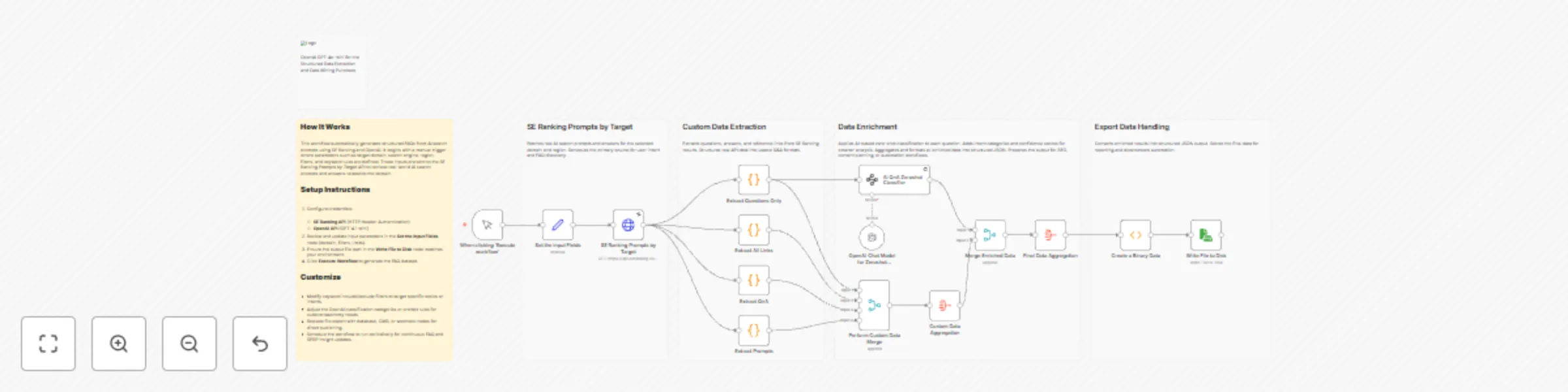
This workflow automates the discovery and structuring of FAQs from real AI search behavior using SE Ranking and OpenAI. It fetches domain-specific AI search prompts and answers, then extracts relevant questions, responses, and source links. Each question is enriched with AI-based intent classification and confidence scoring, and the final output is aggregated into a structured JSON format ready for SEO analysis, content planning, documentation, or knowledge base generation. ## Who this is for This workflow is designed for: * SEO professionals and content strategists building FAQ-driven content * Growth and digital marketing teams optimizing for AI Search and SERP intent * Content writers and editors looking for data-backed FAQ ideas * SEO automation engineers using n8n for research workflows * Agencies producing scalable FAQ and topical authority content ## What problem this workflow is solving Modern SEO increasingly depends on AI search prompts, user intent, and FAQ coverage, but manually: * Discovering real AI search questions * Grouping questions by intent * Identifying content gaps * Structuring FAQs for SEO is slow, repetitive, and inconsistent. This workflow solves that by automatically extracting, classifying, and structuring AI-driven FAQ intelligence directly from SE Ranking’s AI Search data. ## What this workflow does This workflow automates end-to-end FAQ intelligence generation: * Fetches real AI search prompts for a target domain using **SE Ranking** * Extracts: * Questions * Answers * Reference links * Applies **zero-shot AI classification** using OpenAI GPT-4.1-mini * Assigns: * Intent category (HOW_TO, DEFINITION, PRICING, etc.) * Confidence score * Aggregates all data into a structured FAQ dataset * Exports the final result as structured JSON for SEO, publishing, or automation ## Setup If you are new to SE Ranking, please signup on [seranking.com](https://seranking.com/?ga=4848914&source=link) ### Prerequisites * **n8n (Self-Hosted or Cloud)** * **SE Ranking API access** * **OpenAI API key (GPT-4.1-mini)** ### Configuration Steps 1. **Configure Credentials** * SE Ranking using HTTP Header Authentication. Please make sure to set the header authentication as below. The value should contain a Token followed by a space with the SE Ranking API Key. ![image.png](fileId:3875) * Add **OpenAI API** credentials 2. **Update Input Parameters** In the **Set the Input Fields** node: * Target domain * Search engine type (AI mode) * Region/source * Include / exclude keyword filters * Result limits and sorting 3. **Verify Output Destination** * Confirm the file path in the **Write File to Disk** node * Or replace it with DB, CMS, or webhook output 4. **Execute Workflow** * Click **Execute Workflow** * Structured FAQ intelligence is generated automatically ## How to customize this workflow You can easily adapt this workflow to your needs: * **Change Intent Taxonomy** Update categories in the AI zero-shot classifier schema * **Refine SEO Focus** Modify keyword include/exclude rules for niche targeting * **Adjust Confidence Thresholds** Filter low-confidence questions before export * **Swap Output Destination** Replace file export with: * CMS publishing * Notion * Google Sheets * Vector DB for RAG * **Automate Execution** * Add a Cron node for weekly or monthly FAQ updates ## Summary This n8n workflow transforms AI search prompts into structured, intent-classified FAQ intelligence using SE Ranking and OpenAI GPT-4.1-mini. It enables teams to build high-impact SEO FAQs, content hubs, and AI-ready knowledge bases automatically, consistently, and at scale.

R
Ranjan Dailata
Market Research
4 Jan 2026
124
0
Workflow preview: Summarize SE Ranking AI search visibility using OpenAI GPT-4.1-mini
Free intermediate

Summarize SE Ranking AI search visibility using OpenAI GPT-4.1-mini

This workflow automates AI-powered search insights by combining SE Ranking AI Search data with OpenAI summarization. It starts with a manual trigger and fetches the time-series AI visibility data via the SE Ranking API. The response is summarized using OpenAI to produce both detailed and concise insights. The workflow enriches the original metrics with these AI-generated summaries and exports the final structured JSON to disk, making it ready for reporting, analytics, or further automation. ## Who this is for This workflow is designed for: * **SEO professionals & growth marketers** tracking AI search visibility * **Content strategists** analyzing how brands appear in AI-powered search results * **Data & automation engineers** building SEO intelligence pipelines * **Agencies** producing automated search performance reports for clients ## What problem is this workflow solving? SE Ranking’s AI Search API provides rich but highly technical time-series data. While powerful, this data: * Is difficult to interpret quickly * Requires manual analysis to extract insights * Is not presentation-ready for reports or stakeholders This workflow solves that by automatically transforming raw AI search metrics into clear, structured summaries, saving time and reducing analysis friction. ## What this workflow does At a high level, the workflow: 1. Accepts input parameters such as target domain, AI engine, and region 2. Fetches AI search visibility time-series data from SE Ranking 3. Uses **OpenAI GPT-4.1-mini** to generate: * A comprehensive summary * A concise abstract summary 4. Enriches the original dataset with AI-generated insights 5. Exports the final structured JSON to disk for: * Reporting * Dashboards * Further automation or analytics ## Setup ### Prerequisites * **n8n (self-hosted or cloud)** * **SE Ranking API access** * **OpenAI API key** ### Setup Steps If you are new to SE Ranking, please signup on [seranking.com](https://seranking.com/?ga=4848914&source=link) 1. Import the workflow JSON into n8n 2. Configure credentials: * **SE Ranking** using HTTP Header Authentication. Please make sure to set the header authentication as below. The value should contain a Token followed by a space with the SE Ranking API Key. ![image.png](fileId:3857) * **OpenAI** for GPT-4.1-mini 3. Open **Set the Input Fields** and update: * `target_site` (e.g., your domain) * `engine` (e.g., ai-overview) * `source` (e.g., us, uk, in) 4. Verify the file path in **Write File to Disk** 5. Click **Execute Workflow** ## How to customize this workflow to your needs You can easily extend or tailor this workflow: * **Change analysis scope** * Update domain, region, or AI engine * **Modify AI outputs** * Adjust prompts or output schema for insights like trends, risks, or recommendations * **Replace storage** * Send output to: * Google Sheets * Databases * S3 / cloud storage * Webhooks or BI tools * **Automate monitoring** * Add a Cron trigger to run daily, weekly, or monthly ## Summary This workflow turns raw SE Ranking AI Search data into clear, executive-ready insights using OpenAI GPT-4.1-mini. By combining automated data collection with AI summarization, it enables faster decision-making, better reporting, and scalable SEO intelligence without manual analysis.

R
Ranjan Dailata
Market Research
30 Dec 2025
44
0
Workflow preview: Scrape and analyze Amazon product info with Decodo + OpenAI
Free advanced

Scrape and analyze Amazon product info with Decodo + OpenAI

The Scrape and Analyze Amazon Product Info with Decodo + OpenAI workflow automates the process of extracting product information from an Amazon product page and transforming it into meaningful insights. The workflow then uses OpenAI to generate descriptive summaries, competitive positioning insights, and structured analytical output based on the extracted information. ## Disclaimer Please note - This workflow is only available on n8n self-hosted as it’s making use of the community node for the Decodo Web Scraping ![Scrape and Analyze Amazon Product Info with Decodo + OpenAI](fileId:3428) ## **Who this is for?** This workflow is ideal for: * E-commerce product researchers * Marketplace sellers (Amazon, Flipkart, Shopify, etc.) * Competitive intelligence teams * Product comparison bloggers and reviewers * Pricing and product analytics engineers * Automation builders needing AI-powered product insights ## **What problem is this workflow solving?** Manually extracting Amazon product details, ads, pricing, reviews, and competitive signals is: - Time-consuming - Requires switching across tools - Difficult to analyze at scale - Not structured for reporting - Hard to compare products objectively This workflow automates: * Web scraping of Amazon product pages * Extraction of product features and ad listings * AI-generated product summaries * Competitive positioning analysis * Generation of structured product insight output * Export to Google Sheets for tracking and reporting ## **What this workflow does** This workflow performs an end-to-end product intelligence pipeline, including: ### Data Collection * Scrapes an Amazon product page using **Decodo** * Retrieves product details and advertisement placements ### Data Extraction * Extracts: * Product specs * Key feature descriptions * Ads data * Supplemental metadata ### AI-Driven Analysis * Generates: * Descriptive product summary * Competitive positioning insights * Structured product insight schema ### Data Consolidation * Merges descriptive, analytical, and structured outputs ### Export & Persistence * Aggregates results * Writes final dataset to Google Sheets for: * tracking * comparison * reporting * product research archives ## **Setup** ### Prerequisites If you are new to Decode, please signup on this link [visit.decodo.com](https://visit.decodo.com/dOxzkK) * **n8n instance** * **Decodo API credentials** * **OpenAI API credentials** Make sure to install the Decodo Community Node. ![Decodo Community Node](fileId:3427) ### Required Credentials #### **Decodo API** 1. Go to **Credentials** 2. Add **Decodo API** 3. Enter API key 4. Save as: **Decodo Credentials account** #### **OpenAI API** 1. Go to **Credentials** 2. Select **OpenAI** 3. Enter API key 4. Save as: **OpenAi account** #### **Google Sheets** 1. Add **Google Sheets OAuth** 2. Authorize via Google 3. Save as desired account ### Inputs to configure Modify in **Set the Input Fields node**: ``` product_url = https://www.amazon.in/Sony-DualSense-Controller-Grey-PlayStation/dp/B0BQXZ11B8 ``` ## **How to customize this workflow to your needs** You can easily adapt this workflow for various use cases. ### Change the product being analyzed Modify: ``` product_url ``` ### Change AI model In OpenAI nodes: * Replace `gpt-4.1-mini` * Use Gemini, Claude, Mistral, Groq (if supported) ### Customize the insight schema Edit **Product Insights node** to include: * sustainability markers * sentiment extraction * pricing bands * safety compliance * brand comparisons ### Expand data extraction You may extract: * product reviews * FAQs * Q&A * seller information * delivery and logistics signals ### Change output destination Replace Google Sheets with: - PostgreSQL - MySQL - Notion - Slack - Airtable - Webhook delivery - CSV export ### Turn it into a batch processor Loop over: * multiple ASINs * category listings * search results pages ## **Summary** This workflow provides a complete automated product intelligence engine, combining Decodo’s scraping capabilities with OpenAI’s analytical reasoning to transform Amazon product pages into structured insights, competitive analysis, and summarized evaluations automatically stored for reporting and comparison.

R
Ranjan Dailata
Market Research
22 Nov 2025
380
0
Workflow preview: Amazon price drop analysis with Decodo, GPT-4.1-mini & Google Sheets integration
Free advanced

Amazon price drop analysis with Decodo, GPT-4.1-mini & Google Sheets integration

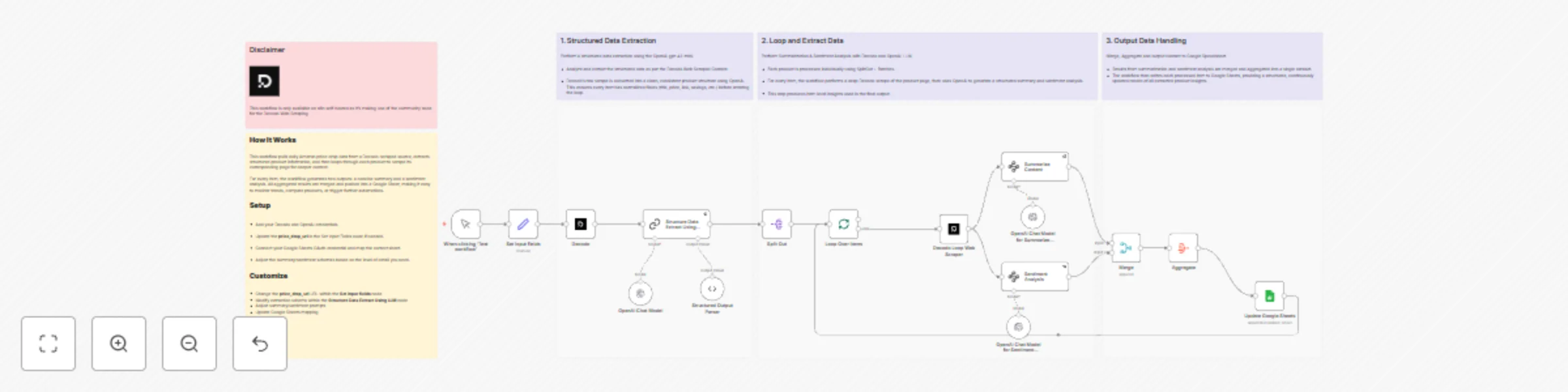
This workflow automatically scrapes Amazon price-drop data via Decodo, extracts structured product details with OpenAI, generates summaries and sentiment insights for each item, and saves everything to Google Sheets — creating a fully automated price-intelligence pipeline. ## Disclaimer Please note - This workflow is only available on n8n self-hosted as it’s making use of the community node for the Decodo Web Scraping ![Extract, Summarize, Sentiment Analysis of Amazon Price Drops via Decodo](fileId:3407) ## Who this is for This workflow is designed for e-commerce analysts, product researchers, price-tracking teams, and affiliate marketers who want to: - Monitor daily Amazon product price drops automatically. - Extract key information such as product name, price, discount, and links. - Generate AI-driven summaries and sentiment insights on the latest deals. - Store all structured data directly in Google Sheets for trend analysis and reporting. ## What problem this workflow solves This workflow solves the following: - Eliminates the need for manual data scraping or tracking. - Turns unstructured web data into structured datasets. - Adds AI-generated summaries and sentiment analysis for smarter decision-making. - Enables automated, daily price intelligence tracking across multiple product categories. ## What this workflow does This automation combines Decodo’s web scraping, OpenAI GPT-4.1-mini, and Google Sheets to deliver an end-to-end price intelligence system. **Trigger & Setup** - Manually start the workflow. - Input your price-drop URL (default: [CamelCamelCamel Daily Drops](https://camelcamelcamel.com/top_drops?t=daily)). **Web Scraping via Decodo** - Decodo scrapes the Amazon price-drop listings and extracts product details (title, price, savings, product link). **LLM-Powered Data Structuring** - The extracted content is sent to OpenAI GPT-4.1-mini to format and clean the output into structured JSON fields. **Loop & Deep Analysis** - Each product URL is revisited by Decodo for content enrichment. - The AI performs two analyses per product: - **Summarization:** Generates a comprehensive summary of the product. - **Sentiment Analysis:** Detects tone (positive/neutral/negative), sentiment score, and key topics. **Aggregation & Storage** - All enriched results are merged and aggregated. - Structured data is automatically appended to a connected Google Sheet. **End Result:** A ready-to-use dataset showing each price-dropped product, its summary, sentiment polarity, and key highlights updated in real time. ## Setup #### Pre-requisite Please make sure to install the n8n custom node for Decodo. If you are new to Decode, please signup on this link [visit.decodo.com](https://visit.decodo.com/dOxzkK) ![Install Community Nodes](fileId:3341) ![Install Decodo Community Node](fileId:3340) ### Import and Connect Credentials Import the workflow into your **n8n self-hosted** instance. Connect: - **OpenAI API (GPT-4.1-mini)** → for summarization and sentiment analysis - **Decodo API** → for real-time price-drop scraping - **Google Sheets OAuth2** → to save structured results ### Configure Input Fields In the **“Set input fields”** node: - Update the `price_drop_url` to your target URL (e.g., `https://camelcamelcamel.com/top_drops?t=weekly`). ### Run the Workflow Click **“Execute Workflow”** or schedule it to run daily to automatically fetch and analyze new price-drop listings. ### Check Output - The aggregated data is saved to a **Google Sheet** (`Pricedrop Info`). - Each record contains: - Product name - Current price and savings - Product link - AI-generated summary - Sentiment classification and score ## How to customize this workflow ### Change Source - Replace the `price_drop_url` with another **CamelCamelCamel** or **Amazon Deals** URL. - Add multiple URLs and loop through them for category-based price tracking. ### Modify Extraction Schema - In the **Structured Output Parser**, modify the JSON schema to include fields like: - `category`, `brand`, `rating`, or `availability`. ### Tune AI Prompts - Edit the Summarize Content and Sentiment Analysis nodes to: - Add tone analysis (e.g., promotional vs. factual). - Include competitive product comparison. ### Integrate More Destinations - Replace Google Sheets with: - **Airtable** → for no-code dashboards. - **PostgreSQL/MySQL** → for large-scale storage. - **Notion or Slack** → for instant price-drop alerts. ### Automate Scheduling - Add a **Cron Trigger** node to run this workflow daily or hourly. ## Summary This workflow creates a fully automated price intelligence system that: - Scrapes Amazon product price drops via Decodo. - Extracts structured data with OpenAI GPT-4.1-mini. - Generates AI-powered summaries and sentiment insights. - Updates a connected Google Sheet with each run.

R
Ranjan Dailata
Market Research
18 Nov 2025
123
0
Workflow preview: Analyze & summarize Amazon product reviews with Decodo, OpenAI and Google Sheets
Free intermediate

Analyze & summarize Amazon product reviews with Decodo, OpenAI and Google Sheets

## Disclaimer Please note - This workflow is only available on n8n self-hosted as it’s making use of the community node for the Decodo Web Scraping ![Analyze & Summarize Amazon Product Reviews with Decodo, OpenAI and Google Sheets](fileId:3311) This n8n workflow automates the process of scraping, analyzing, and summarizing Amazon product reviews using **Decodo’s Amazon Scraper**, **OpenAI GPT-4.1-mini**, and **Google Sheets** for seamless reporting. It turns messy, unstructured customer feedback into actionable product insights — all without manual review reading. ## Who this is for This workflow is designed for: * **E-commerce product managers** who need consolidated insights from hundreds of reviews. * **Brand analysts and marketing teams** performing sentiment or trend tracking. * **AI and data engineers** building automated review intelligence pipelines. * **Sellers and D2C founders** who want to monitor customer satisfaction and pain points. * **Product researchers** performing market comparison or competitive analysis. ## What problem this workflow solves Reading and analyzing hundreds or thousands of Amazon reviews manually is inefficient and subjective. This workflow automates the entire process — from **data collection** to **AI summarization** — enabling teams to instantly identify customer pain points, trends, and strengths. Specifically, it: * Eliminates manual review extraction from product pages. * Generates **comprehensive and abstract summaries** using GPT-4.1-mini. * Centralizes structured insights into **Google Sheets** for visualization or sharing. * Helps track product sentiment and emerging issues over time. ## What this workflow does Here’s a breakdown of the automation process: 1. **Set Input Fields** Define your Amazon product URL, geo region, and desired file name. 2. **Decodo Amazon Scraper** Fetches real-time product reviews from the Amazon product page, including star ratings and AI-generated summaries. 3. **Extract Reviews Node** Extracts raw customer reviews and Decodo’s AI summary into a structured JSON format. 4. **Perform Review Analysis (GPT-4.1-mini)** Uses OpenAI GPT-4.1-mini to create two key summaries: * **Comprehensive Review:** A detailed summary that captures sentiment, recurring themes, and product pros/cons. * **Abstract Review:** A concise executive summary that captures the overall essence of user feedback. 5. **Persist Structured JSON** Saves the raw and AI-enriched data to a local file for reference. 6. **Append to Google Sheets** Uploads both the original reviews and AI summaries into a Google Sheet for ongoing analysis, reporting, or dashboard integration. **Outcome:** You get a structured, AI-enriched dataset of Amazon product reviews — summarized, searchable, and easy to visualize. ## Setup ### Pre-requisite If you are new to Decode, please signup on this link [visit.decodo.com](https://visit.decodo.com/dOxzkK) Please make sure to install the n8n custom node for Decodo. ![Install Decodo Community Node](fileId:3255) ![Decodo Community Node](fileId:3256) ### Step 1 — Import the Workflow 1. Open n8n and import the JSON workflow template. 2. Ensure the following credentials are configured: * **Decodo Credentials account** → Decodo API Key * **OpenAI account** → OpenAI API Key * **Google Sheets account** → Connected via OAuth ### Step 2 — Input Product Details In the **Set node**, replace: * `amazon_url` → your product link (e.g., `https://www.amazon.com/dp/B0BVM1PSYN`) * `geo` → your region (e.g., `US`, `India`) * `file_name` → output file name (optional) ### Step 3 — Connect Google Sheets Link your desired Google Sheet for data storage. Ensure the sheet columns match: * `product_reviews` * `all_reviews` ### Step 4 — Run the Workflow Click **Execute Workflow**. Within seconds, your Amazon product reviews will be fetched, summarized by AI, and logged into Google Sheets. ## How to customize this workflow You can tailor this workflow for different use cases: * **Add Sentiment Analysis** — Add another GPT node to classify reviews as positive, neutral, or negative. * **Multi-Language Reviews** — Include a language detection node before summarization. * **Send Alerts** — Add a Slack or Gmail node to notify when negative sentiment exceeds a threshold. * **Store in Database** — Replace Google Sheets with MySQL, Postgres, or Notion nodes. * **Visualization Layer** — Connect your Google Sheet to Looker Studio or Power BI for dynamic dashboards. * **Alternative AI Models** — Swap GPT-4.1-mini with Gemini 1.5 Pro, Claude 3, or Mistral for experimentation. ## Summary This workflow transforms the tedious process of reading hundreds of Amazon reviews into a **streamlined AI-powered insight engine**. By combining **Decodo’s scraping precision**, **OpenAI’s summarization power**, and **Google Sheets’ accessibility**, it enables continuous review monitoring. In one click, it delivers **comprehensive and abstract AI summaries**, ready for your next product decision meeting or market strategy session.

R
Ranjan Dailata
Market Research
9 Nov 2025
389
0
Workflow preview: Search & enrich: Smart keyword analysis with Decodo + OpenAI GPT-4.1-mini
Free advanced

Search & enrich: Smart keyword analysis with Decodo + OpenAI GPT-4.1-mini

# Disclaimer Please note - This workflow is only available on n8n self-hosted as it's making use of the community node for the Decodo Web Scraping ![Search & Enrich: Smart Keyword Analysis with Decodo + OpenAI GPT-4.1-mini](fileId:3283) This workflow automates intelligent keyword and topic extraction from Google Search results, combining **Decodo’s advanced scraping engine** with **OpenAI GPT-4.1-mini’s semantic analysis capabilities**. The result is a fully automated keyword enrichment pipeline that gathers, analyzes, and stores SEO-relevant insights. ## Who this is for This workflow is ideal for: * **SEO professionals** who want to extract high-value keywords from competitors. * **Digital marketers** aiming to automate topic discovery and keyword clustering. * **Content strategists** building data-driven content calendars. * **AI automation engineers** designing scalable web intelligence and enrichment pipelines. * **Growth teams** performing market and search intent research with minimal effort. ## What problem this workflow solves Manual keyword research is time-consuming and often incomplete. Traditional keyword tools only provide surface-level data and fail to uncover **contextual topics** or **semantic relationships** hidden in search results. This workflow solves that by: * Automatically **scraping live Google Search results** for any keyword. * Extracting **meaningful topics, related terms, and entities** using AI. * Enriching your keyword list with **semantic intelligence** to improve SEO and content planning. * Storing structured results directly in **n8n Data Tables** for trend tracking or export. ## What this workflow does Here’s a breakdown of the flow: 1. **Set the Input Fields** – Define your search query and target geo (e.g., “Pizza” in “India”). 2. **Decodo Google Search** – Fetches organic search results using Decodo’s web scraping API. 3. **Return Organic Results** – Extracts the list of organic results and passes them downstream. 4. **Loop Over Each Result** – Iterates through every search result description. 5. **Extract Keywords and Topics** – Uses **OpenAI GPT-4.1-mini** to identify relevant keywords, entities, and thematic topics from each snippet. 6. **Data Enrichment Logic** – Checks whether each result already exists in the **n8n Data Table** (based on URL). 7. **Insert or Skip** – If a record doesn’t exist, inserts the extracted data into the table. 8. **Store Results** – Saves both enriched search data and Decodo’s original response to disk. **End Result:** A structured and deduplicated dataset containing URLs, keywords, and key topics — ready for SEO tracking or further analytics. ## Setup ### Pre-requisite If you are new to Decode, please signup on this link [visit.decodo.com](https://visit.decodo.com/dOxzkK) Please make sure to install the n8n custom node for Decodo. ![Decodo Custom n8n Install](fileId:3250) ![Decodo Custom n8n node](fileId:3251) ### Import and Configure the Workflow 1. Open n8n and **import** the JSON template. 2. Add your credentials: * **Decodo API Key** under *Decodo Credentials account*. * **OpenAI API Key** under *OpenAI Account*. ### Define Input Parameters * Modify the **Set node** to define: * `search_query`: your keyword or topic (e.g., “AI tools for marketing”) * `geo`: the target region (e.g., “United States”) ### Configure Output * The workflow writes two outputs: 1. **Enriched keyword data** → Stored in n8n Data Table (`DecodoGoogleSearchResults`). 2. **Raw Decodo response** → Saved locally in JSON format. ### Execute Click **Execute Workflow** or schedule it for recurring keyword enrichment (e.g., weekly trend tracking). ## How to customize this workflow * **Change AI Model** — Replace `gpt-4.1-mini` with `gemini-1.5-pro` or `claude-3-opus` for testing different reasoning strengths. * **Expand the Schema** — Add extra fields like keyword difficulty, page type, or author info. * **Add Sentiment Analysis** — Chain a second AI node to assess tone (positive, neutral, or promotional). * **Export to Sheets or DB** — Replace the Data Table node with Google Sheets, Notion, Airtable, or MySQL connectors. * **Multi-Language Research** — Pass a `locale` parameter in the Decodo node to gather insights in specific languages. * **Automate Alerts** — Add a Slack or Email node to notify your team when high-value topics appear. ## Summary **Search & Enrich** is a low-code AI-powered keyword intelligence engine that automates research and enrichment for SEO, content, and digital marketing. By combining **Decodo’s real-time SERP scraping** with **OpenAI’s contextual understanding**, the workflow transforms raw search results into structured, actionable keyword insights. It eliminates repetitive research work, enhances content strategy, and keeps your keyword database continuously enriched — all within n8n.

R
Ranjan Dailata
Market Research
9 Nov 2025
276
0
Workflow preview: Unstructured resume parser with Thordata Universal API + OpenAI GPT-4.1-mini
Free advanced

Unstructured resume parser with Thordata Universal API + OpenAI GPT-4.1-mini

## Who this is for This workflow is designed for: * Recruiters, Talent Intelligence Teams, and HR tech builders automating resume ingestion. * Developers and data engineers building ATS (Applicant Tracking Systems) or CRM data pipelines. * AI and automation enthusiasts looking to extract structured JSON data from unstructured resume sources (PDFs, DOCs, HTML, or LinkedIn-like URLs). ## What problem this workflow solves Resumes often arrive in different formats (PDF, DOCX, web profile, etc.) that are difficult to process automatically. Manually extracting fields like candidate name, contact info, skills, and experience wastes time and is prone to human error. This workflow: * Converts any unstructured resume into a **structured JSON Resume** format. * Ensures the output aligns with the [JSON Resume Schema](https://jsonresume.org/schema/). * Saves the structured result to **Google Sheets** and local disk for easy tracking and integration with other tools. ## What this workflow does The workflow automates the entire resume parsing pipeline: ### Step 1: Trigger * Starts manually with an **Execute Workflow** button. ### Step 2: Input Setup * A **Set Node** defines the `resume_url` (e.g., a hosted resume link). ### Step 3: Resume Content Extraction * Sends the URL to **Thordata Universal API**, which retrieves the web content, cleans HTML/CSS, and extracts structured text and metadata. ### Step 4: Convert HTML → Markdown * Converts the HTML content into Markdown to prepare for AI model parsing. ### Step 5: JSON Resume Builder (AI Extraction) * Sends the Markdown to **OpenAI GPT-4.1-mini**, which extracts: * `basics`: name, email, phone, location * `work`: companies, roles, achievements * `education`: institutions, degrees, dates * `skills`, `projects`, `certifications`, `languages`, and more * The output adheres to the **JSON Resume Schema**. ### Step 6: Output Handling * Saves the final structured resume: * Locally to disk * Appends to a **Google Sheet** for analytics or visualization. ## Setup ### Prerequisites * n8n instance (self-hosted or cloud) * Credentials for: * **Thordata Universal API** (HTTP Bearer Token). First time users [Signup](https://dashboard.thordata.com/register?invitation_code=RJXW9YF7) * **OpenAI API Key** * **Google Sheets OAuth2** integration ### Steps 1. Import the provided workflow JSON into n8n. 2. Configure your **Thordata Universal API Token** under *Credentials → HTTP Bearer Auth*. 3. Connect your **OpenAI** account under *Credentials → OpenAI API*. 4. Link your **Google Sheets** account (used in the `Append or update row in sheet` node). 5. Replace the `resume_url` in the **Set Node** with your own resume file or hosted link. 6. Execute the workflow. ## How to customize this workflow ### Input Sources * Replace the **Manual Trigger** with: * A **Webhook Trigger** to accept resumes uploaded from your website. * A **Google Drive / Dropbox Trigger** to process uploaded files automatically. ### Output Destinations * Send results to: * **Notion**, **Airtable**, or **Supabase** via API nodes. * **Slack / Email** for recruiter notifications. ### Language Model Options * You can upgrade from `gpt-4.1-mini` → `gpt-4.1` or a **custom fine-tuned model** for improved accuracy. ## Summary Unstructured Resume Parser with Thordata Universal API + OpenAI GPT-4.1-mini — automates the process of converting messy, unstructured resumes into clean, structured JSON data. It leverages Thordata’s Universal API for document ingestion and preprocessing, then uses OpenAI GPT-4.1-mini to extract key fields such as name, contact details, skills, experience, education, and achievements with high accuracy.

R
Ranjan Dailata
HR
30 Oct 2025
90
0
Workflow preview: Competitor intelligence agent: SERP monitoring + summary with Thordata + OpenAI
Free advanced

Competitor intelligence agent: SERP monitoring + summary with Thordata + OpenAI

### Who this is for? This workflow is designed for: * **Marketing analysts**, **SEO specialists**, and **content strategists** who want automated intelligence on their online competitors. * **Growth teams** that need quick insights from SERP (Search Engine Results Pages) without manual data scraping. * **Agencies** managing multiple clients’ SEO presence and tracking competitive positioning in real-time. ### What problem is this workflow solving? Manual competitor research is time-consuming, fragmented, and often lacks actionable insights. This workflow automates the entire process by: * Fetching SERP results from multiple search engines (Google, Bing, Yandex, DuckDuckGo) using Thordata’s Scraper API. * Using **OpenAI GPT-4.1-mini** to analyze, summarize, and extract keyword opportunities, topic clusters, and competitor weaknesses. * Producing structured, JSON-based insights ready for dashboards or reports. Essentially, it transforms raw SERP data into strategic marketing intelligence — saving hours of research time. ### What this workflow does Here’s a step-by-step overview of how the workflow operates: #### Step 1: Manual Trigger Initiates the process on demand when you click “Execute Workflow.” #### Step 2: Set the Input Query The “Set Input Fields” node defines your **search query**, such as: > “Top SEO strategies for e-commerce in 2025” #### Step 3: Multi-Engine SERP Fetching Four HTTP request tools send the query to **Thordata Scraper API** to retrieve results from: * Google * Bing * Yandex * DuckDuckGo Each uses **Bearer Authentication** configured via “Thordata SERP Bearer Auth Account.” #### Step 4: AI Agent Processing The **LangChain AI Agent** orchestrates the data flow, combining inputs and preparing them for structured analysis. #### Step 5: SEO Analysis * The **SEO Analyst** node (powered by GPT-4.1-mini) parses SERP results into a structured schema, extracting: * Competitor domains * Page titles & content types * Ranking positions * Keyword overlaps * Traffic share estimations * Strengths and weaknesses #### Step 6: Summarization The **Summarize the content** node distills complex data into a concise executive summary using GPT-4.1-mini. #### Step 7: Keyword & Topic Extraction The **Keyword and Topic Analysis** node extracts: * Primary and secondary keywords * Topic clusters and content gaps * SEO strength scores * Competitor insights #### Step 8: Output Formatting The **Structured Output Parser** ensures results are clean, validated JSON objects for further integration (e.g., Google Sheets, Notion, or dashboards). ### 4. Setup #### Prerequisites * **n8n Cloud or Self-Hosted instance** * **Thordata Scraper API Key** (for SERP data retrieval) * **OpenAI API Key** (for GPT-based reasoning) #### Setup Steps 1. **Add Credentials** * Go to *Credentials → Add New → HTTP Bearer Auth* → Paste your Thordata API token. * Add *OpenAI API Credentials* for the GPT model. 2. **Import the Workflow** * Copy the provided JSON or upload it into your n8n instance. 3. **Set Input** * In the “Set the Input Fields” node, replace the example query with your desired topic, e.g.: `“Google Search for Top SEO strategies for e-commerce in 2025”` 4. **Execute** * Click “Execute Workflow” to run the analysis. ### How to customize this workflow to your needs #### Modify Search Query Change the `search_query` variable in the **Set Node** to any target keyword or topic. #### Change AI Model In the **OpenAI Chat Model** nodes, you can switch from `gpt-4.1-mini` to another model for better quality or lower cost. #### Extend Analysis Edit the JSON schema in the “Information Extractor” nodes to include: * Sentiment analysis of top pages * SERP volatility metrics * Content freshness indicators #### Export Results Connect the output to: * **Google Sheets / Airtable** for analytics * **Notion / Slack** for team reporting * **Webhook / Database** for automated storage ### Summary This workflow creates an AI-powered Competitor Intelligence System inside n8n by blending: * Real-time SERP scraping (Thordata) * Automated AI reasoning (OpenAI GPT-4.1-mini) * Structured data extraction (LangChain Information Extractors)

R
Ranjan Dailata
Market Research
28 Oct 2025
556
0
Workflow preview: Track competitor SEO keywords with Decodo + GPT-4.1-mini + Google Sheets
Free intermediate

Track competitor SEO keywords with Decodo + GPT-4.1-mini + Google Sheets

This workflow automates competitor keyword research using OpenAI LLM and Decodo for intelligent web scraping. ## Who this is for * SEO specialists, content strategists, and growth marketers who want to automate keyword research and competitive intelligence. * Marketing analysts managing multiple clients or websites who need consistent SEO tracking without manual data pulls. * Agencies or automation engineers using Google Sheets as an SEO data dashboard for keyword monitoring and reporting. ## What problem this workflow solves Tracking competitor keywords manually is slow and inconsistent. Most SEO tools provide limited API access or lack contextual keyword analysis. This workflow solves that by: * Automatically scraping any competitor’s webpage with Decodo. * Using OpenAI GPT-4.1-mini to interpret keyword intent, density, and semantic focus. * Storing structured keyword insights directly in Google Sheets for ongoing tracking and trend analysis. ## What this workflow does 1. **Trigger** — Manually start the workflow or schedule it to run periodically. 2. **Input Setup** — Define the website URL and target country (e.g., `https://dev.to`, `france`). 3. **Data Scraping (Decodo)** — Fetch competitor web content and metadata. 4. **Keyword Analysis (OpenAI GPT-4.1-mini)** * Extract primary and secondary keywords. * Identify focus topics and semantic entities. * Generate a keyword density summary and SEO strength score. * Recommend optimization and internal linking opportunities. 5. **Data Structuring** — Clean and convert GPT output into JSON format. 6. **Data Storage (Google Sheets)** — Append structured keyword data to a Google Sheet for long-term tracking. ## Setup ### Prerequisites If you are new to Decode, please signup on this link [visit.decodo.com](https://visit.decodo.com/dOxzkK) * n8n account with workflow editor access * Decodo API credentials * OpenAI API key * Google Sheets account connected via OAuth2 Make sure to install the Decodo Community node. ![DecodoCommunityNode.png](fileId:3033) 1. **Create a Google Sheet** * Add columns for: `primary_keywords`, `seo_strength_score`, `keyword_density_summary`, etc. * Share with your n8n Google account. 2. **Connect Credentials** * Add credentials for: * **Decodo API credentials** - You need to register, login and obtain the Basic Authentication Token via [Decodo Dashboard](https://dashboard.decodo.com/) * **OpenAI API** (for GPT-4o-mini) * **Google Sheets OAuth2** 3. **Configure Input Fields** * Edit the “Set Input Fields” node to set your target site and region. 4. **Run the Workflow** * Click **Execute Workflow** in n8n. * View structured results in your connected Google Sheet. ## How to customize this workflow * **Track Multiple Competitors** → Use a Google Sheet or CSV list of URLs; loop through them using the **Split In Batches** node. * **Add Language Detection** → Add a Gemini or GPT node before keyword analysis to detect content language and adjust prompts. * **Enhance the SEO Report** → Expand the GPT prompt to include backlink insights, metadata optimization, or readability checks. * **Integrate Visualization** → Connect your Google Sheet to **Looker Studio** for SEO performance dashboards. * **Schedule Auto-Runs** → Use the **Cron Node** to run weekly or monthly for competitor keyword refreshes. ## Summary This workflow automates competitor keyword research using: * **Decodo** for intelligent web scraping * **OpenAI GPT-4.1-mini** for keyword and SEO analysis * **Google Sheets** for live tracking and reporting It’s a complete AI-powered SEO intelligence pipeline ideal for teams that want actionable insights on keyword gaps, optimization opportunities, and content focus trends, without relying on expensive SEO SaaS tools.

R
Ranjan Dailata
Market Research
22 Oct 2025
146
0
Workflow preview: Extract structured invoice data from JotForm PDFs with GPT-4.1-mini & Sheets
Free advanced

Extract structured invoice data from JotForm PDFs with GPT-4.1-mini & Sheets

## Who this is for This workflow is designed for Finance teams, accounting professionals, and automation engineers. ## **Use Case:** Automates processing of invoice submissions received via JotForm. * **Core Function:** Extracts structured data such as: * Invoice number * Client information * Totals and tax amounts * Line items or services * **Key Benefit:** Eliminates manual data entry, saving time and reducing human error. * **Automation Goal:** Streamline document handling with AI-powered PDF parsing and structured output generation. Ideal users include: * Accounting or finance teams handling form-based invoice uploads * Automation specialists using n8n for document processing * Developers integrating invoice data into Google Sheets or CRMs ## What problem this workflow solves Manually extracting structured data from invoice PDFs submitted through JotForm is time-consuming, error-prone, and repetitive. This workflow solves that by: - Automatically receiving the PDF through JotForm’s webhook - Extracting structured fields (invoice number, company, client, line items, totals, etc.) using GPT-4-mini - Saving the extracted data directly to Google Sheets - Writing structured JSON data to disk for archival or further processing ## What this workflow does 1. **Webhook Trigger (JotForm → n8n)** JotForm submission sends invoice data and attachment link to n8n. 2. **Parse Submission & Extract Metadata** Extracts submission metadata (form ID, user details, invoice number, file link, etc.) using the *Information Extractor* node. 3. **Download PDF Attachment** Fetches the uploaded PDF from JotForm’s secure file URL via the **HTTP Request** node, authenticated using a JotForm API key. 4. **Store & Process File** Saves the invoice to disk and prepares it for AI processing. 5. **Extract Invoice Text Content** Uses the **Extract from File** node to parse text from the PDF document. 6. **AI-Powered Structured Extraction (OpenAI GPT-4.1-mini)** Sends the extracted text to a LangChain LLM Chain with a Structured Output Parser, ensuring consistent JSON output aligned with a defined schema. 7. **Save Extracted Data** * Writes structured JSON to disk * Appends parsed results to Google Sheets for easy reporting ## Setup Instructions ### Prerequisites * A **JotForm account** with a form containing an invoice PDF upload field You may build the invoice Jotform by leveraging the [Jotform Templates](https://www.jotform.com/form-templates/search/Invoice) ![Invoice Upload Form](fileId:3025) * A **Google Sheets account** with a connected spreadsheet * **OpenAI** * n8n running locally or on a server with public webhook access (e.g. via `loca.lt`, `ngrok`, or n8n.cloud) * Make sure to get the Jotform API Key via the [Jotform Account API Key](https://www.jotform.com/myaccount/api) ### Steps 1. **Import the provided JSON into n8n** * Go to **n8n → Workflows → Import from File/Clipboard** * Paste the provided JSON definition 2. **Configure Webhook** * Copy the webhook URL from the *Webhook* node * Paste it into your JotForm’s **Settings → Integrations → Webhook** URL 3. **Set API Keys & Credentials** * Ensure the Jotform API key has been setup to download the Jotform PDF document * Ensure your Google Sheets and OpenAI credentials are connected 4. **Test Submission** * Submit your JotForm with an invoice PDF * n8n workflow will trigger automatically 5. **Check Outputs** * Open your Google Sheet to see structured invoice entries * Check the disk folder (e.g., `C:\Invoices`) for JSON exports ## How to customize this workflow * **Change AI Model** Use the OpenAI Chat Model for Structured Data node. → Replace `gpt-4.1-mini` with `gemini-1.5-pro` or any other LLM node of your choice. * **Adjust Output Schema** Modify the **Structured Output Parser** node. → Edit the JSON schema to match your desired output fields and format. * **Save to a Different Location** In the **Write the Structured Invoice to Disk** node, → Update the file path pattern (e.g. `/data/invoices/{{invoiceId}}.json`). * **Log to a Database Instead of Google Sheets** Replace the Append or Update Row in Sheet node → with a MySQL or PostgreSQL node for database logging. * **Add Notifications** Extend the workflow by adding Slack or Email nodes → to send alerts when a new invoice extraction is completed. ## Summary The Structured Invoice Data Extraction from JotForm PDFs via Google Gemini, Converts JotForm-uploaded invoice PDFs into structured financial data automatically. **Key Features:** * No manual parsing fully automated * Works with any invoice layout via AI * Saves structured results to Google Sheets + JSON file * Extensible for CRMs, QuickBooks, or ERP sync

R
Ranjan Dailata
Invoice Processing
21 Oct 2025
132
0
Workflow preview: Summarize & extract Glassdoor company info with Google Gemini and Decodo
Free advanced

Summarize & extract Glassdoor company info with Google Gemini and Decodo

This workflow automates company research and intelligence extraction from Glassdoor using Decode API for data retrieval and Google Gemini for AI-powered summarization. ## Who this is for This workflow is ideal for: * Recruiters, analysts, and market researchers looking for structured insights from company profiles. * HR tech developers and AI research teams needing a reliable way to extract and summarize Glassdoor data automatically. * Venture analysts or due diligence teams conducting company research combining structured and unstructured content. * Anyone who wants instant summaries and insights from Glassdoor company pages without manual scraping. ## What problem this workflow solves * **Manual Data Extraction**: Glassdoor company details and reviews are often scattered and inconsistent, requiring time-consuming copy-paste efforts. * **Unstructured Insights**: Raw reviews contain valuable opinions but are not organized for analytical use. * **Fragmented Company Data**: Key metrics like ratings, pros/cons, and FAQs are mixed with irrelevant data. * **Need for AI Summarization**: Business users need a concise, executive-level summary that combines employee sentiment, culture, and overall performance metrics. This workflow automates data mining, summarization, and structuring, transforming Glassdoor data into ready-to-use JSON and Markdown summaries. ## What this workflow does The workflow automates the **end-to-end pipeline** for Glassdoor company research: 1. **Trigger** * Start manually by clicking **“Execute Workflow.”** 2. **Set Input Fields** * Define `company_url` (e.g., a Glassdoor company profile link) and `geo` (country). 3. **Extract Raw Data from Glassdoor (Decodo Node)** * Uses the **Decodo API** to fetch company data — including overview, ratings, reviews, and frequently asked questions. 4. **Generate Structured Data (Google Gemini + Output Parser)** * The **Structured Data Extractor** node (powered by Gemini AI) processes raw data into well-defined fields: * Company overview (name, size, website, type) * Ratings breakdown * Review snippets (pros, cons, roles) * FAQs * Key takeaways 5. **Summarize the Insights (Gemini AI Summarizer)** * Produces a detailed summary highlighting: * Company reputation * Work culture * Employee sentiment trends * Strengths and weaknesses * Hiring recommendations 6. **Merge and Format** * Combines structured data and summary into a unified object for output. 7. **Export and Save** * Converts the final report into JSON and writes it to disk as `C:\{{CompanyName}}.json`. 8. **Binary Encoding for File Handling** * Prepares data in base64 for easy integration with APIs or downloadable reports. ## Setup ### Prerequisites If you are new to Decode, please signup on this link [visit.decodo.com](https://visit.decodo.com/dOxzkK) * **n8n instance** (cloud or self-hosted) * **Decodo API credentials** (added as `decodoApi`) * **Google Gemini (PaLM) API credentials** * Access to the **Glassdoor company URLs** Make sure to install the Decodo Community Node. ![Decode Community Node](fileId:3018) ### Steps 1. Import this workflow JSON file into your n8n instance. 2. Configure your credentials for: * **Decodo API** * **Google Gemini (PaLM) API** 3. Open the **Set the Input Fields** node and replace: * `company_url` → with the Glassdoor URL * `geo` → with the region (e.g., *India*, *US*, etc.) 4. Execute the workflow. 5. Check your output folder (`C:\`) for the exported JSON report. ## How to Customize This Workflow You can easily adapt this template to your needs: * **Add Sentiment Analysis** * Include another Gemini or OpenAI node to rate sentiment (positive/negative/neutral) per review. * **Export to Notion or Google Sheets** * Replace the file node with a Notion or Sheets integration for live dashboarding. * **Multi-Company Batch Mode** * Convert the manual trigger to a spreadsheet or webhook trigger for bulk research automation. * **Add Visualization Layer** * Connect the output to **Looker Studio** or **Power BI** for analytical dashboards. * **Change Output Format** * Modify the final write node to generate Markdown or PDF summaries using the `pypandoc` or `reportlab` module. ## Summary This n8n workflow combines Decode web scrapping with Google Gemini’s reasoning and summarization power to build a fully automated Glassdoor Research Engine. With a single execution, it: * Extracts structured company details * Summarizes thousands of employee reviews * Delivers insights in an easy-to-consume format Ideal for: * Recruitment intelligence * Market research * Employer branding * Competitive HR analysis

R
Ranjan Dailata
Market Research
20 Oct 2025
171
0
Workflow preview: Resume intelligence and data mining using Decodo with GPT-4o-mini
Free advanced

Resume intelligence and data mining using Decodo with GPT-4o-mini

## 1. Who this is for This workflow is specifically designed for * Recruiters, HR analytics teams, and data-driven talent acquisition professionals seeking deeper insights from candidate resume. * Valuable for HR tech developers, ATS/CRM engineers, and AI-driven recruitment platforms aiming to automate candidate research. * Helps organizations build predictive hiring models and gain actionable talent intelligence. ## 2. What problem this workflow solves Recruiters often face information overload when analyzing candidate resume manually reviewing experiences, skills, and cultural fit is slow and inconsistent. Traditional scraping tools extract raw data but fail to produce actionable intelligence like career trajectory, skills alignment, and fit for a role. This workflow solves that by: * Automating candidate resume data extraction through Decodo * Structuring it into JSON Resume Schema * Running deep AI-driven analytics using OpenAI GPT-4o-mini * Delivering comprehensive candidate intelligence ready for ATS/CRM integration or HR dashboards ## 3. What this workflow does This n8n workflow combines Decodo’s web scraping with OpenAI GPT-4o-mini to produce advanced recruitment intelligence. ### Flow Breakdown: 1. **Manual Trigger** – Start the workflow manually or schedule it in n8n. 2. **Set Input Fields** – Define resume URL, location, and job description. 3. **Decodo Node** – Scrapes the candidate’s profile (experience, skills, education, achievements, etc.). 4. **Structured Data Extractor (GPT-4o-mini)** – Converts the scraped data into a structured JSON Resume Schema. 5. **Advanced Data Mining Engine (GPT-4o-mini)** – Performs: * **Skills Analysis** (strengths, gaps, transferable skills) * **Experience Intelligence** (career trajectory, leadership, project complexity) * **Cultural Fit Insights** (work style, communication style, agility indicators) * **Career Trajectory Forecasting** (promotion trends, growth velocity) * **Competitive Advantage Analysis** (market positioning, salary expectations) 6. **Summarizer Node** – Produces an abstractive and comprehensive AI summary of the candidate profile. 7. **Google Sheets Node** – Saves the structured insights automatically into your recruitment intelligence sheet. 8. **File Writer Node (Optional)** – Writes the JSON report locally for offline storage or integration. The result is a data-enriched candidate intelligence report far beyond what traditional resume parsing provides. ## 4. Setup ### Prerequisites If you are new to Decode, please signup on this link [visit.decodo.com](https://visit.decodo.com/dOxzkK) * n8n account with workflow editor access * Decodo API credentials * OpenAI API key * Google Sheets account connected via OAuth2 Make sure to install the Decodo Community node. ![Decode Community Node](fileId:3013) ### Setup Steps 1. **Import the workflow JSON** into your n8n workspace. 2. **Set credentials** for: * `Decodo Credentials account` * `OpenAI API` (GPT-4o-mini) * `Google Sheets OAuth2` 3. In the **“Set the Input Fields”** node, update: * `url` → Resume link * `geo` → Candidate region or country * `jobDescription` → Target job description for matching 4. Ensure the **Google Sheet ID** and **tab name** are correct in the “Append or update row in sheet” node. 5. Click **Execute Workflow** to start. ## 5. How to customize this workflow You can adapt this workflow for different recruitment or analytics scenarios: ### Add Sentiment Analysis Add another LLM node to perform sentiment analysis on candidate recommendations or feedback notes. ### Enrich with Job Board Data Use additional Decodo nodes or APIs (Indeed, Glassdoor, etc.) to compare candidate profiles to live job postings. ### Add Predictive Fit Scoring Insert a **Function Node** to compute a numerical "fit score" by comparing skill vectors and job requirements. ### Automate Candidate Reporting Connect to Gmail, Slack, or Notion nodes to automatically send summaries or reports to hiring managers. ## 6. Summary The Advanced Resume Intelligence & Data Mining via Decodo + OpenAI GPT-4o-mini workflow transforms traditional candidate sourcing into AI-driven intelligence gathering. It integrates: * **Decodo** → To perform webscraping of data * **GPT-4o-mini** → to interpret, analyze, and summarize with context * **Google Sheets** → to store structured results for real-time analysis With this system, recruiters and HR analysts can move from data collection to decision intelligence, unlocking faster and smarter talent insights.

R
Ranjan Dailata
HR
19 Oct 2025
549
0
Workflow preview: Automated structured data extract & summary via Decodo + Gemini & Google Sheets
Free intermediate

Automated structured data extract & summary via Decodo + Gemini & Google Sheets

## Who this is for This workflow is designed for: - Automation engineers building AI-powered data pipelines - Product managers & analysts needing structured insights from web pages - Researchers & content teams extracting summaries from documentation or articles - HR, compliance, and knowledge teams converting unstructured web content into structured records - n8n self-hosted users leveraging advanced scraping and LLM enrichment It is ideal for anyone who wants to transform any public URL into structured data + clean summaries automatically. ## What problem this workflow solves Web content is often unstructured, verbose, and inconsistent, making it difficult to: - Extract structured fields reliably - Generate consistent summaries - Reuse data across spreadsheets, dashboards, or databases - Eliminate manual copy-paste and interpretation This workflow solves the problem of turning arbitrary web pages into machine-readable JSON and human-readable summaries, without custom scrapers or manual parsing logic. ## What this workflow does The workflow integrates **Decodo**, **Google Gemini**, and **Google Sheets** to perform automated extraction of structured data. Here’s how it works step-by-step: 1. **Input Setup** * The workflow begins when the user executes it manually or passes a valid URL. * The input includes `url`. 2. **Profile Extraction with Decodo** - Accepts any valid URL as input - Scrapes the page content using Decodo Uses Google Gemini to: - Extract structured data in JSON format - Generate a concise, factual summary - Cleans and parses AI-generated JSON safely - Merges structured data and summary output - Stores the final result in Google Sheets for reporting or downstream automation 4. **JSON Parsing & Merging** * The **Code Node** cleans and parses the JSON output from the AI for reliable downstream use. * The **Merge Node** combines both structured data and the AI-generated summary. 5. **Data Storage in Google Sheets** * The **Google Sheets Node** appends or updates the record, storing the structured JSON and summary into a connected spreadsheet. 6. **End Output** * A unified, machine-readable data in JSON + an executive-level summary suitable data analysis or downstream automation. ## Setup Instructions ### Prerequisites If you are new to Decode, please signup on this link [visit.decodo.com](https://visit.decodo.com/dOxzkK) * **n8n account** with workflow editor access * **Decodo API credentials** - You need to register, login and obtain the Basic Authentication Token via [Decodo Dashboard](https://dashboard.decodo.com/) ![image.png](fileId:2988) ![n8n Decodo](fileId:2989) * **Google Gemini (PaLM) API access** * **Google Sheets OAuth credentials** ### Setup Steps 1. **Import the workflow** into your n8n instance. 2. **Configure Credentials** * Add your **Decodo API** credentials in the `Decodo` node. * Connect your **Google Gemini (PaLM)** credentials for both AI nodes. * Authenticate your **Google Sheets** account. 3. **Edit Input Node** * In the **Set the Input Fields** node, replace the default URL with your desired profile or dynamic data source. 4. **Run the Workflow** * Trigger manually or via webhook integration for automation. * Verify that structured profile data and summary are written to the linked Google Sheet. ## How to customize this workflow to your needs You can easily extend or adapt this workflow: ### Modify Structured Output * Change the **Gemini extraction prompt** to match your own JSON schema * Add required fields such as authors, dates, entities, or metadata ### Improve Summarization * Adjust summary length or tone (technical, executive, simplified) * Add multi-language summarization using Gemini ### Change Output Destination * Replace Google Sheets with: * Databases (Postgres, MySQL) * Notion * Slack / Email * File storage (JSON, CSV) ### Add Validation or Filtering * Insert IF nodes to: * Reject incomplete data * Detect errors or hallucinated output * Trigger alerts for malformed JSON ### Scale the Workflow * Replace manual trigger with: * Webhook * Scheduled trigger * Batch URL processing ## Summary This workflow provides a powerful, generic solution for converting unstructured web pages into structured, AI-enriched datasets. By combining Decodo for scraping, Google Gemini for intelligence, and Google Sheets for persistence, it enables repeatable, scalable, and production-ready data extraction without custom scrapers or brittle parsing logic.

R
Ranjan Dailata
HR
16 Oct 2025
111
0
Workflow preview: Generate comprehensive & abstract summaries from Jotform data with Gemini AI
Free intermediate

Generate comprehensive & abstract summaries from Jotform data with Gemini AI

## Who this is for This workflow is designed for researchers, marketing teams, customer success managers, and survey analysts who want to automatically generate AI-powered summaries of form responses collected via Jotform — turning raw feedback into actionable insights. It is ideal for: * Teams conducting market research or post-event surveys. * Customer experience teams that collect feedback via forms and need instant, digestible summaries. * Product managers seeking concise overviews of user comments and suggestions. * Analysts who want to compare comprehensive vs. abstract summaries for richer intelligence. ## What problem this workflow solves Analyzing open-ended Jotform responses manually can be slow, repetitive, and error-prone. This workflow automates the process by generating two AI summaries for every response: * Comprehensive Summary — captures all factual details from the response. * Abstract Summary — rephrases and synthesizes insights at a higher, conceptual level. ### With this workflow: * Each response is summarized instantly using Google Gemini AI. * Both comprehensive and abstract summaries are automatically generated and stored. * Data is persisted in Google Sheets, DataTable, and Google Docs for further use. ## What this workflow does This n8n workflow transforms Jotform submissions into structured summaries using Google Gemini. ### Step-by-Step Breakdown 1. **Webhook Trigger (Jotform Integration)** * Listens for new Jotform submissions using the Webhook node. * Receives full form data via the Webhook response. 2. **Set the Input Fields** * Extracts and assigns key fields like: * `FormTitle` * `SubmissionID` * `Body` (the formatted form data) * Prepares structured JSON to feed into the AI summarization stage. 3. **Comprehensive & Abstract Summarizer** * Powered by Google Gemini Chat Model (models/gemini-2.0-flash-exp). * Custom prompt: ``` You are an expert comprehensive summarizer. Build a detailed and abstract summary of the following {{ $json.body.pretty }}. ``` * Produces two distinct summaries: * `comprehensive_summary` * `abstract_summary` 4. **Structured Output Parser** * Ensures Gemini output matches a defined JSON schema: ```json { "comprehensive_summary": "", "abstract_summary": "" } ``` * Guarantees reliable downstream integration with Sheets and Docs. 5. **Persist on DataTable** * Saves both summaries into an n8n DataTable for historical tracking or visualization. * Useful for teams running internal analytics within n8n Cloud or self-hosted environments. 6. **Append or Update Row in Google Sheets** * Writes both summaries into a connected **Google Sheet**. * Columns: * `comprehensive_summary` * `abstract_summary` 7. **Create Google Document** * Automatically generates a Google Docs file titled: ``` {FormTitle}-{SubmissionID} ``` * Acts as a per-submission record with a placeholder ready for AI summary insertion. 8. **Update Google Document** * Inserts both summaries directly into the newly created Google Doc: ``` Comprehensive Summary: [Full detailed summary] Abstract Summary: [Conceptual summary] ``` * Each doc becomes a polished, shareable insight artifact. ## Concepts Used in the Workflow ### Comprehensive Summarization Comprehensive summarization captures every important detail in a factual, exhaustive way — ideal when accuracy and completeness matter. **Goal:** Provide a detailed understanding of user responses without losing nuance. **Best For:** * Research surveys * Customer service logs * Support ticket summaries * Feedback traceability ### Abstract Summarization Abstract summarization rephrases and synthesizes ideas, offering high-level insights rather than copying text. **Goal:** Capture the *essence* and *implications* of feedback — ideal for storytelling and executive reviews. **Best For:** * Executive summaries * Marketing insights * Customer trend analysis * Blog-style recaps ## Setup Instructions ### Pre-requisite If you are new to Jotform, Please do signup using [Jotform Signup](https://www.jotform.com/?partner=ranjandailata) For the purpose of demonstation, we are considering the Jotforms Prebuilt Form as a example. Follow these steps to deploy and customize the workflow: ### Step 0: Local n8n This step is required for the locally hosted n8n only. Please make sure to setup and install [ngrok](ngrok) and follow the steps to configure and run ngrok on your local with the n8n port. This is how you can run. ``` ngrok http 5678 ``` Copy the base URL ex: https://2c6ab9f2c746.ngrok-free.app/ as it will be utilized as part of the webhook configuration for the Jotform. ### Step 1: Configure Jotform Webhook - Copy the webhook URL generated by n8n’s Jotform Trigger node. - In your Jotform dashboard, go to: Settings → Integrations → Webhooks → Add Webhook - If you are executing this workflow on a self hosted n8n instance, please follow the steps for setting up ngrok and format the Webhook URL so that the Jotform can make a Webhook POST over the public URL. - Copy the Webhook URL generated by n8n. You can copy the URL by double clicking on the Jotform Trigger node. Make sure to replace the base url with the above Step 0, if you are running the workflow from your local machine. ![n8n Workflow Jotform Trigger](fileId:2786) ### Step 2: Connect Google Gemini * Navigate to n8n → Credentials → Google Gemini (PaLM API). * Add API credentials and select the model: `models/gemini-2.0-flash-exp` * Test the connection before proceeding. ### Step 3: Configure the Structured Output Parser * Open the Structured Output Parser node. * Ensure the schema includes: ```json { "comprehensive_summary": "", "abstract_summary": "" } ``` * Modify or expand schema fields if additional summaries (e.g., “sentiment_summary”) are needed. ### Step 4: Connect Google Sheets * Link your Google Sheets OAuth2 credentials. * Specify: * **Document ID** (Google Sheet URL) * **Sheet Name** (e.g., “Sheet1”) * Map columns to: * `comprehensive_summary` * `abstract_summary` ### Step 5: Enable DataTable Storage (Optional) * Use the DataTable node to maintain a permanent database within n8n Cloud. * Configure the schema fields for: * `comprehensive_summary` * `abstract_summary` ### Step 6: Generate and Update Google Docs * Link your Google Docs account under n8n credentials. * The workflow auto-creates and updates a doc per submission, embedding both summaries for easy sharing. ## How to Customize - **Add Sentiment Analysis** After generating the summary, insert another Google Gemini node to classify the tone of each response — for example, Positive, Neutral, or Negative. This helps you track user sentiment trends over time. - **Send Alerts for Urgent Feedback** Use an IF node to check if the abstract summary contains words such as “urgent,” “issue,” or “negative.” If triggered, automatically send an alert through Slack, Gmail, or Discord, so the team can respond immediately. - **Enable Multi-Language Support** Insert a Language Detection node before the Gemini summarizer. Once the language is detected, modify the summarizer prompt dynamically to summarize in that same language — ensuring localized insights. - **Add Topic Extraction** Include an additional Gemini text extraction node that identifies major topics or recurring themes from each response before summarization. This creates structured insights ready for analytics or tagging. - **Integrate with CRM or Ticketing Systems** Connect your workflow to HubSpot, Salesforce, or Zendesk to automatically create new records or tickets based on the feedback type or sentiment. This closes the loop between survey collection and actionable response. ## Summary This workflow automates survey intelligence generation from Jotform submissions — powered by Google Gemini AI — delivering dual-layer summarization outputs directly into Google Sheets, DataTables, and Google Docs. **Benefits:** * Instant comprehensive and abstract summaries per submission. * Ready-to-use outputs for reports, dashboards, and client deliverables.

R
Ranjan Dailata
Market Research
8 Oct 2025
40
0
Workflow preview: Automatic Topic & Sentiment Extraction from Jotform Responses with Google Gemini
Free intermediate

Automatic Topic & Sentiment Extraction from Jotform Responses with Google Gemini

## Who this is for This workflow is designed for teams that collect feedback or survey responses via Jotform and want to automatically: - Analyze sentiment (positive, neutral, negative) of each response. - Extract key topics and keywords from qualitative text. - Generate AI summaries and structured insights. - Store results in Google Sheets and n8n DataTables for easy reporting and analysis. **Use Cases** - Customer experience analysis - Market research & survey analysis - Product feedback clustering - Support ticket prioritization - AI-powered blog or insight generation from feedback ## What this workflow does This n8n automation connects Jotform, Google Gemini, and Google Sheets to turn raw responses into structured insights with sentiment, topics, and keywords. ### Pipeline Overview Jotform → Webhook → Gemini (Topics + Keywords) → Gemini (Sentiment) → Output Parser → Merge → Google Sheets ### Jotform Trigger - Captures each new submission from your Jotform (e.g., a feedback or survey form). - Extracts raw fields (`$json.body.pretty`) such as name, email, and response text. ### Format Form Data (Code Node) - Converts the Jotform JSON structure into a clean string for AI input. - Ensures the text is readable and consistent for Gemini. ### Topics & Keyword Extraction (Google Gemini + Output Parser) **Goal:** Identify the main themes and important keywords from responses. ```json { "topics": [ { "topic": "Product Features", "summary": "Users request more automation templates.", "keywords": ["AI templates", "automation", "workflow"], "sentiment": "positive", "importance_score": 0.87 } ], "global_keywords": ["AI automation", "developer tools"], "insights": ["Developers desire more creative, ready-to-use AI templates."], "generated_at": "2025-10-08T10:30:00Z" } ``` ### Sentiment Analyzer (Google Gemini + Output Parser) **Goal:** Evaluate overall emotional tone and priority. ```json { "customer_name": "Ranjan Dailata", "customer_email": "[email protected]", "feedback_text": "Please build more interesting AI automation templates.", "sentiment": "positive", "confidence_score": 0.92, "key_phrases": ["AI automation templates", "developer enablement"], "summary": "Customer requests more AI automation templates to boost developer productivity.", "alert_priority": "medium", "timestamp": "2025-10-08T10:30:00Z" } ``` ### Merge + Aggregate - Combines the topic/keyword extraction and sentiment output into a single structured dataset. - Aggregates both results for unified reporting. ### Persist Results (Google Sheets) - Writes combined output into your connected Google Sheet. - Two columns recommended: - `feedback_analysis` → Sentiment + Summary JSON - `topics_keywords` → Extracted Topics + Keywords JSON - Enables easy visualization, filtering, and reporting. ### Visualization (Optional) Add Sticky Notes or a logo image node in your workflow to: - Visually describe sections (e.g., “Sentiment Analysis”, “Topic Extraction”). - Embed brand logo: ```markdown ![Logo](https://www.jotform.com/resources/assets/logo-nb/min/jotform-logo-white-400x200.png) ``` ## Example AI Output (Combined) ```json { "feedback_analysis": { "customer_name": "Ranjan Dailata", "sentiment": "positive", "summary": "User appreciates current templates and suggests building more advanced AI automations.", "key_phrases": ["AI automation", "developer templates"] }, "topics_keywords": { "topics": [ { "topic": "AI Template Expansion", "keywords": ["AI automation", "workflow templates"], "sentiment": "positive", "importance_score": 0.9 } ], "global_keywords": ["automation", "AI development"] } } ``` ## Setup Instructions #### Pre-requisite If you are new to Jotform, Please do signup using [Jotform Signup](https://www.jotform.com/?partner=ranjandailata) For the purpose of demonstation, we are considering the Jotforms Prebuilt New Customer Registration Form as a example. However, you are free to consider for any of the form submissions. ![image.png](fileId:2780) ### Step 0: Local n8n (Optional) If using local n8n, set up ngrok: ```bash ngrok http 5678 ``` Use the generated public URL as your Webhook URL base for Jotform integration. ### Step 1: Configure the Webhook - Copy the Webhook URL generated by n8n (e.g., `/webhook-test/f3c34cda-d603-4923-883b-500576200322`). You can copy the URL by double clicking on the Webhook node. Make sure to replace the base url with the above Step 0, if you are running the workflow from your local machine. ![n8n-workflow](fileId:2781) - In Jotform, go to your form → Settings → Integrations → Webhooks → paste this URL. - Now, every new form submission will trigger the n8n workflow. ![Jotform-Webhook-Integration](fileId:2779) ### Step 2: Connect Google Gemini - Create a Google Gemini API Credential in n8n. - Select the model `models/gemini-2.0-flash-exp`. ### Step 3: Create Data Storage - Create a DataTable named `JotformFeedbackInsights` with columns: - `feedback_analysis` (string) - `topics_keywords` (string) ### Step 4: Connect Google Sheets - Add credentials under Google Sheets OAuth2. - Link to your feedback tracking sheet. ### Step 5: Test the Workflow - Submit a form via Jotform. - Check results: - AI nodes return structured JSON. - Google Sheet updates with new records. ## Customization Tips ### Change the Prompt You can modify the topic extraction prompt to highlight specific themes: ```text You are a research analyst. Extract main topics, keywords, and actionable insights from this feedback: {{ $json.body }} ``` ### Extend the Output Schema Add more fields like: ```json { "suggested_blog_title": "", "tone": "", "recommendations": [] } ``` Then update your DataTable or Sheets schema accordingly. ## Integration Ideas - Send sentiment alerts to Slack for high-priority feedback. - Push insights into Notion, Airtable, or HubSpot. - Generate weekly reports summarizing trends across all submissions. ## Summary This workflow turns raw Jotform submissions into actionable insights using Google Gemini AI — extracting topics, keywords, and sentiment while automatically logging everything to Google Sheets.

R
Ranjan Dailata
Market Research
7 Oct 2025
41
0
Workflow preview: Extract & summarize LinkedIn profiles with Bright Data, Google Gemini & Supabase
Free advanced

Extract & summarize LinkedIn profiles with Bright Data, Google Gemini & Supabase

*This workflow contains community nodes that are only compatible with the self-hosted version of n8n.* ### Overview This workflow connects to LinkedIn via automation nodes and enriches profile data using AI to generate insights such as professional summary, skills highlights, and potential interest areas. All parsed information will be persisted on Supabase for further analysis and reporting purposes. ### Who this is for? This workflow is for recruiters, HR tech builders, data analysts, and growth teams who want to: - Automate LinkedIn data collection - Enrich raw profile/job data with AI - Store structured insights for dashboards, CRMs, or analytics ### Good to know At time of writing, each data enrichment request to Gemini costs ~$0.002–$0.004 USD depending on model. See [Gemini Pricing](Gemini Pricing) for updated info. The Gemini enrichment model is geo-restricted. If you encounter "model not found," it may not be available in your country. Scraping via Bright Data carries cost depending on volume. See [Bright Data Pricing](Bright Data Pricing). ### What problem is this workflow solving? Manually extracting insights from LinkedIn is: - Slow → Recruiters spend hours on profile research - Unstructured → Scraping only gives raw HTML/text - Incomplete → No standardized skills or trend insights This workflow provides a repeatable pipeline that converts raw LinkedIn data into structured, enriched insights stored in Supabase for immediate use. ### What this workflow does - Webhook by default but it could be updated to trigger manually or it could be scheduled as well - Scrape LinkedIn data via Bright Data API - Clean and normalize profile or job post data - AI Enrichment with Gemini → extract skills, roles, industries, seniority, career paths - Store results in Supabase for querying, dashboards, or API access ### Setup #### Accounts required: - [Bright Data](https://get.brightdata.com/5blibaeyszij ) (LinkedIn scraping API) - Gemini API key (for AI enrichment) - Supabase project (for structured storage) - n8n instance (self-hosted or cloud) #### Nodes in the workflow: - Manual Trigger (replace with webhook or cron if needed) - Bright Data Node (Bright Data API call) - Gemini Node (LLM enrichment) - Supabase Node (insert structured records) #### Supabase DB Setup Please create a project on Supabase and use the following script for the creation of a new table and indexes for persisting the LinkedIn data extract or mining information. ``` CREATE TABLE linkedin_data_mining ( id BIGSERIAL PRIMARY KEY, -- Auto-generated unique ID loggedin_user TEXT NOT NULL, -- LinkedIn profile identity fields first_name TEXT NOT NULL, last_name TEXT NOT NULL, title TEXT NOT NULL, full_name TEXT GENERATED ALWAYS AS (first_name || ' ' || last_name) STORED, skills JSONB NOT NULL, basic_profile JSONB NOT NULL, emerging_roles JSONB NOT NULL, markdown_content JSONB NOT NULL, summary JSONB NOT NULL, -- Audit fields created_by TEXT NOT NULL, created_date TIMESTAMP WITH TIME ZONE DEFAULT CURRENT_TIMESTAMP NOT NULL, updated_by TEXT NULL, updated_date TIMESTAMP WITH TIME ZONE NULL ); -- Indexes for performance CREATE INDEX idx_linkedin_data_mining_full_name ON linkedin_data_mining(full_name); CREATE INDEX idx_linkedin_data_mining_first_name ON linkedin_data_mining(first_name); CREATE INDEX idx_linkedin_data_mining_last_name ON linkedin_data_mining(last_name); CREATE INDEX idx_linkedin_data_mining_skills ON linkedin_data_mining USING GIN (skills); CREATE INDEX idx_linkedin_data_mining_basic_profile ON linkedin_data_mining USING GIN (basic_profile); CREATE INDEX idx_linkedin_data_mining_emerging_roles ON linkedin_data_mining USING GIN (emerging_roles); CREATE INDEX idx_linkedin_data_mining_markdown_content ON linkedin_data_mining USING GIN (markdown_content); CREATE INDEX idx_linkedin_data_mining_summary ON linkedin_data_mining USING GIN (summary); ``` #### Connections: Configure your API credentials for Bright Data, Gemini, and Supabase inside n8n’s credentials manager. ### How to customize this workflow to your needs - **Triggers**: Replace manual trigger with webhook → scrape & enrich on demand (e.g., when a lead form is submitted). - **Prompts**: Adjust Gemini prompts to extract attributes like seniority, technologies, career transitions, or hiring signals. - **Destinations**: Store enriched data in Supabase, or send to Google Sheets, Slack, or HubSpot for immediate team use. ### Connect with Me **Email**: [email protected] **LinkedIn**: https://www.linkedin.com/in/ranjan-dailata/ **Get Bright Data**: [Bright Data](https://get.brightdata.com/5blibaeyszij ) (Supports free workflows with a small commission) #LinkedInAutomation #n8n #WebScraping #DataAutomation #BrightData #GeminiAI #Supabase #AIEnrichment #RecruitmentTech #HRTech #SalesAutomation #MarketIntelligence #DataPipeline #WorkflowAutomation #OpenSourceAutomation

R
Ranjan Dailata
AI Summarization
17 Aug 2025
89
0
Workflow preview: Create structured eBooks in minutes with Google Gemini Flash 2.0 to Google Docs
Free advanced

Create structured eBooks in minutes with Google Gemini Flash 2.0 to Google Docs

*This workflow contains community nodes that are only compatible with the self-hosted version of n8n.* ## Description This workflow automates the creation of structured eBooks by generating chapters, table of contents, and content using Google Gemini Flash 2.0. ### Overview This n8n workflow allows users to input a topic or outline, which is then processed by Google Gemini Flash 2.0 to generate chapter titles, structured table of contents, and detailed section-wise content. The final output is formatted and exported into a Google Document, ready for review and further publishing. ### Who This Workflow Is For - **Authors & Writers** Save time by auto-generating chapter ideas, summaries, and full-length content based on a topic or outline—great for fiction and nonfiction alike. - **Content Marketers** Rapidly create downloadable eBooks, whitepapers, or lead magnets for campaigns without relying on long production cycles. - **Educators & Course Creators** Convert your syllabus, course modules, or learning outcomes into structured, well-formatted educational eBooks. - **Agencies & Freelancers** Offer AI-powered eBook creation as a value-added service to clients in need of fast, professional content. - **Entrepreneurs & Coaches** Turn your knowledge, frameworks, or training material into publish-ready books to promote your brand or monetize content. - **Technical Writers & Documentarians** Generate structured documentation or guides from outlines, simplifying the technical writing process with the help of AI. ### Tools Used - **n8n**: Orchestrates input handling, AI processing, formatting, and export. - **Google Gemini Flash 2.0**: Generates high-quality, structured content, including chapters, summaries, and body text. - **Google Docs**: Used to compile and format the full eBook in a collaborative document. - **Google Drive / Email**: Optional nodes for storing or delivering the final output. ### How to Install - **Import the Workflow**: Download and import the .json file into your n8n instance. - **Configure Gemini Flash 2.0**: Add your API key and set the desired creativity, length, and tone options. - **Provide Input**: Use a webhook or manual trigger to define the eBook topic or structure. - **Customize Format**: Modify prompts or Gemini instructions to match your eBook format, voice, or domain (e.g., fiction, business, technical). - **Export to Google Docs**: Authenticate and configure the Google Docs node to write the output chapter-wise into a new or existing document. - **Optional Distribution**: Connect to Google Drive or Gmail to store or send the final eBook. ### Use Cases - **Writers & Authors**: Quickly draft entire eBooks based on minimal input. - **Marketers**: Generate lead magnets, guides, and product documentation at scale. - **Educators**: Produce structured learning materials or course eBooks. - **Agencies**: Offer eBook creation services powered by AI. - **Entrepreneurs**: Turn knowledge into content assets without hiring ghostwriters. ### Connect with Me **Email**: [email protected] **LinkedIn**: https://www.linkedin.com/in/ranjan-dailata/ **Get Bright Data**: [Bright Data](https://get.brightdata.com/5blibaeyszij ) (Supports free workflows with a small commission) #n8n #automation #ebookcreation #googleai #geminiflash #aiwriting #gdocs #contentautomation #ebookworkflow #nocode #contentmarketing #gemini #aiwriter #automatedpublishing #aicontent #bookcreation #geminiworkflow #ebookgenerator #gptalternative #flash20 #geminiflash2 #authorautomation #educationalcontent #aiinmarketing #n8nworkflow

R
Ranjan Dailata
Content Creation
6 Jul 2025
5841
0
Workflow preview: Extract & transform HackerNews data to Google Docs using Gemini 2.0 flash
Free advanced

Extract & transform HackerNews data to Google Docs using Gemini 2.0 flash

### Description This workflow automates the process of scraping the latest discussions from HackerNews, transforming raw threads into human readable content using Google Gemini, and exporting the final content into a well-formatted Google Doc. ### Overview This n8n workflow is responsible for extracting trending posts from the HackerNews API. It loops through each item, performs HTTP data extraction, utilizes Google Gemini to generate human-readable insights, and then exports the enriched content into Google Docs for distribution, archiving, or content creation. ### Who this workflow is for - **Tech Newsletter Writers**: Automate the collection and summarization of trending HackerNews posts for inclusion in weekly or daily newsletters. - **Content Creators & Bloggers**: Quickly generate structured summaries and insights from HackerNews threads to use as inspiration or supporting content for blog posts, videos, or social media. - **Startup Founders & Product Builders**: Monitor HackerNews for discussions relevant to your niche or competitors, and keep a pulse on the community’s opinions. - **Investors & Analysts**: Surface early signals from the tech ecosystem by identifying what’s trending and how the community is reacting. - **Researchers & Students**: Analyze popular discussions and emerging trends in technology, programming, and startups—enriched with AI-generated insights. - **Digital Agencies & Consultants**: Offer HackerNews monitoring and insight reports as a value-added service to clients interested in the tech space. ### Tools Used - **n8n**: The core automation engine that manages the trigger, transformation, and export. - **HackerNews API**: Provides access to trending or new HN posts. - **Google Gemini**: Enriches HackerNews content with structured insights and human-like summaries. - **Google Docs**: Automatically creates and updates a document with the enriched content, ready for sharing or publishing. ### How to Install - **Import the Workflow**: Download the .json file and import it into your n8n instance. - **Set Up HackerNews Source**: Choose whether to use the HN API (via HTTP Request node) or RSS Feed node. - **Configure Gemini API**: Add your Google Gemini API key and design the prompt to extract pros/cons, key themes, or insights. - **Set Up Google Docs Integration**: Connect your Google account and configure the Google Docs node to create/update a document. - **Test and Deploy**: Run a test job to ensure data flows correctly and outputs are formatted as expected. ### Use Cases - **Tech Newsletter Authors**: Generate ready-to-use summaries of trending HackerNews threads. - **Startup Founders**: Stay informed on key discussions, product launches, and community feedback. - **Investors & Analysts**: Spot early trends, technical insights, and startup momentum directly from HN. - **Researchers**: Track community reactions to new technologies or frameworks. - **Content Creators**: Use the enriched data to spark blog posts, YouTube scripts, or LinkedIn updates. ### Connect with Me **Email**: [email protected] **LinkedIn**: https://www.linkedin.com/in/ranjan-dailata/ **Get Bright Data**: [Bright Data](https://get.brightdata.com/5blibaeyszij ) (Supports free workflows with a small commission) #n8n #automation #hackernews #contentcuration #aiwriting #geminiapi #googlegemini #techtrends #newsletterautomation #googleworkspace #rssautomation #nocode #structureddata #webscraping #contentautomation #hninsights #aiworkflow #googleintegration #webmonitoring #hnnews #aiassistant #gdocs #automationtools #gptlike #geminiwriter

R
Ranjan Dailata
Market Research
4 Jul 2025
18135
0
Workflow preview: Google Maps business scraper & lead enricher with Bright Data & Google Gemini
Free advanced

Google Maps business scraper & lead enricher with Bright Data & Google Gemini

![Google Maps Business Scraper Lead Enricher with Bright Data Google Gemini.png](fileId:1629) ### Notice Community nodes can only be installed on self-hosted instances of n8n. ### Description This workflow automates the process of scraping local business data from Google Maps and enriching it using AI to generate lead profiles. It's designed to help sales, marketing, and outreach teams collect high-quality B2B leads from Google Maps and enrich them with contextual insights without manual data entry. ### Overview This workflow scrapes business listings from Google Maps, extracts critical information like name, category, phone, address, and website using Bright Data, and passes the results to Google Gemini to generate enriched summaries and lead insights such as company description, potential services offered, and engagement score. The data is then structured and stored in spreadsheets for outreach. ### Tools Used **n8n**: The core automation engine to manage flow and trigger actions. **Bright Data**: Scrapes business information from Google Maps at scale with proxy rotation and CAPTCHA-solving. **Google Gemini**: Enriches the raw scraped data with smart business summaries, categorization, and lead scoring. **Google Sheets** : For storing and acting upon the enriched leads. ### How to Install **Import the Workflow**: Download the .json file and import it into your n8n instance. **Set Up Bright Data**: Insert your Bright Data credentials and configure the Google Maps scraping proxy endpoint. **Configure Gemini API**: Add your Google Gemini API key (or use via Make.com plugin). **Customize the Inputs**: Choose your target location, business category, and number of results per query. **Choose Storage**: Connect to your preferred storage like Google Sheets. **Test and Deploy**: Run a test scrape and enrichment before deploying for bulk runs. ### Use Cases **Sales Teams**: Auto-generate warm B2B lead lists with company summaries and relevance scores. **Marketing Agencies**: Identify local business prospects for SEO, web development, or ads services. **Freelancers**: Find high-potential clients in specific niches or cities. **Business Consultants**: Collect and categorize local businesses for competitive analysis or partnerships. **Recruitment Firms**: Identify and score potential company clients for talent acquisition. ### Connect with Me **Email**: [email protected] **LinkedIn**: https://www.linkedin.com/in/ranjan-dailata/ **Get Bright Data**: [Bright Data](https://get.brightdata.com/5blibaeyszij ) (Supports free workflows with a small commission) #n8n #automation #leadscraping #googlemaps #brightdata #leadgen #b2bleads #salesautomation #nocode #leadprospecting #marketingautomation #googlemapsdata #geminiapi #googlegemini #aiworkflow #scrapingworkflow #businessleads #datadrivenoutreach #crm #workflowautomation #salesintelligence #b2bmarketing

R
Ranjan Dailata
Lead Generation
29 Jun 2025
5755
0
Workflow preview: Google SERP + trends and recommendations with Bright Data & Google Gemini
Free advanced

Google SERP + trends and recommendations with Bright Data & Google Gemini

### Who this is for? Google SERP Tracker + Trends and Recommendations is an AI-powered n8n workflow that extracts Google search results via Bright Data, parses them into structured JSON using Google Gemini, and generates actionable recommendations and search trends. It outputs CSV reports and sends real-time Webhook notifications. This workflow is ideal for: - SEO Agencies needing automated rank & trend tracking - Growth Marketers seeking daily/weekly search-based insights - Product Teams monitoring brand or competitor visibility - Market Researchers performing search behavior analysis - No-code Builders automating search intelligence workflows ### What problem is this workflow solving? Traditional tracking of search engine rankings and search trends is often fragmented and manual. Analyzing SERP changes and trends requires: - Manual extraction or using unstable scrapers - Unstructured or cluttered HTML data - Lack of actionable insights or recommendations This workflow solves the problem by: - Automating real-time Google SERP data extraction using Bright Data - Structuring unstructured search data using Google Gemini LLM - Generating actionable recommendations and trends - Exporting both CSV reports automatically to disk for downstream use - Notifying external systems via Webhook ### What this workflow does - Accepts search input, zone name, and webhook notification URL - Uses Bright Data to extract Google Search Results - Uses Google Gemini LLM to parse the SERP data into structured JSON - Loops over structured results to: - Extract recommendations - Extract trends - Saves both as .csv files (example below): - Google_SERP_Recommendations_Response_2025-06-10T23-01-50-650Z.csv - Google_SERP_Trends_Response_2025-06-10T23-01-38-915Z.csv - Sends a Webhook with the summary or file reference **LLM Usage** Google Gemini LLM handles: - Parsing Google Search HTML into structured JSON - Summarizing recommendation data - Deriving trends from the extracted SERP metadata ### Setup - Sign up at [Bright Data](https://brightdata.com/). - Navigate to Proxies & Scraping and create a new Web Unlocker zone by selecting Web Unlocker API under Scraping Solutions. - In n8n, configure the Header Auth account under Credentials (Generic Auth Type: Header Authentication). ![MCPClientAccount.png](fileId:1476) The Value field should be set with the **Bearer XXXXXXXXXXXXXX**. The XXXXXXXXXXXXXX should be replaced by the Web Unlocker Token. - A Google Gemini API key (or access through Vertex AI or proxy). - Update the **Set input fields** with the search criteria, Bright Data Zone name, Webhook notification URL. ### How to customize this workflow to your needs **Input Customization** - Set your target keyword/phrase in the search field - Add your webhook_notification_url for external triggers or notifications **SERP Source** You can extend the Bright Data search logic to include other engines like Bing or DuckDuckGo. **Output Format** Edit the .csv structure in the Convert to File nodes if you want to include/exclude specific columns. **LLM Prompt Tuning** The Gemini LLM prompt inside the Recommendation or Trends extractor nodes can be fine-tuned for domain-specific insight (e.g., SEO vs eCommerce focus).

R
Ranjan Dailata
Market Research
11 Jun 2025
1319
0
Workflow preview: Real-time extract of job, company, salary details via Bright Data MCP & OpenAI
Free advanced

Real-time extract of job, company, salary details via Bright Data MCP & OpenAI

![Realtime Extract of Job Description, Salary Details via Bright Data MCP OpenAI 4o mini.png](fileId:1579) ### Notice Community nodes can only be installed on self-hosted instances of n8n. ### Who this is for This workflow automates the real-time extraction of Job Descriptions and Salary Information from job listing pages using Bright Data MCP and analyzes content using OpenAI GPT-4o mini. This workflow is ideal for: - **Recruiters & HR Tech Startups**: Automate job data collection from public listings - **Market Intelligence Teams**: Analyze compensation trends across companies or geographies - **Job Boards & Aggregators**: Power search results with structured, enriched listings - **AI Workflow Builders**: Extend to other career platforms or automate resume-job match analysis - **Analysts & Researchers**: Track hiring signals and salary benchmarks in real time ### What problem is this workflow solving? Traditional scraping of job portals can be challenging due to cluttered content, anti-scraping measures, and inconsistent formatting. Manually analyzing salary ranges and job descriptions is tedious and error-prone. This workflow solves the problem by: - Simulating user behavior using Bright Data MCP Client to bypass anti-scraping systems - Extracting structured, clean job data in Markdown format - Using OpenAI GPT-4o mini to analyze and extract precise salary details and refined job descriptions - Merging and formatting the result for easy consumption - Delivering final output via webhook, Google Sheets, or file system ### What this workflow does Components & Flow **Input Nodes** - job_search_url: The job listing or search result URL - job_role: The title or role being searched for (used in logging/formatting) **MCP Client Operations** - MCP Salary Data Extractor - Simulates browser behavior and scrapes salary-related content (if available) - MCP Job Description Extractor Extracts full job description as structured Markdown content **OpenAI GPT-4o mini Nodes** Salary Information Extractor - Uses GPT-4o mini to detect, clean, and standardize salary range data (if any) Job Description Refiner - Extracts role responsibilities, qualifications, and benefits from unstructured text Company Information Extractor - Uses Bright Data MCP and GPT-4o mini to extract the company information **Merge Node** - Combines the refined job description and extracted salary information into a unified JSON response object **Aggregate node** - Aggregates the job description and salary information into a single JSON response object **Final Output Handling** The output is handled in three different formats depending on your downstream needs: - **Save to Disk** - Output stored with filename including timestamp and job role - **Google Sheet Update** - Adds a new row with job role, salary, summary, and link - **Webhook Notification** - Pushes merged response to an external system ### Pre-conditions 1. Knowledge of Model Context Protocol (MCP) is highly essential. Please read this blog post - [model-context-protocol](https://www.anthropic.com/news/model-context-protocol) 2. You need to have the [Bright Data](https://brightdata.com/) account and do the necessary setup as mentioned in the **Setup** section below. 3. You need to have the Google Gemini API Key. Visit [Google AI Studio](https://aistudio.google.com/) 3. You need to install the Bright Data MCP Server [@brightdata/mcp](https://www.npmjs.com/package/@brightdata/mcp) 4. You need to install the [n8n-nodes-mcp](https://github.com/nerding-io/n8n-nodes-mcp) ### Setup 1. Please make sure to setup n8n locally with MCP Servers by navigating to [n8n-nodes-mcp](https://github.com/nerding-io/n8n-nodes-mcp) 2. Please make sure to install the Bright Data MCP Server [@brightdata/mcp](https://www.npmjs.com/package/@brightdata/mcp) on your local machine. 2. Sign up at [Bright Data](https://brightdata.com/). 3. Navigate to Proxies & Scraping and create a new Web Unlocker zone by selecting Web Unlocker API under Scraping Solutions. 4. Create a Web Unlocker proxy zone called mcp_unlocker on Bright Data control panel. 5. In n8n, configure the OpenAi account credentials. 6. In n8n, configure the credentials to connect with MCP Client (STDIO) account with the Bright Data MCP Server as shown below. ![MCPClientAccount.png](fileId:1471) Make sure to copy the Bright Data API_TOKEN within the Environments textbox above as API_TOKEN=<your-token> ### How to customize this workflow to your needs **Modify Input Source** - Change the job_search_url to point to any job board or aggregator - Customize job_role to reflect the type of jobs being analyzed **Tweak LLM Prompts (Optional)** - Refine GPT-4o mini prompts to extract additional fields like benefits, tech stacks, remote eligibility **Change Output Format** - Customize the merged object to output JSON, CSV, or Markdown based on downstream needs - Add additional destinations (e.g., Slack, Airtable, Notion) via n8n nodes

R
Ranjan Dailata
Market Research
10 Jun 2025
819
0
Workflow preview: Extract & search ProductHunt data with Bright Data MCP and Google Gemini AI
Free advanced

Extract & search ProductHunt data with Bright Data MCP and Google Gemini AI

![AI Agent Driven ProductHunt Data Extract Search with Bright Data Google Gemini.png](fileId:1470) ### Notice Community nodes can only be installed on self-hosted instances of n8n. ### Who this is for? This workflow template enables intelligent data extraction from ProductHunt using Bright Data’s Model Context Protocol (MCP) and processes search results with Google Gemini. This workflow is designed for individuals and teams who need automated, intelligent discovery and analysis of new tech products. It's especially valuable for: - Startup Analysts & VC Researchers - Growth Hackers & Marketers - Recruiters & Tech Scouts - Product Managers & Innovation Teams - AI & Automation Enthusiasts ### What problem is this workflow solving? Traditional product discovery on ProductHunt is constrained by limited descriptions and requires repeated manual validation through web searches. Manually extracting and enriching this data is slow, repetitive, and error-prone. This workflow solves the problem by: - Extracting real-time ProductHunt data using Bright Data’s MCP infrastructure to mimic real-user behavior and avoid blocks. - Performing contextual searches on Google for a specific product on ProductHunt to gather use cases, reviews, and related information. - Structuring results using Google Gemini LLM to provide human-readable insights and reduce noise. - Delivering results seamlessly by saving output to disk, updating Google Sheets, and sending Webhook alerts. ### What this workflow does **Input Field Node** Define the ProductHunt category with the search term(s) you want to target. This is used to drive extraction and search operations. **Agent Operation Node** The agent performs two major tasks: - Extract from ProductHunt Retrieves trending products from ProductHunt using Bright Data MCP - Contextual Google Search for the product the agent searches Google for deeper context, including: - Reviews - Competitor mentions - Real-world usage examples **LLM Node (Google Gemini)** - Analyzes and summarizes extracted web content - Removes noise (ads, menus, etc.) - Structures content into bullet points, insights, or JSON objects ### Pre-conditions 1. Knowledge of Model Context Protocol (MCP) is highly essential. Please read this blog post - [model-context-protocol](https://www.anthropic.com/news/model-context-protocol) 2. You need to have the [Bright Data](https://brightdata.com/) account and do the necessary setup as mentioned in the **Setup** section below. 3. You need to have the Google Gemini API Key. Visit [Google AI Studio](https://aistudio.google.com/) 3. You need to install the Bright Data MCP Server [@brightdata/mcp](https://www.npmjs.com/package/@brightdata/mcp) 4. You need to install the [n8n-nodes-mcp](https://github.com/nerding-io/n8n-nodes-mcp) ### Setup 1. Please make sure to setup n8n locally with MCP Servers by navigating to [n8n-nodes-mcp](https://www.youtube.com/watch?v=NUb73ErUCsA) 2. Please make sure to install the Bright Data MCP Server [@brightdata/mcp](https://www.npmjs.com/package/@brightdata/mcp) on your local machine. 3. Sign up at [Bright Data](https://brightdata.com/). 4. Create a Web Unlocker proxy zone called mcp_unlocker on Bright Data control panel. 5. Navigate to Proxies & Scraping and create a new Web Unlocker zone by selecting Web Unlocker API under Scraping Solutions. 6. In n8n, configure the Google Gemini(PaLM) Api account with the Google Gemini API key (or access through Vertex AI or proxy). 7. In n8n, configure the credentials to connect with MCP Client (STDIO) account with the Bright Data MCP Server as shown below. ![MCPClientAccount.png](fileId:1469) Make sure to copy the Bright Data API_TOKEN within the Environments textbox above as API_TOKEN=<your-token> ### How to customize this workflow to your needs This workflow is flexible and modular, allowing you to adapt it for various research, product discovery, or trend analysis use cases. Below are the key customization points and how to modify them. **Define Your Target Products or Topics**: Change the input parameter to a specific ProductHunt category, tag, or keyword (e.g., "AI tools", "SaaS", "DevOps") **Change Output Destinations** : - **Save to Disk**: Change the file format (.json, .csv, .md) or directory path - **Google Sheet**: Modify sheet name, structure (columns like Product, Summary, Link) - **Webhook Notification**: Point to a Slack/Discord/CRM/Webhook URL with payload mapping

R
Ranjan Dailata
Market Research
10 Jun 2025
472
0
Workflow preview: DNB company search & extract with Bright Data and OpenAI 4o mini
Free advanced

DNB company search & extract with Bright Data and OpenAI 4o mini

![DNB Company Search Extract with Bright Data and Open AI 4o mini.png](fileId:1468) ### Notice Community nodes can only be installed on self-hosted instances of n8n. ### Who this is for The DNB Company Search & Extract workflow is designed for professionals who need to gather structured business intelligence from Dun & Bradstreet (DNB). It is ideal for: - Market Researchers - B2B Sales & Lead Generation Experts - Business Analysts - Investment Analysts - AI Developers Building Financial Knowledge Graphs ### What problem is this workflow solving? Gathering business information from the DNB website usually involves manual browsing, copying company details, and organizing them in spreadsheets. This workflow automates the entire data collection pipeline — from searching DNB via Google, scraping relevant pages, to structuring the data and saving it in usable formats. ### What this workflow does This workflow performs automated search, scraping, and structured extraction of DNB company profiles using Bright Data’s MCP search agents and OpenAI’s 4o mini model. Here's what it includes: **Set Input Fields**: Provide search_query and webhook_notification_url. **Bright Data MCP Client (Search)**: Performs Google search for the DNB company URL. **Markdown Scrape from DNB**: Scrapes the company page using Bright Data and returns it as markdown. **OpenAI LLM Extraction**: Transforms markdown into clean structured data. Extracts business information (company name, size, address, industry, etc.) **Webhook Notification**: Sends structured response to your provided webhook. **Save to Disk**: Persists the structured data locally for logging or auditing. ### Pre-conditions 1. Knowledge of Model Context Protocol (MCP) is highly essential. Please read this blog post - [model-context-protocol](https://www.anthropic.com/news/model-context-protocol) 2. You need to have the [Bright Data](https://brightdata.com/) account and do the necessary setup as mentioned in the **Setup** section below. 3. You need to have the Google Gemini API Key. Visit [Google AI Studio](https://aistudio.google.com/) 3. You need to install the Bright Data MCP Server [@brightdata/mcp](https://www.npmjs.com/package/@brightdata/mcp) 4. You need to install the [n8n-nodes-mcp](https://github.com/nerding-io/n8n-nodes-mcp) ### Setup 1. Please make sure to setup n8n locally with MCP Servers by navigating to [n8n-nodes-mcp](https://github.com/nerding-io/n8n-nodes-mcp) 2. Please make sure to install the Bright Data MCP Server [@brightdata/mcp](https://www.npmjs.com/package/@brightdata/mcp) on your local machine. 2. Sign up at [Bright Data](https://brightdata.com/). 3. Navigate to Proxies & Scraping and create a new Web Unlocker zone by selecting Web Unlocker API under Scraping Solutions. 4. Create a Web Unlocker proxy zone called mcp_unlocker on Bright Data control panel. 5. In n8n, configure the OpenAi account credentials. 6. In n8n, configure the credentials to connect with MCP Client (STDIO) account with the Bright Data MCP Server as shown below. ![MCPClientAccount.png](fileId:1467) Make sure to copy the Bright Data API_TOKEN within the Environments textbox above as API_TOKEN=<your-token>. 7. Update the Set input fields for search_query and webhook_notification_url. 8. Update the file name and path to persist on disk. ### How to customize this workflow to your needs - **Search Engine**: Default is Google, but you can change the MCP client engine to Bing, or Yandex if needed. - **Company Scope**: Modify search query logic for niche filtering, e.g., "biotech startups site:dnb.com". - **Structured Fields**: Customize the LLM prompt to extract additional fields like CEO name, revenue, or ratings. - **Integrations**: Push output to Notion, Airtable, or CRMs like HubSpot using additional n8n nodes. - **Formatting**: Convert output to PDF or CSV using built-in File and Spreadsheet nodes.

R
Ranjan Dailata
Lead Generation
9 Jun 2025
380
0