N

Naveen Choudhary

11
Workflows

Workflows by Naveen Choudhary

Workflow preview: Analyze Customer Reviews from 5 Platforms with Thordata Scraping & GPT-4.1 Reports
Free advanced

Analyze Customer Reviews from 5 Platforms with Thordata Scraping & GPT-4.1 Reports

Automatically gather hundreds of real customer reviews from five major platforms in one run using [Thordata](https://www.thordata.com/?ls=n8n&lk=reviewmonitor) API and Proxy — Trustpilot, Capterra, Chrome Web Store, TrustRadius, and Product Hunt — then let GPT-4.1 perform deep collective sentiment analysis, uncover common praises & complaints, flag critical issues, assess churn risk, and deliver actionable recommendations straight to your inbox as a stunning executive HTML report. ## Who’s it for - Product managers & founders - Growth and marketing teams - Customer success & support leads - Agencies delivering competitor or product review reports ## How it works 1. Submit product URLs via form, webhook, or use defaults 2. Smart, Cloudflare-safe scraping with automatic pagination 3. Universal parser standardizes every review format 4. Global deduplication using deterministic unique IDs 5. GPT-4.1 analyzes all reviews collectively (not one-by-one) 6. Beautiful responsive HTML email with sentiment badges, stats, and recommendations ## Requirements - [Thordata](https://www.thordata.com/?ls=n8n&lk=reviewmonitor) API key (free tier works) → set as HTTP Header Auth credential - OpenAI API key - Gmail account (or replace with any email node) ## How to set up 1. Add your Thordata and OpenAI credentials 2. Connect Gmail 3. Click “Execute Workflow” – instantly tests with Thordata’s own reviews ## How to customize - Edit default product in “Prepare Review Sources” node - Modify the AI prompt or email design anytime - Add more sources or change the output format easily Zero browser automation · Rate-limit safe · Fully deduplicated · Plug-and-play in minutes.

N
Naveen Choudhary
Market Research
21 Nov 2025
184
0
Workflow preview: Ai-powered lead scoring & personalized responses with JotForm, GPT, and Gmail
Free advanced

Ai-powered lead scoring & personalized responses with JotForm, GPT, and Gmail

## Who's it for This workflow is perfect for digital marketing agencies, sales teams, and business development professionals who want to automate lead qualification, scoring, and personalized outreach. If you're tired of manually reviewing every form submission and crafting individual responses, this template will save you hours while improving response quality. ## What it does This AI-powered lead management system automatically processes JotForm submissions through a sophisticated 6-step pipeline: 1. **Captures leads** from JotForm submissions in real-time 2. **Scores each lead** using AI (GPT-4.1-nano) based on budget, company fit, and project clarity 3. **Logs all data** to Google Sheets with AI scores, tiers (high/medium/low), and reasoning 4. **Enriches company information** by fetching industry, employee count, tech stack, and location data 5. **Generates personalized emails** that reference the lead's specific needs and company insights 6. **Sends tailored responses** via Gmail with tier-appropriate calls-to-action High-tier leads get priority treatment with direct calendar links, medium-tier leads receive consultation offers, and low-tier leads are sent helpful resources—all automatically. ## How to set up ### Requirements - JotForm account with a contact form (free tier works) - OpenAI API key with GPT-4.1-nano access - Google account for Sheets and Gmail - Company enrichment API endpoint (see setup guide below) ### Setup steps 1. **Clone this workflow** to your n8n instance 2. **Configure JotForm Trigger**: Connect your JotForm account and select your contact form 3. **Add OpenAI credentials**: Both AI nodes use the same OpenAI API key 4. **Set up Google Sheets**: Create a new spreadsheet with columns: first_name, last_name, company, email, message, estimated_budget, ai_score, ai_tier, ai_reasoning 5. **Configure Gmail**: Connect your Gmail account for sending responses 6. **Set up enrichment API**: Deploy the company enrichment workflow (workflow #9960) and update the webhook URL in the "API: Company Enrichment Request" node ### Company Enrichment API Setup The enrichment API is a separate workflow that fetches company data. You can: - Use the [enrichment workflow template](https://drive.google.com/file/d/1OK0s6v9m-Hk0Esb1t4BhVT8wP41XkBLj/view?usp=sharing/) - Deploy it to your n8n instance - Update the webhook URL in the HTTP Request node to point to your deployed version ## How to customize **Adjust AI scoring criteria**: Modify the system prompt in "AI: Lead Scoring Analysis" to match your ideal customer profile and budget thresholds **Customize email templates**: Edit the system prompt in "AI: Generate Personalized Email" to match your brand voice and offerings **Add more data points**: Extend the Google Sheets schema to capture additional form fields or enrichment data **Change email provider**: Swap Gmail for Outlook, SendGrid, or any SMTP service **Add notifications**: Insert a Slack or Discord node after lead scoring to alert your team about high-tier leads instantly **Implement lead routing**: Add an IF node after scoring to route high-value leads to senior team members.

N
Naveen Choudhary
Lead Nurturing
21 Oct 2025
335
0
Workflow preview: Validate and enrich JotForm leads with Reoon email verification and Apollo in sheets
Free intermediate

Validate and enrich JotForm leads with Reoon email verification and Apollo in sheets

## Description This workflow automatically validates and enriches contact form submissions from JotForm, ensuring you only store high-quality leads with complete business information. ## Who's it for Marketing teams, sales professionals, and business owners who collect leads through forms and want to automatically verify email validity and enrich contact data before adding them to their CRM or database. ## What it does When someone submits a contact form on JotForm, this workflow: - Captures the submission data (name, email, phone, message) - Creates a new record in Google Sheets - Verifies the email address using Reoon's email verification API - Saves validation metrics (deliverability, spam trap detection, disposable email check) - Filters out unsafe or invalid emails - Enriches validated contacts with professional data from Apollo (LinkedIn URL, job title, company name) - Updates the Google Sheet with enriched information ## How it works 1. **JotForm Trigger** - Listens for new form submissions 2. **Initial Storage** - Creates a contact record in Google Sheets with basic form data 3. **Email Verification** - Sends email to Reoon API for comprehensive validation 4. **Save Verification Results** - Updates the sheet with email quality metrics 5. **Safety Filter** - Only passes emails marked as "safe" to enrichment 6. **Contact Enrichment** - Queries Apollo API to find professional information 7. **Final Update** - Saves enriched data (LinkedIn, title, company) back to the sheet ## Requirements **Services you'll need:** - [JotForm account](https://www.jotform.com/) (free plan available) - [Reoon Email Verifier](https://emailverifier.reoon.com/) API access - [Apollo.io account](https://www.apollo.io/) for contact enrichment - [Google account](https://accounts.google.com/) for Google Sheets access **Setup steps:** 1. Copy this [Google Sheet template](https://docs.google.com/spreadsheets/d/1RBZ_VcxxkNqU6weYv5OxX7OWj1Y46WLHM1sbLw-iCVc/copy) (make your own copy) 2. Create a JotForm with fields: First Name, Last Name, E-mail, Phone, Message 3. Get your Reoon API key from their dashboard 4. Get your Apollo.io API key from account settings 5. Connect your Google Sheets account in n8n ## How to customize - **Change verification level**: Modify the "mode" parameter in the Reoon API call (options: quick, power) - **Adjust filtering criteria**: Update the IF node to filter by different email quality metrics - **Add more enrichment**: Apollo returns additional data fields you can map to your sheet - **Notification layer**: Add a Send Email or Slack node after enrichment to notify your team of high-quality leads - **CRM integration**: Replace or supplement Google Sheets with HubSpot, Salesforce, or Pipedrive nodes --- This workflow provides a complete lead qualification pipeline that saves time and ensures only high-quality, validated contacts make it into your database with enriched professional information.

N
Naveen Choudhary
Lead Generation
9 Oct 2025
149
0
Workflow preview: Extract LinkedIn Sales Navigator contacts to Google Sheets with auto pagination
Free advanced

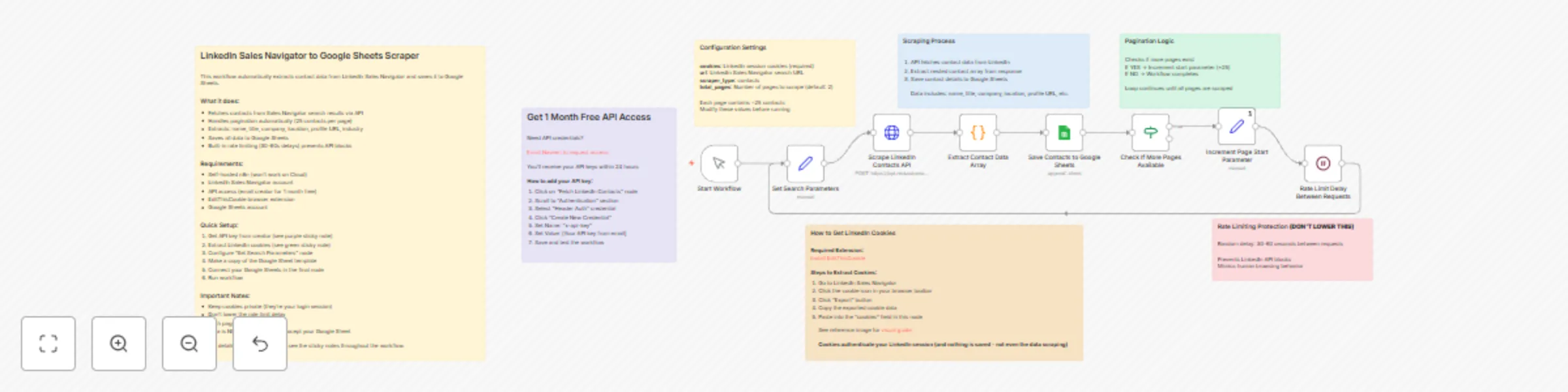
Extract LinkedIn Sales Navigator contacts to Google Sheets with auto pagination

## Complete Template Description ## Automate LinkedIn Sales Navigator contact extraction to Google Sheets This workflow scrapes LinkedIn Sales Navigator search results and automatically saves contact details to Google Sheets with pagination support and rate limiting protection. ## Who's it for Sales teams, recruiters, and business development professionals who need to extract and organize LinkedIn contact data at scale without manual copy-pasting. ## What it does The workflow connects to a LinkedIn scraping API to fetch contact information from Sales Navigator search results. It handles pagination automatically, extracts contact details (name, title, company, location, profile URL), and appends them to a Google Sheet. Built-in rate limiting (30-60 second delays) prevents API blocks and mimics natural browsing behavior. ## Requirements - **Self-hosted n8n instance** (this workflow will NOT work on n8n Cloud due to cookie requirements and third-party API usage) - LinkedIn Sales Navigator account - Google Sheets account - EditThisCookie browser extension - API access from the creator (1 month free trial available) ## How to set up **Step 1: Get API Access** Email the creator to request 1 month of free API access using the link in the workflow. You'll receive your API key within 24 hours. **Step 2: Configure API Authentication** 1. Click the "Scrape LinkedIn Contacts API" node 2. Under Authentication, select "Header Auth" 3. Create new credential with Name: `x-api-key` and your received API key as the Value 4. Save the credential **Step 3: Extract LinkedIn Cookies** 1. Install the [EditThisCookie extension](https://chromewebstore.google.com/detail/editthiscookie-v3/ojfebgpkimhlhcblbalbfjblapadhbol) 2. Navigate to LinkedIn Sales Navigator 3. Click the cookie icon in your browser toolbar 4. Click "Export" and copy the cookie data 5. Paste into the `cookies` field in the "Set Search Parameters" node **Step 4: Configure Your Search** In the "Set Search Parameters" node, update: - `cookies`: Your exported LinkedIn cookies - `url`: Your LinkedIn Sales Navigator search URL - `total_pages`: Number of pages to scrape (default: 2, each page = ~25 contacts) **Step 5: Set Up Google Sheets** 1. Make a copy of the template Google Sheet (or create your own with matching column headers) 2. In the "Save Contacts to Google Sheets" node, connect your Google Sheets account 3. Select your destination spreadsheet and sheet name **Important Security Note:** Keep your LinkedIn cookies private. Never share them with others or commit them to public repositories. ## Customization options - Adjust `total_pages` to control how many contacts you scrape - Modify the delay in "Rate Limit Delay Between Requests" node (default: 30-60 seconds random) - **do not lower this to avoid API blocks** - Customize which contact fields to save in the Google Sheets column mapping - Change the search URL to target different prospect segments or filters

N
Naveen Choudhary
Lead Generation
1 Oct 2025
643
0
Workflow preview: Automate company data enrichment with ZoomInfo, Serper & Oxylabs to Google Sheets
Free advanced

Automate company data enrichment with ZoomInfo, Serper & Oxylabs to Google Sheets

This workflow automatically enriches company domain lists with comprehensive business information scraped from ZoomInfo, organizing the data in Google Sheets for sales teams and researchers. ## Who's it for - **Sales teams** building prospect databases with accurate company information - **Marketing professionals** researching target companies for outreach campaigns - **Business development teams** qualifying leads with revenue and employee data - **Researchers** collecting structured company data for market analysis - **Lead generation specialists** enriching domain lists with contact details ## How it works The workflow processes unprocessed domains from a Google Sheet, searches for their ZoomInfo profiles using Serper API, scrapes the company pages through Oxylabs proxy service, and extracts structured business data. Each domain is marked as processed to prevent duplicates, and the workflow includes proper rate limiting to respect API limits. ## What it does 1. **Loads unprocessed domains** from your Google Sheets database 2. **Searches ZoomInfo** using targeted queries via Serper API for each domain 3. **Validates search results** and extracts relevant ZoomInfo profile URLs 4. **Scrapes company pages** using Oxylabs to bypass anti-scraping protection 5. **Extracts structured data** including company details, address, revenue, and employee count 6. **Updates Google Sheets** with enriched company information 7. **Tracks processing status** to prevent reprocessing the same domains ## Requirements - **Serper API account** with search credits ([Get API key](https://serper.dev/)) - **Oxylabs subscription** for web scraping proxy service ([Sign up here](https://oxylabs.io/)) - **Google Sheets API access** with OAuth2 authentication - **Google Sheets template** - [Make a copy of this template sheet](https://docs.google.com/spreadsheets/d/1bdK8xskt-qfLlDwdzolM0zFyo9KxZ-HHpTVxcEw3ZMY/edit?usp=sharing) with pre-configured columns ## How to set up 1. **Make a copy of the Google Sheets template** - [Click here to copy the template](https://docs.google.com/spreadsheets/d/1bdK8xskt-qfLlDwdzolM0zFyo9KxZ-HHpTVxcEw3ZMY/edit?usp=sharing) to your Google Drive 2. **Configure API credentials** in the respective HTTP Request nodes: - Add Serper API key in the search node - Set up Oxylabs username/password in the scraping node 3. **Set up Google Sheets authentication** using OAuth2 4. **Update the Google Sheets document ID** in all Google Sheets nodes to point to your copied template 5. **Add your domain list** to the sheet with 'processed' column empty or false 6. **Run the workflow** using the manual trigger ## How to customize the workflow - **Search query modification**: Update the search query in the Serper node for different geographic focus (currently set for Czech Republic) - **Data extraction fields**: Modify the Google Sheets column mapping to include/exclude specific company data points - **Rate limiting**: Adjust wait times between requests to match your API rate limits - **Batch processing**: Configure the split batch size for processing domains in smaller groups - **Error handling**: Customize the continue-on-error settings based on your data quality requirements - **Scheduling**: Replace Manual Trigger with Schedule Trigger for automated daily/weekly runs ## Output data includes - Complete company name and official address - Phone numbers and contact information - Revenue figures and employee headcount - Industry classifications and business categories - LinkedIn company profile URLs - Geographic location details (city, state, country, postal code) - Processing status tracking for workflow management **Note**: This workflow includes comprehensive error handling to ensure domains are always marked as processed, preventing infinite loops while maintaining data integrity. Rate limiting is built-in to respect API quotas and avoid service interruptions.

N
Naveen Choudhary
Lead Generation
6 Aug 2025
525
0
Workflow preview: Enrich company domains with business data using Perplexity AI and Google Sheets
Free intermediate

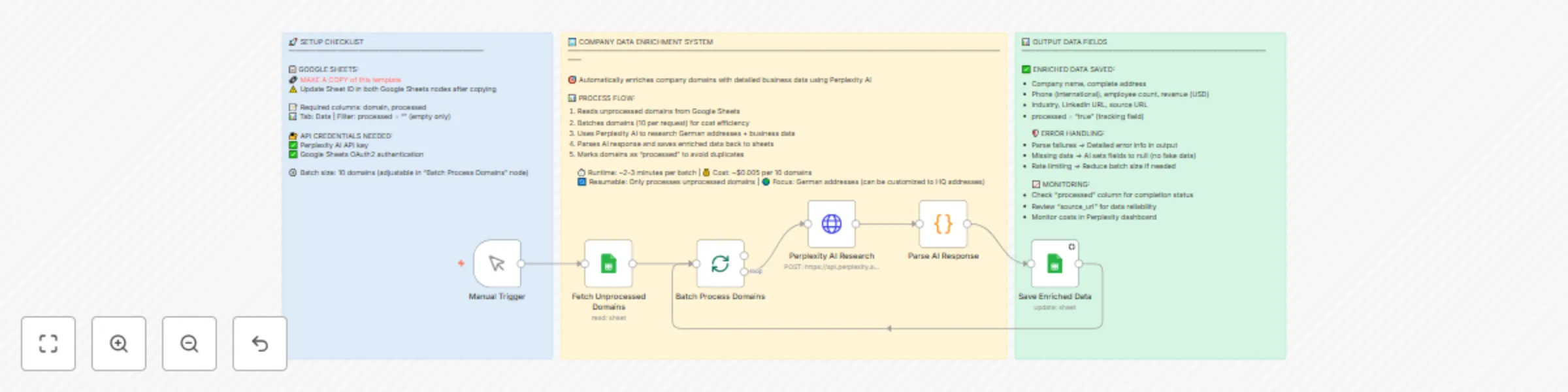
Enrich company domains with business data using Perplexity AI and Google Sheets

This workflow automatically enriches company domain lists with comprehensive business information using Perplexity AI's research capabilities and organizes the data in Google Sheets for easy analysis and use. ## Who's it for - **Sales teams** building prospect databases with accurate contact information - **Marketing professionals** researching target companies for campaigns - **Business development teams** gathering competitive intelligence - **Data analysts** enriching existing company datasets - **Researchers** collecting business information for market analysis ## How it works The workflow reads unprocessed company domains from a Google Sheets document, processes them in batches of 10 using Perplexity AI to research detailed business information, then saves the enriched data back to the spreadsheet. It focuses on German addresses but can be customized for any region. ## What it does 1. **Fetches unprocessed domains** - Reads company domains from Google Sheets that haven't been processed yet 2. **Batches for efficiency** - Groups domains into batches of 10 to optimize API costs and performance 3. **AI-powered research** - Uses Perplexity AI to find comprehensive business data for each company 4. **Parses structured data** - Converts AI responses into clean, structured JSON format 5. **Updates spreadsheet** - Saves enriched data and marks domains as processed to prevent duplicates ## Requirements - **Perplexity AI API key** ([Get one here](https://www.perplexity.ai/)) - **Google Sheets API access** (OAuth2 credentials) - **Google Sheets template** - Make a copy of [this template](https://docs.google.com/spreadsheets/d/1bdK8xskt-qfLlDwdzolM0zFyo9KxZ-HHpTVxcEw3ZMY/edit?usp=sharing) ## How to set up 1. **Make a copy** of the template Google Sheet and update the document ID in both Google Sheets nodes 2. **Configure Perplexity AI credentials** in the HTTP Request node 3. **Set up Google Sheets OAuth2** authentication 4. **Add your company domains** to the "domain" column in the Data tab 5. **Leave the "processed" column empty** for new domains 6. **Run the workflow** using the manual trigger ## How to customize the workflow - **Change target region**: Modify the AI prompt to research addresses in different countries - **Adjust batch size**: Change the batch size in the "Batch Process Domains" node (smaller batches = lower costs) - **Add custom fields**: Extend the AI prompt and Google Sheets mapping to include additional data points - **Automate execution**: Replace Manual Trigger with Schedule Trigger for regular processing - **Filter criteria**: Modify the Google Sheets filter to process specific subsets of domains ## Output data includes - Complete company address (street, city, state, postal code, country) - International phone number format - Latest employee count and annual revenue (USD) - Industry classification - LinkedIn company URL - Reliable source URL for verification - Processing status tracking

N
Naveen Choudhary
Lead Generation
5 Aug 2025
446
0
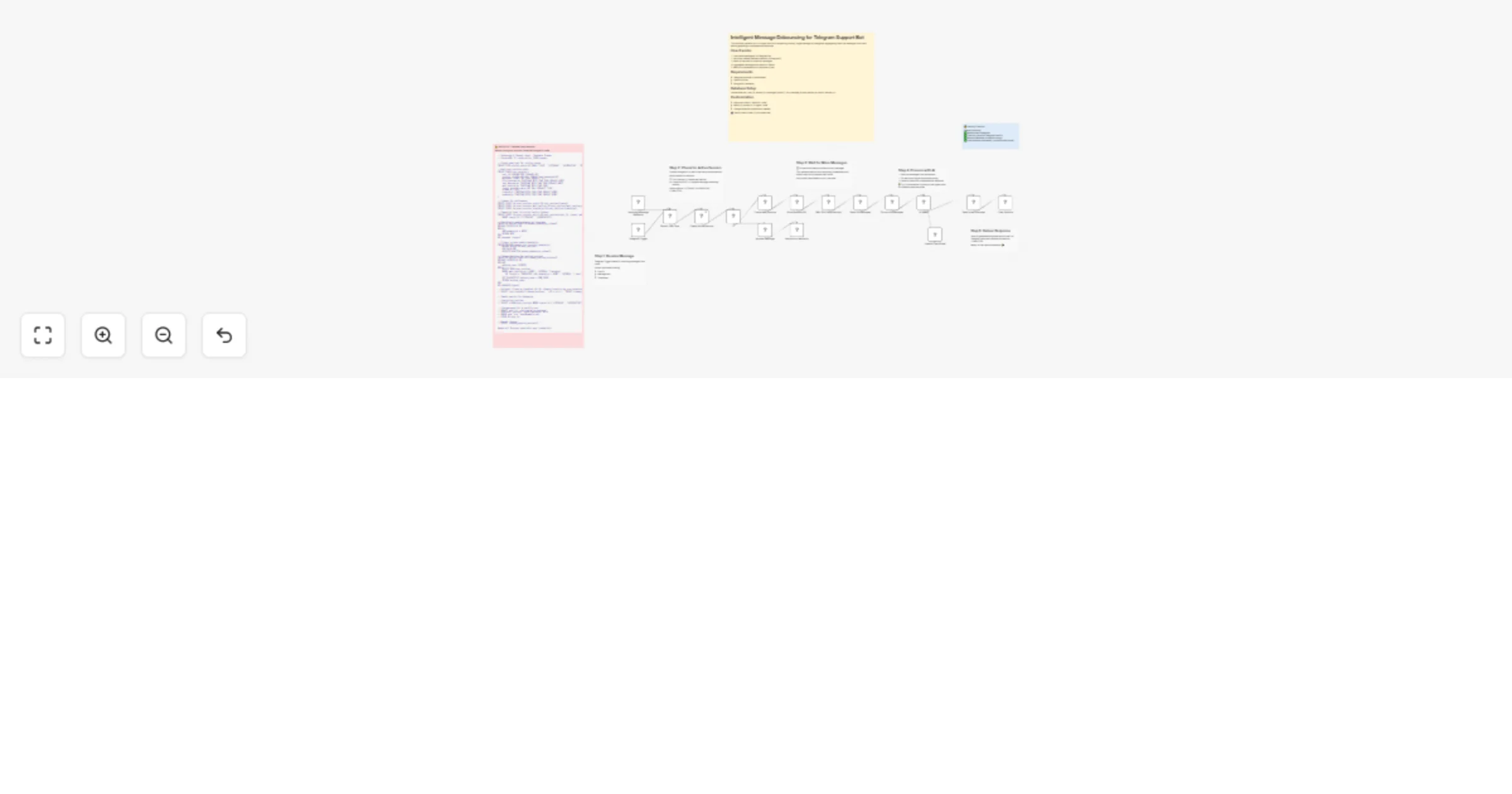
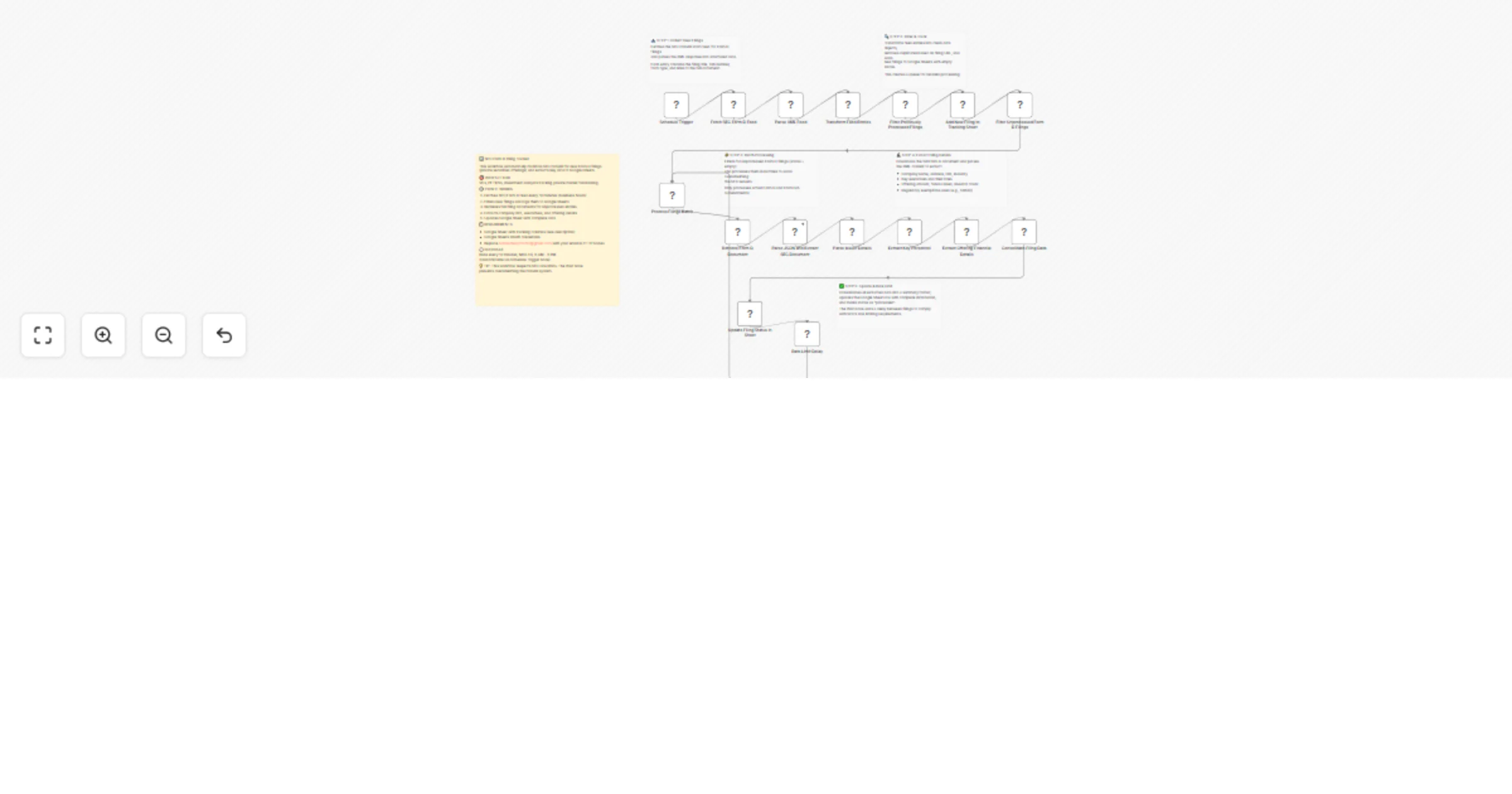
Workflow preview: Automated SEC Form D filings tracker with Google Sheets integration
Free intermediate

Automated SEC Form D filings tracker with Google Sheets integration

## Description This workflow automatically monitors and tracks SEC Form D filings (private placement offerings) by fetching data from the SEC EDGAR database every 10 minutes during business hours and saving new filings to Google Sheets for analysis and tracking. ## Who's it for - **Venture capitalists** tracking private funding rounds and market activity - **Investment analysts** researching private placement trends and opportunities - **Financial researchers** collecting data on private securities offerings - **Business development teams** identifying potential partnership or acquisition targets - **Compliance professionals** monitoring regulatory filings in their industry ## How it works The workflow connects to the SEC EDGAR RSS feed to fetch the latest Form D filings, parses the XML data, extracts key information including CIK numbers and filing links, filters out duplicates from previous runs, and automatically saves new filings to a Google Sheets document for easy analysis and tracking. ## What it does 1. **Automated scheduling** - Runs every 10 minutes during business hours (6 AM - 9 PM, Monday-Friday) 2. **Fetches SEC data** - Retrieves the 40 most recent Form D filings from SEC EDGAR RSS feed 3. **Parses filing data** - Converts XML to structured data and extracts CIK numbers, titles, and links 4. **Filters duplicates** - Only processes new filings that haven't been seen in previous executions 5. **Saves to sheets** - Appends new filing data to Google Sheets with proper formatting ## Requirements - **Google Sheets API access** with OAuth2 credentials configured - **Google Sheets document** - Make a copy of [this template sheet](https://docs.google.com/spreadsheets/d/1VoGfVpk1mMrqKIc5hsO7peYuLx0SwhsbW7uUeYJCmrU/edit?usp=sharing) - **n8n instance** running continuously for scheduled execution ## How to set up 1. **Copy the template Google Sheet** from the link above to your Google Drive 2. **Configure Google Sheets OAuth2** authentication in n8n credentials 3. **Update the Google Sheets document ID** in the "Save to SEC Data Sheet" node to point to your copied sheet 4. **Customize the User-Agent header** in the HTTP Request node with your contact information (required by SEC) 5. **Activate the workflow** - The schedule trigger will start monitoring automatically 6. **Test manually** by replacing the Schedule Trigger with a Manual Trigger for initial testing ## How to customize the workflow - **Schedule frequency**: Modify the cron expression in the Schedule Trigger (default: every 10 minutes) - **Business hours**: Adjust the time range (default: 6 AM - 9 PM EST) - **Working days**: Change from Monday-Friday to include weekends if needed - **Filing count**: Modify the SEC URL to fetch more than 40 filings (change `count=40` parameter) - **Form types**: Update the URL to track different SEC forms (change `type=D` to other form types) - **Output format**: Customize the Google Sheets column mapping to include additional fields - **Notifications**: Add Slack, email, or webhook nodes to get alerts for new filings ## Output data includes - **CIK Number** - Central Index Key for the filing company - **Company Title** - Name of the company making the filing - **Form Type** - Type of SEC form (Form D for private placements) - **HTML Filing Link** - Link to view the filing in SEC EDGAR system - **TXT Filing Link** - Direct link to the raw text version of the filing - **Updated Date** - When the filing was submitted to SEC ## Key features - **Duplicate prevention** - Built-in deduplication ensures no filing is processed twice - **Business hours scheduling** - Respects SEC server load by running only during business hours - **SEC compliance** - Includes proper User-Agent header as required by SEC guidelines - **Automatic link generation** - Creates both HTML and TXT links for easy access to filings - **CIK extraction** - Automatically extracts company CIK numbers from filing titles **Note**: This workflow is designed for monitoring public SEC filings and complies with SEC EDGAR access guidelines. The User-Agent header must be updated with your contact information before use.

N
Naveen Choudhary
Crypto Trading
1 Aug 2025
739
0
Workflow preview: Scrape Google Events data to Google Sheets via SerpApi
Free intermediate

Scrape Google Events data to Google Sheets via SerpApi

## Description This workflow automates the process of scraping Google Events data using SerpApi and organizing it in Google Sheets for analysis and tracking. ## Who's it for - **Event organizers** who need to monitor competitor events in their area - **Marketing teams** tracking local events for partnership opportunities - **Researchers** collecting event data for analysis - **Business owners** monitoring industry events and conferences ## How it works The workflow searches Google Events using SerpApi's Google Events engine, processes the returned data, and saves it to a Google Sheets spreadsheet. It handles pagination automatically to collect multiple events and flattens the nested API response into a structured format. ## What it does 1. **Configures search parameters** - Sets the search query, total events to fetch, and pagination settings 2. **Fetches events via SerpApi** - Makes paginated requests to Google Events API with proper rate limiting 3. **Processes and flattens data** - Transforms nested event data into a flat structure with all relevant fields 4. **Saves to Google Sheets** - Appends the processed events to a Google Sheets document for easy analysis ## Requirements - **SerpApi account** with API key ([Get one here](https://serpapi.com/)) - **Google Sheets API access** (OAuth2 credentials) - **Google Sheets document** - Make a copy of [this template sheet](https://docs.google.com/spreadsheets/d/1DQo3tI8yKzCbLn-DWN2hureHgwj1XxvM1ogES1_77ts/edit?usp=sharing) ## How to set up 1. **Configure SerpApi credentials** in the HTTP Request node 2. **Set up Google Sheets OAuth2** authentication 3. **Update the Google Sheets document ID** in the final node to point to your copy 4. **Modify search parameters** in the "Set Search Parameters" node: - Change `query` to your desired search terms - Adjust `total_events` (10 events per page) - Set `start` position for pagination 5. **Run the workflow** using the manual trigger ## How to customize the workflow - **Search terms**: Modify the query in the Set node (e.g., "conferences in New York", "music events Los Angeles") - **Event count**: Adjust `total_events` to fetch more or fewer events - **Output format**: Modify the Google Sheets column mapping to include/exclude specific fields - **Rate limiting**: Adjust the `requestInterval` in the HTTP Request node if needed - **Scheduling**: Replace the Manual Trigger with a Schedule Trigger for automated runs ## Output data includes - Event title, description, and direct link - Start date and timing information - Venue and address details - Ticket information and pricing - Event location map links - Event images - Original search query for tracking **Note**: This workflow respects SerpApi rate limits with built-in delays between requests and processes up to 10 events per API call efficiently.

N
Naveen Choudhary
Market Research
18 Jul 2025
157
0
Workflow preview: Digest new YouTube videos to Slack with Google Sheets, RapidAPI & GPT-4o-mini
Free advanced

Digest new YouTube videos to Slack with Google Sheets, RapidAPI & GPT-4o-mini

## Who is this for? Marketing, content, and enablement teams that need a **quick, human-readable summary of every new video** published by the YouTube channels they care about—without leaving Slack. ## What problem does this workflow solve? Manually checking multiple channels, skimming long videos, and pasting the highlights into Slack wastes time. This template **automates the whole loop**: detect a fresh upload from your selected channels → pull subtitles → distill the key take-aways with GPT-4o-mini → drop a neatly-formatted digest in Slack. ## What this workflow does 1. **Schedule Trigger** fires every 10 min, then grabs a list of YouTube RSS feeds from a Google Sheet. 2. **HTTP + XML** fetch & parse each feed; only brand-new videos continue. 3. **YouTube API** fetches title/description, **RapidAPI** grabs English subtitles. 4. Code nodes build an AI payload; **OpenAI** returns a JSON summary + article. 5. A formatter turns that JSON into Slack Block Kit, and **Slack** posts it. 6. Processed links are appended back to the “Video Links” sheet to prevent dupes. ## Setup 1. **Make a copy** of this [Google Sheet](https://docs.google.com/spreadsheets/d/1i3jZ_0npsEVtrMUSzGPV3Lbta3q7sArHHeNomlAuSMg/edit?usp=sharing) and connect a **Google Sheets OAuth2** credential with edit rights. 2. **Slack App**: create → add `chat:write`, `channels:read`, `app_mention`; enable Event Subscriptions; install and store the **Bot OAuth token** in an n8n Slack credential. 3. **RapidAPI key** for `https://yt-api.p.rapidapi.com/subtitles` (300 free calls/mo) → save as HTTP Header Auth. 4. **OpenAI key** → save in an OpenAI credential. 5. Add your RSS feed URLs to the “RSS Feed URLs” tab; press *Execute Workflow*. ## How to customise * Adjust the schedule interval or freshness window in **“If newly published”**. * Swap the OpenAI model or prompt for shorter/longer digests. * Point the Slack node at a different channel or DM. * Extend the AI payload to include thumbnails or engagement stats. ## Use-case ideas * **Product marketing**: Instantly brief sales & CS teams when a competitor uploads a feature demo. * **Internal learning hub**: Auto-summarise conference talks and share bullet-point notes with engineers. * **Social media managers**: Get ready-to-post captions and key moments for re-purposing across platforms.

N
Naveen Choudhary
Content Creation
9 Jun 2025
1026
0
Workflow preview: Google Maps business scraper with contact extraction via Apify and Firecrawl
Free advanced

Google Maps business scraper with contact extraction via Apify and Firecrawl

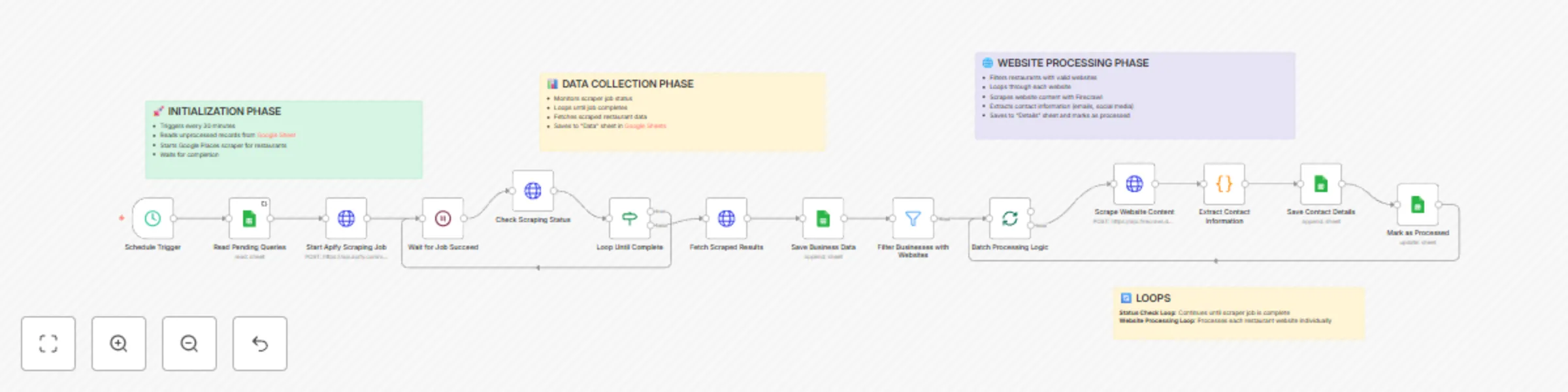
## Who is this for? Marketing agencies, sales teams, lead generation specialists, and business development professionals who need to build comprehensive business databases with contact information for outreach campaigns across any industry. ## What problem is this workflow solving? Finding businesses and their contact details manually is time-consuming and inefficient. This workflow automates the entire process of discovering businesses through Google Maps and extracting their digital contact information from websites, saving hours of manual research. ## What this workflow does This automated workflow runs every 30 minutes to: - Scrape business data from Google Maps using Apify's Google Places crawler - Save basic business information (name, address, phone, website) to Google Sheets - Filter businesses that have websites - Scrape each business's website content using Firecrawl - Extract contact information including emails, LinkedIn, Facebook, Instagram, and Twitter profiles - Store all extracted data in organized Google Sheets for easy access and follow-up ## Setup **Required Services:** - Google Sheets account with OAuth2 setup - Apify account with API access for Google Places scraping - Firecrawl account with API access for website scraping **Pre-setup:** 1. Copy this [Google Sheet](https://docs.google.com/spreadsheets/d/1DHezdcetT0c3Ie1xB3z3jDc5WElsLN87K4J9EQDef9g/edit?usp=sharing) 2. Configure your Apify and Firecrawl API credentials in n8n 3. Set up Google Sheets OAuth2 connection 4. Update the Google Sheet ID in all Google Sheets nodes **Quick Start:** The workflow includes detailed sticky notes explaining each phase. Simply configure your API credentials and Google Sheet, then activate the workflow. ## How to customize this workflow to your needs - **Change search criteria**: Modify the Apify scraping parameters to target different business types (restaurants, gyms, salons, etc.) or locations - **Adjust schedule**: Change the trigger interval from 30 minutes to your preferred frequency - **Add more contact fields**: Extend the extraction code to find additional contact information like WhatsApp or Telegram - **Filter criteria**: Modify the filter conditions to target businesses with specific characteristics - **Batch size**: Adjust the batch processing to handle more or fewer websites simultaneously Perfect for lead generation, competitor research, and building targeted marketing lists across any industry or business type.

N
Naveen Choudhary
Lead Generation
2 Jun 2025
24224
0
Workflow preview: Find & verify business emails automatically with OpenRouter, Serper & Prospeo
Free intermediate

Find & verify business emails automatically with OpenRouter, Serper & Prospeo

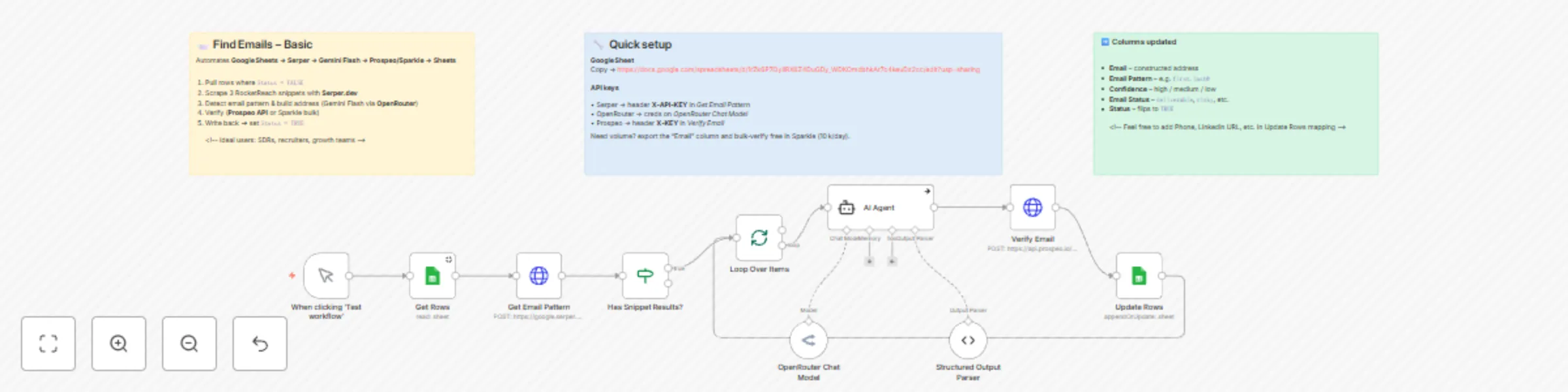
#### **Who is this template for?** Growth teams, SDRs, recruiters, or anyone who routinely hunts for hard‑to‑find business emails and would rather spend time reaching out than guessing formats. #### **What problem does this workflow solve?** Manually piecing together email patterns, cross‑checking them in a verifier, and updating a tracking sheet is slow and error‑prone. This template automates the entire loop—research, guess, verify, and log—so you hit **Start** and watch rows fill up with ready‑to‑send addresses. #### **What this workflow does** 1. **Pull fresh leads** – Grabs only the rows in your Google Sheet where `Status` = `FALSE`. 2. **Find the company pattern** – Queries **Serper.dev** for snippets and feeds them to **Gemini Flash** (via OpenRouter) to spot the dominant email format. 3. **Build the address** – Constructs a likely email for every first/last name. 4. **Verify in real time** – Pings **Prospeo** by default (API) *or* lets you bulk‑clean in **Sparkle.io**. 5. **Write it back** – Updates the sheet with pattern, email, confidence, verification status, and flips `Status` to `TRUE`. 6. **Loop until done** – Runs batch‑by‑batch so you never hit API limits. --- ### 🆓 **Work free‑tier magic (up to \~2,500 contacts/month)** | Service | Free allowance | How this template uses it | | -------------- | ----------------------------- | ------------------------------------------------------------------------------------ | | **Serper.dev** | 2,500 searches/mo | Scrapes three public email snippets per domain to learn the pattern | | **Sparkle.io** | 10,000 bulk verifications/day | Manual *upload‑download* option—perfect to clean your first 2.5k emails at zero cost | | **Prospeo** | 75 API calls/mo | Built‑in if you prefer *fully automated* verification | **Quick Sparkle workflow:** 1. Let the template generate emails. 2. Export the “Email” column to CSV → upload to Sparkle.io. 3. Download the results and paste the "verification\_status" back into the sheet (or add a small n8n import sub‑flow). --- #### **Setup (5 minutes)** 1. **Copy the Google Sheet** linked in the sticky note and paste its ID into the *Get Rows* and *Update Rows* nodes. 2. Add credentials for Google Sheets, Serper (X‑API‑KEY), OpenRouter, and *optionally* Prospeo. 3. Hit **Execute Workflow**—that’s it. --- #### **How to customise** * **Prefer Sparkle for volume:** Skip the Prospeo node, export emails in one click, bulk‑verify in Sparkle, and re‑import results. * **Swap the search source:** Replace the *Get Email Pattern* HTTP node with Bing, Brave, etc. * **Extend enrichment:** Add phone look‑ups or LinkedIn scrapers before the *Update Rows* node. * **Auto‑run:** Replace the Manual Trigger with a Cron node so the sheet cleans itself every morning. --- ### **Additional resources** | Tool | Purpose | Link | | --------------------------------------------------------------------------------------------------------------------------------- | ----------------------------------------- | -------------------------------------------------------- | | **Prospeo** – API‑ready email verification<br><sub>**Special offer:** 20 % free credits for the first 3 months on any plan using this link!</sub> | Real‑time, single‑call mailbox validation | [prospeo.io](https://prospeo.io/?via=naveen) | | **Sparkle.io** – high‑volume bulk verifier (manual upload) | Free daily quota of 10 000 verifications | [app.sparkle.io/sign‑up](https://app.sparkle.io/sign-up) | | **OpenRouter** – API gateway for Gemini Flash & other LLMs | One key unlocks multiple frontier models | [openrouter.ai](https://openrouter.ai/) | | **Serper.dev** – Google Search API | 2 500 searches/month on the free tier | [serper.dev](https://serper.dev/) | Add the relevant keys or signup details from these links, drop them into the matching n8n credentials, and you’re all set to enrich your first 2 500 contacts at zero cost. Happy building!

N
Naveen Choudhary
Lead Generation
1 May 2025
1503
0