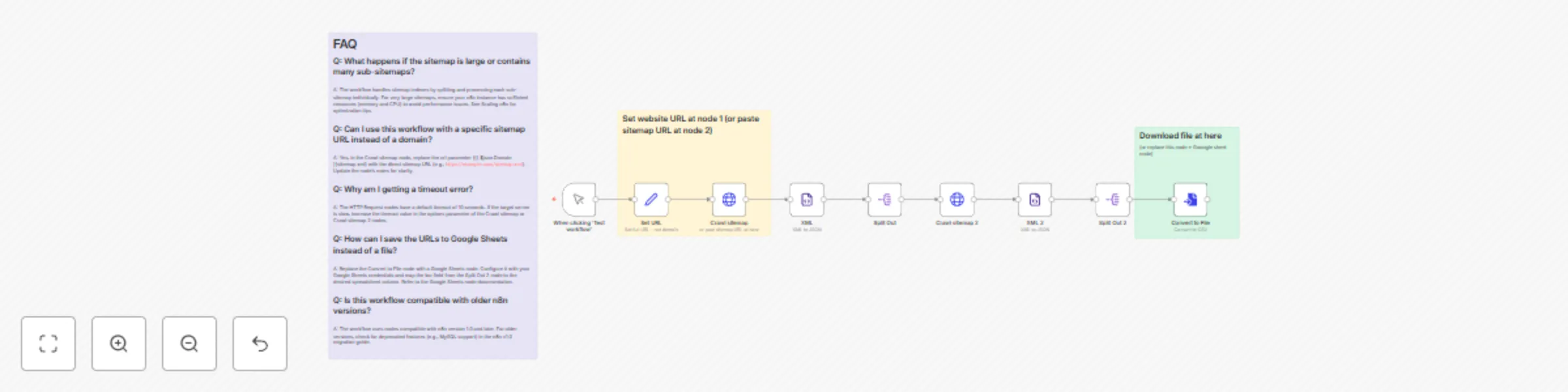
Extract Website URLs from Sitemap.XML for SEO Analysis
## Overview
This n8n workflow automates the process of crawling a website's sitemap to extract URLs, which is particularly useful for SEO analysis, website auditing, or content monitoring. By leveraging n8n's nodes, the workflow fetches the sitemap from a specified URL, processes the XML data, and extracts individual URLs, which can then be converted into a downloadable file or integrated with tools like Google Sheets.
## How It Works
The workflow operates in a sequential manner, utilizing a series of nodes to fetch, parse, and process sitemap data:
1. **Trigger**: Initiates when the user clicks "Test workflow" (`Manual Trigger` node).
2. **Set URL**: Defines the base domain (e.g., `https://phu.io.vn/`) for the sitemap (`Set URL` node).
3. **Crawl Sitemap**: Fetches the main sitemap file (`sitemap.xml`) from the specified domain using an HTTP request (`Crawl sitemap` node).
4. **Parse XML**: Converts the sitemap XML into a JSON format for easier processing (`XML` node).
5. **Split Sitemap**: Extracts individual sitemap entries (e.g., `<sitemap>` tags) from the parsed data (`Split Out` node).
6. **Crawl Sub-Sitemap**: Fetches each sub-sitemap URL listed in the main sitemap (`Crawl sitemap 2` node).
7. **Parse Sub-Sitemap XML**: Converts the sub-sitemap XML into JSON (`XML 2` node).
8. **Split URLs**: Extracts individual URLs (e.g., `<url>` tags) from the sub-sitemap (`Split Out 2` node).
9. **Convert to File**: Saves the extracted URLs into a file for download or further use (`Convert to File` node).
This workflow supports both single sitemap files and sitemap indexes that reference multiple sub-sitemaps, ensuring comprehensive URL extraction.
## How to Use
To implement this workflow in n8n, follow these steps:
1. **Set Up n8n**: Ensure you have an active n8n instance (Cloud, npm, or self-hosted). Refer to the [n8n documentation](https://docs.n8n.io/choose-n8n/) for setup instructions.
2. **Import Workflow**: Copy the JSON from the provided `Extract Website URLs from Sitemap.XML for SEO Analysis.json` file and import it into your n8n instance via the workflow editor.
3. **Configure the Domain**:
- In the `Set URL` node, update the `Domain` parameter with the target website's base URL (e.g., `https://example.com/`).
- Alternatively, in the `Crawl sitemap` node, directly paste the full sitemap URL if known (e.g., `https://example.com/sitemap.xml`).
4. **Test the Workflow**:
- Click "Test workflow" to execute the `Manual Trigger` node.
- Verify that the workflow fetches the sitemap and processes the URLs correctly.
5. **Download or Integrate**:
- The `Convert to File` node generates a file containing the extracted URLs.
- Optionally, replace this node with a Google Sheets node to append URLs to a spreadsheet. Refer to the [Google Sheets node documentation](https://docs.n8n.io/integrations/builtin/app-nodes/n8n-nodes-base.googlesheets/) for setup.
6. **Save and Activate**: Save the workflow and activate it for production use if needed, using a trigger like a schedule or webhook (see [Trigger Node](https://docs.n8n.io/glossary/#trigger-node-n8n)).
## Requirements
- **n8n Instance**: An active n8n instance (version 1.0 or later recommended) on n8n Cloud, npm, or self-hosted (Docker). See [Choose your n8n](https://docs.n8n.io/choose-n8n/) for details.
- **Technical Knowledge**: Basic understanding of n8n's editor UI and node configuration. Familiarity with XML sitemaps is helpful but not mandatory.
- **Permissions**: For self-hosted setups, ensure the n8n process has network access to fetch the sitemap URL. For Docker deployments, verify permissions as outlined in the [n8n v1.0 migration guide](https://docs.n8n.io/1-0-migration-checklist/#docker).
- **Optional**: If integrating with Google Sheets, valid Google Sheets credentials are required (see [Credentials](https://docs.n8n.io/credentials/)).
- **Timeout Configuration**: The HTTP Request nodes (`Crawl sitemap` and `Crawl sitemap 2`) have a 10-second timeout. Adjust the `timeout` parameter in the node settings if dealing with slow-responding servers.
## FAQ
**Q: What happens if the sitemap is large or contains many sub-sitemaps?**
A: The workflow handles sitemap indexes by splitting and processing each sub-sitemap individually. For very large sitemaps, ensure your n8n instance has sufficient resources (memory and CPU) to avoid performance issues. See [Scaling n8n](https://docs.n8n.io/hosting/scaling/) for optimization tips.
**Q: Can I use this workflow with a specific sitemap URL instead of a domain?**
A: Yes, in the `Crawl sitemap` node, replace the `url` parameter (`{{ $json.Domain }}sitemap.xml`) with the direct sitemap URL (e.g., `https://example.com/sitemap.xml`). Update the node’s notes for clarity.
**Q: Why am I getting a timeout error?**
A: The HTTP Request nodes have a default timeout of 10 seconds. If the target server is slow, increase the `timeout` value in the `options` parameter of the `Crawl sitemap` or `Crawl sitemap 2` nodes.
**Q: How can I save the URLs to Google Sheets instead of a file?**
A: Replace the `Convert to File` node with a Google Sheets node. Configure it with your Google Sheets credentials and map the `loc` field from the `Split Out 2` node to the desired spreadsheet column. Refer to the [Google Sheets node documentation](https://docs.n8n.io/integrations/builtin/app-nodes/n8n-nodes-base.googlesheets/).
**Q: Is this workflow compatible with older n8n versions?**
A: The workflow uses nodes compatible with n8n version 1.0 and later. For older versions, check for deprecated features (e.g., MySQL support) in the [n8n v1.0 migration guide](https://docs.n8n.io/1-0-migration-checklist/).
**Q: Can I automate this workflow to run periodically?**
A: Yes, replace the `Manual Trigger` node with a `Schedule Trigger` node to run the workflow at set intervals. See [Trigger Nodes](https://docs.n8n.io/glossary/#trigger-node-n8n) for configuration details.
For further assistance, consult the [n8n Community Forum](https://community.n8n.io/) or submit an issue on the [n8n GitHub repository](https://github.com/n8n-io/n8n).
## Need help customizing?
Contact me for consulting and support or add me on [Facebook](https://www.facebook.com/lethuaphu) or [email](mailto:[email protected]).