GYEONGJUN CHAE
Workflows by GYEONGJUN CHAE
Track & alert team holidays across countries with Nager.Date API, Notion and Slack
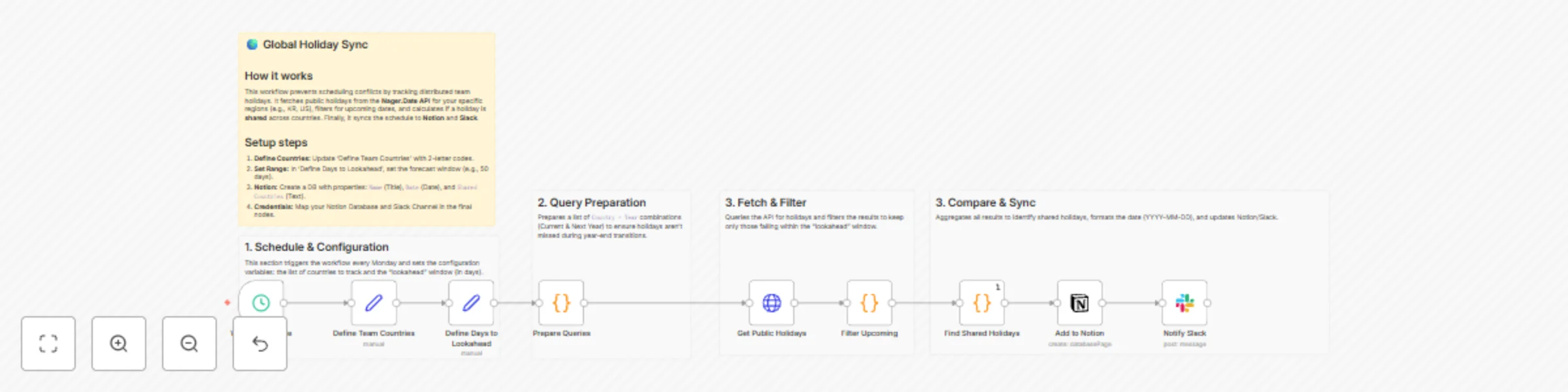
## Who is this for This template is essential for **Remote Operations Managers**, **HR Teams**, and **Project Leads** managing distributed teams across different countries. It prevents scheduling conflicts by automatically flagging when a regional team is out of office and identifying when multiple teams are off simultaneously. ## What it does Stop manually Googling "Is it a holiday in Berlin today?" This workflow automates your team availability calendar. 1. It triggers on a weekly schedule. 2. It takes your team's locations (e.g., KR, MX) and a "Lookahead" range (e.g., 50 days). 3. It fetches official public holidays for **both the current and next year** using the **Nager.Date API** (to ensure year-end holidays aren't missed). 4. It filters the results to find only holidays occurring within your defined lookahead window. 5. **It compares dates across countries to identify "Shared Holidays" (dates where multiple teams are off).** 6. It logs these holidays into a **Notion** database and notifies the team via **Slack**, specifically highlighting if a holiday is shared. ## How to set up 1. **Notion:** Create a Database with properties: `Name` (Title), `Date` (Date), and `Shared Countries` (Text). 2. **Slack:** Connect your Slack account in the credentials. 3. **Configuration:** * **Define Team Countries:** Enter the 2-letter country codes (e.g., "KR", "US") in the Set node. * **Define Days to Lookahead:** Set how many days into the future you want to check (default is 50). * **Add to Notion:** Select your Database ID. ## How to customize * **Filter Logic:** The "Filter Upcoming" node handles the date logic. You can modify this to check for specific holiday types (e.g., exclude "Optional" holidays). * **Shared Logic:** The "Find Shared Holidays" node calculates overlaps. You can adjust the JavaScript here if you want to change the format of the shared message sent to Slack. * **Destinations:** Swap the Notion node for Google Calendar to block off time directly.
Daily crypto yield monitor: Track top Binance Earn APY rates with earnings calculator
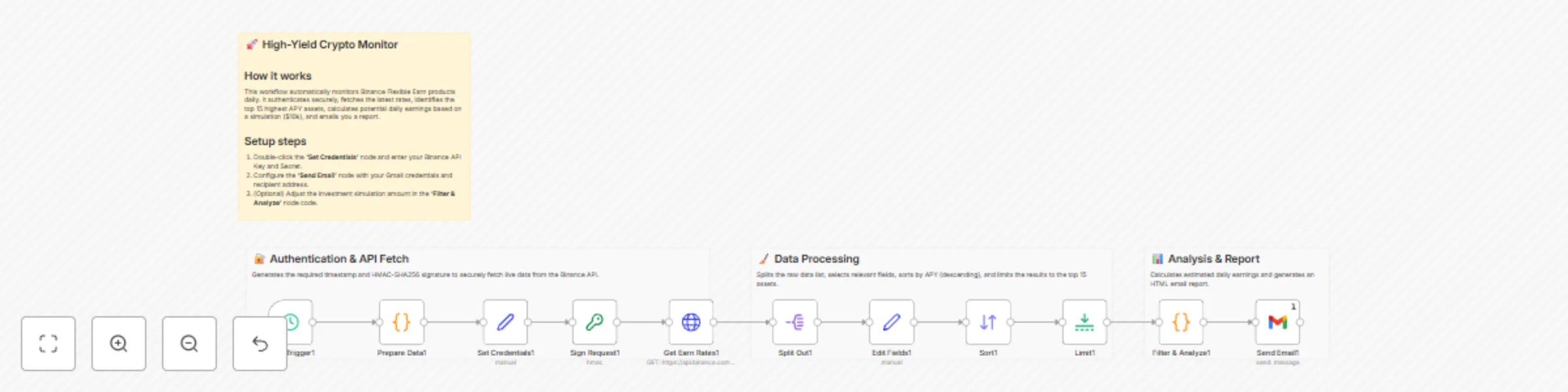
# Get top Binance Earn yields sent to Email This workflow automates the tracking of passive income opportunities on Binance by fetching real-time Flexible Earn APY rates, calculating potential returns, and delivering a daily summary to your inbox. Manually checking crypto savings rates is tedious. This template handles the complex authentication required by Binance (HMAC-SHA256 signing), filters through hundreds of assets to find the highest yields, and calculates exactly how much you would earn daily on a simulated capital amount. ## 👥 Who is this for? - **Crypto Investors** looking to maximize passive income on idle assets. - **DeFi/CeFi Analysts** monitoring market rate fluctuations. - **Hodlers** who want to ensure their assets are generating the best possible yield without daily manual checks. ## ⚙️ How it works 1. **Schedule Trigger:** Initiates the workflow every 24 hours (customizable). 2. **Authentication Handler:** Generates a timestamp and creates a secure HMAC-SHA256 signature required by the Binance API. 3. **Data Fetching:** specific HTTP Request retrieves the full list of "Flexible Earn" products. 4. **Processing:** The workflow splits the data, standardizes field names, and sorts all assets by **Annual Percentage Rate (APR)** in descending order. 5. **Analysis:** It limits the list to the top 15 assets and calculates estimated daily earnings based on a $10,000 reference capital (customizable via code). 6. **Reporting:** A formatted HTML email is sent via Gmail with the top opportunities. ## 🛠️ Setup Guide 1. **Binance API:** Log in to Binance and create a Read-Only API Key. 2. **Configure Nodes:** - Open the **Set Credentials 1** node: Paste your `API_KEY` and `SECRET_KEY` in each field. 3. **Email Setup:** - Open the **Send Email** node. - Select or connect your Gmail credentials. - Update the "To" address to your email. ## 🔌 Requirements - An active Binance account. - Binance API Key & Secret (Read-Only permissions are sufficient). - A Gmail account (or you can swap the Gmail node for Outlook/Slack/Telegram). ## 🎨 How to customize - **Change Capital Calculation:** Open the "Filter & Analyze" Code node and change `const capital = 10000;` to your actual portfolio size to see real projected earnings. - **Filter Assets:** Add an `If` node after the "Split Out" node to only filter for specific assets (e.g., USDT, BTC, ETH) if you don't want to see altcoins. - **Change Frequency:** Open the "Daily Trigger" node to run this hourly or weekly.
Monitor bitcoin arbitrage between Binance & Upbit with GPT analysis & email
**Crypto Arbitrage Analyzer: Binance vs Upbit (Kimchi Premium)** #### **Short Description** Automate crypto arbitrage monitoring between Binance and Upbit. Track the "Kimchi Premium," analyze BTC price gaps with AI, and receive actionable trading reports via email. --- #### **Full Description** **🚀 Overview** This workflow serves as an automated analyst for cryptocurrency traders focusing on the **"Kimchi Premium"** (the price gap between South Korean and global exchanges). It fetches real-time Bitcoin (BTC) prices from **Binance** (Global) and **Upbit** (Korea), compares them against the current USD/KRW forex rate, and uses **OpenAI (GPT)** to generate a sophisticated arbitrage assessment report sent directly to your inbox. **✨ Key Features** * **Multi-Market Data Aggregation**: Simultaneously fetches data from Binance, Upbit, and Forex APIs. * **Real-time Forex Conversion**: Accurately calculates spreads using live USD/KRW exchange rates. * **AI-Powered Analysis**: Uses OpenAI to interpret the data, calculating spread percentages and profit margins automatically. * **Automated Reporting**: Delivers a clean, HTML-formatted trading report via Gmail every 30 minutes (customizable). **🛠️ How it Works** 1. **Schedule Trigger**: Runs the workflow automatically at set intervals (default: every 30 mins). 2. **Data Fetching**: * Gets `BTC/USDT` price from Binance. * Gets `BTC/KRW` and `BTC/USDT` prices from Upbit. * Gets `USD/KRW` exchange rate from a Forex API. 3. **Normalization**: Standardizes the data structure from different APIs into a unified format. 4. **AI Processing**: An OpenAI Agent analyzes the price differences, calculates the arbitrage gap (Kimchi Premium), and drafts a summary. 5. **Notification**: A Structured Output Parser formats the AI's response, and the report is emailed to the trader via Gmail. **📋 Prerequisites / Setup** To use this workflow, you need to configure the following credentials in n8n: * **OpenAI API**: Required for the analysis logic (GPT-4o-mini or similar recommended). * **Gmail (OAuth2)**: Required to send the email reports. * *(Note: Binance, Upbit, and Forex data are fetched via public REST APIs in this workflow, so no specific exchange API keys are required for basic data retrieval.)* --- #### **Use Case / Category** * **Categories**: Finance, AI & LLMs, Automation * **Apps used**: OpenAI, Gmail, HTTP Request, Schedule #### **SEO Keywords** (Tagging purpose) Crypto Arbitrage, Bitcoin, Kimchi Premium, Binance, Upbit, Trading Bot, OpenAI, GPT, Financial Analysis, Automated Reporting