Jonathan
Workflows by Jonathan
Preparing data to be sent to a service
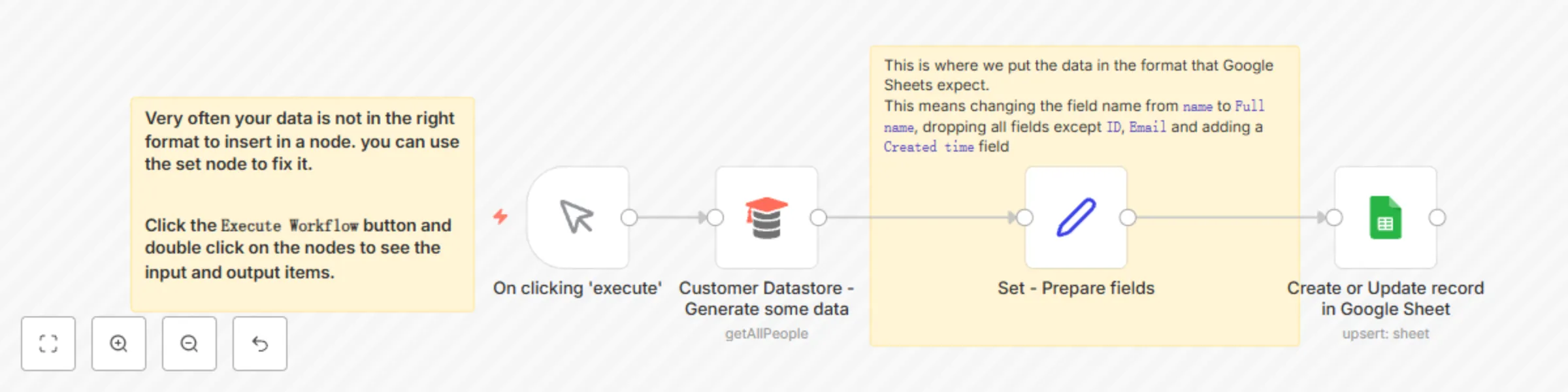
**Task:** Make sure that data is in the right format before injecting it into a database/spreadsheet/CRM/etc. **Why:** Spreadsheets and databases require the incoming data to have the same fields as the headers of the destination table. You can decide which fields you would like to send with the database and rename them by using the set node **Main use cases:** - Change fields names to match a database or a spreadsheet table structure - Keep only the fields that are needed at the destination table
Creating an API endpoint
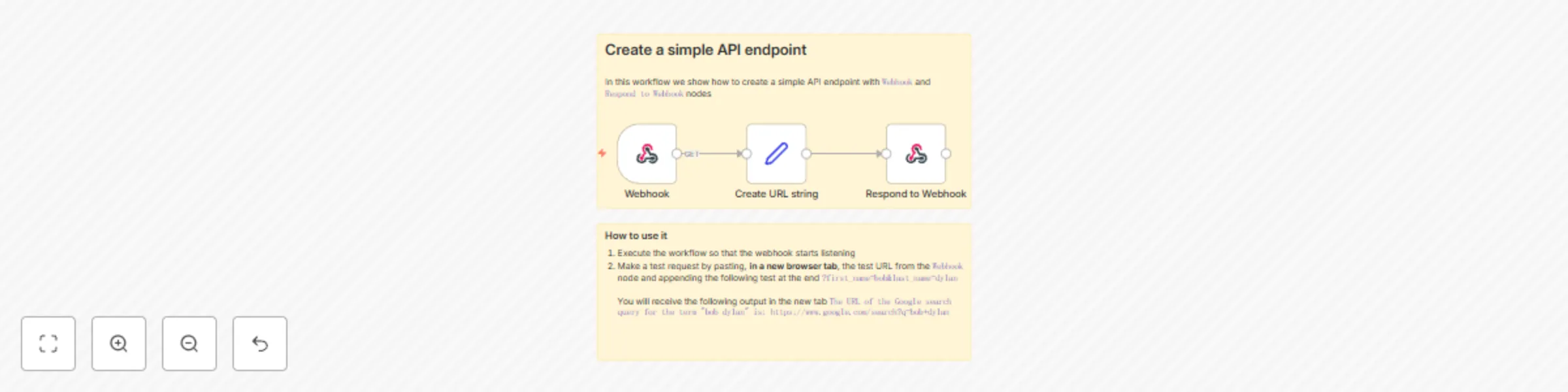
**Task:** Create a simple API endpoint using the Webhook and Respond to Webhook nodes **Why:** You can prototype or replace a backend process with a single workflow **Main use cases:** Replace backend logic with a workflow
Rate limiting and waiting for external events
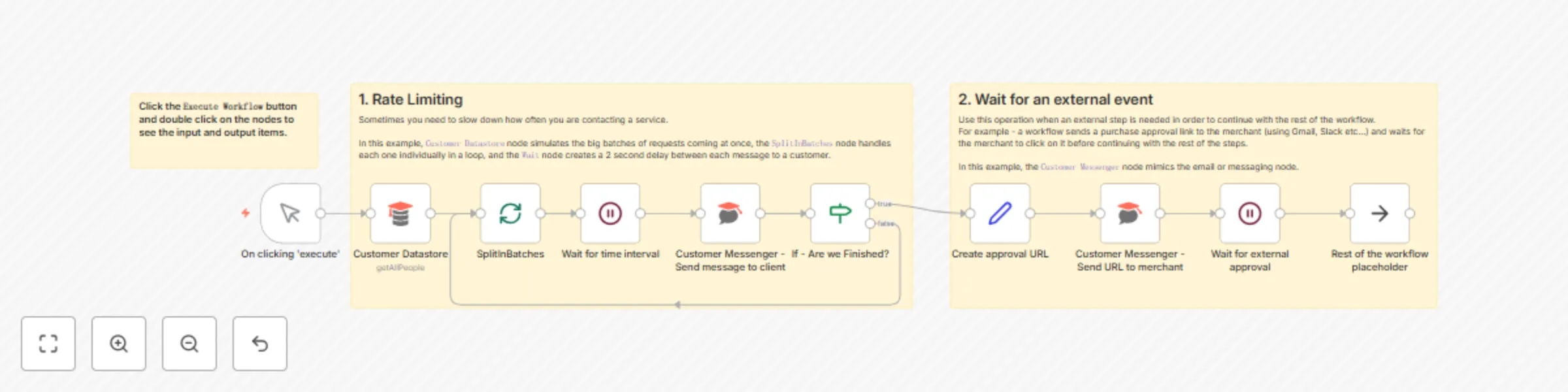
**Task:** Control your data flow with rate limits and external cues **Main use cases:** - Control the rate of items flow into one or more services in your workflow - Wait for external events to occur before continuing with the rest of the workflow
Pulling data from services that n8n doesn’t have a pre-built integration for
You still can use the app in a workflow even if we don’t have a node for that or the existing operation for that. With the HTTP Request node, it is possible to call any API point and use the incoming data in your workflow **Main use cases:** - Connect with apps and services that n8n doesn’t have integration with - Web scraping **How it works** This workflow can be divided into three branches, each serving a distinct purpose: 1.Splitting into Items (HTTP Request - Get Mock Albums): - The workflow initiates with a manual trigger (On clicking 'execute'). - It performs an HTTP request to retrieve mock albums data from "https://jsonplaceholder.typicode.com/albums." - The obtained data is split into items using the Item Lists node, facilitating easier management. 2.Data Scraping (HTTP Request - Get Wikipedia Page and HTML Extract): - Another branch of the workflow involves fetching a random Wikipedia page using an HTTP request to "https://en.wikipedia.org/wiki/Special:Random." - The HTML Extract node extracts the article title from the fetched Wikipedia page. 3.Handling Pagination (The final branch deals with handling pagination for a GitHub API request): - It sends an HTTP request to "https://api.github.com/users/that-one-tom/starred," with parameters like the page number and items per page dynamically set by the Set node. - The workflow uses conditions (If - Are we finished?) to check if there are more pages to retrieve and increments the page number accordingly (Set - Increment Page). - This process repeats until all pages are fetched, allowing for comprehensive data retrieval.
Joining different datasets
**Task:** Merge two datasets into one based on matching rules **Why:** A powerful capability of n8n is to easily branch out the workflow in order to process different datasets. Even more powerful is the ability to join them back together with SQL-like joining logic. **Main use cases:** - Appending data sets - Keep only new items - Keep only existing items
Filtering and branching data
**Task:** Conditional filtering and branching items **Why:** Filtering and branching data based on conditions allows you to build complex workflows that work with more than one data flow scenario **Main use cases:** - Filter out data that is not relevant for the rest of the workflow - Split data to several branches of the workflow, where we want the data to be treated differently in the rest of the workflow
Working with dates and times
**Task:** Handle dates and times in your workflow **Why:** Date and time formats can be hard to work with, we have 2 main ways of doing that with n8n that cover all the main needs **Main use cases:** - Change date format - Set custom dates (incl. now and today) - Date math
Back up your n8n workflows to Github
This workflow will backup your workflows to Github. It uses the public api to export all of the workflow data using the n8n node. It then loops over the data checks in Github to see if a file exists that uses the workflow name. Once checked it will then update the file on Github if it exists, Create a new file if it doesn't exist and if it's the same it will ignore the file. ### Config Options **repo_owner** - Github owner **repo_name** - Github repository name **repo_path** - Path within the Github repository >This workflow has been updated to use the n8n node and the code node so requires at least version 0.198.0 of n8n
Update time-tracking projects based on Syncro status changes
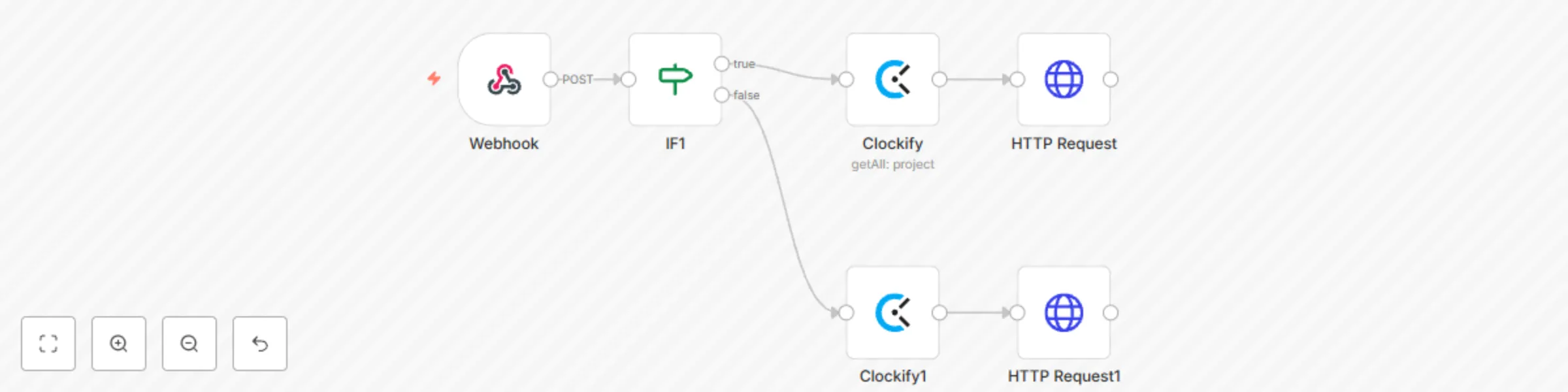
This workflow is part of an MSP collection, which is publicly available on [GitHub](https://github.com/bionemesis/n8nsyncro). This workflow archives or unarchives a Clockify projects, depending on a Syncro status. Note that Syncro should be setup with a webhook via 'Notification Set for Ticket - Status was changed'. It doesn't handle merging of tickets, as Syncro doesn't support a 'Notification Set' for merged tickets, so you should change a ticket to 'Resolved' first before merging it. ## Prerequisites - A Clockify account and [credentials](https://docs.n8n.io/integrations/credentials/clockify/) ## Nodes - [Webhook node](https://docs.n8n.io/integrations/core-nodes/n8n-nodes-base.webhook/) triggers the workflow. - [IF node](https://docs.n8n.io/integrations/core-nodes/n8n-nodes-base.if/) filters projects that don't have the status 'Resolved'. - [Clockify nodes](https://docs.n8n.io/integrations/nodes/n8n-nodes-base.clockify/) get all projects that (don't) have the status 'Resolved', based on the IF route. - [HTTP Request nodes](https://docs.n8n.io/integrations/core-nodes/n8n-nodes-base.httprequest/) unarchives unresolved projects, and archives resolved projects, respectively.
Triage alerts from Syncro and submit to OpsGenie
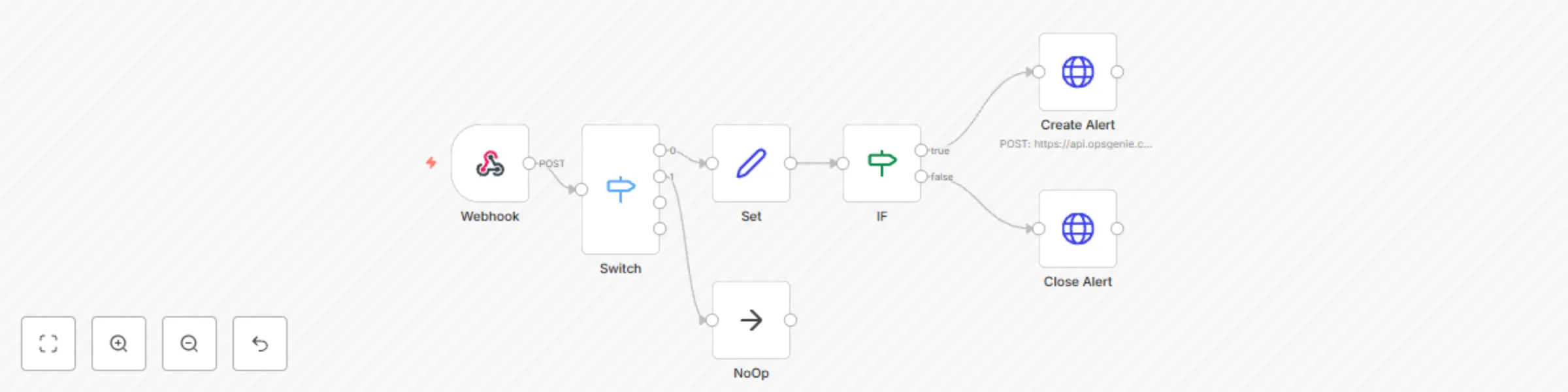
This workflow will take an alert from Syncro, determine if it's an agent_offline_trigger type, then determine if it's a new alert or a close to an existing alert, and then submit it to OpsGenie. New alerts will create a new alert in OpsGenie and resolved alerts will close the alert in OpsGenie. It doesn't require any kind of Google Sheets because OpsGenie allows you to submit a unique ID (known as an alias) along with the alert, which can be referenced later when closing the alert. The trigger type can be changed to suit your needs. You will need to create an API integration in OpsGenie. In Syncro, in addition to setting up the appropriate notification to webhook, you will also need a script that closes the agent_offline_trigger alert and an automated remediation to trigger that script when the asset goes offline (the script is queued and run when the asset comes back online). > This workflow is part of an MSP collection, The original can be found here: https://github.com/bionemesis/n8nsyncro
Push Dialpad call information to Syncro
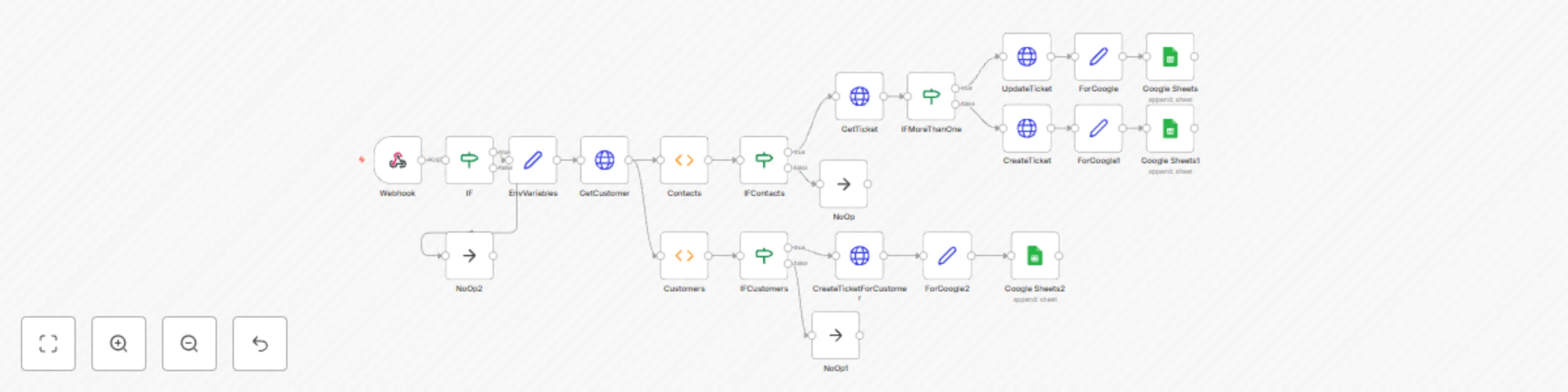
This workflow takes Dialpad call information for an answered call and pushes it into Syncro as either a ticket or an update to an existing ticket. You will need to have a workflow for each technician at this time. It also saves call/ticket information to a Google Sheet to be queried by the dialpad_to_syncro_timer.json workflow. This will match to inbound and outbound calls, so if that's not desired you need to add in an IF to only proceed on either inbound or outbound calls. > This workflow is part of an MSP collection, The original can be found here: https://github.com/bionemesis/n8nsyncro
Update specific post-call information on Syncro
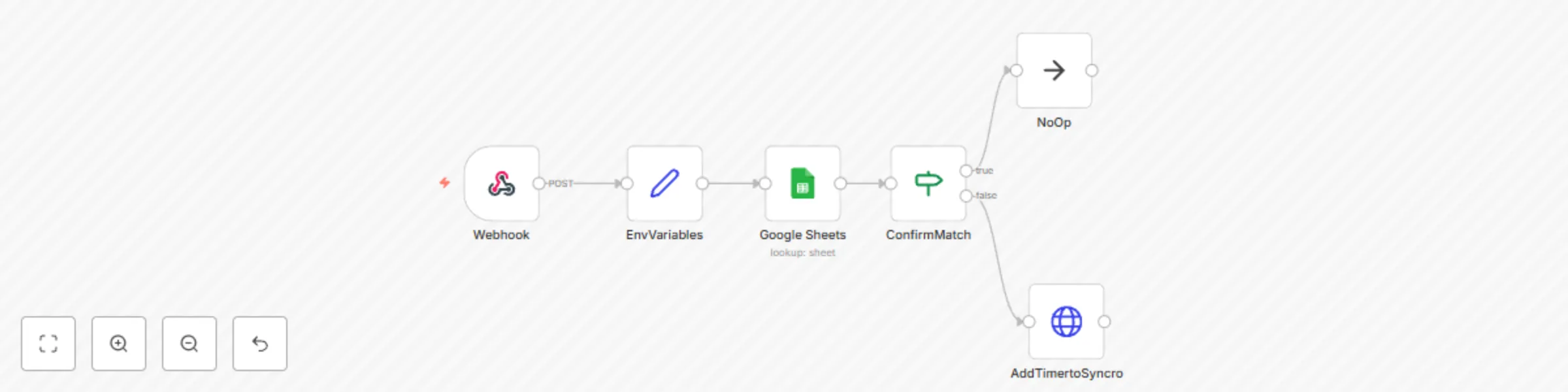
This workflow takes Dialpad call information after a call is disconnected and pushes it into Syncro as a ticket timer update, matching the start time and end time provided by Dialpad and a note that containing the contact or customer name and number. > This workflow is part of an MSP collection, The original can be found here: https://github.com/bionemesis/n8nsyncro
Sync timer entries from Clockify to Syncro
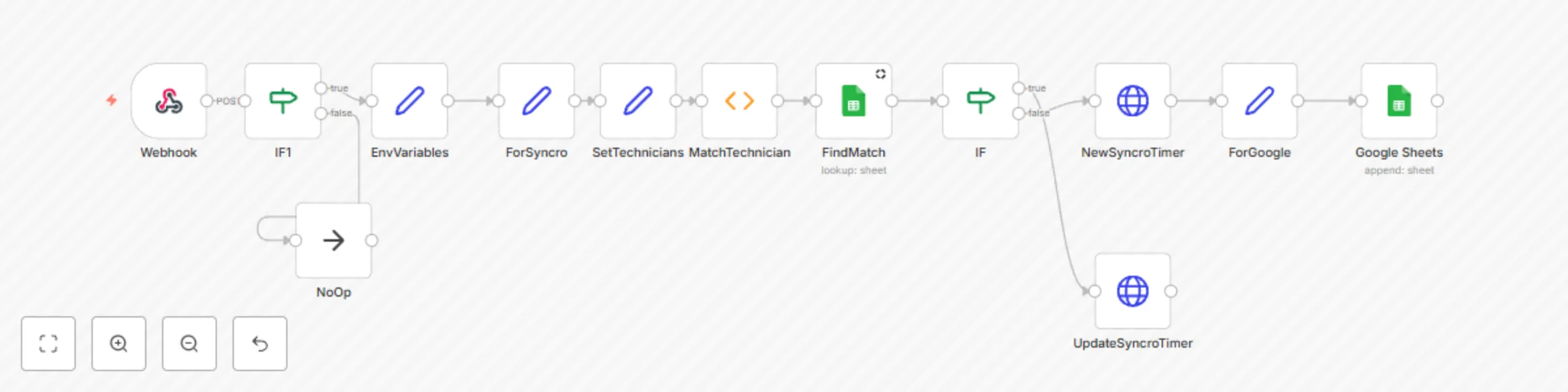
This workflow will take a timer entry from Clockify and submit it to a matching ticket in Syncro. It saves the time entry ID from Clockify and the time entry ID from Syncro into a Google Sheets. Then, it will check if a match already exists from a previous update and will update the same time entry if the description or time is changed in Clockify. There is a Set node with the name and Syncro IDs of technicians. If you have multiple technicians with the same name, this won't work for you. Likewise, if the name in Clockify doesn't exactly match what you put in the Set, it won't work. You also need to setup a webhook in Clockify set to trigger on "Time entry updated (anyone)" and pointed at your workflow. Configured this way, you can start and stop time entries at will and it won't do anything until you change the description. > This workflow is part of an MSP collection, The original can be found here: https://github.com/bionemesis/n8nsyncro
Creates a time tracking project from Syncro to Clockify
This workflow creates a project in Clockify that any user can track time against. Syncro should be setup with a webhook via Notification Set for Ticket - created (for anyone). > This workflow is part of an MSP collection, The original can be found here: https://github.com/bionemesis/n8nsyncro
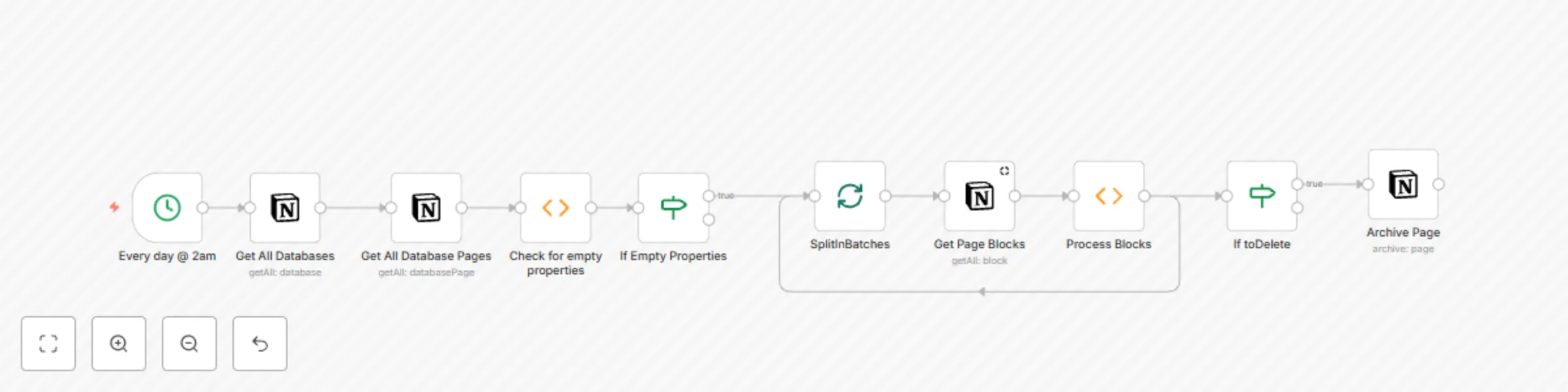
Archive empty pages in Notion database
This workflow will archive empty pages in your Notion databases, Add your n8n integration to the Notion databases that you want to process. To configure this workflow set the Notion credentials in the 4 Notion nodes and if needed change the time in the Cron node, The default is to run at 2am every day.
Standup bot (4/4): worker
This is the fourth workflow for the Mattermost Standup Bot. This workflow sends the team a message every morning to ask them three standup questions. 1. What have you accomplished since your last report? 2. What do you want to accomplish until your next report? 3. Is anything blocking your progress? Once answered, the answers are sent to a Mattermost channel. The "Read Config" nodes will need to be updated to point to the ID of the "Standup Bot - Read Config" workflow and the "Override Config" node will need to point to "Standup Bot - Override Config"
Standup bot (3/4): override config
This is the third bot for the Mattermost Standup Bot. This workflow will override or update the configuration file as needed. This workflow is called by the 'Standup Bot - Worker' workflow.
Standup bot (2/4): read config
This is the second workflow for the Mattermost Standup Bot. This workflow is called by the 'Standup Bot - Worker' workflow and will read and return the configuration options.
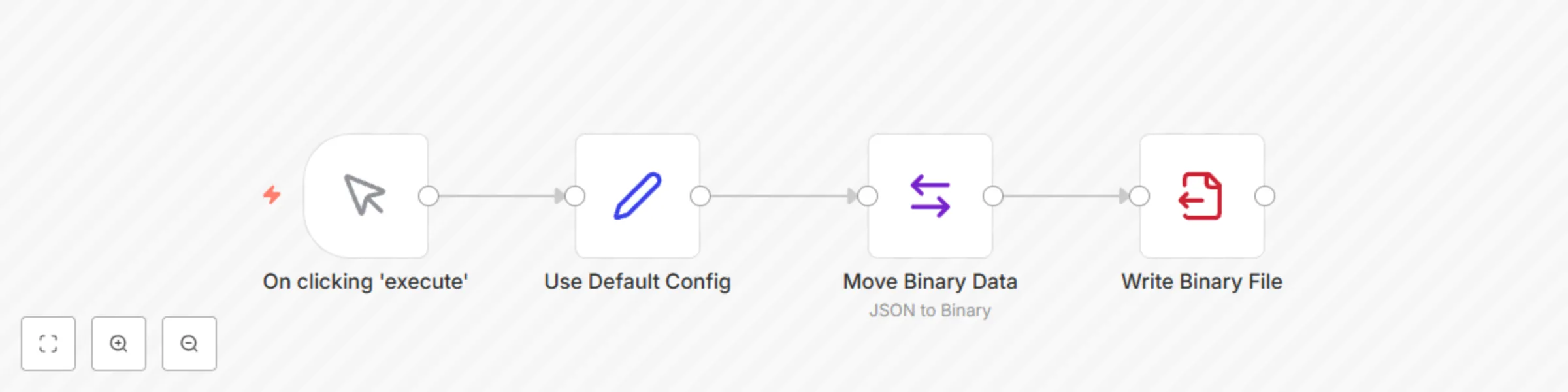
Standup bot (1/4): initialize
This is the first of 4 workflows for a Mattermost Standup Bot. This workflow will create a default configuration file. You can set the default configuration in the Set node (Use Default Config) the values are: **config.slashCmdToken** - The token Mattermost provides when you make a new Slash Command **config.mattermostBaseUrl** - The base URL for your Mattermost instance **config.botUserToken** - The User token for your Mattermost bot **config.n8nWebhookUrl** - The URL for your "Action from MM" webhook in the "Standup Bot - Worker" workflow **config.botUserId** - The UserID for your Mattermost Bot user The config file is saved under `/home/node/.n8n/standup-bot-config.json` This workflow only needs to be run once manually as part of the setup .
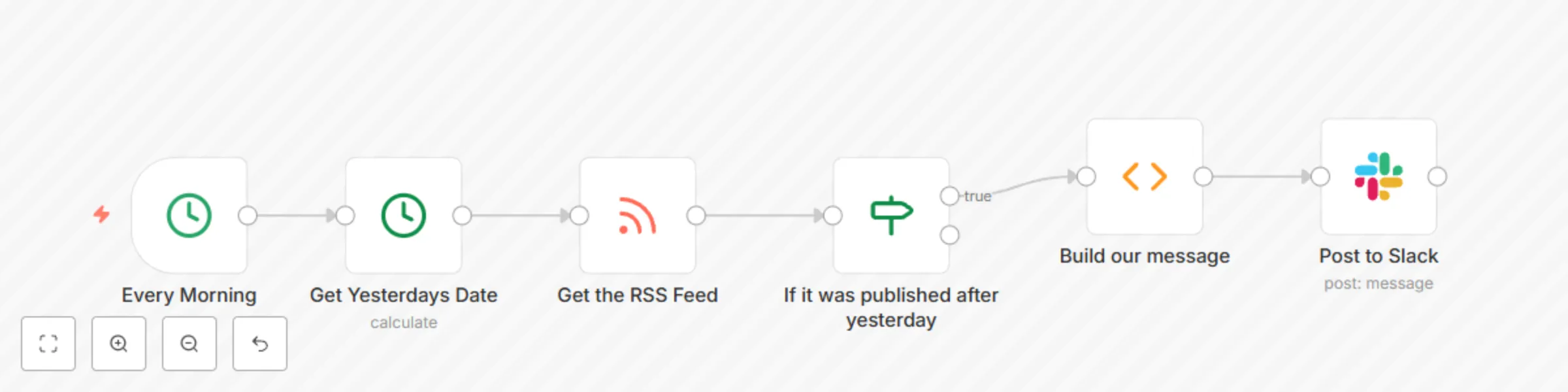
Post RSS feed items from yesterday to Slack
This workflow will collect the RSS feed data from the previous day and post them to a Slack channel. To use this workflow you will need to add your credentials to the Slack node and select the channel for notifications. You will also need to input the URL for the RSS feed.
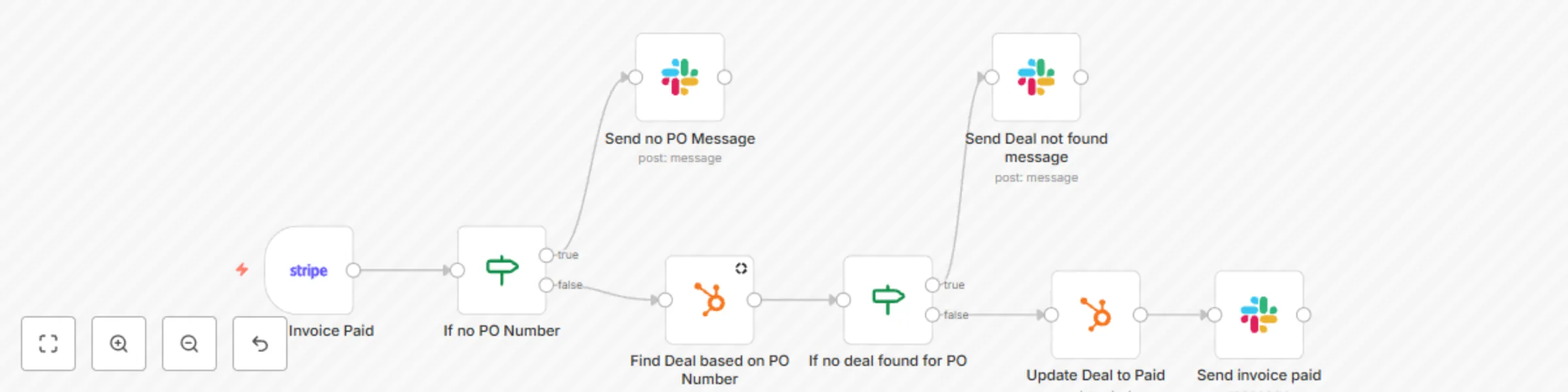
Update HubSpot when a new invoice is registered in Stripe
This workflow automatically posts a message in Slack when a new invoice is uploaded in Stripe, and it updates the fields in the HubSpot CRM. ## Prerequisites - A Slack account and [credentials](https://docs.n8n.io/integrations/credentials/slack/) - A HubSpot account and [credentials](https://docs.n8n.io/integrations/credentials/hubspot/) - A Stripe account and [credentials](https://docs.n8n.io/integrations/credentials/stripe/) ## Nodes - [Stripe Trigger node](https://docs.n8n.io/integrations/trigger-nodes/n8n-nodes-base.stripetrigger/) triggers the workflow when a new invoice is uploaded. - [IF nodes](https://docs.n8n.io/integrations/core-nodes/n8n-nodes-base.if/) filter the invoices that don't have a PO number and if there is no deal for the PO. - [HubSpot nodes](https://docs.n8n.io/integrations/nodes/n8n-nodes-base.hubspot/) retrieve deals with the specific PO number and update the deal status to 'paid'. - [Slack nodes](https://docs.n8n.io/integrations/nodes/n8n-nodes-base.slack/) post messages about the deals in a Slack channel.
Notify on new emails with invoices in Slack
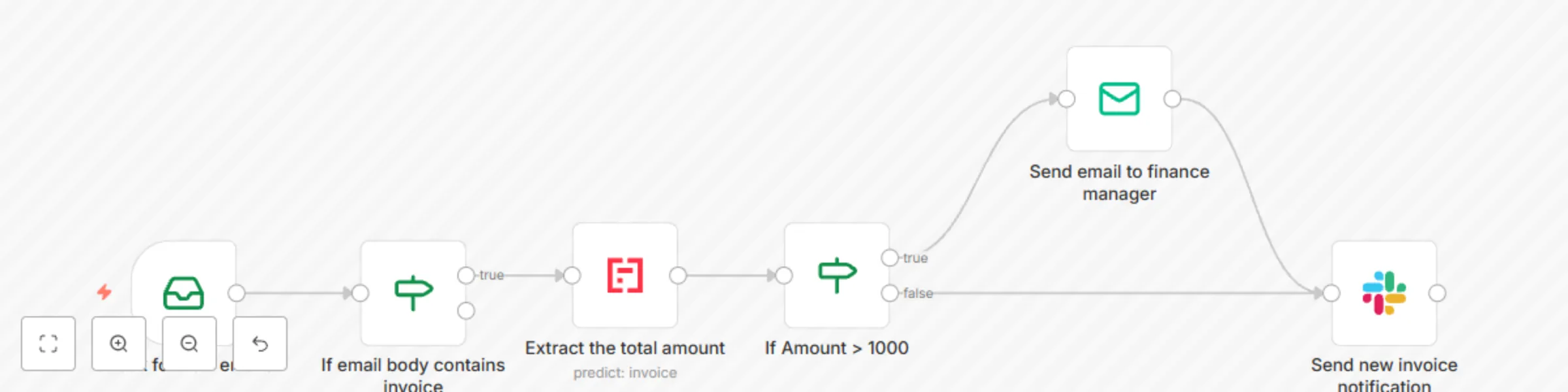
This workflow checks for new emails in a mailbox and if the email body contains the word "invoice" it will send the attachment to Mindee. It then posts a message to Slack to let the team know a payment needs to be made, If the value of the invoice is over 1000 it will also email the finance manager. To use this workflow you will need to configure the IMAP node to select the correct mailbox to use then configure the Mindee node to use your credentials. Once that is done the Send Email node will need to be configured to use the correct mail server and to send to the correct people, The last thing to configure is the Slack node this will need your Slack credentials and the channel you want to post the message to.
Extract expenses from emails and add to Google Sheets
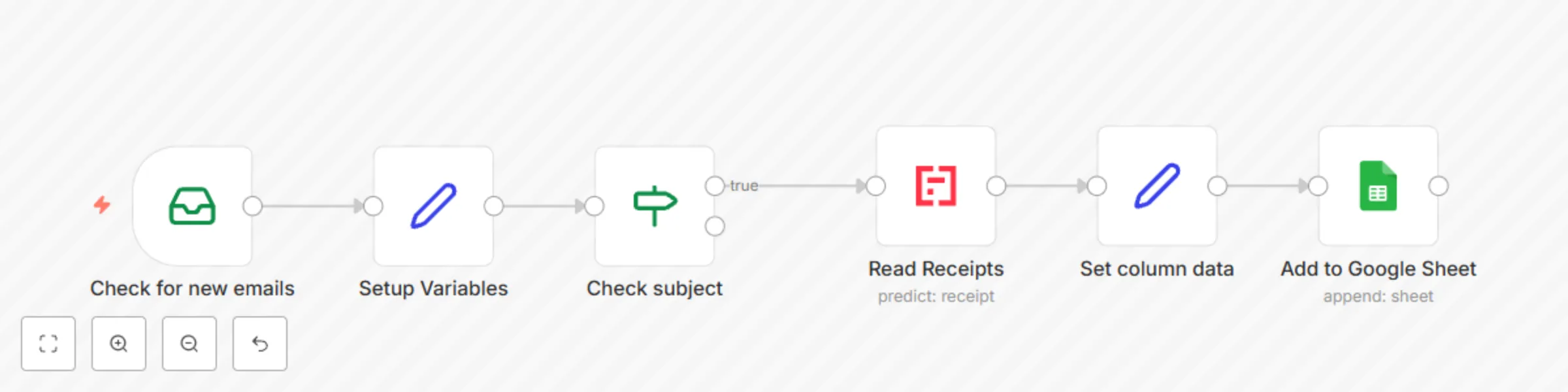
This workflow will check a mailbox for new emails and if the Subject contains Expenses or Reciept it will send the attachment to Mindee for processing then it will update a Google sheet with the values. To use this node you will need to set the Email Read node to use your mailboxes credentials and configure the Mindee and Google Sheets nodes to use your credentials.
Collect absences from Google Calendars
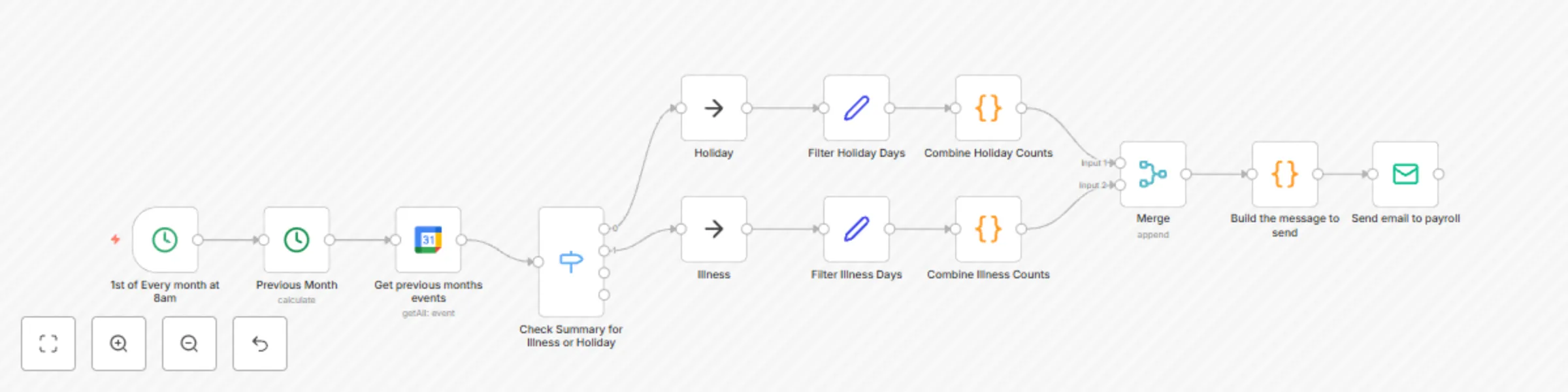
This workflow checks a Google Calendar at 8am on the first of each month to get anything that has been marked as a Holiday or Illness. It then merges the count for each person and sends an email with the list. To use this workflow you will need to set the credentials to use for the Google Calendar node and Send Email node. You will also need to select the calendar ID and fill out the information in the send email node. This workflow searches for Events that contain "Holiday" or "Illness" in the summary. If you want to change this you can modify it in the Switch node.