F

furuidoreandoro

3
Workflows

Workflows by furuidoreandoro
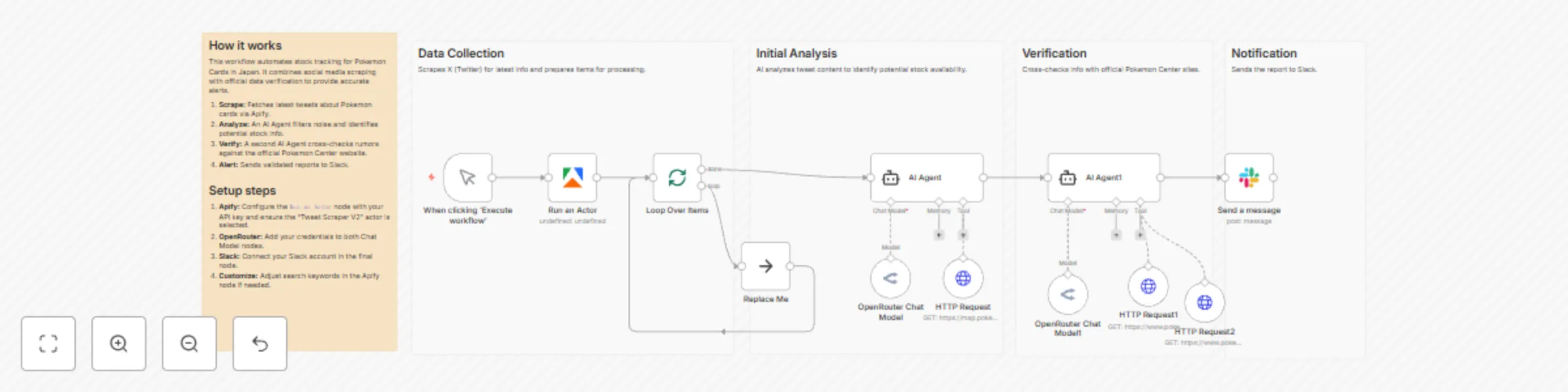
Workflow preview: Automate Pokemon card stock monitoring with Apify, AI, and Slack alerts
Free advanced

Automate Pokemon card stock monitoring with Apify, AI, and Slack alerts

# Pokemon Card Sales & Stock Monitor Workflow ## Who’s it for This workflow is designed for **Pokemon Card Game (Pokéca)** players, collectors, or resellers in Japan who want to automate the discovery of new card releases and restock information. It is particularly useful for those who want to filter through social media noise and cross-reference rumors with official inventory data. ## How it works / What it does 1. **Social Media Scraping:** The workflow triggers manually and uses **Apify** (specifically the "Tweet Scraper V2" actor) to search X (formerly Twitter) for Japanese keywords like "Pokemon Card" (ポケモンカード), "Sales Info", and "Pokeca". 2. **Data Processing:** It splits the scraped tweets into batches to process them individually. 3. **AI Analysis (Step 1 - Social Verification):** An **AI Agent** (powered by OpenRouter) analyzes the tweet text to determine if it contains valid sales or stock information. It utilizes an **HTTP Request Tool** to access the official Pokemon Card Map (`map.pokemon-card.com`) to identify mentioned retailers. 4. **AI Analysis (Step 2 - Official Stock Check):** A second **AI Agent** takes the filtered information and checks official sources. It uses **HTTP Request Tools** to browse the official Pokemon Card Product page and the Pokemon Center Online store to verify if products are actually purchasable. 5. **Notification:** Finally, the workflow compiles the findings into a "Sales Flash Report" and sends it to a specified **Slack** channel. ## How to set up 1. **Import the Workflow:** Copy the JSON code block below and paste it into your n8n editor. 2. **Configure Credentials:** * **Apify:** Create an account on Apify, subscribe to the "Tweet Scraper V2" actor, and add your API Token to the n8n credential store. * **OpenRouter:** Add your OpenRouter API key to power the LLM Chat Models. * **Slack:** Connect your Slack account using OAuth2 or a Bot Token. 3. **Configure Apify Node:** Ensure the `actorId` in the "Run an Actor" node matches the ID for the Tweet Scraper you intend to use. 4. **Set Slack Destination:** Open the "Send a message" node. You will need to select the **Channel** where you want the alerts to appear. ## Requirements * **n8n Version:** A recent version of n8n that supports the `@n8n/n8n-nodes-langchain` (AI Agent) nodes. * **Apify Account:** Paid or free tier with enough compute units to run the scraper. * **OpenRouter Account:** To provide the Language Model (LLM) intelligence. * **Slack Workspace:** To receive the notifications. ## How to customize the workflow * **Automate Execution:** Currently, the workflow uses a "Manual Trigger". Replace this with a **Schedule Trigger** node (e.g., set to run every 30 minutes) to make it a fully automated monitoring bot. * **Adjust Search Terms:** In the **Apify** node, modify the `searchTerms` array in the JSON input to look for specific sets (e.g., "Shiny Treasure", "151") or other trading card games. * **Change Notification Channel:** If you prefer Discord, Line, or Telegram, remove the Slack node and replace it with the corresponding messaging node. * **Modify AI Logic:** You can adjust the system prompt in the **AI Agent** nodes to change how strict the AI is about what counts as "stock available" versus just "news".

f
furuidoreandoro
Market Research
21 Nov 2025
49
0
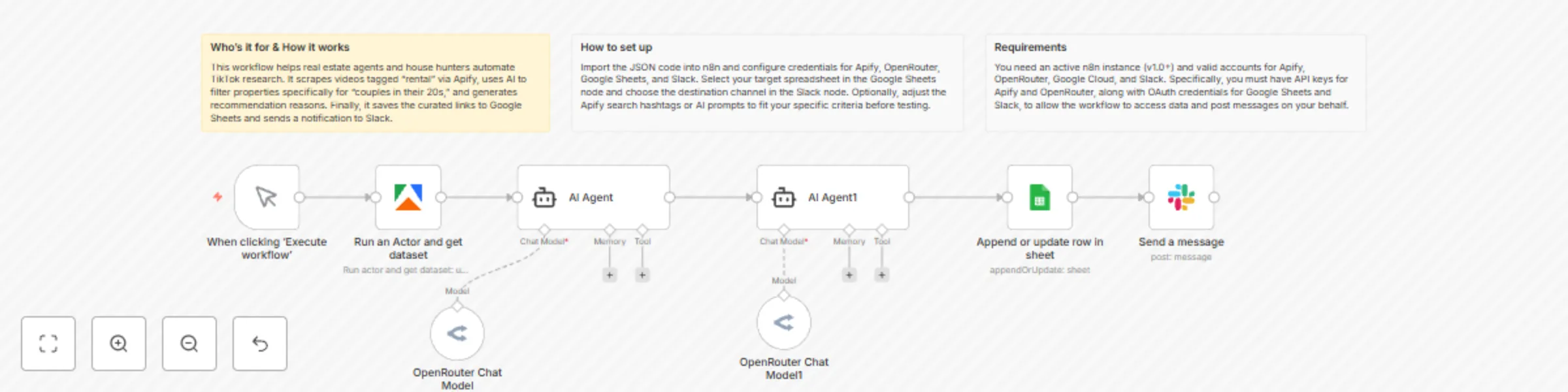
Workflow preview: Filter TikTok real estate videos for couples with AI, Apify and Google Sheets
Free intermediate

Filter TikTok real estate videos for couples with AI, Apify and Google Sheets

# Automated TikTok Real Estate Research for Couples This workflow automates the process of finding real estate (rental) videos on TikTok, filtering them for a specific target audience (couples in their 20s), generating an explanation of why they are recommended, and saving the results to Google Sheets and Slack. ## Who’s it for * **Real Estate Agents & Marketers:** To research trending rental properties and video styles popular on social media. * **Content Curators:** To automatically gather and summarize niche content from TikTok. * **House Hunters:** To automate the search for "rental" videos tailored to couples. ## How it works / What it does 1. **Trigger:** The workflow starts manually (on click). 2. **Scrape TikTok:** It connects to **Apify** to run a "TikTok Scraper". It searches for videos with the hashtag `賃貸` (Rental) and retrieves metadata. 3. **Filter & Extract (AI Agent 1):** An AI Agent (using **OpenRouter**) analyzes the retrieved video data to select properties suitable for "couples in their 20s" and outputs the video URL. 4. **Generate Insights (AI Agent 2):** A second AI Agent reviews the URL/content and generates a specific reason why this property is recommended for the target audience, formatting the output with the URL and explanation. 5. **Save to Database:** The final text (URL + Reason) is appended to a **Google Sheet**. 6. **Notify Team:** The same recommendation text is sent to a specific **Slack** channel to alert the user. ## Requirements * **n8n:** Version 1.0 or later. * **Apify Account:** You need an API token and access to the `clockworks/tiktok-scraper` actor. * **OpenRouter Account:** An API Key to use Large Language Models (LLMs) for the AI Agents. * **Google Cloud Platform:** A project with the Google Sheets API enabled and OAuth credentials. * **Slack Workspace:** Permission to add apps/bots to a channel. ## How to set up 1. **Import the Workflow:** Copy the JSON code and paste it into your n8n editor. 2. **Configure Credentials:** * **Apify:** Create a new credential in n8n using your Apify API Token. * **OpenRouter:** Create a new credential using your OpenRouter API Key. * **Google Sheets:** Connect your Google account via OAuth2. * **Slack:** Connect your Slack account via OAuth2. 3. **Configure Nodes:** * **Google Sheets Node:** Select your specific Spreadsheet and Sheet from the dropdown lists (replace the placeholders `YOUR_SPREADSHEET_ID` etc. if they don't update automatically). * **Slack Node:** Select the Channel where you want to receive notifications (replace `YOUR_CHANNEL_ID`). 4. **Test:** Click "Execute Workflow" to run a test. ## How to customize the workflow * **Change the Search Topic:** Open the **Apify** node and change the `hashtags` value in the "Custom Body" JSON (e.g., change `"賃貸"` to `"DIY"` or `"Travel"`). * **Adjust the Persona:** Open the **AI Agent** nodes and modify the `text` prompt. You can change the target audience from "20s couples" to "students" or "families." * **Increase Volume:** In the **Apify** node, increase the `resultsPerPage` or `maxProfilesPerQuery` to process more videos at once (note: this will consume more API credits). * **Change Output Format:** Modify the **Google Sheets** node to map specific fields (like Video Title, Author, Likes) into separate columns instead of just one raw output string.

f
furuidoreandoro
Market Research
21 Nov 2025
93
0
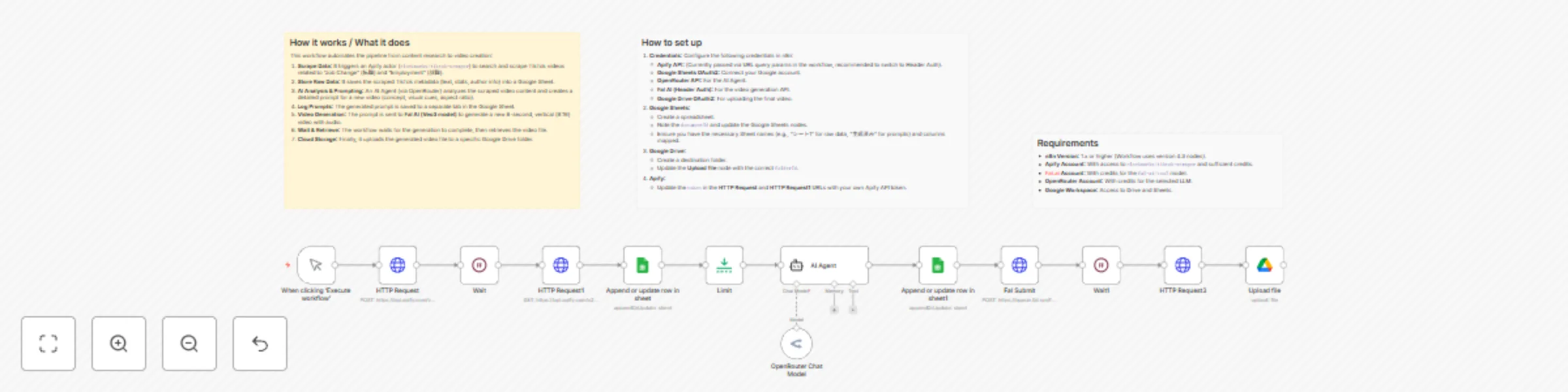
Workflow preview: Scrape TikTok trends & generate AI videos with Apify, Fal AI & Google Suite
Free advanced

Scrape TikTok trends & generate AI videos with Apify, Fal AI & Google Suite

# Automated TikTok Repurposing & Video Generation Workflow ## Who’s it for This workflow is designed for **content creators, social media managers, and marketers**—specifically those in the **career, recruitment, or "job change" (転職/就職)** niches. It is ideal for anyone looking to automate the process of finding trending short-form content concepts and converting them into fresh AI-generated videos. ## How it works / What it does This workflow automates the pipeline from content research to video creation: 1. **Scrape Data:** It triggers an Apify actor (`clockworks/tiktok-scraper`) to search and scrape TikTok videos related to "Job Change" (転職) and "Employment" (就職). 2. **Store Raw Data:** It saves the scraped TikTok metadata (text, stats, author info) into a Google Sheet. 3. **AI Analysis & Prompting:** An AI Agent (via OpenRouter) analyzes the scraped video content and creates a detailed prompt for a new video (concept, visual cues, aspect ratio). 4. **Log Prompts:** The generated prompt is saved to a separate tab in the Google Sheet. 5. **Video Generation:** The prompt is sent to **Fal AI (Veo3 model)** to generate a new 8-second, vertical (9:16) video with audio. 6. **Wait & Retrieve:** The workflow waits for the generation to complete, then retrieves the video file. 7. **Cloud Storage:** Finally, it uploads the generated video file to a specific Google Drive folder. ## How to set up 1. **Credentials:** Configure the following credentials in n8n: * **Apify API:** (Currently passed via URL query params in the workflow, recommended to switch to Header Auth). * **Google Sheets OAuth2:** Connect your Google account. * **OpenRouter API:** For the AI Agent. * **Fal AI (Header Auth):** For the video generation API. * **Google Drive OAuth2:** For uploading the final video. 2. **Google Sheets:** * Create a spreadsheet. * Note the `documentId` and update the Google Sheets nodes. * Ensure you have the necessary Sheet names (e.g., "シート1" for raw data, "生成済み" for prompts) and columns mapped. 3. **Google Drive:** * Create a destination folder. * Update the **Upload file** node with the correct `folderId`. 4. **Apify:** * Update the `token` in the **HTTP Request** and **HTTP Request1** URLs with your own Apify API token. ## Requirements * **n8n Version:** 1.x or higher (Workflow uses version 4.3 nodes). * **Apify Account:** With access to `clockworks/tiktok-scraper` and sufficient credits. * **Fal.ai Account:** With credits for the `fal-ai/veo3` model. * **OpenRouter Account:** With credits for the selected LLM. * **Google Workspace:** Access to Drive and Sheets. ## How to customize the workflow * **Change the Niche:** Update the `searchQueries` JSON body in the first **HTTP Request** node (e.g., change "転職" to "Cooking" or "Fitness"). * **Adjust AI Logic:** Modify the **AI Agent** system prompt to change the style, tone, or structure of the video prompts it generates. * **Video Settings:** In the **Fal Submit** node, adjust `bodyParameters` to change the duration (e.g., `5s`), aspect ratio (e.g., `16:9`), or disable audio. * **Scale:** Increase the `amount` in the **Limit** node to process more than one video per execution.

f
furuidoreandoro
Content Creation
19 Nov 2025
522
0