explorium
Workflows by explorium

Automate sales meeting prep with Claude AI & Explorium Intelligence
# Research Agent - Automated Sales Meeting Intelligence This n8n workflow automatically prepares comprehensive sales research briefs every morning for your upcoming meetings by analyzing both the companies you're meeting with and the individual attendees. The workflow connects to your calendar, identifies external meetings, enriches companies and contacts with deep intelligence from Explorium, and delivers personalized research reports—giving your sales team everything they need for informed, confident conversations. ## DEMO [Template Demo](https://youtu.be/f48VlsuK7SQ) ## Credentials Required To use this workflow, set up the following credentials in your n8n environment: ### Google Calendar (or Outlook) - **Type:** OAuth2 - **Used for:** Reading daily meeting schedules and identifying external attendees - Alternative: Microsoft Outlook Calendar - Get credentials at [Google Cloud Console](https://console.cloud.google.com/) ### Explorium API - **Type:** Generic Header Auth - **Header:** `Authorization` - **Value:** `Bearer YOUR_API_KEY` - **Used for:** Business/prospect matching, firmographic enrichment, professional profiles, LinkedIn posts, website changes, competitive intelligence - Get your API key at [Explorium Dashboard](https://app.explorium.ai/) ### Explorium MCP - **Type:** HTTP Header Auth - **Used for:** Real-time company intelligence and supplemental research for AI agents - Connect to: `https://mcp.explorium.ai/mcp` ### Anthropic API - **Type:** API Key - **Used for:** AI-powered company and attendee research analysis - Get your API key at [Anthropic Console](https://console.anthropic.com/) ### Slack (or preferred output) - **Type:** OAuth2 - **Used for:** Delivering research briefs - Alternative options: Google Docs, Email, Microsoft Teams, CRM updates Go to **Settings → Credentials**, create these credentials, and assign them in the respective nodes before running the workflow. --- ## Workflow Overview ### Node 1: Schedule Trigger Automatically runs the workflow on a recurring schedule. - **Type:** Schedule Trigger - **Default:** Every morning before business hours - **Customizable:** Set to any interval (hourly, daily, weekly) or specific times **Alternative Trigger Options:** - **Manual Trigger:** On-demand execution - **Webhook:** Triggered by calendar events or CRM updates ### Node 2: Get many events Retrieves meetings from your connected calendar. - **Calendar Source:** Google Calendar (or Outlook) - **Authentication:** OAuth2 - **Time Range:** Current day + 18 hours (configurable via `timeMax`) - **Returns:** All calendar events with attendee information, meeting titles, times, and descriptions ### Node 3: Filter for External Meetings Identifies meetings with external participants and filters out internal-only meetings. **Filtering Logic:** - Extracts attendee email domains - Excludes your company domain (e.g., 'explorium.ai') - Excludes calendar system addresses (e.g., 'resource.calendar.google.com') - Only passes events with at least one external attendee **Important Setup Note:** Replace `'explorium.ai'` in the code node with your company domain to properly filter internal meetings. **Output:** - Events with external participants only - `external_attendees`: Array of external contact emails - `company_domains`: Unique list of external company domains per meeting - `external_attendee_count`: Number of external participants --- ## Company Research Pipeline ### Node 4: Loop Over Items Iterates through each meeting with external attendees for company research. ### Node 5: Extract External Company Domains Creates a deduplicated list of all external company domains from the current meeting. ### Node 6: Explorium API: Match Business Matches company domains to Explorium's business entity database. - **Method:** POST - **Endpoint:** `/v1/businesses/match` - **Authentication:** Header Auth (Bearer token) **Returns:** - `business_id`: Unique Explorium identifier - `matched_businesses`: Array of matches with confidence scores - Company name and basic info ### Node 7: If Validates that a business match was found before proceeding to enrichment. - **Condition:** `business_id` is not empty - **If True:** Proceed to parallel enrichment nodes - **If False:** Skip to next company in loop ### Nodes 8-9: Parallel Company Enrichment **Node 8: Explorium API: Business Enrich** - **Endpoints:** `/v1/businesses/firmographics/enrich`, `/v1/businesses/technographics/enrich` - **Enrichment Types:** firmographics, technographics - **Returns:** Company name, description, website, industry, employees, revenue, headquarters location, ticker symbol, LinkedIn profile, logo, full tech stack, nested tech stack by category, BI & analytics tools, sales tools, marketing tools **Node 9: Explorium API: Fetch Business Events** - **Endpoint:** `/v1/businesses/events/fetch` - **Event Types:** New funding rounds, new investments, mergers & acquisitions, new products, new partnerships - **Date Range:** September 1, 2025 - November 4, 2025 - **Returns:** Recent business milestones and financial events ### Node 10: Merge Combines enrichment responses and events data into a single data object. ### Node 11: Cleans Merge Data Output Transforms merged enrichment data into a structured format for AI analysis. ### Node 12: Company Research Agent AI agent (Claude Sonnet 4) that analyzes company data to generate actionable sales intelligence. **Input:** Structured company profile with all enrichment data **Analysis Focus:** - Company overview and business context - Recent website changes and strategic shifts - Tech stack and product focus areas - Potential pain points and challenges - How Explorium's capabilities align with their needs - Timely conversation starters based on recent activity **Connected to Explorium MCP:** Can pull additional real-time intelligence if needed to create more detailed analysis ### Node 13: Create Company Research Output Formats the AI analysis into a readable, shareable research brief. --- ## Attendee Research Pipeline ### Node 14: Create List of All External Attendees Compiles all unique external attendee emails across all meetings. ### Node 15: Loop Over Items2 Iterates through each external attendee for individual enrichment. ### Node 16: Extract External Company Domains1 Extracts the company domain from each attendee's email. ### Node 17: Explorium API: Match Business1 Matches the attendee's company domain to get business_id for prospect matching. - **Method:** POST - **Endpoint:** `/v1/businesses/match` - **Purpose:** Link attendee to their company ### Node 18: Explorium API: Match Prospect Matches attendee email to Explorium's professional profile database. - **Method:** POST - **Endpoint:** `/v1/prospects/match` - **Authentication:** Header Auth (Bearer token) **Returns:** - `prospect_id`: Unique professional profile identifier ### Node 19: If1 Validates that a prospect match was found. - **Condition:** `prospect_id` is not empty - **If True:** Proceed to prospect enrichment - **If False:** Skip to next attendee ### Node 20: Explorium API: Prospect Enrich Enriches matched prospect using multiple Explorium endpoints. - **Enrichment Types:** contacts, profiles, linkedin_posts - **Endpoints:** `/v1/prospects/contacts/enrich`, `/v1/prospects/profiles/enrich`, `/v1/prospects/linkedin_posts/enrich` **Returns:** - **Contacts:** Professional email, email status, all emails, mobile phone, all phone numbers - **Profiles:** Full professional history, current role, skills, education, company information, experience timeline, job titles and seniority - **LinkedIn Posts:** Recent LinkedIn activity, post content, engagement metrics, professional interests and thought leadership ### Node 21: Cleans Enrichment Outputs Structures prospect data for AI analysis. ### Node 22: Attendee Research Agent AI agent (Claude Sonnet 4) that analyzes prospect data to generate personalized conversation intelligence. **Input:** Structured professional profile with activity data **Analysis Focus:** - Career background and progression - Current role and responsibilities - Recent LinkedIn activity themes and interests - Potential pain points in their role - Relevant Explorium capabilities for their needs - Personal connection points (education, interests, previous companies) - Opening conversation starters **Connected to Explorium MCP:** Can gather additional company or market context if needed ### Node 23: Create Attendee Research Output Formats attendee analysis into a readable brief with clear sections. ### Node 24: Merge2 Combines company research output with attendee information for final assembly. ### Node 25: Loop Over Items1 Manages the final loop that combines company and attendee research for output. ### Node 26: Send a message (Slack) Delivers combined research briefs to specified Slack channel or user. **Alternative Output Options:** - **Google Docs:** Create formatted document per meeting - **Email:** Send to meeting organizer or sales rep - **Microsoft Teams:** Post to channels or DMs - **CRM:** Update opportunity/account records with research - **PDF:** Generate downloadable research reports --- ## Workflow Flow Summary 1. **Schedule:** Workflow runs automatically every morning 2. **Fetch Calendar:** Pull today's meetings from Google Calendar/Outlook 3. **Filter:** Identify meetings with external attendees only 4. **Extract Companies:** Get unique company domains from external attendees 5. **Extract Attendees:** Compile list of all external contacts **Company Research Path:** 6. **Match Companies:** Identify businesses in Explorium database 7. **Enrich (Parallel):** Pull firmographics, website changes, competitive landscape, events, and challenges 8. **Merge & Clean:** Combine and structure company data 9. **AI Analysis:** Generate company research brief with insights and talking points 10. **Format:** Create readable company research output **Attendee Research Path:** 11. **Match Prospects:** Link attendees to professional profiles 12. **Enrich (Parallel):** Pull profiles, job changes, and LinkedIn activity 13. **Merge & Clean:** Combine and structure prospect data 14. **AI Analysis:** Generate attendee research with background and approach 15. **Format:** Create readable attendee research output **Delivery:** 16. **Combine:** Merge company and attendee research for each meeting 17. **Send:** Deliver complete research briefs to Slack/preferred platform This workflow eliminates manual pre-meeting research by automatically preparing comprehensive intelligence on both companies and individuals—giving sales teams the context and confidence they need for every conversation. --- ## Customization Options ### Calendar Integration Works with multiple calendar platforms: - **Google Calendar:** Full OAuth2 integration - **Microsoft Outlook:** Calendar API support - **CalDAV:** Generic calendar protocol support ### Trigger Flexibility Adjust when research runs: - **Morning Routine:** Default daily at 7 AM - **On-Demand:** Manual trigger for specific meetings - **Continuous:** Hourly checks for new meetings ### Enrichment Depth Add or remove enrichment endpoints: - **Company:** Technographics, funding history, news mentions, hiring signals - **Prospects:** Contact information, social profiles, company changes - **Customizable:** Select only needed data to optimize speed and costs ### Research Scope Configure what gets researched: - **All External Meetings:** Default behavior - **Filtered by Keywords:** Only meetings with specific titles - **By Attendee Count:** Only meetings with X+ external attendees - **By Calendar:** Specific calendars only ### Output Destinations Deliver research to your preferred platform: - **Messaging:** Slack, Microsoft Teams, Discord - **Documents:** Google Docs, Notion, Confluence - **Email:** Gmail, Outlook, custom SMTP - **CRM:** Salesforce, HubSpot (update account notes) - **Project Management:** Asana, Monday.com, ClickUp ### AI Model Options Swap AI providers based on needs: - Default: Anthropic Claude (Sonnet 4) - Alternatives: OpenAI GPT-4, Google Gemini --- ## Setup Notes 1. **Domain Configuration:** Replace `'explorium.ai'` in the Filter for External Meetings code node with your company domain 2. **Calendar Connection:** Ensure OAuth2 credentials have calendar read permissions 3. **Explorium Credentials:** Both API key and MCP credentials must be configured 4. **Output Timing:** Schedule trigger should run with enough lead time before first meetings 5. **Rate Limits:** Adjust loop batch sizes if hitting API rate limits during enrichment 6. **Slack Configuration:** Select destination channel or user for research delivery 7. **Data Privacy:** Research is based on publicly available professional information and company data This workflow acts as your automated sales researcher, preparing detailed intelligence reports every morning so your team walks into every meeting informed, prepared, and ready to have meaningful conversations that drive business forward.
Generate personalized sales leads with Claude AI & Explorium for Gmail outreach
# Outbound Agent - AI-Powered Lead Generation with Natural Language Prospecting This n8n workflow transforms natural language queries into targeted B2B prospecting campaigns by combining Explorium's data intelligence with AI-powered research and personalized email generation. Simply describe your ideal customer profile in plain English, and the workflow automatically finds prospects, enriches their data, researches them, and creates personalized email drafts. ## DEMO [Template Demo](https://youtu.be/7CddMDY8QUM) ## Credentials Required To use this workflow, set up the following credentials in your n8n environment: ### Anthropic API - **Type:** API Key - **Used for:** AI Agent query interpretation, email research, and email writing - Get your API key at [Anthropic Console](https://console.anthropic.com/) ### Explorium API - **Type:** Generic Header Auth - **Header:** `Authorization` - **Value:** `Bearer YOUR_API_KEY` - **Used for:** Prospect matching, contact enrichment, professional profiles, and MCP research - Get your API key at [Explorium Dashboard](https://app.explorium.ai/) ### Explorium MCP - **Type:** HTTP Header Auth - **Used for:** Real-time company and prospect intelligence research - Connect to: `https://mcp.explorium.ai/mcp` ### Gmail - **Type:** OAuth2 - **Used for:** Creating email drafts - Alternative options: Outlook, Mailchimp, SendGrid, Lemlist Go to **Settings → Credentials**, create these credentials, and assign them in the respective nodes before running the workflow. --- ## Workflow Overview ### Node 1: When chat message received This node creates an interactive chat interface where users can describe their prospecting criteria in natural language. - **Type:** Chat Trigger - **Purpose:** Accept natural language queries like "Get 5 marketing leaders at fintech startups who joined in the past year and have valid contact information" - **Example Prompts:** - "Find SaaS executives in New York with 50-200 employees" - "Get marketing directors at healthcare companies" - "Show me VPs at fintech startups with recent funding" ### Node 2: Chat or Refinement This code node manages the conversation flow, handling both initial user queries and validation error feedback. - **Function:** Routes either the original chat input or validation error messages to the AI Agent - **Dynamic Input:** Combines `chatInput` and `errorInput` fields - **Purpose:** Creates a feedback loop for validation error correction ### Node 3: AI Agent The core intelligence node that interprets natural language and generates structured API calls. **Functionality:** - Interprets user intent from natural language queries - Maps concepts to Explorium API filters (job levels, departments, company size, revenue, location, etc.) - Generates valid JSON requests with precise filter criteria - Handles off-topic queries with helpful guidance - Connected to MCP Client for real-time filter specifications **AI Components:** - **Anthropic Chat Model:** Claude Sonnet 4 for query interpretation - **Simple Memory:** Maintains conversation context (100 message window) - **Output Parser:** Structured JSON output with schema validation - **MCP Client:** Connected to `https://mcp.explorium.ai/mcp` for Explorium specifications **System Instructions:** - Expert in converting natural language to Explorium API filters - Can revise previous responses based on validation errors - Strict adherence to allowed filter values and formats - Default settings: `mode: "full"`, `size: 10000`, `page_size: 100`, `has_email: true` ### Node 4: API Call Validation This code node validates the AI-generated API request against Explorium's filter specifications. **Validation Checks:** - Filter key validity (only allowed filters from approved list) - Value format correctness (enums, ranges, country codes) - No duplicate values in arrays - Proper range structure for experience fields (`total_experience_months`, `current_role_months`) - Required field presence **Allowed Filters:** - `country_code`, `region_country_code`, `company_country_code`, `company_region_country_code` - `company_size`, `company_revenue`, `company_age`, `number_of_locations` - `google_category`, `naics_category`, `linkedin_category`, `company_name` - `city_region_country`, `website_keywords` - `has_email`, `has_phone_number` - `job_level`, `job_department`, `job_title` - `business_id`, `total_experience_months`, `current_role_months` **Output:** - `isValid`: Boolean validation status - `validationErrors`: Array of specific error messages ### Node 5: Is API Call Valid? Conditional routing node that determines the next step based on validation results. - **If Valid:** Proceed to Explorium API: Fetch Prospects - **If Invalid:** Route to Validation Prompter for correction ### Node 6: Validation Prompter Generates detailed error feedback for the AI Agent when validation fails. This creates a self-correcting loop where the AI learns from validation errors and regenerates compliant requests by routing back to Node 2 (Chat or Refinement). ### Node 7: Explorium API: Fetch Prospects Makes the validated API call to Explorium's prospect database. - **Method:** POST - **Endpoint:** `/v1/prospects/fetch` - **Authentication:** Header Auth (Bearer token) - **Input:** JSON with filters, mode, size, page_size, page - **Returns:** Array of matched prospects with prospect IDs based on filter criteria ### Node 8: Pull Prospect IDs Extracts prospect IDs from the fetch response for bulk enrichment. - **Input:** Full fetch response with prospect data - **Output:** Array of `prospect_id` values formatted for enrichment API ### Node 9: Explorium API: Contact Enrichment Single enrichment node that enhances prospect data with both contact and profile information. - **Method:** POST - **Endpoint:** `/v1/prospects/enrich` - **Enrichment Types:** contacts, profiles - **Authentication:** Header Auth (Bearer token) - **Input:** Array of prospect IDs from Node 8 **Returns:** - **Contacts:** Professional emails (current, verified), phone numbers (mobile, work), email validation status, all available email addresses - **Profiles:** Full professional history, current role details, company information, skills and expertise, education background, experience timeline, job titles and seniority levels ### Node 10: Clean Output Data Transforms and structures the enriched data for downstream processing. ### Node 11: Loop Over Items Iterates through each prospect to generate individualized research and emails. - **Batch Size:** 1 (processes prospects one at a time) - **Purpose:** Enable personalized research and email generation for each prospect - **Loop Control:** Processes until all prospects are complete ### Node 12: Research Email AI-powered research agent that investigates each prospect using Explorium MCP. **Input Data:** - Prospect name, job title, company name, company website - LinkedIn URL, job department, skills **Research Focus:** - Company automation tool usage (n8n, Zapier, Make, HubSpot, Salesforce) - Data enrichment practices - Tech stack and infrastructure (Snowflake, Segment, etc.) - Recent company activity and initiatives - Pain points related to B2B data (outdated CRM data, manual enrichment, static workflows) - Public content (speaking engagements, blog posts, thought leadership) **AI Components:** - **Anthropic Chat Model1:** Claude Sonnet 4 for research - **Simple Memory1:** Maintains research context - **Explorium MCP1:** Connected to `https://mcp.explorium.ai/mcp` for real-time intelligence **Output:** Structured JSON with research findings including automation tools, pain points, personalization notes ### Node 13: Email Writer Generates personalized cold email drafts based on research findings. **Input Data:** - Contact info from Loop Over Items - Current experience and skills - Research findings from Research Email agent - Company data (name, website) **AI Components:** - **Anthropic Chat Model3:** Claude Sonnet 4 for email writing - **Structured Output Parser:** Enforces JSON schema with email, subject, message fields **Output Schema:** - `email`: Selected prospect email address (professional preferred) - `subject`: Compelling, personalized subject line - `message`: HTML formatted email body ### Node 14: Create a draft (Gmail) Creates email drafts in Gmail for review before sending. - **Resource:** Draft - **Subject:** From Email Writer output - **Message:** HTML formatted email body - **Send To:** Selected prospect email address - **Authentication:** Gmail OAuth2 **After Creation:** Loops back to Node 11 (Loop Over Items) to process next prospect **Alternative Output Options:** - **Outlook:** Create drafts in Microsoft Outlook - **Mailchimp:** Add to email campaign - **SendGrid:** Queue for sending - **Lemlist:** Add to cold email sequence --- ## Workflow Flow Summary 1. **Input:** User describes target prospects in natural language via chat interface 2. **Interpret:** AI Agent converts query to structured Explorium API filters using MCP 3. **Validate:** API call validation ensures filter compliance 4. **Refine:** If invalid, error feedback loop helps AI correct the request 5. **Fetch:** Retrieve matching prospect IDs from Explorium database 6. **Enrich:** Parallel bulk enrichment of contact details and professional profiles 7. **Clean:** Transform and structure enriched data 8. **Loop:** Process each prospect individually 9. **Research:** AI agent uses Explorium MCP to gather company and prospect intelligence 10. **Write:** Generate personalized email based on research 11. **Draft:** Create reviewable email drafts in preferred platform This workflow eliminates manual prospecting work by combining natural language processing, intelligent data enrichment, automated research, and personalized email generation—taking you from "I need marketing leaders at fintech companies" to personalized, research-backed email drafts in minutes. --- ## Customization Options ### Flexible Triggers The chat interface can be replaced with: - Scheduled runs for recurring prospecting - Webhook triggers from CRM updates - Manual execution for ad-hoc campaigns ### Scalable Enrichment Adjust enrichment depth by: - Adding more Explorium API endpoints (technographics, funding, news) - Configuring prospect batch sizes - Customizing data cleaning logic ### Output Destinations Route emails to your preferred platform: - **Email Platforms:** Gmail, Outlook, SendGrid, Mailchimp - **Sales Tools:** Lemlist, Outreach, SalesLoft - **CRM Integration:** Salesforce, HubSpot (create leads with research) - **Collaboration:** Slack notifications, Google Docs reports ### AI Model Flexibility Swap AI providers based on your needs: - Default: Anthropic Claude (Sonnet 4) - Alternatives: OpenAI GPT-4, Google Gemini --- ## Setup Notes 1. **Domain Filtering:** The workflow prioritizes professional emails—customize email selection logic in the Clean Output Data node 2. **MCP Configuration:** Explorium MCP requires Header Auth setup—ensure credentials are properly configured 3. **Rate Limits:** Adjust Loop Over Items batch size if hitting API rate limits 4. **Memory Context:** Simple Memory maintains conversation history—increase window length for longer sessions 5. **Validation:** The AI self-corrects through validation loops—monitor early runs to ensure filter accuracy This workflow represents a complete AI-powered sales development representative (SDR) that handles prospecting, research, and personalized outreach with minimal human intervention.
Qualify leads with Salesforce, Explorium data & Claude AI analysis of API usage
# Inbound Agent - AI-Powered Lead Qualification with Product Usage Intelligence This n8n workflow automatically qualifies and scores inbound leads by combining their product usage patterns with deep company intelligence. The workflow pulls new leads from your CRM, analyzes which API endpoints they've been testing, enriches them with firmographic data, and generates comprehensive qualification reports with personalized talking points—giving your sales team everything they need to prioritize and convert high-quality leads. ## DEMO [Template Demo](https://youtu.be/Mf2qQdI1KqY) ## Credentials Required To use this workflow, set up the following credentials in your n8n environment: ### Salesforce - **Type:** OAuth2 or Username/Password - **Used for:** Pulling lead reports and creating follow-up tasks - Alternative CRM options: HubSpot, Zoho, Pipedrive - Get credentials at [Salesforce Setup](https://login.salesforce.com/) ### Databricks (or Analytics Platform) - **Type:** HTTP Request with Bearer Token - **Header:** `Authorization` - **Value:** `Bearer YOUR_DATABRICKS_TOKEN` - **Used for:** Querying product usage and API endpoint data - Alternative options: Datadog, Mixpanel, Amplitude, custom data warehouse ### Explorium API - **Type:** Generic Header Auth - **Header:** `Authorization` - **Value:** `Bearer YOUR_API_KEY` - **Used for:** Business matching and firmographic enrichment - Get your API key at [Explorium Dashboard](https://app.explorium.ai/) ### Explorium MCP - **Type:** HTTP Header Auth - **Used for:** Real-time company intelligence and supplemental research - Connect to: `https://mcp.explorium.ai/mcp` ### Anthropic API - **Type:** API Key - **Used for:** AI-powered lead qualification and analysis - Get your API key at [Anthropic Console](https://console.anthropic.com/) Go to **Settings → Credentials**, create these credentials, and assign them in the respective nodes before running the workflow. --- ## Workflow Overview ### Node 1: When clicking 'Execute workflow' Manual trigger that initiates the lead qualification process. - **Type:** Manual Trigger - **Purpose:** On-demand execution for testing or manual runs **Alternative Trigger Options:** - **Schedule Trigger:** Run automatically (hourly, daily, weekly) - **Webhook:** Trigger on CRM updates or new lead events - **CRM Trigger:** Real-time activation when leads are created ### Node 2: GET SF Report Pulls lead data from a pre-configured Salesforce report. - **Method:** GET - **Endpoint:** Salesforce Analytics Reports API - **Authentication:** Salesforce OAuth2 **Returns:** Raw Salesforce report data including: - Lead contact information - Company names - Lead source and status - Created dates - Custom fields **CRM Alternatives:** This node can be replaced with HubSpot, Zoho, or any CRM's reporting API. ### Node 3: Extract Records Parses the Salesforce report structure and extracts individual lead records. **Extraction Logic:** - Navigates report's `factMap['T!T'].rows` structure - Maps data cells to named fields ### Node 4: Extract Tenant Names Prepares tenant identifiers for usage data queries. **Purpose:** Formats tenant names as SQL-compatible strings for the Databricks query **Output:** Comma-separated, quoted list: `'tenant1', 'tenant2', 'tenant3'` ### Node 5: Query Databricks Queries your analytics platform to retrieve API usage data for each lead. - **Method:** POST - **Endpoint:** `/api/2.0/sql/statements` - **Authentication:** Bearer token in headers - **Warehouse ID:** Your Databricks cluster ID **Platform Alternatives:** - **Datadog:** Query logs via Logs API - **Mixpanel:** Event segmentation API - **Amplitude:** Behavioral cohorts API - **Custom Warehouse:** PostgreSQL, Snowflake, BigQuery queries ### Node 6: Split Out Splits the Databricks result array into individual items for processing. - **Field:** `result.data_array` - **Purpose:** Transform single response with multiple rows into separate items ### Node 7: Rename Keys Normalizes column names from database query to readable field names. **Mapping:** - `0` → `TenantNames` - `1` → `endpoints` - `2` → `endpointsNum` ### Node 8: Extract Business Names Prepares company names for Explorium enrichment. ### Node 9: Loop Over Items Iterates through each company for individual enrichment. ### Node 10: Explorium API: Match Businesses Matches company names to Explorium's business entity database. - **Method:** POST - **Endpoint:** `/v1/businesses/match` - **Authentication:** Header Auth (Bearer token) **Returns:** - `business_id`: Unique Explorium identifier - `matched_businesses`: Array of potential matches - Match confidence scores ### Node 11: Explorium API: Firmographics Enriches matched businesses with comprehensive company data. - **Method:** POST - **Endpoint:** `/v1/businesses/firmographics/bulk_enrich` - **Authentication:** Header Auth (Bearer token) **Returns:** - Company name, website, description - Industry categories (NAICS, SIC, LinkedIn) - Size: employee count range, revenue range - Location: headquarters address, city, region, country - Company age and founding information - Social profiles: LinkedIn, Twitter - Logo and branding assets ### Node 12: Merge Combines API usage data with firmographic enrichment data. ### Node 13: Organize Data as Items Structures merged data into clean, standardized lead objects. **Data Organization:** - Maps API usage by tenant name - Maps enrichment data by company name - Combines with original lead information - Creates complete lead profile for analysis ### Node 14: Loop Over Items1 Iterates through each qualified lead for AI analysis. - **Batch Size:** 1 (analyzes leads individually) - **Purpose:** Generate personalized qualification reports ### Node 15: Get many accounts1 Fetches the associated Salesforce account for context. - **Resource:** Account - **Operation:** Get All - **Filter:** Match by company name - **Limit:** 1 record **Purpose:** Link lead qualification back to Salesforce account for task creation ### Node 16: AI Agent Analyzes each lead to generate comprehensive qualification reports. **Input Data:** - Lead contact information - API usage patterns (which endpoints tested) - Firmographic data (company profile) - Lead source and status **Analysis Process:** - Evaluates lead quality based on usage, company fit, and signals - Identifies which Explorium APIs the lead explored - Assesses company size, industry, and potential value - Detects quality signals (legitimate company email, active usage) and red flags - Determines optimal sales approach and timing - Connected to Explorium MCP for supplemental company research if needed **Output:** Structured qualification report with: - **Lead Score:** High Priority, Medium Priority, Low Priority, or Nurture - **Quick Summary:** Executive overview of lead potential - **API Usage Analysis:** Endpoints used, usage insights, potential use case - **Company Profile:** Overview, fit assessment, potential value - **Quality Signals:** Positive indicators and concerns - **Recommended Actions:** Next steps, timing, and approach - **Talking Points:** Personalized conversation starters based on actual API usage ### Node 18: Clean Outputs Formats the AI qualification report for Salesforce task creation. ### Node 19: Update Salesforce Records Creates follow-up tasks in Salesforce with qualification intelligence. - **Resource:** Task - **Operation:** Create - **Authentication:** Salesforce OAuth2 **Alternative Output Options:** - **HubSpot:** Create tasks or update deal stages - **Outreach/SalesLoft:** Add to sequences with custom messaging - **Slack:** Send qualification reports to sales channels - **Email:** Send reports to account owners - **Google Sheets:** Log qualified leads for tracking --- ## Workflow Flow Summary 1. **Trigger:** Manual execution or scheduled run 2. **Pull Leads:** Fetch new/updated leads from Salesforce report 3. **Extract:** Parse lead records and tenant identifiers 4. **Query Usage:** Retrieve API endpoint usage data from analytics platform 5. **Prepare:** Format data for enrichment 6. **Match:** Identify companies in Explorium database 7. **Enrich:** Pull comprehensive firmographic data 8. **Merge:** Combine usage patterns with company intelligence 9. **Organize:** Structure complete lead profiles 10. **Analyze:** AI evaluates each lead with quality scoring 11. **Format:** Structure qualification reports for CRM 12. **Create Tasks:** Automatically populate Salesforce with actionable intelligence This workflow eliminates manual lead research and qualification, automatically analyzing product engagement patterns alongside company fit to help sales teams prioritize and personalize their outreach to the highest-value inbound leads. --- ## Customization Options ### Flexible Triggers Replace the manual trigger with: - **Schedule:** Run hourly/daily to continuously qualify new leads - **Webhook:** Real-time qualification when leads are created - **CRM Trigger:** Activate on specific lead status changes ### Analytics Platform Integration The Databricks query can be adapted for: - **Datadog:** Query application logs and events - **Mixpanel:** Analyze user behavior and feature adoption - **Amplitude:** Track product engagement metrics - **Custom Databases:** PostgreSQL, MySQL, Snowflake, BigQuery ### CRM Flexibility Works with multiple CRMs: - **Salesforce:** Full integration (pull reports, create tasks) - **HubSpot:** Contact properties and deal updates - **Zoho:** Lead enrichment and task creation - **Pipedrive:** Deal qualification and activity creation ### Enrichment Depth Add more Explorium endpoints: - **Technographics:** Tech stack and product usage - **News & Events:** Recent company announcements - **Funding Data:** Investment rounds and financial events - **Hiring Signals:** Job postings and growth indicators ### Output Destinations Route qualification reports to: - **CRM Updates:** Salesforce, HubSpot (update lead scores/fields) - **Task Creation:** Any CRM task/activity system - **Team Notifications:** Slack, Microsoft Teams, Email - **Sales Tools:** Outreach, SalesLoft, Salesloft sequences - **Reporting:** Google Sheets, Data Studio dashboards ### AI Model Options Swap AI providers: - Default: Anthropic Claude (Sonnet 4) - Alternatives: OpenAI GPT-4, Google Gemini --- ## Setup Notes 1. **Salesforce Report Configuration:** Create a report with required fields (name, email, company, tenant ID) and use its API endpoint 2. **Tenant Identification:** Ensure your product usage data includes identifiers that link to CRM leads 3. **Usage Data Query:** Customize the SQL query to match your database schema and table structure 4. **MCP Configuration:** Explorium MCP requires Header Auth—configure credentials properly 5. **Lead Scoring Logic:** Adjust AI system prompts to match your ideal customer profile and qualification criteria 6. **Task Assignment:** Configure Salesforce task assignment rules or add logic to route to specific sales reps This workflow acts as an intelligent lead qualification system that combines behavioral signals (what they're testing) with firmographic fit (who they are) to give sales teams actionable intelligence for every inbound lead.
Business intelligence assistant for Slack using Explorium MCP & Claude AI
# Explorium Agent for Slack ## AI-powered Slack bot for business intelligence queries using Explorium API through MCP. ## Prerequisites - Slack workspace with admin access - Anthropic API key (You can replace with other LLM Chat) - Explorium API Key ## 1. Create Slack App ### Create App 1. Go to api.slack.com/apps 2. Click **Create New App** → **From scratch** 3. Give it name (e.g., "Explorium Agent") and select workspace ### Bot Permissions (OAuth & Permissions) Add these **Bot Token Scopes**: ``` app_mentions:read channels:history channels:read chat:write emoji:read groups:history groups:read im:history im:read mpim:history mpim:read reactions:read users:read ``` ### Enable Events 1. **Event Subscriptions** → Enable 2. Add **Request URL** (from n8n Slack Trigger node) 3. Subscribe to **bot events**: - app_mention - message.channels - message.groups - message.im - message.mpim - reaction_added ### Install App 1. **Install App** → **Install to Workspace** 2. Copy **Bot User OAuth Token** (xoxb-...) ## 2. Configure n8n ### Import & Setup 1. Import this JSON template 2. **Slack Trigger** node: - Add Slack credential with Bot Token - Copy webhook URL - Paste in Slack Event Subscriptions Request URL 3. **Anthropic Chat Model** node: - Add Anthropic API credential - Model: claude-haiku-4-5-20251001 (You can replace it with other chat models) 4. **MCP Client** node: - Endpoint: https://mcp.explorium.ai/mcp - Header Auth: Add Explorium API key ## Usage Examples ``` @ExploriumAgent find tech companies in SF with 50-200 employees @ExploriumAgent show Microsoft's technology stack @ExploriumAgent get CMO contacts at healthcare companies ```
Generate sales emails based on business events with Explorium MCP & Claude
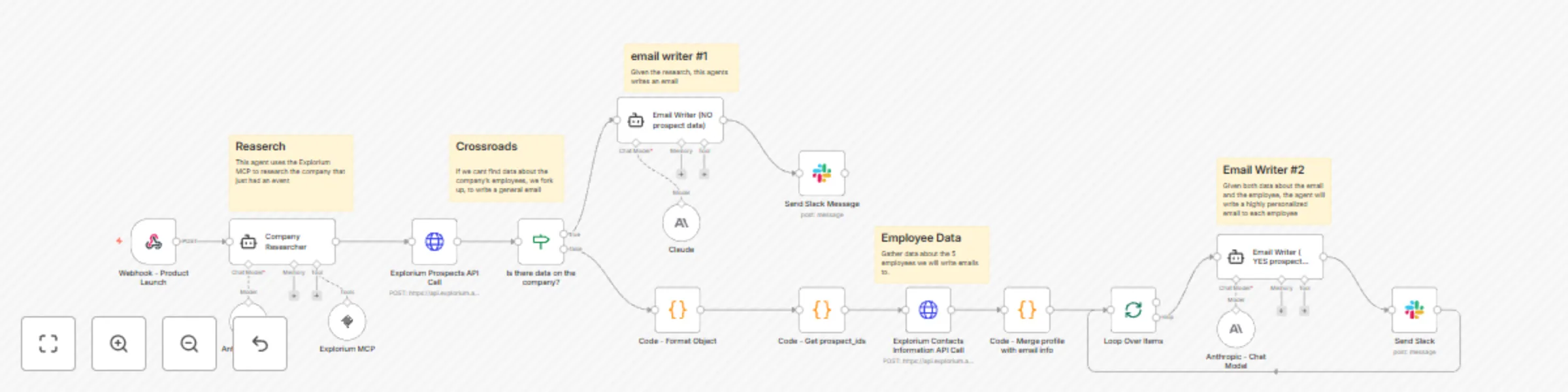
**Explorium Event-Triggered Outreach** This n8n and agent-based workflow automates outbound prospecting by monitoring Explorium event data (e.g. product launches, new office opening, new investment and [more](https://developers.explorium.ai/reference/ipo-announcement)), researching companies, identifying key contacts, and generating tailored sales emails leveraging the Explorium MCP server. ## Template  # Workflow Overview ## Node 1: Webhook Trigger **Purpose:** Listens for real-time product launch events pushed from Explorium's webhook system. **How it works:** * Explorium sends HTTP POST requests containing event data * The webhook payload includes company name, business ID, domain, product name, and event type * Pay attention: Product launch is just one example. You can easily enroll to many more meaningful events. to learn about events and how to enroll to events, visit the events [documentation](https://developers.explorium.ai/reference/webhooks). ## Node 2: Company Research Agent **Agent Type:** Tools Agent **Purpose:** Enrich company data after an event occurs. **How it works:** * Uses Explorium MCP via the MCP Client tool to gather additional company data * Uses Anthropic Claude (Chat Model) to process and interpret company information for downstream personalization ## Node 3: Employee Data Retrieval **Purpose:** Retrieve prospect-level data for targeting. **How it works:** * Uses HTTP Request node to call Explorium's `fetch_prospects` endpoint * Filters prospects by: * Company `business_id` * Departments: Product, R&D, etc... * Seniority levels: owner, cxo, vp, director, senior, manager, partner, etc... * Pay Attention: Follow our fetch prospect [documentation](documentation) for the full list of filter and best practice. * Limits results to top 5 relevant employees * Code nodes handle: * Filtering logic * Cleaning API response * Formatting data for downstream agents ## Node 4: Conditional Branch - Prospect Data Check **If Node:** Checks whether prospect data was successfully retrieved **Logic:** * If prospects found → personalized emails per person * If no prospects → fallback to company-level general email ## Node 5A: Email Writer #1 (No Prospect Data) **Agent Type:** Tools Agent **Purpose:** Write generic outbound email using only company-level research and event info. **Powered by:** Anthropic Chat Model ## Node 5B: Loop Over Prospects → Email Writer #2 (Personalized) **Agent Type:** Tools Agent **Purpose:** Write highly personalized email for each identified employee. **How it works:** * Loops through each individual prospect * Passes company research + employee data to LLM agent * Generates customized emails referencing: * Prospect's title & department * Product launch * Role-relevant Explorium value proposition ## Node 6: Slack Notifications **Purpose:** Posts completed emails to internal Slack channel for review or testing before final deployment. **Future State:** Can be swapped with an email sequencing platform in production. # Setup Requirements ## Explorium API Access * MCP Client credentials for company enrichment and prospect fetching * Registered webhook for event listening [Get explorium api key](https://developers.explorium.ai/reference/getting_your_api_key) ## n8n Configuration * Secure environment variables for API keys & webhook secret * Code nodes configured for JSON transformation, filtering & signature validation # Customization Options ## Personalization Logic * Update LLM prompt instructions to reflect ICP priorities * Modify email templates based on role, department, or tenure logic * Adjust fallback behavior when prospect data is unavailable ## API Request Tuning * Adjust `page_size` for number of prospects retrieved * Fine-tune seniority and department filters to match evolving targeting ## Future Expansion * Swap Slack notifications for outbound email automation * Integrate call task assignment directly into CRM * Introduce engagement scoring feedback loop (opens, clicks, replies) # Troubleshooting Tips * Validate webhook signature matching to prevent unauthorized requests * Ensure correct `business_id` is passed to prospect fetching endpoint * Confirm business enrichment returns sufficient data for company researcher agents * Review agent LLM responses for correct output structure and parsing consistency
Search business prospects with natural language using Claude AI and Explorium MCP
Explorium Prospects Search Chatbot # Template Download the following json file and import it to a new n8n workflow: [mcp\_to\_prospects\_to\_csv.json](https://drive.usercontent.google.com/u/0/uc?id=1_TO79jMUJxaDt5s2PAI2RYHOpB-7xPwD\&export=download)  <br /> # Overview This n8n workflow creates a chatbot that understands natural language requests for finding business prospects and automatically: * Interprets your query using AI (Claude Sonnet 3.7) * Converts it to proper Explorium API filters * Validates the API request structure * Fetches prospect data from Explorium * Exports results as a downloadable CSV file Perfect for sales teams, recruiters, and business development professionals who need to quickly find and export targeted prospect lists without learning complex API syntax. # Key Features * **Natural Language Interface**: Simply describe who you're looking for in plain English * **Smart Query Translation**: AI converts your request to valid API parameters * **Built-in Validation**: Ensures API calls meet Explorium's requirements * **Error Recovery**: Automatically retries with corrections if validation fails * **Pagination Support**: Handles large result sets automatically * **CSV Export**: Clean, formatted output ready for CRM import * **Conversation Memory**: Maintains context for follow-up queries # Example Queries The chatbot understands queries like: * "Find marketing directors at SaaS companies in New York with 50-200 employees" * "Get me CTOs from fintech startups in California" * "Show me sales managers at healthcare companies with revenue over $10M" * "Find engineers at Microsoft with 3-5 years experience" * "Get customer service leads from e-commerce companies in Europe" # Prerequisites Before setting up this workflow, ensure you have: 1. **n8n instance** with chat interface enabled 2. **Anthropic API key** for Claude 3. **Explorium API credentials** (Bearer token) - [Get explorium api key](https://developers.explorium.ai/reference/getting_your_api_key) 4. Basic understanding of n8n chat workflows # Supported Filters The chatbot can search using these criteria: ## Company Filters * **Size**: 1-10, 11-50, 51-200, 201-500, 501-1000, 1001-5000, 5001-10000, 10001+ employees * **Revenue**: Ranges from $0-500K up to $10T+ * **Age**: 0-3, 3-6, 6-10, 10-20, 20+ years * **Location**: Countries, regions, cities * **Industry**: Google categories, NAICS codes, LinkedIn categories * **Name**: Specific company names ## Prospect Filters * **Job Level**: CXO, VP, Director, Manager, Senior, Entry, etc. * **Department**: Sales, Marketing, Engineering, Finance, HR, etc. * **Experience**: Total months and current role duration * **Location**: Country and region codes * **Contact Info**: Filter by email/phone availability # Installation & Setup ## Step 1: Import the Workflow 1. Copy the workflow JSON from the template 2. In n8n: **Workflows** → **Add Workflow** → **Import from File** 3. Paste the JSON and click **Import** ## Step 2: Configure Anthropic Credentials 1. Click on the **Anthropic Chat Model1** node 2. Under Credentials, click **Create New** 3. Add your Anthropic API key 4. Name: "Anthropic API" 5. Save credentials ## Step 3: Configure Explorium Credentials You'll need to set up Explorium credentials in two places: #### For MCP Client: 1. Click on the **MCP Client** node 2. Under Credentials, create new **Header Auth** 3. Add your authentication header (usually `Authorization: Bearer YOUR_TOKEN`) 4. Save credentials #### For API Calls: 1. Click on the **Prospects API Call** node 2. Use the same Header Auth credentials created above 3. Verify the API endpoint is correct ## Step 4: Activate the Workflow 1. Save the workflow 2. Click the **Active** toggle to enable it 3. The chat interface will now be available ## Step 5: Access the Chat Interface 1. Click on the **When chat message received** node 2. Copy the webhook URL 3. Access this URL in your browser to start chatting # How It Works ## Workflow Architecture 1. **Chat Trigger**: Receives natural language queries from users 2. **Memory Buffer**: Maintains conversation context 3. **AI Agent**: Interprets queries and generates API parameters 4. **Validation**: Checks API structure against Explorium requirements 5. **API Call**: Fetches prospect data with pagination 6. **Data Processing**: Formats results for CSV export 7. **File Conversion**: Creates downloadable CSV file ## Processing Flow ``` User Query → AI Interpretation → Validation → API Call → CSV Export ↑ ↓ └──── Error Correction Loop ←──────┘ ``` ## Validation Rules The workflow validates: * Filter keys are allowed by Explorium API * Values match expected formats (e.g., valid country codes) * Range filters have proper gte/lte values * No duplicate values in arrays * Required structure is maintained # Usage Guide ## Basic Conversation Flow 1. **Start with your query**: ``` "Find me VPs of Sales at software companies in the US" ``` 2. **Bot processes and responds**: * Generates API filters * Validates the structure * Fetches data * Returns CSV download link 3. **Refine if needed**: ``` "Can you also include directors and filter for companies with 100+ employees?" ``` ## Query Tips * **Be specific**: Include job titles, departments, company details * **Use standard terms**: "CTO" instead of "Chief Technology Officer" * **Specify locations**: Use country names or standard codes * **Include size/revenue**: Helps narrow results effectively ## Advanced Queries Combine multiple criteria: ``` "Find engineering managers and senior engineers at B2B SaaS companies in New York and California with 50-500 employees and revenue over $5M who have been in their role for at least 1 year" ``` # Output Format The CSV file includes: * Prospect ID * Name (first, last, full) * Location (country, region, city) * LinkedIn profile * Experience summary * Skills and interests * Company details * Job information * Business ID # Troubleshooting ## Common Issues **"Validation failed" errors** * Check that your query uses supported filter values * Ensure location names are spelled correctly * Verify company sizes/revenues match allowed ranges **No results returned** * Broaden your search criteria * Check if the company exists in Explorium's database * Verify filter combinations aren't too restrictive **Chat not responding** * Ensure workflow is activated * Check all credentials are properly configured * Verify webhook URL is accessible **Large result sets timing out** * Try adding more specific filters * Limit results by location or company size * Use the size parameter (max 10,000) ## Error Messages The bot provides clear feedback: * **Invalid filters**: Shows which filters aren't supported * **Value errors**: Lists correct options for each field * **API failures**: Explains connection or authentication issues # Performance Optimization ## Best Practices 1. **Start broad, then narrow**: Begin with basic criteria and add filters 2. **Use business IDs**: When targeting specific companies 3. **Limit by contact info**: Add `has_email: true` for actionable leads 4. **Batch by location**: Process regions separately for large searches ## API Limits * Maximum 10,000 results per search * Pagination handles up to 100 records per page * Rate limits apply based on your Explorium subscription # Customization Options ## Modify AI Behavior Edit the **AI Agent** system message to: * Change response format * Add custom filters * Adjust interpretation logic * Include additional instructions ## Extend Functionality Add nodes to: * Send results via email * Import directly to CRM * Schedule recurring searches * Create custom reports ## Integration Ideas * Connect to Slack for team queries * Add to CRM workflows * Create lead scoring systems * Build automated outreach campaigns # Security Considerations * API credentials are stored securely in n8n * Chat sessions are isolated * No prospect data is stored permanently * CSV files are generated on-demand # Support Resources For issues with: * **n8n platform**: Check n8n documentation * **Explorium API**: Contact Explorium support * **Anthropic/Claude**: Refer to Anthropic docs * **Workflow logic**: Review node configurations
Automated AI lead enrichment: Hubspot to Explorium for enhanced prospect data
HubSpot Contact Enrichment with Explorium # Template Download the following json file and import it to a new n8n workflow: [hubspot\_flow.json](https://drive.usercontent.google.com/u/0/uc?id=1jbXjAIWEcyQoAAZQNQVLgoKw5jC-gF2h\&export=download)  # Overview This n8n workflow monitors your HubSpot instance for newly created contacts and automatically enriches them with additional contact information. When a contact is created, the workflow: 1. Detects the new contact via HubSpot webhook trigger 2. Retrieves recent contact details from HubSpot 3. Matches the contact against Explorium's database using name, company, and email 4. Enriches the contact with professional emails and phone numbers 5. Updates the HubSpot contact record with discovered information This automation ensures your sales and marketing teams have complete contact information, improving outreach success rates and data quality. # Key Features * **Real-time Webhook Trigger**: Instantly processes new contacts as they're created * **Intelligent Matching**: Uses multiple data points (name, company, email) for accurate matching * **Comprehensive Enrichment**: Adds both professional and work emails, plus phone numbers * **Batch Processing**: Efficiently handles multiple contacts to optimize API usage * **Smart Data Mapping**: Intelligently maps multiple emails and phone numbers * **Profile Enrichment**: Optional additional enrichment for deeper contact insights * **Error Resilience**: Continues processing other contacts if some fail to match # Prerequisites Before setting up this workflow, ensure you have: 1. **n8n instance** (self-hosted or cloud) 2. **HubSpot account** with: * Developer API access (for webhooks) * Private App or OAuth2 app created * Contact object permissions (read/write) 3. **Explorium API credentials** (Bearer token) - [Get explorium api key](https://developers.explorium.ai/reference/getting_your_api_key) 4. Understanding of HubSpot contact properties # HubSpot Requirements ## Required Contact Properties The workflow uses these HubSpot contact properties: * `firstname` - Contact's first name * `lastname` - Contact's last name * `company` - Associated company name * `email` - Primary email (read and updated) * `work_email` - Work email (updated by workflow) * `phone` - Phone number (updated by workflow) ## API Access Setup 1. **Create a Private App** in HubSpot: * Navigate to Settings → Integrations → Private Apps * Create new app with Contact read/write scopes * Copy the Access Token 2. **Set up Webhooks** (for Developer API): * Create app in HubSpot Developers portal * Configure webhook for contact.creation events * Note the App ID and Developer API Key ## Custom Properties (Optional) Consider creating custom properties for: * Multiple email addresses * Mobile vs. office phone numbers * Data enrichment timestamps * Match confidence scores # Installation & Setup ## Step 1: Import the Workflow 1. Copy the workflow JSON from the template 2. In n8n: Navigate to **Workflows** → **Add Workflow** → **Import from File** 3. Paste the JSON and click **Import** ## Step 2: Configure HubSpot Developer API (Webhook) 1. Click on the **HubSpot Trigger** node 2. Under Credentials, click **Create New** 3. Enter your HubSpot Developer credentials: * **App ID**: From your HubSpot app * **Developer API Key**: From your developer account * **Client Secret**: From your app settings 4. Save as "HubSpot Developer account" ## Step 3: Configure HubSpot App Token 1. Click on the **HubSpot Recently Created** node 2. Under Credentials, click **Create New** (App Token) 3. Enter your Private App access token 4. Save as "HubSpot App Token account" 5. Apply the same credentials to the **Update HubSpot** node ## Step 4: Configure Explorium API Credentials 1. Click on the **Explorium Match Prospects** node 2. Under Credentials, click **Create New** (HTTP Header Auth) 3. Configure the authentication: * **Name**: `Authorization` * **Value**: `Bearer YOUR_EXPLORIUM_API_TOKEN` 4. Save as "Header Auth Connection" 5. Apply to all Explorium nodes: * Explorium Enrich Contacts Information * Explorium Enrich Profiles ## Step 5: Configure Webhook Subscription 1. In HubSpot Developers portal: * Go to your app's webhook settings * Add subscription for `contact.creation` events * Set the target URL from the HubSpot Trigger node * Activate the subscription ## Step 6: Activate the Workflow 1. Save the workflow 2. Toggle the **Active** switch to ON 3. The webhook is now listening for new contacts ## Node Descriptions 1. **HubSpot Trigger**: Webhook that fires when new contacts are created 2. **HubSpot Recently Created**: Fetches details of recently created contacts 3. **Loop Over Items**: Processes contacts in batches of 6 4. **Explorium Match Prospects**: Finds matching person in Explorium database 5. **Filter**: Validates successful matches 6. **Extract Prospect IDs**: Collects matched prospect identifiers 7. **Enrich Contacts Information**: Fetches emails and phone numbers 8. **Enrich Profiles**: Gets additional profile data (optional) 9. **Merge**: Combines all enrichment results 10. **Split Out**: Separates individual enriched records 11. **Update HubSpot**: Updates contact with new information ## Data Mapping Logic The workflow maps Explorium data to HubSpot properties: | Explorium Data | HubSpot Property | Notes | | ------------------------------ | ------------------ | ----------------------------- | | `professions_email` | `email` | Primary professional email | | `emails[].address` | `work_email` | All email addresses joined | | `phone_numbers[].phone_number` | `phone` | All phones joined with commas | | `mobile_phone` | `phone` (fallback) | Used if no other phones found | ## Data Processing The workflow handles complex data scenarios: * **Multiple emails**: Joins all discovered emails with commas * **Phone numbers**: Combines all phone numbers into a single field * **Missing data**: Uses "null" as placeholder for empty fields * **Name parsing**: Cleans sample data and special characters # Usage & Operation ## Automatic Processing Once activated: 1. Every new contact triggers the webhook immediately 2. Contact is enriched within seconds 3. HubSpot record is updated automatically 4. Process repeats for each new contact ## Manual Testing To test the workflow: 1. Use the pinned test data in the HubSpot Trigger node, or 2. Create a test contact in HubSpot 3. Monitor the execution in n8n 4. Verify the contact was updated in HubSpot ## Monitoring Performance Track workflow health: 1. Go to **Executions** in n8n 2. Filter by this workflow 3. Monitor success rates 4. Review any failed executions 5. Check webhook delivery in HubSpot # Troubleshooting ## Common Issues **Webhook not triggering** * Verify webhook subscription is active in HubSpot * Check the webhook URL is correct and accessible * Ensure workflow is activated in n8n * Test webhook delivery in HubSpot developers portal **Contacts not matching** * Verify contact has firstname, lastname, and company * Check for typos or abbreviations in company names * Some individuals may not be in Explorium's database * Email matching improves accuracy significantly **Updates failing in HubSpot** * Check API token has contact write permissions * Verify property names exist in HubSpot * Ensure rate limits haven't been exceeded * Check for validation rules on properties **Missing enrichment data** * Not all prospects have all data types * Phone numbers may be less available than emails * Profile enrichment is optional and may not always return data ## Error Handling Built-in error resilience: * Failed matches don't block other contacts * Each batch processes independently * Partial enrichment is possible * All errors are logged for review ## Debugging Tips 1. **Check webhook logs**: HubSpot shows delivery attempts 2. **Review executions**: n8n logs show detailed error messages 3. **Test with pinned data**: Use the sample data for isolated testing 4. **Verify API responses**: Check Explorium API returns expected data # Best Practices ## Data Quality 1. **Complete contact records**: Ensure name and company are populated 2. **Standardize company names**: Use official names, not abbreviations 3. **Include existing emails**: Improves match accuracy 4. **Regular data hygiene**: Clean up test and invalid contacts ## Performance Optimization 1. **Batch size**: 6 is optimal for rate limits 2. **Webhook reliability**: Monitor delivery success 3. **API quotas**: Track usage in both platforms 4. **Execution history**: Regularly clean old executions ## Compliance & Privacy 1. **GDPR compliance**: Ensure lawful basis for enrichment 2. **Data minimization**: Only enrich necessary fields 3. **Access controls**: Limit who can modify enriched data 4. **Audit trail**: Document enrichment for compliance # Customization Options ## Additional Enrichment Extend with more Explorium data: * Job titles and departments * Social media profiles * Professional experience * Skills and interests * Company information ## Enhanced Processing Add workflow logic for: * Lead scoring based on enrichment * Routing based on data quality * Notifications for high-value matches * Custom field mapping ## Integration Extensions Connect to other systems: * Sync enriched data to CRM * Trigger marketing automation * Update data warehouse * Send notifications to Slack # API Considerations ## HubSpot Limits * **API calls**: Monitor daily limits * **Webhook payload**: Max 200 contacts per trigger * **Rate limits**: 100 requests per 10 seconds * **Property limits**: Max 1000 custom properties ## Explorium Limits * **Match API**: Batched for efficiency * **Enrichment calls**: Two parallel enrichments * **Rate limits**: Based on your plan * **Data freshness**: Real-time matching # Architecture Considerations This workflow integrates with: * HubSpot workflows and automation * Marketing campaigns and sequences * Sales engagement tools * Reporting and analytics * Other enrichment services # Security Best Practices * **Webhook validation**: Verify requests are from HubSpot * **Token security**: Rotate API tokens regularly * **Access control**: Limit workflow modifications * **Data encryption**: All API calls use HTTPS * **Audit logging**: Track all enrichments # Advanced Configuration ## Custom Field Mapping Modify the Update HubSpot node to map to custom properties: ```javascript // Example custom mapping { "custom_mobile": "{{ $json.data.mobile_phone }}", "custom_linkedin": "{{ $json.data.linkedin_url }}", "enrichment_date": "{{ $now.toISO() }}" } ``` ## Conditional Processing Add logic to process only certain contacts: * Filter by contact source * Check for specific properties * Validate email domains * Exclude test contacts # Support Resources For assistance: * **n8n issues**: Check n8n documentation and forums * **HubSpot API**: Reference HubSpot developers documentation * **Explorium API**: Contact Explorium support * **Webhook issues**: Use HubSpot webhook testing tools
Automated AI lead enrichment: Salesforce to Explorium for enhanced prospect data
Salesforce Lead Enrichment with Explorium # Template Download the following json file and import it to a new n8n workflow: [salesforce\_workflow.json](https://raw.githubusercontent.com/explorium-ai/integrations-templates/main/n8n/automated-ai-lead-enrichment-salesforce-to-explorium-for-enhanced-prospect-data.json)  # Overview This n8n workflow monitors your Salesforce instance for new leads and automatically enriches them with missing contact information. When a lead is created, the workflow: 1. Detects the new lead via Salesforce trigger 2. Matches the lead against Explorium's database using name and company 3. Enriches the lead with professional email addresses and phone numbers 4. Updates the Salesforce lead record with the discovered contact information This automation ensures your sales team always has the most up-to-date contact information for new leads, improving reach rates and accelerating the sales process. # Key Features * **Real-time Processing**: Triggers automatically when new leads are created in Salesforce * **Intelligent Matching**: Uses lead name and company to find the correct person in Explorium's database * **Contact Enrichment**: Adds professional emails, mobile phones, and office phone numbers * **Batch Processing**: Efficiently handles multiple leads to optimize API usage * **Error Handling**: Continues processing other leads even if some fail to match * **Selective Updates**: Only updates leads that successfully match in Explorium # Prerequisites Before setting up this workflow, ensure you have: 1. **n8n instance** (self-hosted or cloud) 2. **Salesforce account** with: * OAuth2 API access enabled * Lead object permissions (read/write) * API usage limits available 3. **Explorium API credentials** (Bearer token) - [Get explorium api key](https://developers.explorium.ai/reference/getting_your_api_key) 4. Basic understanding of Salesforce lead management # Salesforce Requirements ## Required Lead Fields The workflow expects these standard Salesforce lead fields: * `FirstName` - Lead's first name * `LastName` - Lead's last name * `Company` - Company name * `Email` - Will be populated/updated by the workflow * `Phone` - Will be populated/updated by the workflow * `MobilePhone` - Will be populated/updated by the workflow ## API Permissions Your Salesforce integration user needs: * Read access to Lead object * Write access to Lead object fields (Email, Phone, MobilePhone) * API enabled on the user profile * Sufficient API calls remaining in your org limits # Installation & Setup ## Step 1: Import the Workflow 1. Copy the workflow JSON from the template 2. In n8n: Navigate to **Workflows** → **Add Workflow** → **Import from File** 3. Paste the JSON and click **Import** ## Step 2: Configure Salesforce OAuth2 Credentials 1. Click on the **Salesforce Trigger** node 2. Under Credentials, click **Create New** 3. Follow the OAuth2 flow: * **Client ID**: From your Salesforce Connected App * **Client Secret**: From your Salesforce Connected App * **Callback URL**: Copy from n8n and add to your Connected App 4. Authorize the connection 5. Save the credentials as "Salesforce account connection" **Note**: Use the same credentials for all Salesforce nodes in the workflow. ## Step 3: Configure Explorium API Credentials 1. Click on the **Match\_prospect** node 2. Under Credentials, click **Create New** (HTTP Header Auth) 3. Configure the header: * **Name**: `Authorization` * **Value**: `Bearer YOUR_EXPLORIUM_API_TOKEN` 4. Save as "Header Auth account" 5. Apply the same credentials to the **Explorium Enrich Contacts Information** node ## Step 4: Verify Node Settings 1. **Salesforce Trigger**: * Trigger On: `Lead Created` * Poll Time: Every minute (adjust based on your needs) 2. **Salesforce Get Leads**: * Operation: `Get All` * Condition: `CreatedDate = TODAY` (fetches today's leads) * Limit: 20 (adjust based on volume) 3. **Loop Over Items**: * Batch Size: 6 (optimal for API rate limits) ## Step 5: Activate the Workflow 1. Save the workflow 2. Toggle the **Active** switch to ON 3. The workflow will now monitor for new leads every minute ## Detailed Node Descriptions 1. **Salesforce Trigger**: Polls Salesforce every minute for new leads 2. **Get Today's Leads**: Retrieves all leads created today to ensure none are missed 3. **Loop Over Items**: Processes leads in batches of 6 for efficiency 4. **Match Prospect**: Searches Explorium for matching person using name + company 5. **Filter**: Checks if a valid match was found 6. **Extract Prospect IDs**: Collects all matched prospect IDs 7. **Enrich Contacts**: Fetches detailed contact information from Explorium 8. **Merge**: Combines original lead data with enrichment results 9. **Split Out**: Separates individual enriched records 10. **Update Lead**: Updates Salesforce with new contact information ## Data Mapping The workflow maps Explorium data to Salesforce fields as follows: | Explorium Field | Salesforce Field | Fallback Logic | | ------------------- | ---------------- | --------------------------------- | | `emails[0].address` | Email | Falls back to `professions_email` | | `mobile_phone` | MobilePhone | Falls back to `phone_numbers[1]` | | `phone_numbers[0]` | Phone | Falls back to `mobile_phone` | # Usage & Monitoring ## Automatic Operation Once activated, the workflow runs automatically: 1. Checks for new leads every minute 2. Processes any leads created since the last check 3. Updates leads with discovered contact information 4. Continues running until deactivated ## Manual Testing To test the workflow manually: 1. Create a test lead in Salesforce 2. Click "Execute Workflow" in n8n 3. Monitor the execution to see each step 4. Verify the lead was updated in Salesforce ## Monitoring Executions Track workflow performance: 1. Go to **Executions** in n8n 2. Filter by this workflow 3. Review successful and failed executions 4. Check logs for any errors or issues # Troubleshooting ## Common Issues **No leads are being processed** * Verify the workflow is activated * Check Salesforce API limits haven't been exceeded * Ensure new leads have FirstName, LastName, and Company populated * Confirm OAuth connection is still valid **Leads not matching in Explorium** * Verify company names are accurate (not abbreviations) * Check that first and last names are properly formatted * Some individuals may not be in Explorium's database * Try testing with known companies/contacts **Contact information not updating** * Check Salesforce field-level security * Verify the integration user has edit permissions * Ensure Email, Phone, and MobilePhone fields are writeable * Check for validation rules blocking updates **Authentication errors** * Salesforce: Re-authorize OAuth connection * Explorium: Verify Bearer token is valid and not expired * Check API quotas haven't been exceeded ## Error Handling The workflow includes built-in error handling: * Failed matches don't stop other leads from processing * Each batch is processed independently * Failed executions are logged for review * Partial successes are possible (some leads updated, others skipped) # Best Practices ## Data Quality 1. **Ensure complete lead data**: FirstName, LastName, and Company should be populated 2. **Use full company names**: "Microsoft Corporation" matches better than "MSFT" 3. **Standardize data entry**: Consistent formatting improves match rates ## Performance Optimization 1. **Adjust batch size**: Lower if hitting API limits, higher for efficiency 2. **Modify polling frequency**: Every minute for high volume, less frequent for lower volume 3. **Set appropriate limits**: Balance between processing speed and API usage ## Compliance & Privacy 1. **Data permissions**: Ensure you have rights to enrich lead data 2. **GDPR compliance**: Consider privacy regulations in your region 3. **Data retention**: Follow your organization's data policies 4. **Audit trail**: Monitor who has access to enriched data # Customization Options ## Extend the Enrichment Add more Explorium enrichment by: 1. Adding firmographic data (company size, revenue) 2. Including technographic information 3. Appending social media profiles 4. Adding job title and department verification ## Modify Trigger Conditions Change when enrichment occurs: * Trigger on lead updates (not just creation) * Add specific lead source filters * Process only leads from certain campaigns * Include lead score thresholds ## Add Notifications Enhance with alerts: * Email sales reps when leads are enriched * Send Slack notifications for high-value matches * Create tasks for leads that couldn't be enriched * Log enrichment metrics to dashboards # API Considerations ## Salesforce Limits * API calls: Each execution uses \~4 Salesforce API calls * Polling frequency: Consider your daily API limit * Batch processing: Reduces API usage vs. individual processing ## Explorium Limits * Match API: One call per batch of leads * Enrichment API: One call per batch of matched prospects * Rate limits: Respect your plan's requests per minute # Integration Architecture This workflow can be part of a larger lead management system: 1. **Lead Capture** → **This Workflow** → **Lead Scoring** → **Assignment** 2. Can trigger additional workflows based on enrichment results 3. Compatible with existing Salesforce automation (Process Builder, Flows) 4. Works alongside other enrichment tools # Security Considerations * **Credentials**: Stored securely in n8n's credential system * **Data transmission**: Uses HTTPS for all API calls * **Access control**: Limit who can modify the workflow * **Audit logging**: All executions are logged with details # Support Resources For assistance with: * **n8n issues**: Consult n8n documentation or community forum * **Salesforce integration**: Reference Salesforce API documentation * **Explorium API**: Contact Explorium support for API questions * **Workflow logic**: Review execution logs for debugging
Automate HubSpot to Salesforce lead creation with Explorium AI enrichment
# Automatically enrich prospect data from HubSpot using Explorium and create leads in Salesforce This n8n workflow streamlines the process of enriching prospect information by automatically pulling data from HubSpot, processing it through Explorium's AI-powered tools, and creating new leads in Salesforce with enhanced prospect details. ## Credentials Required To use this workflow, set up the following credentials in your n8n environment: ### HubSpot - **Type**: App Token (or OAuth2 for broader compatibility) - **Used for**: triggering on new contacts, fetching contact data ### Explorium API - **Type**: Generic Header Auth - **Header**: Authorization - **Value**: Bearer YOUR_API_KEY [Get explorium api key](https://developers.explorium.ai/reference/getting_your_api_key) ### Salesforce - **Type**: OAuth2 or Username/Password - **Used for**: creating new lead records Go to Settings → Credentials, create these three credentials, and assign them in the respective nodes before running the workflow. ## Workflow Overview ### Node 1: HubSpot Trigger This node listens for real-time events from the connected HubSpot account. Once triggered, the node passes metadata about the event to the next step in the flow. ### Node 2: HubSpot This node fetches contact details from HubSpot after the trigger event. - **Credential**: Connected using a HubSpot App Token - **Resource**: Contact - **Operation**: Get Contact - **Return All**: Disabled This node retrieves the full contact details needed for further processing and enrichment. ### Node 3: Match prospect This node sends each contact's data to Explorium's AI-powered prospect matching API in real time. - **Method**: POST - **Endpoint**: https://api.explorium.ai/v1/prospects/match - **Authentication**: Generic Header Auth (using a configured credential) - **Headers**: Content-Type: application/json The request body is dynamically built from contact data, typically including: full_name, company_name, email, phone_number, linkedin. These fields are matched against Explorium's intelligence graph to return enriched or validated profiles. **Response Output**: total_matches, matched_prospects, and a prospect_id. Each response is used downstream to enrich, validate, or create lead information. ### Node 4: Filter This node filters the output from the Match prospect step to ensure that only valid, matched results continue in the flow. Only records that contain at least one matched prospect with a non-null prospect_id are passed forward. **Status**: Currently deactivated (as shown by the "Deactivate" label) ### Node 5: Extract Prospect IDs from Matched Results This node extracts all valid prospect_id values from previously matched prospects and compiles them into a flat array. It loops over all matched items, extracts each prospect_id from the matched_prospects array and returns a single object with an array of all prospect_ids. ### Node 6: Explorium Enrich Contacts Information This node performs bulk enrichment of contacts by querying Explorium with a list of matched prospect_ids. **Node Configuration:** - **Method**: POST - **Endpoint**: https://api.explorium.ai/v1/prospects/contacts_information/bulk_enrich - **Authentication**: Header Auth (using saved credentials) - **Headers**: "Content-Type": "application/json", "Accept": "application/json" Returns enriched contact information, such as: - **emails**: professional/personal email addresses - **phone_numbers**: mobile and work numbers - **professions_email**, **professional_email_status**, **mobile_phone** ### Node 7: Explorium Enrich Profiles This additional enrichment node provides supplementary contact data enhancement, running in parallel with the primary enrichment process. ### Node 8: Merge This node combines multiple data streams from the parallel enrichment processes into a single output, allowing you to consolidate data from different Explorium enrichment endpoints. The "combine" setting indicates it will merge the incoming data streams rather than overwriting them. ### Node 9: Code - flatten This custom code node processes and transforms the merged enrichment data before creating the Salesforce lead. It can be used to: - Flatten nested data structures - Format data according to Salesforce field requirements - Apply business logic or data validation - Map Explorium fields to Salesforce lead properties - Handle data type conversions ### Node 10: Salesforce This final node creates new leads in Salesforce using the enriched data returned by Explorium. - **Credential**: Salesforce OAuth2 or Username/Password - **Resource**: Lead - **Operation**: Create Lead The node creates new lead records with enriched information including contact details, company information, and professional data obtained through the Explorium enrichment process. ## Workflow Flow Summary 1. **Trigger**: HubSpot webhook triggers on new/updated contacts 2. **Fetch**: Retrieve contact details from HubSpot 3. **Match**: Find prospect matches using Explorium 4. **Filter**: Keep only successfully matched prospects (currently deactivated) 5. **Extract**: Compile prospect IDs for bulk enrichment 6. **Enrich**: Parallel enrichment of contact information through multiple Explorium endpoints 7. **Merge**: Combine enrichment results 8. **Transform**: Flatten and prepare data for Salesforce (Code node) 9. **Create**: Create new lead records in Salesforce This workflow ensures comprehensive data enrichment while maintaining data quality and providing a seamless integration between HubSpot prospect data and Salesforce lead creation. The parallel enrichment structure maximizes data collection efficiency before creating high-quality leads in your CRM system.
Enrich company firmographic data in Google Sheets with Explorium MCP
Google Sheets Company Enrichment with Explorium MCP # Template Download the following json file and import it to a new n8n workflow: [google\_sheets\_enrichment.json](https://drive.usercontent.google.com/u/0/uc?id=1SxlqU2hVn41e0XTjPx12Ryrx_yil3TUq\&export=download)  # Overview This n8n workflow template enables automatic enrichment of company information in your Google Sheets. When you add a new company or update existing company details (name or website), the workflow automatically fetches additional business intelligence data using Explorium MCP and updates your sheet with: * Business ID * NAICS industry code * Number of employees (range) * Annual revenue (range) # Key Features * **Automatic Triggering**: Monitors your Google Sheet for new rows or updates to company name/website fields * **Smart Processing**: Only processes new or modified rows, not the entire sheet * **Data Validation**: Ensures both company name and website are present before processing * **Error Handling**: Processes each row individually to prevent one failure from affecting others * **Powered by AI**: Uses Claude Sonnet 4 with Explorium MCP for intelligent data enrichment # Prerequisites Before setting up this workflow, ensure you have: 1. **n8n instance** (self-hosted or cloud) 2. **Google account** with access to Google Sheets 3. **Anthropic API key** for Claude 4. ***Explorium MCP API key*** <br /> # Installation & Setup ## Step 1: Import the Workflow 1. Create a new workflow. 2. Download the workflow JSON from above. 3. In your n8n instance, go to **Workflows** → **Add Workflow** → **Import from File** 4. Select the JSON file and click **Import** ## Step 2: Create Google Sheet 1. Create a new google sheet (or make a copy of this [template](https://docs.google.com/spreadsheets/d/14PypuKFWkMftiCtPrekpbav63tEGmgGgUP3cDwv7wXE/edit?usp=sharing)) 2. Your Google Sheet must have the following columns (exact names): * `name` - Company name * `website` - Company website URL * `business_id` - Will be populated by the workflow * `naics` - Will be populated by the workflow * `number_of_employees_range` - Will be populated by the workflow * `yearly_revenue_range` - Will be populated by the workflow <br /> ## Step 3: Configure Google Sheets Credentials You'll need to set up two Google credentials: #### Google Sheets Trigger Credentials: 1. Click on the **Google Sheets Trigger** node 2. Under Credentials, click **Create New** 3. If working on n8n Cloud, Click the 'Sign in with Google' button  4. Grant permissions to read and monitor your Google Sheets 5. If working on n8n Instance, Follow the OAuth2 authentication process [here](https://docs.n8n.io/integrations/builtin/credentials/google/oauth-generic/#finish-your-n8n-credential) 6. Fill the Client ID and Client Secret fields  #### Google Sheets Update Credentials: 1. Click on the **Update Company Row** node 2. Under Credentials, select the same credentials or create new ones (The same you did above) 3. Ensure permissions include write access to your sheets ## Step 4: Configure Anthropic Credentials 1. Click on the **Anthropic Chat Model** node 2. Under Credentials, click **Create New** 3. Enter your Anthropic API key  4. Save the credentials ## Step 5: Configure Explorium MCP Credentials 1. Click on the **MCP Client** node 2. Under Credentials, click **Create New** (Header Auth) 3. Fill the Name field with `api_key` 4. Fill the Value field with your Explorium API Key  4. Save the credentials ## Step 6: Link Your Google Sheet 1. In the **Google Sheets Trigger** node: * Select your Google Sheet from the dropdown * Select the worksheet (usually "Sheet1")  2. In the **Update Company Row** node: * Select the same Google Sheet and worksheet * Ensure the matching column is set to `row_number`  ## Step 7: Activate the Workflow 1. Click the **Active** toggle in the top right to activate the workflow 2. The workflow will now monitor your sheet every minute for changes # How It Works ## Workflow Process Flow 1. **Google Sheets Trigger**: Polls your sheet every minute for new rows or changes to name/website fields 2. **Filter Valid Rows**: Validates that both company name and website are present 3. **Loop Over Items**: Processes each company individually 4. **AI Agent**: Uses Explorium MCP to: * Find the company's business ID * Retrieve firmographic data (revenue, employees, NAICS code) 5. **Format Output**: Structures the data for Google Sheets 6. **Update Company Row**: Writes the enriched data back to the original row ## Trigger Behavior * **First Activation**: May process all existing rows to establish a baseline * **Ongoing Operation**: Only processes new rows or rows where name/website fields change * **Polling Frequency**: Checks for changes every minute # Usage ## Adding New Companies 1. Add a new row to your Google Sheet 2. Fill in the `name` and `website` columns 3. Within 1 minute, the workflow will automatically: * Detect the new row * Enrich the company data * Update the remaining columns ## Updating Existing Companies 1. Modify the `name` or `website` field of an existing row 2. The workflow will re-process that row with the updated information 3. All enrichment data will be refreshed ## Monitoring Executions 1. In n8n, go to **Executions** to see workflow runs 2. Each execution shows: * Which rows were processed * Success/failure status * Detailed logs for troubleshooting # Troubleshooting ## Common Issues **All rows are processed instead of just new/updated ones** * Ensure the workflow is **activated**, not just run manually * Manual test runs will process all rows * First activation may process all rows once **No data is returned for a company** * Verify the company name and website are correct * Check if the company exists in Explorium's database * Some smaller or newer companies may not have data available **Workflow isn't triggering** * Confirm the workflow is activated (Active toggle is ON) * Check that changes are made to the `name` or `website` columns * Verify Google Sheets credentials have proper permissions **Authentication errors** * Re-authenticate Google Sheets credentials * Verify Anthropic API key is valid and has credits * Check Explorium Bearer token is correct and active ## Error Handling The workflow processes each row individually, so if one company fails to enrich: * Other rows will still be processed * The failed row will retain its original data * Check the execution logs for specific error details # Best Practices 1. **Data Quality**: Ensure company names and websites are accurate for best results 2. **Website Format**: Include full URLs ([https://example.com](https://example.com)) rather than just domain names 3. **Batch Processing**: The workflow handles multiple updates efficiently, so you can add several companies at once 4. **Regular Monitoring**: Periodically check execution logs to ensure smooth operation # API Limits & Considerations * **Google Sheets API**: Subject to Google's API quotas * **Anthropic API**: Each enrichment uses Claude Sonnet 4 tokens * **Explorium MCP**: Rate limits may apply based on your subscription # Support For issues specific to: * **n8n platform**: Consult n8n documentation or community * **Google Sheets integration**: Check n8n's Google Sheets node documentation * **Explorium MCP**: Contact Explorium support for API-related issues * **Anthropic/Claude**: Refer to Anthropic's documentation for API issues # Example Use Cases 1. **Sales Prospecting**: Automatically enrich lead lists with company size and revenue data 2. **Market Research**: Build comprehensive databases of companies in specific industries 3. **Competitive Analysis**: Track and monitor competitor information 4. **Investment Research**: Gather firmographic data for potential investment targets